The 10-minute tour
Walk through Cortex Hub, Studio and Control in ten minutes, following one person at one company, and see how the parts fit together.
This tour shows Cortex from the three places you can stand in it: the Hub where everyone works, Studio where builders make things, and Control where IT runs the platform. It follows Sam de Vries at Brightwater Foods, a fictional food producer, through one ordinary morning. Read it from top to bottom once, and you will know where everything is and which page to open when you need more.
Who can do this
Part 1 (the Hub) is for everyone who can sign in. Part 2 (Studio) is for builders, people with a Studio seat. Part 3 (Control) is for IT administrators. You only see the parts your role allows, so skip the parts you do not have: the other parts still explain what your colleagues do.
Ask, open dashboards, handle tasks, follow your numbers.
Describe what you need and review what Cortex builds.
Decide who may do what, connect systems, run the platform.
Part 1: the Hub (minutes 1 to 4)
Minute 1: sign in and land on Home
Sam opens the address of Cortex, chooses Sign in with Microsoft and uses the work account that Sam also uses for e-mail. There is no separate Cortex password. Sam lands on Home. See Signing in and your first minutes.
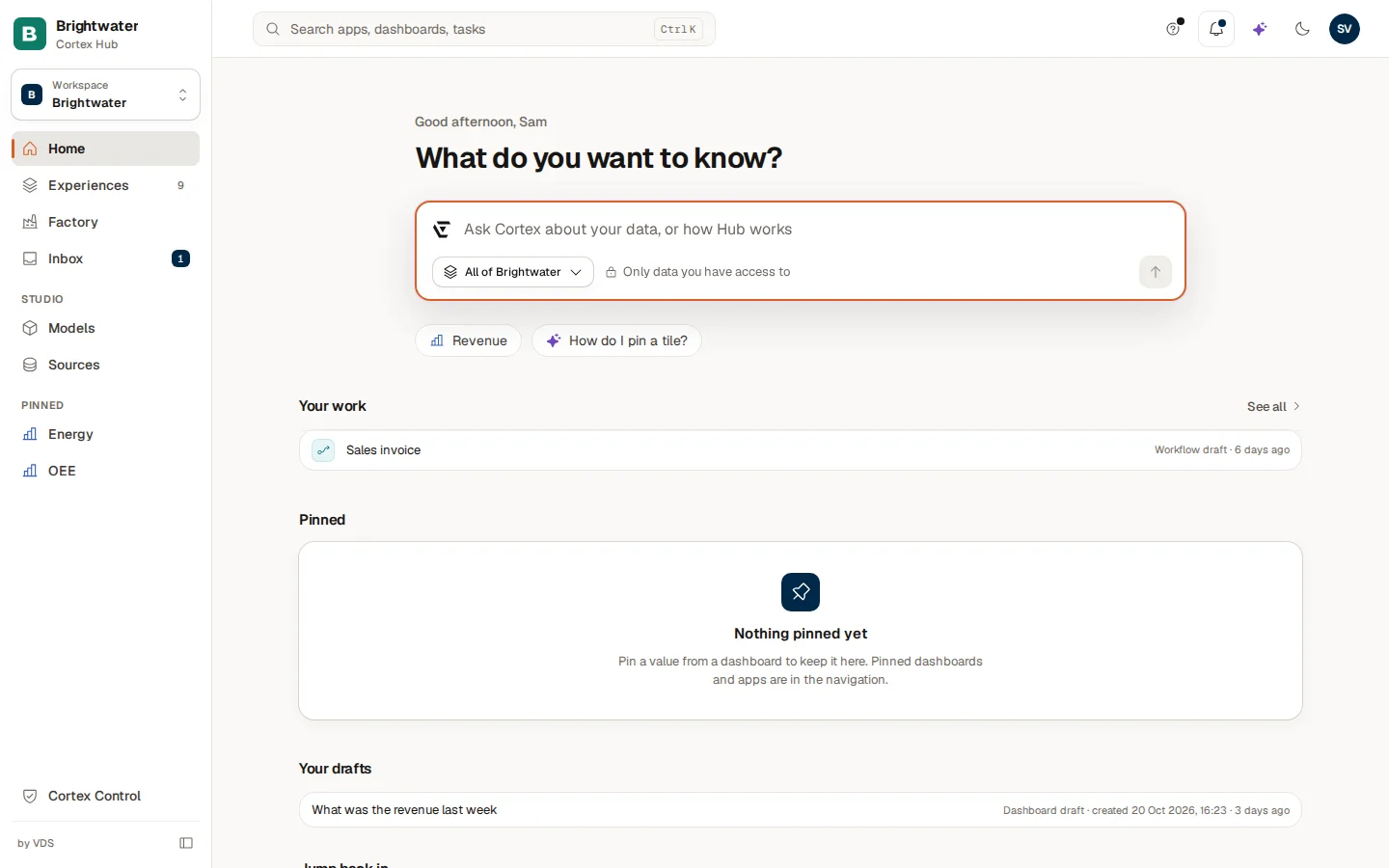
On the left is the menu: Home, Experiences, Inbox and, below, whatever Sam pinned. The two extra groups you see here, Studio with Company model and Mirrored data, and Cortex Control at the bottom, only show for people with the right role. In the middle is the question box. See Home and Find your way around.
Minute 2: ask a question
Sam types "What was the revenue this year?" and presses Enter. Cortex answers with one sentence, a figure card, the period it covers and where the number came from. Nobody writes a query: the AI understands the question, and the number is computed from the agreed definition of revenue.
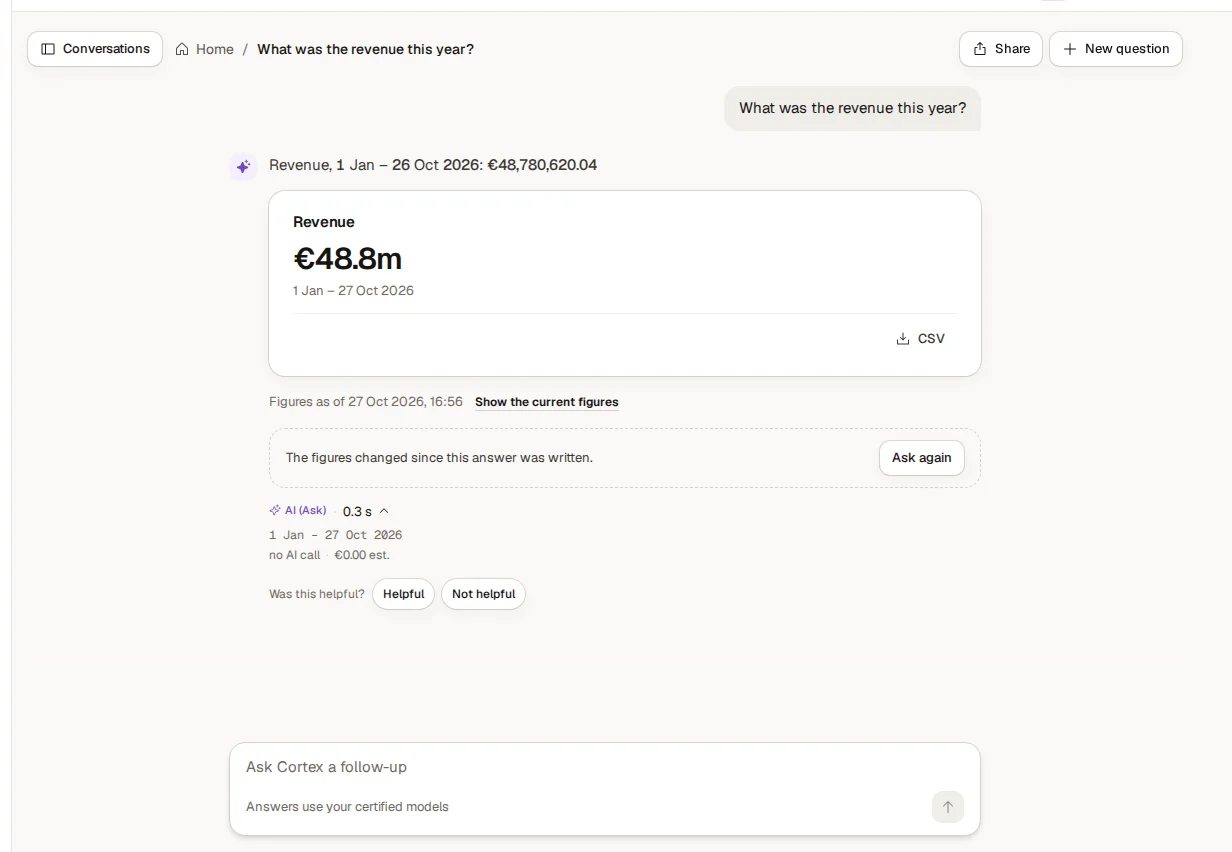
The details line under the answer says "no AI call": this answer only ran the stored figure request again, so no AI model was needed. Sam can ask a follow-up in the box at the bottom ("and per month?"). See Ask Cortex and, for the idea behind it, Ask and AI.
Minute 3: open what is shared with you
Sam chooses Experiences. It is the list of everything Sam may open: dashboards, apps and workflows, each on a card.
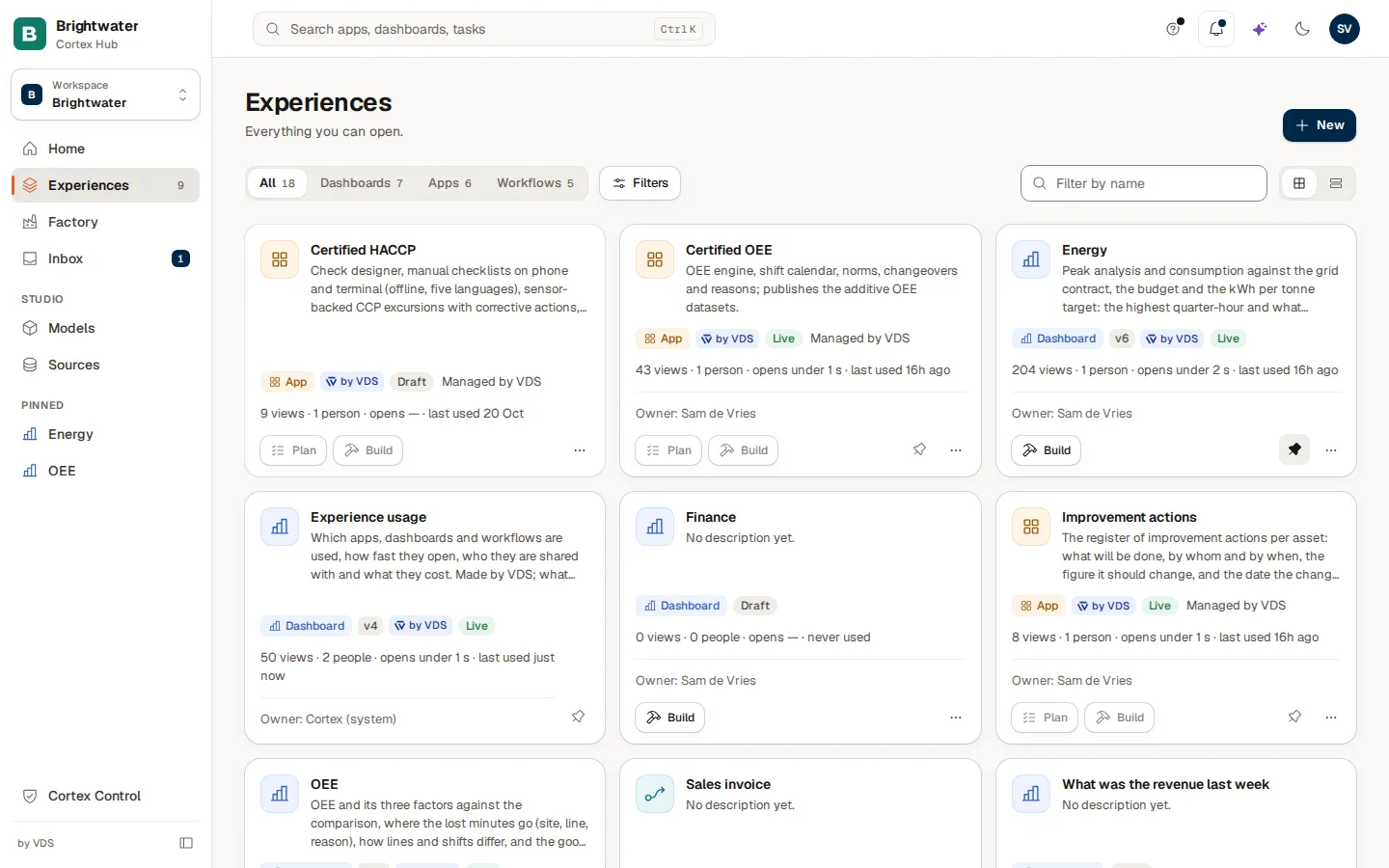
The card in front is the short first-visit tour that builders get ("1 of 5"). Choose Skip tour to close it, or Next to walk through it. A new account can start with an empty list: that is normal, and it means nothing has been shared with you yet. Use the filter by name and the type filter to narrow the list, and the pin icon on a card to keep a favourite under Pinned in the menu. See Experiences and Use a dashboard.
Minute 4: tasks, subscriptions and requests
Two more places you will use every week:
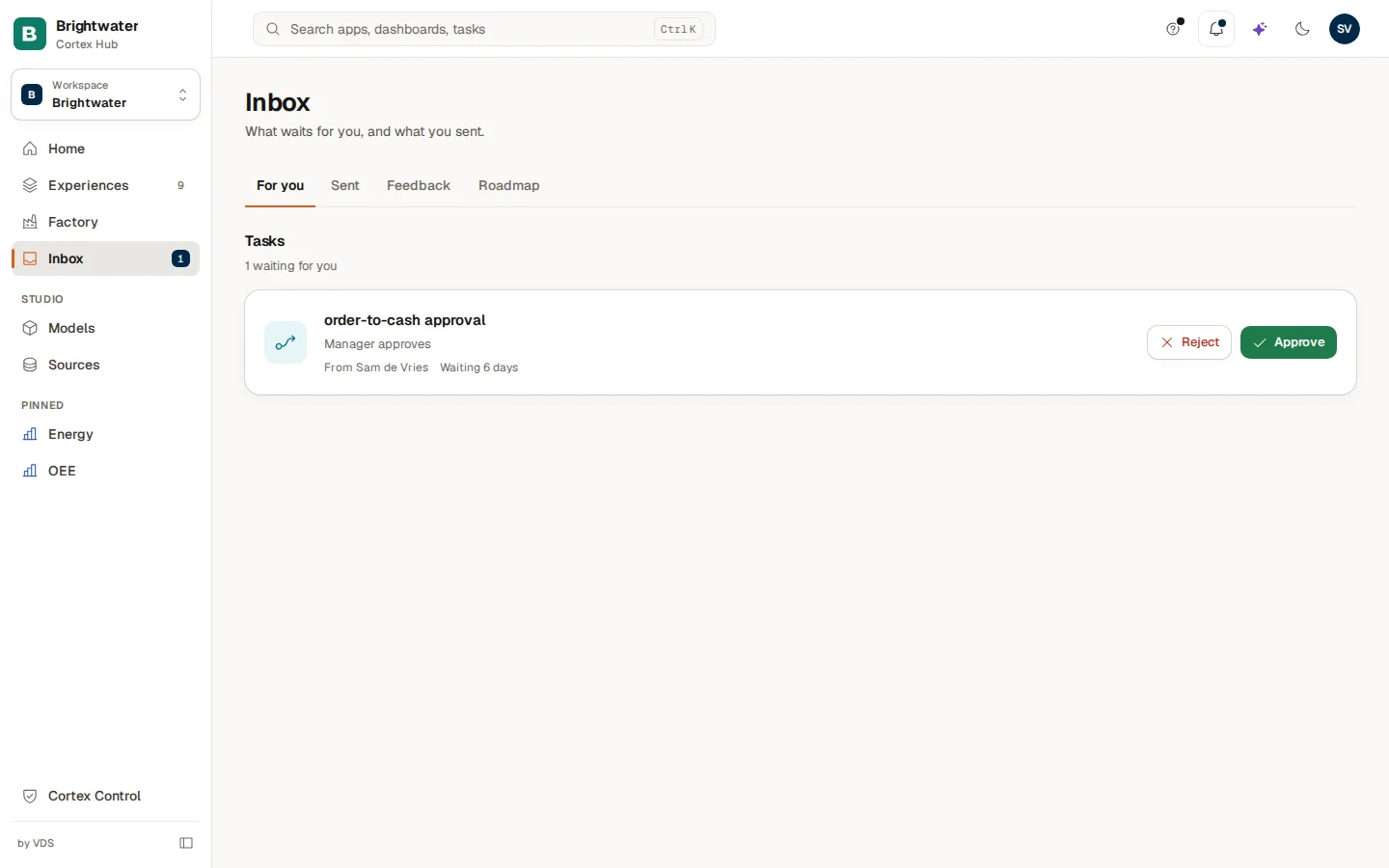
The Inbox holds what waits for you. Sam sees one task from a workflow: an order-to-cash approval, waiting for six days, with Reject and Approve on the card. The tabs are For you and Sent (what Sam asked for, such as access requests). Builders, like Sam, also see Feedback and Roadmap. See The Inbox and Workflow runs.
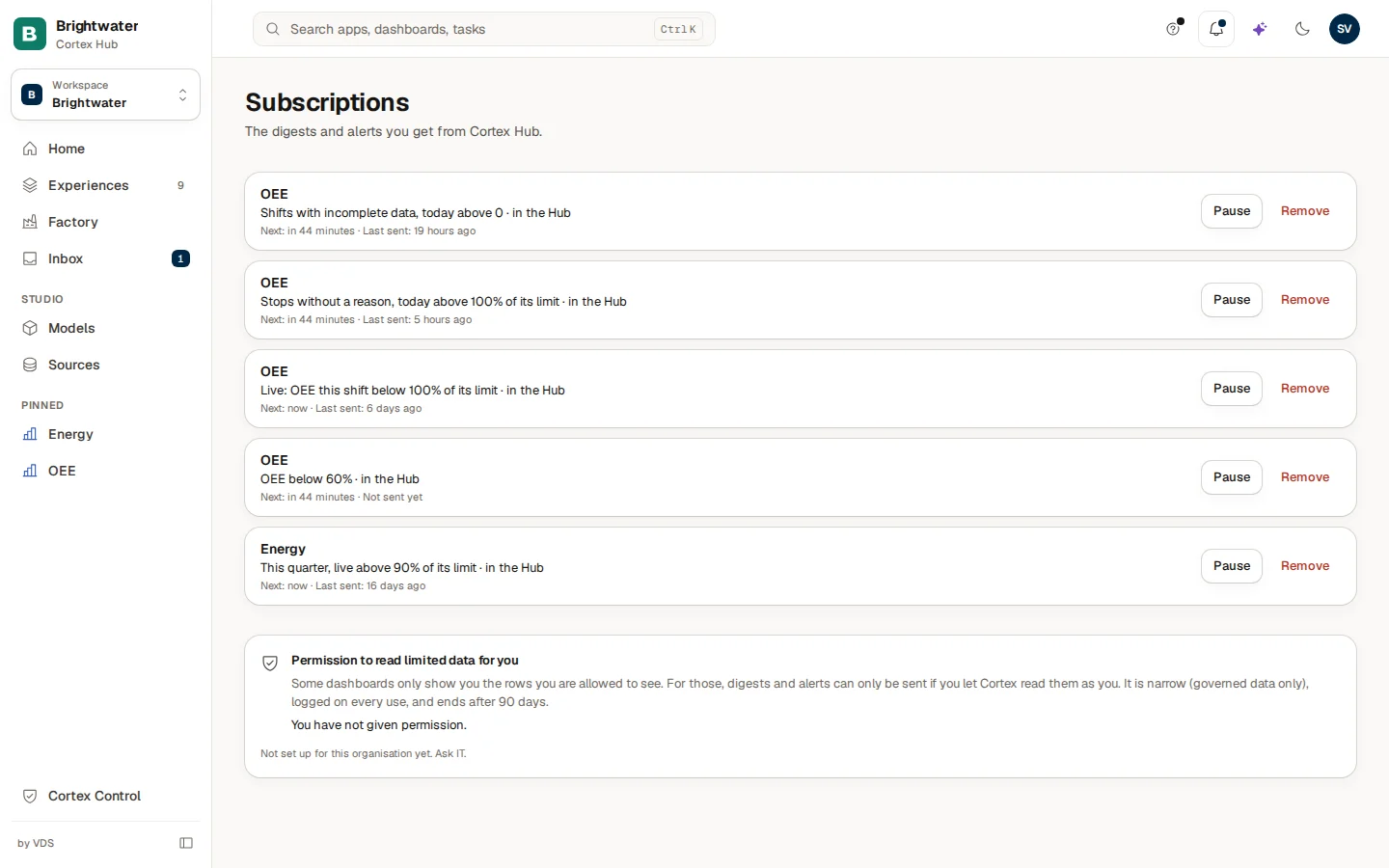
Subscriptions is the list of digests and alerts that Cortex sends Sam. Each one can be paused or removed. At the bottom a block explains the permission that some digests need when a dashboard only shows part of the data. See Subscriptions and Pin a value, pin a dashboard, subscribe.
Part 2: Studio (minutes 5 to 7)
Studio is not a separate program. For people with a Studio seat it adds a group to the left menu of the Hub, a few buttons at the top and a few tabs in the Inbox. Sam has a Studio seat, so Sam sees Company model and Mirrored data under Studio. See Start something and follow your requests.
Minute 5: describe what you want
A builder does not start with a blank screen. The sparkle button at the top (or Ctrl+J) opens Ask, and as a builder Sam also gets Build something. Sam writes one sentence, for example "A dashboard for sales", and Cortex works out whether it is a dashboard, an app or a workflow.
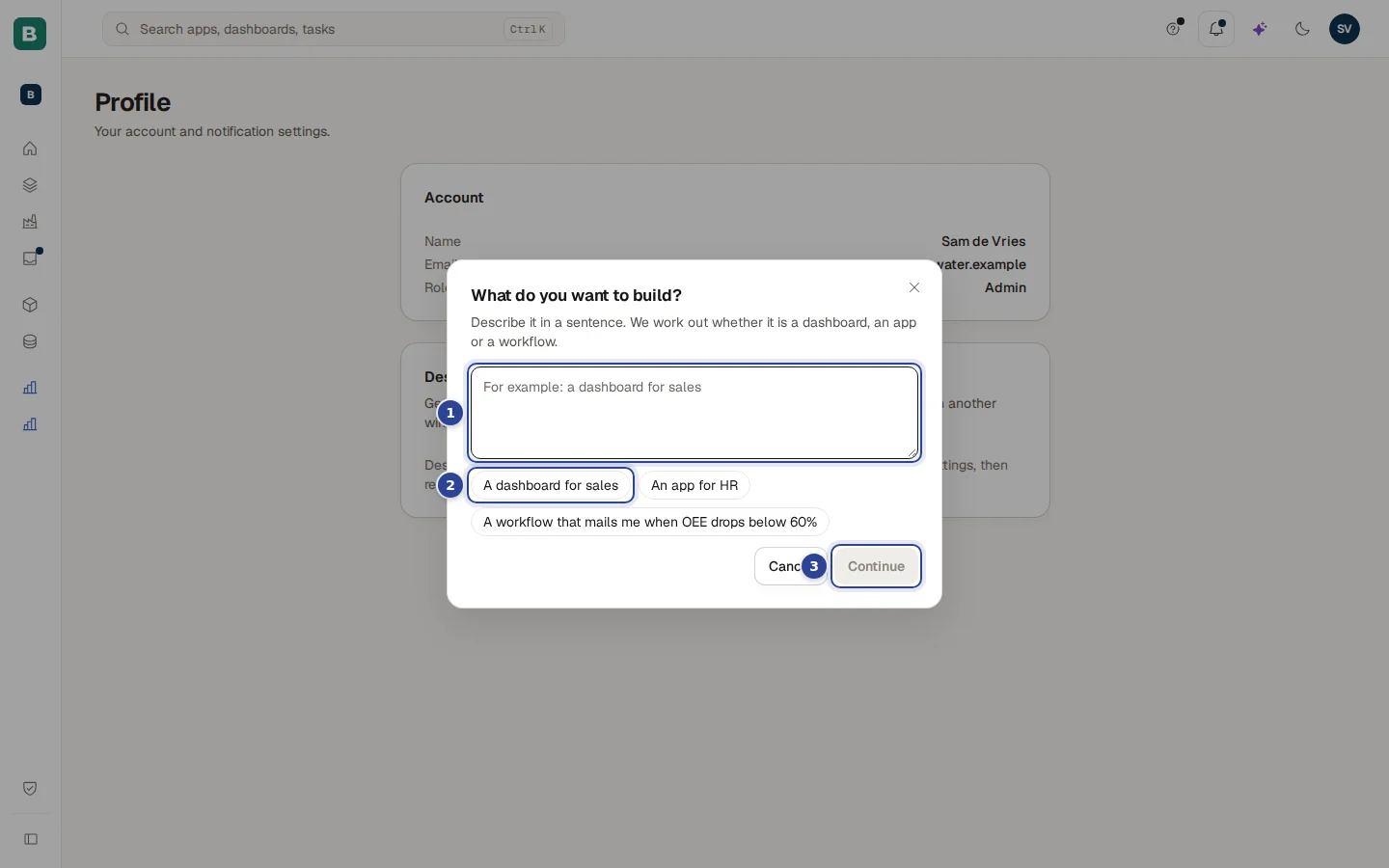
- The sentence. Describe it the way you would to a colleague.
- Examples. Click one to fill the field.
- Continue. Cortex shows what it understood, and you can change the kind before you start.
What follows is a chat with an assistant that builds a first version with you. You review it, try it in a private preview, and only then publish. Nothing is live for others before you do. See Dashboards, Build an app and Workflows.
Minute 5, continued: no app yet? Request one
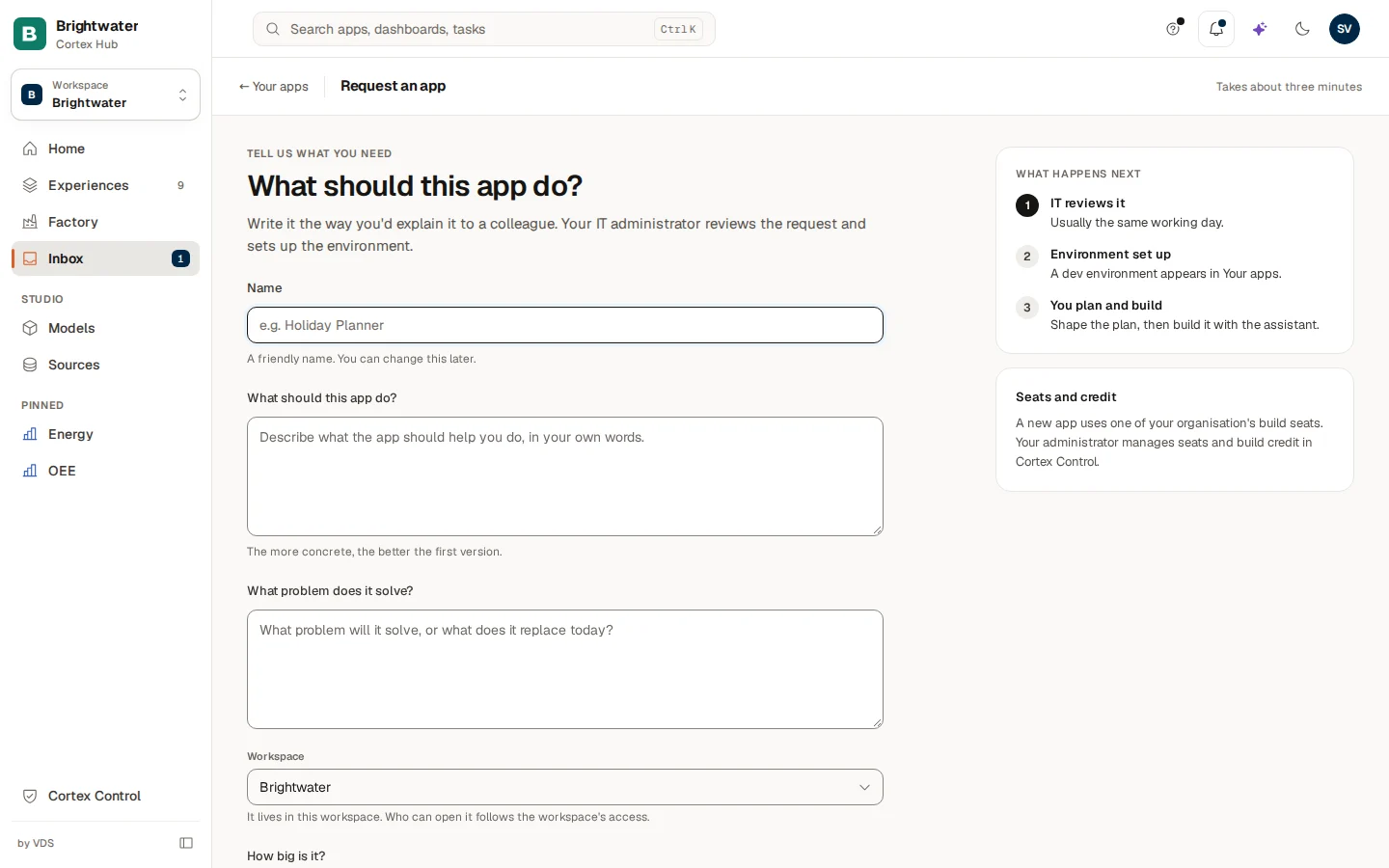
Only builders see this page. When Sam needs an app that does not exist yet, Request an app asks a few things in plain words: a name, what the app should do, what problem it solves and the workspace it lives in. IT reviews the request, sets up the environment, and then the builder plans and builds it with the assistant. The page shows the three steps next to the form. See Feedback and the roadmap.
Minute 6: the models behind the numbers
Under Studio, Company model lists the semantic models: the agreed definitions of Brightwater's data. A model is where "revenue" is defined once, so a dashboard, an app and Ask all give the same number. Opening a model shows its tables, its figures, who may see what, its documents, its nightly checks and the button to publish it. This is also where an owner certifies a figure after comparing it with the source. See Semantic models, Figures and certification and Model checks.
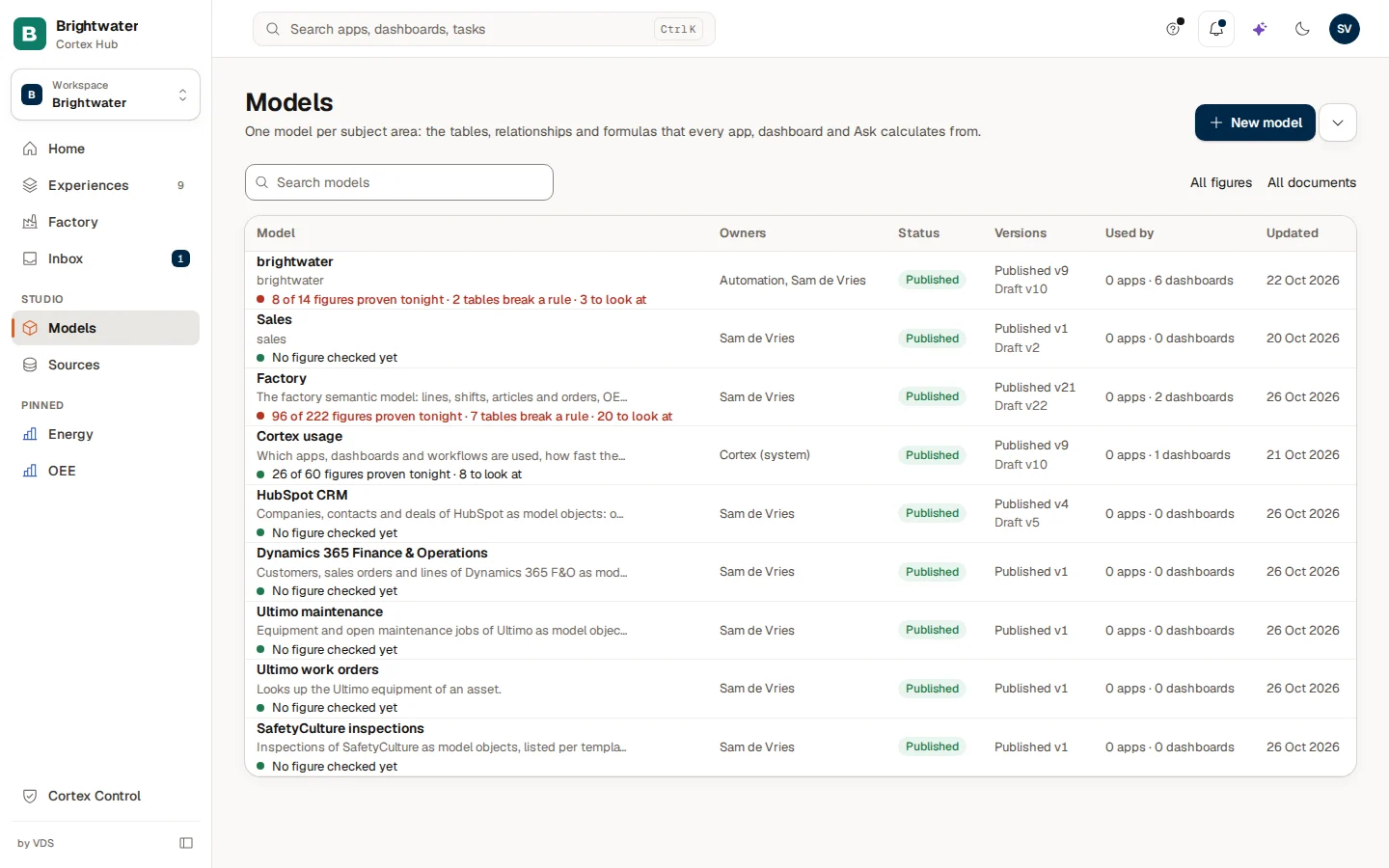
This is the company model in Studio, at the path /company-model of the Hub. It has one bar with the tabs Overview, Figures, Checks, Model, Explore, Security and Documents, a Health chip and the Publish button. Picking a section in the Sections panel filters the page to that section (the address gets ?in=<section>); the small x next to the filter shows all sections again. Semantic models shows the tabs one by one.
Minute 7: the sources behind the models
Mirrored data (/mirrored-data) shows the systems that IT has connected, and how fresh the mirror of each is. When Sam is missing a system, Sam uses Request a connector on this page, and IT installs it so that its data is mirrored. Manuals and procedures that Ask may quote are added under Documents. See Documents and sources.
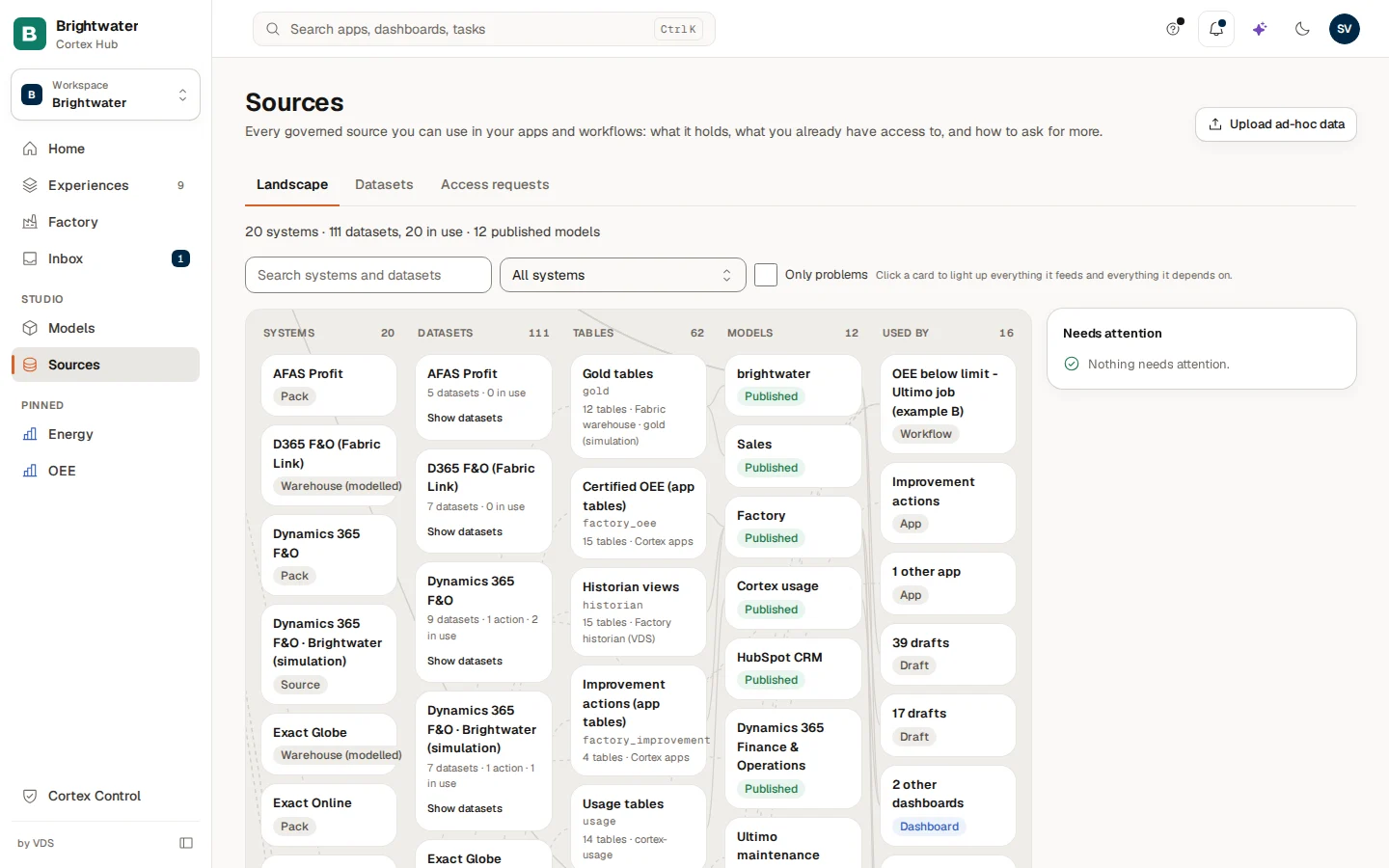
Documents and sources explains this page step by step.
Part 3: Control (minutes 8 to 10)
Cortex Control is for IT administrators. Sam is also an admin, so the product switcher at the bottom of the left menu offers Cortex Control. People without the Admin role do not see it. The menu of Control has Overview, Experiences and Approvals, and under Governance the pages Data, Automation, Builders and Audit log, then Settings. See Overview, attention list and health.
Minute 8: decide what waits for you
Approvals is everything that waits on a person: requests from builders and apps (a new app, access to a dataset, putting a workflow live), tasks assigned to you, and dashboards that need a second pair of eyes before they are shared widely. Each card says who asked, what for and what the automatic checks found, and has Decline and Approve. See Approvals.
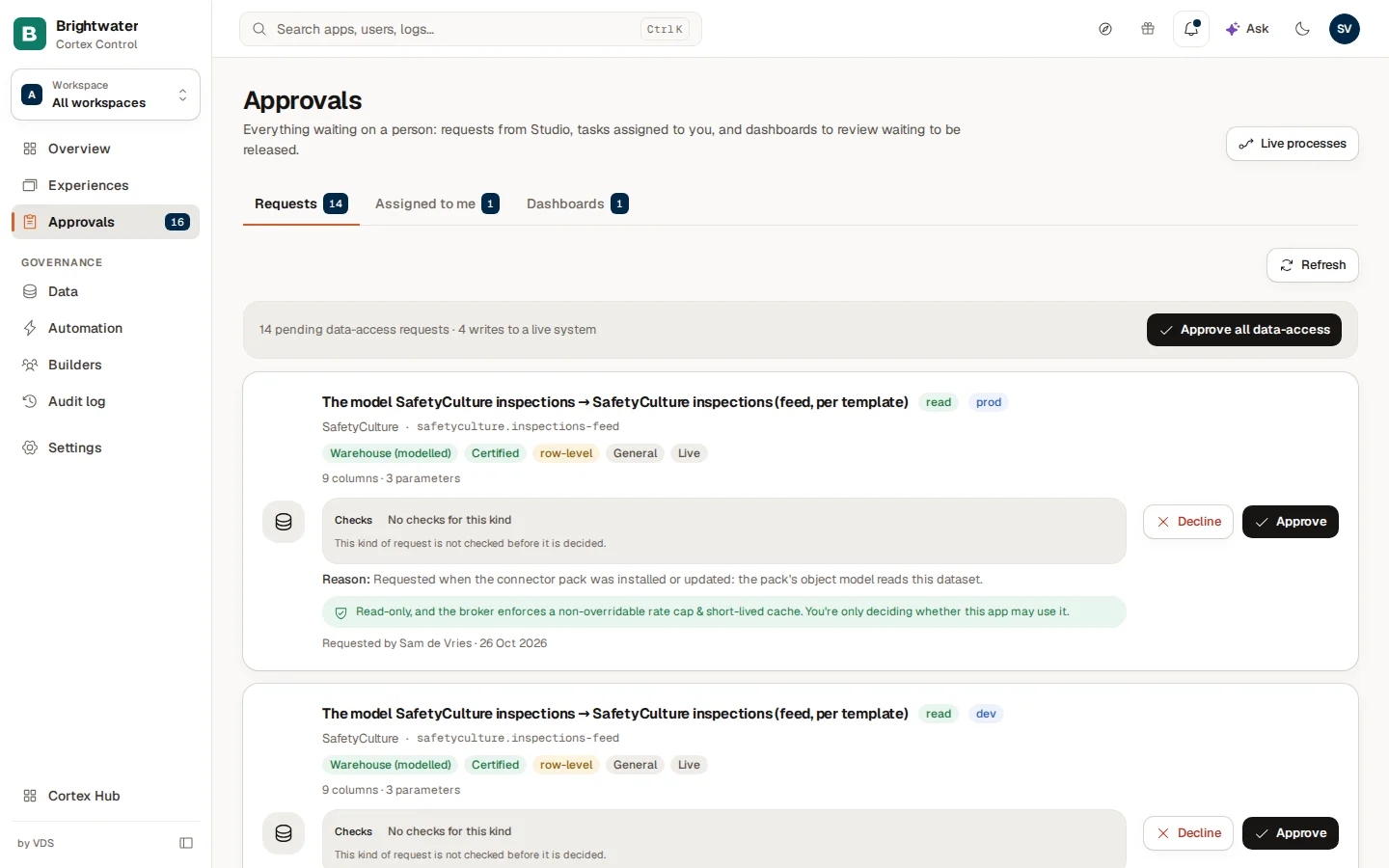
Minute 9: settings
Settings is the launcher for everything IT configures, in four groups: People & access (Control users, Studio users, Builder permissions, Workspaces, Report access), AI (AI engine, Document search, Quality & privacy), Rules & cost (Policy, Channels, Cost & limits) and Organisation (Branding, Company profile, Source control and more). Which builders may create what themselves, how much AI may cost this month and which AI model answers are all decided here. See People and Studio users, Builder permissions and policy and AI engine and models.
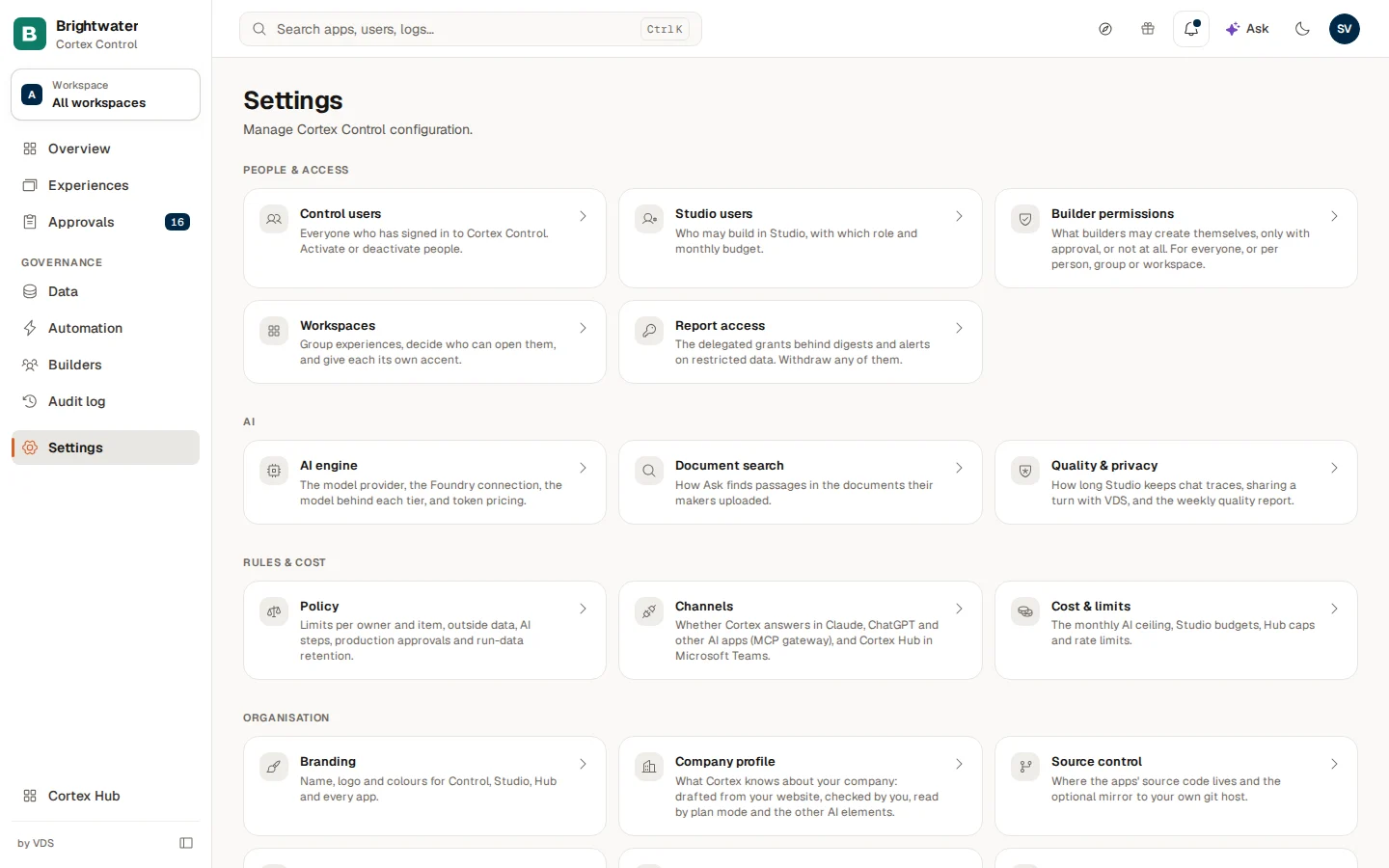
Minute 10: connect data and look back
Data (under Governance) is where IT connects a system once, so that builders never handle a password. A connector pack can do most of the work for a common system. Audit log keeps who did what and when. Overview starts with what needs attention. See Data sources, Connector packs and Audit log.
How the three parts fit together
Brightwater's revenue travels through all three places. IT connects the ERP in Control. A builder defines and certifies the figure Revenue in a model in Studio. Everyone reads the same number in the Hub: in Ask, on a dashboard tile, in a digest.
Connected once by IT in Control, under Data.
Studio: the figure Revenue is defined and certified.
Ask, a dashboard tile and a weekly digest show the same number.
Where to go next
| You are | Read next |
|---|---|
| Someone who uses Cortex | Find your way around, then Ask Cortex |
| A builder | Start something and follow your requests |
| An administrator | Overview, attention list and health |
| Curious how it works | How Cortex works |
What is Cortex?
Cortex is your organisation's platform for trustworthy data, dashboards, apps and workflows. What it is, who uses which part and what makes it different.
Signing in and your first minutes
How to sign in with your work account, what you see first, how to change language and appearance, and what to do when something is missing.