Workflow runs
Follow one run of a workflow step by step, read its state, see where it waits or stopped, and approve or reject a step that waits for you.
Every time a workflow starts, it makes a run: one go through the steps, with its own start time, its own state and its own result. The run page shows what happened, which step it is on now, and who it waits for. When the run waits for your decision, you can give it right there.
The page deliberately shows facts about the run, not the data it works on. You see that "Manager approves" is waiting, not the contents of the order. Whoever has to decide sees the details of the task in the Inbox and in the approval panel described below.
Who can do this
Everyone who can open the workflow can open its runs. Only the person a run waits for sees the Your approval panel and can approve or reject.
Find a run
Open the workflow (see Apps and workflows) and look under Latest runs. Every run is one row. Choose the state in front of the row ("Done", "Waiting for Sam de Vries") to open the run. You can also reach a waiting run from your Inbox task or from a notification.
Read a run
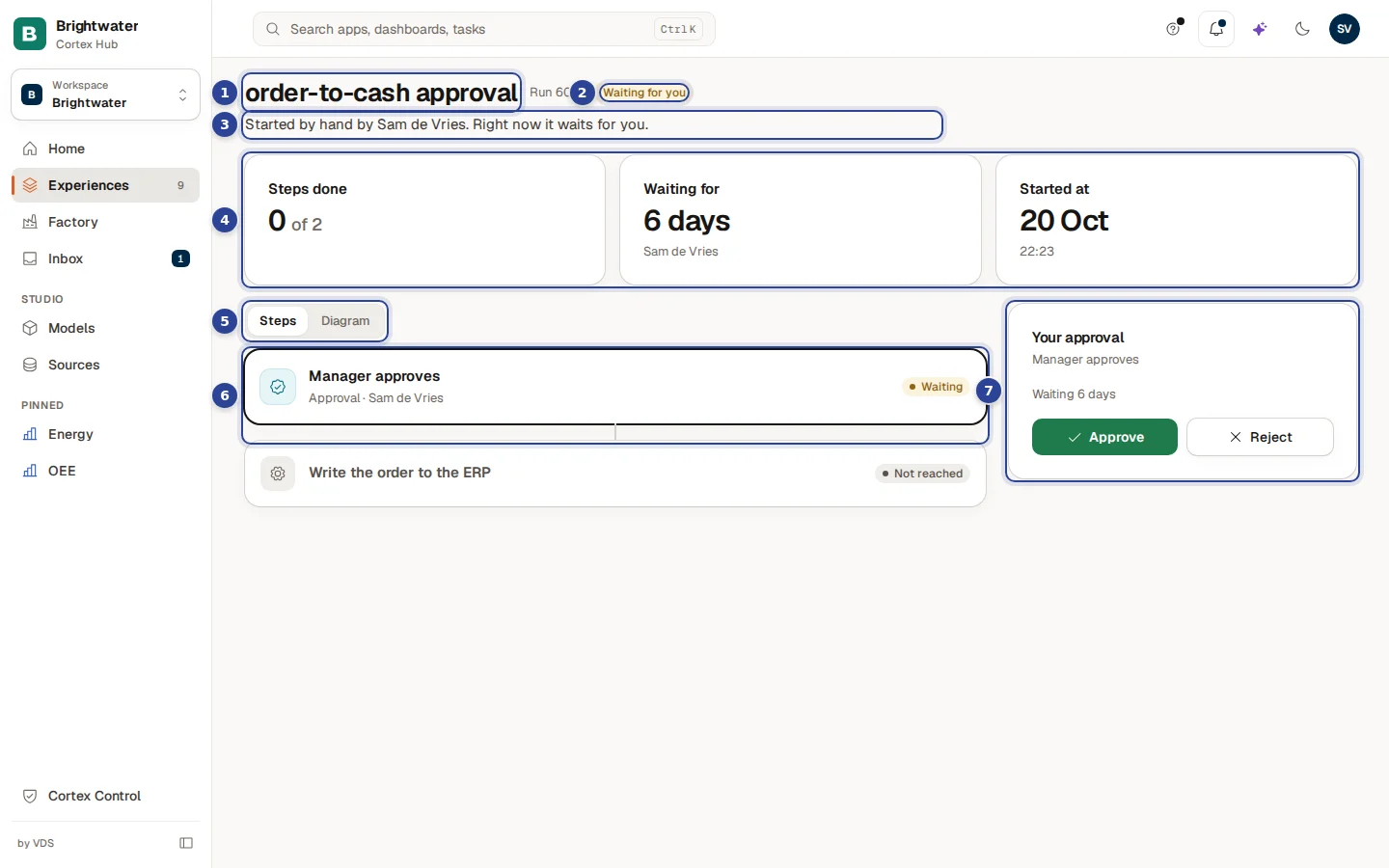
- The workflow's name and the run number. The name is a link: choose it to go back to the workflow. The run number ("Run 60") stands next to it.
- The state. A coloured pill. For the person a run waits for it says Waiting for you; for everyone else Waiting for ... with a name, or one of the other states in the table below.
- One sentence about the run. How it started ("Started by hand by Sam de Vries", "Started by its schedule", or "Started by its trigger" with the trigger in words) and where it stands now ("Right now it waits for you.").
- Three figures. Steps done ("0 of 2"), Waiting for (how long, and who) and Started at (the day and the time). Waiting for shows only while the run waits and you are the person it waits for.
- Steps or Diagram. Switches how the run is shown. Steps is a list of cards and is the default; Diagram draws the whole workflow. The switch appears only when your installation can draw the diagram.
- A step card. The name of the step, its kind in one word under it (for example "Approval"), and the result on the right. The step the run is on is outlined.
- Your approval. The panel for the person the run waits for. See Approve or reject.
The states of a run
| State | What it means |
|---|---|
| Running | The run is busy with its steps. It needs nothing from you. |
| Waiting for a person (or Waiting for ... with a name) | A step waits for someone to decide. The name tells you who. |
| Done | The run finished. |
| Failed | A step could not do its work. The run stopped there. |
| Cancelled | The run was stopped before it finished. |
The result of one step
Every step card ends with one of these labels:
| Label | What it means |
|---|---|
| Done | The step did its work. |
| Waiting | The run is on this step and waits for a person. |
| Failed | The run stopped on this step. |
| Not reached | The run did not get to this step (yet). |
In the diagram a step the run left out can also say Skipped: the run took another path. The start and the end of the workflow are not shown as step cards: they are the frame around the run, not something a person did.
The diagram
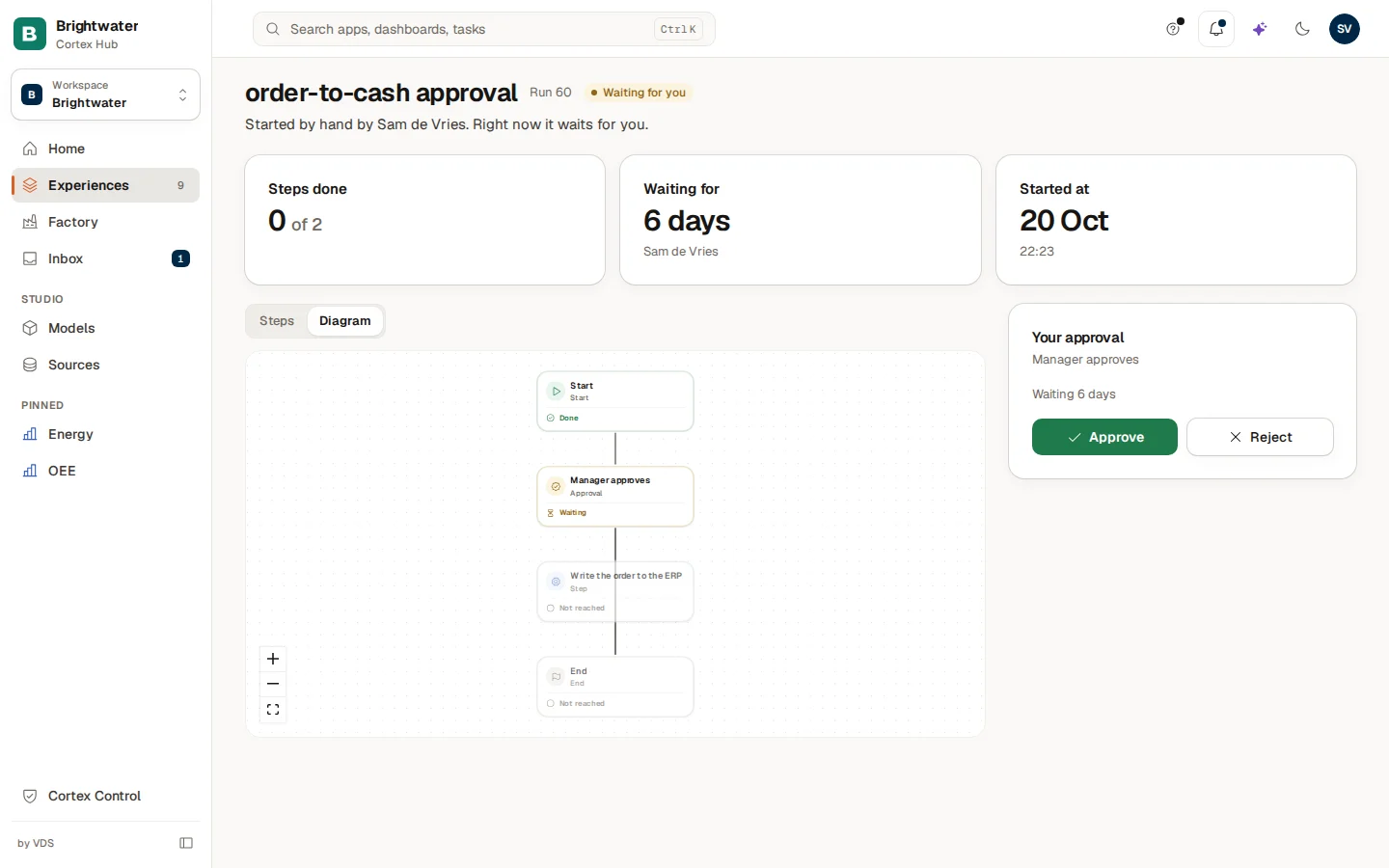
Choose Diagram to see the whole workflow as boxes with lines between them, with the result under each box. The step the run is on is easy to find, and so are the paths the run did not take. Use the buttons at the bottom left to zoom in, zoom out or fit the diagram to the window. When you open a run for the first time, the diagram plays back: a marker travels down the steps and each step ticks off one after the other. A run you reopen shows the end result at once.
A finished run
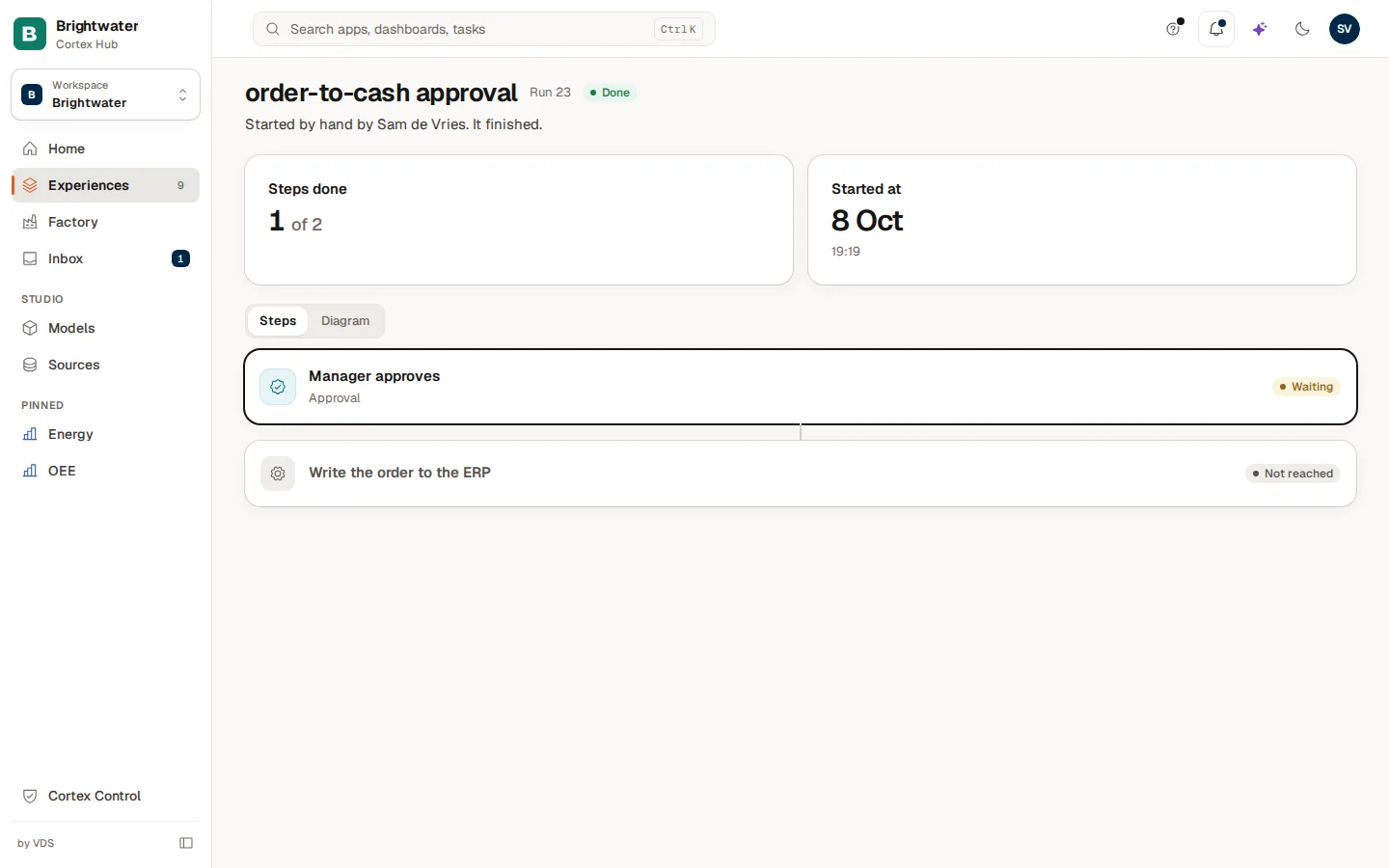
A finished run shows two figures instead of three: there is nobody to wait for. The sentence under the title says "It finished." and there is no Your approval panel.
A run that failed
A failed run shows a red box above the figures. It says in one sentence where the run stopped and why, for example: "It stopped at "Write the order to the ERP": a value it needs was missing." Under it, if your organisation knows who owns the workflow, it says "Tell ... , who owns this workflow." The step that failed shows the reason on its own card too.
| Reason | What it means |
|---|---|
| A value it needs was missing | A field the step needs was empty. |
| The workflow is not allowed to do that yet | The workflow has no permission yet for what the step wants to do. |
| The other system did not answer in time | A connected system was too slow or not reachable. |
| Something went wrong in that step | Any other problem. |
Cortex does not show the technical error: the one sentence is meant to tell you whom to call. You cannot restart a run from this page.
Approve or reject a step
When a step waits for your decision, the run page shows Your approval next to the steps. The same task is also in your Inbox (see The Inbox): both give the same decision.
Read the task
The panel shows the step's name, the question, a few details the workflow chose to show, and how long it has waited. When several people must approve, it also says how many approvals are in ("1 of 2 approvals").
Choose Approve or Reject
Approve (green) lets the workflow continue. Reject stops it, or sends it down its rejection path when the workflow has one. A box opens.
Add a note and confirm
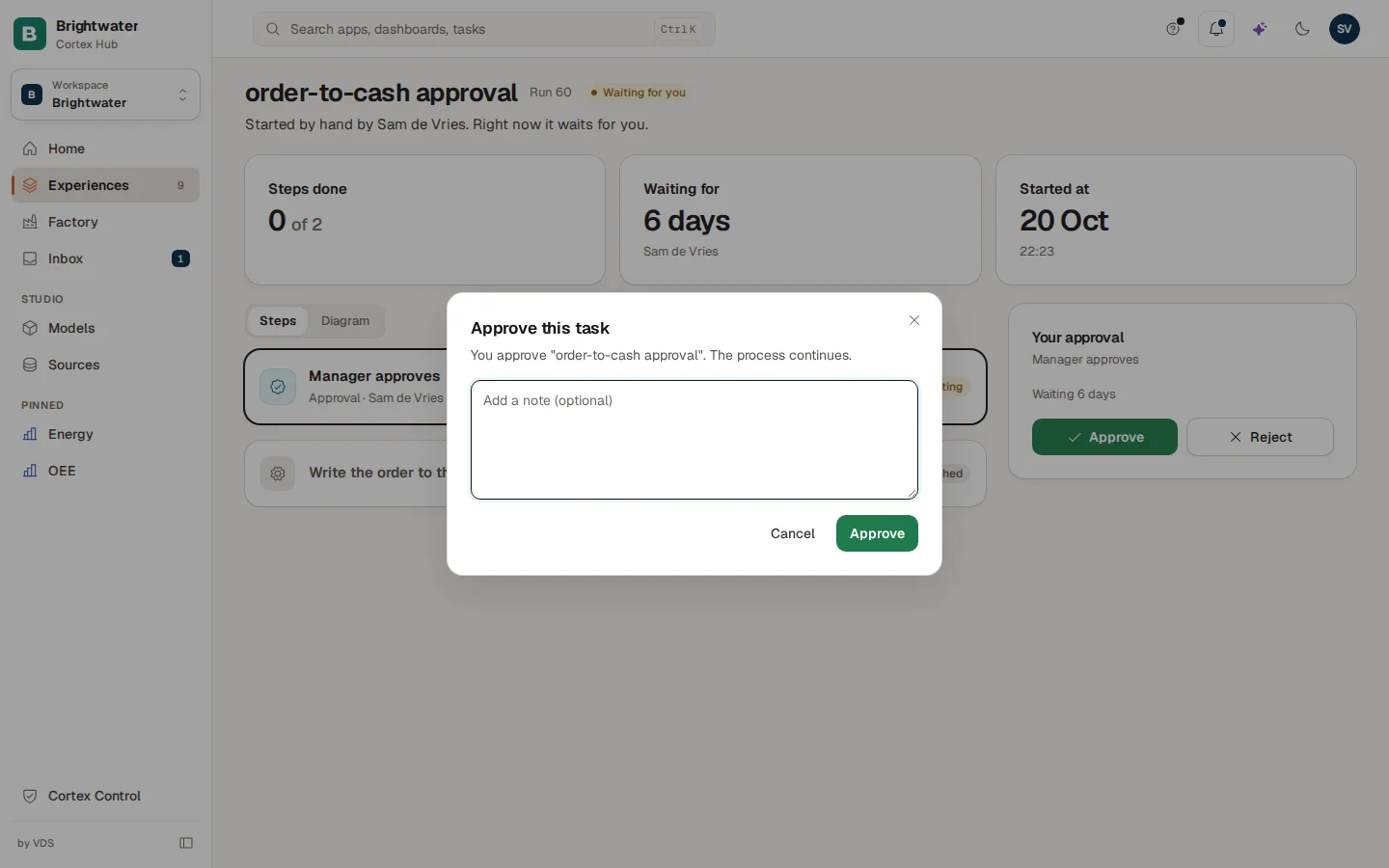
The box says what you are about to do: "You approve "order-to-cash approval". The process continues." Add a note if you want (optional): it goes along with your decision. Some tasks also ask you to pick one of a few options or to fill in a few fields; the box then shows them and you must complete them first. Choose Approve (or Reject) to confirm, or Cancel to leave without deciding.
See the result
Cortex says "Approved" or "Rejected". The page refreshes: the step now shows its result and the run goes on to the next step. If saving fails you see "Could not save your decision. Try again." and nothing has changed.
You can only decide a step that waits for you. If a colleague decided first, or the task was handed to someone else, the panel is gone when you refresh the page.
Example: Sam approves Run 60
Sam de Vries at Brightwater Foods opens the "order-to-cash approval" task from the Inbox and goes to Run 60, which says Waiting for you and has waited six days. The Manager approves card has the outline, and Write the order to the ERP says Not reached. Sam reads the details in the panel, chooses Approve, adds the note "Customer is on credit terms" and confirms. The step turns Done, the run moves on and writes the order to the ERP.