Search and workspaces
Find an app, dashboard or task in seconds with the search box, hand a question to Ask from the same box, and switch between workspaces to change what the Hub shows.
Two things help you move quickly in Cortex Hub. The search box finds what you can open by name, from any page. The workspace switcher changes which part of your organisation you are looking at. This page covers both, because they work together: search looks in your current workspace, and so do Experiences, the Pinned list in the menu and Home.
Who can do this
Everyone who can sign in to Cortex Hub. Search only ever finds what you may already open, and the workspace switcher only lists the workspaces you belong to.
Search
Open the search box
Select the search box at the top ("Search apps, dashboards, tasks") or press Ctrl+K (Cmd+K on a Mac) from any page. Press the same keys again to close it. A small window opens with the cursor in the field.
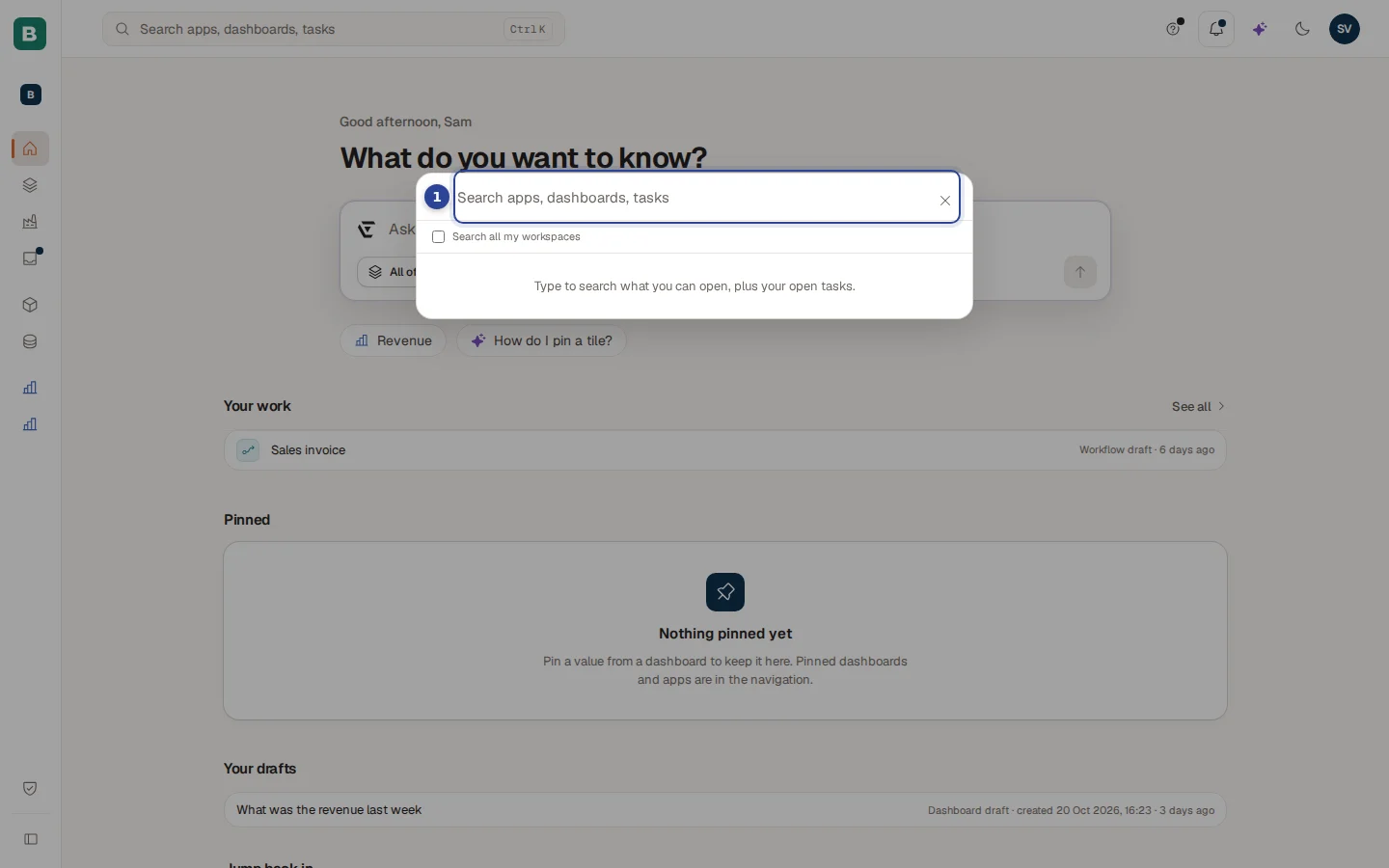
- The search field. Type a few letters. The line under it says "Type to search what you can open, plus your open tasks." Search all my workspaces only appears when you belong to two or more workspaces (see Search all workspaces).
Read the results
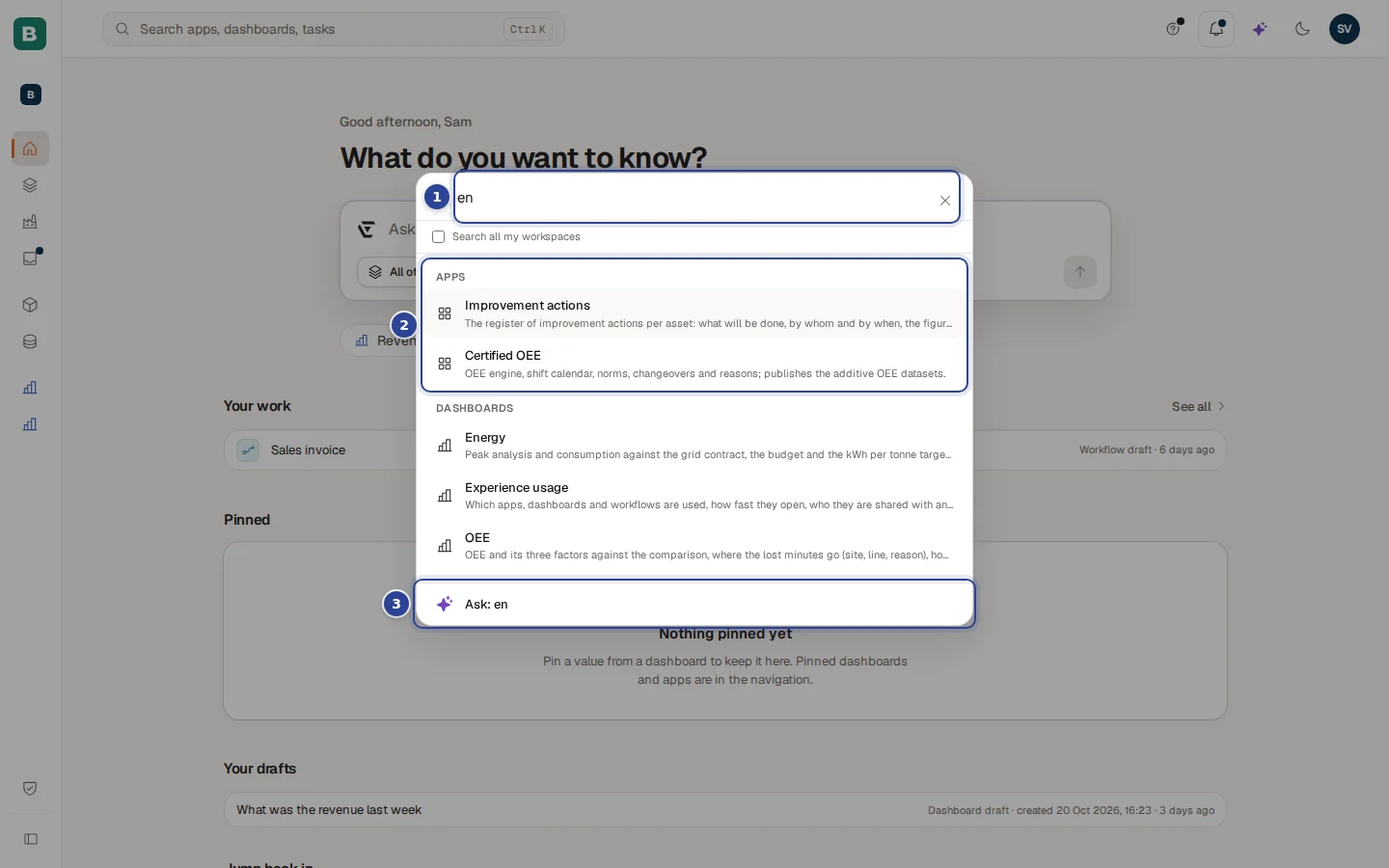
- What you typed. Results appear while you type.
- A result group. Results are grouped under Apps, Dashboards and Tasks. Each result shows the name and, under it, the description. A group shows at most six results. When there are more it says, for example, "+2 more, refine your search".
- The Ask row. The last row is always Ask: ... with your text. See Ask instead of search.
Move through the results with the arrow keys and open one with Enter, or click it. Esc closes the window.
| Group | What a result opens |
|---|---|
| Apps | The app. Some apps open inside the Hub, others in a new browser tab. |
| Dashboards | The dashboard. |
| Tasks | Your Inbox with that task open. Only tasks that wait for you are searched. |
How matching works
- Every word you type must appear somewhere in the name, the description or, for a task, the task text. "energy budget" finds an item that has both words.
- A hit in the name ranks above a hit only in the description.
- Capitals and accents do not matter: "cafe" finds "Café".
- Search is by name and description, not by what is inside a dashboard or app.
- Search covers what you can open now. It never shows items that are not shared with you. To see those, use Discover at the bottom of Experiences.
- Workflows and records are not in the search box. Find a workflow under Experiences, or ask Cortex about a record.
Ask instead of search
When you type something, the last row is always Ask: ... with exactly what you typed. This is how you go from "find" to "answer" without leaving the keyboard.
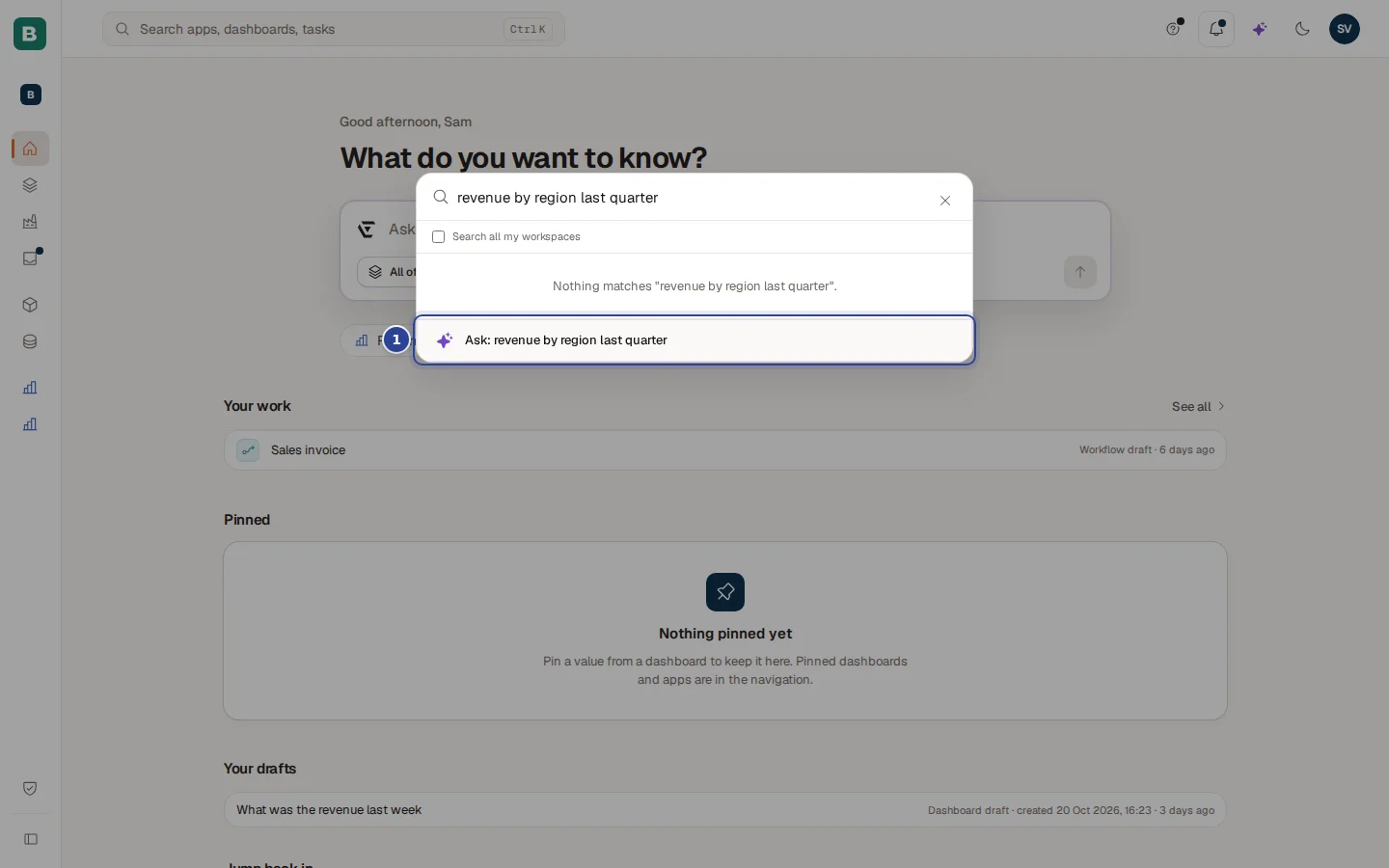
- The Ask row. Choose it, or press Enter while it is highlighted, to close the search and send your text to Ask on Home. The answer opens as a conversation.
A good rule: type a name to find something, type a question to get an answer. Typing "revenue by region last quarter" finds no dashboard with that name, but the Ask row sends it to Cortex.
A few letters in the search box
Apps, Dashboards and Tasks you can open
The last row sends your text to Ask
Search all workspaces
When you belong to two or more workspaces, the search window shows the box Search all my workspaces under the field. Without it, search looks only in the workspace you have selected. Tick it to include everything you may open in every workspace. The box resets every time you close the search.
Workspaces
A workspace is a part of your organisation with its own dashboards, apps, workflows and data, for example a department or a site. Your organisation decides which workspaces exist and who belongs to which. You see only the ones you belong to.
The workspace switcher
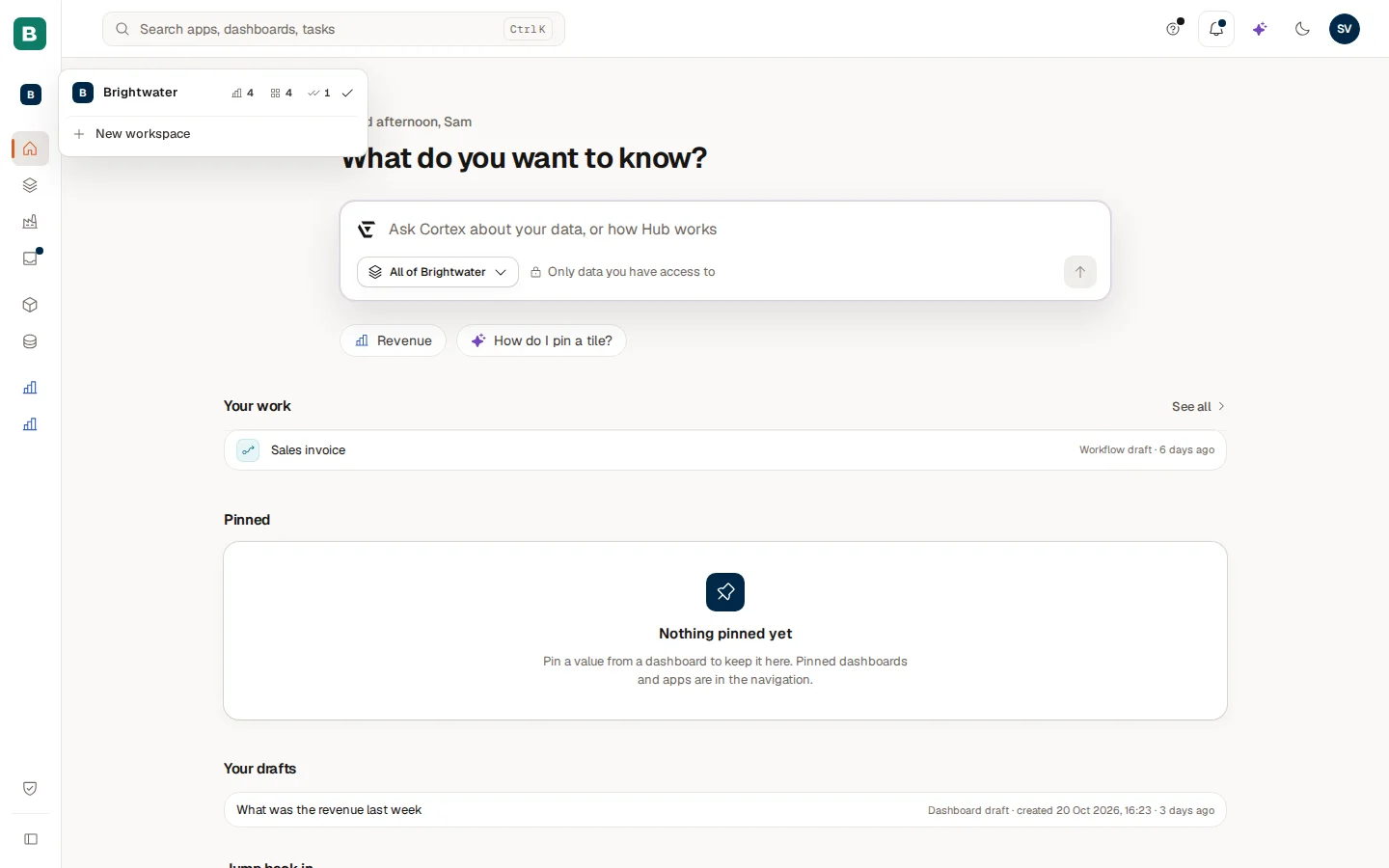
The card at the top of the menu, labelled "Workspace", shows your current workspace. Choose it to open the list.
- Each row shows the workspace name and three small counters: how many dashboards, apps and workflows you can open there. A zero is shown dimmed.
- A tick marks the current workspace. Choose another row to switch. The Hub updates at once, without a reload.
- Manage workspace appears for an owner of the current workspace. It opens the workspace settings in Cortex Control in a new tab.
- New workspace appears for builders when your organisation allows them to create a workspace, or to ask IT for one.
On a collapsed menu the card shrinks to the coloured letter of the workspace. Choose it to open the same list.
What a workspace changes
When you belong to two or more workspaces, the one you pick decides what you see:
| Where | What follows the workspace |
|---|---|
| Experiences and its count | Only dashboards, apps and workflows of that workspace. |
| Pinned in the menu | The items you pinned in that workspace. |
| Home | Pinned values, recent items and the freshness pill for that workspace. |
| The question box on Home | Cortex looks in that workspace ("All of Brightwater"). Use the scope button to look in All workspaces instead. |
| Search | The current workspace, unless you tick Search all my workspaces. |
| The look of the Hub | A workspace can have its own accent colour and logo. |
Your choice is remembered when you reload the page. When you sign out, Cortex forgets it, and the next sign-in starts from your organisation's own look.
With only one workspace, the card still shows its name and its list, but nothing is filtered: you see everything you may open. When you belong to none, the card is not shown.
Example: Sam looks across two workspaces
Sam de Vries at Brightwater Foods belongs to Brightwater and Stories. Sam wants the Energy dashboard but is not sure which workspace it is in. In Brightwater, Ctrl+K and "energy" shows it at once under Dashboards. Another time Sam types "planning" and finds nothing, so Sam presses Ctrl+K again, ticks Search all my workspaces and sees a result from Stories. Sam picks it, and the Hub opens it. To keep working there, Sam switches workspace with the card at the top of the menu and the whole Hub follows.
Home
The page you start from. Ask a question, pick up your work, see the values you pinned and jump back to what you opened last, and learn the menu on the left.
Ask Cortex
Ask a question in your own words and get an answer from your organisation's own data, with the figures, the period and where it came from.