Experiences
The catalogue of everything you can open in Cortex Hub, dashboards, apps and workflows, with filters, two views, pins and a shelf for what you can still ask access to.
Experiences is the one list of everything you can open in Cortex Hub. Dashboards, apps and workflows all live here, side by side, so you never have to remember where something is kept. You see what has been published and shared with you in your current workspace, nothing else.
Use it to open something, to narrow a long list down, and to pin the things you use every day so they appear in the menu.
Who can do this
Everyone who can sign in to Cortex Hub. The list shows only what is shared with you. People with a Studio seat get an extended list with their own drafts and a + New button: see Experiences for builders.
The page at a glance
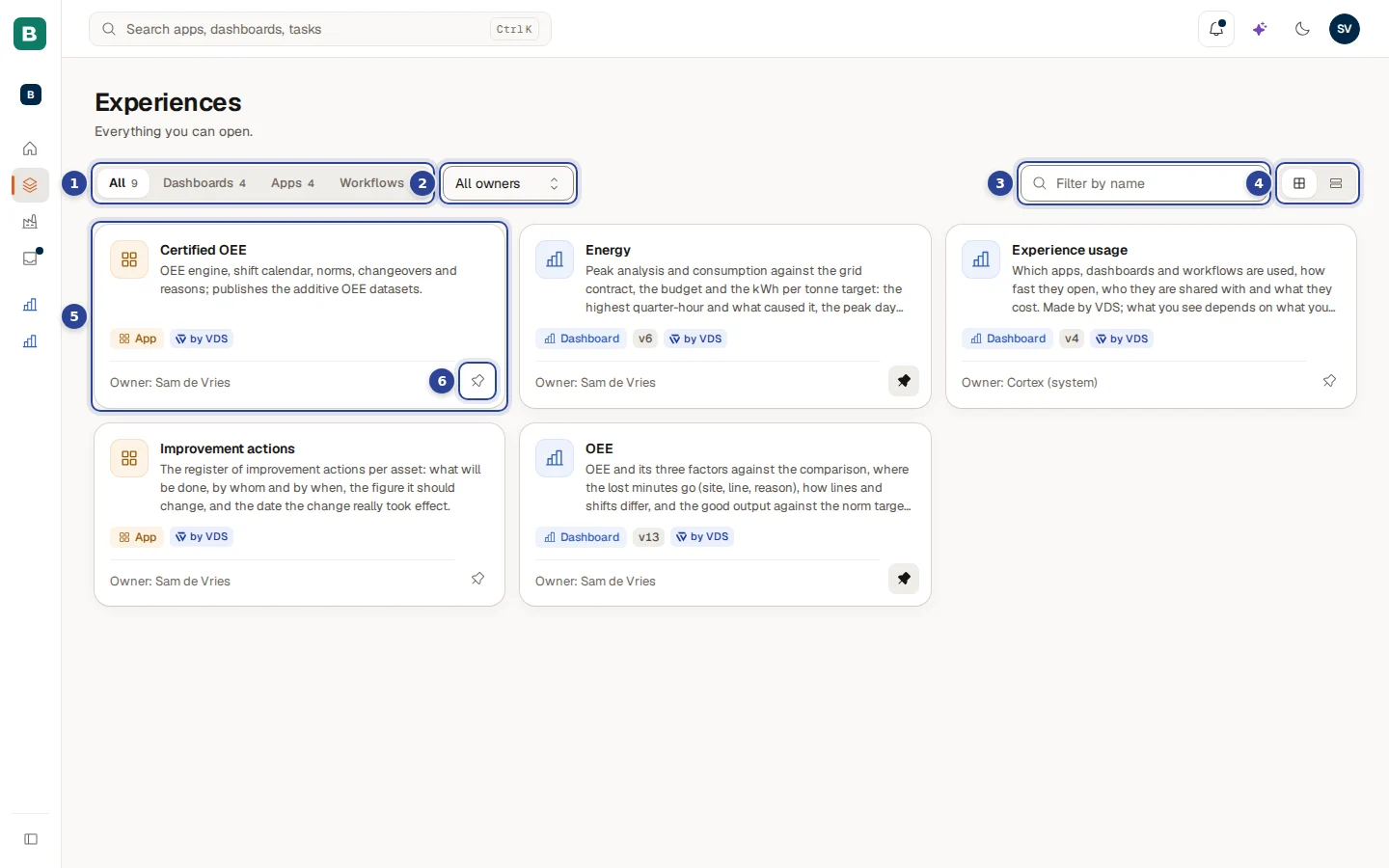
- The type filter. All, Dashboards, Apps and Workflows, each with a count. The count is how many you can open of that type. Your choice is part of the address, so a copied link opens the same filter. A type that your organisation's plan does not include is not offered.
- The owner filter ("All owners"). Pick one owner to see only what that person owns. It appears only when the list has two or more owners.
- The name filter ("Filter by name"). Type part of a name. It also looks at the description, and for a workflow at how it starts. Capitals do not matter.
- The view buttons (Grid view and List view). Grid shows cards, list shows one row per item. The choice is for this visit only.
- A card. Select it to open the dashboard, app or workflow. See What a card shows.
- The pin button. Pins the item so it appears under Pinned in the menu. A filled pin means it is pinned.
The number beside Experiences in the menu is the same as the count on All here.
What a card shows
| Part | What it tells you |
|---|---|
| The icon | The type: a bars icon for a dashboard, a grid for an app, a flow arrow for a workflow. |
| The name | What the owner called it. |
| The description | Up to two lines. When the card shows a note (a workflow's last run), the description gets one line and the note the other. Hover over it to read the full text. Without one it says "No description yet.". |
| The type label | Dashboard, App or Workflow. |
| The version, for example v6 | The published version of a dashboard or app. It changes when the owner publishes a new one. |
| Ready-made | The item comes from the curated set that ships with the platform. Hover over the mark to read what it means. |
| "Owner: ..." | Who owns it. Shown only when the list has more than one owner; then every card has the line, and "Owner unknown" means no name is known. |
| The pin button | Pin or unpin. |
| Last run: Done, 15 hours ago (workflows) | How the last run went and when. A workflow that never ran says "Not run yet". |
A workflow card uses the line that says how it starts, for example "Every Monday and Saturday at 08:00", in place of a description.
Open something
Choose a card
Select the card, anywhere on it except the pin. A dashboard opens in the Hub. A workflow opens its own page, where you can start it and follow its runs.
Apps open in one of two ways
Most apps open inside the Hub. An app that cannot be shown inside the Hub opens in a new browser tab instead, where it may ask you to sign in. If neither works the page says so, for example "doesn't open inside Cortex Hub yet. Ask IT how to open it."
Come back with the menu
The Experiences menu item stays lit while you are inside a dashboard, app or workflow, so you can always return to the list.
See Use a dashboard, Apps and workflows and A workflow run for what happens next.
Filter the list
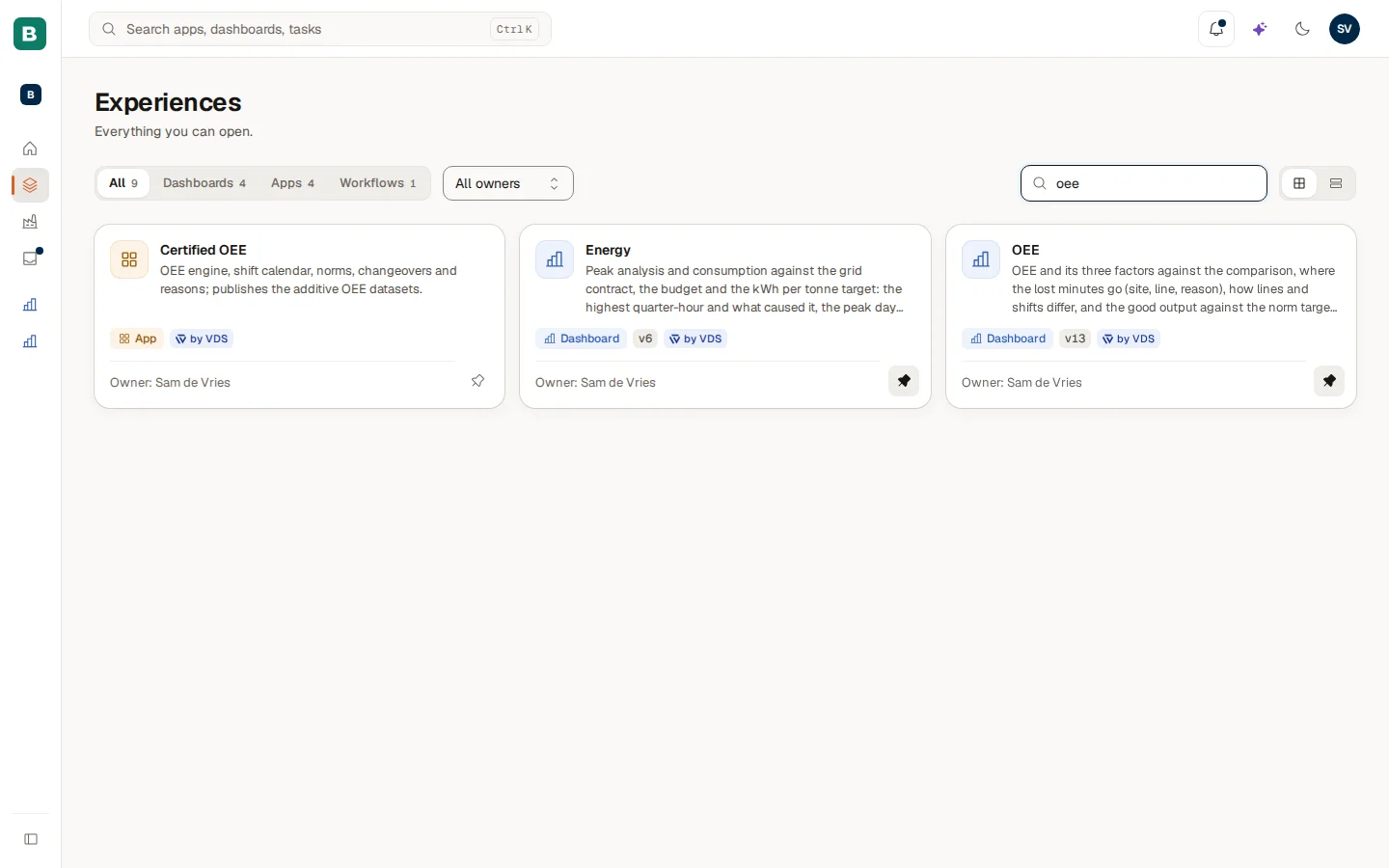
Filters work together. Choose Dashboards, pick an owner and type a word, and you see only dashboards of that owner that contain the word.
Pick a type
Choose Dashboards, Apps or Workflows in the type filter. The counts always show how many there are of each type, whatever you filtered on.
Narrow by owner
Open the owner filter and choose a name. Choose All owners to clear it.
Type a word
Type in Filter by name. The list narrows while you type. Clear the field to go back.
List view
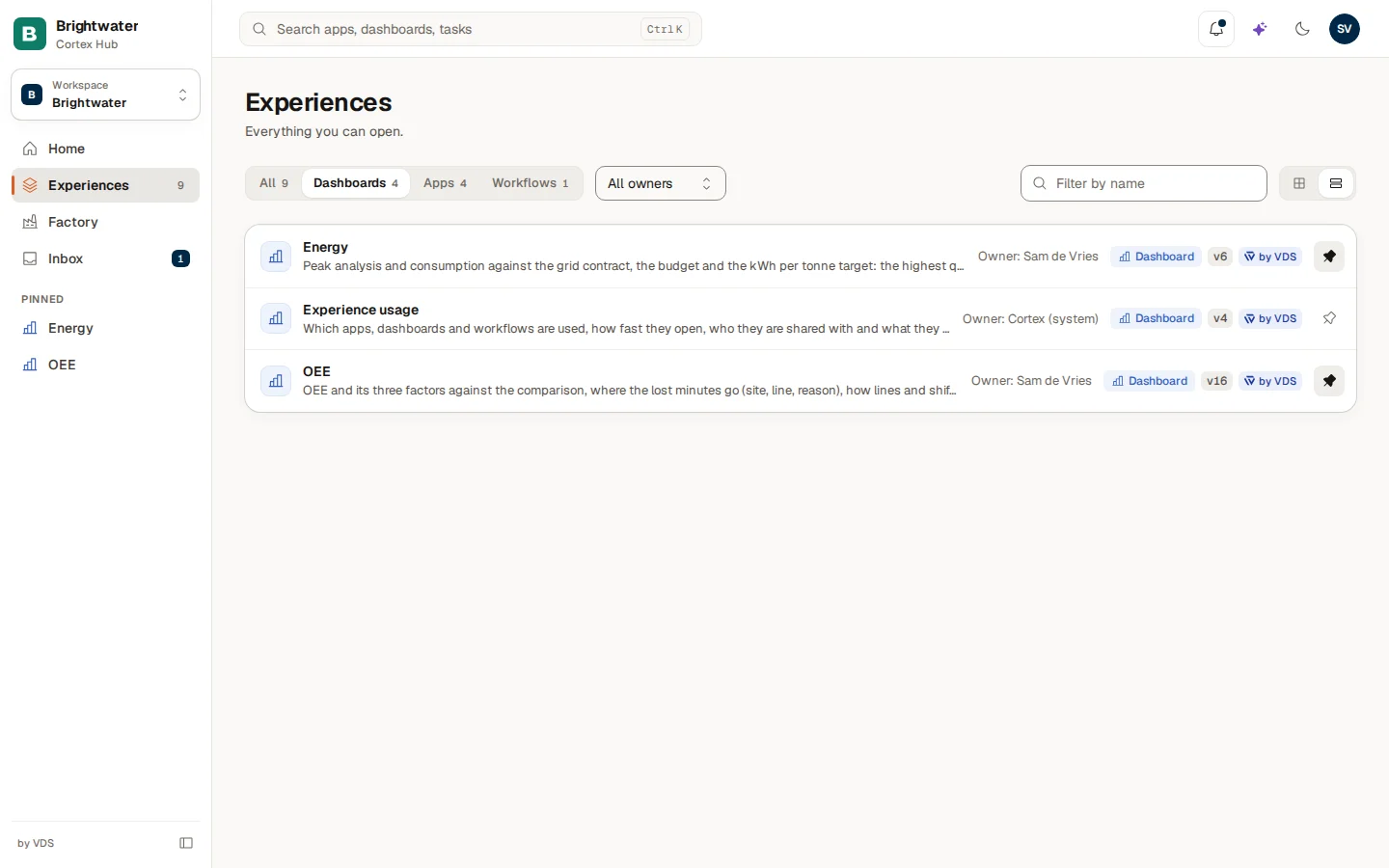
The list view fits more items on screen and reads like a table: name and description on the left, then owner, type, version, Ready-made and the pin on the right. It is handy when you have many dashboards.
When nothing matches
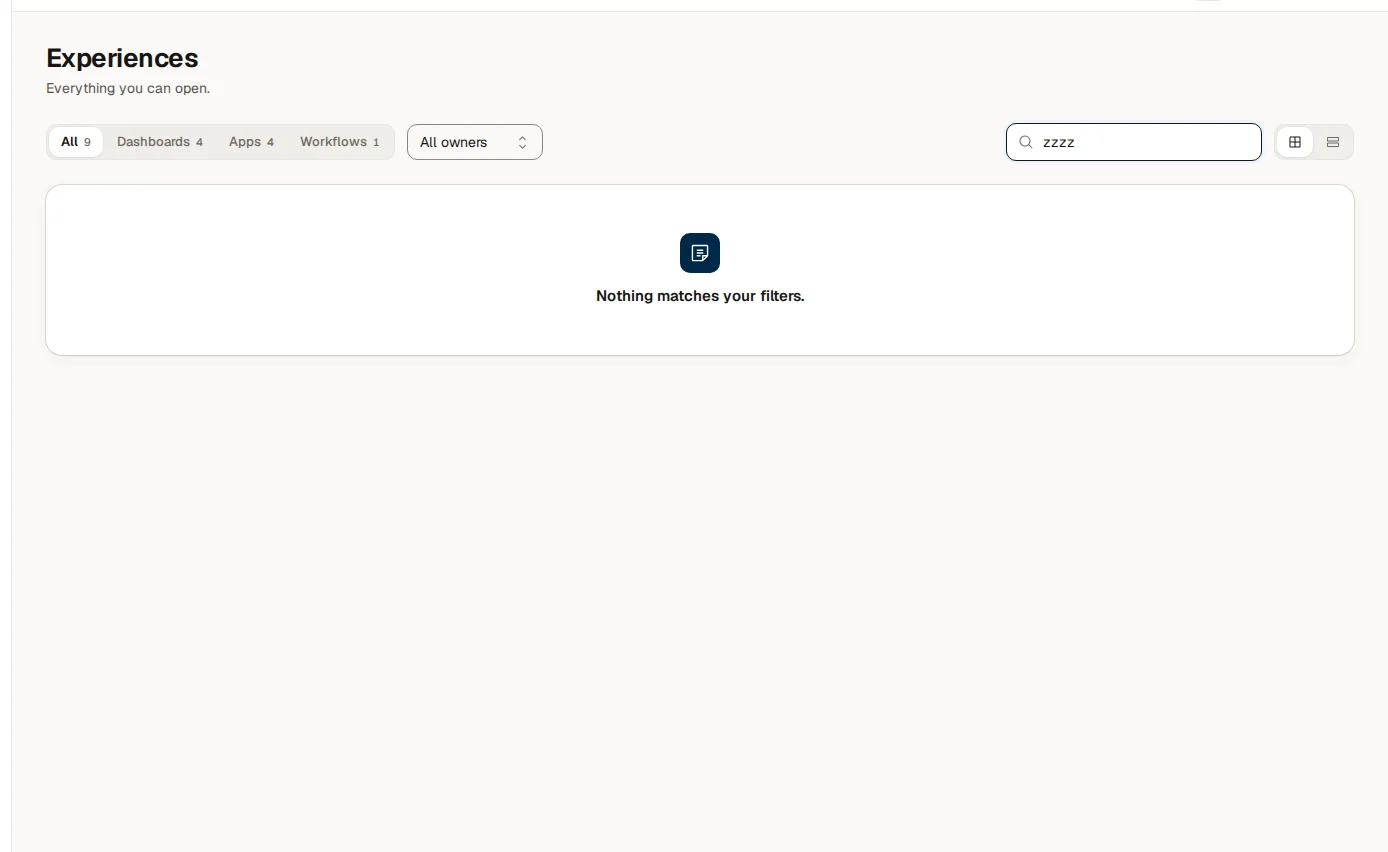
If your filters match nothing, the page says "Nothing matches your filters." Change or clear a filter. You can tell the different empty states apart:
| What you see | What it means |
|---|---|
| "Nothing matches your filters." | Something exists, but not with these filters. |
| "No dashboards yet" (or "No workflows yet", or "You have no apps yet") | There is nothing of that type shared with you in this workspace. |
| "Nothing has been shared with you yet" | You have access to nothing yet. Ask your IT team or the owner of an app to give you access. |
Pin what you use
Choose the pin on a card to put the item under Pinned in the menu. Choose it again to remove it. You can pin up to 30 items. The pin updates the menu and Home at once, without a reload. If it fails you see "Could not update your pinned items.". More in Pin a value, pin a dashboard, subscribe.
Discover: what you can still ask for
Below your list, Discover can show dashboards that exist in your organisation and that are not shared with you yet. You see what it is, its description and who owns it, never what is inside. Choose Request access and the owner or IT decides. After you ask, the card says Requested. A declined request shows "Your last request was declined. You can ask again later."
Discover shows nothing when there is nothing to offer. Your requests and the answers are kept under Inbox, on the Sent tab. See Access and sign-in.
Example: Sam finds the OEE dashboard
Sam de Vries at Brightwater Foods opens Experiences and sees nine items. Sam types "oee" in Filter by name and three cards remain: the Certified OEE app, the Energy dashboard (its description mentions OEE) and the OEE dashboard. Sam chooses Dashboards to leave only the last two, opens OEE, and pins it. Back in the menu OEE is now under Pinned, one click away on any page.