Experiences for builders
The builder's list of every app, dashboard and workflow: filters, cards, the card menu, expected use, moving, clean-up, requesting an app and managing it.
Experiences is where everything you can open or build lives: apps, dashboards and workflows, in one list. Everyone has this page. As a builder you see more on it: drafts and archived items, the buttons to plan and build, and a New button to start something.
This page covers the list itself (find, filter, read a card, use the card menu), what the New button offers, how to request an app, how to ask for access to a colleague's app, how to manage an app and how the clean-up view works. Building the app after it is set up is in Build an app.
Who can do this
Builders (people with a Studio seat) and admins. Whether you may request apps, start dashboards or workflows depends on the builder policy your IT administrator set in Cortex Control. Moving, archiving and changing who can open something is limited to the owner of an experience and admins.
The list at a glance
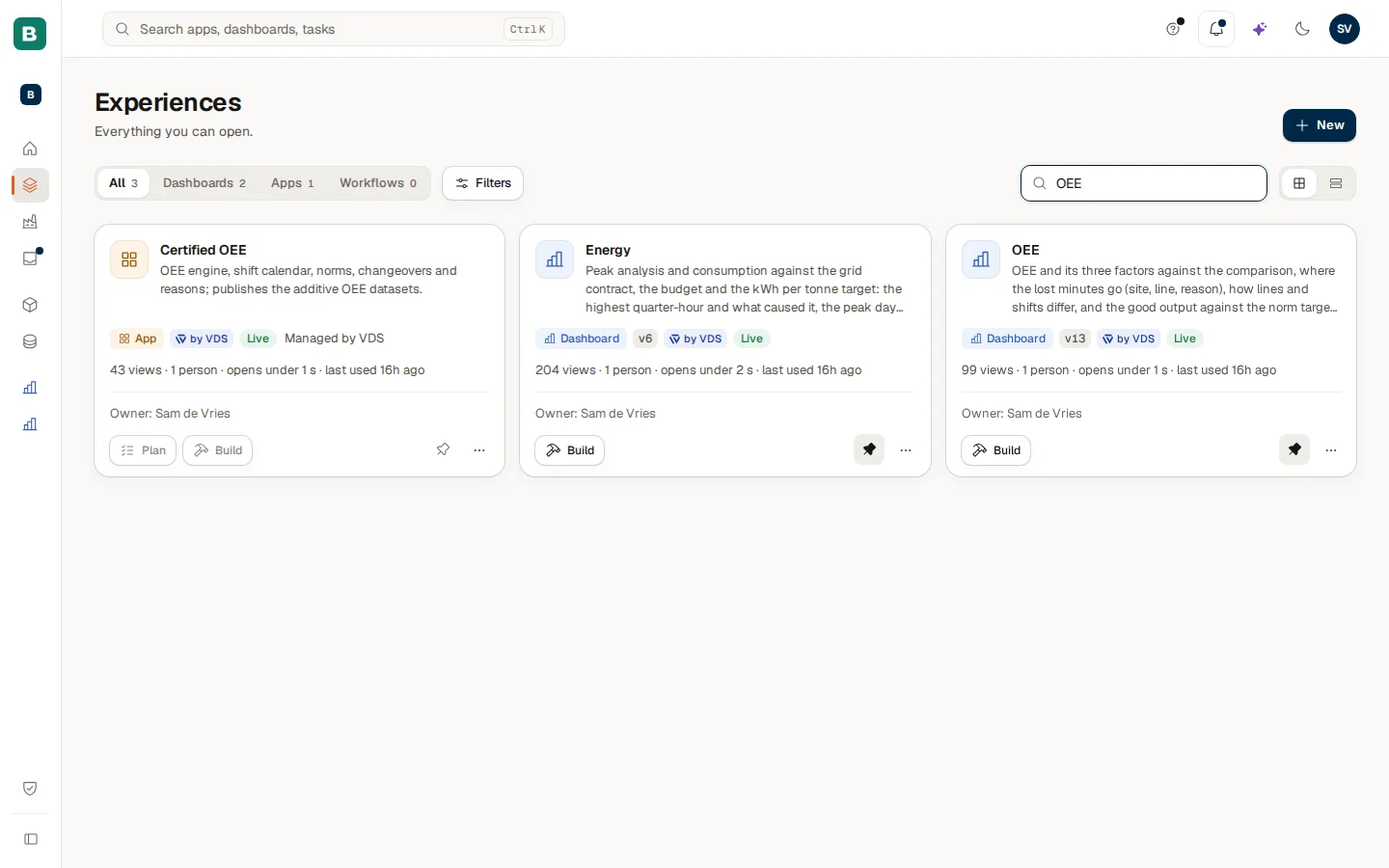
At the top you see the page title, the New button and, underneath, the controls that narrow the list:
- The type tabs: All, Dashboards, Apps and Workflows, each with a count. A kind that you may not build, or that your licence does not include, has no tab.
- Filters: one button that holds the less used filters (see Filters). When any of them is on, the button shows how many.
- Filter by name: type a few letters; the list narrows as you type.
- Grid view and List view: two buttons at the far right switch how the list is drawn.
Everything published in your workspace is in the list, plus what you may build: drafts, apps that are being built and archived items. Each experience appears once. When you may build something that is also published, one card holds both: its live link and its build buttons.
What a card shows
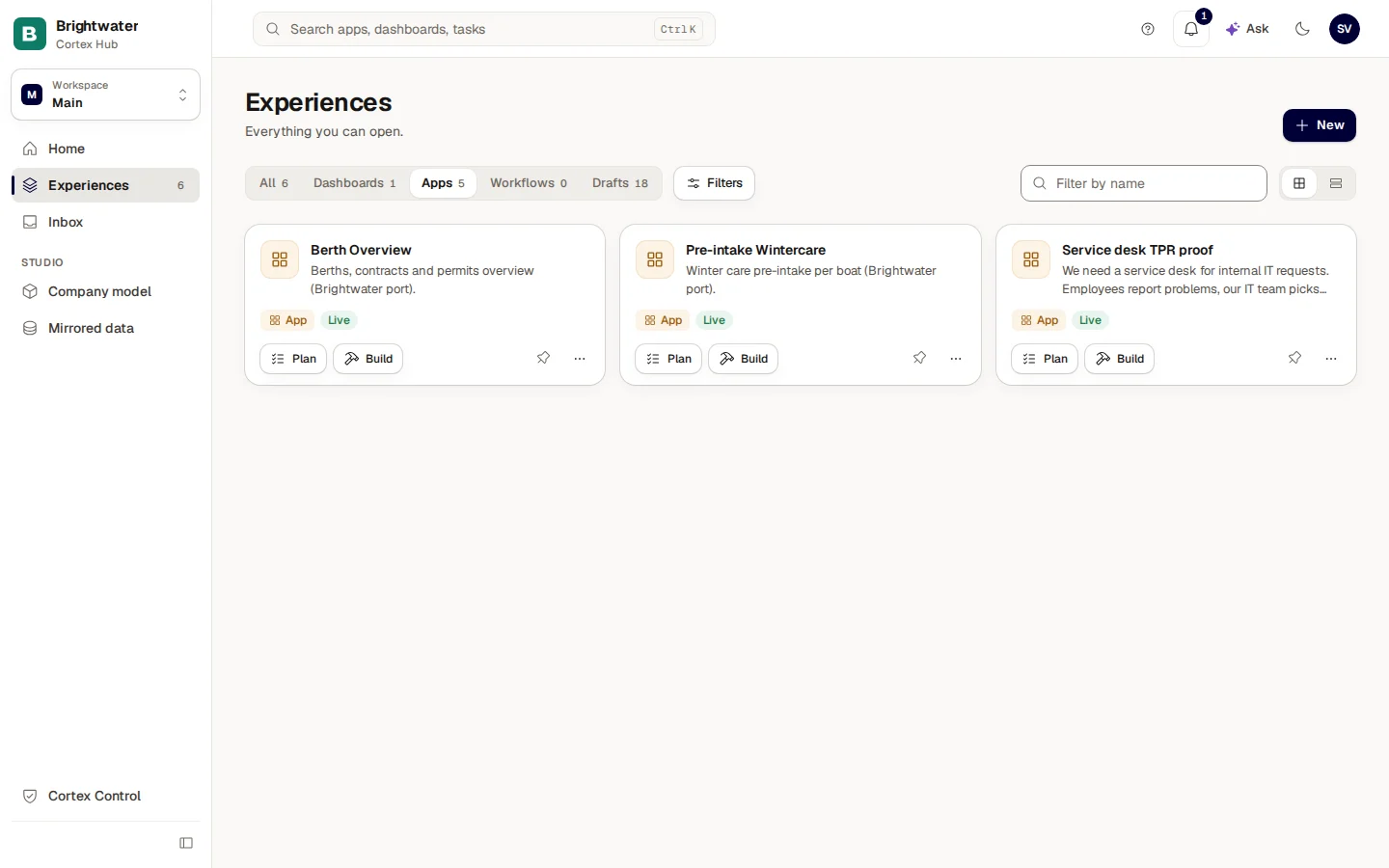
A card has the same parts for every kind:
| Part | What it tells you |
|---|---|
| Icon, name and description | What it is. The icon and colour tell the kind: app, dashboard or workflow. "No description yet." is shown when nobody wrote one. |
| Kind chip | App, Dashboard or Workflow. |
| Version | For a live dashboard or workflow, for example v6. |
| Ready-made | A ready-made experience that came with your install. |
| Status chip | Live, Draft, Building, Archived, and for apps also Setting up, In use (someone else is building it) and Setup failed. |
| Usage line | Views and people in the last 30 days, how fast it usually opens ("opens under 1 s") and when it was last used, or "never used". |
| Owner: name | A known owner is always in the card's Details (the info button, or the top of the "..." menu). When more than one person owns experiences in the list, every card has the line there, and "Owner unknown" means no name is known. |
| Note | For example "Not published yet", "Provisioning environment…", who is building it, or "Managed by the platform". |
| Plan and Build (apps), Build (dashboards and workflows) | The buttons to start working on it. |
| Pin and "..." | The pin puts a published dashboard or app in the left menu. The "..." menu holds the rest (see The card menu). |
Choose a card to open the experience. A live one opens in the Hub; one that was never published opens in its editor.
An app that Plan and Build cannot start shows both buttons greyed out, and the reason is their tooltip: "Managed by the platform" for a ready-made app that you ask your platform supplier to change, "Setup didn't finish for this app. Please contact your administrator.", "Provisioning environment…", or "Someone else is building this app".
For an app that was never built, the card shows the difference between the two buttons: Plan is "researched and built in full, usually" a given amount, Build is "only what you describe". Hover over the line for the explanation. The amounts are estimates from earlier builds in your installation.
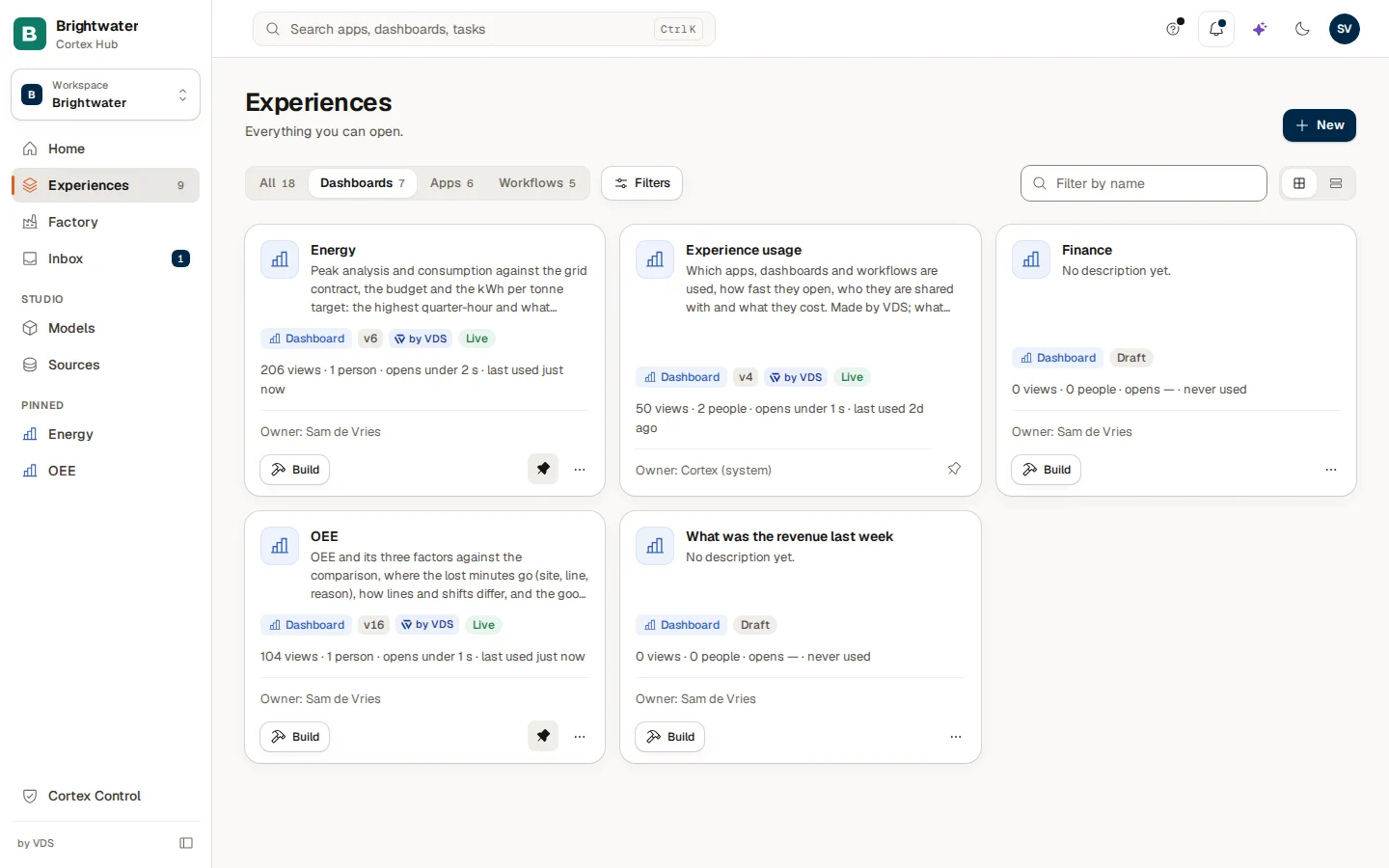
Grid or list
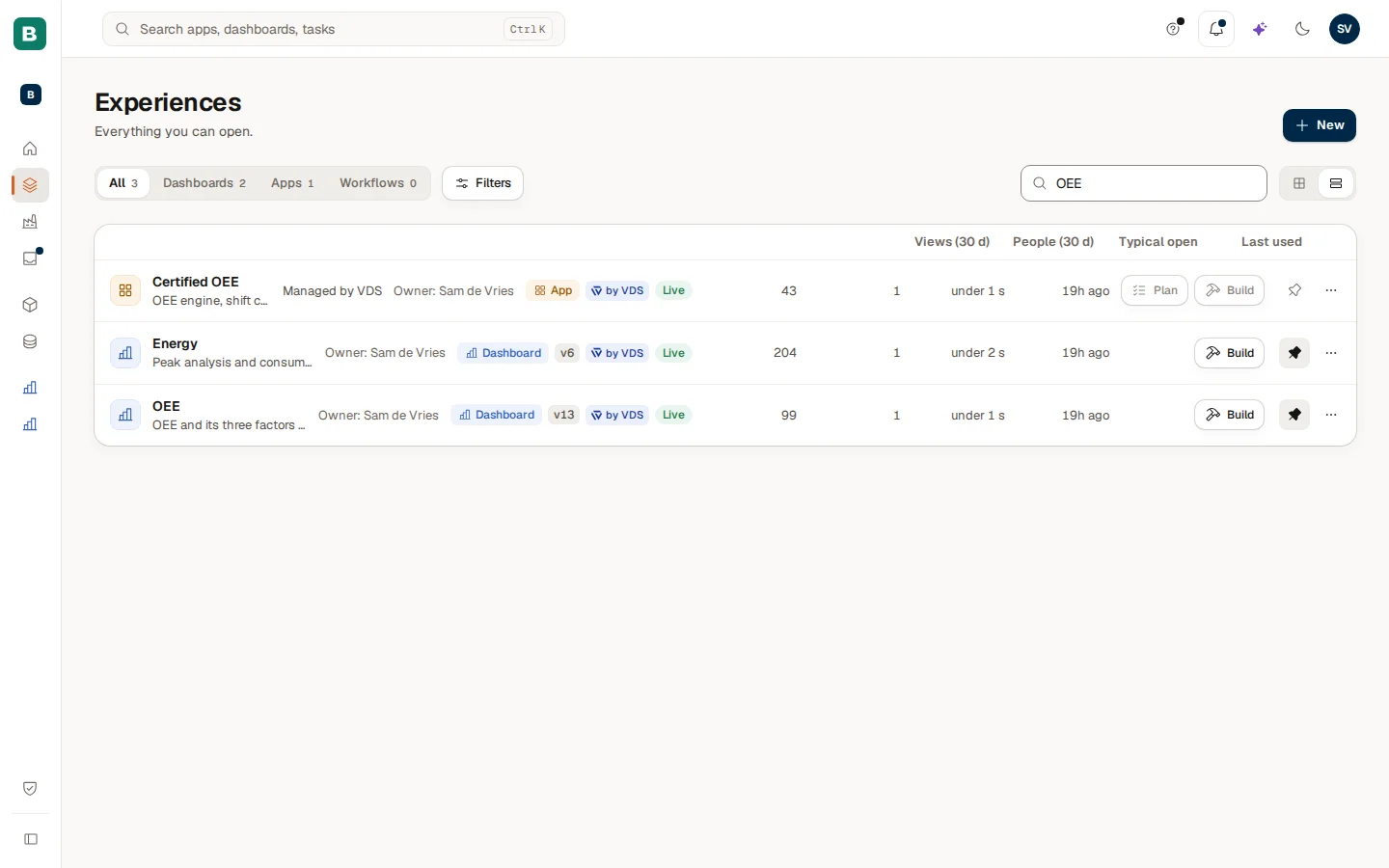
The list view puts every experience on one row, which suits long lists. Four columns show how much each one is used: Views (30 d), People (30 d), Typical open and Last used. Choose a column title to sort by it; choose it again to turn the order around. On a phone the list shows 30 experiences at a time and Show n more adds the next.
Filters
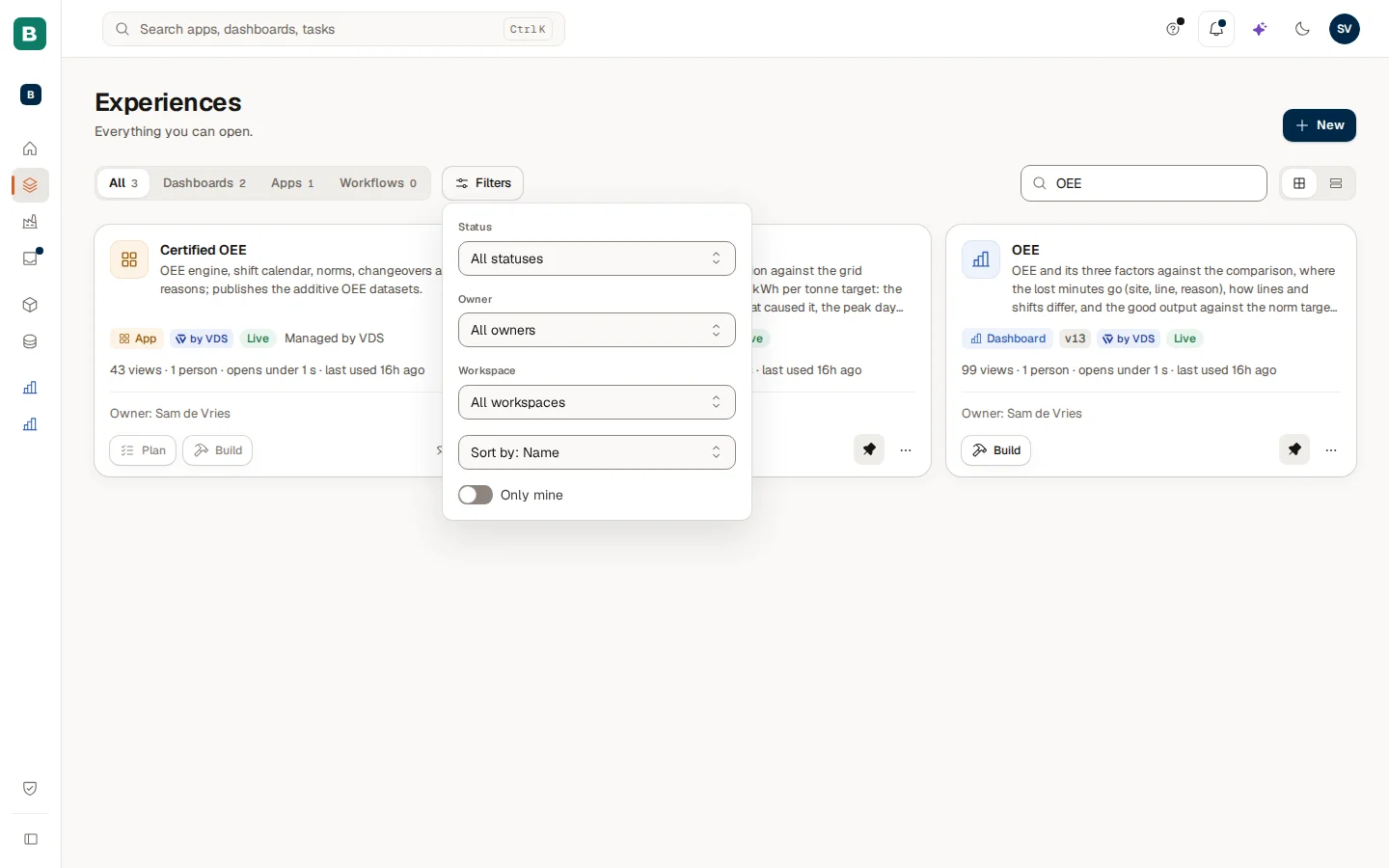
| Filter | What it does |
|---|---|
| Status | All statuses, Live, Draft, Building or Archived, each with how many it would show. A draft is anything not published yet; Building includes apps that are being set up. |
| Owner | Only experiences of one owner. It appears when more than one person owns something in the list. |
| Workspace | One of your workspaces, or All workspaces. It appears when you have more than one workspace. See Workspaces. |
| Sort by | Name, or one of the usage columns, high to low or low to high. It appears once the list has usage figures, and only in grid view. |
| Only mine | Only what you own. |
Clear filters at the bottom switches them all off. The type tab and the name filter are separate: they stay as they are.
The numbers on the tabs and in the Status menu tell you what a click will show given your other filters. Nothing matches your filters. means just that: loosen one of them.
When you already have three builds open, a note above the list says "3 builds open — close one to open another." See Build an app.
The New button
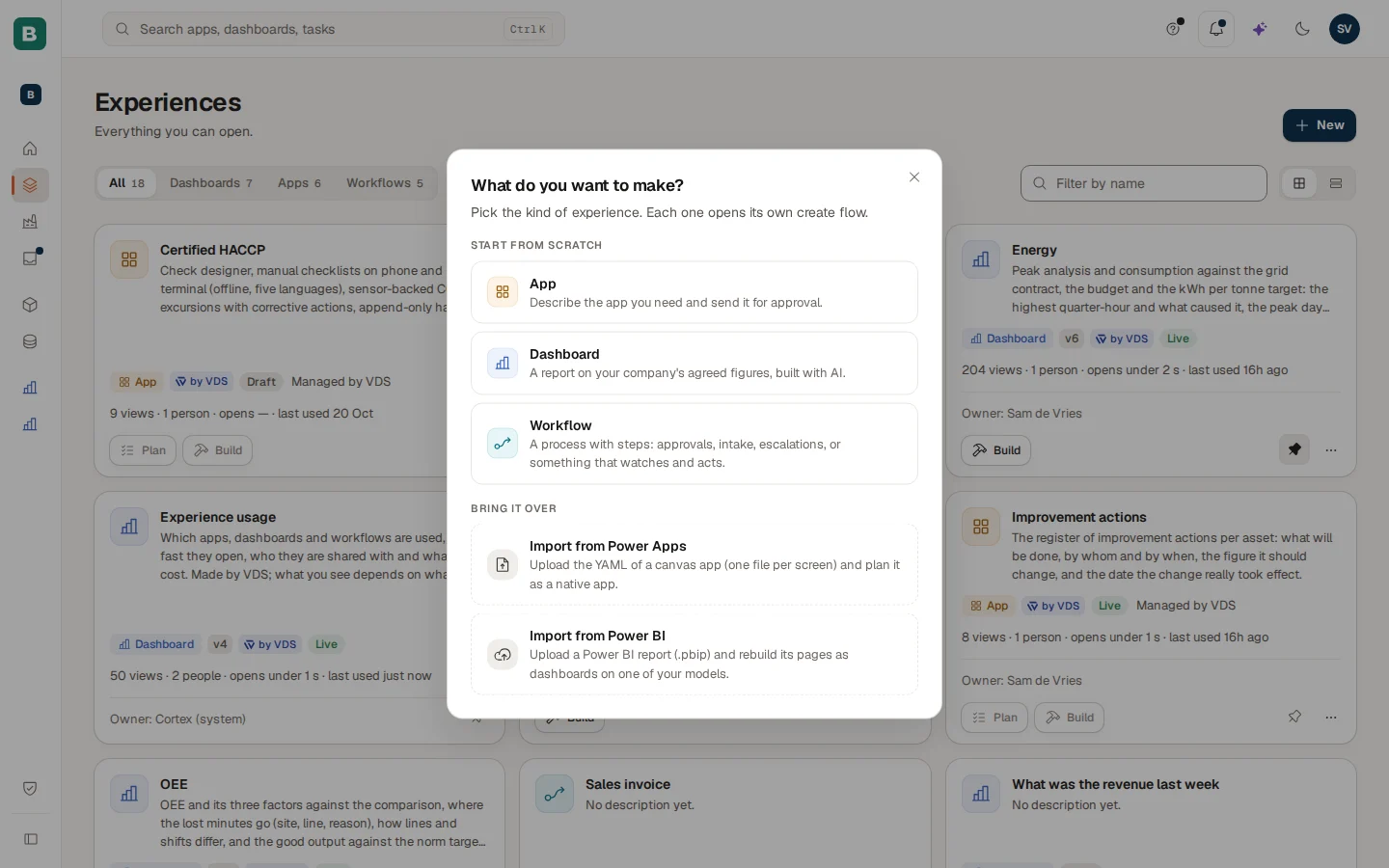
New opens the one place to make something new.
- Start from scratch: App ("Describe the app you need and send it for approval."), Dashboard ("A report on your company's agreed figures, built with AI.") and Workflow ("A process with steps: approvals, intake, escalations, or something that watches and acts."). A kind you may not start is left out.
- Bring it over: Import from Power Apps and Import from Power BI. See Import from Power BI and Power Apps.
A faster way is the sparkle button and Build something, which asks for one sentence and picks the kind for you. See Start something.
The card menu
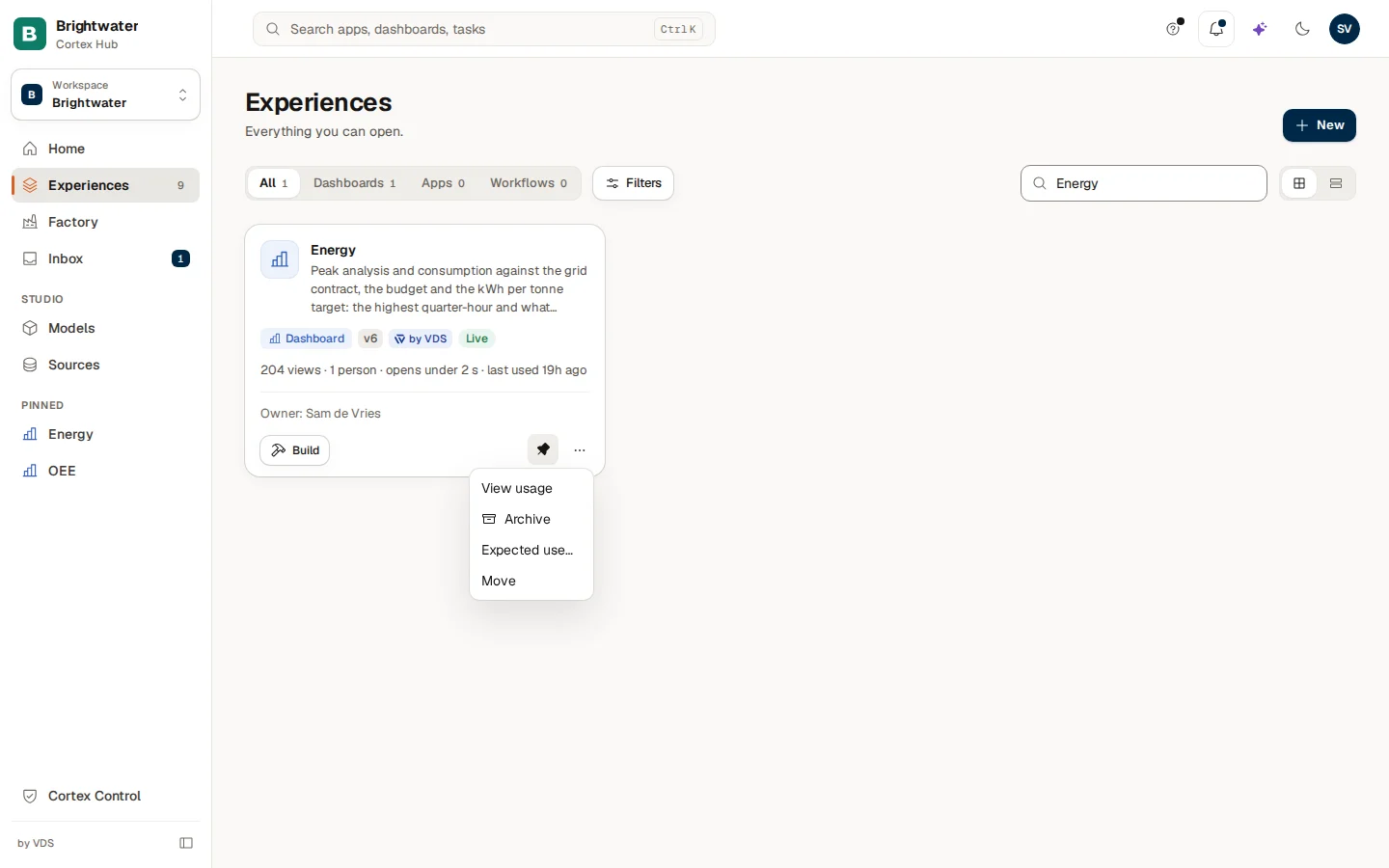
The "..." menu holds what does not fit on the card. You only see an entry when you may use it.
| Entry | For | What it does |
|---|---|---|
| Manage | Apps | Opens the manage page of the app (see Manage an app). |
| Launch | Published apps | Opens the live app in a new tab. |
| View usage | Where usage is known | Opens the usage dashboard filtered to this experience. |
| Archive | Dashboards and workflows you own, and admins | Takes it out of the Hub and the lists. A message with Undo stays for a few seconds. Nothing is deleted. |
| Expected use... | Where usage is known | Sets how often it is meant to be used. |
| Move | Apps and dashboards | Puts it in another workspace. |
Expected use
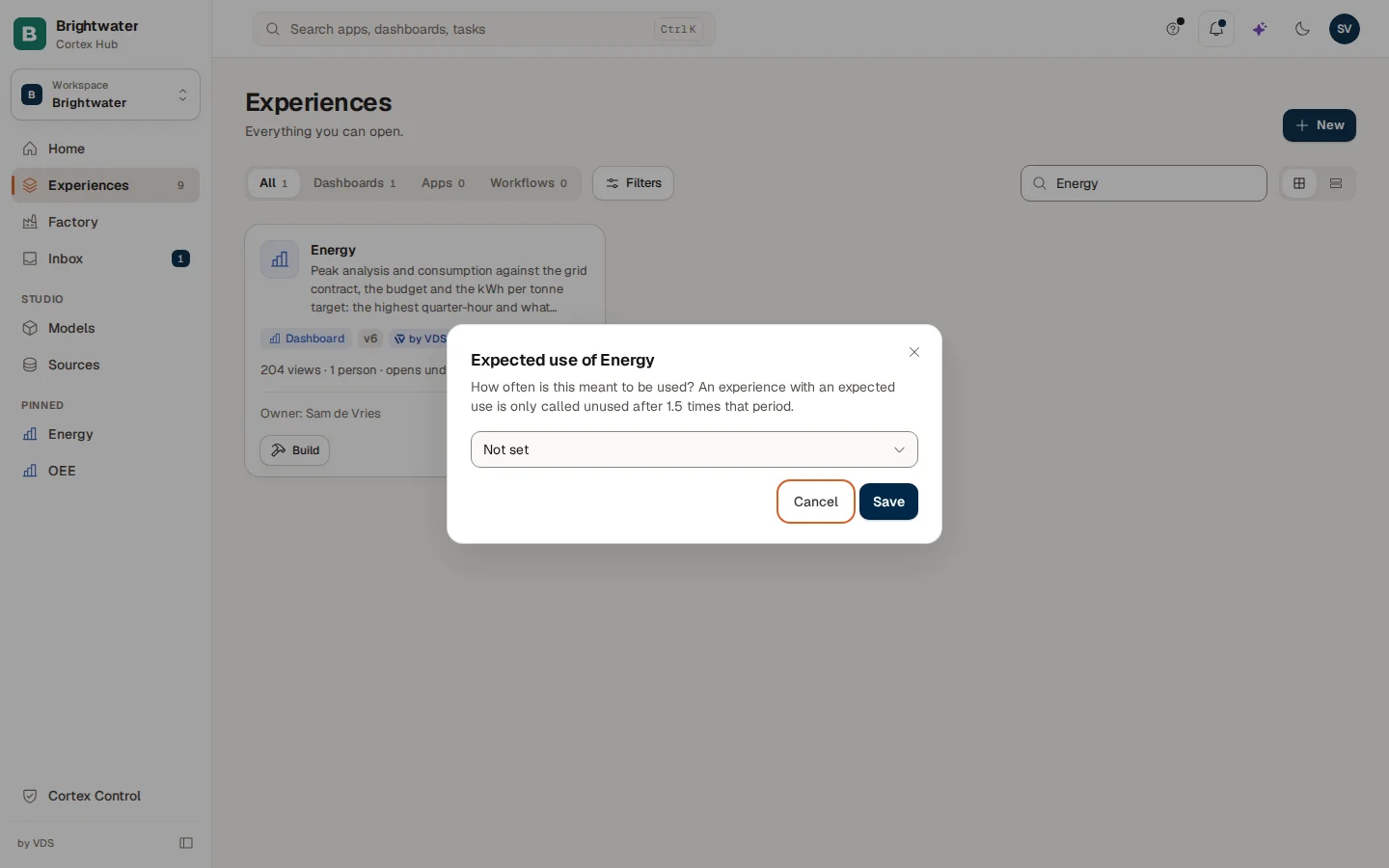
Some experiences are only needed once a month or once a year. Without help, Cortex would call them unused. Expected use tells Cortex how often to expect them: Not set, Monthly, Quarterly or Yearly. An experience with an expected use is only called unused after one and a half times that period. The owner, a collaborator or an admin can set it; choose Save.
Move to another workspace
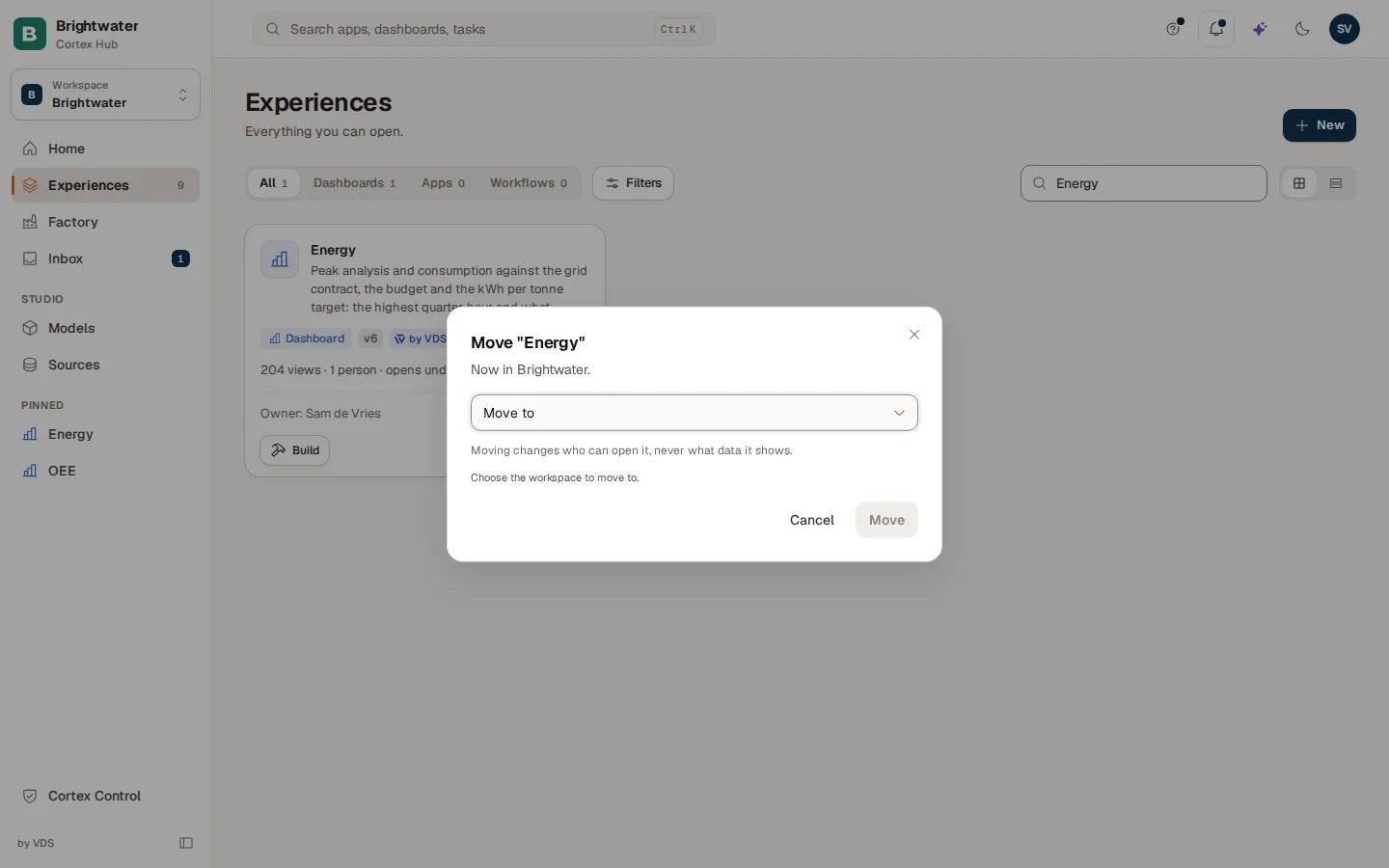
Move changes where an experience lives. Pick the workspace under Move to and choose Move. You must be a key user or owner of the target workspace, and only the owner of the experience or an admin can move it. Moving changes who can open it, never what data it shows. When people would lose access in the Hub, the dialog says "n people will lose access in the Hub. Move it anyway?" and the button becomes Move anyway. See Workspaces.
Clean-up
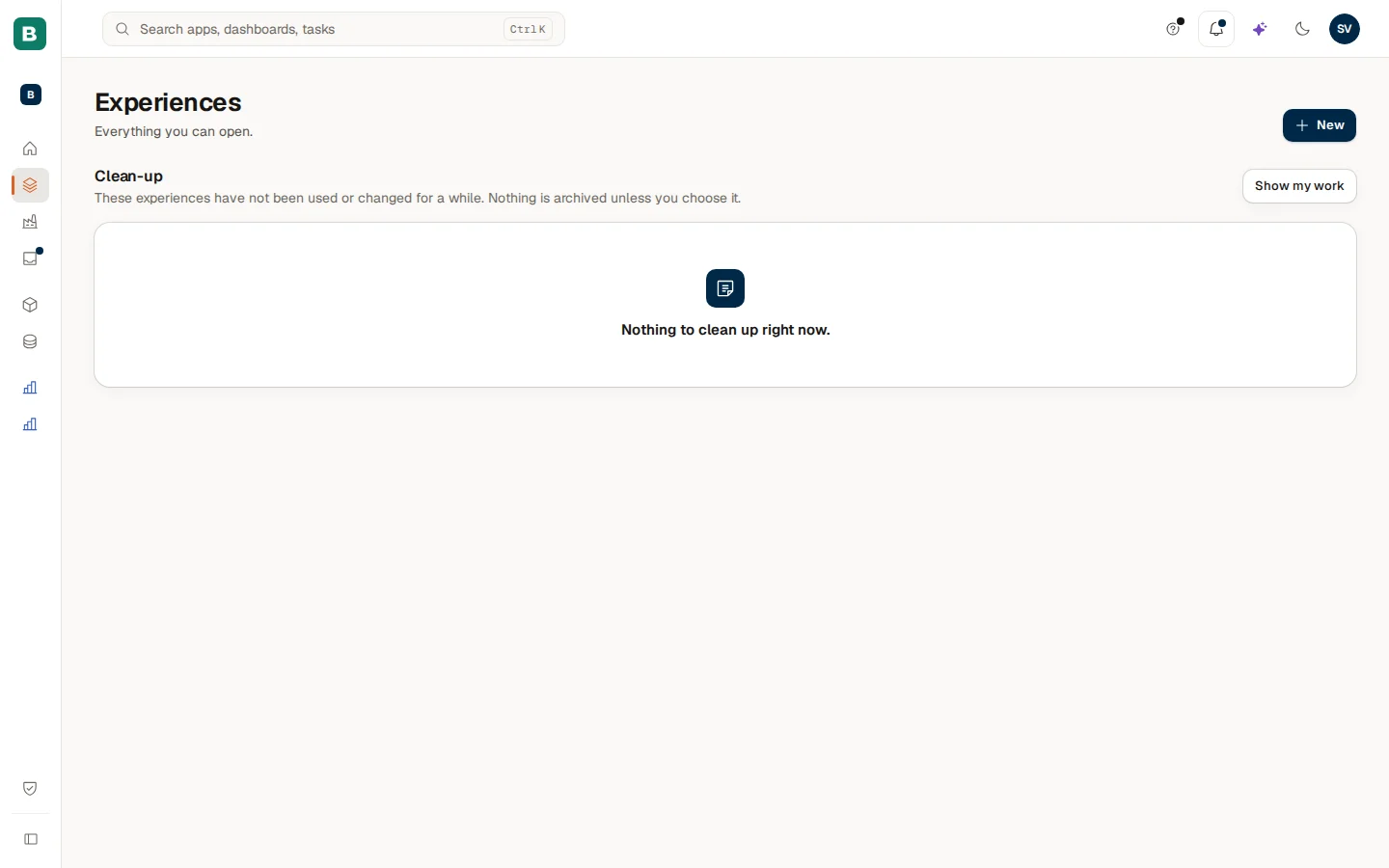
Once a week Cortex looks for experiences that nobody uses or changes any more. When it finds some of yours, you get a bell message and a mail with links that open this view. Each line says why: "Not used for n days" or "Never opened (live for n days)", and sometimes that its owner is no longer active. Per line you choose:
- Archive: it leaves the Hub for everyone; you can restore it later.
- Keep for 6 months: it is not listed as unused until then.
- Reassign... (admins, when the owner is gone): hand it to a collaborator.
Each choice asks one confirmation first. Nothing is archived unless you choose it. Show my work goes back to the list.
Request an app
An app starts as a request that your IT administrator approves: they set up its environment, and then you plan and build. Choose New > App, or Request an app under Sent in your Inbox.
If the builder policy lets you create apps yourself, the form is the short one and the button says Create app: only Name, What should this app do?, the Workspace (when you have more than one) and Roughly how many people will use it?. Cortex says "App created", sets the app up for a moment and opens its Plan page. The rest of this section describes the full request form.
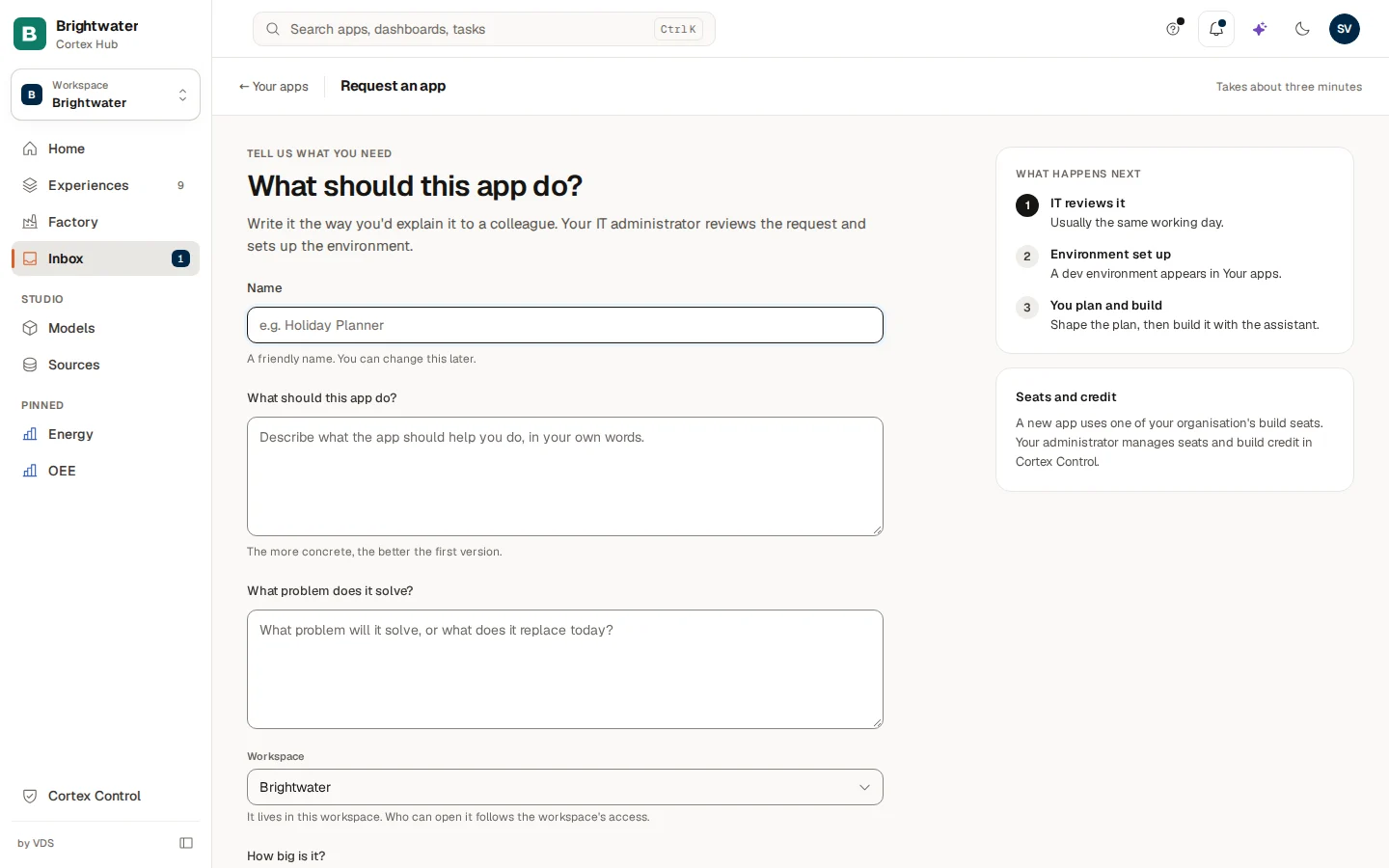
The form asks:
| Field | What to write |
|---|---|
| Name | A friendly name. You can change it later. Required. |
| What should this app do? | In your own words; the more concrete, the better the first version. Required. |
| What problem does it solve? | What it solves, or what it replaces today. Required. |
| Tell us more | Optional, folded away until you open it: up to 8,000 characters of detail. IT sees it with your request, it opens your plan as the first message and stays editable. The two required text boxes show a counter ("n / 1024") that warns from 90%; a longer text cannot be sent. |
| Workspace | Where it lives; who can open it follows that workspace. Only shown when you have more than one workspace. A workspace where you are not a key user is listed but disabled. |
| Roughly how many people will use it? | A whole number, or empty. |
| What information will it work with? | Choose from available sources lists the sources that exist already. This is a wish list for the assistant, not a grant of access. |
| Anything else it needs data from? and Does it connect to other systems or need sign-in? | Optional free text, for example a spreadsheet, or "sends email". |
Send request stays off until the three required fields are filled, and the page says what is missing. After sending, you land on Sent in your Inbox. The card on the right explains the next steps: IT reviews it (usually the same working day), the environment is set up and the app appears in your list, and then you plan and build. A new app uses one of your organisation's build seats; your administrator manages seats and build credit in Cortex Control.
Follow the request under Sent: Waiting for review, Being set up, Ready or Declined (with the reason). When it is Ready, choose Build it. See Start something and follow your requests.
Ask for access to a colleague's app
At the bottom of the list, Ask for access to an existing app lists finished apps that belong to colleagues and that you cannot open: "These apps belong to colleagues. Ask the owner for access and you can help build them." Each card shows the name and the owner. Choose Request access, optionally write why ("Why do you need access? (optional)") and choose Send request.
The owner decides and is notified; the card meanwhile says "Waiting for the owner to decide". When it is approved you get a message and the app appears in your list. If it is declined you see the reason, and after a recent refusal you have to wait a day before asking again. The section is hidden when there is nothing to ask for.
Under it, Discover lists dashboards that exist in your organisation but are not shared with you: you see what they are and who owns them, never what is inside. Request access sends the request to the owner or IT.
Manage an app
On the card of an app, open "..." and choose Manage. The page Manage app is one long page. Its top looks like this:
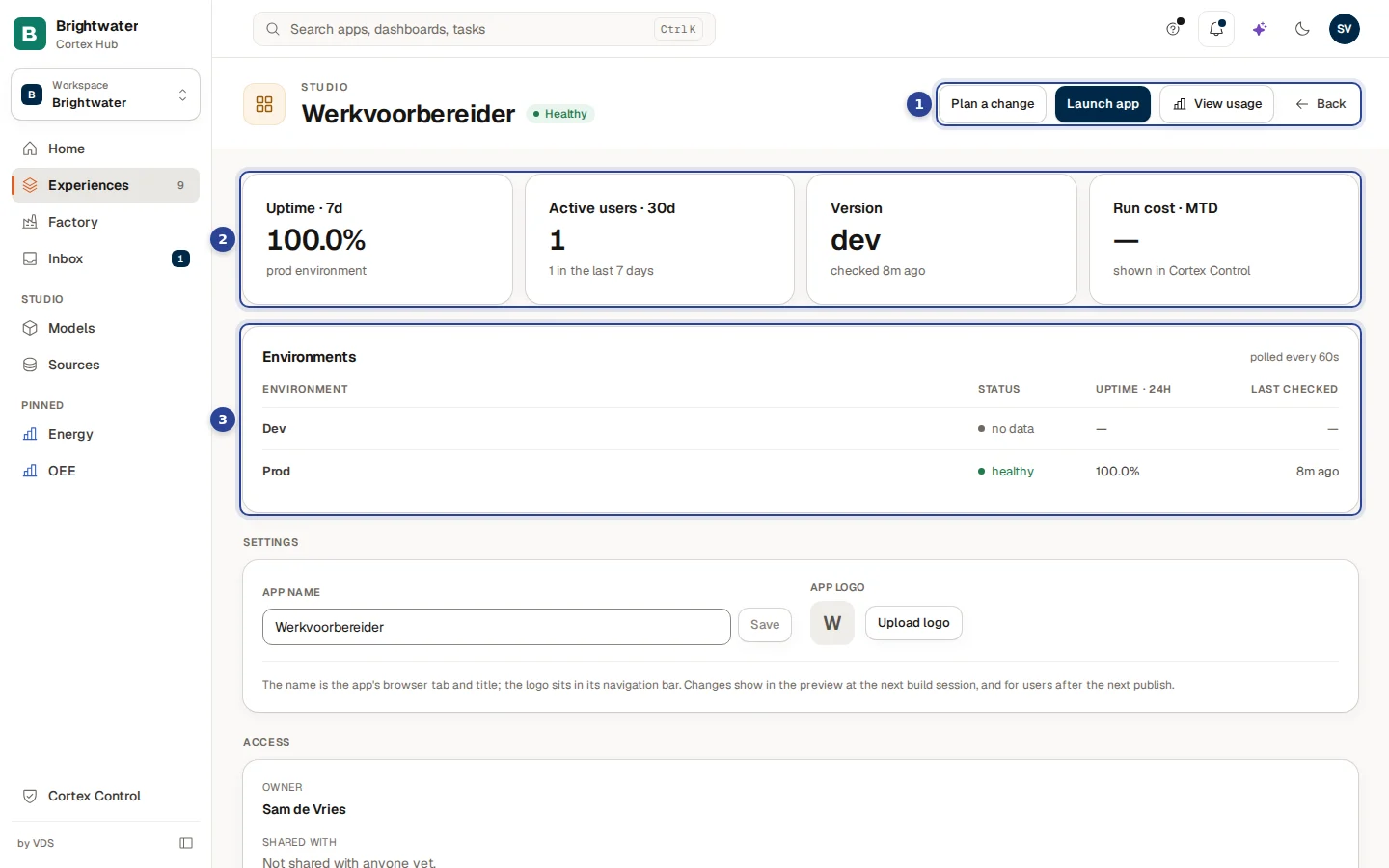
- The buttons at the top: Plan a change, Launch app, View usage and Back to the list.
- The four figures: Uptime · 7d, Active users · 30d, Version and Run cost · MTD.
- Environments: the health of each environment of the app.
The whole page has these parts:
| Part | What it shows |
|---|---|
| Top buttons | Plan a change (a new plan for this app), Launch app (the live app; off until it is published), View usage, Back. |
| Four figures | Uptime · 7d, Active users · 30d, Version and Run cost · MTD. The last one reads "shown in Cortex Control": run cost is kept there. |
| Environments | Per environment its Status (Healthy, Degraded or Down), Uptime · 24h and Last checked. An unpublished app says "This app has no environment yet. Publish it first, then its status shows here." |
| Settings | The App name (the browser tab and title) and the App logo (PNG, SVG, JPEG or WebP, at most 1 MB). Only the owner or IT can change them. Changes show in the preview at the next build session, and for users after the next publish. |
| Access | The Owner, who the app is Shared with (Share with a builder), and Transfer ownership. This is about who may build. |
| Who can open this app | Visibility: Restricted, Whole organisation or Discoverable, and the Viewers you can Grant access to or Revoke. Discoverable asks "Put this on the Hub shelf?"; people who cannot open it then see the title, description and owner and can ask for access, never data. Only the owner or IT can change it. |
| Audit | The findings of the last scan with a suggested Fix:. Run quick scan or Re-run quick scan starts a new one. |
| Usage | Active users (30d), Active users (7d) and Active since. |
| Users | Everyone who signed in, with name, email, role and Active or Inactive. Deactivate and Activate switch a person off or on in the app, after a confirmation. |
Example: the quality team's app
Sam de Vries at Brightwater Foods wants an app for the quality team.
Send the request
Sam chooses New > App, calls it "Quality checks", describes what the team does on paper today, picks Small and chooses Send request.
Wait for the answer
The request shows Waiting for review under Sent. The next morning the card says Ready, with a dot that shows it changed.
Find it in Experiences
On the Apps tab the card "Quality checks" now has Plan and Build. Sam chooses Plan to start (see Build an app).
Set it up for the team
After the first publish Sam opens "..." > Manage, sets Visibility under Who can open this app to Restricted and grants the five people of the quality team access.
Questions and problems
Build an app
Plan, build, preview and publish an app once it is set up.
Workspaces
Switch workspace, create one and choose where a new experience lives.
Start something
Start from one sentence and follow your requests in the Inbox.
Apps and experiences in Control
The admin view: who can open what, cleanup, archive and restore.
Documents and sources
Add documents so Ask can answer from them, file them on a model, a type of record or one record, and request access to a source or upload ad-hoc data.
Build an app
Plan an app with the assistant, build and preview it, steer the assistant, review files, versions and checks, and publish it to production.