Figures and certification
Define a figure, understand its formula, break it down, certify it and keep it certified, so dashboards and Ask can rely on it.
A figure (also called a measure) is a number your organisation has agreed on, such as revenue or the share of orders delivered on time. Dashboards, apps and Ask all use the same definition, so everyone sees the same number. A certified figure carries a badge that says it has been checked against the source, and keeps being checked every night. See Certified figures for the idea.
Figures live in a model (see Semantic models). You find them on the Figures tab of the model.
Who can do this
Owners of the model (and admins) define figures, certify them and publish the model. Everyone else sees the figures read-only in the Model guide.
The Figures tab
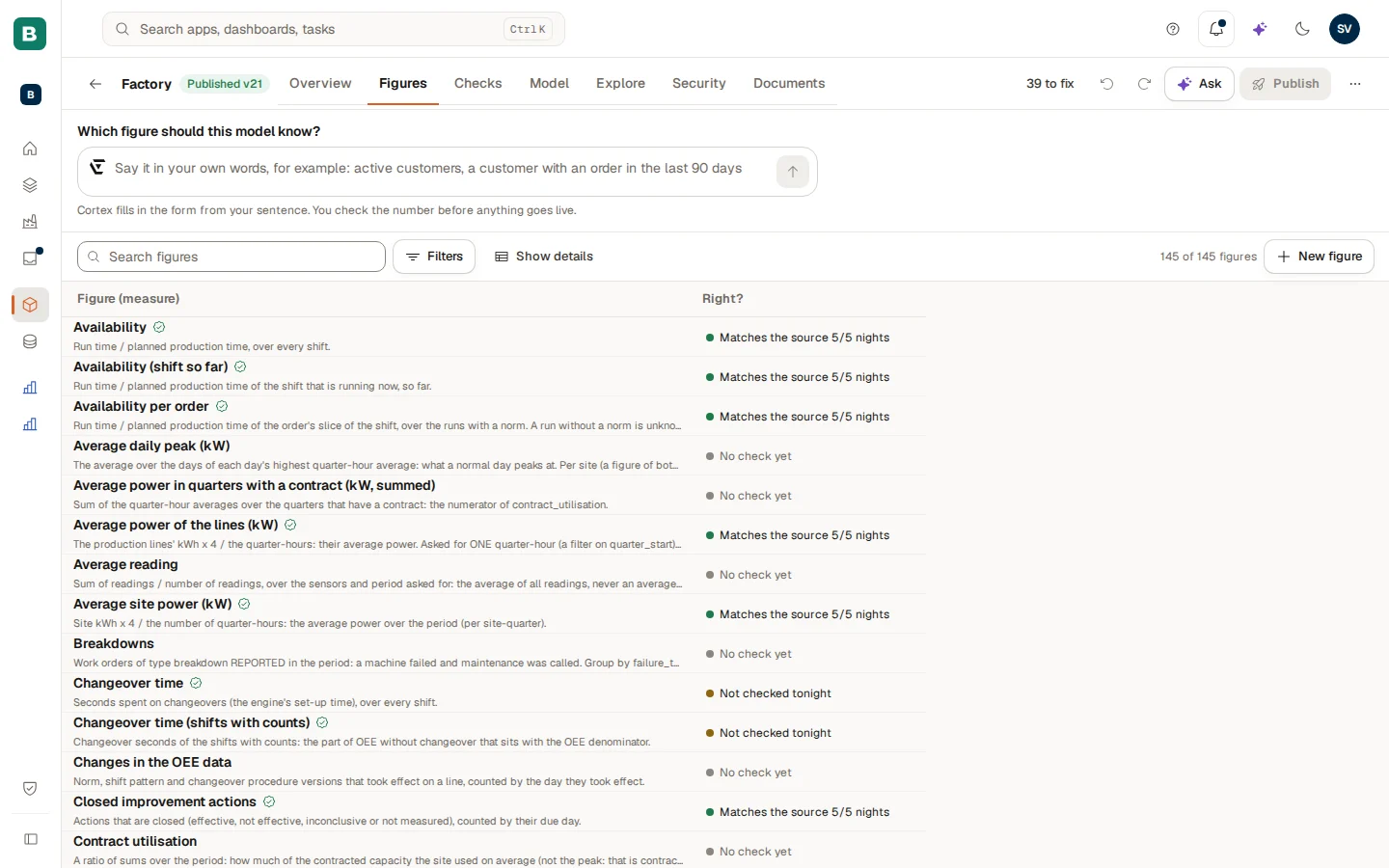
The tab lists every figure of the model, with a count ("12 of 52 figures"). Use Search figures and Filters (Display folder, Fact table, Certified only, AI-approved only, Needs attention only; Clear filters resets them) to find one. Choose Show details to add columns to the list.
| Column | What it tells you |
|---|---|
| Figure (measure) | The name of the figure. |
| Meaning | What the figure stands for, in business words. |
| Right? | The result of the nightly check at a glance, for example "Matches the source 7/7 nights" or "Differs since …". A figure that is not certified says it will be checked once it is. |
| Formula | How it is calculated. A Derived figure is built from other figures. |
| Unit and Folder | The unit and the display folder it is grouped under. |
| Certified | Whether the figure carries the badge. |
| AI | Whether it is approved for Ask and AI tools (see Semantic models). |
| Attention | What is missing: "Needs attention: not certified, no description, no synonyms". |
| Built on it | What is built on the figure: dashboards, apps, Ask and other figures. |
Choose a figure to open its own page.
How do I define a figure?
There are two ways to add a figure.
Write the figure in your own words in the box at the top of the tab (Which figure should this model know?), for example "active customers, a customer with an order in the last 90 days", and send it (Describe this figure). Cortex fills in the form from your sentence; you check the number before anything goes live.
A live Preview shows the result as you type ("Type a formula to see a live result."), and you can break it down by a field with Break down by. For the details choose:
- the Display folder, the Format (Default or Custom, with an example) and the Unit,
- Good when: Higher is better, Lower is better or No direction. Dashboards use this to colour a comparison green or red, unless a tile says otherwise,
- Period per part for a figure made of other figures, when each part must use its own period (for example planned time next month over output of the last 3 months). Parts without a period follow the period of the question.
Choose Save figure. Like everything else, it only goes live when the model is published.
What do I see on the page of a figure?
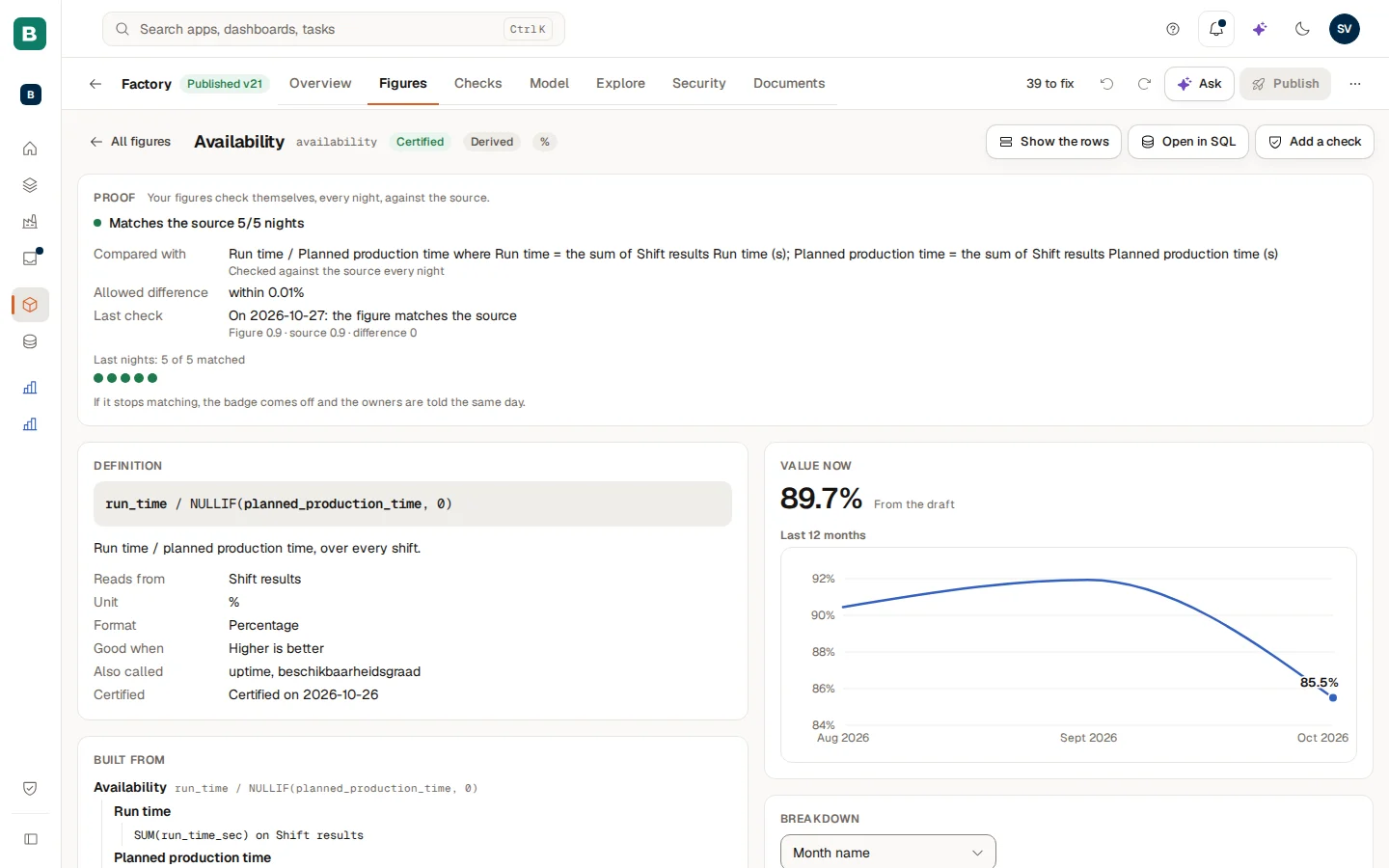
Open a figure to see:
- its Definition and what it Reads from (the table and fields),
- other names (Also called), which Ask uses to recognise the figure,
- what it is Built from, as a tree. A reference to something that is not in the model says so ("not in the model"),
- the Value now, "From the draft" or "From the published model",
- the Last 12 months as a trend (a figure without a date field says "This figure has no date to trend by"),
- a Breakdown by a field you choose,
- Who can use it, with Open Security to change it,
- Used by: dashboards, apps and Ask, and Figures built on it.
Choose Edit to change it, Show the rows to see the rows behind the number or Open in SQL to see the statement. Where a number comes from is never a secret: these two buttons are there so you can verify it yourself.
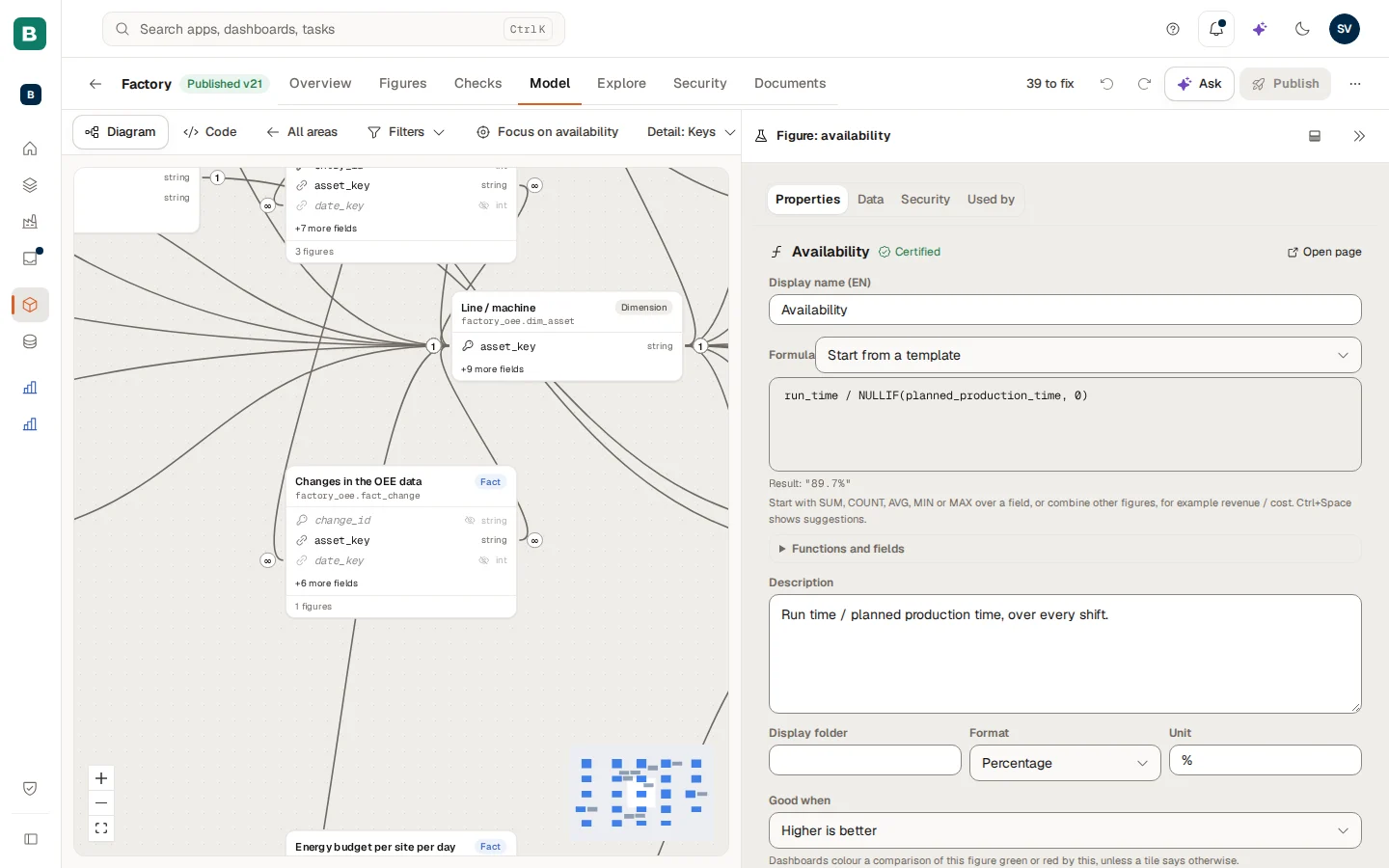
You can also work on a figure from the Model tab: select it on the map, or open it from the table's Figures list, and it opens in the editor next to the map.
How do I certify a figure?
Open the figure
Open the figure and find Certify this figure. It explains: "Certifying says the number is right. The check compares the model's answer with an independent total from the source; you confirm it."
Run the reference check
Choose Run the reference check. Cortex compares the model's answer with an independent total from the source and shows both ("model … · source …") and the result: Matches, Differs, Skipped, Not comparable or Could not run.
Certify
If the numbers match, choose Certify. If they differ, you can choose Certify anyway and explain why the difference is acceptable (a minimum length applies). The explanation is recorded in the audit log.
Publish the model
The badge is part of the draft and goes live with the next publish. The badge reads "Certified by your organisation on … (version n)".
If Cortex cannot build a reference for a figure by itself (for example a figure that cannot simply be added up over time), it says so and asks you to add a verified question with a reference total first. Only an owner of the model can certify a figure. A figure built from other figures can be Certified through its operands.
How does a figure stay certified?
Every night at 03:00 (UTC) Cortex compares each certified figure with the source again. The Proof block on the figure shows what it is compared with (Compared with), the Allowed difference ("none, the two must be equal" or "within …"), the Last check and the last nights ("Last nights: 7 of 7 matched"). The first check of a newly certified figure runs the first night after the model is published. If it stops matching, the badge comes off and the model owners are told the same day. In the list of figures the Right? column shows the result at a glance. See Model checks for everything Cortex checks.
What happens to certification when something changes
| What happens | Effect on the badge |
|---|---|
| You change the formula, field or filter of a certified figure and save | The certification is removed ("Saving a change to the formula removes the certification."). A message names the figure: "Certification removed from …: an owner has to certify the figure again." Certify it again. |
| The nightly check finds that the figure no longer equals the source | The badge comes off ("Badge off since …: differs from the source.") and the owners are told. When it matches again on a later night (or in a Run now on Published), the badge comes back by itself. You certify again only after a change to the figure's own definition. |
| No verified question proves the figure any more | "Badge off: no verified question proves this figure." |
| A check on a table under the figure fails and it is set to take badges off | The figures on that table lose their badge. See Model checks. |
| You publish the model without changing the figure | Nothing changes. |
Who can use a figure?
Everyone who can see the model can use a figure by default. Under Security (or on the figure, Who can use it) you can restrict a figure to named audiences or roles: Who can use this figure. The restriction is saved in the draft and takes effect when you publish. For Ask and AI tools, a model can also approve figures one by one (Approved for AI).
What if I need a figure that is not in the model?
When you are building a dashboard, choose Request a figure in the Data tab and describe in business words what it should mean. The model owners turn it into a defined figure. Until then, do not calculate it by hand in a tile.
Example: on-time delivery at Brightwater
Sam de Vries wants a figure for the share of Brightwater's orders delivered on the promised day.
- On the Figures tab Sam writes "share of orders delivered on or before the promised date" in the box and chooses Describe this figure. Cortex fills in the form.
- Sam reads the formula, picks the unit and Good when "Higher is better", and checks the preview. Then Save figure.
- On the figure's page Sam chooses Run the reference check. Model and source agree to the last order, so Sam chooses Certify.
- Sam publishes the model. From that night the Proof block reads "Last nights: 1 of 1 matched", and the dashboards show the figure with its badge.
- Months later a colleague changes the definition of "promised date". The certification is removed on save, a message says so, and Sam certifies the figure again after a new reference check.
Questions and troubleshooting
Semantic models
Create a model, add tables and relationships, explore and secure it, check its health, publish it and bring an earlier version back. Everything the model studio does, tab by tab.
Model checks
See what Cortex checks on your model every night, add checks of your own, run them now and understand what happens when one fails.