Find your way around
Your first day in Cortex Hub. Sign in, learn the parts of the screen, and do the first five things that make Cortex useful.
Cortex Hub is where you work with Cortex every day. You ask questions about your organisation's data, open dashboards and apps, follow your numbers and handle the tasks that wait for you. This page shows you the screen once, from left to right, and then gives you five things to try on your first day. Every part has its own page with the details.
Who can do this
Everyone who can sign in to Cortex Hub. What you see inside it depends on what has been shared with you: Cortex never shows you a dashboard, app, record or document you may not open.
Sign in
Open the address your organisation gave you and choose Sign in with Microsoft. Cortex uses the work account you already use at work, so there is no separate password. The first time, you land on Home. See Access and sign-in if something goes wrong at this step.
The screen at a glance
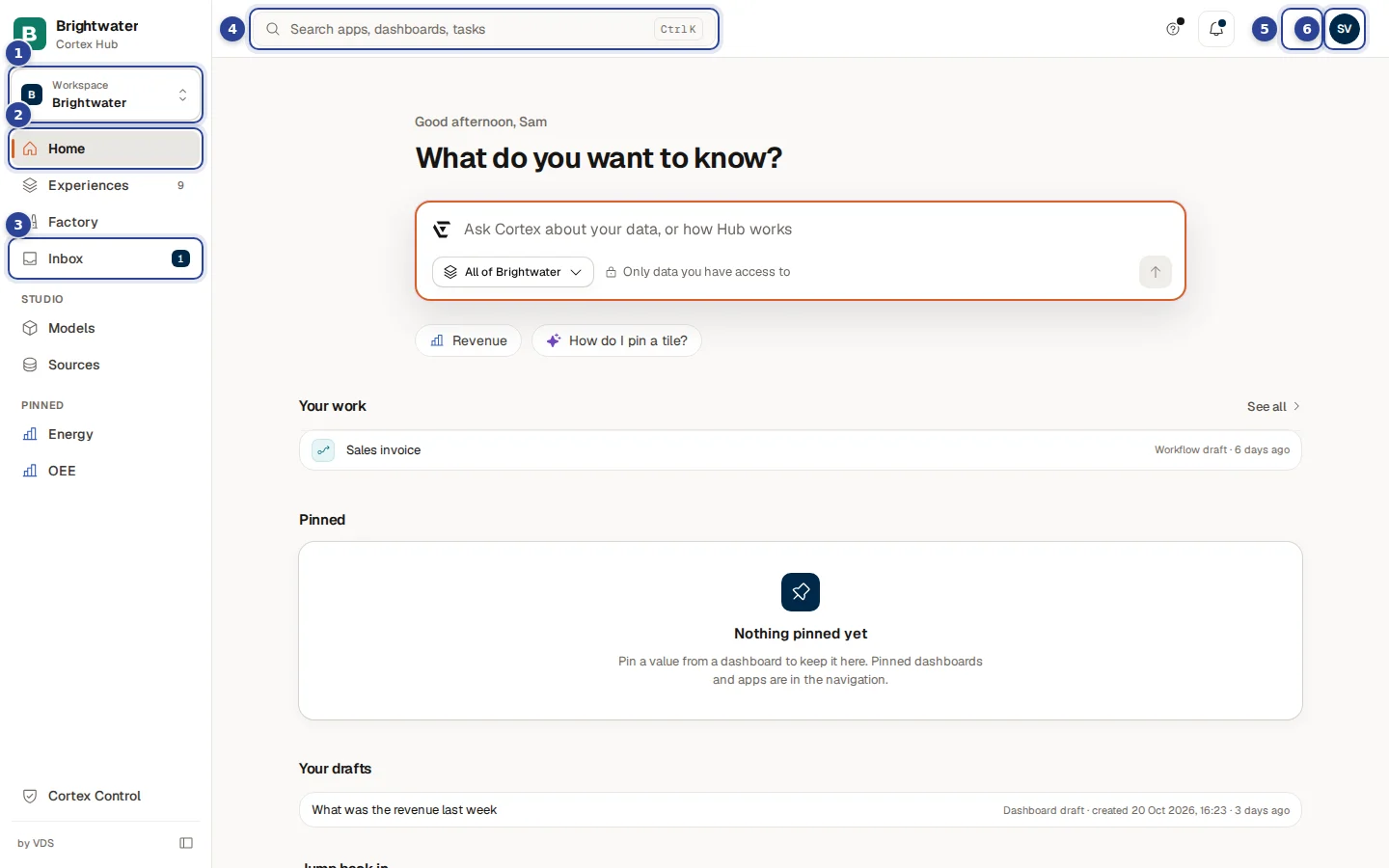
- The workspace card ("Workspace"). Shows the part of your organisation you are looking at. Choose it to switch. See Search and workspaces.
- Home. The page where you start: the question box, your recent questions and what you pinned. See Home.
- Inbox. Tasks and requests that wait for you. The number is how many need your action. See The Inbox.
- The search box ("Search apps, dashboards, tasks"). Press Ctrl+K (Cmd+K on a Mac) from any page.
- The light and dark button. Its name says what it does: Switch to dark mode or Switch to light mode.
- Your account button with your initials. It opens the account menu with your language, your subscriptions and Sign out. See Your account.
Next to the search box you also find the bell (Notifications, see Notifications) and a sparkle button (Ask a question) that opens Ask from any page. When Cortex knows how fresh your data is, a Data freshness pill appears there too.
The menu on the left
The menu lists Home, Experiences and Inbox. The number beside Experiences is how many dashboards, apps and workflows you can open in the current workspace. Under those, Pinned lists the dashboards, apps and workflows you pinned yourself, so your favourites are one click away. Some people see more:
- Factory appears when your organisation uses the Factory pack.
- A Studio group with Models and Sources appears for people who build with Cortex. See Studio.
- Cortex Control at the bottom appears for administrators.
You can collapse the menu to a narrow strip of icons. See Home.
Your first five things
Ask a question
Type a question in the box on Home, for example "What was the revenue this year?", and press Enter. Cortex answers with the figure, the period and where it came from. See Ask Cortex.
Open Experiences
Choose Experiences in the menu. It lists everything you can open: dashboards, apps and workflows. Use the filters to narrow it down and select a card to open it. See Experiences.
Pin what you use every day
Choose the pin icon on a card to put that dashboard, app or workflow under Pinned in the menu. Pin a single figure from a dashboard to see it on Home. See Pin a value, pin a dashboard, subscribe.
Try the search
Press Ctrl+K, type a few letters of a dashboard or app and press Enter. When nothing matches, the last row asks Cortex your text as a question. See Search and workspaces.
Set your language and look
Open the account menu and choose Language. Use the light and dark button if you prefer a dark screen. See Your account.
The account menu
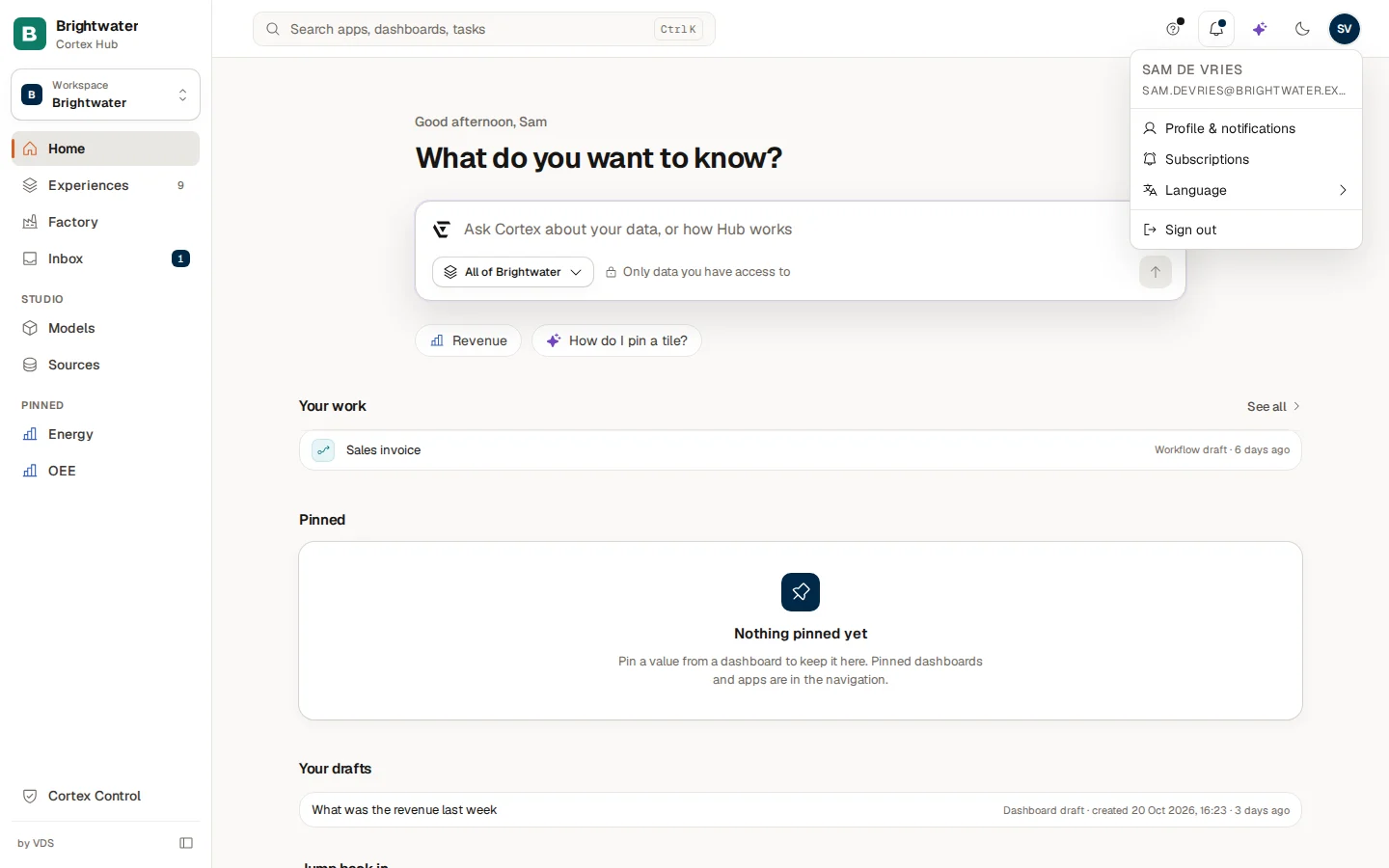
The menu shows your name and e-mail address. Subscriptions, Language and Sign out are there for everyone. Profile & notifications is only there for people with a Studio seat. Details are on Your account.
Where things are
| You want to | Go to |
|---|---|
| Ask about your data | The box on Home, or the sparkle button at the top |
| Open a dashboard, app or workflow | Experiences, or Pinned in the menu |
| Find something by name | The search box, Ctrl+K |
| See what waits for you | Inbox |
| See alerts and digests | The bell |
| Change language or sign out | The account menu |
| Ask for access to something | The request form on the page, or Discover at the bottom of Experiences |
Example: Sam's first morning
Sam de Vries works at Brightwater Foods and has just received access. Sam signs in, sees Home and asks "What was the revenue last week?". The answer names the figure and the week. Sam then opens Experiences, types "oee" in Filter by name, opens the OEE dashboard and pins it. From then on OEE sits under Pinned in the menu, and the Inbox badge tells Sam when a task comes in.