The Inbox
Decide the tasks that wait for you, hand a task over, and follow your access requests and your feedback.
The Inbox is one page for two questions: what waits for me, and what did I send. When a process in your organisation needs your decision, for example approving an order, it shows up here as a task. When you asked for access to a dashboard or sent feedback on an app, the answer shows up here too.
It replaces the old Tasks page. Anything you used to find under Tasks is now on the For you tab.
Who can do this
Everyone who can sign in to Cortex Hub. You only see tasks that a workflow has assigned to you, and only your own requests and feedback. People with a Studio seat see two extra tabs, Feedback and Roadmap, and extra rows on the other two; those are described in Studio start.
The Inbox at a glance
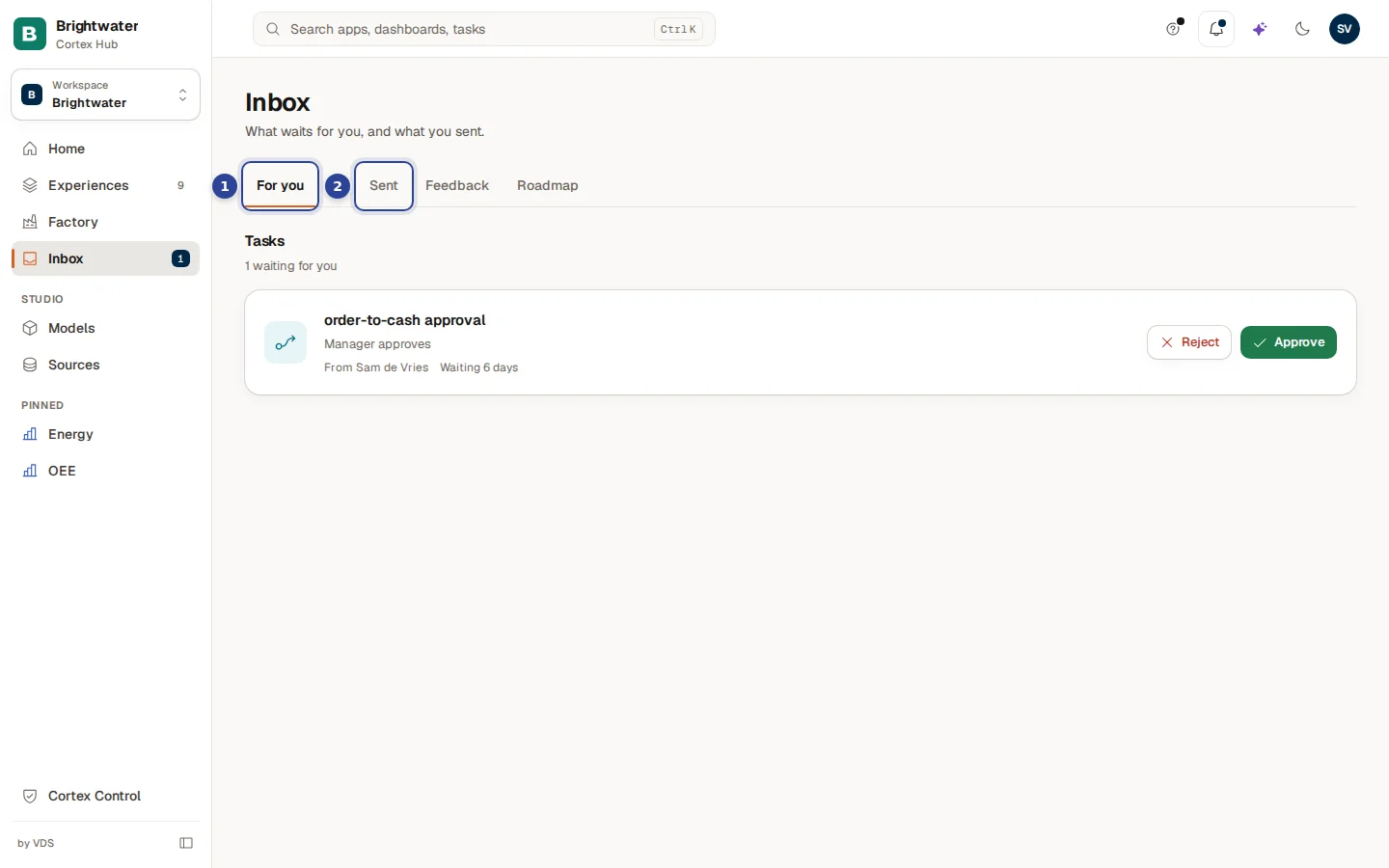
- For you. Everything that waits for your decision. Under the heading Tasks a line says how many ("1 waiting for you").
- Sent. What you asked for and where it stands: your access requests and your feedback. See Follow what you sent.
In the screenshot two more tabs, Feedback and Roadmap, are visible because the person has a Studio seat. A person without one sees two tabs.
A number next to Inbox in the menu shows how many tasks wait for you. The page header says "What waits for you, and what you sent."
A task card
Every task is a card:
| Part | What it tells you |
|---|---|
| The workflow name | Which process this belongs to, for example "order-to-cash approval". |
| The step | Where the process is, for example "Manager approves". |
| A question or summary | The text the workflow wrote for this step, in a grey box. |
| Details | The few fields the workflow chose to show, as a list of label and value. |
| "From ..." | Who started the process. |
| "Waiting ..." | How long it has been waiting. |
| "Due ..." | The deadline, when there is one. |
| "1 of 2 approvals" and each person's vote | Only when more than one person must approve. Votes read "to decide", "waits for their turn", "approved", "rejected" or "not needed". Your own line says "you". |
| Reject and Approve | Your decision. |
| The three dots | Hand over, when this task can be handed over. |
Approve or reject a task
Read the task
Read the summary and the Details. If more than one person must approve, the card shows how far it is.
Choose Approve or Reject
A box opens ("Approve this task" or "Reject this task"). The sentence under the title says what happens next: approving lets the process continue. Rejecting either stops it ("The process stops.") or sends it down its rejection path ("The process continues on its rejection path.").
Fill in what is asked
If the box asks "Pick an option", choose one. If it shows a form, fill it in: a form is part of approving, so rejecting needs none. Fields with a problem are marked.
Add a note if you like
Under "Add a note (optional)" you can explain your decision. The note goes with your decision.
Confirm
Choose Approve or Reject again. Cortex says "Approved" or "Rejected" and the task leaves your list. When nothing is left, the page says "You are all caught up".
You can also open a task from the search box at the top (type its name), from the email you get when a task is assigned to you, or from a link: the page then scrolls to that task and outlines it.
Hand a task to someone else
Some tasks can be handed over. On those cards select the three dots (More actions) and choose Hand over. Pick a person under Hand over to, optionally say why ("Why (optional)") and choose Hand over. The task moves to that person's tasks and the hand-over is recorded in the history of the run ("Task handed over"). If you do not see the three dots, this task cannot be handed over. You pick from the people the step allows.
Follow what you sent
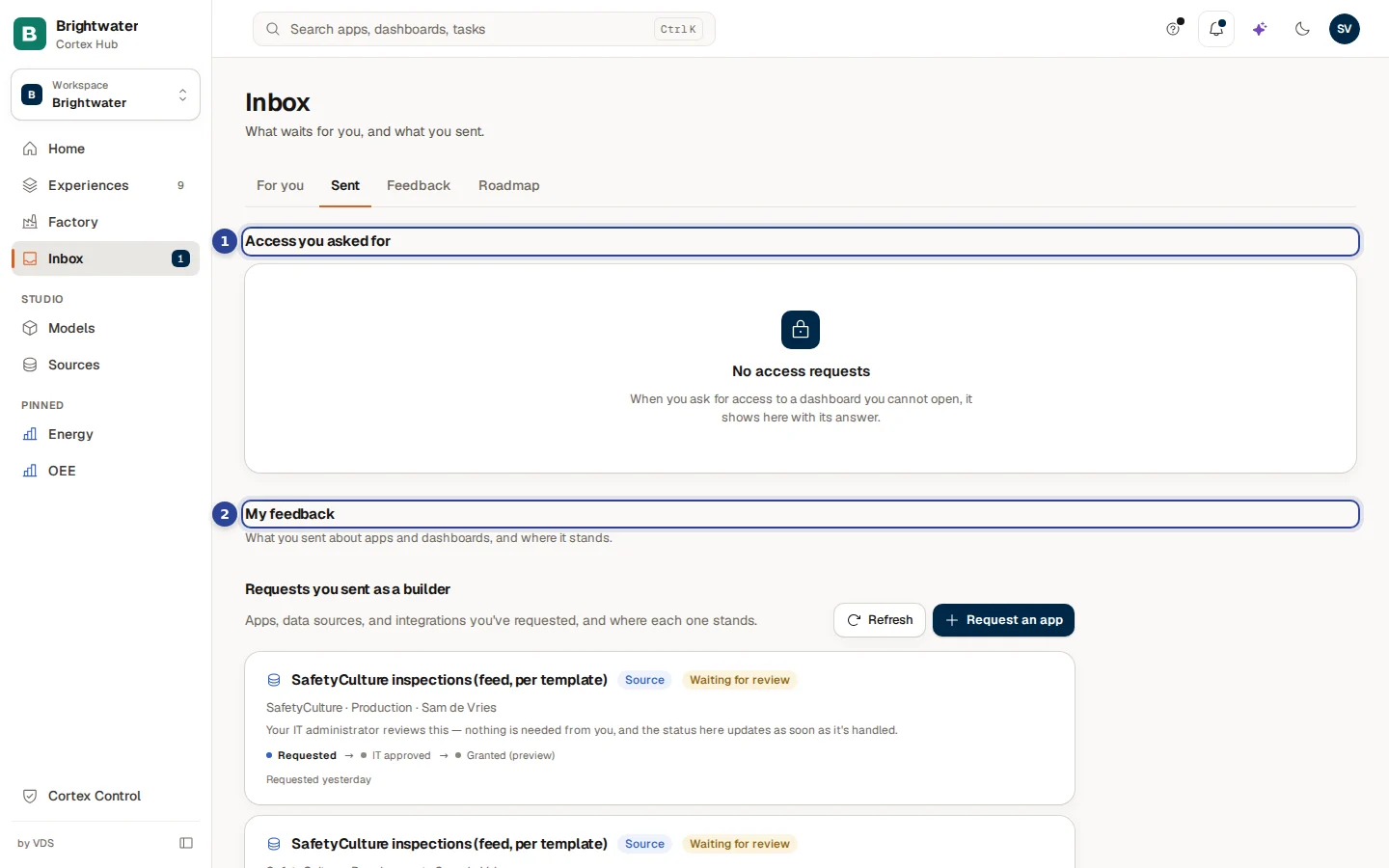
- Access you asked for. Every access request you sent from a dashboard you could not open. Each card names the dashboard or Ask profile, says what kind it is (Dashboard or Assistant) and shows a status. A dot means an answer you have not seen yet. When nothing was requested, the section says "No access requests".
- My feedback. What you sent about apps and dashboards, and where it stands. See Feedback and the roadmap. When there is nothing, it says "You have not sent any feedback yet."
| Status of an access request | Meaning |
|---|---|
| Waiting for an answer | The owner or IT has not decided yet. Under the card: "Asked 2 days ago". |
| Approved | You can open it now. Under the card: "Answered ...". |
| Not approved | It was declined. When a reason was given, the card shows "Reason given: ...". |
| Withdrawn | The request was withdrawn. |
You ask for access on the page itself, see Access and sign-in.
Example: Sam handles an order approval
Sam de Vries at Brightwater Foods sees a 1 next to Inbox.
- Sam opens Inbox. The tab For you shows "1 waiting for you": "order-to-cash approval", step "Manager approves", from a colleague, waiting 6 days.
- Sam reads the Details, then chooses Approve. The box says "You approve "order-to-cash approval". The process continues."
- Sam adds the note "Customer confirmed the delivery date" and confirms. Cortex says "Approved" and the page says "You are all caught up".
- Later Sam opens Sent and sees that the access request for the Quality dashboard is Approved.
Questions and problems
Records
Look at one customer, order or machine in full: its details, the records linked to it, its documents and the figures about it.
Feedback and the roadmap
Send an idea or a problem about a dashboard or an app, follow what happens to it, read the roadmap and, if you have a Studio seat, request a new app.