Access and sign-in
What the sign-in screen, the "cannot open" screens and the "page does not exist" screen mean, how to ask for access to a dashboard, and what to do when you cannot sign in.
Most of the time you never think about access: you sign in and everything you need is there. This page is for the moments when something is missing or refused. It explains each message you can meet, what it means, and the one step to take. The short version is that Cortex only shows you what has been shared with you, and a missing item almost always means "not shared with you yet", which you can fix by asking.
Who can do this
Everyone who can sign in to Cortex Hub. Only the owner of an item, or your IT team, can give you access to it. You can always ask.
Signing in
You sign in with your organisation's work account through Microsoft. There is no separate Cortex password.
Open Cortex
Open the address your organisation gave you. The sign-in screen shows your organisation's name and logo and says "Use your work account.", with your organisation's name in place of "work" when it has one.
Choose Sign in with Microsoft
Microsoft asks for your work account if it does not know you yet, then sends you back to Cortex Hub. You land on Home.
When sign-in fails
If something goes wrong, the sign-in screen tells you in a box under the button:
| Message | What it means | What to do |
|---|---|---|
| Sign-in did not complete | Microsoft could not finish signing you in. | Choose Try again. If it keeps happening, contact your administrator. |
| This account belongs to another organisation | You signed in with an account outside your organisation, for example a private one. | Sign in with the work account of your own organisation. |
| You do not have access | Your account is valid but has not been given access to Cortex. | Ask an administrator to add you. |
Below the button the screen also says "Nothing to see after you sign in? Ask IT to give you access.". That is the next situation.
Signed in, but nothing to see
You are in, but Experiences says "Nothing has been shared with you yet" and Home has little to offer. Your account works, but nobody has shared a dashboard, app or workflow with you. Ask your IT team or the owner of the item to give you access.
When you cannot open something
You follow a link, or pick a card, and Cortex says no. There are four screens, depending on what you tried to open.
A dashboard
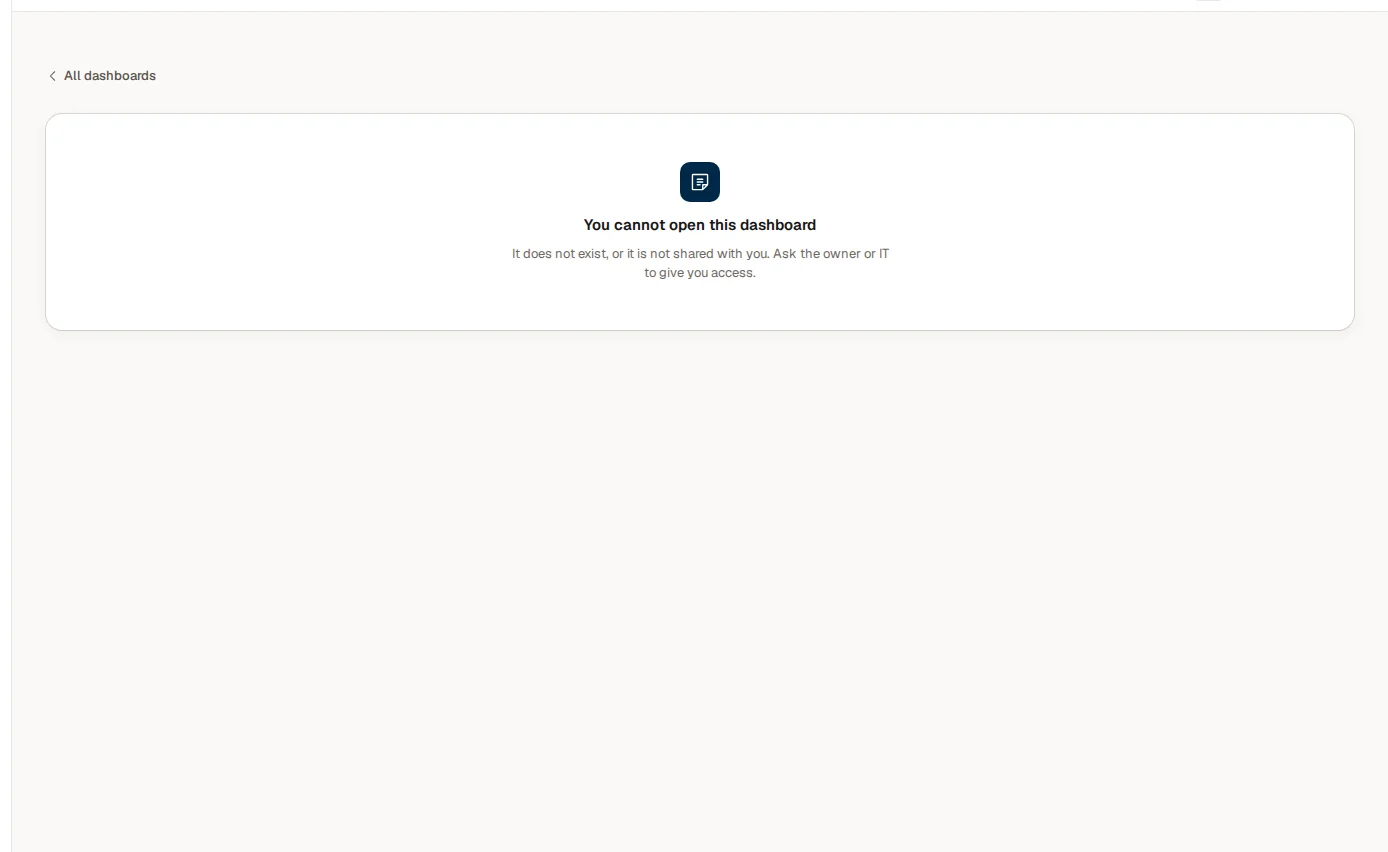
This screen says "You cannot open this dashboard. It does not exist, or it is not shared with you. Ask the owner or IT to give you access." The link All dashboards at the top takes you back to the list. Cortex does not say which of the two it is.
When Cortex knows that the dashboard exists and that you can ask for it, you get a better screen instead, with a form to request access. See Ask for access.
An app
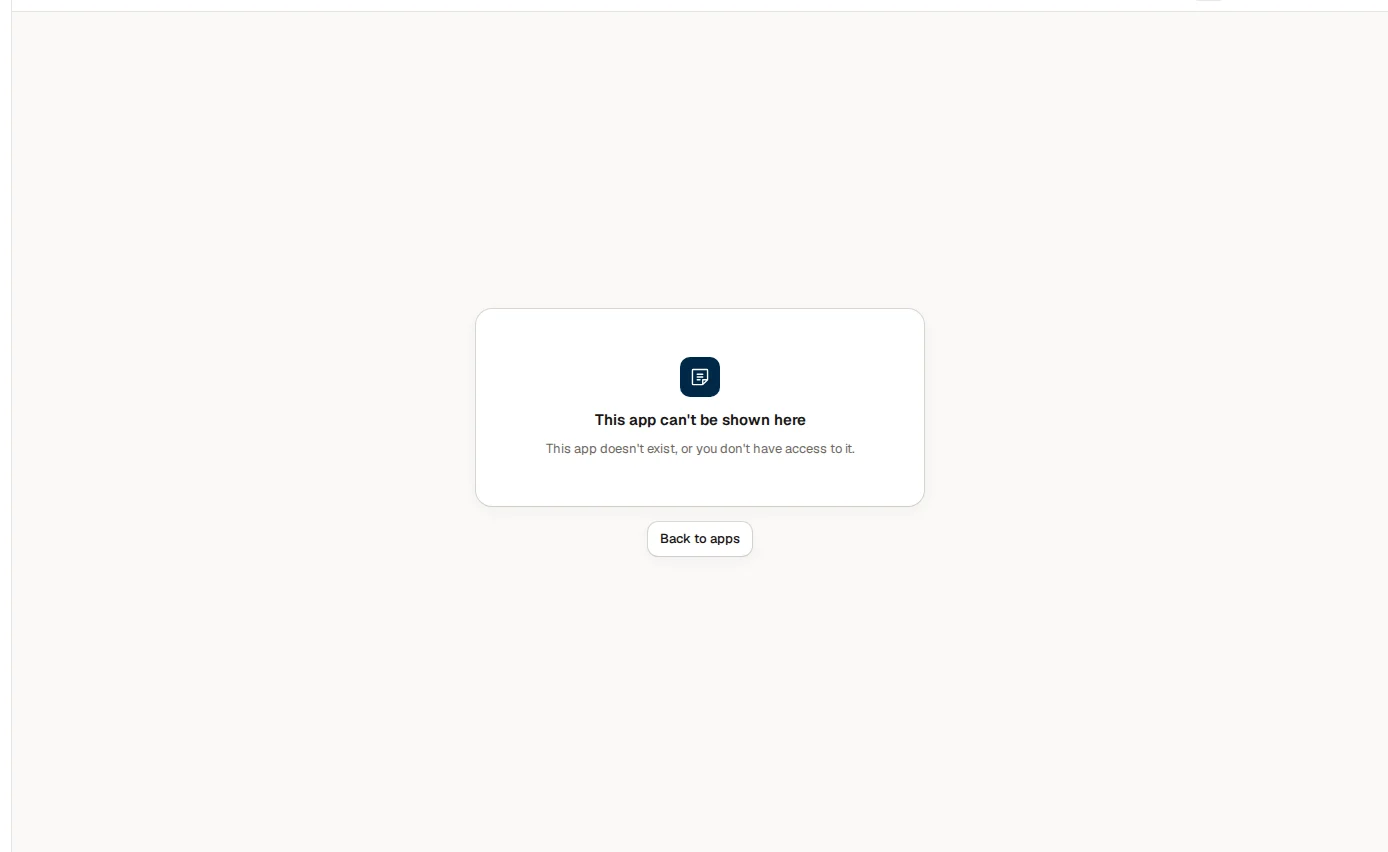
The screen says "This app can't be shown here. This app doesn't exist, or you don't have access to it." Choose Back to apps. An app does not offer a request form. Ask the owner of the app or your IT team to share it with you.
A different message appears for an app that exists but cannot open inside the Hub: "... doesn't open inside Cortex Hub yet. Ask IT how to open it." And "... isn't responding." means the app itself did not answer. Try again in a moment, and tell your IT team if it stays that way.
A workflow or a record
- A workflow you may not open says "You can't open this workflow. It is not shared with you, or it does not exist. Ask its owner for access." with Back to workflows.
- A record you may not see says "No such record. This record does not exist, or you may not see it.".
A page that does not exist
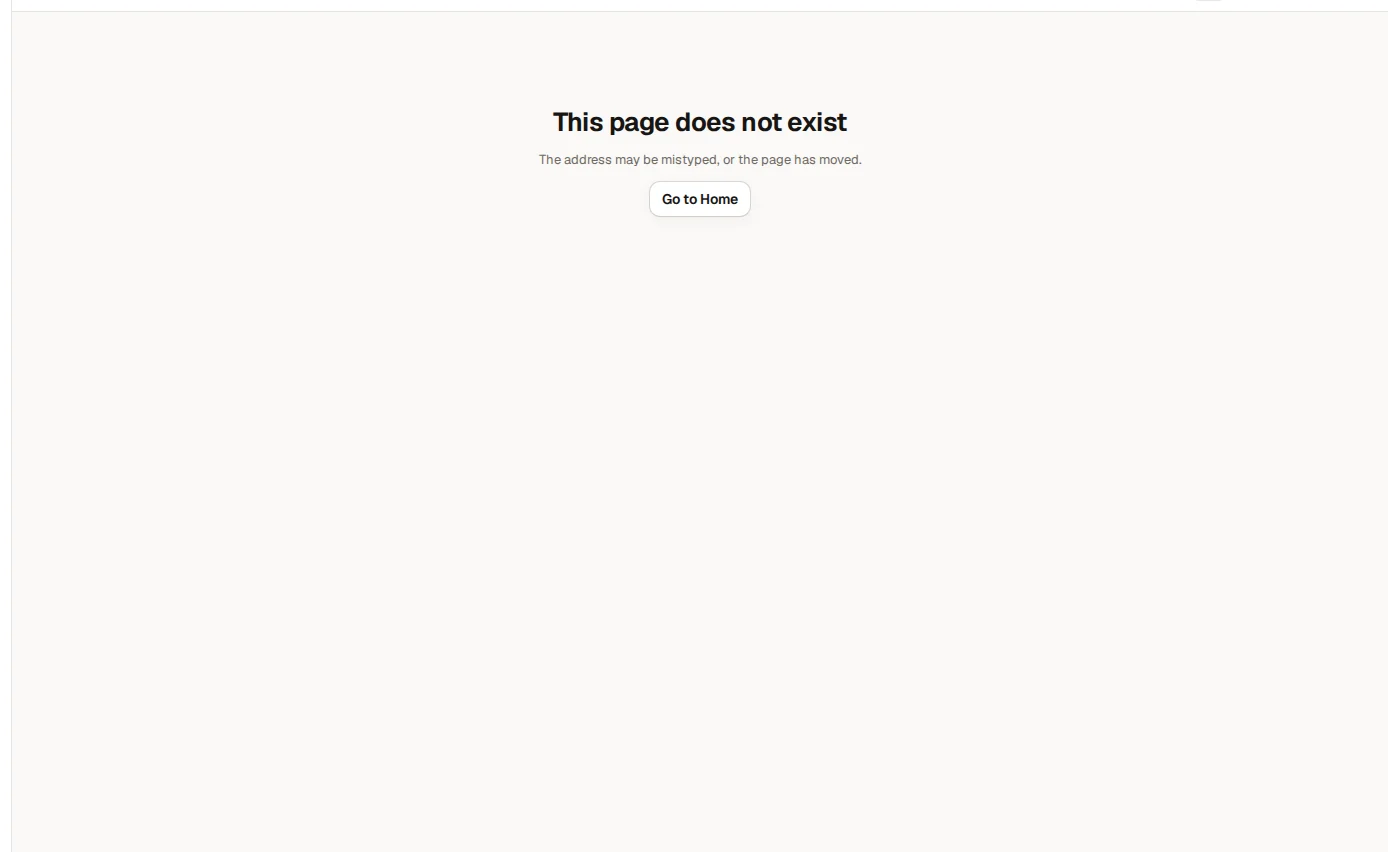
This one is not about access. The address does not match any page: it may be mistyped, or the page has moved. Choose Go to Home. A link you saved long ago may have moved. Open Experiences and find the item again, or use the search box.
Ask for access
When a dashboard exists and can be requested, the page replaces the plain screen with a request form.
Write why you need it
The box "Why do you need it? (optional)" takes up to 1000 characters. A short reason helps the owner decide faster, for example "I prepare the weekly production meeting".
Choose Request access
Cortex says "Request sent. You will see the answer here." The request goes to the owner or to IT, who decide in Cortex Control.
Wait for the answer
Until then the page says "Waiting for the owner or IT to decide." and shows your reason. Changed your mind? Choose Withdraw request.
Open it
When it is approved the page says "Approved. You can open it now." Choose Open. If your request was declined, the page says "Your last request was declined." with the owner's note when there is one, and you can ask again.
Open the link and choose Request access
Decide in Cortex Control
Approved: choose Open. Declined: you can ask again
You can also ask without a link: dashboards that exist but are not shared with you are listed under Discover at the bottom of Experiences, each with Request access. See Experiences. Every request and its answer is kept under Inbox, on the Sent tab. See The Inbox.
What you see and what you do not
Cortex checks access every time, on its own side, for every dashboard, figure, record, document and answer. That is why a refused screen is deliberately short: it tells you where to go, not what is behind the door. The same rule applies to Ask: when a figure exists but is not for you, the answer says "That isn't available to you.". See Access and security.
Example: Sam asks for the Margin review
Sam de Vries at Brightwater Foods gets a link to the Margin review dashboard from a colleague. Sam opens it and sees "You cannot open this dashboard". Sam checks the address, then looks under Discover in Experiences, finds the dashboard, writes "I prepare the Monday finance meeting" and chooses Request access. The card says Requested. A day later the Inbox shows the answer on its Sent tab: approved. Sam opens the link again and the dashboard loads.