Cortex in Microsoft Teams
Use Cortex Hub inside Microsoft Teams: the three tabs, how signing in works, links that open the right task or dashboard, and what still opens in your browser.
Cortex Hub can run as an app inside Microsoft Teams. It is the same Hub you open in the browser, with the same access and the same data. The difference is the frame around it: Teams supplies the navigation, so you can look at a dashboard, ask Cortex a question or decide a task without leaving the place where you already talk to your colleagues.
Who can do this
Everyone who can sign in to Cortex Hub, once IT has added Cortex Hub to Microsoft Teams for your organisation. How IT does that is described in Microsoft Teams.
How Cortex Hub sits in Teams
Opens Cortex Hub as an app, with its own tab bar.
Uses the account you already use in Teams. A small sign-in window opens only when that is not enough.
The same pages, access and data as in the browser. No menu on the left.
Only for the few things that cannot run inside Teams.
Find Cortex Hub in Teams
When IT has added the app, you find it in Teams under Apps, in the list of apps your organisation made. Teams can also pin it for you in the left bar. If you cannot find it, ask your IT team: the app has to be added and approved for your organisation first.
The three tabs
Cortex Hub in Teams has three tabs:
| Tab | What you do there |
|---|---|
| Home (in Dutch: Start) | Ask Cortex a question, see your pinned values and what you opened recently. See Your Home and Ask Cortex. |
| Inbox | Decide the tasks that wait for you and follow what you sent. See The Inbox. |
| Experiences (in Dutch: Ervaringen) | Open every dashboard, app and workflow shared with you. See Experiences. |
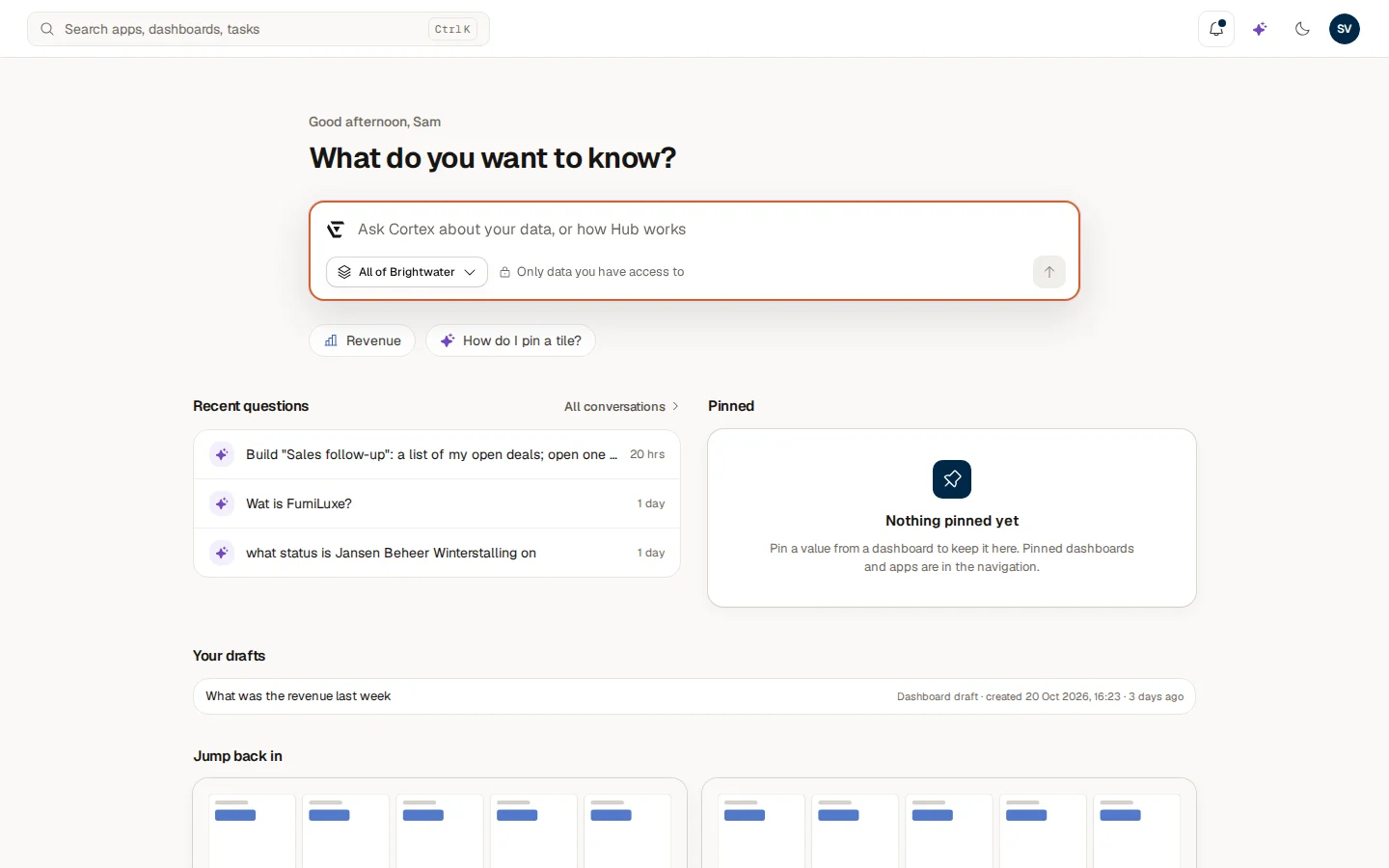
Teams' own tab bar is your navigation, so the menu on the left that you know from the browser is not shown in Teams. That also means the workspace picker at the top of that menu is not there. The search box, the Data freshness pill, the bell, the light and dark button and your account menu stay at the top, and everything you open from a tab works the way it does in the browser.
One app, one tab
IT can also give a single app its own entry in Teams. That tab shows only the app, without the top bar, so it looks like a small tool of its own. It signs you in the same way and shows what you are allowed to see. See Apps and workflows.
Sign in
Cortex signs you in with the account you already use in Teams. You normally see nothing of this: the Hub opens and shows your pages. When that does not work by itself, the Hub shows its sign-in page and the button opens a small sign-in window from Teams. Sign in with your work account there. When you are done, the window closes and the Hub carries on.
If you choose Sign out in the account menu inside Teams, Cortex forgets your session in that tab and shows the sign-in page again. You stay signed in to Teams itself.
Links that land on the right page
A Teams link can point straight at one of your tasks or at a dashboard. Opening it takes you to that task in the Inbox or to that dashboard inside the Hub tab. Links that point anywhere else are ignored, so a link can never send you to an arbitrary page.
What opens in your browser instead
A few things cannot be done inside the Teams frame. In those places Cortex opens your browser:
- Giving permission for a digest or alert on restricted data. The box says "Open the Hub in your browser to give permission." See Subscriptions.
- Building and managing in Studio, if you have a Studio seat. The button says Open in browser or Edit in browser, and the text explains: "Building and managing in Studio is not available inside Teams. Open it in your browser to carry on." Inside Teams the Hub also leaves out Studio's links, such as the extra tabs in the Inbox.
- Docs in the ? Help menu opens this documentation in your browser.
A digest or alert in a Teams channel
If your organisation has linked Teams channels, you can send a digest or alert about a dashboard to a channel. When you subscribe (see Pin a value, pin a dashboard, subscribe), choose In a Teams channel under Where and pick the channel under Teams channel. A channel is visible to everyone in it, so the post holds no figures: it says that something needs a look, with a link. Everyone who opens the link still sees only what their own access allows.
Example: Sam approves a task from Teams
Sam de Vries at Brightwater Foods gets a task from the "order-to-cash approval" workflow, and a colleague shares a Teams link to the task. Sam opens it, lands on the task in the Inbox tab, reads the details and chooses Approve. The run then continues, exactly as if Sam had done it in the browser. Later that day Sam wants to adjust a dashboard. The Edit in browser button opens the browser, because editing is not possible inside Teams.
When something does not work
Your account, language and appearance
Everything behind your initials at the top right. Change the language, switch between light and dark, collapse the menu, manage your subscriptions, open the documentation and sign out.
Access and sign-in
What the sign-in screen, the "cannot open" screens and the "page does not exist" screen mean, how to ask for access to a dashboard, and what to do when you cannot sign in.