Your account, language and appearance
Everything behind your initials at the top right. Change the language, switch between light and dark, collapse the menu, manage your subscriptions, open the documentation and sign out.
Your account in Cortex Hub is small on purpose. You sign in with your work account, so there is no password to manage here. What you can set yourself is how Cortex looks and speaks to you: the language, light or dark, and how much room the menu takes. This page covers all of it, plus the menu behind your initials and the Profile page that builders have.
Who can do this
Everyone who can sign in to Cortex Hub. The Profile & notifications entry and its page are only for people with a Studio seat.
The account menu
Select your initials (or your picture) at the top right. The button is called Account menu.
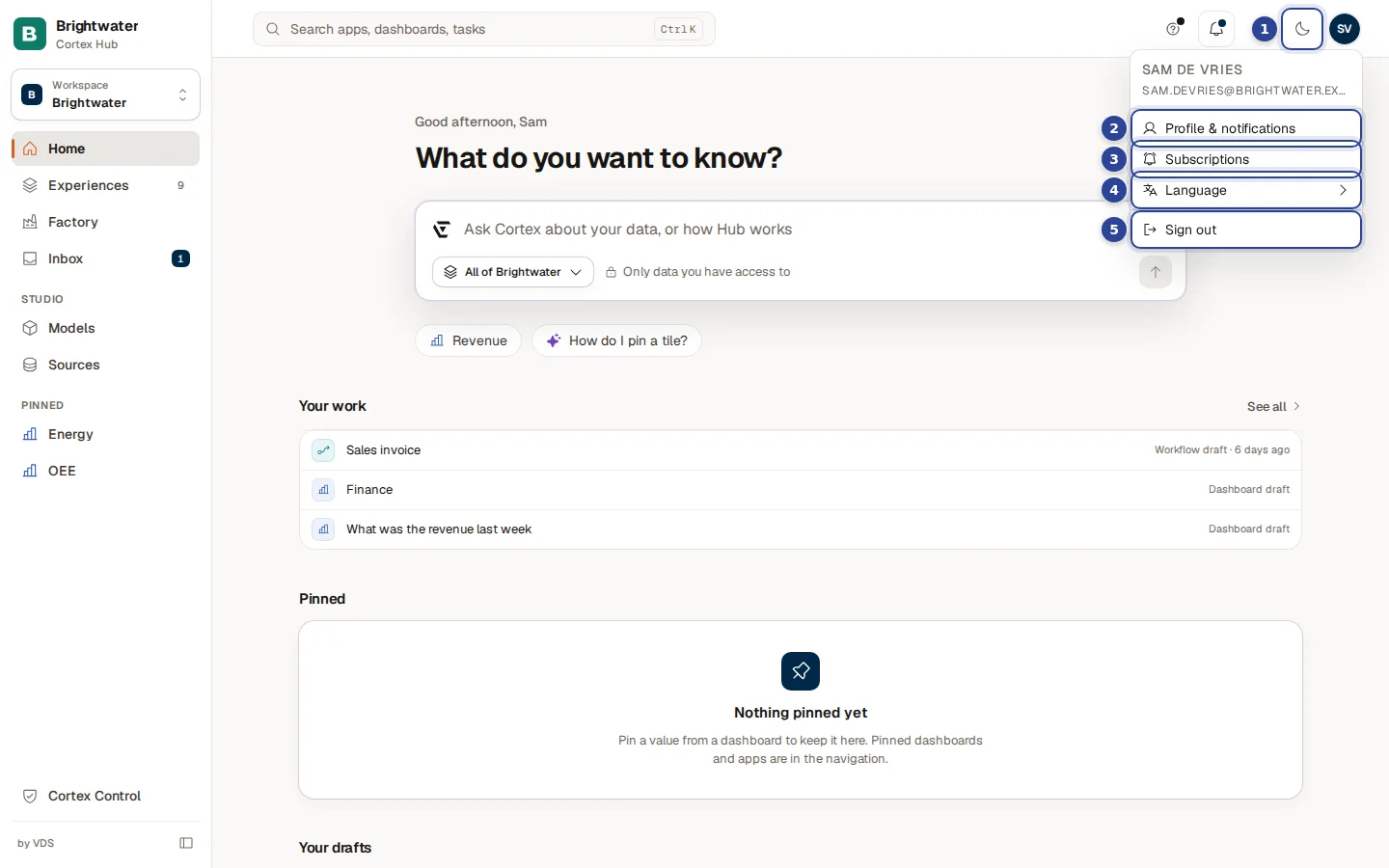
- The light and dark button. Not part of the menu itself, but right beside it. Switch to dark mode or Switch to light mode. See Light and dark.
- Profile & notifications. Your name, e-mail address and role, and desktop notifications. Only people with a Studio seat see this entry. See The profile page.
- Subscriptions. Opens the list of digests and alerts you subscribed to.
- Language. Opens a short list: English and Nederlands. A tick marks the current one.
- Sign out. Signs you out of Cortex.
At the top of the menu you see your name and e-mail address, so you can check which account you are using. The documentation is not in this menu: open the ? Help menu in the top bar and choose Docs (Builder docs if you have a Studio seat; that opens the Studio section). It opens this documentation in a new browser tab, in your language, when your organisation has the documentation site.
| Entry | For whom | What it does |
|---|---|---|
| Profile & notifications | People with a Studio seat | Opens the Profile page. |
| Subscriptions | Everyone | Opens your subscriptions. |
| Language | Everyone | Switches between English and Dutch. |
| Sign out | Everyone | Ends your session. |
Change the language
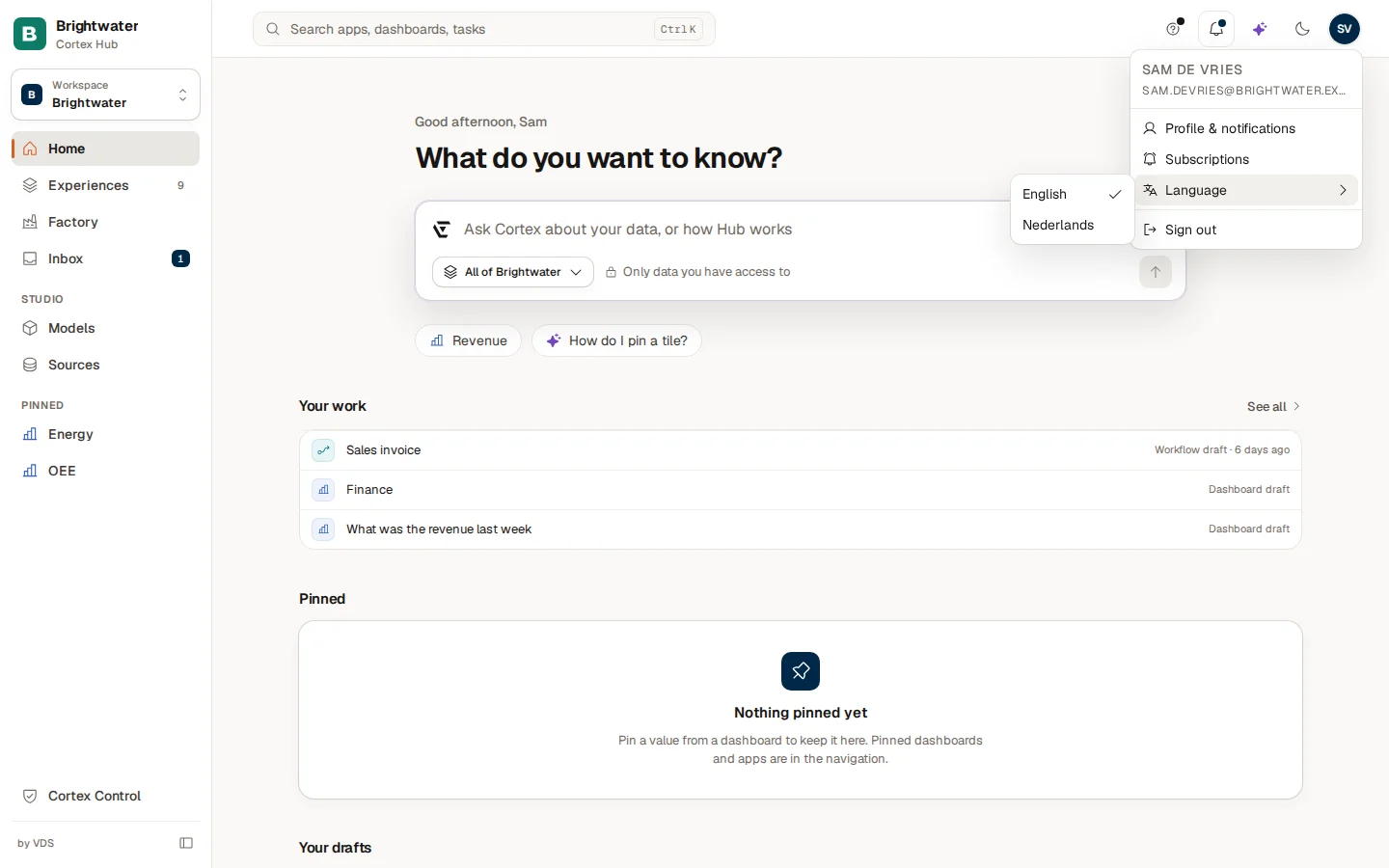
Open the account menu
Select your initials at the top right.
Choose Language
Move to Language. A short list opens next to it.
Pick a language
Choose English or Nederlands. Cortex says "Saved" and the Hub switches at once, without a reload.
The choice is saved to your account, so it follows you to other browsers and devices. If it cannot be saved you see "Could not save your language"; try again. The documentation opens in the language you picked, too.
Light and dark
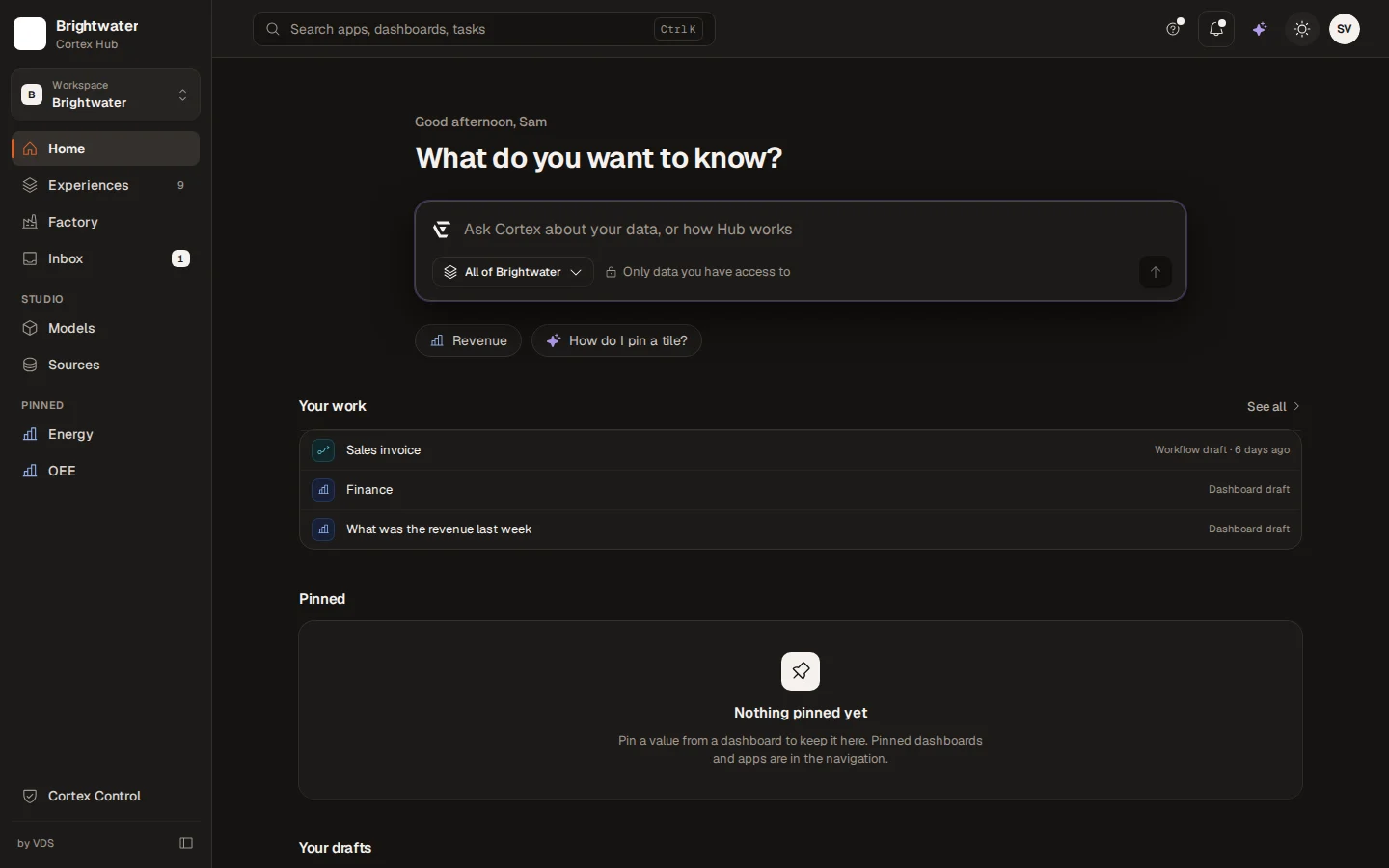
Select the button just left of your initials. Its name tells you what it does: Switch to dark mode (a moon) or Switch to light mode (a sun). The new look grows out of the spot you clicked. If your system asks to reduce motion, it switches at once.
Until you choose, Cortex follows the setting of your computer. Once you press the button, your choice is remembered in this browser. It is not saved to your account, so another browser or device starts with its own setting.
Collapse the menu
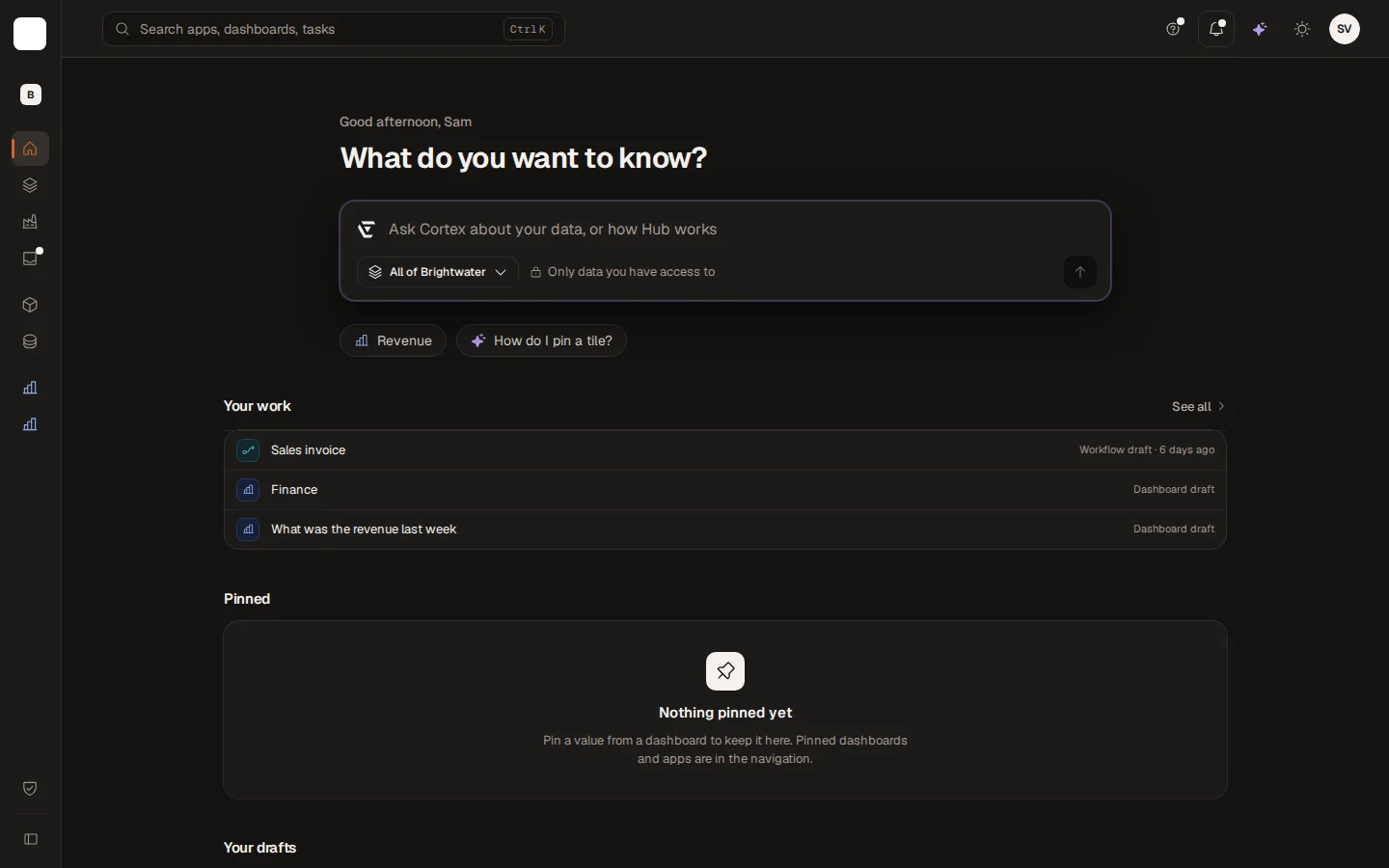
Choose the small button at the bottom of the menu (Collapse menu, or Expand menu when it is collapsed) or press Ctrl+B (Cmd+B on a Mac). The menu keeps its order but shows icons only, and the page gets the room. Cortex remembers your choice on this device. All the details, including how the menu behaves on a small screen, are on Home.
The profile page
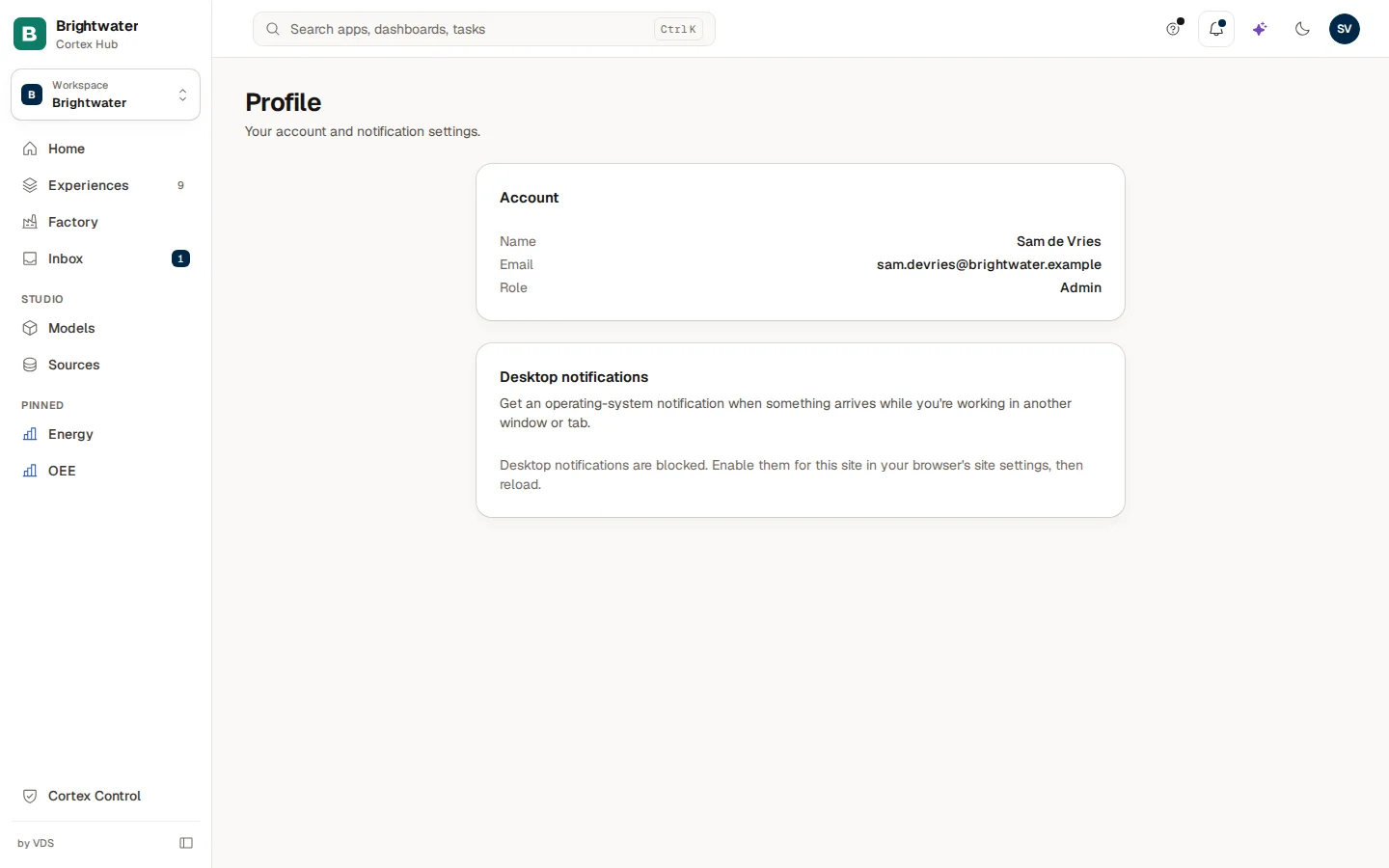
People with a Studio seat find Profile & notifications in the account menu. Someone without a Studio seat who opens the page lands on Home instead. The page has two cards:
- Account shows your Name, Email and Role. The role is your highest builder role, or "Builder" when none is set. It is shown only. You cannot change any of it here, because it comes from your work account and from your administrator.
- Desktop notifications. Lets Cortex show a notification of your computer when something arrives while you work in another window or tab. Choose Enable desktop notifications and allow it when the browser asks. The card then says the notifications are enabled. If you had blocked them, the card says so: allow them for this site in your browser's settings and reload the page. A browser that does not support them says that too.
Your notifications and subscriptions
Cortex tells you things in two places:
- The bell at the top (Notifications) holds digests, alerts, reminders to renew a permission and failures. See Notifications.
- Tasks that wait for your decision are in the Inbox.
Which digests and alerts you get, you decide yourself by subscribing to dashboards. To change or stop them, choose Subscriptions in the account menu, or Manage subscriptions at the bottom of the bell. On that page you can Pause, Resume or Remove each one. See Pin a value, pin a dashboard, subscribe.
Sign out
Choose Sign out in the account menu. Cortex forgets the workspace you had chosen and clears what it had loaded. The next time you sign in, you start from the look of your organisation again, without a workspace chosen from before.
Example: Sam sets up the Hub
Sam de Vries at Brightwater Foods prefers Dutch screens. Sam opens the account menu, chooses Language and then Nederlands: the whole Hub switches and the documentation follows. Sam's laptop screen is small, so Sam collapses the menu with Ctrl+B. In the evening Sam presses the moon button and the Hub turns dark. Because Sam is a builder, Profile & notifications is in the menu, and Sam enables desktop notifications so new notifications show even when the browser is in the background.
Feedback and the roadmap
Send an idea or a problem about a dashboard or an app, follow what happens to it, read the roadmap and, if you have a Studio seat, request a new app.
Cortex in Microsoft Teams
Use Cortex Hub inside Microsoft Teams: the three tabs, how signing in works, links that open the right task or dashboard, and what still opens in your browser.