Ask Cortex
Ask a question in your own words and get an answer from your organisation's own data, with the figures, the period and where it came from.
Ask is the question box at the top of Home. You type a question the way you would ask a colleague ("What was the revenue this year?", "Which open deals does Brouwer Yachting have?", "How do I pin a tile?") and Cortex answers with figures from your organisation's data, records from your systems, passages from documents, or an explanation of how Cortex works.
Every answer is computed for you, with your own access. Cortex never shows you a number, record or document you could not open yourself, and it tells you where each answer came from.
Who can do this
Everyone who can sign in to Cortex Hub. You see answers only from data you are allowed to see.
The question box at a glance
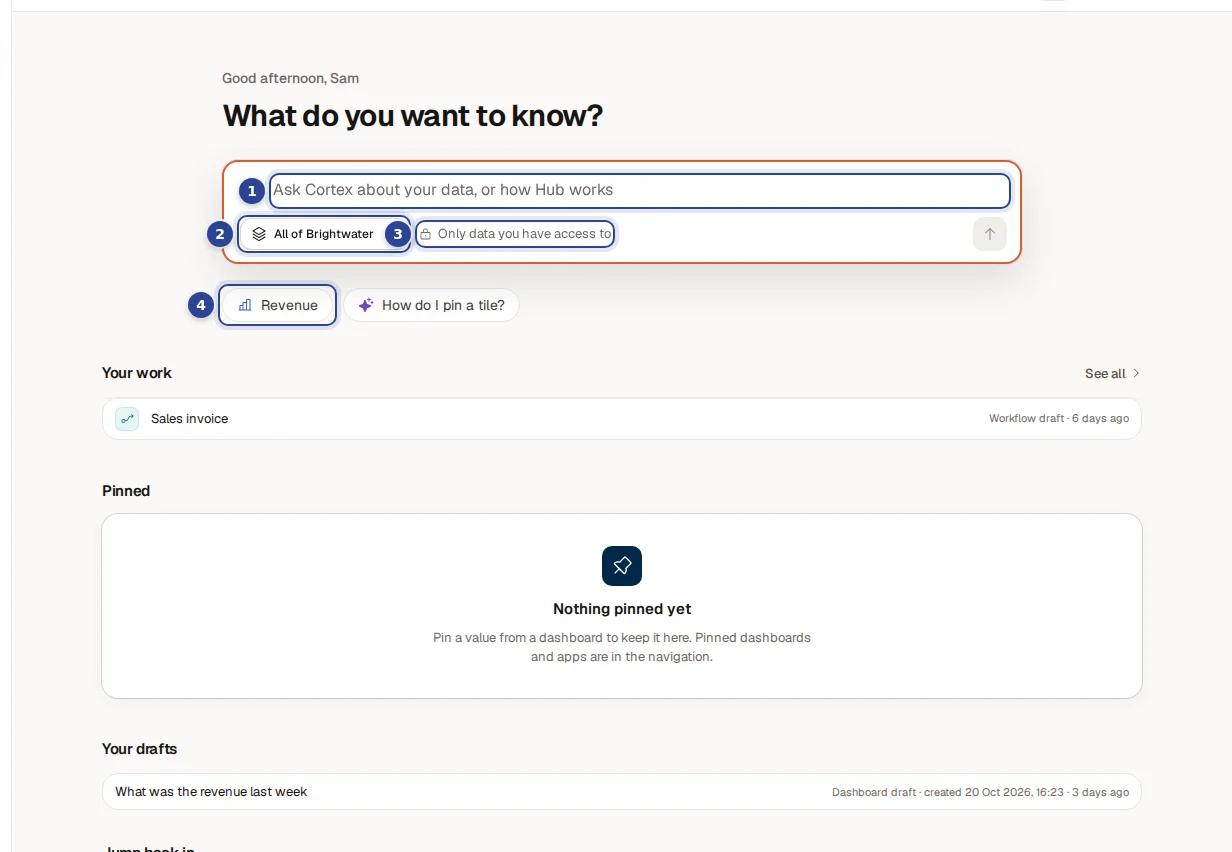
- The question field ("Ask Cortex about your data, or how Hub works"). Type a question and press Enter, or choose the arrow.
- Where Cortex looks ("Choose where Cortex looks"). Cortex looks in the workspace you are in, here "All of Brightwater". Choose it to pick another workspace, or All workspaces. See Workspaces.
- "Only data you have access to". A reminder that the answer is limited to what you may open yourself.
- Questions to try. Suggestions you can click to ask at once. Hover over one to see where it comes from, for example "Verified question" or "From your pinned values". Cortex also answers questions about how Cortex itself works, such as "How do I pin a tile?".
Ask your first question
Open Home
Choose Home in the menu on the left. The question box is the first thing on the page: "What do you want to know?".
Type your question
Use your own words. Name the figure and the period when you can: "revenue this year", "energy use last month", "open deals closing this quarter". You do not need to know table or column names.
Send it
Press Enter or choose the arrow. The answer opens as a conversation. While Cortex works you see what it is doing ("Understanding your question", "Querying the data", "Writing the answer"); choose Stop to cancel.
Read the answer and its source
Check the figure, the period and the source line under it (see below). Ask a follow-up in the box at the bottom when you want to go further.
Tip: ask from the search box
Typed something into the search box at the top and there is no app or dashboard with that name? The last row offers Ask: …. Choose it to send your text to Ask.
Reading an answer
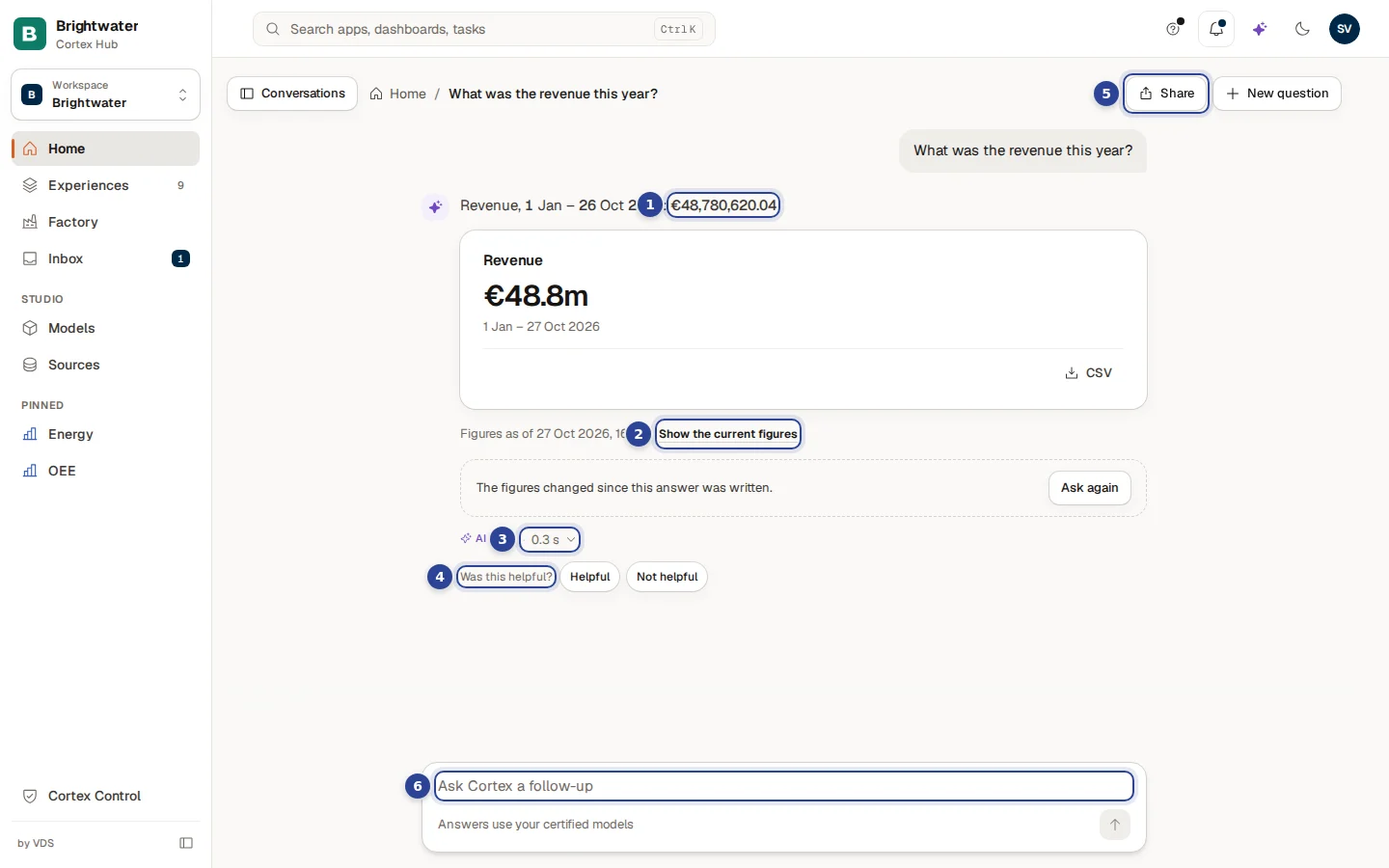
- The answer in one sentence, with the exact figure and the period it covers.
- "Figures as of …" and Show the current figures. A reopened conversation shows the figures as they were when you asked. Choose Show the current figures to run the same question on today's data. When the numbers changed, Cortex says so and offers to ask again.
- The details of the answer. Next to AI (Ask) you see how long the answer took. Open it to see the period and what it cost to answer (see Behind the answer).
- Was this helpful? Choose Helpful or Not helpful. Cortex thanks you ("Thanks for your feedback.").
- Share. Copies a link that asks the same question. Whoever opens it gets their own answer, with their own access, so nobody sees more than they may see.
- Follow-up. "Ask Cortex a follow-up": continue in the same conversation, for example "and per month?".
Below the figure card you can choose CSV to download the figures behind the answer.
What the labels mean
| Label | What it tells you |
|---|---|
| Certified figure | The number comes from a figure your organisation has checked and approved. See Certified figures. |
| AI (Ask) | An AI wrote the sentence around the figures. The figures themselves come from your data. |
| Interpretation | Cortex's own reading of the figures above. The figures are from your data; the conclusion is not checked by your data team. |
| From documents | This part comes from documents your organisation added, not from the data model. |
| Open in … | Opens the dashboard that shows the same figure. |
Behind the answer
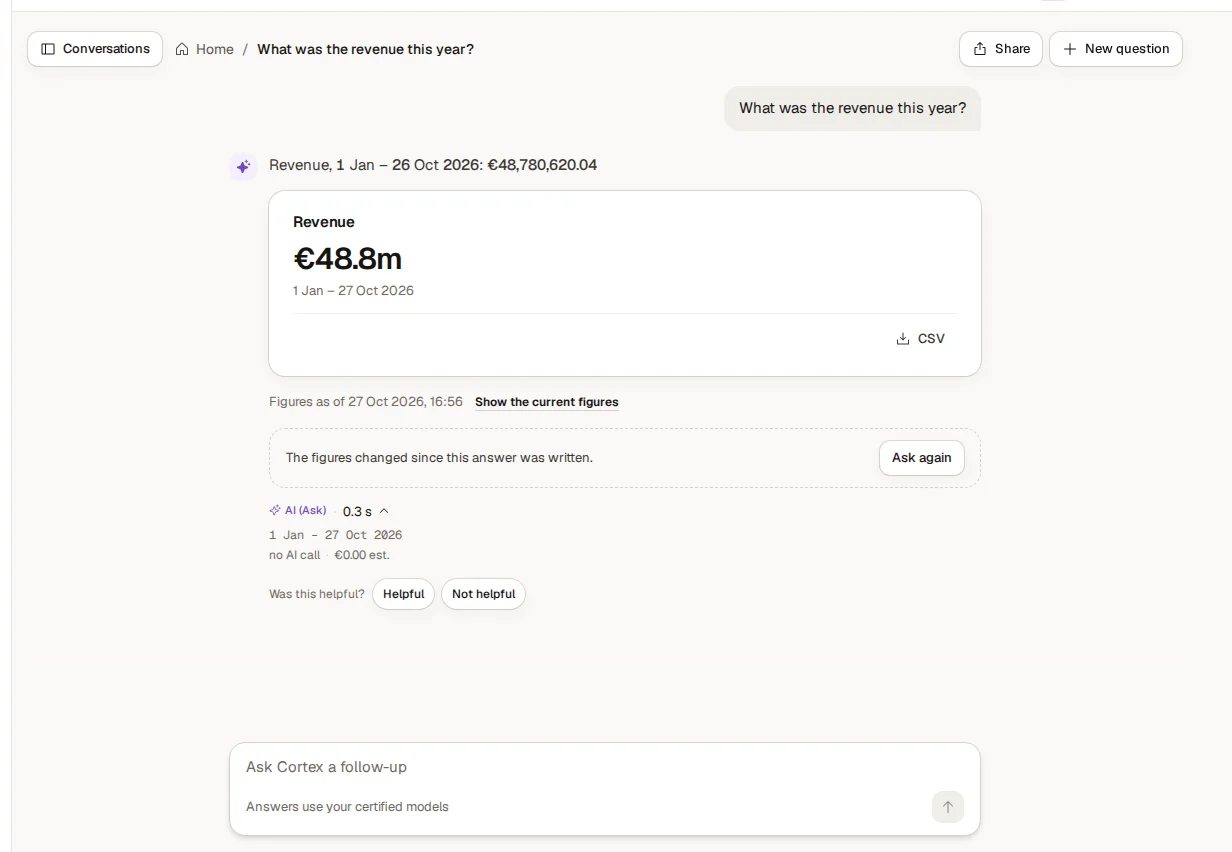
The details show the exact period the figures cover and whether an AI model was needed for this answer, with the estimated cost. A reopened answer that only ran the stored figure request again needed no AI call at all.
For figures, How I got this shows which Figures and which Filters produced the number, and whether the model it came from has been verified. When a source has not been verified yet, Cortex says so here.
Answers from documents
Cortex can also read documents that your organisation added to its models. Such a part of the answer is marked From documents: the text was taken from the documents and has not been checked by your data team.
- A statement can show the passage it comes from ("In the document:") and the document's name ("Source: …"). Choose the name to open the document.
- A document read by text recognition shows how sure Cortex is, for example "Read by OCR, 90% sure".
- Documents used lists every document behind that part of the answer.
Your conversations
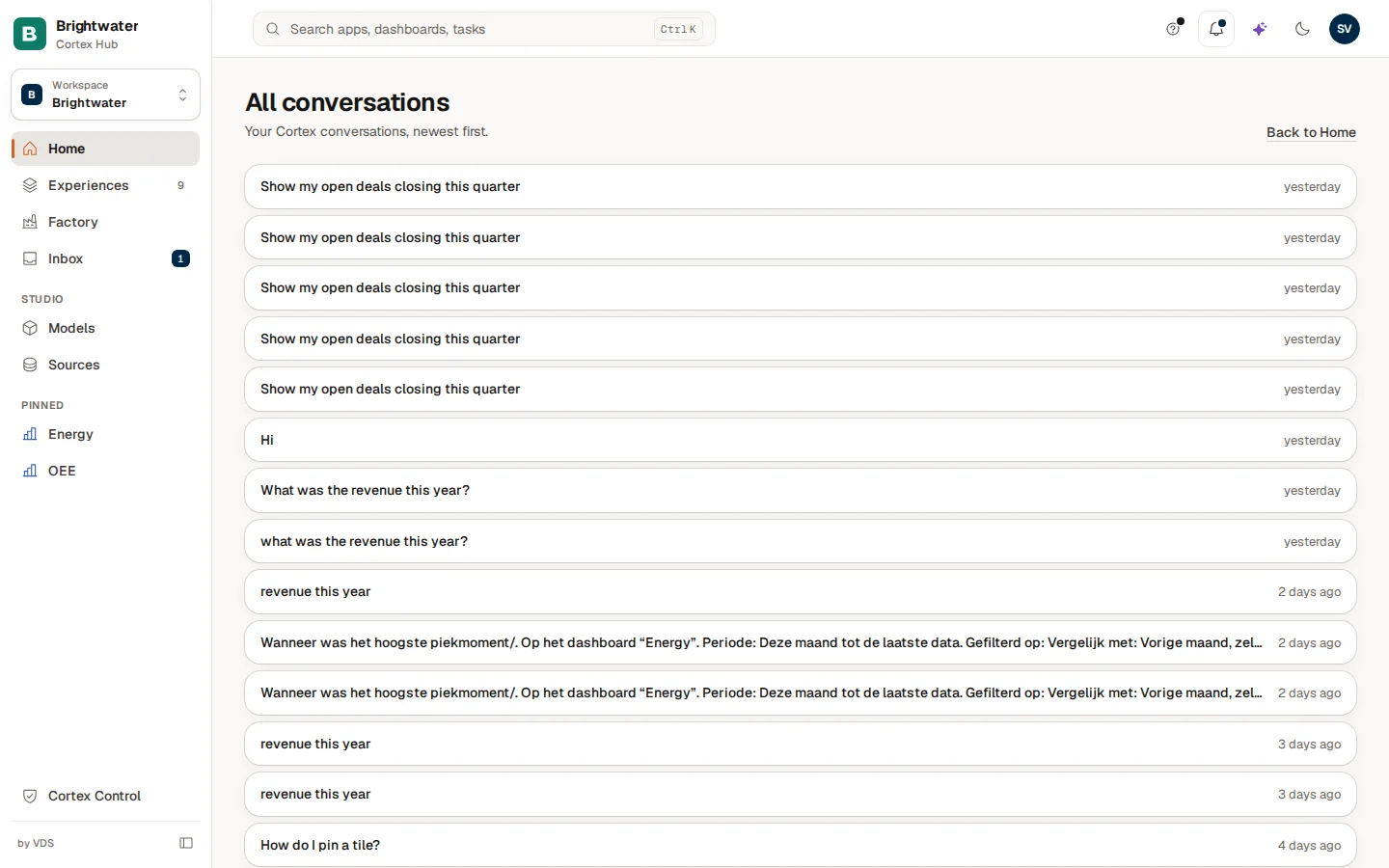
- Recent questions on Home shows your latest questions. Choosing one there asks it again and gives a fresh answer.
- All conversations opens the full list. Choose a conversation to reopen it exactly as it was.
- New question at the top of a conversation starts over.
- Conversations at the top left (on a wide screen) shows or hides the list of your conversations beside the one you are reading.
Keep or follow a figure
- Pin to Home. When an answer shows a figure from a dashboard tile, choose Pin to Home to keep the value on your Home. See Pin a value, pin a dashboard, subscribe.
- Keep an eye on it. Sometimes Cortex offers to watch a figure for you ("Keep an eye on …"). Choose Subscribe to get a digest or an alert, or Not now. You can change it later under Subscriptions.
Example questions
| You want to know | Ask, for example | What you get |
|---|---|---|
| A figure for a period | "What was the revenue this year?" | One sentence with the exact figure, a figure card, the period and CSV. |
| Where a record stands | "What stage is the Brouwer Yachting deal in?" | The record's current value from your source system. |
| A list of records | "Which open deals does Brouwer Yachting have?" | The matching records. |
| How Cortex works | "How do I pin a tile?" | The steps from the Cortex help, for your role. |
| Something from your documents | "What does the maintenance manual say about the cooling line?" | Passages marked From documents, with the document named. |
When Cortex cannot answer
Search and workspaces
Find an app, dashboard or task in seconds with the search box, hand a question to Ask from the same box, and switch between workspaces to change what the Hub shows.
Experiences
The catalogue of everything you can open in Cortex Hub, dashboards, apps and workflows, with filters, two views, pins and a shelf for what you can still ask access to.