Workspaces
How workspaces group experiences, decide who can enter and focus what you see and what Ask searches, with an example of three workspaces at Brightwater Foods.
A workspace groups related experiences: the dashboards, apps and workflows that belong to one team, department, site or topic. A finance workspace, for example, holds the finance dashboards and the finance apps. People pick the workspace they are working in, and the Hub, the search and Ask then look in that workspace.
Who can do this
Everyone switches between the workspaces they belong to. A builder with permission can create a workspace and becomes its owner; the owner adds people. Admins manage all workspaces in Cortex Control.
What a workspace is for
Everything for one team sits together, not in one long list.
Whole organisation, or members only.
Its own accent colour and logo, so you see where you are.
What you see and what Ask searches follows the workspace you chose.
- Grouping. Everything for one team sits together instead of in one long list.
- Access. A workspace has an access setting: Whole organisation or Members only. Members-only workspaces are for people who have been added to it.
- Identity. Each workspace can have its own accent colour and logo, so you can see where you are.
- Focus. The workspace you have selected narrows what you see and what Ask searches.
The switcher
The card labelled "Workspace" at the top of the left menu in the Hub shows where you are. Choose it to open the list.
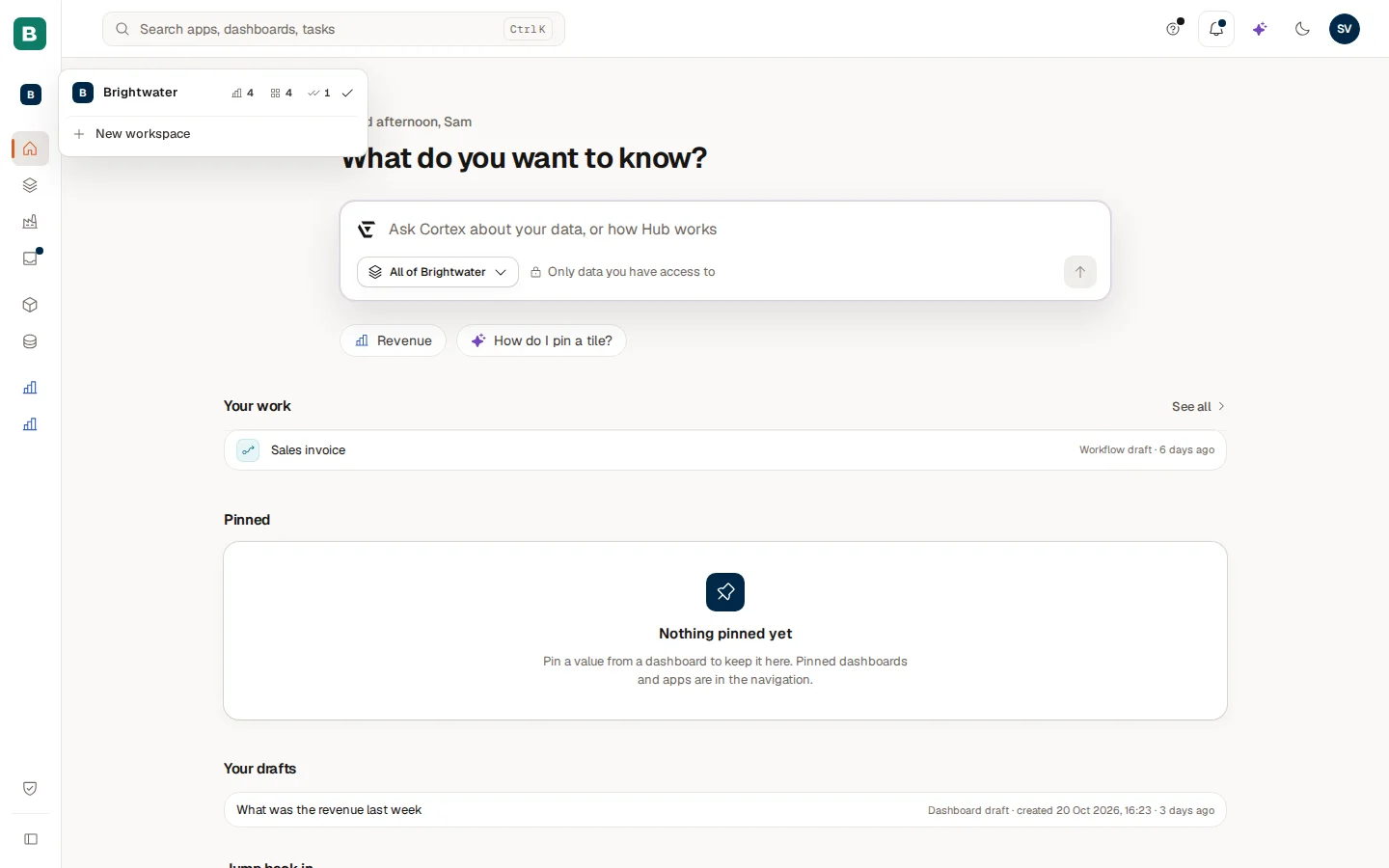
The list shows your workspaces and, per workspace, how many dashboards, apps and workflows it holds for you. Choose one to work in it. The Hub updates at once. New workspace at the bottom appears for builders who may create one, and Manage workspace for the owner of the current workspace. See Search and workspaces for the full list of what follows the workspace.
| Where | What follows the workspace |
|---|---|
| Experiences and its count | Only the dashboards, apps and workflows of that workspace |
| Pinned in the menu | What you pinned in that workspace |
| Home | Pinned values, recent items and the freshness pill |
| The question box on Home | Where Cortex looks; use the scope button for All workspaces |
| Search | The current workspace, unless you tick Search all my workspaces |
| The look of the Hub | The workspace's own accent colour and logo, if it has them |
Workspaces and Ask
Ask follows the workspace you are in. If your question is about data that is not in this workspace, Ask says that what you asked for is in a data model outside the workspace, and offers to look further. If the workspace holds no model with data Ask can query, Ask says so. To look everywhere, choose All workspaces on the scope button of the question box. See Ask Cortex.
Example: three workspaces at Brightwater Foods
Brightwater Foods has three workspaces.
| Workspace | Who can enter | What is in it |
|---|---|---|
| Finance | Members only: the finance team | The Finance dashboards, the Sales model, the month-end approval workflow |
| Production | Whole organisation | The OEE and Energy dashboards, the Delay register app |
| Sales | Members only: the sales team | The Sales pipeline dashboard and the quote app |
Sam de Vries is a member of all three. In Production, Sam asks "What was the revenue this year?". Ask answers that the figure is in a data model outside this workspace and offers to look further. Sam chooses All workspaces and gets the answer. Lotte, a production planner, is only in Production: she never sees the Finance workspace in her switcher, and the Revenue figure stays unavailable to her whatever scope she chooses.
Who creates and manages workspaces
A builder with permission can create a workspace and becomes its owner. The owner adds people. Whether builders may create workspaces without approval is a policy choice of IT, like other builder actions. Admins manage workspaces in Cortex Control: access, accent, logo, members and archiving. Owners of a workspace can open Manage workspace from the switcher; there they manage the members, accent colour and logo, while creating and archiving workspaces and the access rules stay with an admin. See Workspaces for the administrator's view, and Workspaces for builders for creating one in Studio.
Admins can archive a workspace that is no longer used.
Choosing how to organise
There is no single right way to cut workspaces. Many organisations make one per department, others one per site or per project. A few habits help:
- Keep a workspace small enough that people recognise what is in it.
- Put the experiences that share the same models together, so Ask has the right data in reach when you work in that workspace.
- Use "Members only" for work that is not meant for everyone, and "Whole organisation" for shared overviews.
- Archive a workspace when its work is finished.
A workspace is not a security boundary on its own
Sharing an experience still happens per experience. A workspace helps people find the right things and can limit who may enter, but the access rules on a dashboard or app, and the row rules in the models, keep applying. Being in a workspace never shows you data your access does not allow. See Access and security.
If you see no workspace
If the menu shows no workspace card, no workspace is assigned to you or workspaces are not switched on for your organisation. Ask your IT team.
Experiences
Dashboards, apps and workflows: what each is for, how to choose between them and how they work together, with an example from Brightwater Foods.
Glossary
The words used in Cortex and in this documentation, explained in plain language, with the Dutch word where the Dutch interface uses another one.