Experiences
Dashboards, apps and workflows: what each is for, how to choose between them and how they work together, with an example from Brightwater Foods.
In Cortex, an experience is something people open and use: a dashboard, an app or a workflow. The Hub lists them all under Experiences, with a type filter to narrow the list to Dashboards, Apps or Workflows. What you see there is what you may open.
Ask is the front door to all of them: it answers questions, and when what you need is better served by a dashboard, an app or a workflow, it can propose one. You confirm before anything is made.
Who can do this
Everyone opens the experiences that are shared with them. Builders with a Studio seat create them, as far as your organisation's builder permissions allow. Admins govern them in Cortex Control.
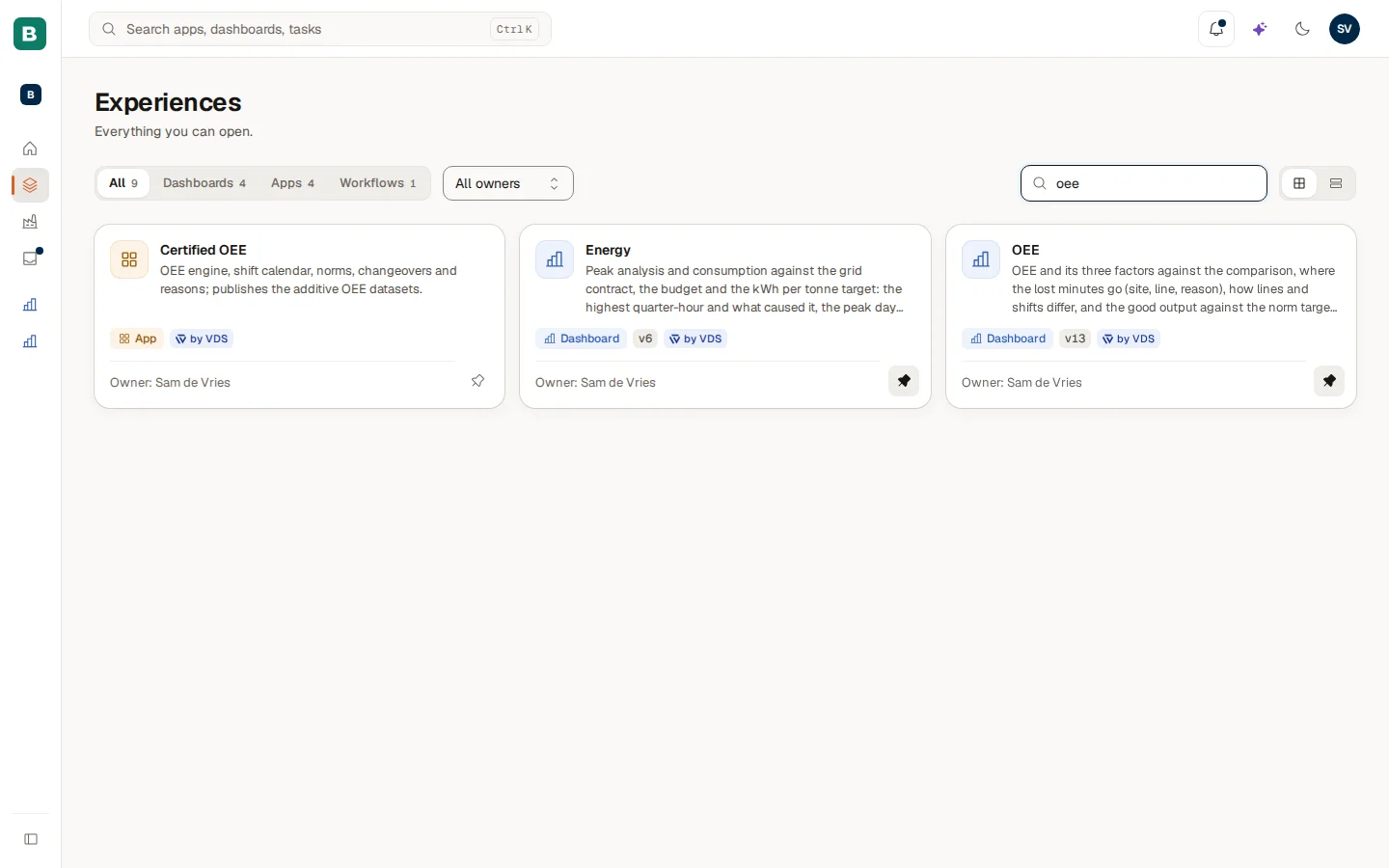
Each card shows the type (Dashboard, App or Workflow), the owner and a pin to keep it under Pinned in the menu. A Ready-made badge marks ready-made content that comes with a pack: it cannot be edited, only copied. The counts next to All, Dashboards, Apps and Workflows show how many you can open. See Experiences for the page itself.
Choose the right one
A question you ask once. The front door to the rest.
To see and follow the numbers.
To work with records: enter, change, approve.
To run a process: steps, tasks, checks.
Dashboards: to see and follow
A dashboard shows your key figures, in tiles and charts, in one place. It is for looking: how is the business doing, and what changed?
- Tiles read their figures from the semantic model each time you open the dashboard, so they follow the agreed definitions and your access rules.
- Some figures carry a Certified badge.
- You can pin a value to Home, or subscribe to a dashboard to get a digest (a short summary of key figures on a schedule) or an alert (a message when a figure crosses a value you choose). They arrive by e-mail, in the Hub bell or in a Microsoft Teams channel, depending on what is set up for you.
- Dashboards are published by builders, with a version history.
Choose a dashboard when the question comes back again and again, and when several people need the same view. See Use a dashboard and, to build one, Dashboards.
Apps: to work with records
An app is a small business application made for your organisation: registering things, approving, tracking, maintaining a list. It is for doing: people enter and change records, not just read numbers.
- Apps are built by builders in Studio, starting from a template, and published when they are ready.
- Each app has its own data and its own access list. An app is only opened by people it is shared with.
- Ask can answer questions about records, and an app can send an event that starts a workflow.
Choose an app when you need to keep records, with forms, statuses and people who edit them. See Apps and workflows and, to build one, Build an app.
Workflows: to run a process
A workflow is a process with steps. It can include a task for a person, an automatic step, a step where AI helps, and a sub-process. It is for automating: what should happen, in which order, and who needs to act.
- A workflow starts when someone starts it or on a schedule, when a new record appears in a dataset, when an app sends an event, when an outside system calls a webhook, or when a certified figure crosses a line you choose.
- Steps for people show up as tasks in the Inbox of the people who must act. Approvals work the same way.
- A builder can test a workflow before it is live.
- Workflows that use AI show which steps do, and IT can limit that.
Choose a workflow when something has to happen in a fixed order, or when a number going past a limit should lead to action. See Workflow runs and, to build one, Workflows: build the steps.
How they work together
| Dashboard | App | Workflow | |
|---|---|---|---|
| Main purpose | See and follow | Work with records | Run a process |
| Who changes data | Nobody | The people who use the app | The workflow's steps and people |
| Where it reads from | The semantic model | Its own data | Datasets, models and apps, as the workflow is allowed |
| How you reach it | Experiences, Pinned, a digest | Experiences, Pinned, a link | A task in the Inbox, a run page |
| Typical example | Weekly sales overview | Request register | Approval route |
Example: late deliveries at Brightwater Foods
Brightwater's planners care about late deliveries. Three experiences work together.
- A dashboard. The Delivery dashboard shows the figure On-time delivery and the number of overdue orders, read from the Sales model. Lotte, a production planner, pins the overdue count to her Home and subscribes to a weekly digest.
- An app. The Delay register app holds one record for every overdue order, so planners can add the reason and the new promised date. It is a place to do things, not only look.
- A workflow. A workflow starts when the certified figure Overdue orders rises above 25. It gives Lotte a task in her Inbox: "Review the overdue orders". When she approves, the workflow notifies the account managers.
Ask ties them together. When Lotte asks "How many orders are late?", Ask answers with the figure. Because she asks it every Monday, Ask offers to propose a dashboard, and she confirms. A builder, Daan, reviews and publishes it.
Drafts and publishing
Builders create experiences as drafts. A draft is private to its builder until it is published, and depending on your organisation's policy a publish may need approval from someone else. Cortex keeps the version history of published workflows, dashboards and models. See Test, run and publish a workflow.
Who can open what
Every experience has an owner and an access list: people, groups or the whole organisation. If you cannot open one, you can request access. See Access and security. To keep related experiences together, builders and admins use workspaces. Admins see every experience across the organisation in Cortex Control, with how much each is used: see Experiences.
Ask and AI
How Ask builds an answer from governed data, how to check it, where AI is used and where it is not, and what Ask says when it cannot answer.
Workspaces
How workspaces group experiences, decide who can enter and focus what you see and what Ask searches, with an example of three workspaces at Brightwater Foods.