Experiences
See every app, dashboard and workflow in one catalogue, decide who can open each one, clean up what nobody uses, and archive, restore or move items.
An experience is anything a builder made that people use: an app, a dashboard or a workflow. The page Experiences is the one catalogue of all of them, so an admin can answer four questions without asking around: who owns it, who can open it, when was it last used, and can it go?
The page is also where you govern them. You decide who can open an item, you clean up what nobody uses any more, and you archive, restore or move items. Nothing here deletes data.
Who can do this
Admins of Cortex Control. The catalogue is only visible to admins ("The catalogue is only visible to Cortex Control admins. If you need this view, ask an admin to grant you the Admin role."). Owners of an app or dashboard can do part of it for their own items.
The catalogue
Open Experiences in the left menu. The description reads "Every app and dashboard on the platform: who owns it, who can open it and when it last changed."
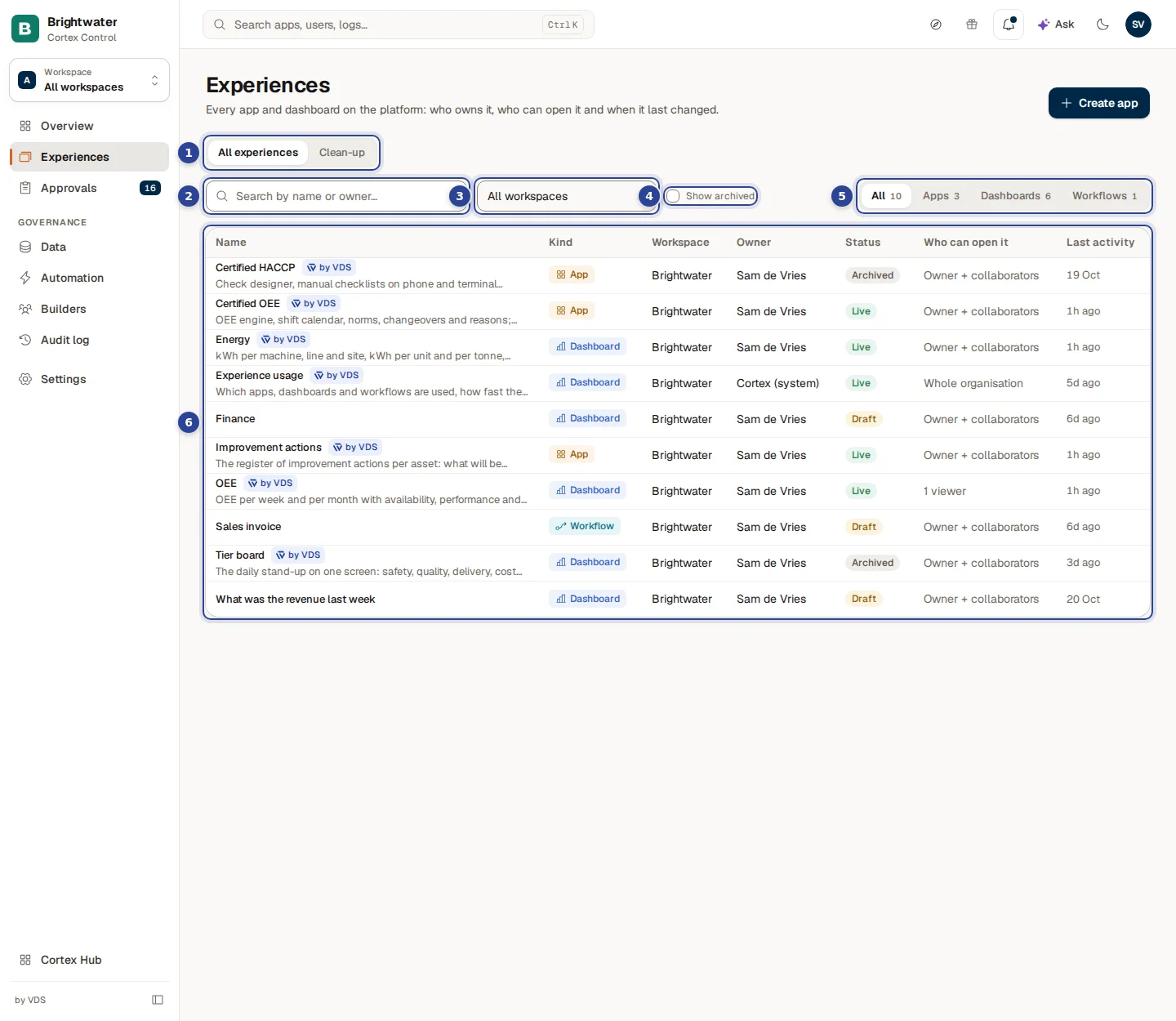
- View. Switches between All experiences (the catalogue) and Clean-up (see below).
- Search. "Search by name or owner…". It also finds the description and the slug.
- Filter by workspace. Only shown when your organisation uses workspaces. It follows the workspace you chose in the switcher at the top left; All workspaces shows everything.
- Show archived. Adds archived items to the list.
- Filter by kind. All, Apps, Dashboards or Workflows, each with a count.
- The table. One row per experience. Choose a row to open it.
The button Create app at the top right starts the form for a new app (see Apps).
The columns
| Column | What it shows |
|---|---|
| Name | The name, with its description underneath. A dashboard that comes from a curated pack carries a small "Ready-made" mark. |
| Kind | App, Dashboard or Workflow. |
| Workspace | The workspace it belongs to. Only shown when workspaces exist. |
| Owner | The owner, or No owner. |
| Status | See the table below. An archived item also carries the label Archived. |
| Who can open it | Whole organisation, On the shelf (discoverable), Owner + collaborators, or the number of viewers ("3 viewers"). |
| Last activity | When it last changed or was used, for example "2 days ago". |
| Status | Meaning |
|---|---|
| Draft | A builder is still working on it. |
| Live | People can use it. |
| Archived | Hidden from the Hub and the catalogues. |
| Not published yet | A live app that was never published. |
| Down right now | An app that does not respond. |
An app that is still being set up shows its provisioning state instead (for example provisioning or failed). When nothing matches your search or filter the page says "No experiences match your filters." On a new install it says "Nothing here yet. Apps and dashboards built in Studio show up here."
Open one experience
Choose a row. An app opens its own page, with tabs for health, users, data and more (see Apps). A dashboard or workflow opens a lighter page.
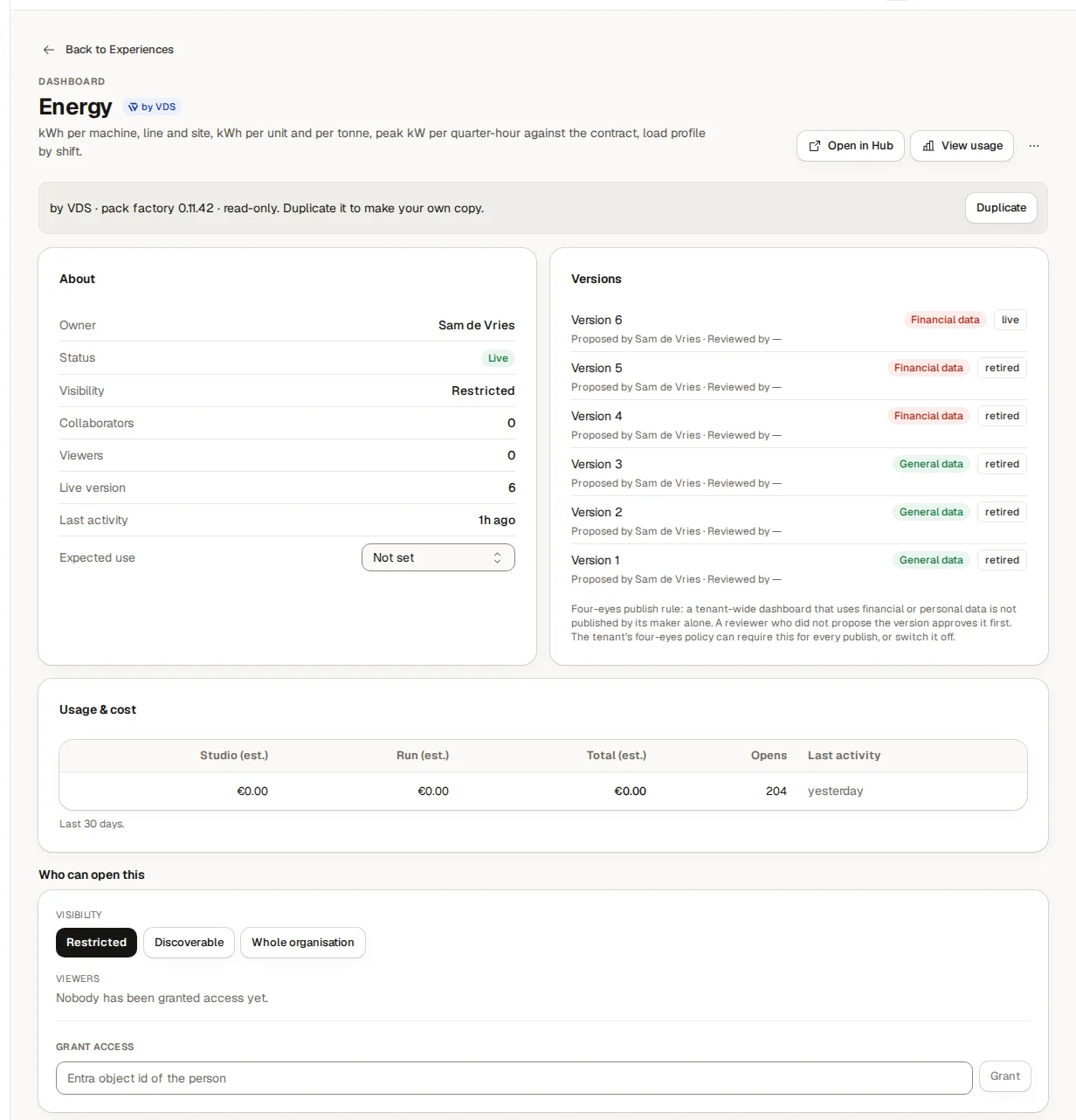
At the top you see the kind, the name and the buttons Open in Hub, View usage and the menu More actions. Open in Hub only works for a live dashboard that is not archived. The cards are:
| Card | What it shows |
|---|---|
| About | Owner, Status, Visibility, the number of Collaborators and Viewers, the Live version, Last activity and Expected use. |
| Versions | Each version with its status, its sensitivity, who proposed it and who reviewed it ("Waiting for a reviewer" while nobody has). |
| Usage & cost | What the experience cost to build and run in the last days. |
| Who can open this | Visibility and the people who have access (see below). Workflows do not have this card: nobody opens a workflow, people only meet it as tasks. |
A dashboard from a curated pack is read-only: "Ready-made · pack … · read-only. Duplicate it to make your own copy." Choose Duplicate to get a copy you own.
Expected use
Expected use says how often the experience is meant to be used: Monthly, Quarterly or Yearly, or Not set. An experience with an expected use is only called idle after 1.5 times that period, and is left out of the Monday clean-up list until then. Use it for a year-end report that nobody opens in June.
Decide who can open an experience
Open the experience
Choose it in the catalogue. Scroll to Who can open this.
Choose the visibility
Under Visibility choose:
- Restricted: the owner, the collaborators and the people you add under Viewers.
- Whole organisation: everyone in your organisation.
- Discoverable (dashboards): people who cannot open it see its title, description and owner on the Hub shelf and can ask for access. They never see data, tiles or answers. A dialog "Put this on the Hub shelf?" asks you to confirm with Show on the shelf.
Add or remove a person
To add a person, enter their Entra object id in Grant access and choose Grant. To remove one, choose Revoke on their row. Each change says "Access granted." or "Access revoked."
Finish a change that is still syncing
A row can say Syncing… or Sync failed. Choose Retry to finish it. If a revoke failed, the person keeps their Entra access until it succeeds.
A dashboard with sensitive data needs a second pair of eyes
A dashboard that holds personal or financial data and that nobody but its author has seen cannot be made visible to the whole organisation straight away. The page says so and offers Request review. The request appears in Approvals on the tab Dashboards; a second person approves it, and then you can make the dashboard visible to everyone.
Policy can cap how many viewers one item may have, and who can see names of people who opened it. See Builder permissions and policy.
Clean up what nobody uses
Switch the View to Clean-up. The page says "Experiences that are unused, open slowly, or have no active owner. Nothing is archived unless you choose it."
- Filter by reason. Idle, Never opened, Owner gone, Seasonal, due or Slow. Clear filter removes the filter.
- Select rows one by one or choose Select all. A counter says "2 selected".
- Archive, Keep for 6 months or Reassign... act on all selected rows.
- Last used shows when it was last opened, or Never opened. View usage opens the usage of one item.
| Action | What it does |
|---|---|
| Archive | Hides the selected items from the Hub and the catalogues. "Nothing is deleted, and each one can be restored later." |
| Keep for 6 months | Keeps them off every clean-up list and digest for 6 months. Nothing else changes. |
| Reassign... | Gives all selected items to one person you search for. The person becomes the owner of every one, and the previous owners are no longer owners. |
If a module is not in your licence, Admins still see its items in this list as Not in your licence rows. They show only the name, kind, the Not in your licence badge, Archived (if it is archived), the owner and the last change, and can only be archived; Keep for 6 months and Reassign... are not available for them.
Each dialog states what will happen before you confirm. Afterwards a message says "Done for 3", or "2 could not be changed: …" with the names that failed. Each change is recorded in the audit log. Owners also get a clean-up list every Monday; how long counts as idle is a setting in Policy.
Archive, restore or move one item
Open the item and choose More actions.
- Archive hides it from the Hub, the catalogues and Studio's lists. Nothing is deleted or switched off: an app's own site keeps running for anyone who has its address. The dialog is called "Archive …?". Tick Show archived in the catalogue to find it again and choose Restore to bring it back.
- Move to workspace moves it to another workspace. Moving changes who can open it, not the data it shows. If people would lose access, the dialog tells you how many ("3 people with access will lose access in Hub because they are not members of this workspace"). Add them to the workspace first or choose Move anyway.
Example: the autumn clean-up at Brightwater Foods
At the end of October Sam de Vries opens Experiences and switches to Clean-up.
- Sam filters on Owner gone. Two dashboards belonged to a colleague who left. Sam selects both, chooses Reassign..., searches for Eva Jansen and confirms. Eva owns them now.
- Sam filters on Never opened and sees a test app that nobody ever used. Sam archives it. Nothing is deleted.
- A dashboard that shows year-end figures is listed as Idle. Sam opens it, sets Expected use to Yearly, and it leaves the clean-up list until it is overdue.
- Sam selects a quarterly report and chooses Keep for 6 months.
Frequently asked questions
Apps
Create an app, follow its provisioning, manage it tab by tab, and know the difference between archive, delete and destroy.
Builder permissions and policy
Decide what builders may create themselves, make exceptions for a person, group or workspace, and set the rules that apply to your whole organisation.