Cost and limits
Set the monthly AI ceiling for the whole organisation, a default Studio budget per person and the limits on Ask, and know what happens when a limit is reached.
AI costs money every time someone asks a question, builds an app or runs a workflow step with an AI step in it. Cost & limits is where you decide how much your organisation may spend per month, and what Cortex does when that amount is reached. It has four blocks: Monthly AI ceiling for the whole organisation, Studio: default budget per person, Ask (Cortex Hub) and Automatic re-checks of Ask model defaults.
Who can do this
Admins of Cortex Control. Open Settings, then Cost & limits (in the group Rules & cost). All amounts on this page, and in the reports that follow from it, are estimates: they are the tokens that were used, multiplied by the model prices you set under AI engine.
Three layers of limits
Cortex protects your budget at three levels. Every limit that applies to a request is checked, and the lowest limit that is reached decides.
Studio default budget per person, Ask per person per day and per month, questions per minute.
Ask: the cap per Ask profile and the cap for all Ask profiles together.
The monthly AI ceiling over Studio, Ask, workflows, the knowledge layer and apps together.
The page at a glance
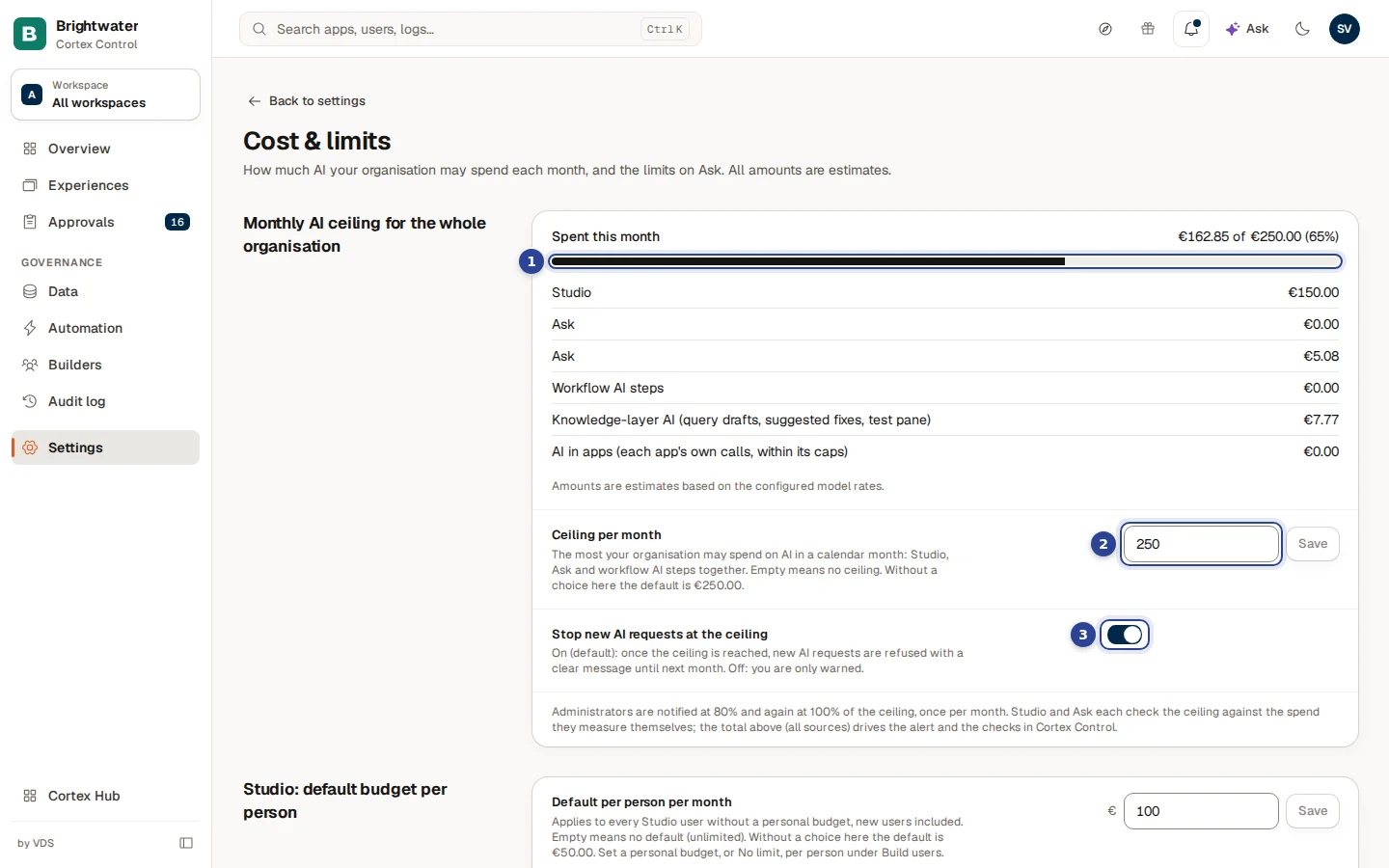
- Spent this month. What the organisation has spent so far this calendar month, as an amount and as a percentage of the ceiling. The bar turns amber from the warning percentage and red at 100%.
- Ceiling per month. The most the organisation may spend on AI in a calendar month.
- Stop new AI requests at the ceiling. The switch that decides what happens when the ceiling is reached.
Every field on this page has its own Save button next to it, and only that field is saved. The switches save the moment you flip them. A short message confirms it ("Saved"), or says "Could not save". A field that holds an invalid value turns its help text red and keeps Save disabled.
Set the monthly ceiling
Open Cost & limits
Choose Settings in the menu, then the card Cost & limits.
Read this month's spend
Under Spent this month you see the total and, per source, where it went: Studio, Ask, Workflow AI steps, Knowledge-layer AI (query drafts, suggested fixes, test pane) and AI in apps (each app's own calls, within its caps). A source that cannot be read right now says Could not be read right now, or shows its last known figure marked (last known figure). It is never shown as zero.
An app that sends photos to the AI costs more per call than one that sends text only. Before each call Cortex counts every photo as at least 5,000 input tokens against the app's limits (a nearly square photo counts a little more, up to about 5,600; a call that asks for a JSON answer counts its photos once more for the repair), and a call may carry at most 4 photos. A call that would go over a limit is refused, never run cheaper. Photos that are sent shrunk first, to about 1280 pixels on the long edge, cost no more than that minimum.
Fill in the ceiling
Type an amount in Ceiling per month and choose Save. Leave the field empty to have no ceiling at all. Until you choose a value, a built-in default ceiling applies; the help text under the field names it.
Decide what happens at the ceiling
Under Stop new AI requests at the ceiling, choose between the two behaviours in the table below.
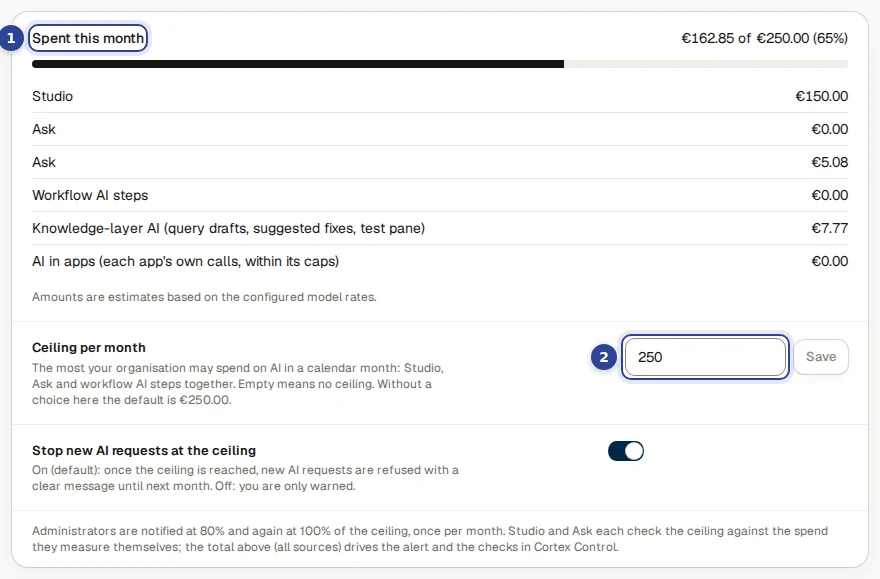
- Spent this month with the amount per source underneath.
- Ceiling per month, with its own Save button.
| Setting | What happens when the ceiling is reached |
|---|---|
| Stop new AI requests at the ceiling on (default) | New AI requests are refused with a clear message until next month, or until you raise the ceiling. This stops AI in every product of your organisation: Studio, Ask and the AI steps of workflows. |
| Switched off | Nothing is stopped. You are only warned. |
The month is a calendar month in UTC. The percentages count the estimate of all sources together.
Who is warned, and where
- Every administrator gets a notification in the bell at the warning percentage of the ceiling (the page says the exact number: "Administrators are notified at 80% and again at 100% of the ceiling, once per month") and again at 100%. The notification opens this page.
- Needs attention on the Overview shows the ceiling as a warning when you are near it or past it with the switch off, and as critical when the ceiling has been reached and new AI requests are paused.
- Studio and Ask each check the ceiling against the spend they measure themselves. The total over all sources drives the alert and the checks in Cortex Control.
A reached ceiling stops AI everywhere
With Stop new AI requests at the ceiling on, there is no exception for one team: when the ceiling is reached, AI stops in Studio, in Ask and in workflow AI steps until next month. Raise the ceiling, or switch the stop off, to continue.
Give builders a default Studio budget
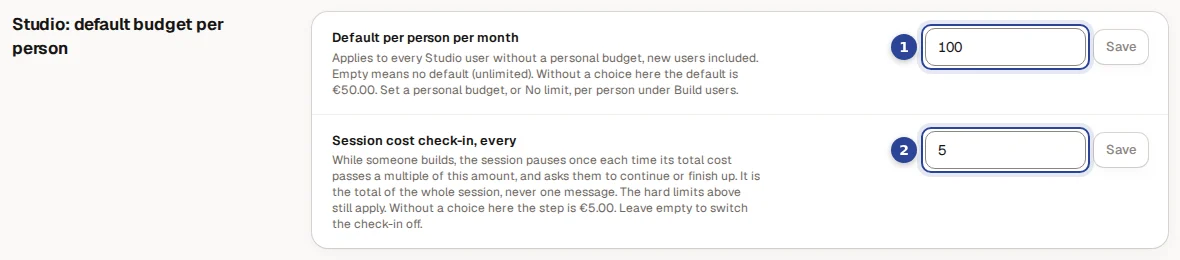
- Default per person per month. Applies to every Studio user who has no personal budget, new users included. Empty means no default: unlimited. A personal budget, or No limit, for one person is set under Settings, Studio users: see Builder permissions and policy.
- Session cost check-in, every. While someone builds, the session pauses once each time its total cost passes a multiple of this amount, and asks them whether to continue or to finish up. It is the total of the whole session, never one message. The hard limits still apply. The field must be above zero; leave it empty to switch the check-in off (the field then shows Off).
Limit Ask
The block Ask (Cortex Hub) has the limits for the question box in the Hub. They are separate from the monthly ceiling.
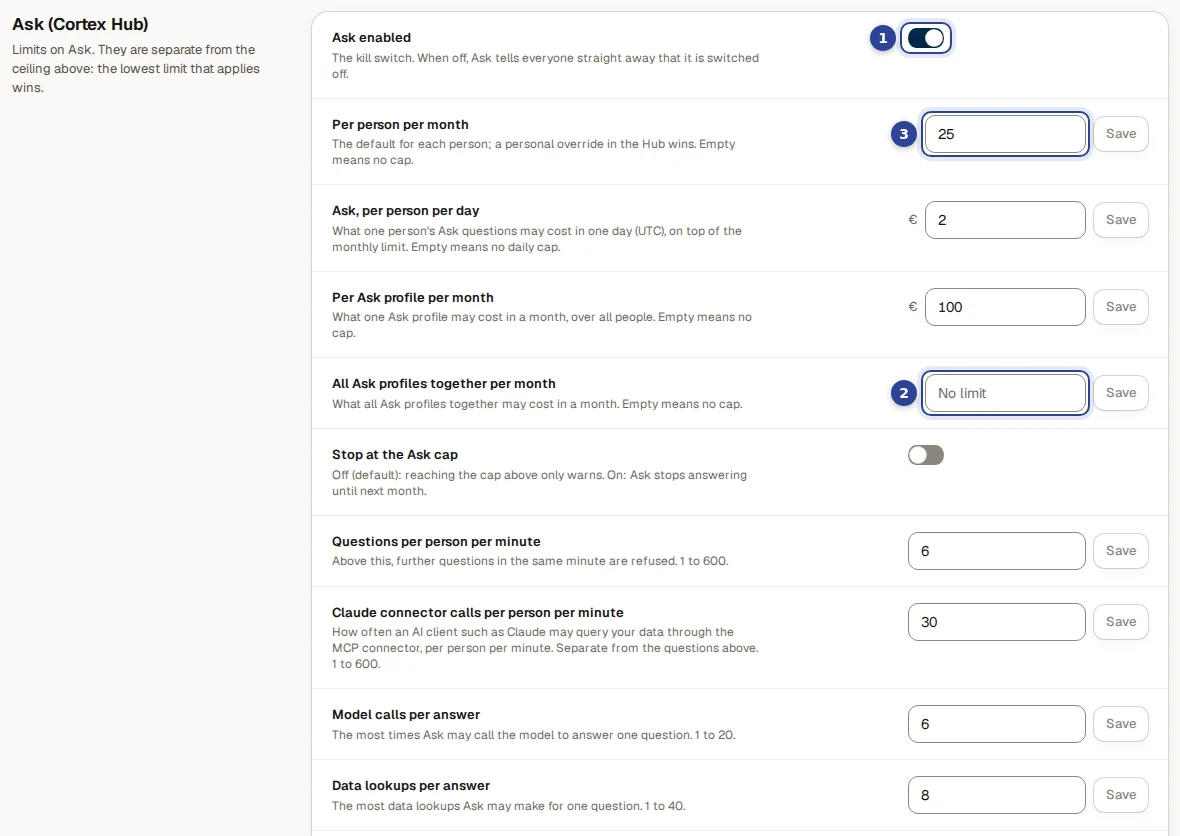
- Ask enabled. The kill switch (see below).
- All Ask profiles together per month. What all Ask profiles together may cost in a month. Empty means no cap.
- Per person per month. The default for each person; a personal override in the Hub wins. Empty means no cap.
| Field | What it limits | If left empty |
|---|---|---|
| Ask enabled | Whether Ask answers at all. A switch, on by default. | Not applicable. |
| Per person per month | What one person's questions may cost per month. A personal override in the Hub wins. | No cap. |
| Ask, per person per day | What one person's questions may cost in one day (UTC), on top of the monthly limit. | No daily cap. |
| Per Ask profile per month | What one Ask profile may cost in a month, over all people. | No cap. |
| All Ask profiles together per month | What all Ask profiles together may cost in a month. | No cap. |
| Stop at the Ask cap | Off (default): reaching the cap above only warns. On: Ask stops answering until next month. | Not applicable. |
The rate and size limits below them protect against one person or one question using too much:
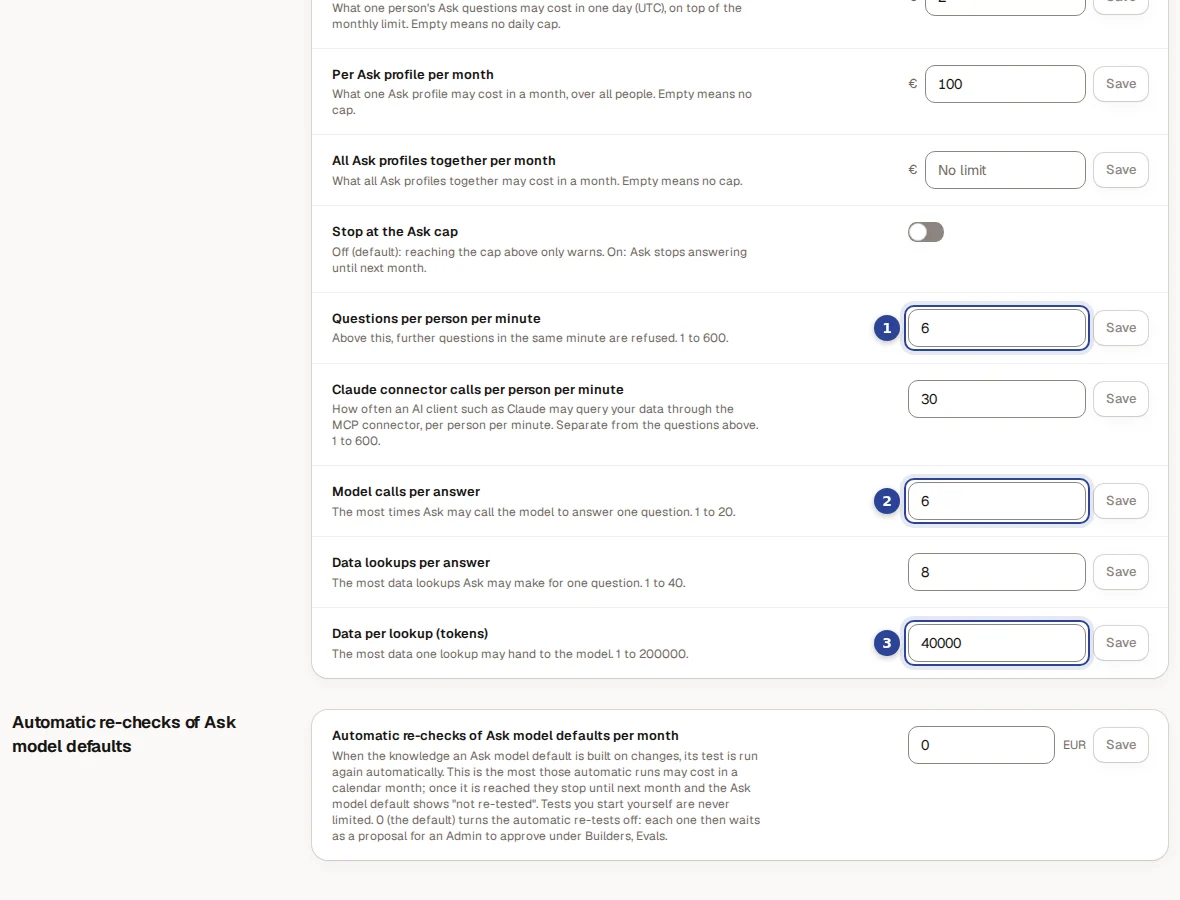
- Questions per person per minute. Above this, further questions in the same minute are refused. 1 to 600.
- Model calls per answer. The most times Ask may call the model to answer one question. 1 to 20.
- Data per lookup (tokens). The most data one lookup may hand to the model. 1 to 200000.
Two more fields sit in the same block: Claude connector calls per person per minute (how often an AI app such as Claude may query your data through the gateway, per person per minute, separate from the questions; 1 to 600) and Data lookups per answer (the most data lookups Ask may make for one question; 1 to 40). See Channels for the gateway.
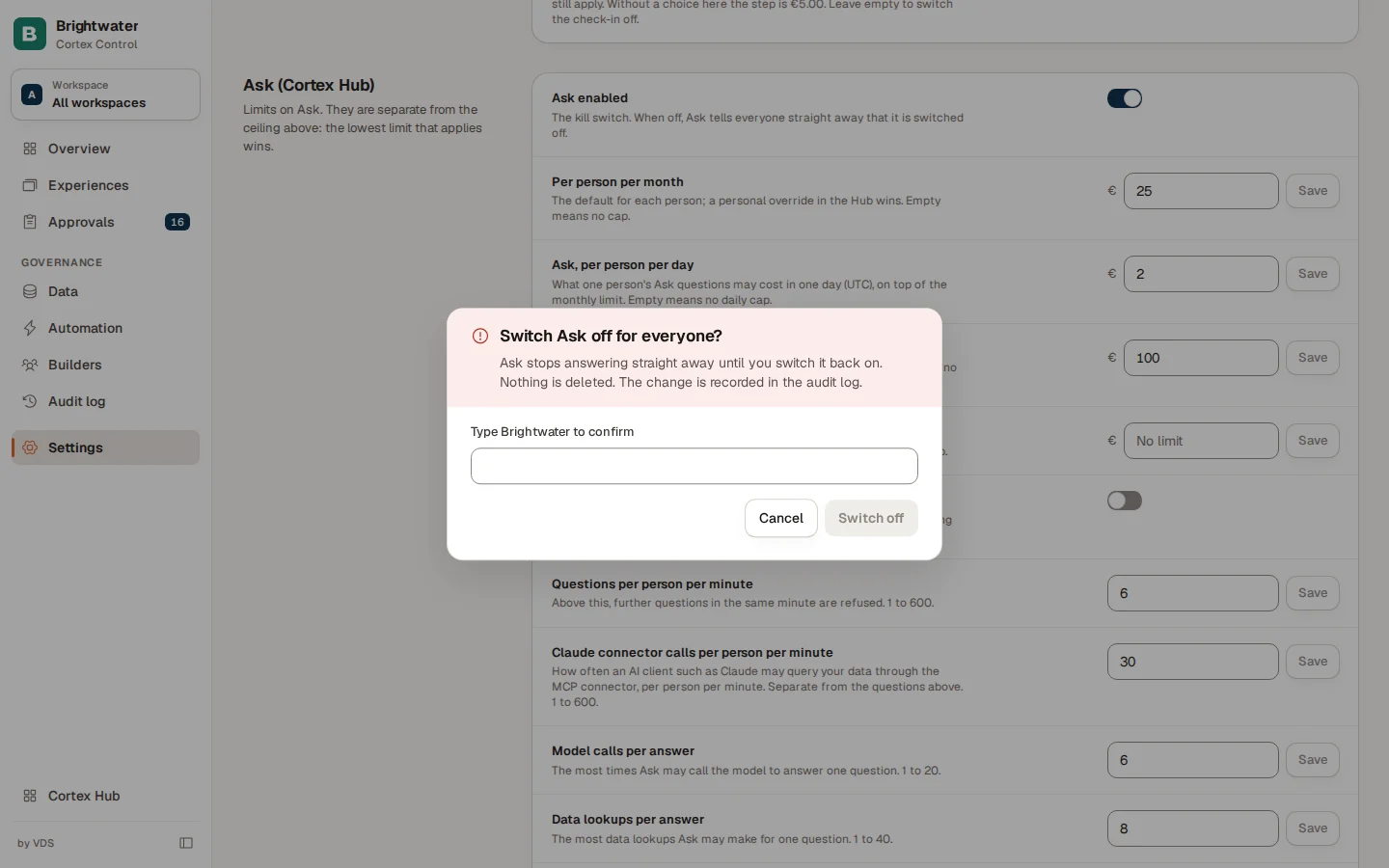
Switch Ask off for everyone
Flip the switch
Switch Ask enabled off. A confirmation opens: Switch Ask off for everyone?
Type the name
When your organisation has a name (see Branding), you type it to confirm ("Type … to confirm"). Switch off stays disabled until it matches exactly.
Re-checks of Ask model defaults
The last block, Automatic re-checks of Ask model defaults, sets the most that automatic re-tests may cost in a calendar month. When the knowledge an Ask model default is built on changes, Cortex can run its test again by itself. Once the amount is reached, the automatic runs stop until next month and the default shows "not re-tested". Tests you start yourself are never limited.

- Automatic re-checks of Ask model defaults per month. An amount from 0 to 10000. 0, the default, switches the automatic re-tests off: each re-test then waits as a proposal for an admin to approve.
Example: Sam sets a ceiling for Brightwater Foods
Sam de Vries is the admin at Brightwater Foods. The finance director wants AI spend to stay predictable, and nobody should wake up to a surprise bill.
- Sam opens Settings, Cost & limits, and sets Ceiling per month to the amount finance approved. Stop new AI requests at the ceiling stays on.
- Under Studio: default budget per person Sam keeps a default per builder and turns on the check-in, so a long build session pauses and asks before it runs on.
- Under Ask (Cortex Hub) Sam sets Per person per day, so one enthusiastic person cannot use the whole month's budget in an afternoon, and leaves Stop at the Ask cap off: Ask only warns.
- Sam checks that the numbers in the report make sense in Usage statistics after a week.
Questions and problems
AI engine and models
Choose the AI provider and the model behind each tier, keep your data in the EU, test the connection and set what each model costs.
Usage statistics
See what every app and dashboard costs to build and run, how much it is used, what an Ask answer costs and whether the AI bill matches the ledger.