Channels: Cortex in AI apps
Let people use Cortex from Claude and ChatGPT through the MCP gateway, choose exactly what is offered and which apps may connect, and switch it all off again.
People already work in AI apps such as Claude and ChatGPT. Channels lets them ask Cortex a question from there, with the same figures, the same access rules and the same audit trail as in the Hub. The way in is the MCP gateway: one controlled door between those apps and your Cortex.
Everything on the page is off until you switch it on. Every request runs with the signed-in person's own access, so nobody gets to see more through an AI app than they could see in Cortex itself.
Who can do this
Admins of Cortex Control. Open Settings, then Channels (in the group Rules & cost). The same page also holds the block for Microsoft Teams, which is described in Microsoft Teams.
The page at a glance
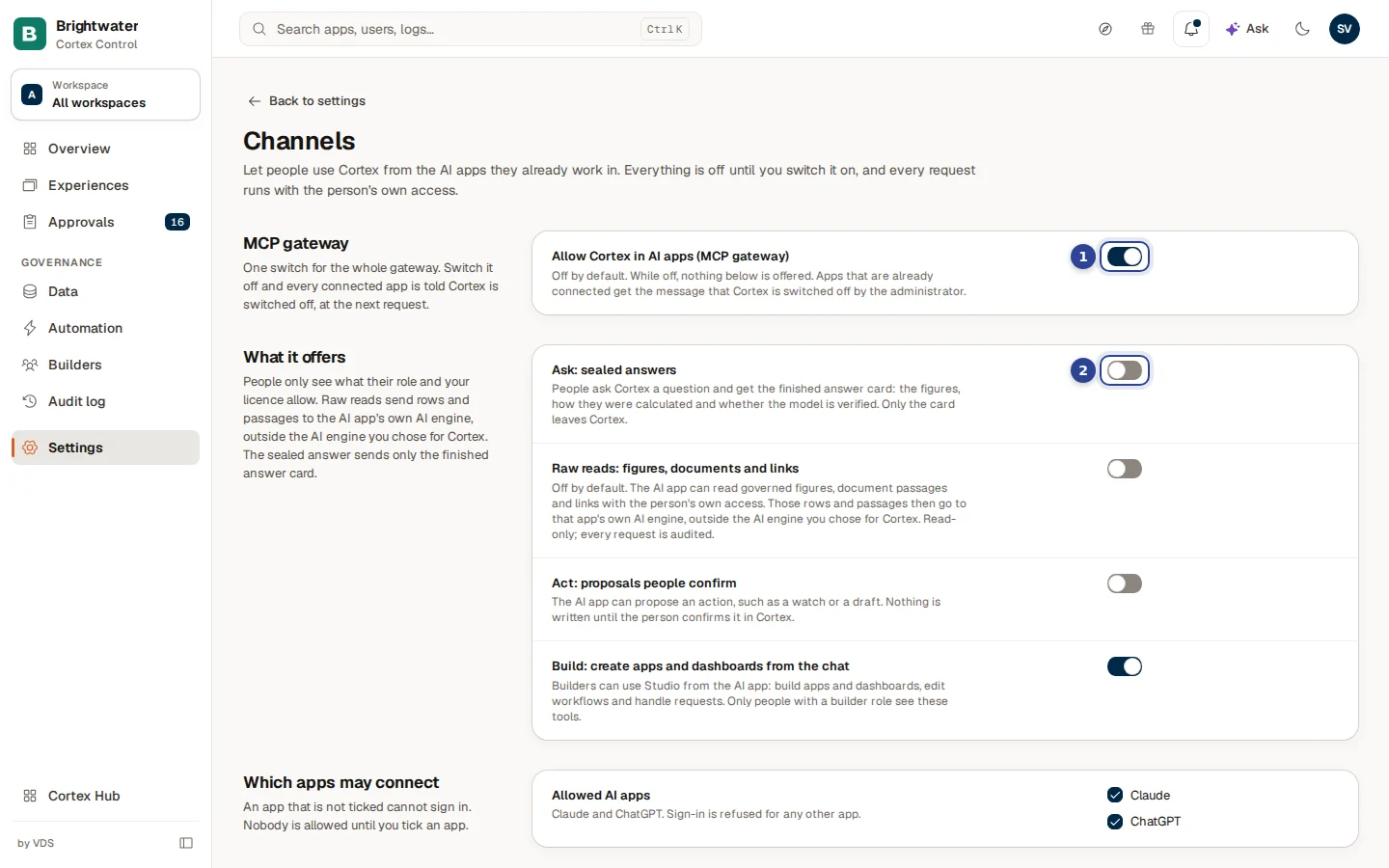
- Allow Cortex in AI apps (MCP gateway). The one switch for the whole gateway. It is off by default, and while it is off nothing below is offered.
- Ask: sealed answers. The first of four toolsets under What it offers. The other three follow below it.
The page has three blocks one below the other: MCP gateway, What it offers and Which apps may connect. Every switch and checkbox saves the moment you change it; a message confirms it ("Channels saved") or says "Could not save the channel settings".
The master switch. Off means nothing is offered at all.
What the AI app may do: ask, read, propose, build.
Which apps may sign in: Claude, ChatGPT or both.
Role and licence still decide what each person sees.
Switch the gateway on
Switch on the gateway
Under MCP gateway, switch on Allow Cortex in AI apps (MCP gateway). It saves at once.
Choose what is offered
Under What it offers, switch on only the toolsets you want (see the next section). A fresh install offers none of them.
Allow an app
Under Which apps may connect, tick Claude, ChatGPT or both. An app that is not ticked cannot sign in, and nobody is allowed until you tick one.
What the gateway offers: the four toolsets
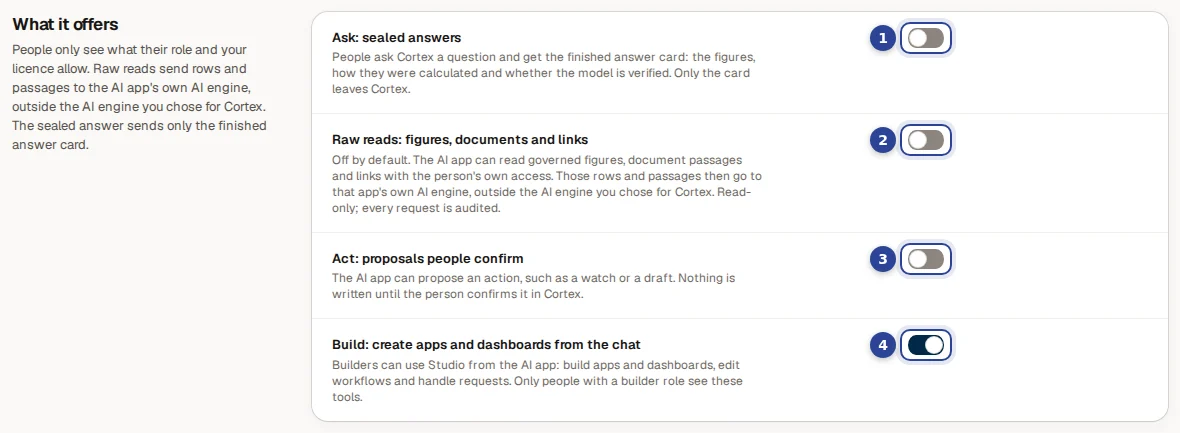
- Ask: sealed answers.
- Raw reads: figures, documents and links.
- Act: proposals people confirm.
- Build: create apps and dashboards from the chat.
| Toolset | What the AI app can do |
|---|---|
| Ask: sealed answers | People ask Cortex a question and get the finished answer card: the figures, how they were calculated and whether the model is verified. Only the card leaves Cortex. |
| Raw reads: figures, documents and links | Off by default. The AI app can read governed figures, document passages and links, with the person's own access. Read-only; every request is audited. The rows and passages go to that app's own AI engine, outside the engine you chose for Cortex. |
| Act: proposals people confirm | The AI app can propose an action, such as a watch on a threshold or a draft. Nothing is written until the person confirms it in Cortex. |
| Build: create apps and dashboards from the chat | Builders can use Studio from the AI app: build apps and dashboards, edit workflows and handle requests. Only people with a builder role see these tools. |
People only see what their role and your licence allow.
Raw reads leave your AI engine
Raw reads sends rows and passages to the AI app's own AI engine, which is outside the engine you chose under AI engine. Switch it on only when that is acceptable for your data. Ask: sealed answers is the safer choice: only the finished answer card leaves Cortex.
Choose which apps may connect

- Claude.
- ChatGPT.
Under Allowed AI apps you tick the apps that may sign in. Sign-in is refused for any other app, and for both while neither is ticked. The gateway switch is the way to stop everything at once.
Switch Cortex off in AI apps
Switch off Allow Cortex in AI apps (MCP gateway). Every connected app is told, at its next request, that Cortex is switched off by the administrator. Nothing is deleted: switch it on again and your choices under What it offers and Which apps may connect are still there.
Limits on the gateway
How often one person may use the gateway is limited separately: Claude connector calls per person per minute on Cost and limits (1 to 600), apart from the number of questions Ask accepts. The gateway is also covered by the audit log.
Example: Brightwater Foods starts with sealed answers
The sales team at Brightwater Foods wants to ask Cortex about open deals from Claude. Sam de Vries, the admin, wants to be careful with company data.
- Sam opens Settings, Channels and switches on Allow Cortex in AI apps (MCP gateway).
- Under What it offers Sam switches on only Ask: sealed answers. Raw reads stays off: the figures of the company should not go to another AI engine.
- Under Which apps may connect Sam ticks Claude and leaves ChatGPT unticked, because only Claude is licensed at Brightwater.
- Sam tells the sales team they can add Cortex in Claude, and checks a week later in the audit log what was asked.
Questions and problems
Workspaces
Group experiences in workspaces, decide who can open them, add people and groups, give a workspace its own accent colour and logo, and archive it.
Microsoft Teams
Add Cortex Hub, or a single app, to your organisation's Microsoft Teams: publish, update, approve, pin and fix what the status line reports.