Branding
Give Cortex your organisation's name, logo and colours, and see them change live before you save.
Branding makes Cortex look like your organisation. You set a name, a logo, one main colour, an optional highlight colour and a tagline once, and they apply to Cortex Control, Cortex Hub and every app your people build. People then open a tool that looks like their own company's, not a stranger's.
The page works like a form with a live preview next to it: you change a field on the left and the miniature of Cortex Control on the right follows as you type. Nothing is stored until you choose Save changes, except the logo, which is stored the moment you upload or remove it.
Who can do this
Admins of Cortex Control. Open Settings, then Branding (in the group Organisation). Anyone else who opens the page sees it read-only ("Read-only. Admin role required to change branding.").
The page at a glance
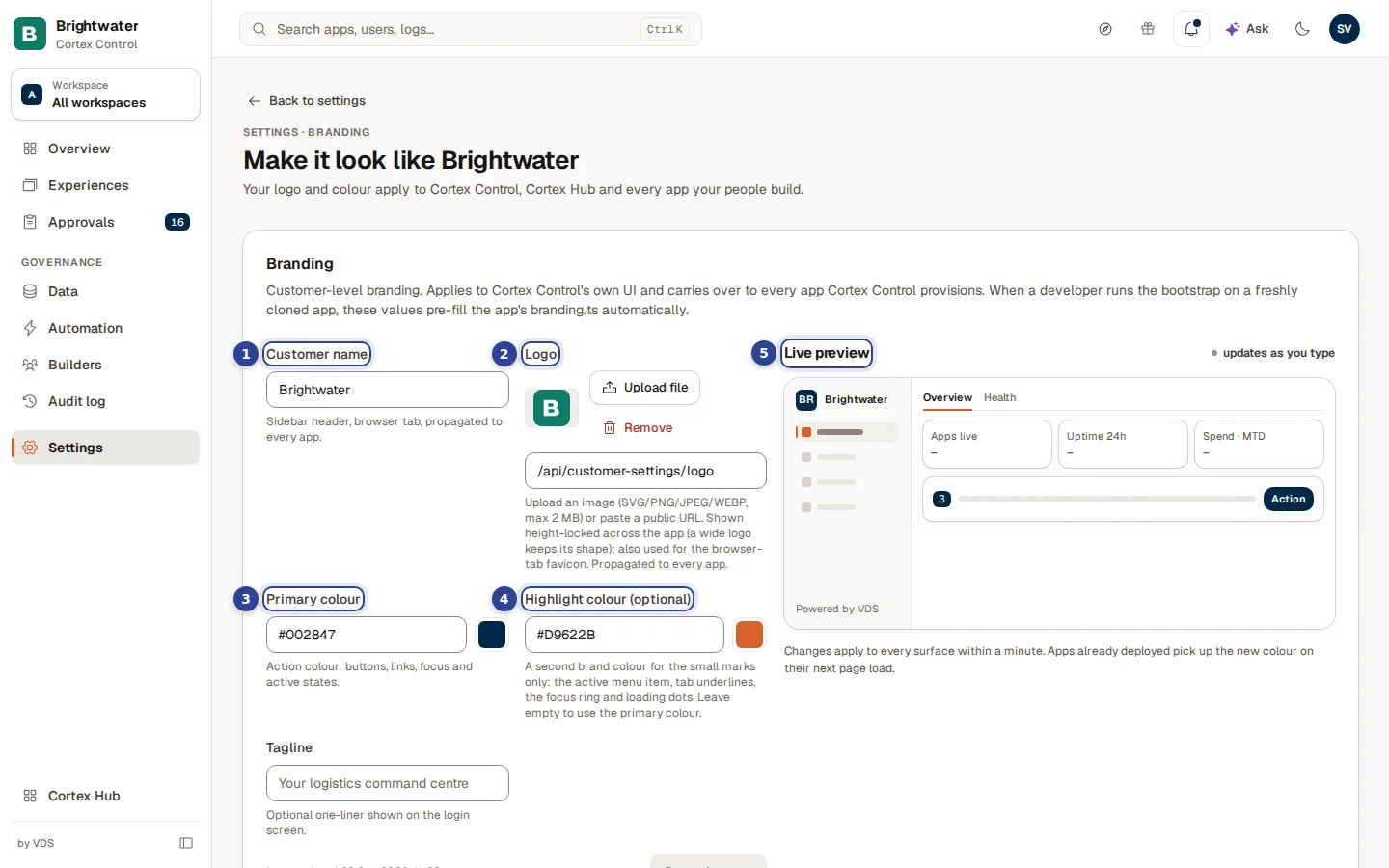
- Customer name. Shown in the header of the sidebar and in the browser tab, and carried into every app. It is also the name you type to confirm switching Ask off for everyone.
- Logo. Upload a file or paste a public address. A small preview shows how it will look.
- Primary colour. The action colour: buttons, links, focus and active states.
- Highlight colour (optional). A second brand colour for small marks only.
- Live preview. A miniature of the Cortex Control chrome that updates as you type ("updates as you type").
Below the fields is the Tagline, an optional line on the login screen, and at the foot of the form the button Save changes. Next to it the page says when branding was last saved ("Last updated …"), or "No branding saved yet" on a fresh install.
Set the name and the tagline
Type the name
Fill in Customer name (up to 256 characters), for example "Brightwater Foods". It replaces the name in the sidebar header. Without a logo, the header shows a tile with the first letters of the name.
Add a tagline if you like
Tagline is one optional line (up to 512 characters) on the login screen of Cortex and your apps.
Save
Choose Save changes. A message confirms it ("Branding saved"). The button stays disabled until something changed and every colour is valid.
Upload your logo
Choose the file
Choose Upload file and pick an SVG, PNG, JPEG or WEBP image of at most 2 MB. A larger file is refused ("File is too large (max 2 MB)").
Check the preview
The logo is stored at once ("Logo uploaded") and shown in the small preview next to the buttons. Cortex shows the logo at a fixed height, so a wide logo keeps its shape instead of being squeezed into a square. The same image is used as the browser-tab icon.
Or paste a public address
Instead of a file you can paste the address of an image that is reachable on the public internet into the field under the buttons. This one is saved with Save changes. After an upload, leave the field as it is.
Remove the logo
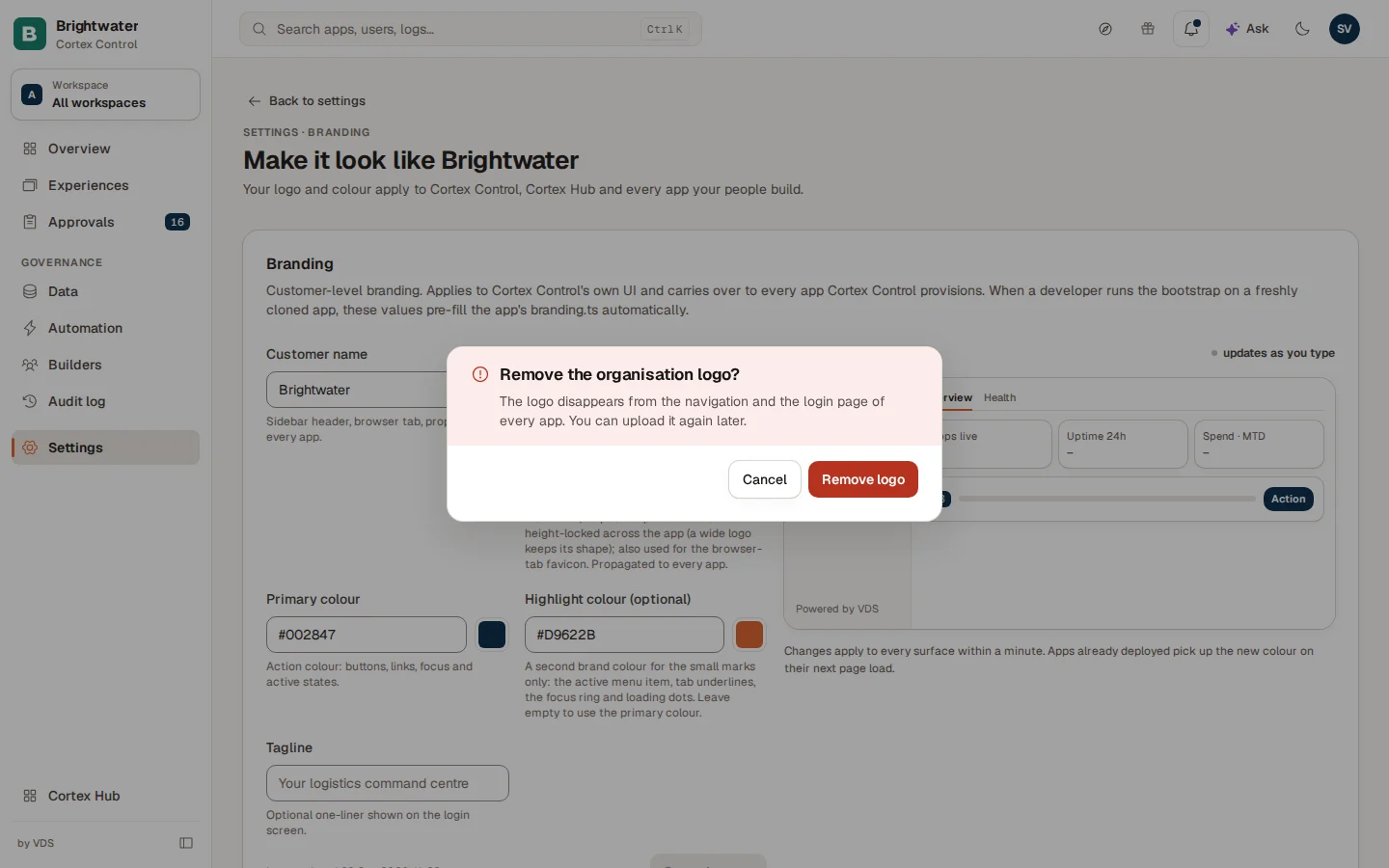
Choose Remove next to the logo. The dialog Remove the organisation logo? warns that the logo disappears from the navigation and the login page of every app, and that you can upload it again later. Choose Remove logo to confirm or Cancel to keep it.
Choose the colours
Cortex uses one accent colour. You choose it once and Cortex derives everything else from it.
| Field | What it colours |
|---|---|
| Primary colour | The action colour: buttons, links, focus and active states, and the logo tile. |
| Highlight colour (optional) | A second brand colour for small marks only: the active menu item, tab underlines, the focus ring and loading dots. Leave it empty to use the primary colour. |
Type a colour as #rgb or #rrggbb, or pick it with the small colour swatch next to the field, which opens your system's colour picker. The swatch has a dashed border while no colour is chosen yet. Leave a colour empty to use the Cortex default.
A colour that is hard to read
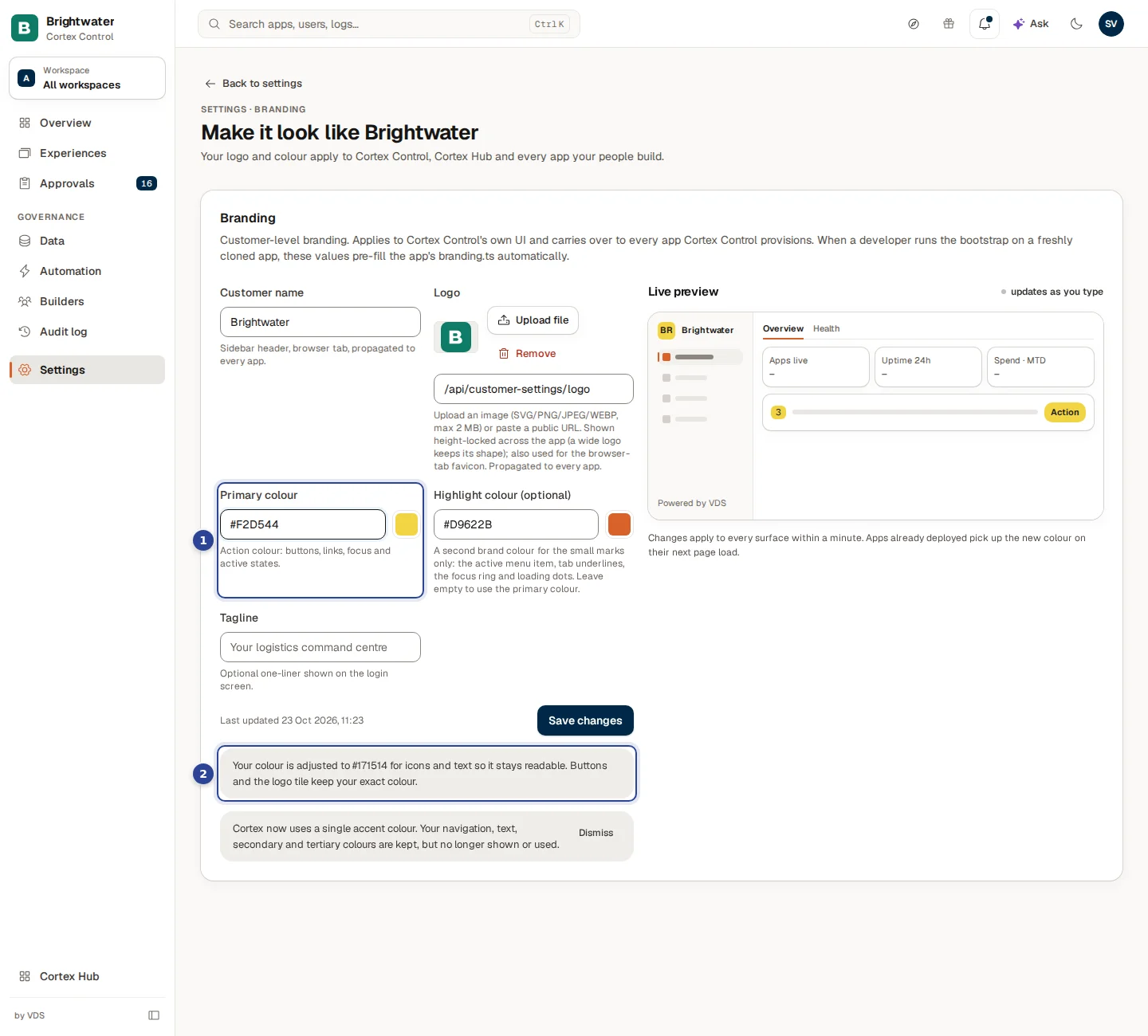
- Primary colour with a colour that is too light to read as text, here a light yellow.
- The notice. "Your colour is adjusted to … for icons and text so it stays readable. Buttons and the logo tile keep your exact colour." It names the colour Cortex used instead.
Cortex always makes sure that icons and text on your colour pass the contrast rules for readability. So you can choose a pale or a very dark colour; the page tells you what changed, and nothing blocks saving. Buttons and the logo tile keep exactly the colour you typed. Light and dark mode are both covered.
A colour that is not valid
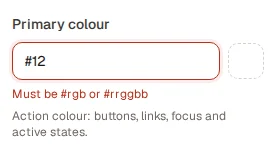
While a colour is not a valid #rgb or #rrggbb ("Must be #rgb or #rrggbb"), the field has a red border and Save changes is disabled. Finish the colour or clear the field.
Older colour settings
If your organisation had set a navigation, text, secondary or tertiary colour in an earlier version, a notice says that Cortex now uses a single accent colour: those colours are kept but no longer shown or used. Choose Dismiss to hide the notice (it stays hidden in that browser).
Check the live preview
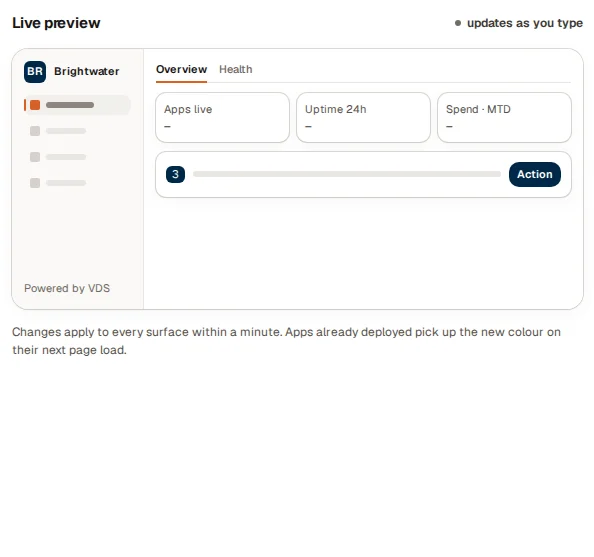
The preview is a small copy of the Cortex Control screen painted with the colours you have typed so far. It shows your name and the first letters in the logo tile, the active menu item and the tab underline in the mark colour, a count chip and the primary action button. Use it to judge the result before you save. Under it the page says: "Changes apply to every surface within a minute. Apps already deployed pick up the new colour on their next page load."
See the result in the Hub
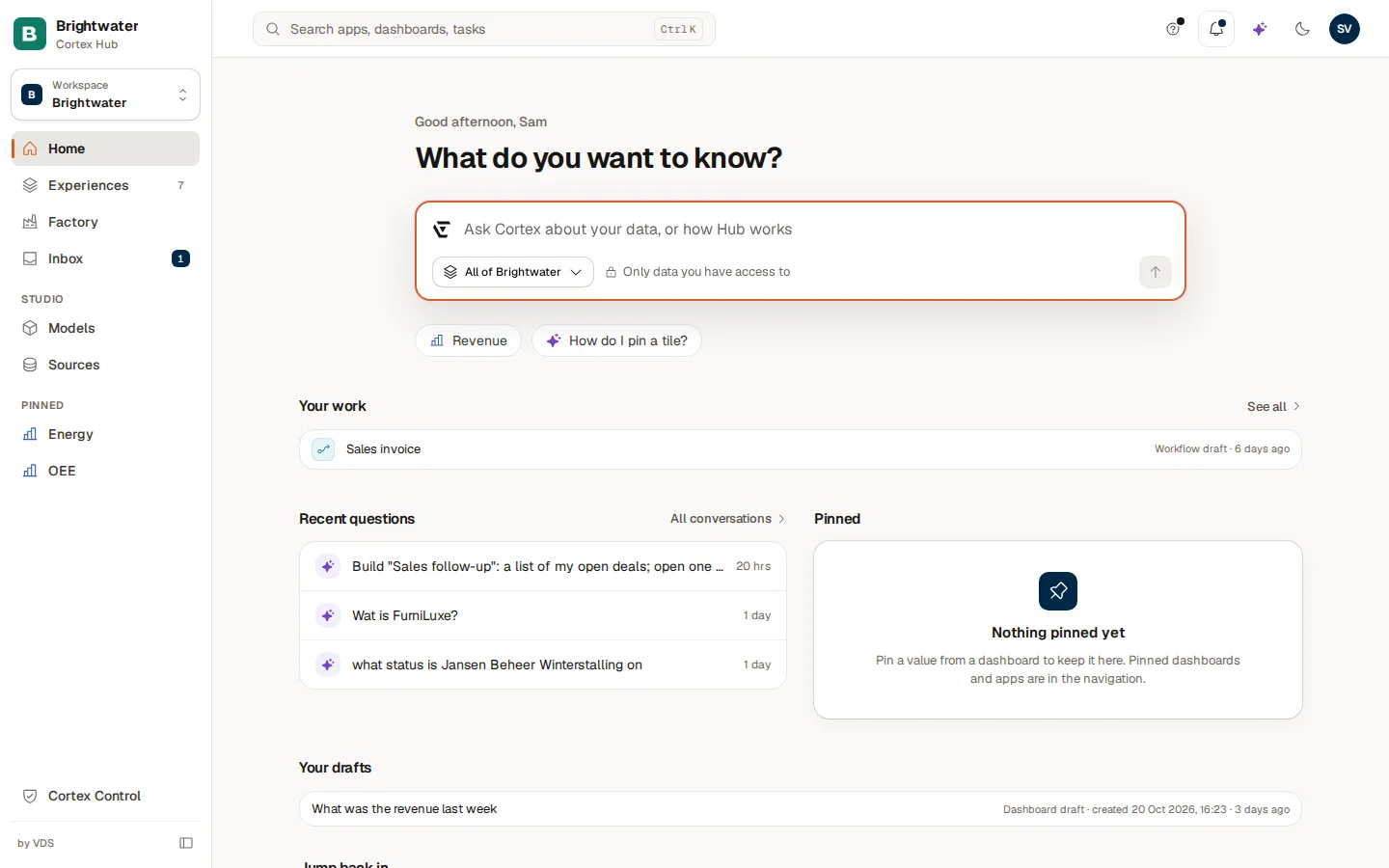
Open Cortex Hub in a new tab and reload it. You see the name and logo tile at the top left, the accent colour on the small marks (the bar next to the active menu item, the focus ring around the question box) and the same logo in the browser tab. Studio and every generated app follow the same branding. A credit line in the footer, if your install shows one, is set by your licence and cannot be changed on this page.
Example: Brightwater Foods brands Cortex
Sam de Vries, the admin at Brightwater Foods, wants the Hub to look like the company's intranet.
- Sam opens Settings, Branding and types "Brightwater Foods" under Customer name.
- Sam chooses Upload file and picks the SVG of the Brightwater logo.
- Sam pastes the company green into Primary colour and the orange of the brand book into Highlight colour (optional). The preview already shows the orange on the active menu item.
- Sam chooses Save changes ("Branding saved"), opens the Hub in another tab and reloads it. The name, logo and colours are there.
Reference
| Item | Value or limit |
|---|---|
| Customer name | Up to 256 characters |
| Tagline | Up to 512 characters |
| Logo file | SVG, PNG, JPEG or WEBP, at most 2 MB |
| Colour format | #rgb or #rrggbb |
| What is stored at once | The logo (upload and remove) |
| What needs Save changes | Name, tagline, colours and a pasted logo address |
| When it shows everywhere | Within a minute; deployed apps on their next page load |
Questions and problems
Usage statistics
See what every app and dashboard costs to build and run, how much it is used, what an Ask answer costs and whether the AI bill matches the ledger.
Workspaces
Group experiences in workspaces, decide who can open them, add people and groups, give a workspace its own accent colour and logo, and archive it.