Audit log
Find out who changed what in Cortex Control and when: filter the log, open an entry, see who looked at Cortex as someone else, and export it.
Every change in Cortex Control is written to the audit log: who did it, what they did, to what, when, and whether it worked. Creating an app, approving a request, changing a setting, installing a pack, withdrawing someone's access: it is all in here, and nothing in it can be edited from the page.
Use it to answer questions like "who gave this app access to that dataset?", "when did the pack get upgraded?" and "did anyone look at the model as another person?". For a regulator or an internal audit you can export it.
Who can do this
Admins of Cortex Control: Audit log in the Governance group of the menu. Other people get an "Access denied" screen.
The audit log at a glance
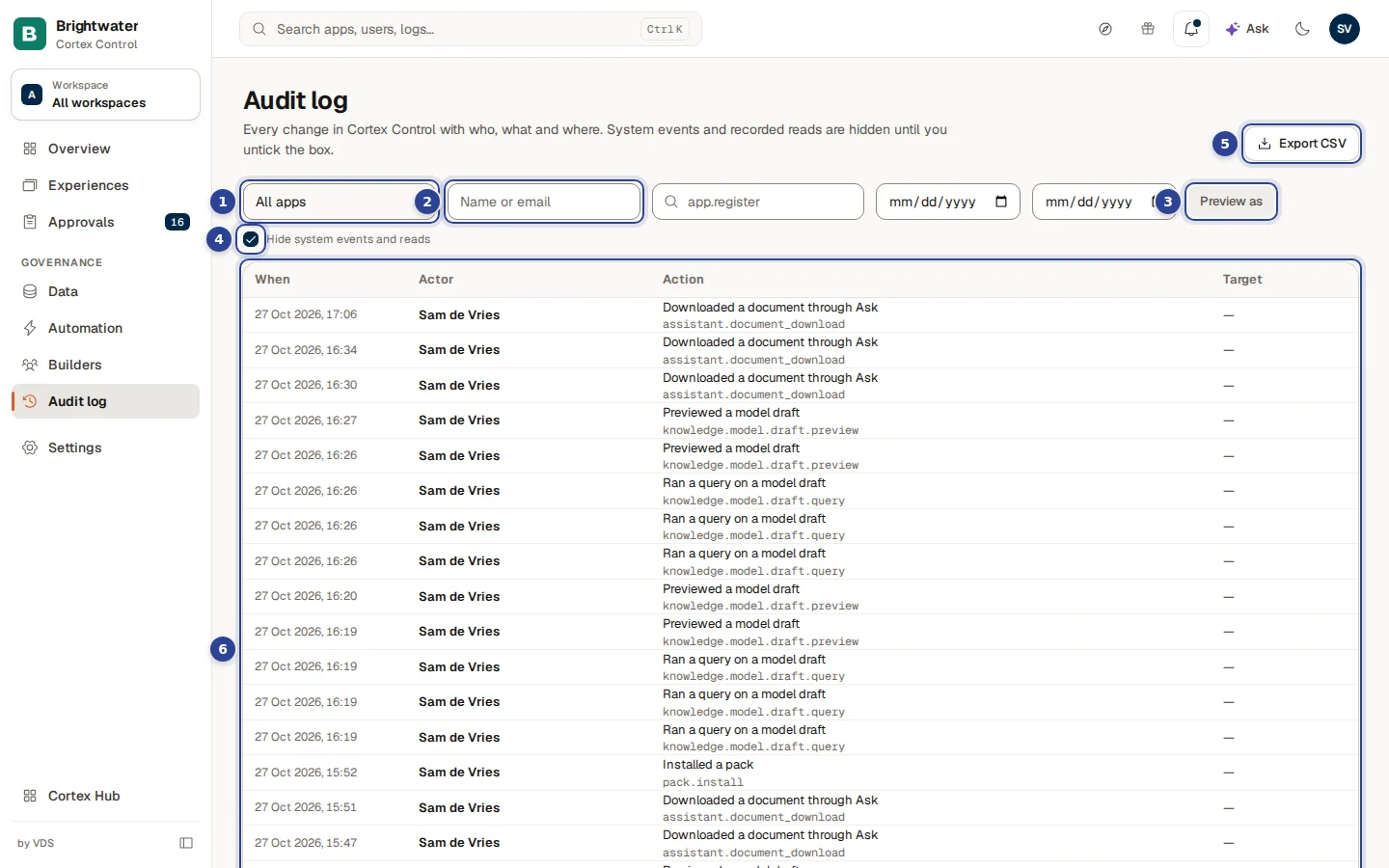
- App. Show the entries of one app, or All apps.
- Person. Type a name or an e-mail address. The field says "Name or email".
- Preview as. A button that switches the Action filter to the entries where an admin looked at Cortex as another person or role (see Who looked as someone else).
- Hide system events and reads. On by default. Untick it to see what Cortex does by itself.
- Export CSV. Downloads the entries that match your filters.
- The table. One row per entry, newest first. Choose a row to open it.
Between Person and Preview as are the field Action (it shows the example app.register) and the dates From date and To date.
What a row shows
| Column | What it shows |
|---|---|
| When | Date and time, in your own time zone. |
| Actor | Who did it: a person's name, or Automation for something Cortex did by itself. |
| Action | What happened in words ("Installed a pack"), with the action code under it in a small mono font (pack.install). A failed action is red with a dot. |
| Target | What it was done to: an app, a dashboard ("Dashboard #12"), or a person. For a preview as session it also shows as whom and which model. A dash means the action has no single target. |
Find an entry
Narrow by app, person or date
Choose an App, type a Person, or set From date and To date. The list reloads. The "to" date includes the whole day.
Narrow by action
Type part of an action name in Action, for example pack.install or app.. The field suggests the actions it has seen. Hover over the field for the hint: "Part of an action name, for example app.register".
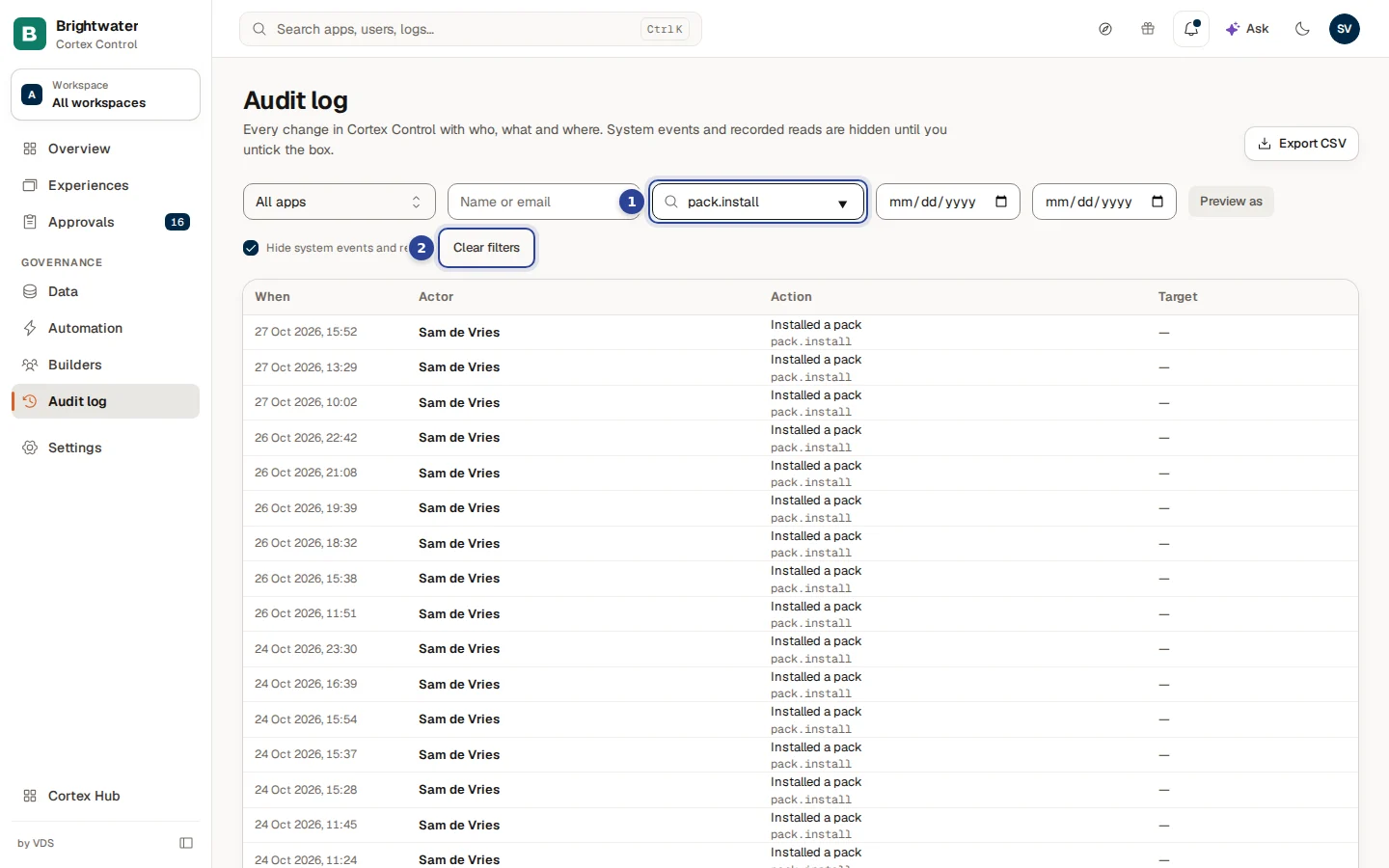
- Action. The filter that is active.
- Clear filters. Appears as soon as any filter is on. It resets all of them.
Load older entries
The line under the table says how many entries are shown ("n entries shown, older ones are available"). Choose Load older entries to go further back.
If no entry matches, the page says "No entries match your filters." with Clear filters. A new install may say "No audit entries yet."
Common actions
| Code | In words |
|---|---|
app.create | Created an app |
app.release | Released an app |
grant.approve, grant.revoke | Approved or revoked data access |
role.assign, role.revoke | Assigned or revoked a role |
pack.install | Installed a pack |
connector.upgrade | Upgraded a connector |
source.create, dataset.create | Created a source or a dataset |
workflow.instance.cancel | Cancelled a workflow run |
knowledge.certify | Certified a model |
audit.export | Exported the audit log |
Use the code, or a part of it, in the Action field.
Open an entry
Choose a row. A panel opens from the right.
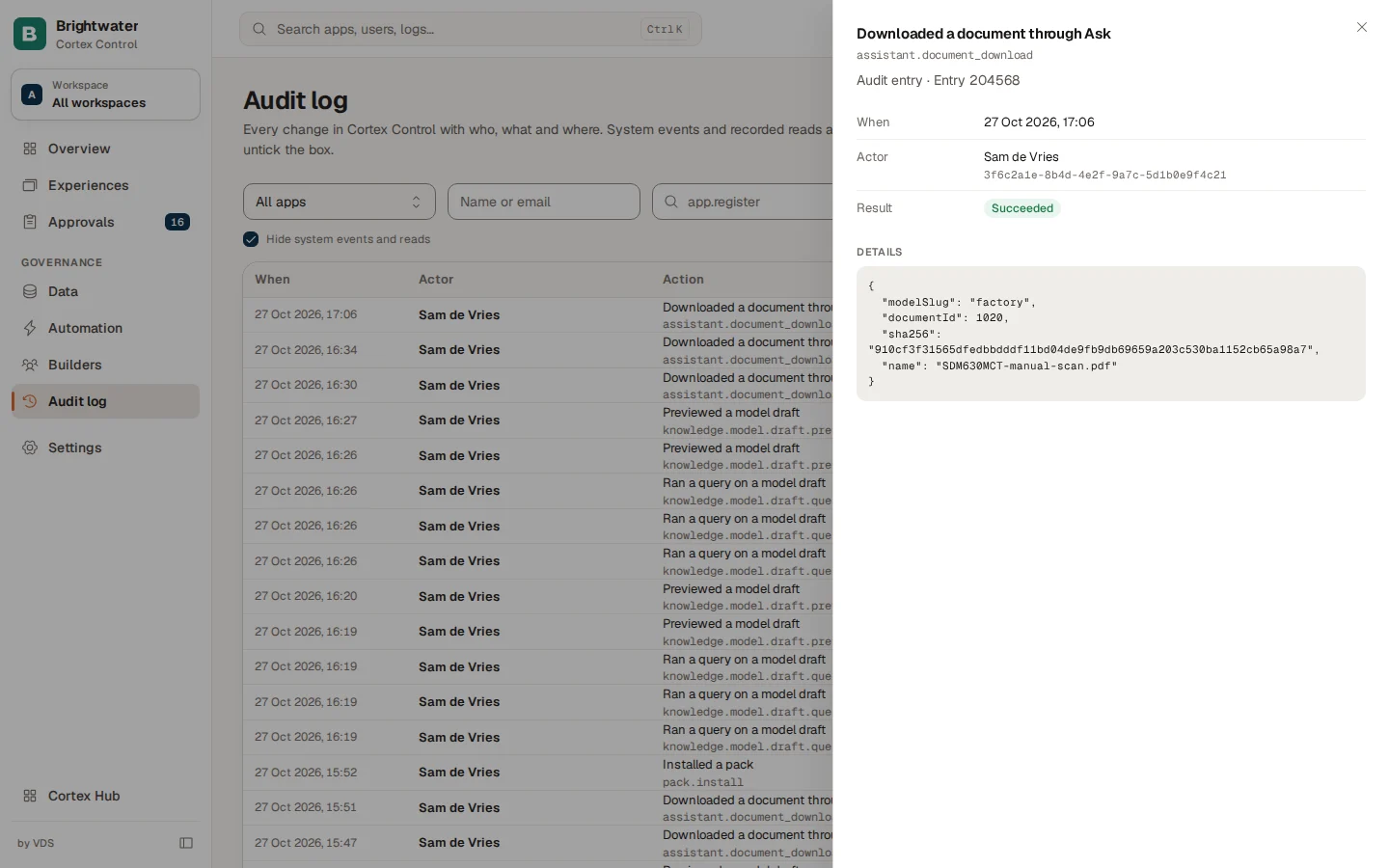
At the top are the action in words and its code, then "Audit entry" with the Entry number. The facts below it:
- When and Actor.
- Result: Succeeded or Failed. A failed entry also shows an Error message.
- App or Target, when the entry has one.
- Details: everything else that was recorded for the entry, as formatted text. An installed pack lists its version and each app and dashboard it installed. When nothing more was recorded the panel says "No further details were recorded for this entry."
System events and reads
By default the log hides what nobody did by hand: reads that apps and the platform make on purpose (An app read a dataset, An app opened a data stream, a lookup of records) and entries with no person behind them. They would otherwise push the changes you want to see out of view.
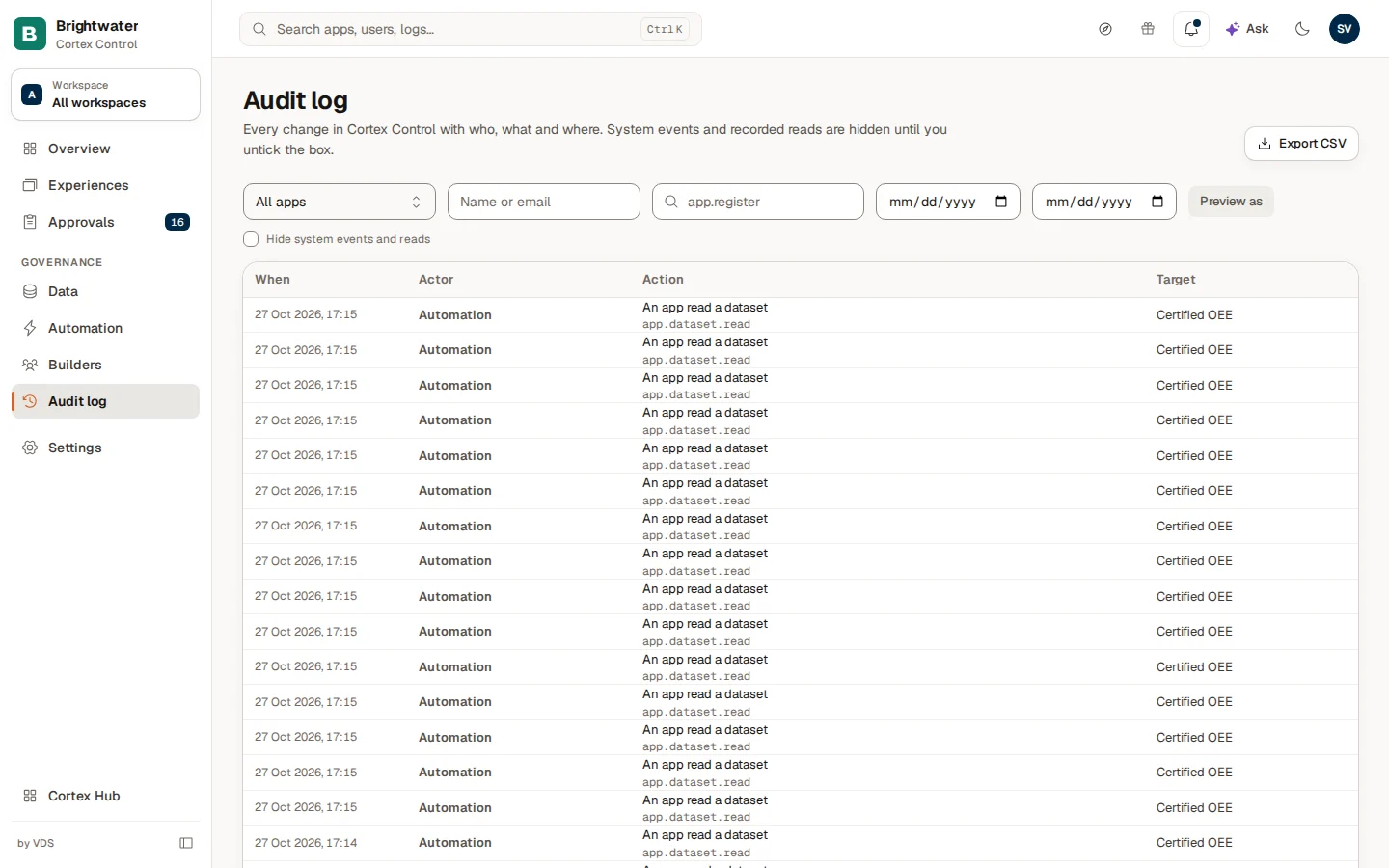
Untick Hide system events and reads to see them. Hiding works on what is already loaded, so when the box is ticked and the list is short, Cortex loads older entries by itself, a few pages at most. If everything loaded is a system event, the page says "Every loaded entry is a system event. Show them again to see the list." and offers Show system events.
Exports of model data and preview as sessions are not hidden: data leaving Cortex and looking as someone else are changes of exposure an admin wants to see.
Who looked as someone else
Cortex lets someone look at a model as another person or role, to check what that person would see. Each session is recorded twice, Started previewing as someone else and Ended previewing as someone else.
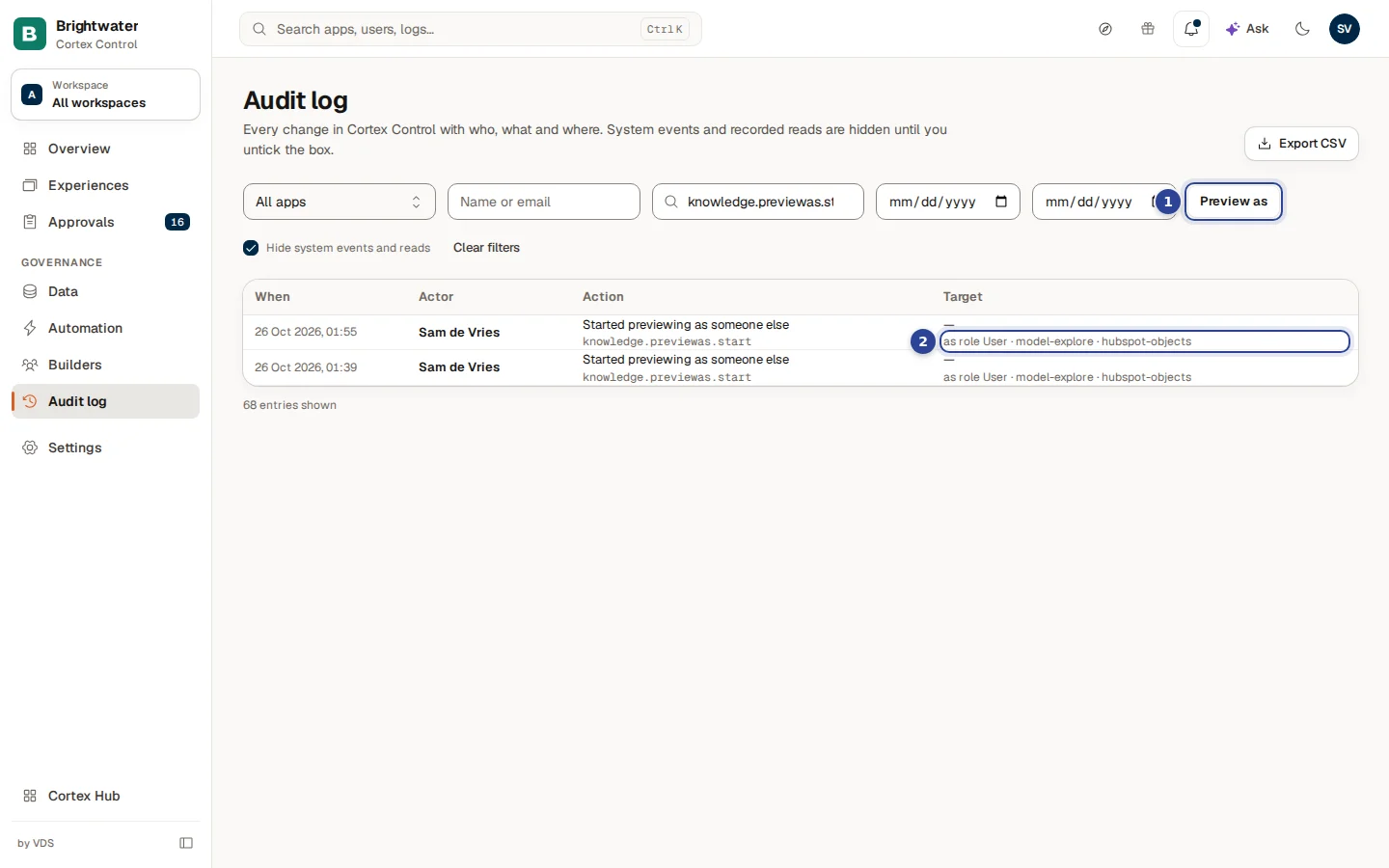
- Preview as. The button is highlighted. Choose it again to switch the filter off.
- The target line. "as role ..." or "as person ...", then the dashboard and the model, and the reason when one was given.
The button simply fills the Action field with knowledge.previewas.start, so you can narrow further with Person or the dates.
Export the log
Choose Export CSV. It exports the entries that match your current filters, up to 10,000, in the language you work in. The export is itself recorded in the log as Exported the audit log. Cortex confirms with "Audit log exported." or says "Could not export the audit log."
Example: who stopped the OEE workflow?
On Monday morning the plant manager at Brightwater Foods asks why the OEE workflow stopped on Sunday.
- Sam de Vries, IT admin, opens Audit log and types
workflow.instancein Action. - One row says Cancelled a workflow run on Sunday at 21:14, actor a colleague from operations.
- Sam opens the entry. The Details hold the run number. Sam sees the run was cancelled on purpose, after a wrong setting.
- Sam chooses Clear filters, sets Person to that colleague and the dates to Sunday, to check nothing else changed that evening.
- For the quarterly review Sam exports the entries of the month with Export CSV.
Troubleshooting
Every approval and decline you make in Approvals is written here with the person who decided and the time.