Connector packs
Install, check, upgrade and switch off the ready-made connectors for your ERP, CRM and other systems, or connect a system that has no pack.
A connector pack is a ready-made, certified connection to a system many companies use: an ERP, a CRM, a maintenance system. It brings its own datasets and, where the system allows it, a few actions. Because the datasets are made and tested in advance, they are certified and read-only: builders can put figures on them without anyone re-checking the numbers.
Compared with connecting a system yourself in the New source wizard, a pack saves you the work of writing every dataset, and it can be upgraded when the vendor changes something. You install it once on the Connectors tab of Data. Apps and models then ask for its datasets like any other (see Datasets and grants). The packs of ready-made apps and dashboards that ship with Cortex are a different thing: see Curated packs.
Who can do this
Admins of Cortex Control: Data in the Governance group of the menu, tab Connectors (the old address /connectors opens it too).
The Connectors tab at a glance
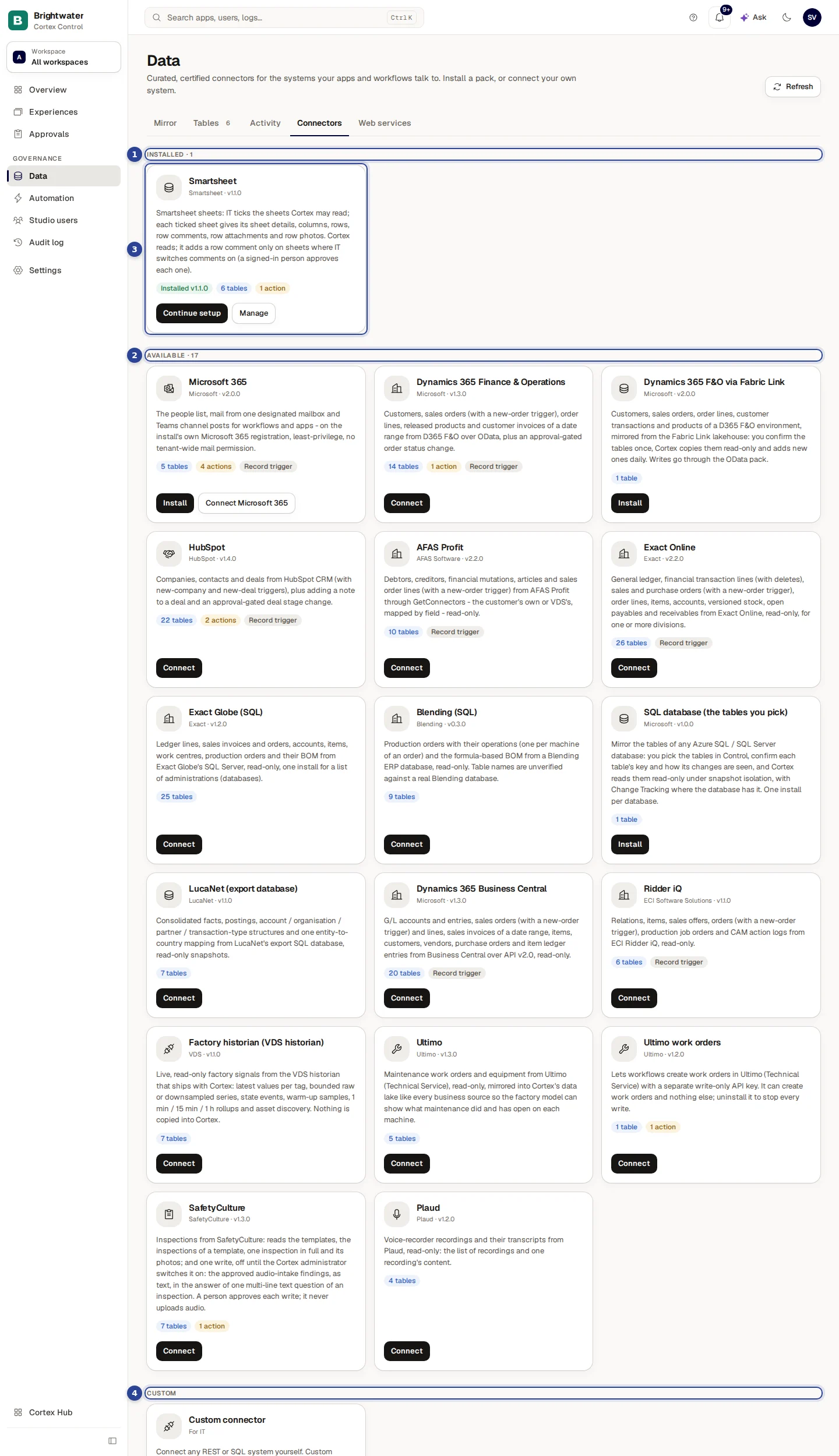
- Installed. The packs you run today, with the count behind the heading. Each card has Manage and, when a newer version exists, Upgrade to v....
- Available. Packs you could install. Each card has Install, or Not available yet when a pack is not ready for your release.
- A pack card. The pack name, the vendor and version, what it gives, and badges: Installed v... (or Inactive), the number of datasets (for example "12 datasets"), the number of actions where the pack can write, and Record trigger where a new record can start a workflow.
- Custom connector. For a system without a pack. New source opens the same wizard as on the Datasets tab.
Refresh at the top right reads the catalogue again.
Which packs exist
The catalogue follows your Cortex release, and a pack's name on its card may differ slightly from the short name here. These are the packs of the current release.
| Pack | What it reads (and writes, where noted) |
|---|---|
| AFAS Profit | Debtors, creditors, financial mutations, articles and sales order lines, with a new-order trigger. Read-only. |
| Dynamics 365 Business Central | G/L accounts and entries, sales orders and lines, sales invoices of a date range, items, customers, vendors, purchase orders and item ledger entries. Read-only. |
| Dynamics 365 Finance & Operations | Customers, sales orders, order lines, released products and customer invoices, plus an order status change that needs approval. |
| Dynamics 365 F&O Fabric Link | The same business data, copied into Cortex read-only from a Fabric Link lakehouse. IT confirms the table list once; new tables are added daily. |
| Exact Online | General ledger, transaction lines, sales and purchase orders, items, accounts, stock, open payables and receivables. Read-only. |
| Exact Globe (SQL) | Ledger lines, invoices and orders, accounts, items, work centres, production orders and their bill of materials, for a list of administrations. Read-only. |
| SAP Business One | G/L accounts and entries, sales orders and lines, items and stock, customers, vendors and purchase orders through the Service Layer. Read-only. |
| LucaNet (export database) | Consolidated facts, postings and the structures around them from LucaNet's export database. Read-only snapshots. |
| HubSpot | Companies, contacts and deals with new-company and new-deal triggers, plus adding a note to a deal and a deal stage change that needs approval. |
| Ridder iQ | Relations, items, sales offers, orders, production job orders and CAM action logs. Read-only. |
| Blending (SQL) | Production orders with their operations and the formula-based bill of materials. Read-only. |
| Ultimo | Maintenance work orders and equipment, mirrored into the factory data. Read-only. A second pack lets workflows create work orders. |
| SafetyCulture | Inspections: templates, the inspections of a template, one inspection in full and its photos. Reads, plus one write, off until the Cortex administrator switches it on: the audio block (approved audio-intake findings as text) in the answer of one multi-line text question of an inspection. It never uploads audio. The write needs an approved write grant and a token that may edit inspections. A person in the app approves each write; their token goes with the call. A schedule, a workflow or an app key alone is refused. |
| Plaud | Voice recordings and their transcripts. Read-only. |
| Smartsheet | The sheets IT ticks on the pack's Sheets tab (see Smartsheet: choose sheets): sheet, columns, rows, row comments, row attachments and photos. Read live; a row comment is written only on a sheet where IT switched comments on. An app may be granted a ticked sheet's datasets directly. |
| Microsoft 365 | The people list, mail from one designated mailbox and posts in Teams channels, on your own Microsoft 365 registration with the least permissions possible. |
| Factory signals | Live, read-only factory data: latest values per tag, series, state events, rollups and asset discovery, from your own historian or data explorer. |
Install a pack
Open the pack
On Data, tab Connectors, find the pack under Available and choose Install. The dialog Install ... opens with a description of what the pack gives. The Microsoft 365 pack also has Connect Microsoft 365 next to Install, which walks you through the consent first.
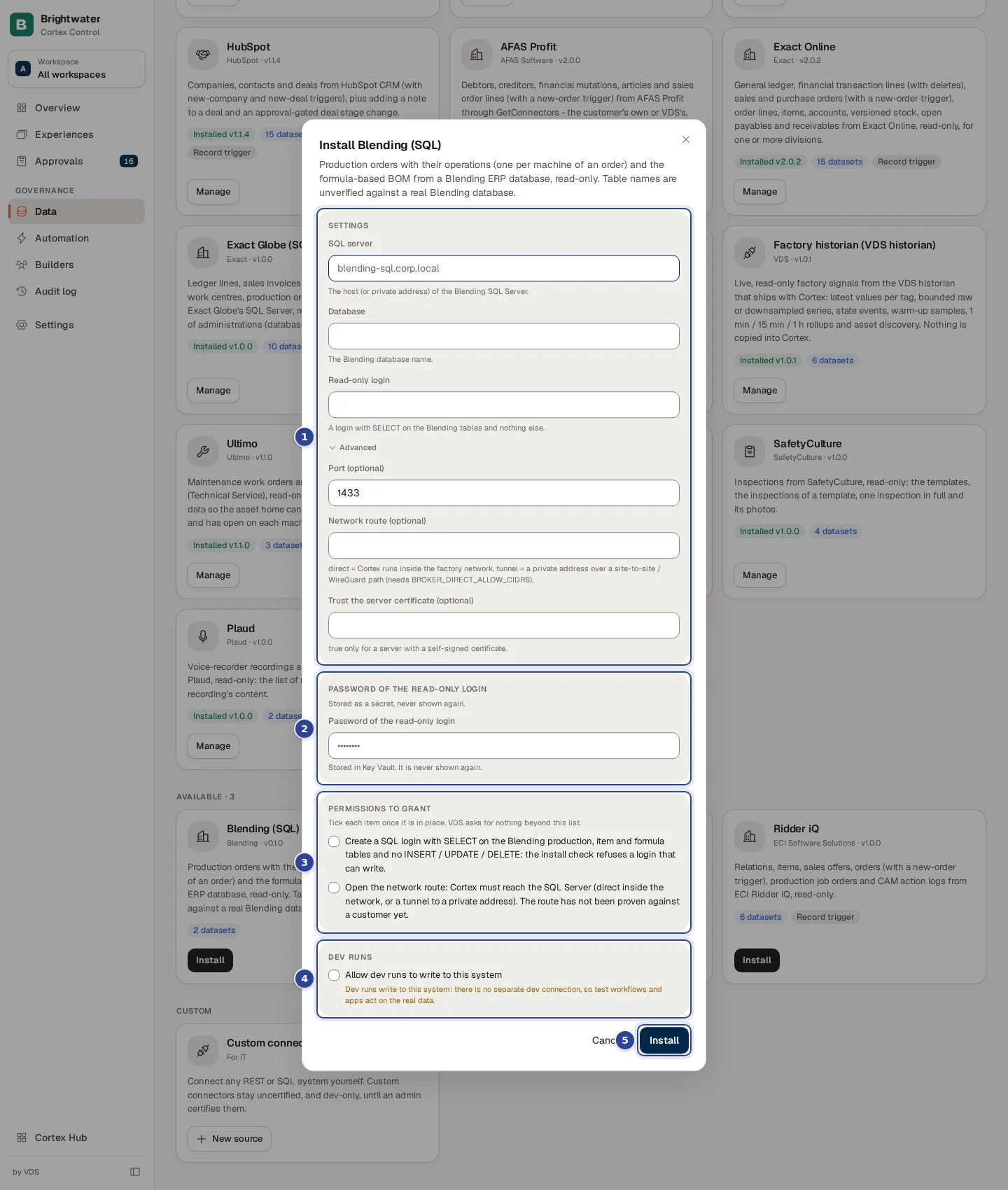
- Settings. What the pack asks for: addresses, an administration code, a time zone and so on. A field marked (optional) can stay empty.
- The secret. A panel of its own, titled with what the pack needs (for example a token or a client secret). It goes to Cortex's secret store and is never shown again.
- Permissions to grant. A list of the permissions the pack needs in the other system. Tick each one once it is in place there.
- Dev runs. Whether test workflows and apps may write to the real system.
- Install. Runs the installation.
Fill in the settings and the credential
Enter the Settings the pack asks for. A field that is required and empty says "This field is required." A list value is separated with commas. Under Advanced you find options most installs never change.
Enter the credential in the form the pack expects. Where the format is a fixed shape, the field shows Expected shape:.
Confirm the permissions
Under Permissions to grant tick each permission once it is in place in the other system. You must confirm every one before you can install: "Confirm every permission before installing." Cortex asks for nothing beyond that list.
Decide about dev runs
Under Dev runs a pack that can write offers Allow dev runs to write to this system. Leave it off unless you want test workflows and apps to act on real data: there is no separate dev connection. Some packs say instead that dev runs are always allowed because the pack's own guards are the sandbox (mail only to dev recipients, Teams only to channels marked for dev).
Install and read the check
Choose Install. When it is done the dialog is titled "... installed" and shows how each dataset did on its first live check: OK or Failed. Choose Done. The pack's datasets appear on the Datasets tab with a Pack badge.
Manage an installed pack
Choose Manage on the card.
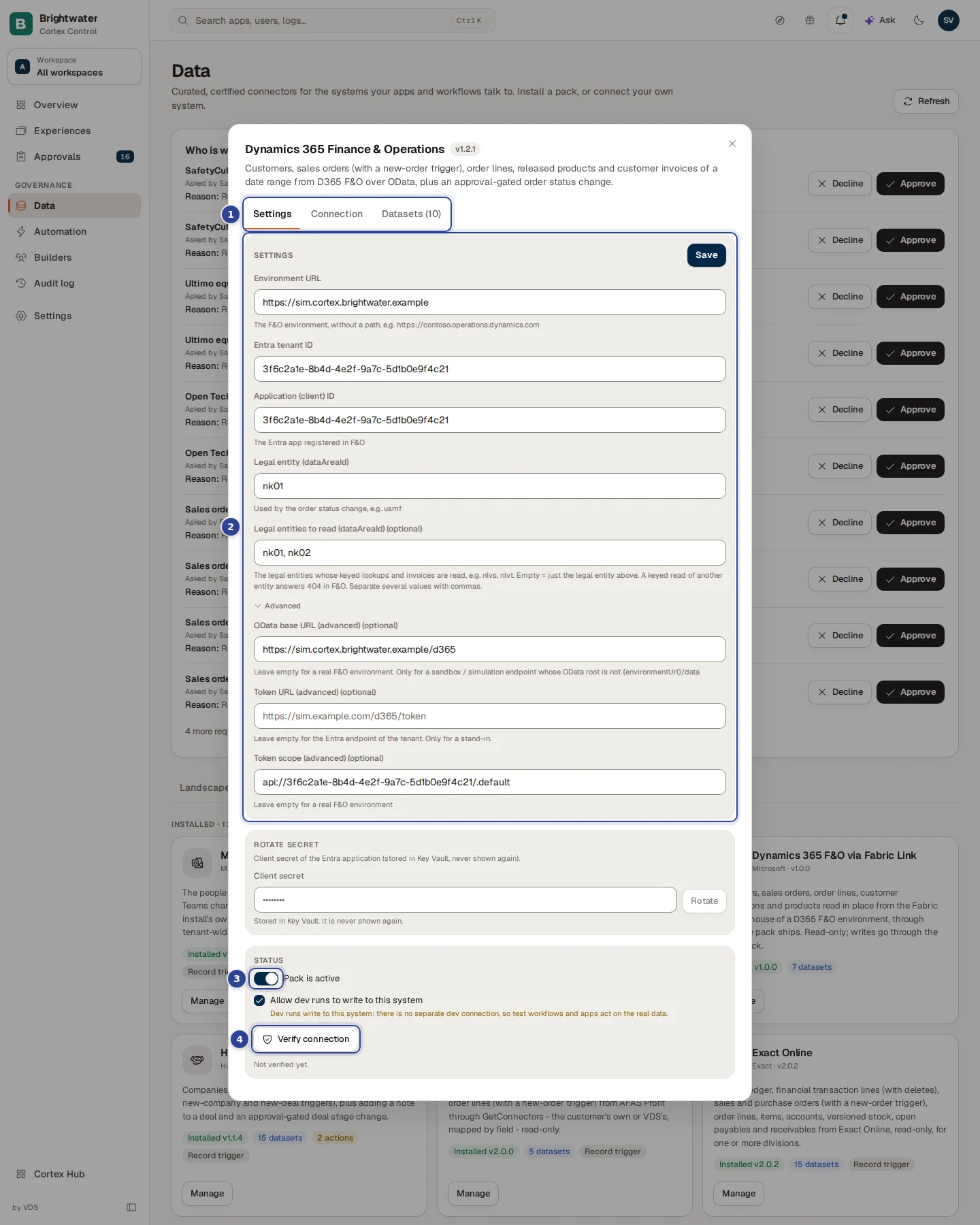
- The tabs. Settings, Connection and Datasets. Some packs add one: Microsoft 365 has Connect and Teams channels, HubSpot has People.
- Settings. Change the settings and choose Save. Under Rotate secret you type a new secret and choose Rotate. Cortex asks for confirmation: the old secret is replaced and anything that still uses it stops working until it is updated. Where a pack offers it, Refresh now renews the stored sign-in right away.
- Status. The switch Pack is active turns the pack off and on (a pack that is off shows Inactive), the Dev runs option, and the result of the last check.
- Verify connection. Runs a check. It shows Verification passed or Verification failed with the result per dataset. Before the first check it says "Not verified yet."
If a change would break an app, workflow or model that relies on the pack, the dialog lists them and asks you to confirm with Upgrade anyway.
The Connection tab
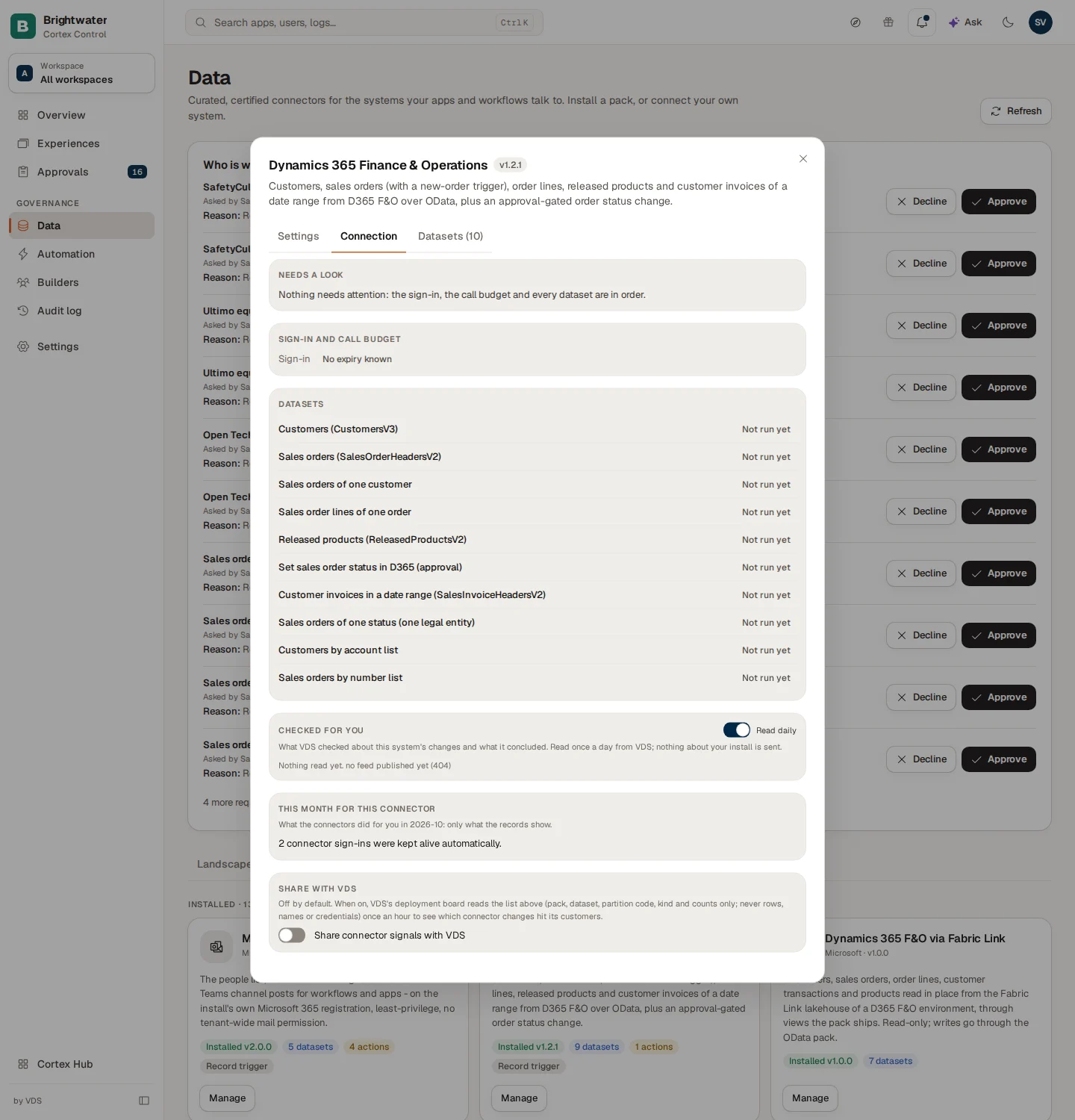
This tab answers one question: is the connector healthy? It shows the state of the Sign-in (with "n days left" for an expiring one), the Calls budget ("n of m today", "n of m this minute"), and every dataset with its last good run, the number of rows against the previous run and, for packs that read several administrations, a roll-up per partition. When something is wrong the heading Needs a look lists it. When nothing is wrong it says "Nothing needs attention: the sign-in, the call budget and every dataset are in order." Further down: What the source did that it never did before (names, codes and counts only, never row data, each with Seen to dismiss it), Model checks against this source and, for each dataset, Used by: the models that read it.
The Datasets tab
- Keep a copy in Cortex (see Datasets and grants).
- Pack datasets: certified and read-only. They change only when the pack is upgraded.
- Extensions: extra datasets on the pack's connection, uncertified until an admin certifies them. Choose Add extension to make one.
Smartsheet: choose sheets
Smartsheet is read live. Cortex writes only a row comment, only on sheets where you switch comments on, and a signed-in person approves each one. You choose which sheets Cortex may read. Nothing is ticked after the install.
- Choose Manage on the Smartsheet pack. The Sheets tab opens first.
- The list shows every sheet the service user can open. Search by name or id.
- Tick the sheets Cortex may read and choose Save sheets. An install reads at most 200 sheets.
- A sheet that is shared with the service user later shows up in the list unticked.
- Unticking a sheet and saving switches its datasets off. They are never deleted: tick the sheet again and the same datasets and grants come back, except the comment permission: switch comments on and grant it again. Apps that read an unticked sheet get an error.
- When approved apps or workflows use a sheet you are about to switch off, Save sheets first lists them and asks you to confirm. The same box names the apps that lose their permission to comment and the requests to comment that are turned down, each with the sheet it is about. If Cortex cannot read that list, the box says so and saving may still remove the permission.
- Undo on a sheet you unticked (and Undo all) gives its comment switch back as it was before you unticked it in this edit. Unticking a sheet and ticking it again from the list starts with comments off. After you save, an unticked sheet has no Undo: tick it again and switch comments on.
- No longer visible to the service user means the service user lost access to a ticked sheet. Share it again in Smartsheet or untick it.
- The datasets of a ticked sheet are named
smartsheet.<key>.rows,smartsheet.<key>.columnsand so on. The key is shown on the sheet's row. A sheet keeps its key for good: renaming the sheet in Smartsheet changes the names shown in Cortex on the next save, but never the dataset names, also after you untick the sheet and tick it again. - The sheet list could not be read means Cortex could not get the list of sheets from Smartsheet (a wrong or expired token, a wrong region, or Smartsheet not answering). Sheets you ticked earlier stay visible and you can still untick them. Open the Settings tab, choose Verify connection to see the reason, fix it there, then choose Try again on the Sheets tab.
For scripts the same save is PUT /api/portal/connectors/smartsheet/kit-tables (Admin only). Send { tables, version, confirm? }: version is installed.listVersion from GET /api/portal/connectors/smartsheet, tables is the whole list of ticked sheets (each { id, key, name, comments?: true }), and confirm: true only after a 409 has-consumers. For a Smartsheet save the 409 also carries writeGrants: the comment grants the save would remove, each { grantId, status, app, appId, env, datasetId, datasetKey } with status approved (revoked) or requested (turned down). The 409 also comes when only such a grant is hit. A sheet sent without comments: true has comments switched off on save and its comment permission removed.
Comments on a sheet
Each ticked sheet has an Allow comments switch, off by default. Switched on, apps may add a comment to a row of that sheet, and a signed-in person approves each comment. Share the sheet with the service user as Commenter. Switching it off, or unticking the sheet, and saving removes the app's permission to comment.
Upgrade a pack
When a newer version exists the card shows Upgrade to v... with the new version number, and Manage shows the same button with a note "Version ... is available."
Open the upgrade
Choose Upgrade to v... on the card (or in Manage). The dialog Upgrade ... reads "From v... to v...". It explains that every managed dataset is derived again from the new version, and that datasets that disappear are deactivated, never deleted, so grants and run history stay intact.
Read what changes
When the new version changes the connector's object model, the dialog shows what is Removed, Changed or Added and what it is Used by (models, apps, dashboards and workflows), or says that nothing in your models, apps, dashboards or workflows uses what changes.
Confirm
Choose Upgrade to v... in the dialog. When the upgrade changes a contract that apps, workflows or models rely on, the dialog lists them and the button reads Upgrade anyway: choose it only when they can handle the change. Afterwards the dialog says "The pack is up to date." and lists what was Updated, Added and Deactivated. Choose Done.
Connect a system that has no pack
On the Connectors tab, under Custom, the card Custom connector ("Connect any REST or SQL system yourself") has New source. It opens the wizard described in Data sources. Custom connectors stay uncertified, and dev-only, until an admin certifies them.
Example: install HubSpot for the sales team
Sam de Vries, IT admin at Brightwater Foods, is asked to give the sales team their deals in Cortex.
- Sam opens Data, tab Connectors, and chooses Install on HubSpot.
- In Settings Sam leaves the defaults. Sam pastes the private-app token in the credential field.
- Under Permissions to grant Sam asks the HubSpot admin to give the private app read access to companies, contacts and deals, and ticks each permission when it is done.
- Dev runs is left off: no test workflow will write notes to real deals.
- Sam chooses Install. The first live check shows every dataset OK. Sam chooses Done.
- Two months later the card says Upgrade to v.... Sam opens it, reads that only the Added list has entries, and chooses Upgrade to v... in the dialog.
Troubleshooting
Web services
Keep the list of outside services that apps may contact from the browser, such as a public map service, and decide which app may use which one.
Curated packs and the Factory settings
Install and upgrade the ready-made packs of apps and dashboards that come with Cortex, and set up the plant for the Factory pack.