AI engine and models
Choose the AI provider and the model behind each tier, keep your data in the EU, test the connection and set what each model costs.
Every answer, every build step and every AI step in a workflow is written by an AI model. The AI engine page is where you decide which provider supplies those models, how Cortex connects to it, which model sits behind each of the three tiers (Small, Medium and Large) and what a million tokens of each model cost. It is the base for everything Studio, Ask and the workflows do with AI, and for the cost figures in Cost and limits and Usage statistics.
The default is Azure AI Foundry in your own Azure subscription: your organisation owns the models and the data stays in the region you choose. You can also use the Anthropic API or a local model server.
Who can do this
Admins of Cortex Control. Open Settings, then AI engine (in the group AI). The page changes how every AI feature in your organisation works, so change it with care and test after each change.
The page at a glance
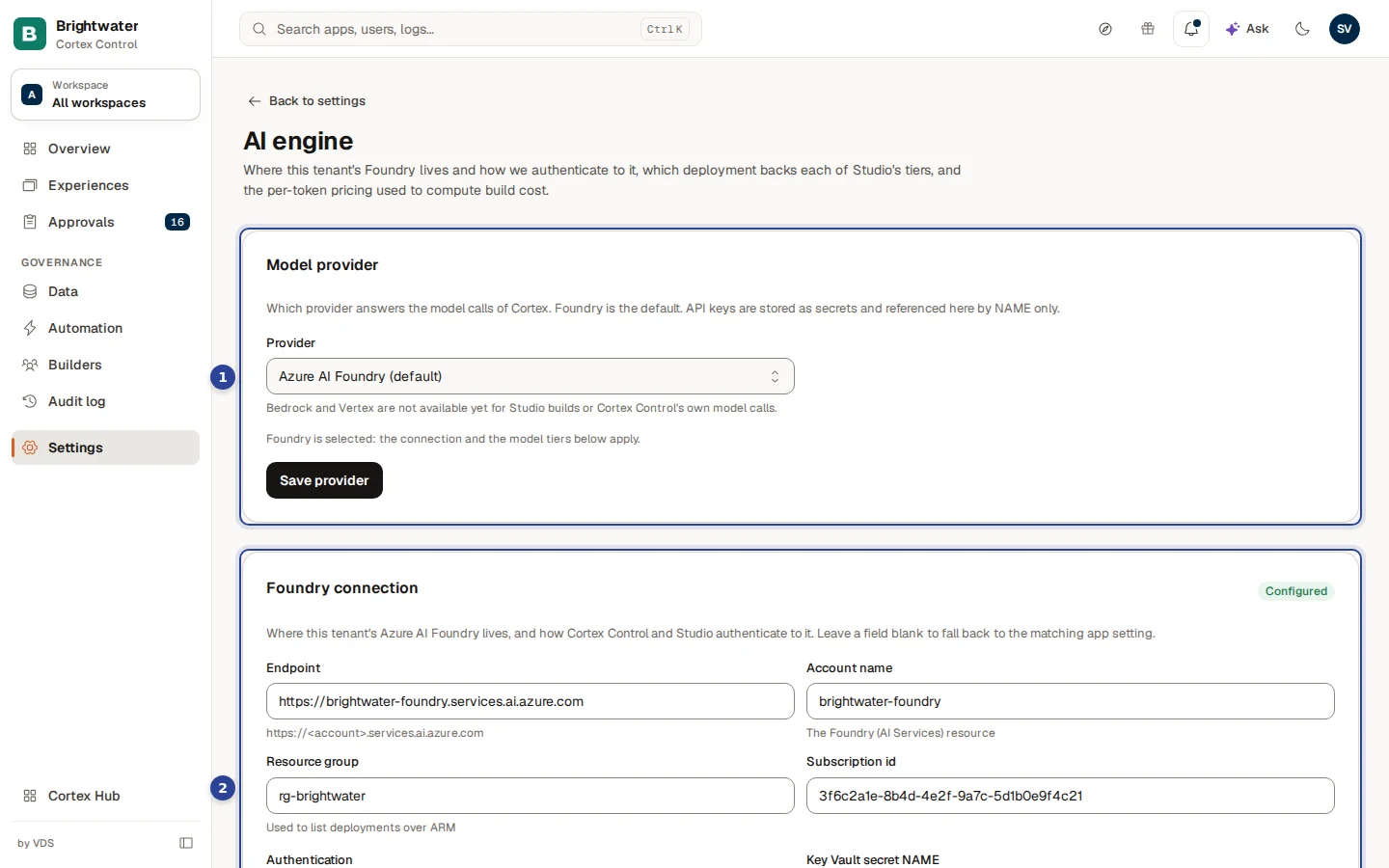
- Model provider. Which provider answers the model calls of Cortex. Foundry is the default.
- Foundry connection. Where your Foundry lives and how Cortex signs in to it. Below it come Engine tiers and Model pricing (per 1M tokens).
Each block has its own save button. Nothing is saved until you choose it, except the switches EU only and Let Cortex deploy missing models, which save the moment you flip them.
Foundry, the Anthropic API or a local model server.
Endpoint and sign-in. A key is only ever named, never typed.
One model each for Small, Medium and Large.
What a million tokens cost, so the usage figures add up.
Choose the AI provider
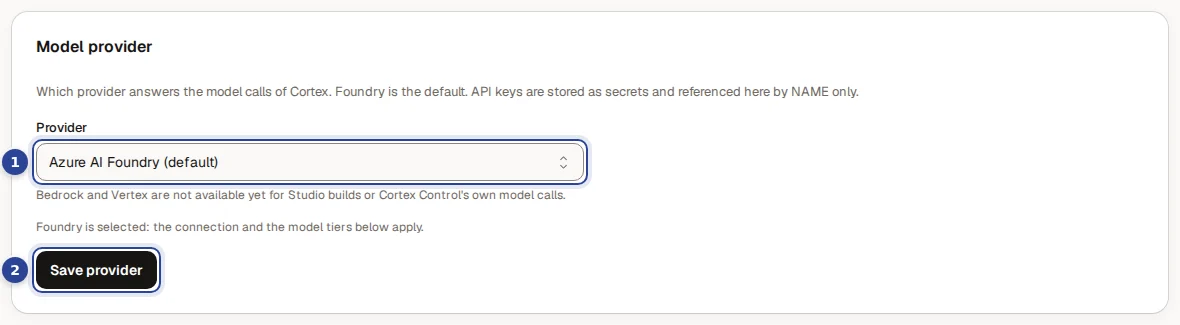
- Provider. The list of providers.
- Save provider. Stores your choice.
Open the list
Choose Provider. The block says which provider is selected and what that means for the blocks below it ("Foundry is selected: the connection and the model tiers below apply.").
Pick a provider
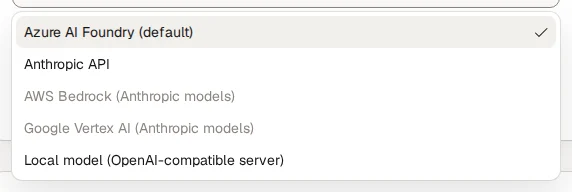
Choose one of the options in the table below. A provider that is not available yet is greyed out and says "Not available yet" when you point at it.
Fill in the details and save
Foundry needs nothing more here: you set it up in the next block. The other providers show their own fields (see below). Choose Save provider; a message confirms it ("Provider saved").
| Provider | Status | What you fill in |
|---|---|---|
| Azure AI Foundry (default) | Available | Nothing here. The Foundry connection and Engine tiers blocks apply. |
| Anthropic API | Available | Endpoint (optional: empty means the Anthropic service, or name a gateway you run yourself), API key secret name, Data residency and a Model id per tier, chosen from a list of Claude models. |
| Local model (OpenAI-compatible server) | Available | Endpoint (the base URL of your server), API key secret name (leave empty if the server needs no key), Data residency and a Model id per tier. |
| AWS Bedrock (Anthropic models) | Listed, not selectable yet | Has fields for a region, but cannot be used yet for Studio builds or Cortex's own model calls. |
| Google Vertex AI (Anthropic models) | Listed, not selectable yet | Has fields for a project and a location, but cannot be used yet. |
While another provider than Foundry is selected, the Foundry connection and the tiers below are not used ("The Foundry connection and tiers below are not used while another provider is selected.").
Use the Anthropic API
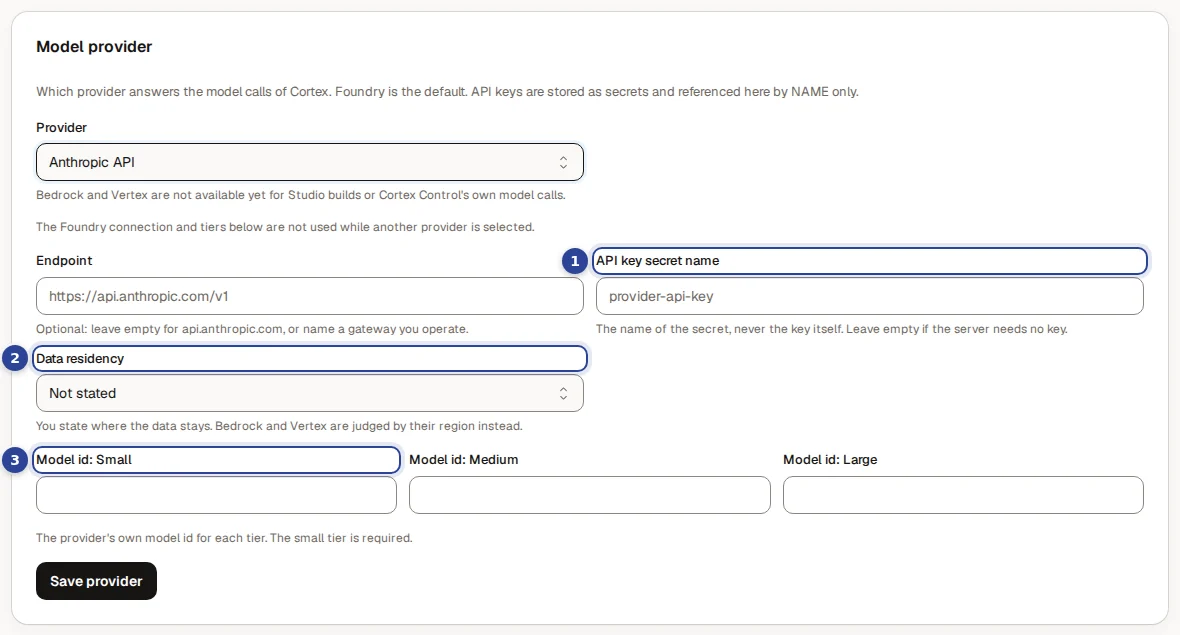
- API key secret name. The name of the secret that holds the key, never the key itself. You create the secret where your install keeps its secrets, then type only its name here.
- Data residency. You state where the data stays: Stays in the EU, Leaves the EU or Not stated. Cortex cannot see this itself for these providers, so it trusts your statement, and EU only (below) uses it.
- Model id: Small, and next to it Medium and Large. Pick the Claude model for each tier from the list; the recommended one is already selected (Haiku for Small, Sonnet for Medium, Opus for Large). Choose Other... to type a dated or newer model id yourself. The small tier is required.
Use a local model
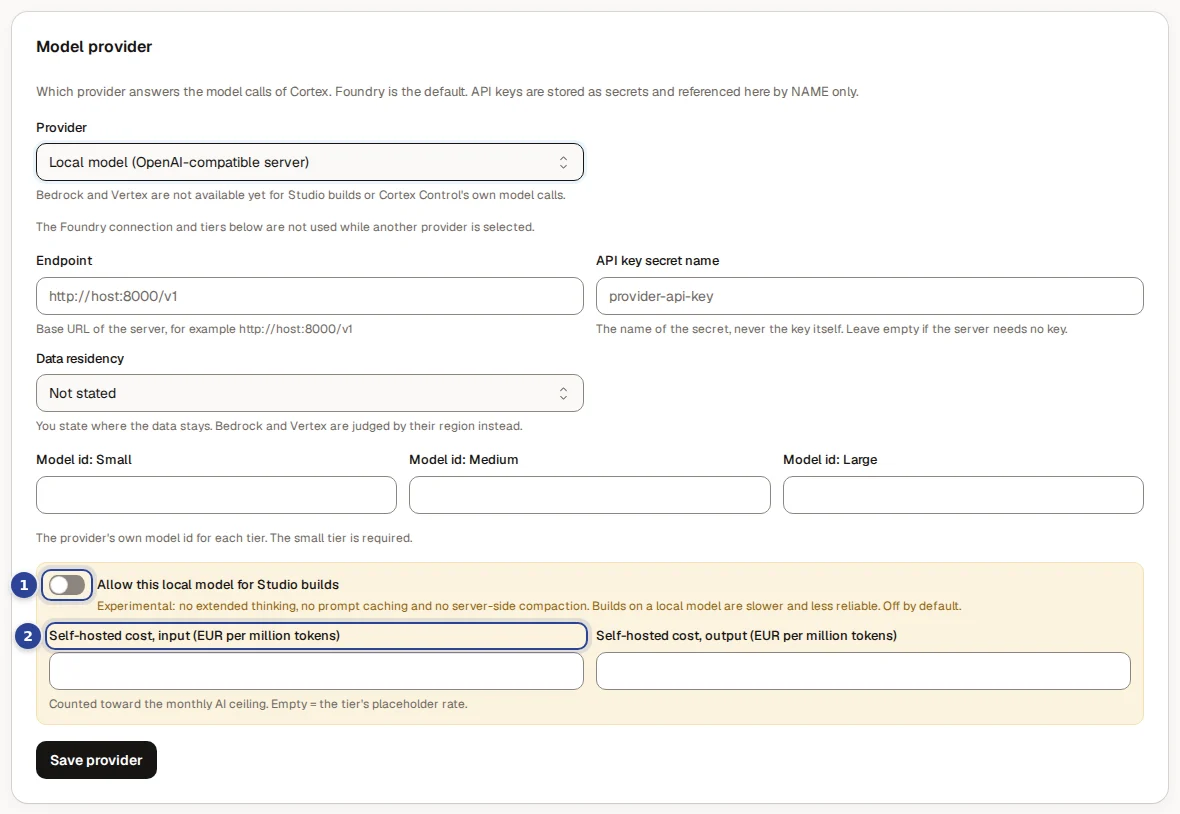
- Allow this local model for Studio builds. Off by default. A local model has no extended thinking, no prompt caching and no server-side compaction, so builds on it are slower and less reliable. It is experimental.
- Self-hosted cost, input (and Self-hosted cost, output next to it). What your own hosting costs per million tokens, so the usage figures and the monthly ceiling count it. Empty means the placeholder rate of the tier. The value must be a number of zero or more.
Connect Foundry
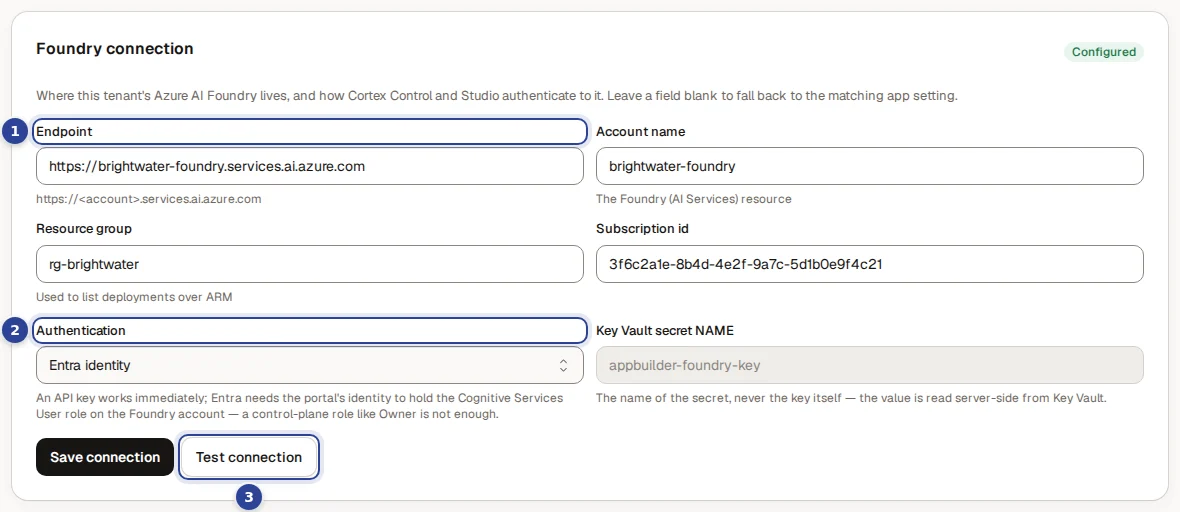
- Endpoint. The address of your Foundry resource.
- Authentication. How Cortex signs in: API key (stored as a secret) or Entra identity.
- Test connection. Checks the connection with the settings as saved.
A badge at the top right of the block says Configured or Not configured. Besides the endpoint, fill in Account name (the Foundry resource), Resource group (used to list the deployments) and Subscription id. Leave a field empty to fall back to the install's own default for it.
Fill in the resource
Type the Endpoint, Account name, Resource group and Subscription id of your own Foundry resource.
Choose how Cortex signs in
An API key works at once. With Entra identity, the identity of Cortex must hold the Cognitive Services User role on the Foundry account; a management role such as Owner is not enough.
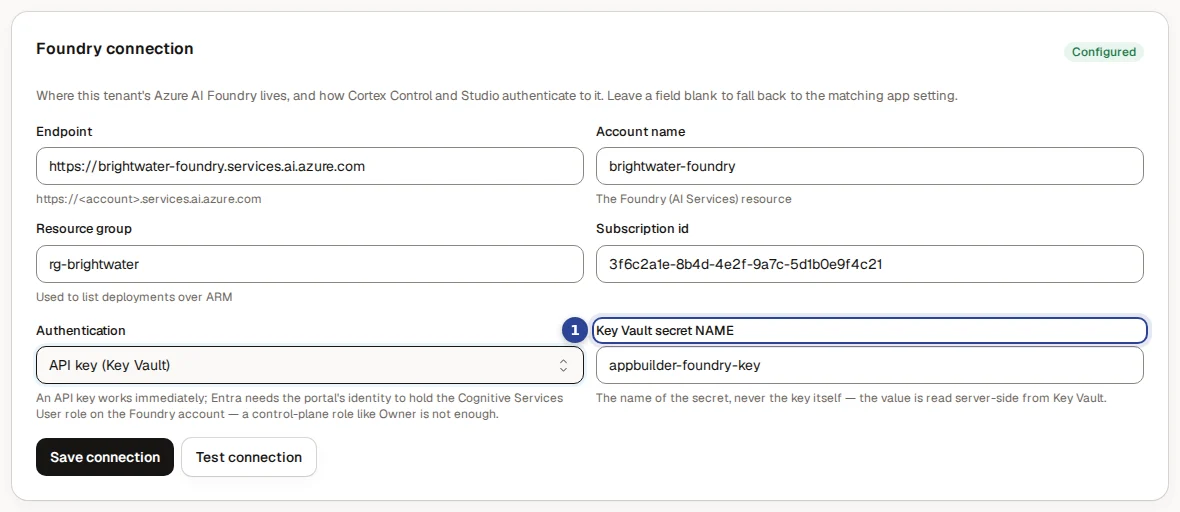
- Secret name. The name of the secret that holds the key, never the key itself. The field is greyed out with the Entra option ("not used with Entra").
Save and test
Choose Save connection ("Foundry connection saved"), then Test connection.
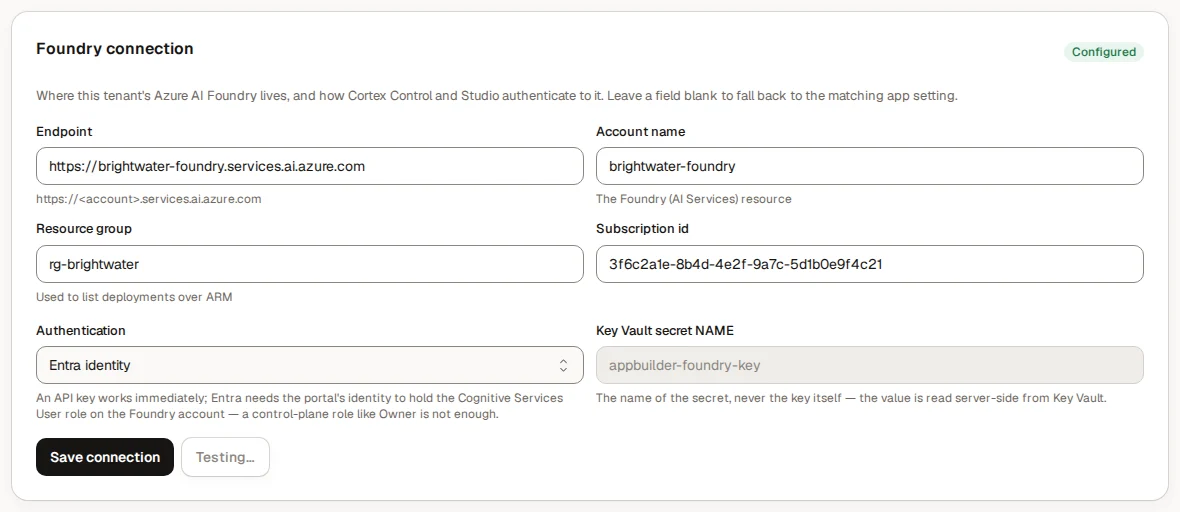
You see one line per check, each with a status badge, the name of the check and a detail. Fix a failing line before you go on: the tiers below depend on this connection.
Choose the model behind each tier
Cortex works with three tiers, so that a cheap model does the easy work and a strong model is only used where it pays off.
| Tier | Meant for | Notes |
|---|---|---|
| Small | Most build steps | The cheapest and fastest. The floor tier: it is required. |
| Medium | Harder steps | Balance between cost and quality. |
| Large | Plan mode and workflow authoring | Highest quality and most expensive. Use it sparingly. A Claude Opus model needs the Opus licence; without it you pick a large engine from another provider. |
| Decision | Routing decisions | Optional extra row. A fast model that makes routing decisions in a fraction of a second. Empty means the Small model decides. |
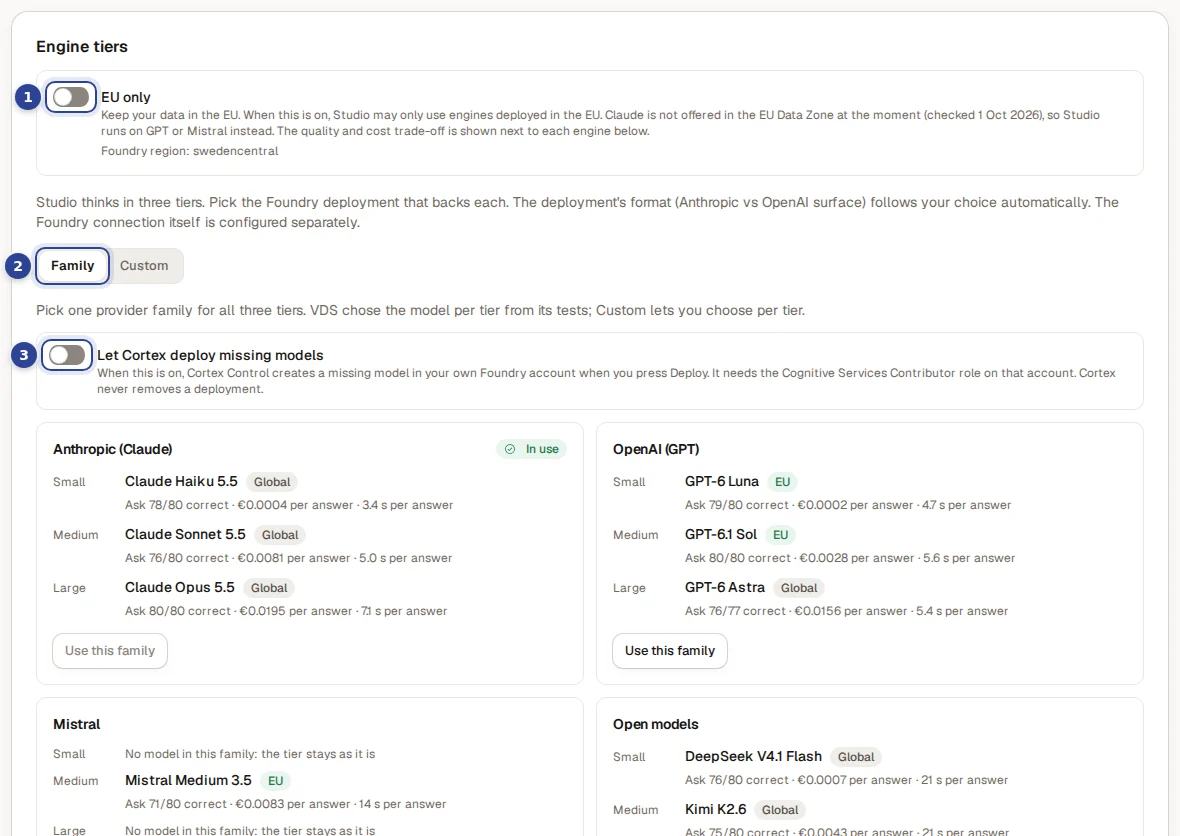
- EU only. Keeps your data in the EU. It saves at once. The Foundry region is shown below it.
- Family. One of the two ways to choose (next to Custom).
- Let Cortex deploy missing models. Lets a Deploy button create a missing model for you.
With Family: one provider for all three tiers
Look at the families
In How to choose models pick Family. Each family is a card with the model for Small, Medium and Large, whether it runs in the EU, and how it scored on a test set of data questions: how many were right, what an answer costs and how long it takes. The test set is VDS's, on test data; your own speed depends on your Foundry quota.
Use a family
Choose Use this family on the card you want. The tiers are filled in and the page switches to Custom so you can check them ("Family filled in. Check the tiers below and save."). The button is disabled with a reason when the family is In use already, when not every tier of it is deployed yet, or when it has models outside the EU while EU only is on.
Deploy what is missing
A card can say Not deployed and list under Deploy these in your Foundry first: the models you still need. Deploy them in Foundry yourself, or switch on Let Cortex deploy missing models: a Deploy button then creates the model in your own Foundry account (about a minute). It needs the Cognitive Services Contributor role on that account, and Cortex never removes a deployment.
With Custom: choose per tier
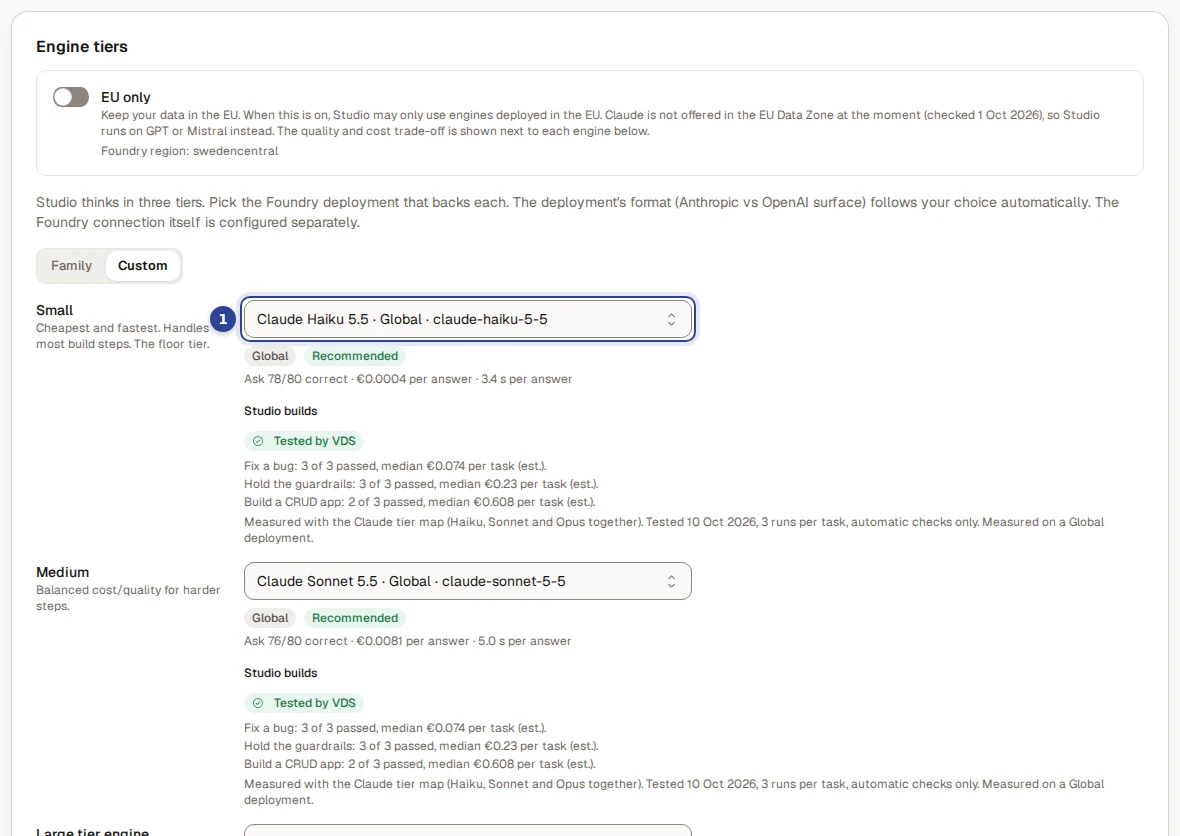
- Small (and below it Medium and Large tier engine). Choose the deployment behind each tier. A tier you leave on No deployment mapped has no model.
Further down the block, Save tiers stores all three tiers at once ("Engine tiers updated"). Decision is the optional decision model, a deployment name. It has its own Save decision model button, so saving the tiers never touches it.
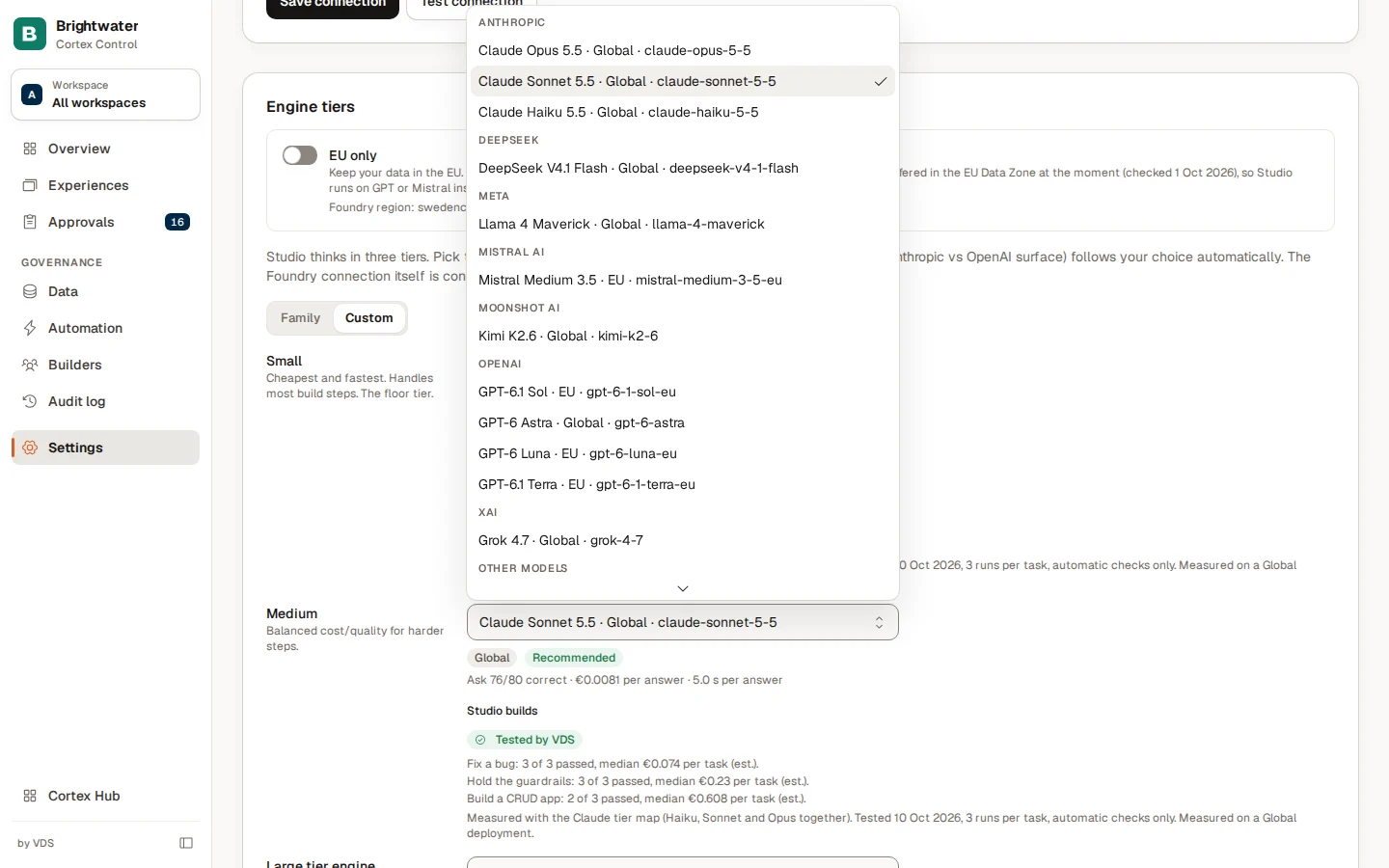
Under a chosen deployment you see its region (EU, Global, US or Unknown), a status and notes. A deployment that does not fit is greyed out with the reason, for example "not available with EU only" or "needs the Opus licence".
| Status | What it means |
|---|---|
| Recommended | Tested and the best fit for this tier. |
| Supported | Tested and works. |
| Not tested | Not tested: quality and cost are unknown. The spending limit per turn still applies. |
| Not supported | Not supported: answers will fail. |
The notes under a model warn about things such as "Cannot call tools: Ask and Studio cannot work with it", "Default quota: about one answer a minute", "Slow: about 2 minutes per answer", "Runs outside the EU", "No prompt caching" or a quota below 100,000 tokens a minute, where answers queue until you raise it in Foundry. Choosing a model for a different tier than the one it is recommended for also gives a warning.
A deployment that Cortex cannot list (Foundry not reachable) leaves the lists disabled: "Couldn't list Foundry deployments". The current choice is shown but cannot change until the connection answers.
Keep your data in the EU
Switch on EU only under Engine tiers. Studio may then only use engines that run in the EU. Engines outside the EU are greyed out ("not available with EU only"), and the page says which engines that leaves and what it means for quality and cost. At the time of writing, Claude is not offered in the EU Data Zone, so with EU only on, Studio runs on a GPT or Mistral model; the page shows the date of that check.
Turning EU only on fails when a tier is still on an engine outside the EU. The message names the tiers to change. Change those tiers first (in Custom), then switch EU only on.
For the Anthropic API and a local model, EU only relies on the Data residency you stated.
Set what a model costs
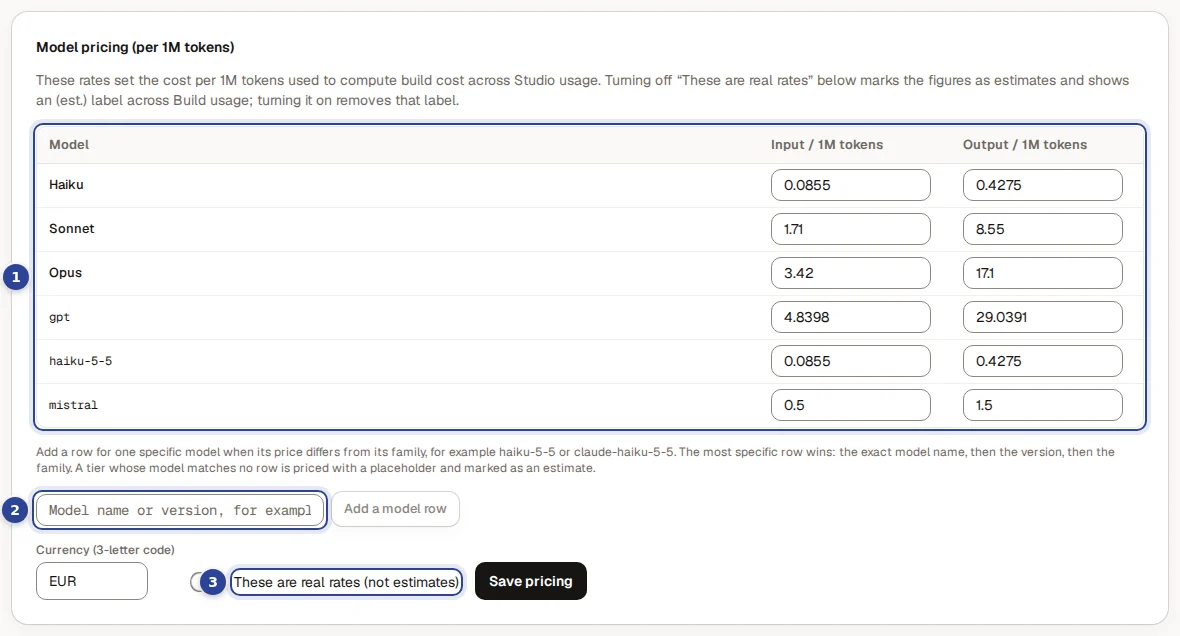
- The rate table. One row per model family (Haiku, Sonnet and Opus) and per extra model row you added (here gpt, haiku-5-5 and mistral), with Input / 1M tokens and Output / 1M tokens.
- Add a model row. The field for a model whose price differs from its family, for example a model name or version. Use lower-case letters, digits and the characters dot, underscore and dash, up to 32 characters. The most specific row wins: the exact model name, then the version, then the family. A tier whose model matches no row is priced with a placeholder and marked as an estimate.
- These are real rates (not estimates). When off, every figure that follows from these rates carries an "(est.)" label in the usage reports; when on, the label disappears.
Set the Currency (3-letter code) the rates are in, then choose Save pricing ("Model pricing updated"). Rates are used for the cost of builds, answers and workflow steps in Usage statistics and for the ceiling in Cost and limits.
Example: Brightwater Foods moves to EU only
Brightwater Foods works with a customer whose contract says that data may not leave the EU. Sam de Vries, the admin, handles it in ten minutes.
- Sam opens Settings, AI engine and checks under Model provider that Azure AI Foundry (default) is selected.
- Under Foundry connection Sam chooses Test connection and sees every line pass.
- Under Engine tiers Sam chooses Family and sees which family has all three models in the EU. Sam chooses Use this family, checks the three tiers in Custom and chooses Save tiers.
- Sam switches on EU only. It saves at once, because no tier is outside the EU any more.
- Sam asks a test question in the Hub and builds a small test dashboard in Studio, and checks the amounts in Usage statistics a week later.
Questions and problems
What else is under the AI group?
Document search and Quality & privacy sit next to this page in the group AI. They are explained in Settings overview.
Live processes
Follow every workflow run in your organisation, see which ones wait for a person or failed, read the step-by-step history and stop a run that should not continue.
Cost and limits
Set the monthly AI ceiling for the whole organisation, a default Studio budget per person and the limits on Ask, and know what happens when a limit is reached.