Source control
Every app's source code lives in a repository that Cortex hosts. Here you set where an optional read-only copy of each repository goes: GitHub, GitLab or Azure DevOps.
Every app built in Cortex Studio has its own source repository. Cortex hosts it for you and includes it in your install's database backups, so there is nothing to set up and nothing to pay for elsewhere. Studio builds in that repository, and every change the build agent or a builder makes is a commit in it.
Some organisations also want a copy of the code in their own git host, for a code review tool, an archive or a security scan. That is what the mirror is for. Every time something is pushed to an app's repository, Cortex copies it, one way, to a repository at your git host with the same name as the app. The mirror is a read-only copy: nobody works in it, and whatever is changed there is overwritten by the next push.
This page sets the default for the whole install. An app can override it, or switch it off, on its own Source tab.
Who can do this
Admins of Cortex Control: Settings, then Source control under Organisation. Admins and app owners can download an app's source from the app's Source tab.
The page at a glance
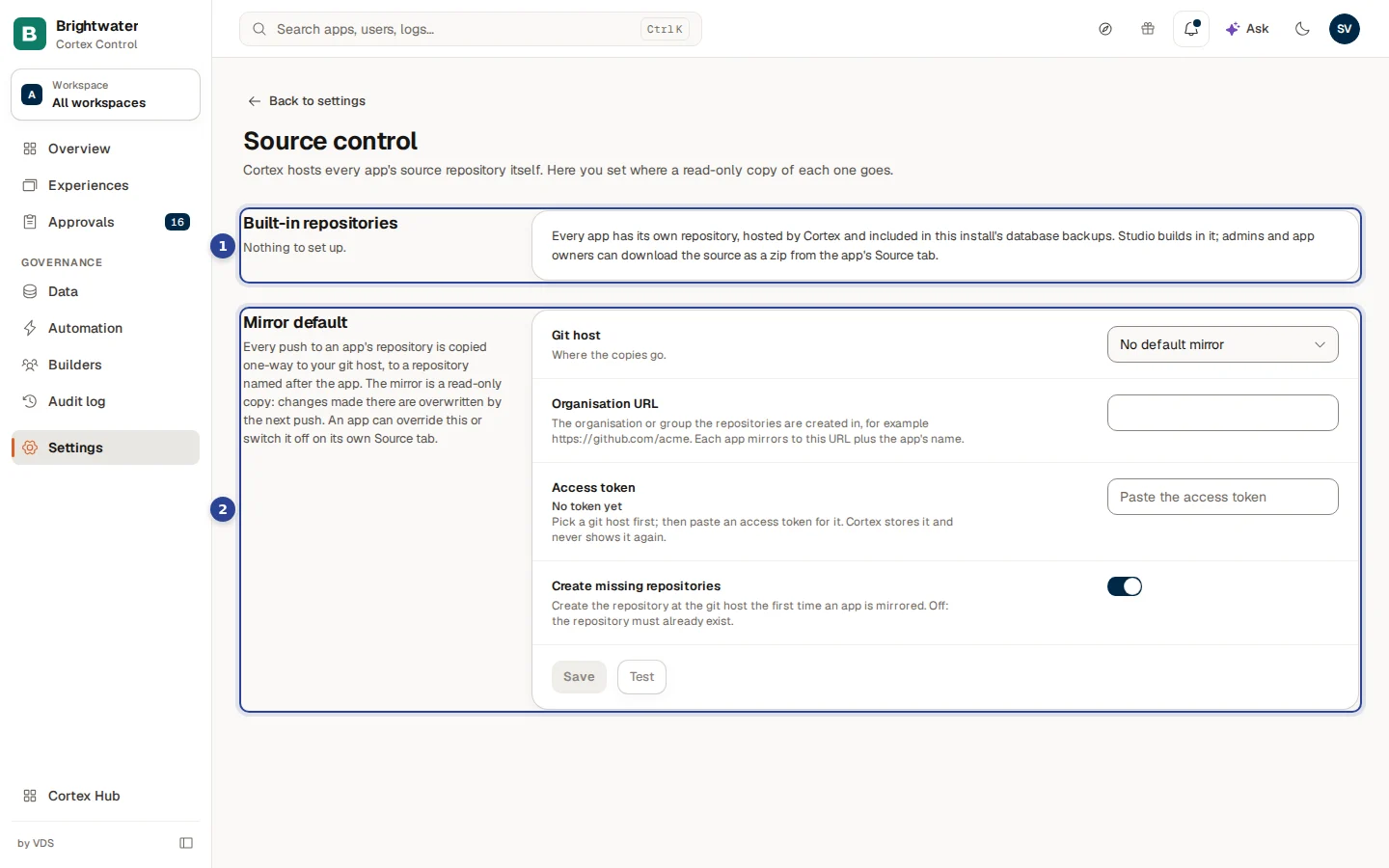
- Built-in repositories. "Nothing to set up." The text says that every app has its own repository, hosted by Cortex and included in this install's database backups, and that admins and app owners can download the source as a zip from the app's Source tab.
- Mirror default. The install-wide default for the optional copy at your own git host.
Set up the mirror
Choose the git host
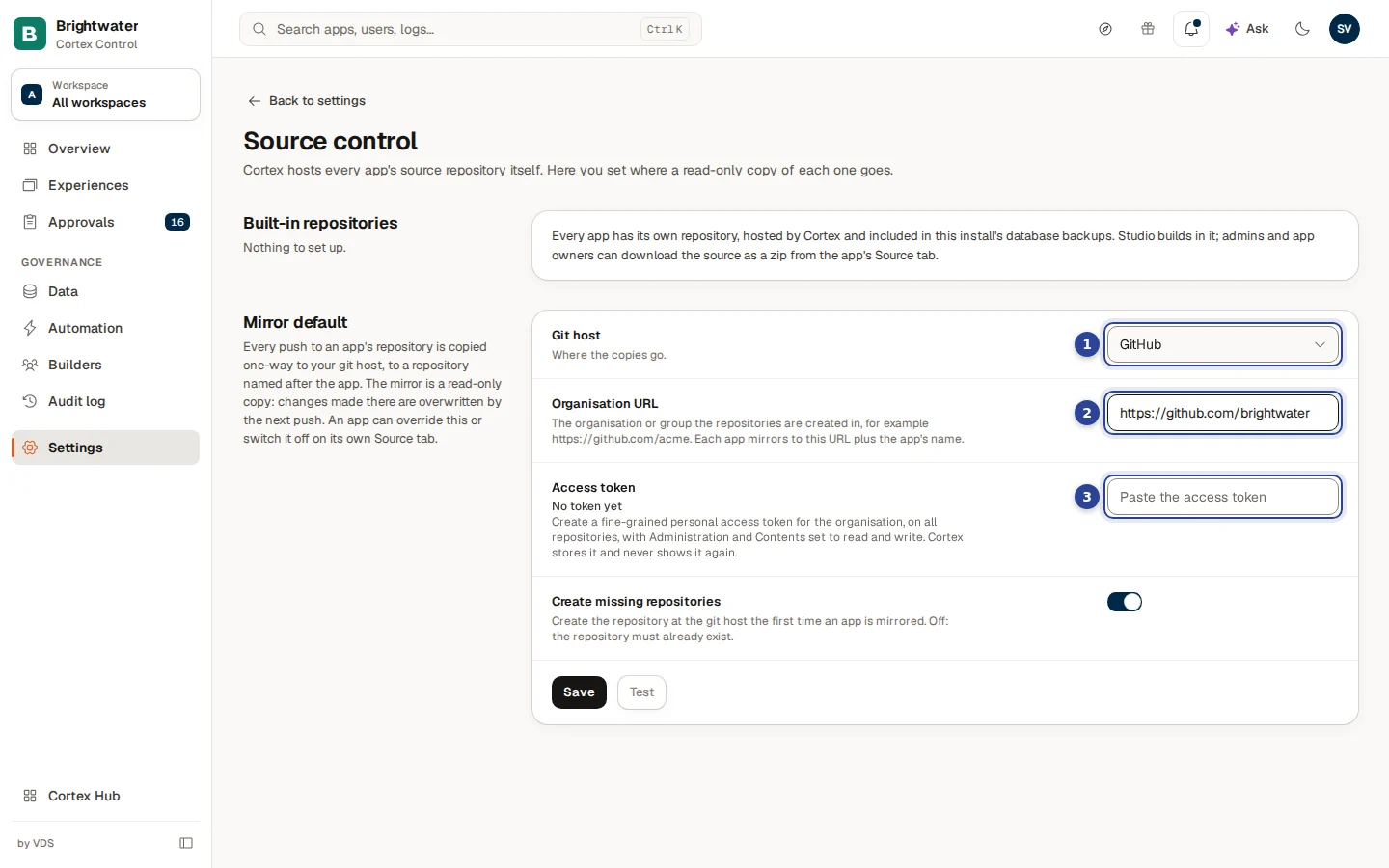
- Git host. GitHub, GitLab or Azure DevOps. No default mirror leaves mirroring off.
- Organisation URL. The organisation or group the repositories are created in. Each app is mirrored to this URL plus the app's name.
- Access token. A token that Cortex uses to create and push repositories.
Pick the host first. The hint under the token then says exactly how to make one for that host.
Enter the organisation URL
Use an https address without a user name or password in it. The form shows an example for the host you picked:
| Git host | Example |
|---|---|
| GitHub | https://github.com/acme |
| GitLab | https://gitlab.com/acme |
| Azure DevOps | https://dev.azure.com/acme/Apps |
If the address is wrong the form says so: "Enter the organisation URL." or "Use an https:// URL without a user name or password in it."
Create and paste an access token
Create the token at your git host, then paste it into Access token. Cortex stores it and never shows it again. What the token needs depends on the host:
- GitHub: a fine-grained personal access token for the organisation, on all repositories, with Administration and Contents set to read and write.
- GitLab: an access token for the group with the
apiandwrite_repositoryscopes. - Azure DevOps: a personal access token with Code (read and write) and Project (read).
A token must be one line without spaces, at least 8 characters, or the form says "This does not look like an access token."
Once a token is stored the field shows Token set · last changed with the date, and a button Replace token. After you choose it, Keep current puts the stored token back.
Decide about missing repositories
Create missing repositories is on by default. Cortex then creates the repository at the git host the first time an app is mirrored. Switch it off if the repository must already exist, for example because an administrator at the git host creates them by hand.
Test and save
Choose Test before you save: Cortex checks that the token can list and create repositories there, and says "The token can list and create repositories there." or "Test failed: ..." with the reason. A pasted token is tested before it is saved. Then choose Save ("Mirror default saved"). Next to the buttons the last result stays visible: "Last test ...: the token can list and create repositories." or "Last test ... failed: ...".
Per app: the Source tab
Open an app (see Apps and experiences) and choose the tab Source. It shows the Source repository:
- Repository (the repo name), Live (main) and Draft with their latest commit, and Download live source and Download draft: a zip of the repository at that commit.
- Mirror: its state (Off, No target set, Not pushed yet, Push waiting, Up to date or Last push failed), the Mirror target, Last successful push, Last attempt and, after a failure, Last error:. Push now queues a push at once.
- Mirror for this app: Use the install default, Its own repository (with its own Repository URL and token) or Off: do not mirror this app.
An app that ships as a bundle from a pack has no source repository and says so.
Example: a read-only copy for the security review
The security officer at Brightwater Foods asks to scan all app code with the company's own tool, which reads from GitHub.
- Sam de Vries, IT admin, creates a GitHub organisation for the copies and a fine-grained token with the rights from the hint.
- In Settings, Source control, Sam picks GitHub, enters the organisation URL, pastes the token and keeps Create missing repositories on.
- Sam chooses Test: "The token can list and create repositories there." Then Save.
- From the next push on, each app appears as a repository in that organisation. The security tool reads from there. One app with confidential code gets Off: do not mirror this app on its own Source tab.
Troubleshooting
Licence and seats
See your plan, the features it includes, how many seats are in use and when the licence expires.
Settings overview
Find your way around Settings and learn the smaller pages in full: the company profile, diagnostics, document search, quality and privacy, and your own profile and notifications.