Builder permissions and policy
Decide what builders may create themselves, make exceptions for a person, group or workspace, and set the rules that apply to your whole organisation.
Two settings pages decide how much freedom builders have. Builder permissions answers "may a builder create this on their own, or must an admin approve it first?" for five kinds of things, with exceptions for a person, a group or a workspace. Policy holds the limits and rules for your whole organisation: how many things one person may own, whether outside data and AI may be used, whether production publishes need a second person, and how long run data is kept.
Out of the box things stay careful: most creation needs approval, and nothing changes until you change it. The description of the Policy page says it: "Without changes, everything works as before."
Who can do this
Admins of Cortex Control. Admins themselves are never limited by these settings.
Builder permissions
Open Settings and choose Builder permissions (under People & access). The page is described as "What builders may create themselves, only with approval, or not at all. For everyone, or per person, group or workspace."
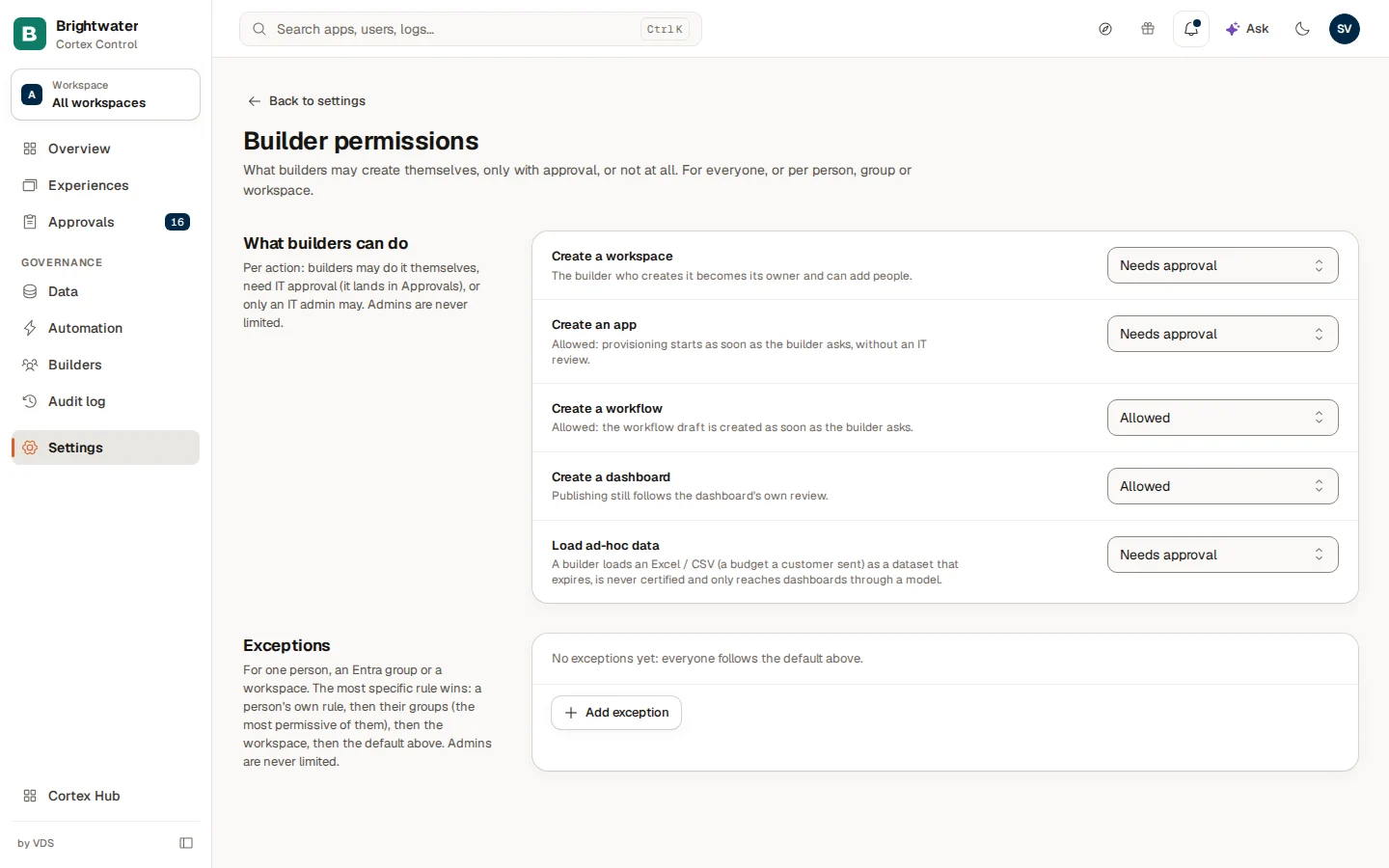
The section What builders can do lists five actions. For each one you pick a mode:
| Mode | What happens |
|---|---|
| Allowed | The builder does it without asking. |
| Needs approval | The request lands in Approvals and waits for an admin. |
| Admins only | Only an IT admin can do it. |
A change is saved when you pick the new mode.
| Action | What Allowed does | Out of the box |
|---|---|---|
| Create a workspace | The builder who creates it becomes its owner and can add people. | Admins only |
| Create an app | Provisioning starts as soon as the builder asks, without an IT review. | Needs approval |
| Create a workflow | The workflow draft is created as soon as the builder asks. | Needs approval |
| Create a dashboard | The draft is created. Publishing still follows the dashboard's own review. | Allowed |
| Load ad-hoc data | A builder loads an Excel or CSV file as a dataset that expires, is never certified and only reaches dashboards through a model. | Needs approval |
Open the page
Open Settings and choose Builder permissions. The five actions appear with their current mode.
Pick a mode per action
Choose Allowed, Needs approval or Admins only for each action. The change is saved at once.
Watch the queue
Every action on Needs approval shows up in Approvals as a card. Approving creates the thing for the builder, who becomes its owner.
Make an exception for one person, group or workspace
Use Exceptions on the same page. Without exceptions the page says "No exceptions yet: everyone follows the default above."
Add an exception
Choose Add exception. The dialog Add an exception asks: "Choose who or where, then set only the actions that differ from the default."
Say who it applies to
Under Applies to choose Person, Entra group or Workspace. Then pick the person, enter the group's name and its object id from Entra, or pick the workspace.
Set only what differs
For each action leave Default (the dialog shows the current default in brackets) or choose another mode. Set at least one action, then choose Save.
The most specific rule wins:
| Order | Rule |
|---|---|
| 1 | A person's own rule. |
| 2 | The rules of their groups. When a person is in several groups, the most permissive one counts. |
| 3 | The rule of the workspace. |
| 4 | The default above. |
A workspace rule cannot set Create a workspace or Load ad-hoc data, because those happen outside any workspace. Use Edit or Remove on an exception later. When you remove one, the actions go back to the next level: a person to their groups, a group or workspace to the default.
Group rules only work when Cortex Control can read group membership from Entra. If it cannot, the page says "Cortex Control cannot read Entra group membership right now (Graph permission or consent missing), so group rules apply to nobody until it can." A group rule that you save in that state is kept, but applies to nobody yet.
Policy
Open Settings and choose Policy (under Rules & cost). The page is described as "The rules for your whole organisation." Its section is Limits and rules.
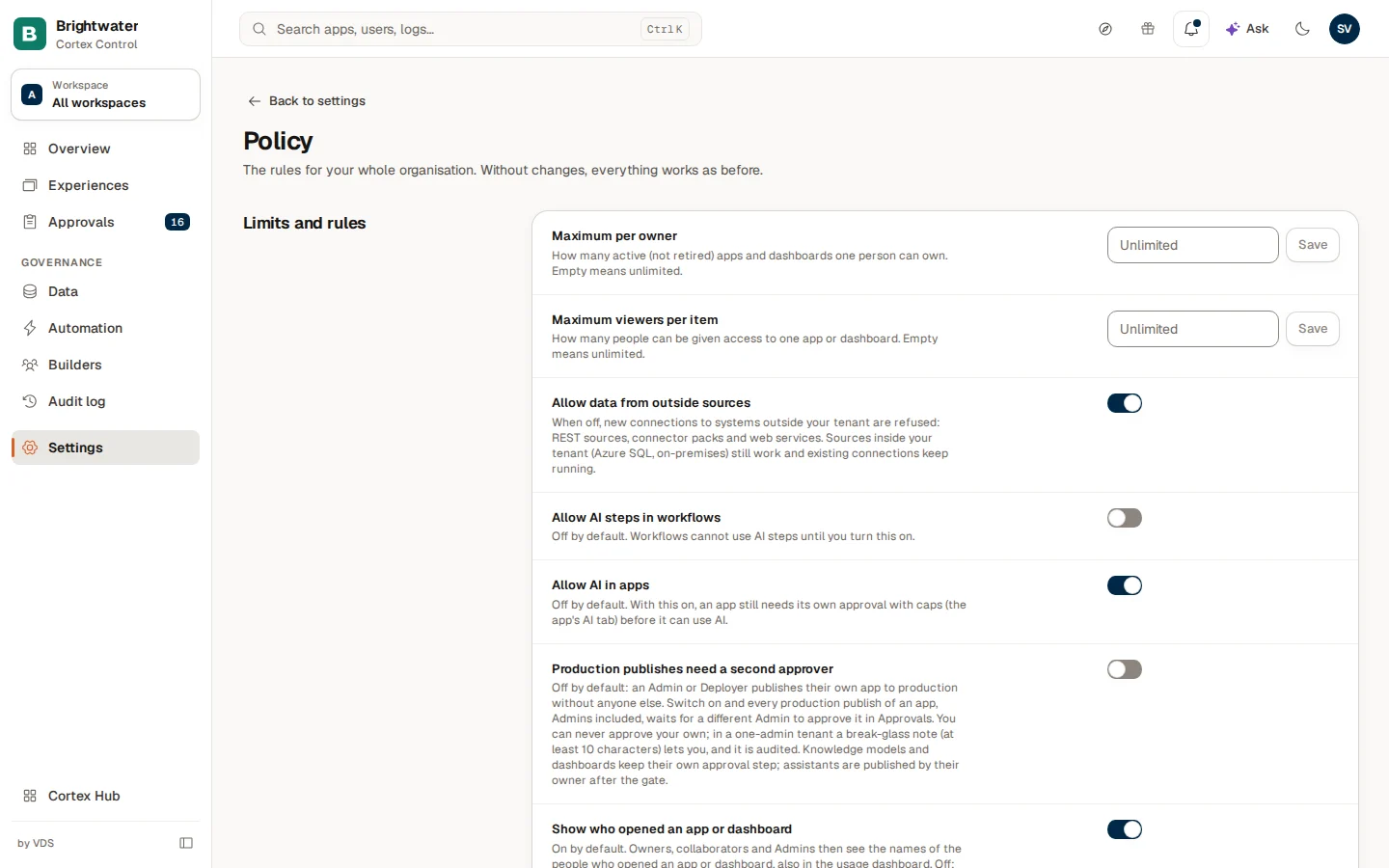
The switches save at once. A number field has its own Save button. A field that is not valid shows a message ("Enter a whole number of 1 or more, or leave empty for unlimited.") and is not saved; a saved change says "Policy saved".
| Setting | Out of the box | What it does |
|---|---|---|
| Maximum per owner | Unlimited | How many active (not retired) apps and dashboards one person can own. Empty means unlimited. |
| Maximum viewers per item | Unlimited | How many people can be given access to one app or dashboard. Empty means unlimited. |
| Allow data from outside sources | On | When off, new connections to systems outside your organisation are refused: REST sources, connector packs and web services. Sources inside your organisation and existing connections keep working. |
| Allow AI steps in workflows | Off | Workflows cannot use AI steps until you turn it on. |
| Allow AI in apps | Off | With it on, an app still needs its own approval with caps, in the AI tab of the app (see Apps), before it can use AI. |
| Production publishes need a second approver | Off | Off: an Admin or Deployer publishes their own app to production without anyone else. On: every production publish of an app, Admins included, waits for a different Admin to approve it in Approvals. You can never approve your own; in an organisation with one admin, a break-glass note of at least 10 characters lets you, and it is audited. Knowledge models and dashboards keep their own approval step. |
| Show who opened an app or dashboard | On | On: owners, collaborators and Admins see the names of the people who opened an app or dashboard, also in the usage dashboard. Off: names are hidden for everyone, Admins included; the counts stay. |
| Keep workflow run data for | 14 days | The per-step input and output of workflow runs, shown in the workflow studio. A whole number of days from 0 to 365. Personal and financial data is masked before it is stored. 0 keeps none. |
| Idle after | 90 days | How long a live experience must be unopened (a workflow: not run) and unchanged to count as idle. Owners then get a weekly clean-up list on Monday. Nothing is archived automatically. 30 to 365 days. An experience with an expected use is judged on 1.5 times its period instead. |
These rules apply to everyone in your organisation, at once. Turning off Allow data from outside sources does not remove existing connections, but nobody can add a new one.
Example: Brightwater Foods loosens one rule
The planning team at Brightwater Foods builds a new app every few weeks and waits for approval each time.
- Sam de Vries opens Builder permissions, Exceptions, and chooses Add exception.
- Under Applies to Sam picks Entra group and enters the group "Planning" with its object id from Entra.
- For Create an app Sam chooses Allowed and leaves the other four on Default. Sam chooses Save.
- The planning team now creates apps without a request. Everyone else still needs approval. On Policy Sam also switches on Production publishes need a second approver, so a production publish still needs a second admin.
Frequently asked questions
Experiences
See every app, dashboard and workflow in one catalogue, decide who can open each one, clean up what nobody uses, and archive, restore or move items.
Builders: spend, quality and test runs
See who is building in Studio right now, what building costs, how well Studio is working for your builders, and approve paid test runs.