Settings overview
Find your way around Settings and learn the smaller pages in full: the company profile, diagnostics, document search, quality and privacy, and your own profile and notifications.
Settings is where an administrator configures Cortex. It is a launcher: a page of cards in four groups, and every card opens its own page. This page shows you where everything is and explains the smaller settings pages that have no page of their own: the Company profile, Diagnostics, Document search, Quality & privacy, and your own Profile with its notifications.
Who can do this
Admins of Cortex Control. The launcher and every settings page are closed to everyone else. Your own Profile page is open to every Control user.
The Settings launcher
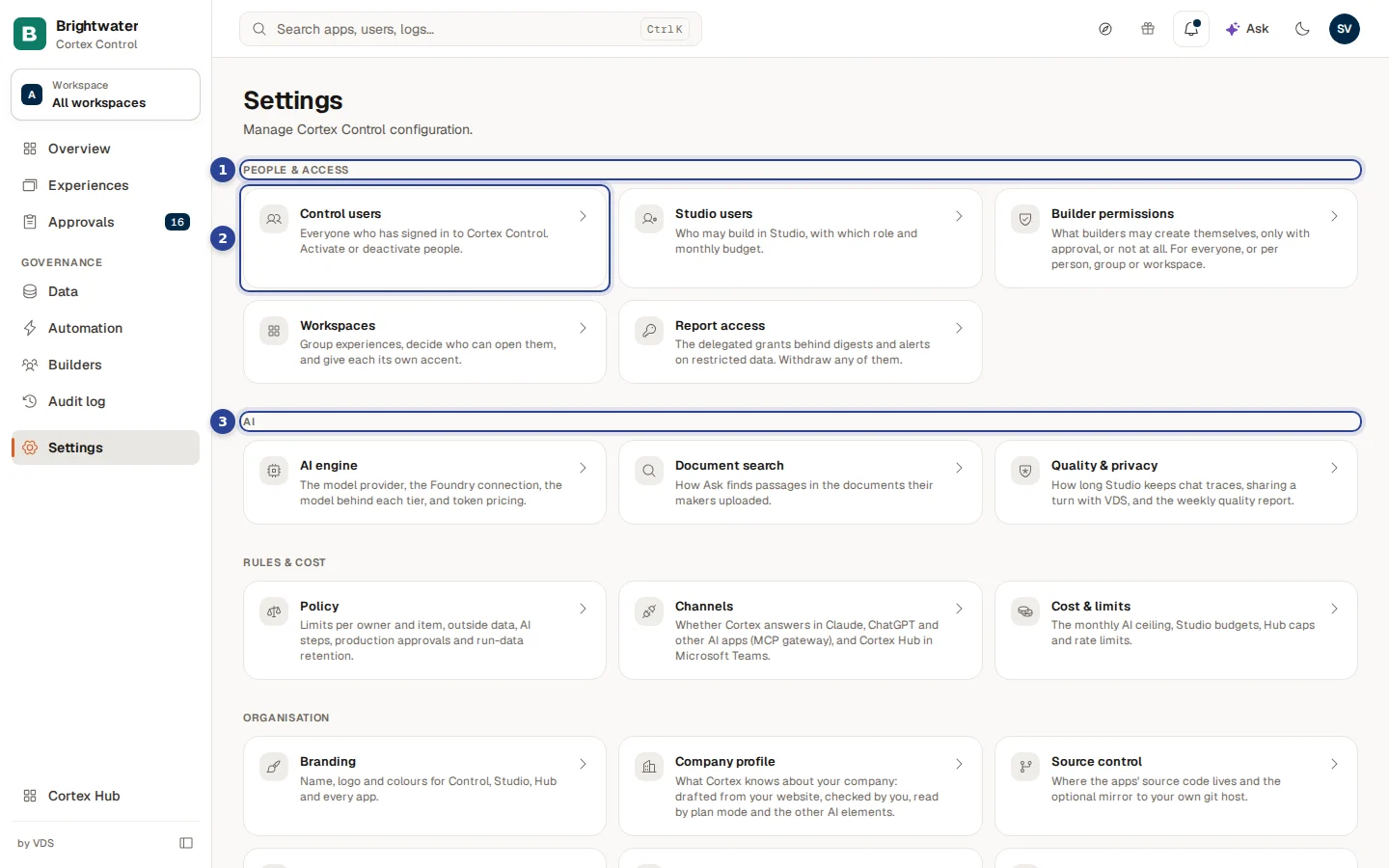
- A group heading. The cards are sorted by purpose in four groups: People & access, AI, Rules & cost and Organisation.
- A card. The title says what it is, the line under it what you can do there, and the arrow that it opens a page. Here Control users.
- The AI group. AI engine, Document search and Quality & privacy.
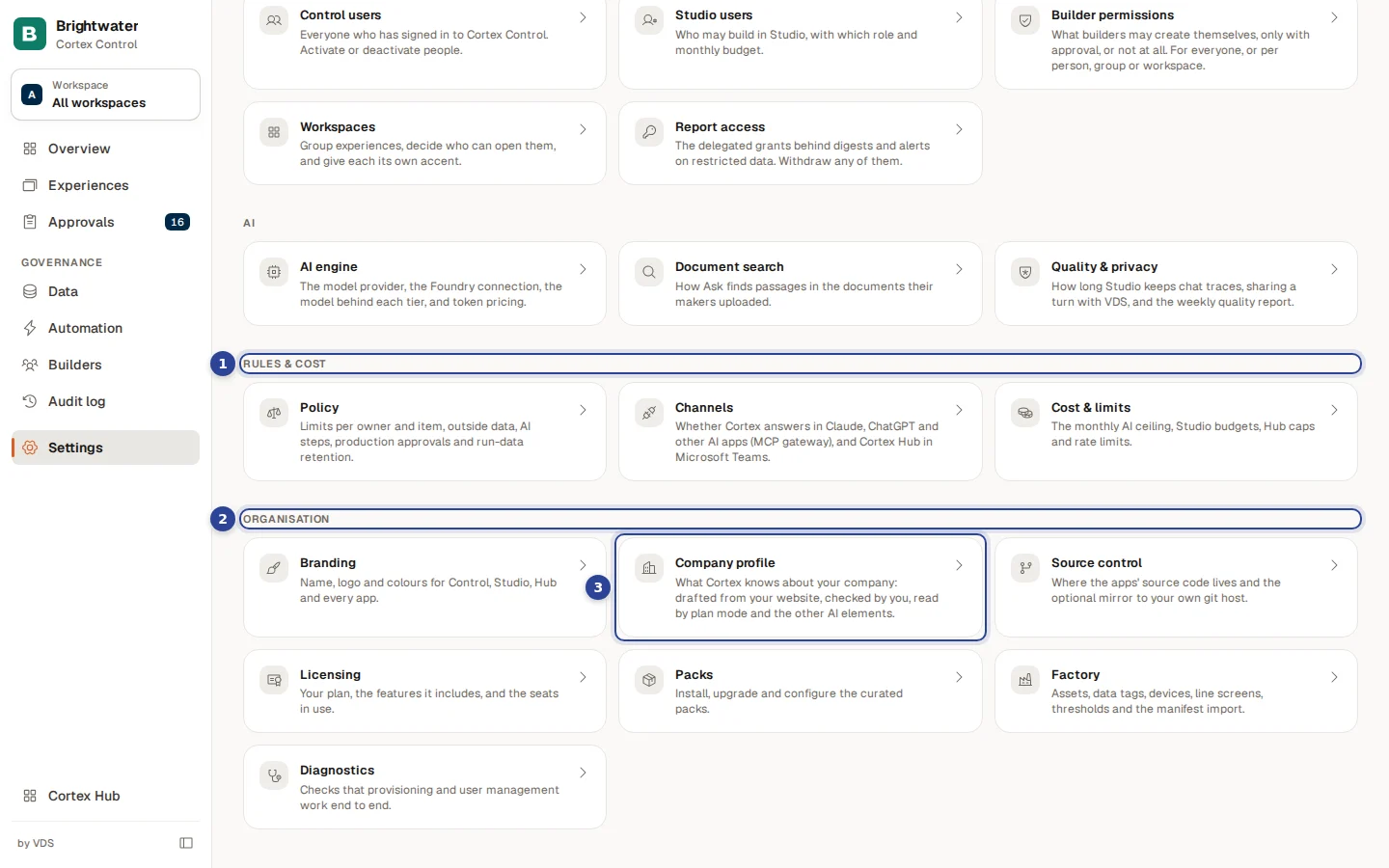
- Rules & cost. Policy, Channels and Cost & limits.
- Organisation. Branding, Company profile, Source control, Licensing, Packs, Factory (only with the Factory add-on) and Diagnostics.
- Company profile. Described below.
Every page has Back to settings at the top left. A card for something your install does not have is simply not shown: Workspaces only appears where workspaces exist, and Factory only with the Factory add-on.
| Card | What it is for | Where it is explained |
|---|---|---|
| Control users | Everyone who has signed in to Cortex Control; activate or deactivate people. | People and approvals |
| Studio users | Who may build in Studio, with which role and monthly budget. | People and approvals |
| Builder permissions | What builders may create themselves, only with approval, or not at all. | Builder permissions and policy |
| Workspaces | Group experiences, decide who can open them, give each an accent. | Workspaces |
| Report access | The delegated grants behind digests and alerts on restricted data. | Datasets and grants |
| AI engine | The model provider, the connection, the model per tier, token pricing. | AI engine and models |
| Document search | How Ask finds passages in uploaded documents. | Below |
| Quality & privacy | How long Studio keeps chat traces, sharing a turn, the weekly report. | Below |
| Policy | Limits per owner and item, outside data, AI steps, production approvals and run-data retention. | Builder permissions and policy |
| Channels | Cortex in Claude and ChatGPT, and Cortex Hub in Microsoft Teams. | Channels and Microsoft Teams |
| Cost & limits | The monthly AI ceiling, Studio budgets, Hub caps and rate limits. | Cost and limits |
| Branding | Name, logo and colours for Control, Studio, Hub and every app. | Branding |
| Company profile | What Cortex knows about your company. | Below |
| Source control | Where the apps' source code lives and the optional mirror. | Source control |
| Licensing | Your plan, the features it includes and the seats in use. | Licence and seats |
| Packs | Install, upgrade and configure the curated packs. | Connector packs |
| Factory | Assets, data tags, devices, line screens, thresholds and the manifest import. | Curated packs |
| Diagnostics | Checks that provisioning and user management work end to end. | Below |
Company profile
Cortex works better when it knows what your company does. The Company profile is one approved place for the basics: who you are, what you make, which systems you use, which words you use in your own way. The plan mode in Studio and the other AI parts of Cortex read it, so an app, a dashboard or a workflow they draft starts from your company's world and not from a blank page.
Three rules keep it safe. Every statement shows where it came from. Nothing reaches an AI part until you publish. And no personal data is kept: names of people, e-mail addresses and phone numbers are removed.
Cortex drafts it from your website, or you write it, or you answer a few questions.
You read every statement, edit it, remove what is wrong. Each shows its source.
A new version. Only now do plan mode and the other AI parts read it.
Every published version is kept and can be viewed.
The top of the page
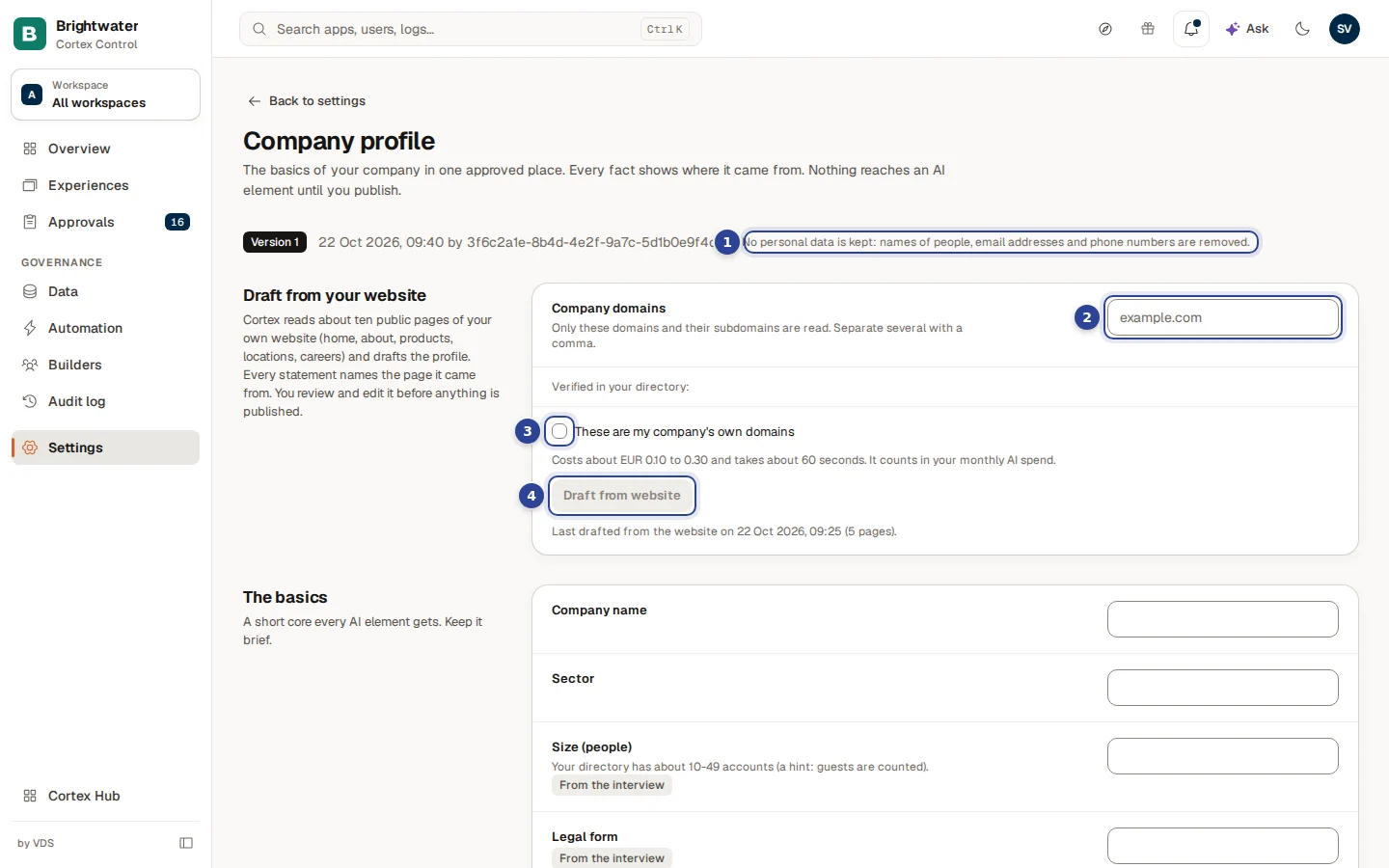
- The privacy line. "No personal data is kept: names of people, e-mail addresses and phone numbers are removed." Next to it, badges show the state: Version 1 with the date and who published it, Not published yet on a new install, and Unpublished changes when a draft or an unsaved edit exists.
- Company domains. The website addresses of your own company. Only these domains and their subdomains are read. Separate several with a comma. When your directory knows verified domains they appear as buttons under Verified in your directory:; choose one to add or remove it.
- These are my company's own domains. A box you tick to confirm.
- Draft from website. Reads the website and writes the first draft.
The pictures of the profile on this page show its fields empty, the way a new install starts.
Draft the profile from your website
Enter your domains
Fill in Company domains, or choose your verified domains. The button stays disabled with a reason until you have entered at least one domain.
Confirm they are yours
Tick These are my company's own domains. Cortex reads public pages of the domains you give, so it asks you to confirm they are really your own.
Check the estimate and draft
Under the box the page says roughly what it will cost, how many seconds it takes, and that it counts in your monthly AI spend (Cost and limits). Choose Draft from website. Cortex reads about ten public pages (home, about, products, locations, careers) and writes statements, each naming the page it came from.
Read the result
A message says "Drafted from … pages. Review it below." and a line sums up what happened: "… pages read, … could not be read, … statements without a source were left out."
If you have unsaved changes, the button is disabled ("Save your changes first, a new draft would replace them"). Save your edits before you draft again. The page remembers when it last read your website ("Last drafted from the website on … (… pages)").
The basics
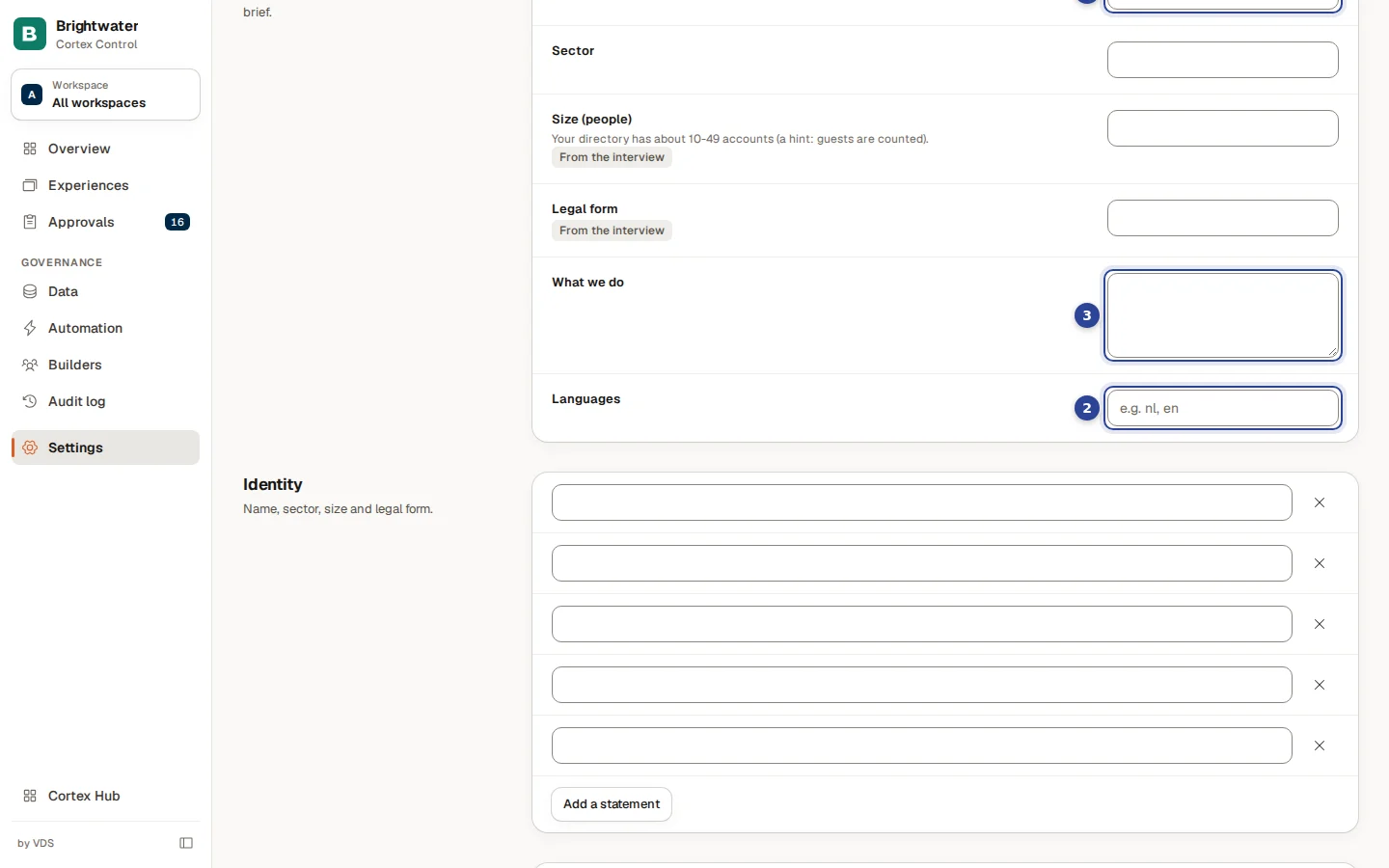
- Company name. Up to 200 characters.
- Languages. The languages your company works in, as codes separated by commas ("e.g. nl, en").
- What we do. One or two sentences, up to 800 characters.
The block also has Sector, Size (people) and Legal form. For the size, the page may add a hint from your directory ("Your directory has about … accounts (a hint: guests are counted)."). Keep it short: this core goes to every AI part. Each field shows its source, for example Written by an admin once you type in it.
The seven sections
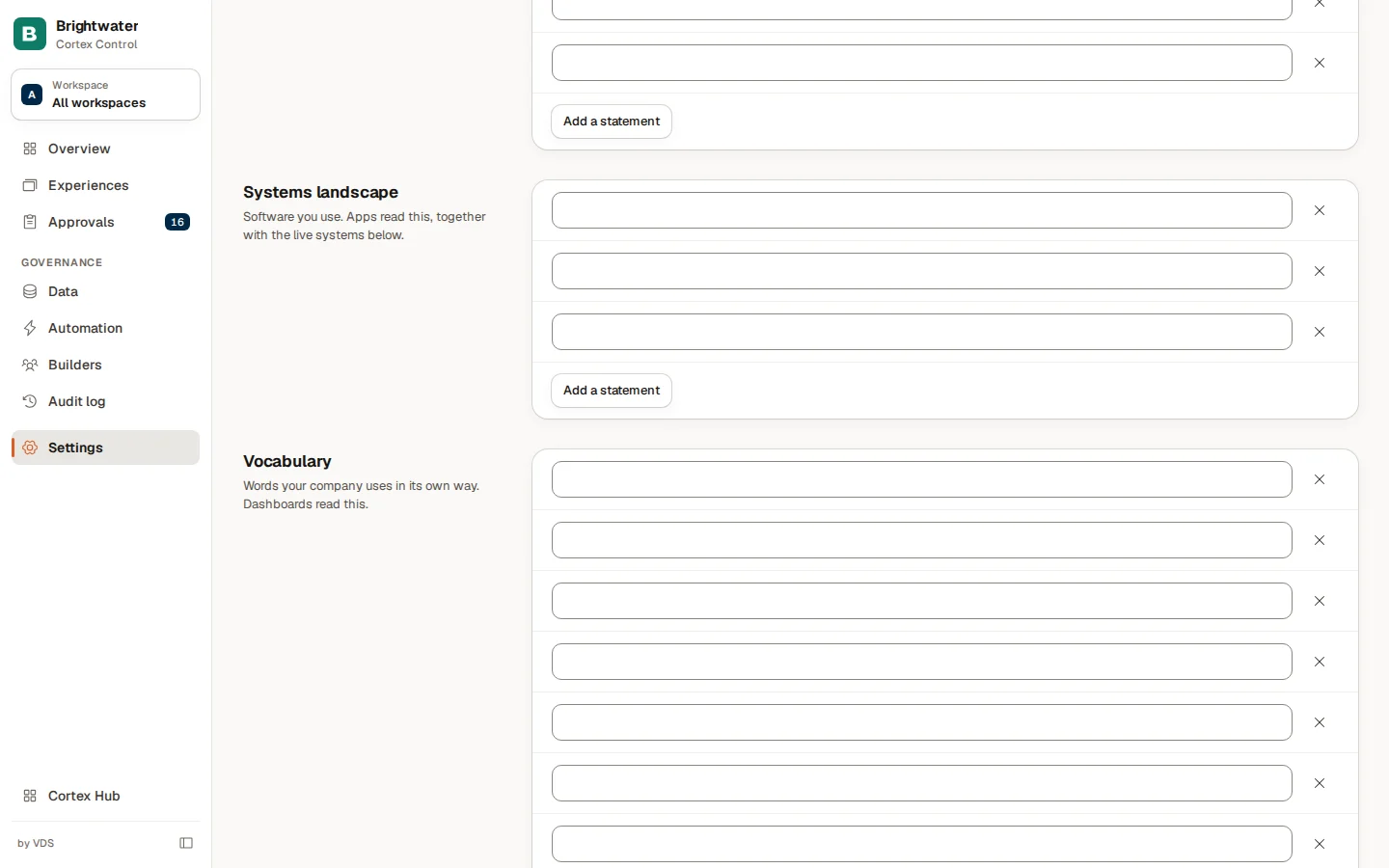
Below the basics are seven sections, each a list of short statements:
| Section | What belongs in it | Who reads it |
|---|---|---|
| Identity | Name, sector, size and legal form. | Every AI part. |
| What we do | Products and services. | Every AI part. |
| Customers and market | Business or consumers, segments and markets. | Every AI part. |
| How we work | Core processes, locations and shifts. | Apps. |
| Systems landscape | Software you use. | Apps, together with the live systems shown under the list. |
| Vocabulary | Words your company uses in its own way. | Dashboards. |
| Policies and preferences | Approval limits, retention, languages and tone. | Workflows. |
In a section you can edit a statement in place, remove one with the cross, and Add a statement. A statement shows its source: Website (with the page), From the interview, Written by an admin or Live from Cortex. A section with nothing says "Nothing here yet."
Under Systems landscape a grey box lists, live from Cortex, your Connected systems and Semantic models. These are read when an app is planned and are never copied into the profile.
House rules and the interview
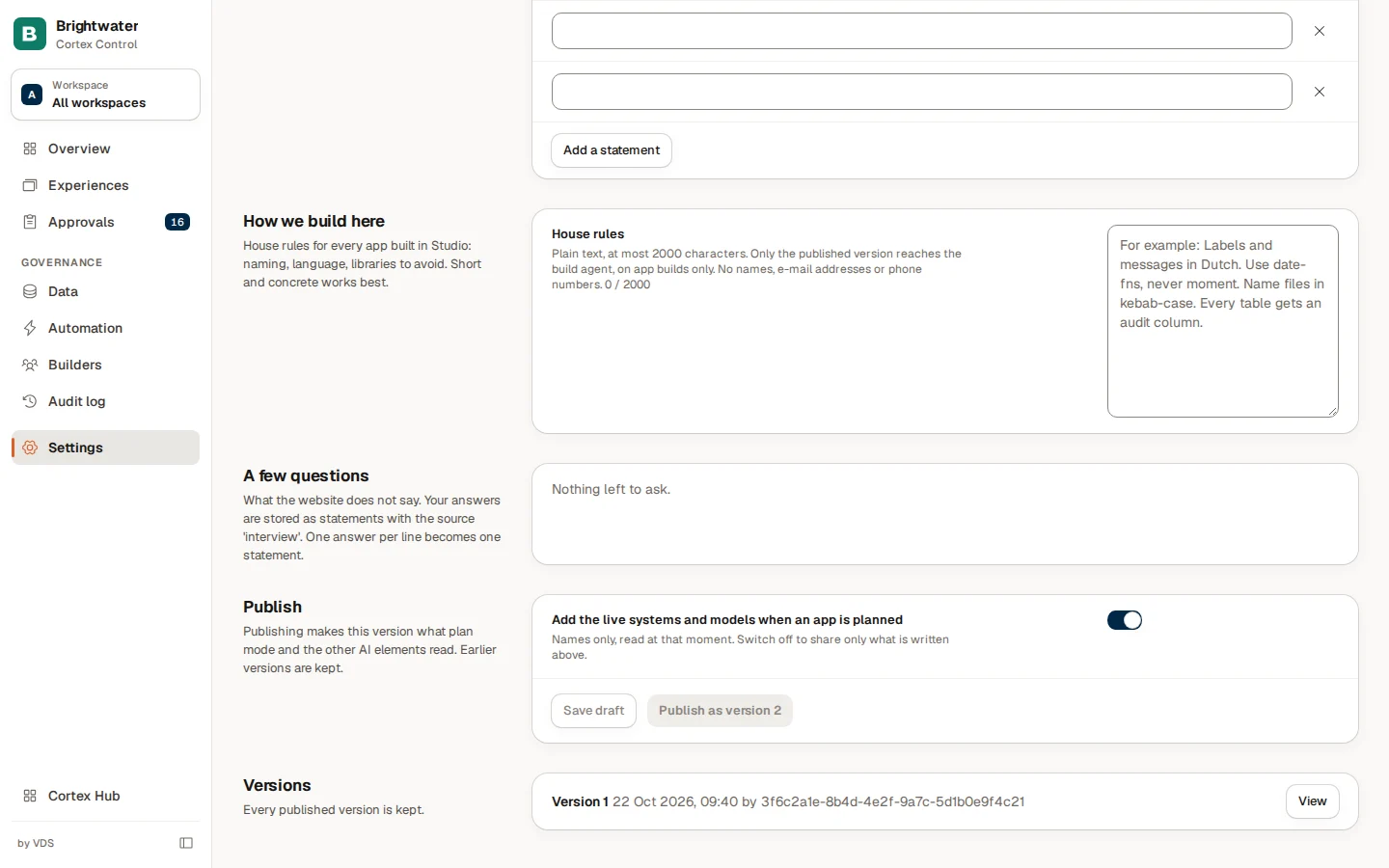
How we build here holds the house rules for every app built in Studio: naming, language, libraries to avoid. Plain text, short and concrete works best (for example: labels in Dutch, one date library, kebab-case file names). A counter shows how many characters you used. Only the published version reaches the build agent, and only on app builds. No names, e-mail addresses or phone numbers.
A few questions asks what the website does not say: which sector, how many people, the legal form, customers, how work runs, software, rules, vocabulary, languages. One answer per line becomes one statement, stored with the source From the interview. Choose Save answers ("Answers saved to the draft"). The button needs at least one answer and no unsaved edits. When everything is covered, the block says "Nothing left to ask."
Publish
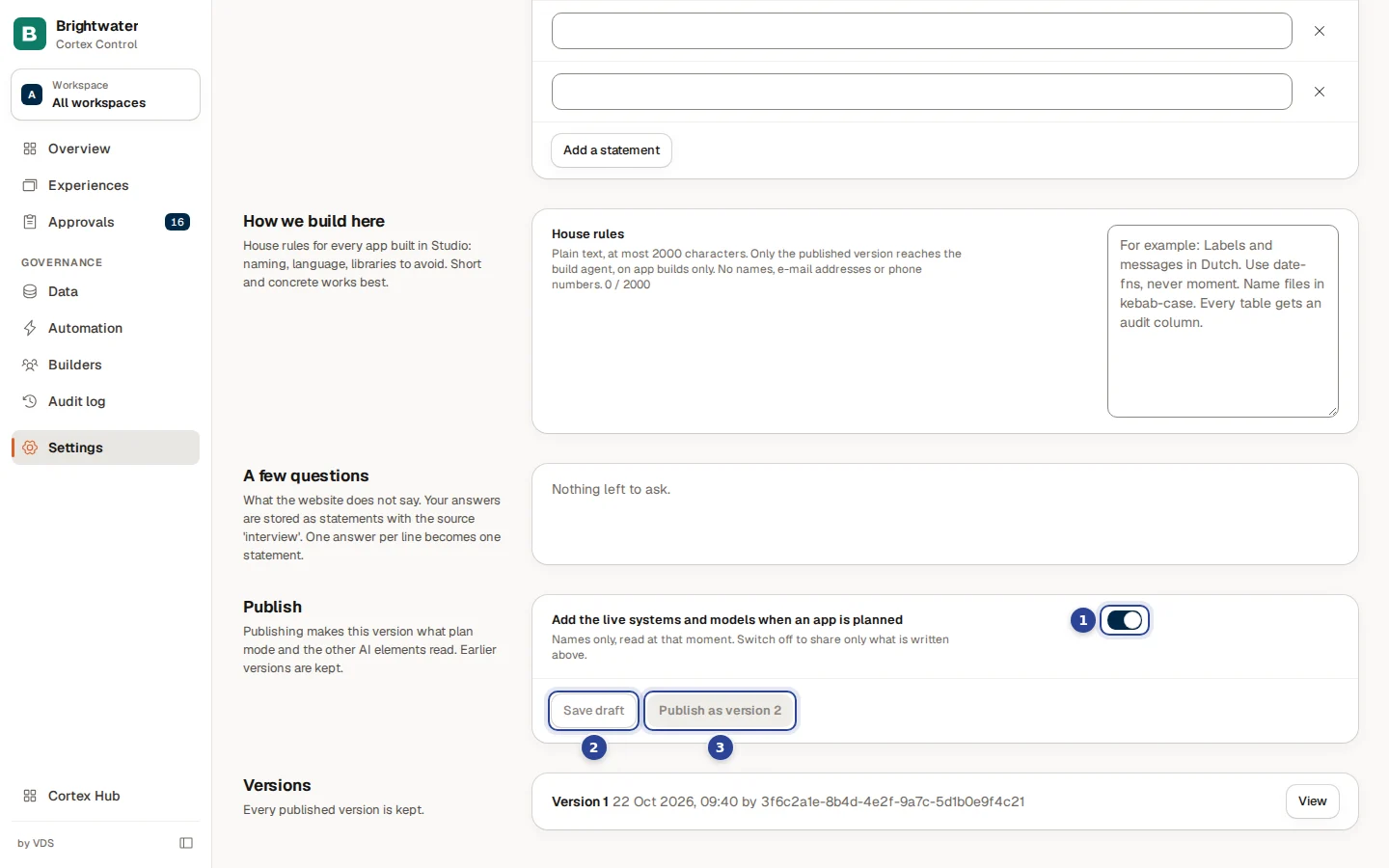
- Add the live systems and models when an app is planned. On: your connected systems and semantic models (names only) are added when an app is planned. Off: only what is written above is shared.
- Save draft. Stores your edits as a draft ("Draft saved"). Nothing is read by an AI part yet.
- Publish as version … Makes this version the one plan mode and the other AI parts read ("Published version …"). Earlier versions are kept.
The publish button is disabled, with a reason, when you have unsaved changes ("Save your changes first"), when there is no draft ("There is no draft to publish"), or when the draft is empty. Under Versions every published version is listed with its date and who published it; choose View to read it and Close to hide it again.
Diagnostics
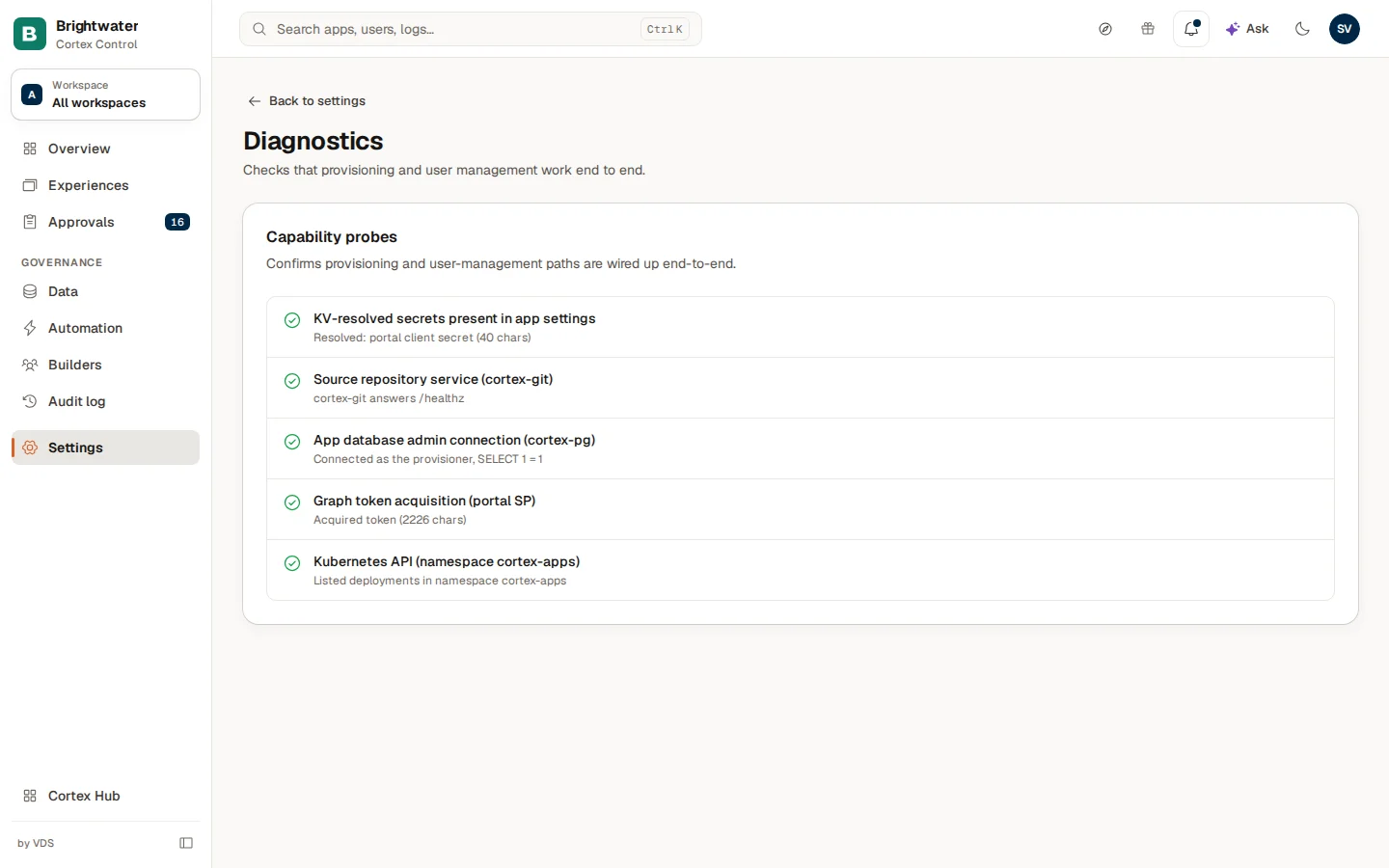
Diagnostics runs checks that the paths for provisioning and user management work from end to end. At the top is one line with the verdict: a green tick when everything works, amber when a check shows a warning, a red cross when a check failed. Under it the individual checks are folded away in VDS diagnostics; open it to see them. Each line has an icon (a green tick for passing, amber for a warning, a red cross for failing), the name of the check and a detail line. The checks cover whether the secrets Cortex needs are present, the service that stores the apps' source code, the connection to the app database, getting a Microsoft Graph token, and reaching the platform that runs the apps.
Open it when something does not work: creating an app fails, a person cannot be added, or provisioning stops. A failing line shows the raw error text from the system, in English, which is what your support contact needs.
Document search
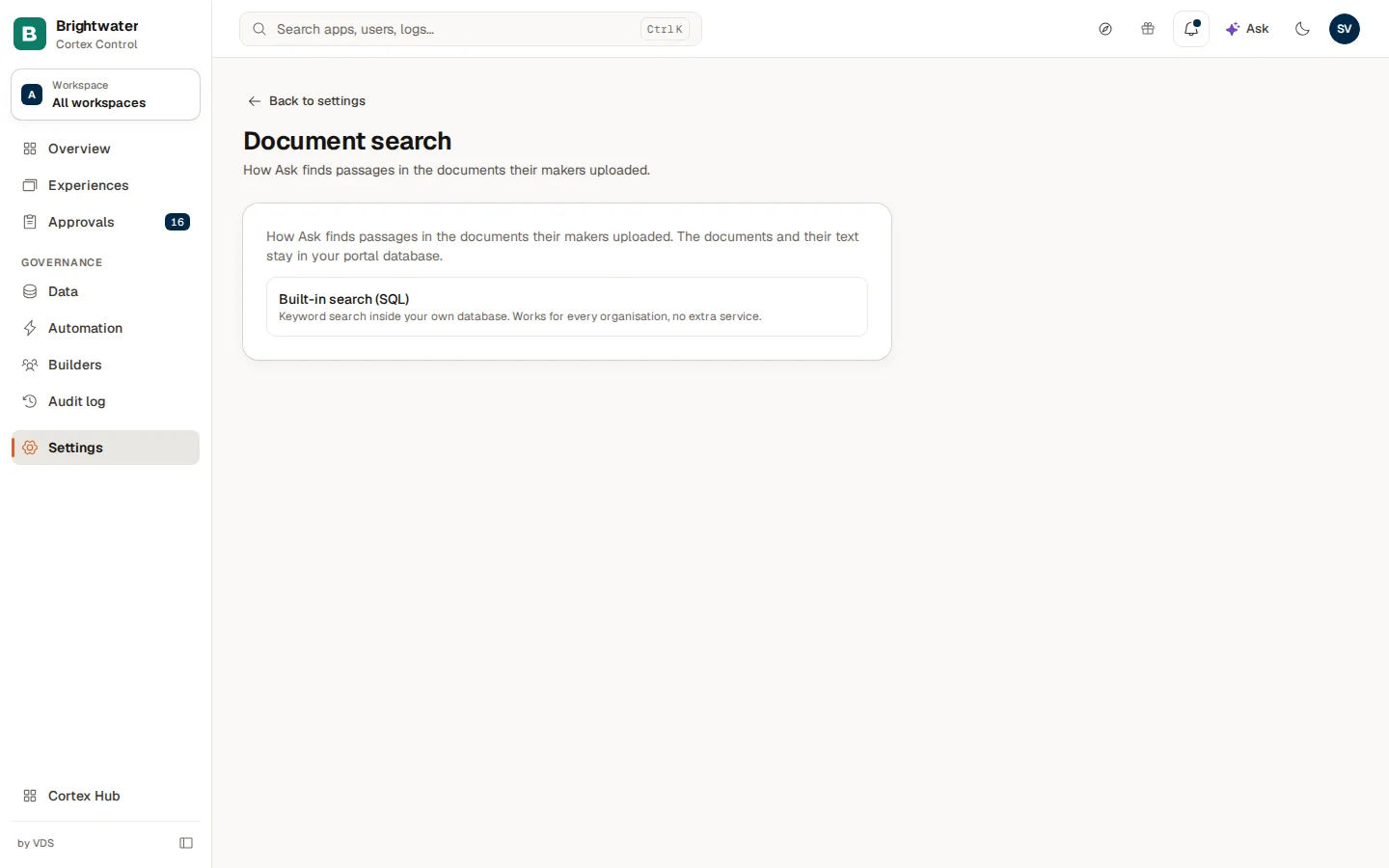
Document search says how Ask finds passages in the documents that builders uploaded to your models. There is one way: Built-in search (SQL), a keyword search inside your own database. It works for every organisation and needs no extra service. The documents and their text stay in your own database. There is nothing to configure; the page is there so you can see it.
Quality & privacy
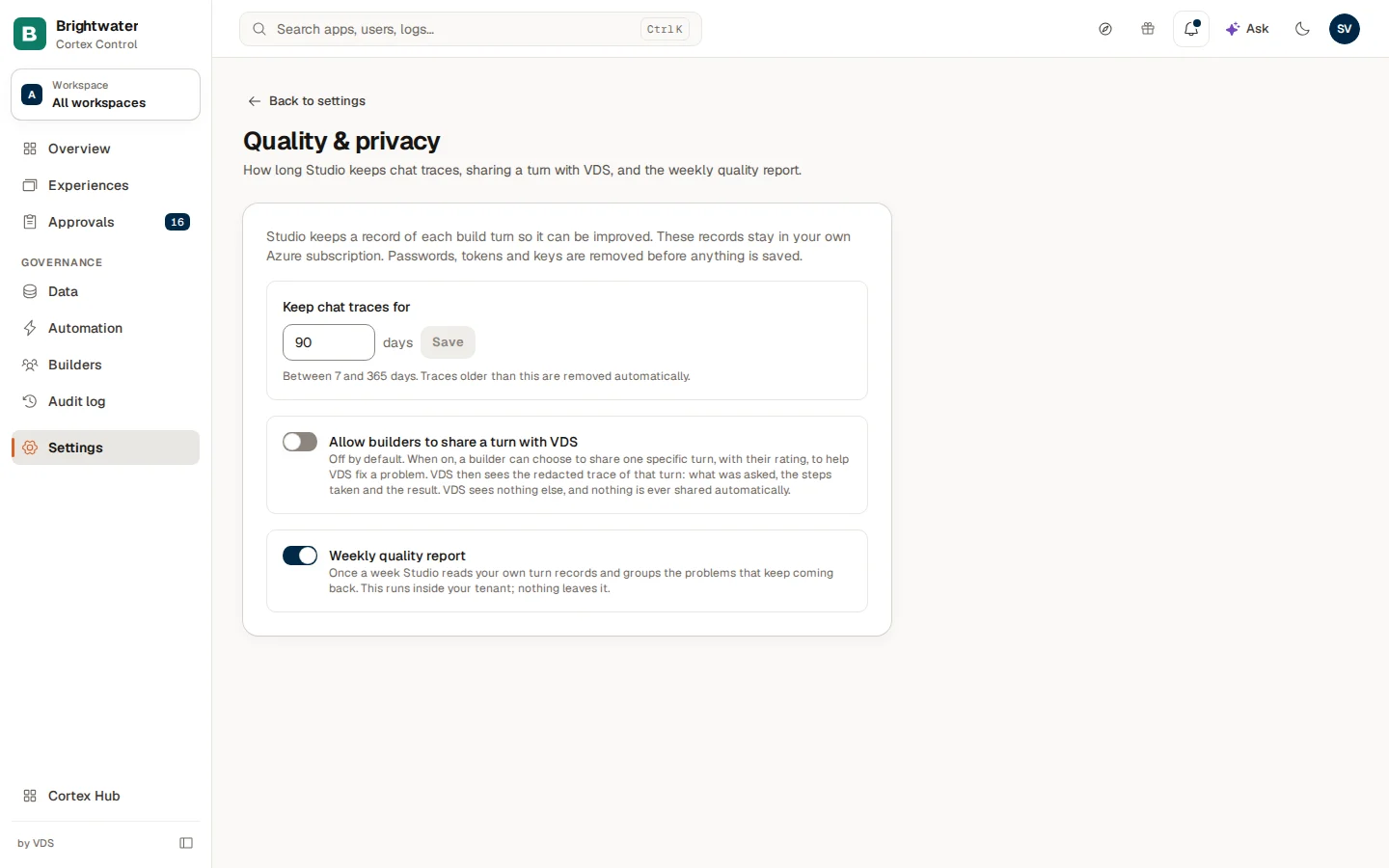
Studio keeps a record of each build turn so that it can be improved. Passwords, tokens and keys are removed before anything is saved. Three settings control it:
| Setting | What it does |
|---|---|
| Keep chat traces for | The number of days (7 to 365) to keep the traces. Older traces are removed automatically. Choose Save next to the field. |
| Allow builders to share a turn with VDS | Off by default. When on, a builder can choose to share one specific turn, with their rating, to help fix a problem. VDS then sees the redacted trace of that turn: what was asked, the steps taken and the result, and nothing else. Nothing is ever shared automatically. |
| Weekly quality report | On or off. Once a week Studio reads your own turn records and groups the problems that keep coming back. This runs inside your own environment; nothing leaves it. |
The switches save when you flip them ("Saved"). The retention field must be a whole number of days from 7 to 365 ("Enter a whole number of days between 7 and 365.").
Your Control profile and notifications
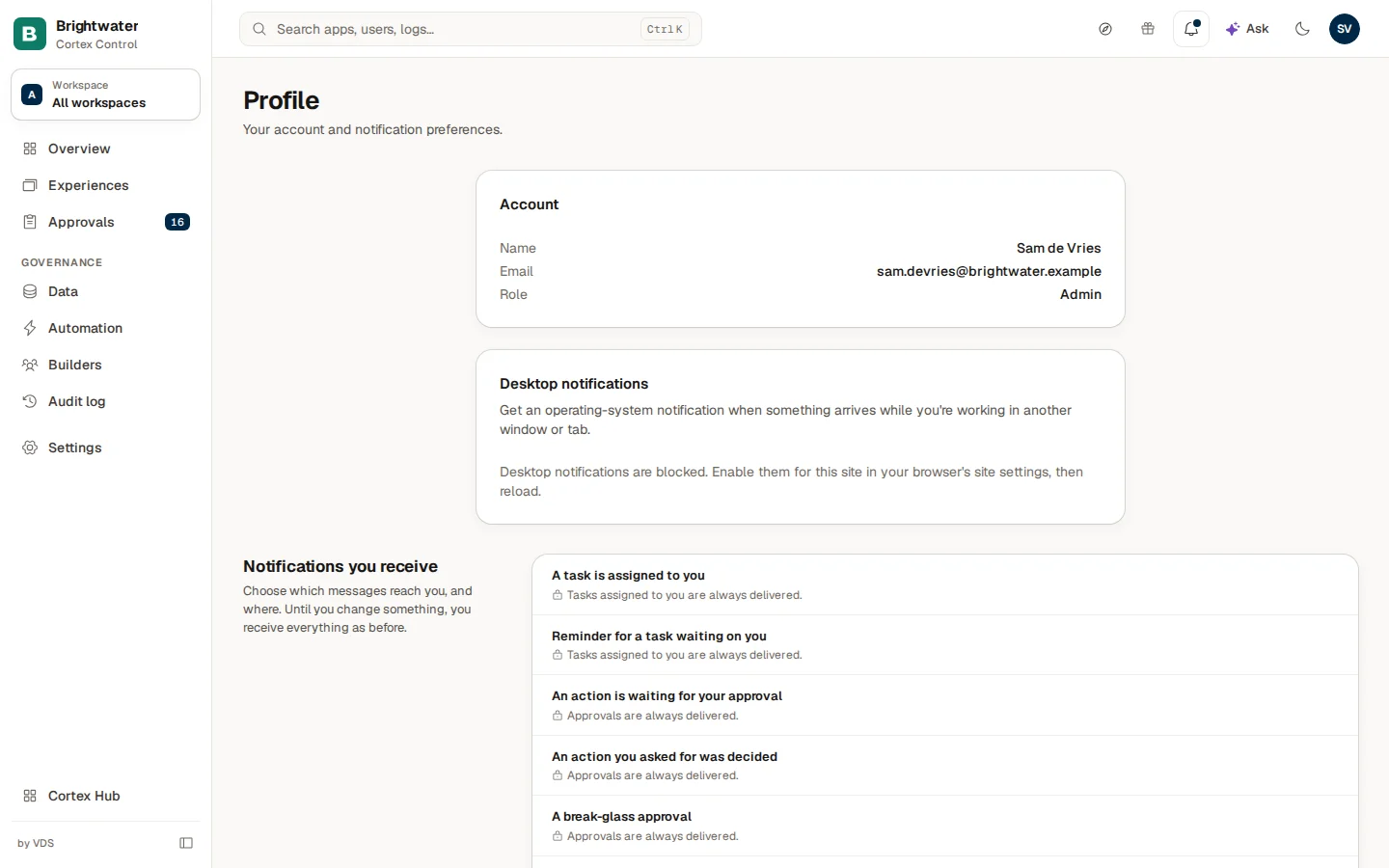
Open Profile from your account menu at the top right. It has nothing to do with the settings of the organisation: it is yours.
- Account. Your Name, Email and Role (for example Admin). You cannot change them here. The language of Control is set in the account menu, under the theme choice.
- Desktop notifications. Whether your browser may show a notification from your operating system when something arrives while you work in another window or tab. The line says whether they are enabled, blocked or not supported by your browser. When they are blocked, enable them in your browser's settings for this site, then reload.
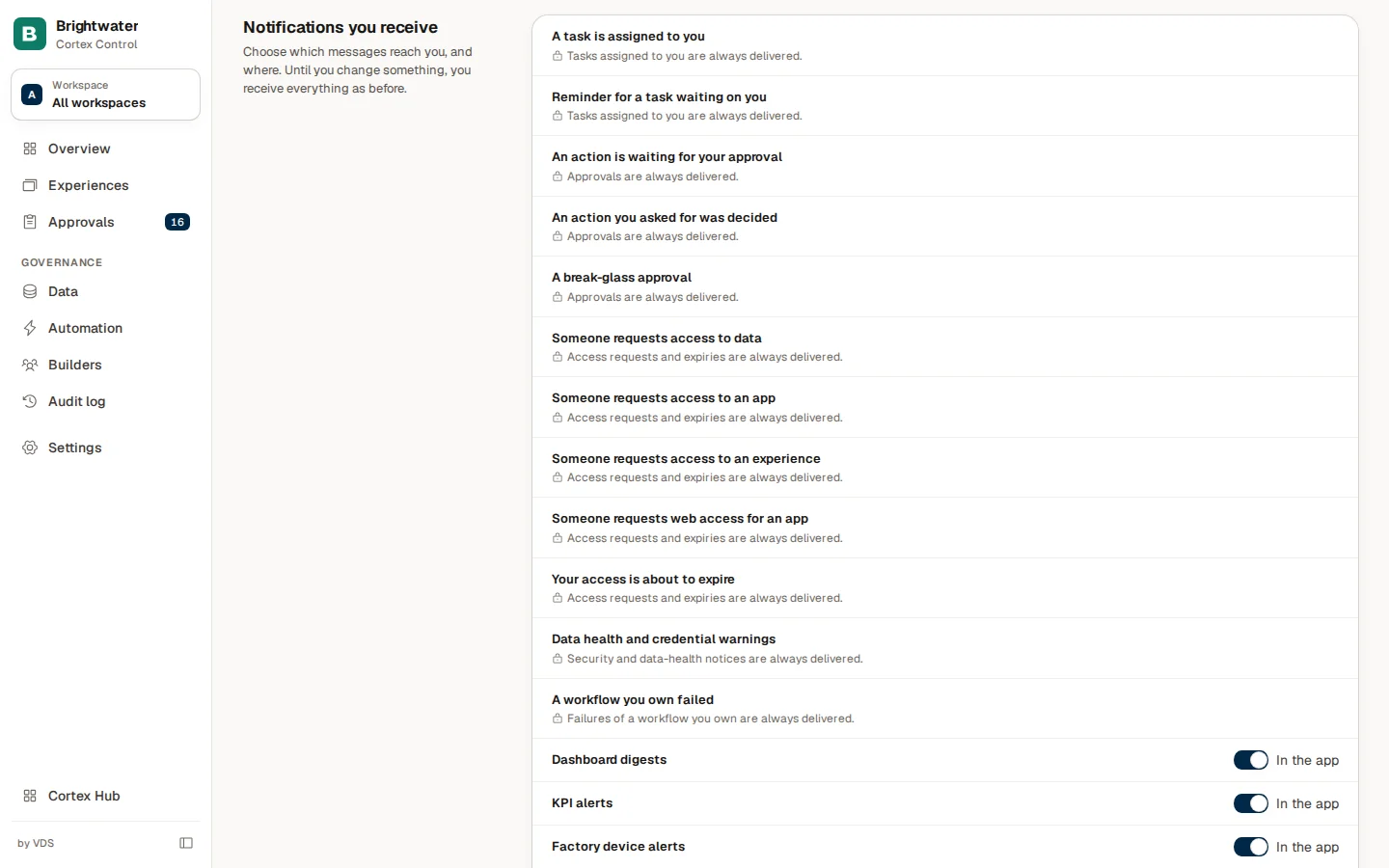
Notifications you receive lets you choose which messages reach you and where. Until you change something, you receive everything as before.
- Locked rows (with a lock icon) are always delivered: tasks assigned to you, approvals, access requests and expiries, security and data-health notices, and failures of a workflow you own. They have no switch.
- Other rows have a switch per channel: In the app (the bell) and, where it is offered, Email. Examples are Dashboard digests, KPI alerts and Factory device alerts. A switch saves at once ("Notification setting saved").
On an install where the setting is not available yet, the page says so and you receive everything.
Example: Brightwater Foods sets up its company profile
Sam de Vries wants Studio's plan mode to know that Brightwater Foods is a food producer with two plants.
- Sam opens Settings, Company profile, enters the company's domain and ticks These are my company's own domains.
- Sam chooses Draft from website and reads the draft. Two statements are wrong; Sam edits one and removes the other.
- Under A few questions Sam answers the question about shifts: "Two shifts at the Utrecht plant, three at Zwolle." and chooses Save answers.
- Under How we build here Sam writes "Labels and messages in Dutch. Name files in kebab-case."
- Sam chooses Save draft and then Publish as version 1. From now on plan mode starts from this profile.