Data sources
See every connected system on the Data page and connect a new one with the New source wizard: system, connection, credential, test.
Everything your apps, dashboards and workflows read comes from a source: a system that Cortex is allowed to reach, such as your ERP, your CRM or a SQL warehouse. IT connects each source once, in Cortex Control, so builders never handle a password and never talk to a system that nobody vetted.
The Data page is where you do that. It shows the whole picture (which systems are connected, what each feeds, what needs attention) and holds the wizard that connects a new system. Datasets and who may read them are on Datasets and grants; ready-made connectors are on Connector packs.
Who can do this
Admins of Cortex Control. Choose Data in the Governance group of the menu. Other people get an "Access denied" screen.
The Data page at a glance
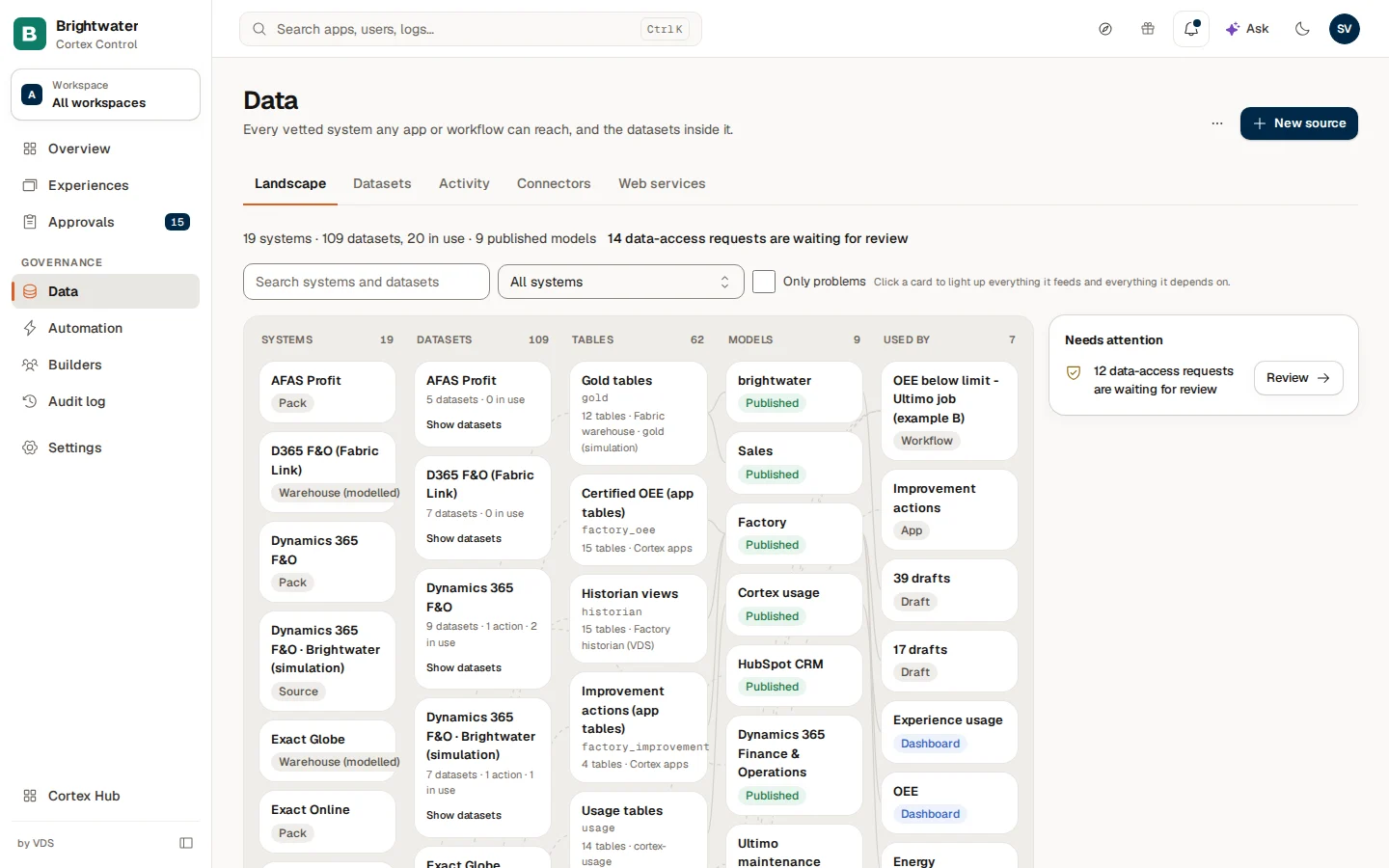
The page has up to five tabs. A tab with nothing to show yet stays hidden: with no source you see Connectors and Web services, once a source exists Datasets joins them, and Landscape and Activity appear as soon as a source has datasets.
| Tab | What it is for |
|---|---|
| Landscape | The overview: counters, what needs attention and a map from system to dataset to model to the apps that use it. This page. |
| Datasets | Every system with its datasets and who has access. You add and edit here. See Datasets and grants. |
| Activity | What happened across your systems: sync runs, action runs and what apps read. |
| Connectors | Ready-made connector packs and the custom connector. See Connector packs. |
| Web services | The outside services apps may contact from the browser. See Web services. |
The description under the page title follows the tab you are on. The buttons of the open tab (New source, Refresh and the ... menu with Upload a file) sit at the top right.
Before your first source runs
On a new install the page opens on the Connectors tab, with a short guide above the tabs. It asks three questions, and each one is answered by what you do next:
- Which system should Cortex read? Pick a connector pack, or use the custom connector at the bottom of the Connectors tab. Once a source exists the line says "Connected: ..." with its name.
- Which data do builders need? Add the datasets they need (Add a dataset). The line says how many datasets builders can ask for today.
- Who is waiting for access? One line says how many requests from builders are waiting and how many of them write to a live system ("3 requests waiting · 1 write to a live system"). Choose Review in Approvals to decide them there. When nothing is waiting any more, this line is gone and the overview says so.
When a source with datasets runs and nothing waits, the guide folds away and Landscape becomes the first screen. While a request waits, that one line stays above the tabs.
Read the Landscape
The row of counters above the map appears as soon as at least one sync exists.
| Counter | What it counts |
|---|---|
| Syncs | Every sync that copies data from a source into an app. |
| Failing syncs | Syncs whose last run failed. The hint says "Open the Activity tab to see why". When it is zero the card says "All healthy". |
| Stale syncs | Syncs that have had no success for over twice their interval, even when nothing is reported as failed. |
| Waiting for review | Access requests and action runs that wait for a decision ("Access requests and action runs"). |
Under the counters, a summary line says how many systems and datasets there are, how many are in use and how many published models read them. After it come links to what is waiting for review.
The map has five columns, left to right: Systems, Datasets, Tables, Models and Used by. It follows one question: where does a number on a dashboard come from?
- Click a card and everything it feeds and everything it depends on lights up. A side pane shows its Path, what it Feeds (Figures via sync, Lookups, Apps, Not used or Action), Can it become a figure?, Last delivered, the Kind and the Credential of a system.
- Search systems and datasets narrows the cards, All systems picks one system and Only problems keeps what is late or failing. Clear selection removes the highlight.
- A card can carry a status: Late, Failing, Source changed, Credential expiring, Credential expired or Credential refresh failed. A system is marked Pack, Warehouse (modelled), Historian, Built-in or Source.
- In the side pane of a dataset choose Open dataset; in that of a system choose Open source page.
With nothing selected, the pane lists Needs attention: failing and stale syncs (with Open syncs), uncertified financial data that reaches production, waiting requests (Review) and action runs waiting for approval (Open actions). When all is well it says "Nothing needs attention. Syncs are healthy and no requests are waiting."
Connect a system
A source is a connected system: its connection and its sign-in details. You add datasets to it afterwards. The wizard never changes anything in the other system.
Open the wizard
On Data, choose New source (top right of the Landscape and Datasets tabs).
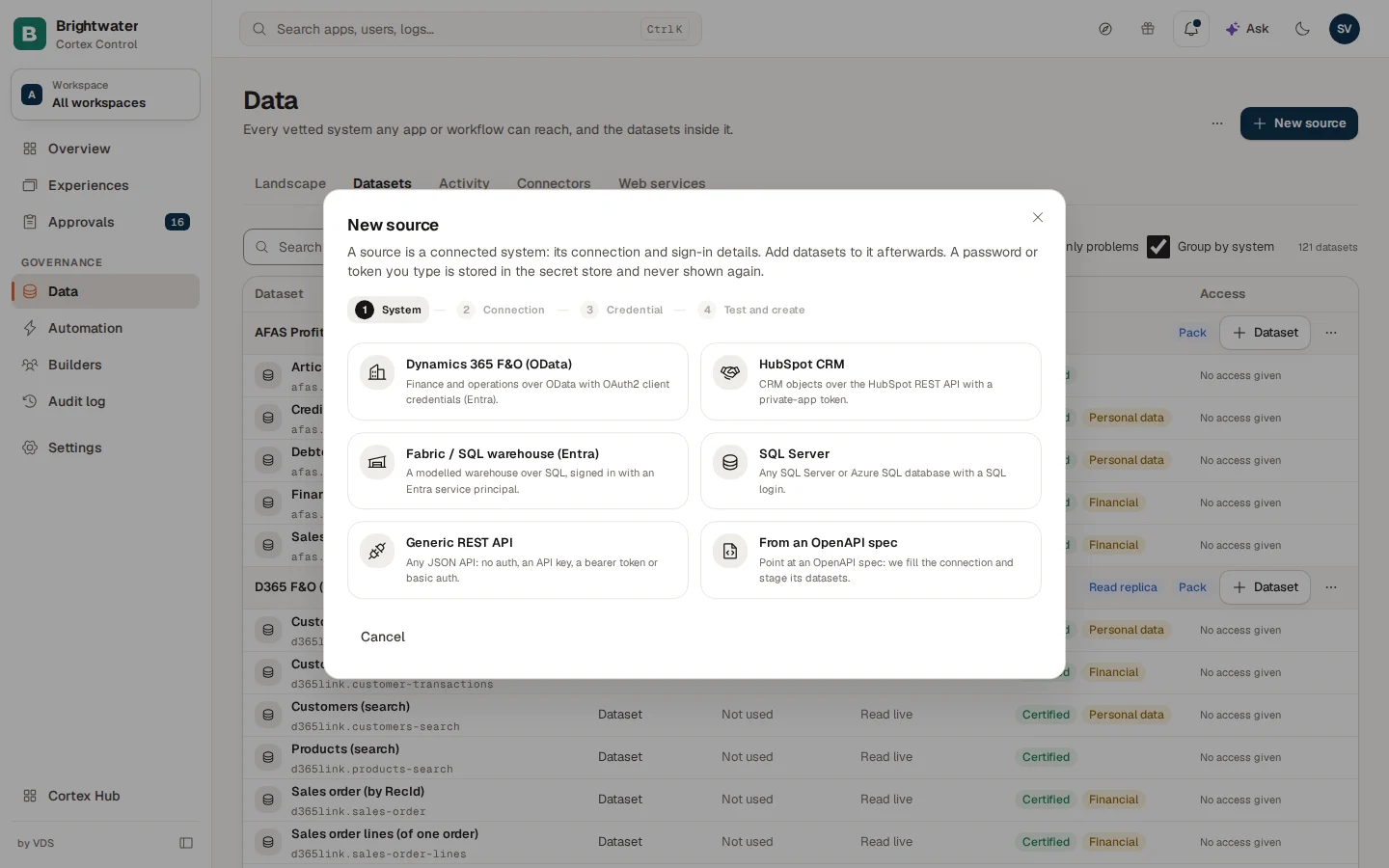
The dialog has four steps: System, Connection, Credential and Test and create.
System: pick a starting point
Each card fills in sensible defaults for that kind of system.
| Card | For |
|---|---|
| Dynamics 365 F&O (OData) | Finance and operations over OData, signed in with OAuth2 client credentials (Entra). |
| HubSpot CRM | CRM objects over the HubSpot API with a private-app token. |
| Fabric / SQL warehouse (Entra) | A modelled warehouse over SQL, signed in with an Entra service principal. |
| SQL Server | Any SQL Server or Azure SQL database with a SQL login. |
| Generic REST API | Any JSON API: no authentication, an API key, a bearer token or basic authentication. |
| From an OpenAPI spec | Point at an OpenAPI 3.x spec (JSON). Cortex fills in the connection and stages its datasets; you load it with Load. |
Not sure which one? Pick Generic REST API for a web API and SQL Server for a database. A ready-made pack is usually faster for a known system: see Connector packs.
Connection: where the system lives
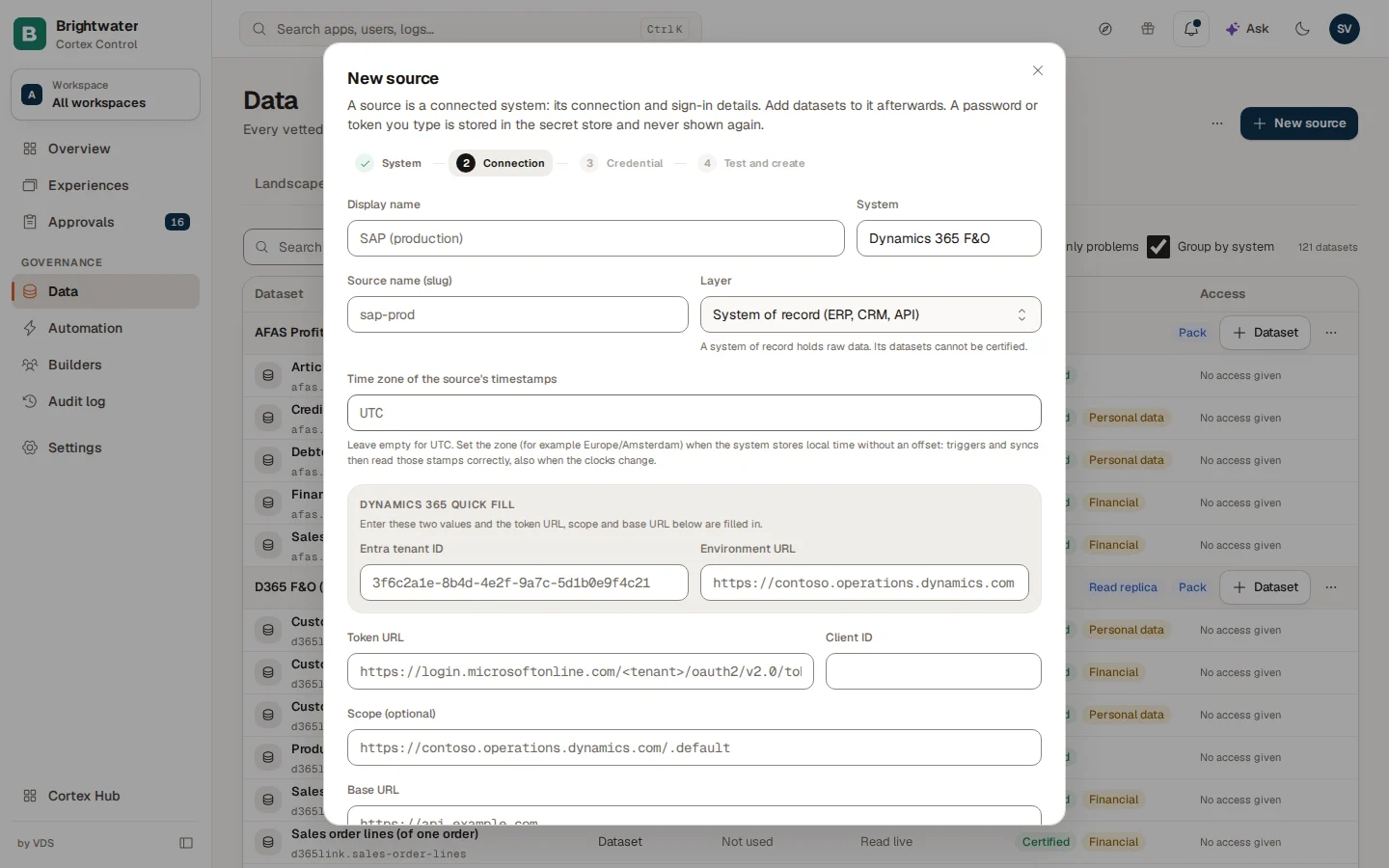
Give the source a Display name and a Source name (slug), and choose its Layer (see the table below). Then fill in the address:
- A web API: the Base URL. For OAuth2 also the Token URL, the Client ID and an optional Scope.
- A SQL database: the Server, the Port and the Database, and the Sign-in method: SQL login (user and password) or Entra service principal. Trust server certificate and Encrypt are there for servers with their own certificates.
- Dynamics 365 F&O has a Dynamics 365 quick fill: enter the Environment URL and the Entra tenant ID and the token URL, scope and base URL below are filled in for you.
- Set Time zone of the source's timestamps (a name like
Europe/Amsterdam) when the system stores local time without an offset. Leave it empty for UTC.
Optionally open the Dev environment block: a sandbox of the system for dev. With no dev connection, dev reads use the production connection and see real data. Tick Allow dev to write to production only when you really mean it; the setting is audited.
Credential: how the secret reaches Cortex
Choose How do you supply it?:
- Type it here (Cortex stores it): Cortex keeps it in its secret store under the source's own name and never shows it again, not even to an admin.
- Name a secret IT already stored: whoever manages your passwords stores the secret and gives you its name. Cortex keeps only the name.
For basic authentication the secret is username:password. When you edit a source that already has a credential, leave the field empty to keep it, or type a new one to replace it.
Test and create
Check the Summary, choose Test connection and then Create source. The test calls the base URL with the credential, or opens a database connection and runs a trivial query. It changes nothing. A failed test says why, and you can go Back and correct the step.
The Layer decides how Cortex treats the data
| Layer | Use it for | What follows from it |
|---|---|---|
| System of record (ERP, CRM, API) | A system that holds raw data. | Its datasets cannot be certified. |
| Warehouse (modelled) | A curated layer that is ready to model on. | Available for modelling: every builder can use it in Studio. Only its datasets can be certified. |
| Cortex copy (landed) | A copy of a pack dataset kept in Cortex. | Figures may be modelled on its tables. |
| Read replica | A replica of an ERP. | Figures only through the pack's views, never from raw tables. Cortex limits how often it asks. |
| Production database | A live database. | Records only, never figures, so the live system is not loaded with calculations. |
Example: connect the Brightwater ERP
Sam de Vries, IT admin at Brightwater Foods, gets a request from the planning team: the production schedule must come from the ERP.
- Sam opens Data and chooses New source, then Dynamics 365 F&O (OData).
- On Connection Sam names it "Brightwater ERP" with source name
brightwater-erp, leaves the Layer on System of record (ERP, CRM, API) and uses the quick fill with the environment URL and the tenant. - On Credential Sam asks the colleague who manages passwords to store the client secret, and picks Name a secret IT already stored.
- On Test and create the test passes. Sam chooses Create source.
- The Landscape now shows "Brightwater ERP" as a system with no datasets. The guide asks Which data do builders need?: next Sam adds the datasets (see Datasets and grants).
Troubleshooting
Builders: spend, quality and test runs
See who is building in Studio right now, what building costs, how well Studio is working for your builders, and approve paid test runs.
Datasets and grants
Add datasets to a source, read a dataset's contract, decide who may read it, set up and watch syncs, and withdraw the report access people gave Cortex.