Datasets and grants
Add datasets to a source, read a dataset's contract, decide who may read it, set up and watch syncs, and withdraw the report access people gave Cortex.
A source is a connected system. A dataset is one stable, named view of it: "open orders", "customers", "create a note on a deal". Builders never see the request or the query behind a dataset, only its columns and its rules. IT writes that contract once, and after that every app, workflow and model reads the dataset the same way.
Access is explicit. A builder asks for a dataset, IT approves per app and per environment, and that approval is a grant. This page covers the Datasets tab of Data: adding datasets, what a dataset shows, who may read it, how syncs run and how to take access away. At the end it covers Report access, a different kind of permission: the one people give Cortex so that digests and alerts on restricted data can reach them.
Who can do this
Admins of Cortex Control: Data in the Governance group of the menu, tab Datasets; and Settings, Report access under People & access. Builders only ask for data in Studio; they never see this page.
The Datasets tab at a glance
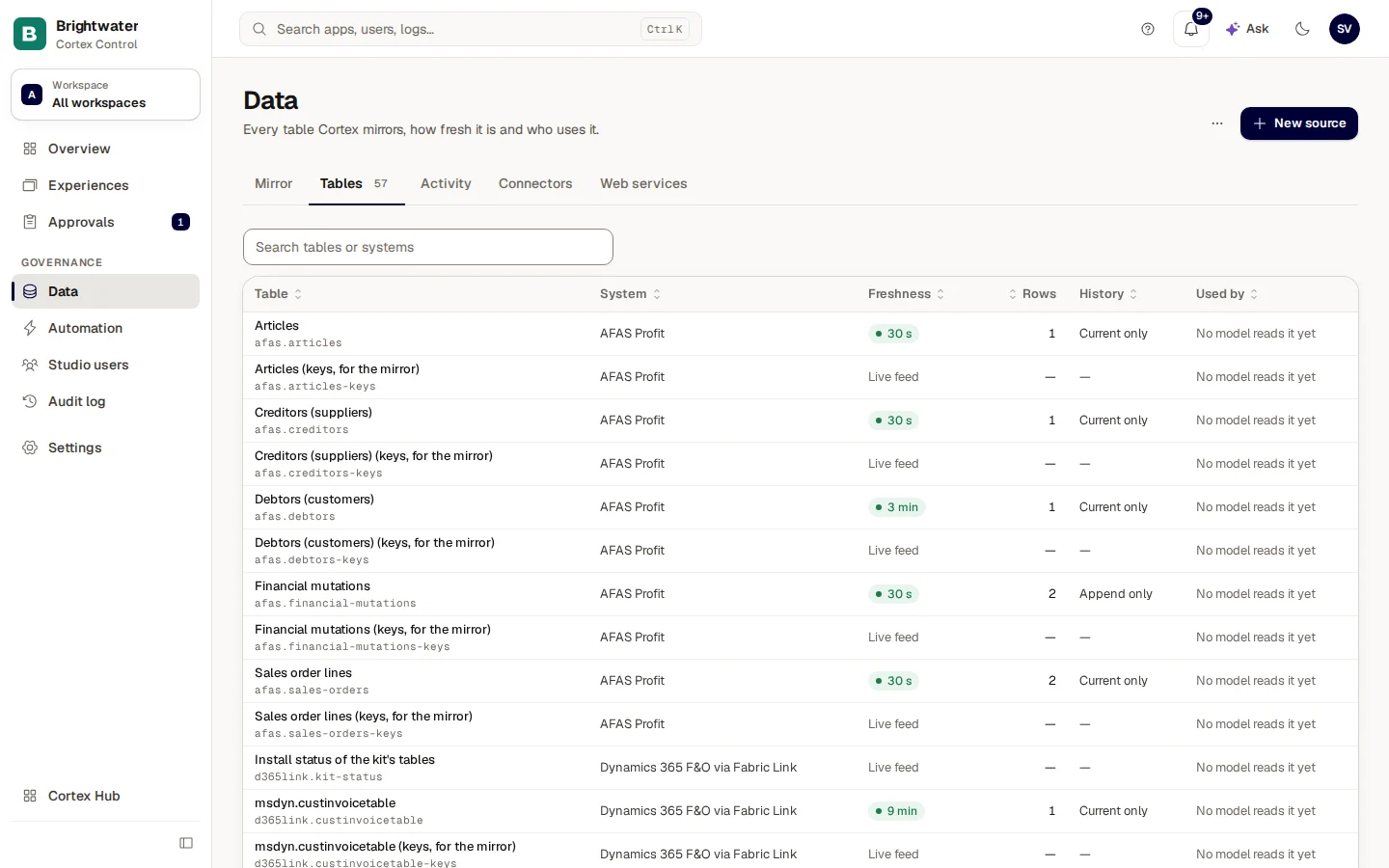
The tab lists every dataset, grouped by system. Above the list are Search datasets, a Filters menu, All systems, Only problems and Group by system, and a kind filter: All, Datasets, Actions and Certified. Below it a line counts the datasets that match.
| Column | What it shows |
|---|---|
| Dataset | The name builders see, with the technical name under it. |
| Kind | Dataset (it reads) or Action (it writes back to the system). |
| Feeds | What it feeds: Figures via sync, Lookups, Apps, Not used or Action. |
| Refreshed | When it was last delivered, or Live feed when nothing is copied. |
| Trust | Certified, Not certified or Ad hoc · not certified, plus a Financial or Personal data badge. |
| Access | Who has approved access, as dev and prod counts, or "No access given". |
The header of each system group carries what you need for that system:
- Badges for its layer, Pack when a connector pack manages it, and a credential state when one needs a person (expiring, expired or refresh failed).
- A Dataset button to add a dataset (an uploaded-file source has none).
- A ... menu: Edit for the source, or Managed in Connectors for a pack source, which you change by upgrading the pack. A file source has no menu here; Upload a file is in the ... menu at the top right of the page.
Pick one system in the All systems filter (or choose Open source page in the Landscape) and that system's own page opens above the list: Last delivered, Sync frequency, Failed runs, 30 days, Schema changes, 30 days, a strip Last 7 days with the runs per day, its Latest events and a Credential block where you can Set expiry date to be warned before it lapses. All datasets leads back, Open activity shows its activity.
With a system picked, its card also has a Home section field (admins only): the business section of the company model this system's data belongs to. Core (default) means none. Only business sections are offered; Core and pack sections are not. The field stays disabled until the company model has started. If the saved section is later archived, a line says so and the system reads as Core until the section is back. Choosing a section changes nothing in tables already in the model.
Datasets and actions
A dataset reads. An action is a named, typed write-back to a system, such as "create a note on a deal". An action has inputs instead of filter parameters and an Execution policy: Runs directly (it runs when the consumer calls it and every run is recorded) or Needs approval ("Ask an admin to approve each run": each run waits in Activity, view Actions, until an admin chooses Approve and run or Reject).
Add a dataset
Start from the system
On the system's group header choose Dataset. In the dialog New dataset pick the Kind: Dataset (read) or Action (write).
Implementation
Describe the one call or query behind it. For a web API: the Method, the Path (placeholders like a name in braces are filled from parameters), optional Query parameters and a Request body template (JSON). For SQL: the Statement. Tick Returns an image when the address answers with a picture (at most 10 MB): apps can show it but it cannot be synced.
For a dataset you can also set Paging for sync: No paging (single request), OData (follow @odata.nextLink), Offset and page size or Cursor (next-page token). Paging only applies to syncs; live reads always return one page.
Parameters (or Inputs for an action)
Declare the Filter parameters consumers may set, each with a Name, a Type and whether it is Required. In SQL refer to them as @name; values are bound safely and never pasted into the statement. An action's Action inputs work the same way.
Test
Enter test values and test the dataset: Cortex fetches a sample. For an action, Render request shows what would be sent, and nothing is sent unless you confirm with Send for real… and Send request; use only values you are happy to see written.
Columns
Declare the Output columns: what consumers can rely on this dataset returning, and which column or columns identify a row (Key). Fill from last test takes them from your test. Builders and figures can only use the columns listed here, so you cannot continue without at least one.
Rules
Set the Usage rules:
- Usage: Aggregatable (may be listed in full) or Row-level only (needs a filter). A row-level dataset needs at least one bound parameter for a live read and cannot be synced.
- Sensitivity: General, Financial or Personal data.
- Certified number: the official, reviewed version of the data. Only datasets on a modelled (curated) source can be certified.
- Access: Live reads only, Sync (a copy in the app) or Live reads and sync.
- Incremental sync column (None (full snapshot) by default): sync then fetches only rows changed since the last run.
Choose Create. Uncertified financial data is row-level only, so nobody totals raw ledger lines by accident.
Open a dataset
Choose a row to open the dataset in a panel. At the top: its name, the system, badges for layer, certification, usage, access and sensitivity, an Edit button (an uploaded file has Upload a new version instead; a pack dataset says it is managed by the pack) and the path it feeds.
The panel opens on Contract and Preview. Choose More to add Access, Syncs, Health and Implementation. An action has no Syncs or Health.
| Tab | What it shows |
|---|---|
| Contract | The Output columns (name, type, key), the Filter parameters and the Usage rules as consumers see them. |
| Preview | Try the dataset as saved: enter test values and run it. Nothing here is editable. |
| Access | Who reads it, per environment, and the buttons for their sync and for revoking access. |
| Syncs | The syncs of this dataset, one per approved app, with the Run log of the one you pick. |
| Health | Sync health, the freshness limit and a review when the source changed. |
| Implementation | How it is fetched: the request or statement, paging and, for synced copies, the Landing table SQL. |
Who may read a dataset
In Studio, for one app and one environment.
In Approvals: approve or decline.
The app can read in dev or prod, with its own key.
Live reads, or a copy refreshed on a schedule.
Requests arrive in Approvals (see Approvals). The Access tab lists every consumer per environment (Production and Development): an app, a workflow or a model, each with a status approved or pending. A pending request has Review in Approvals.
An app reads business data through the company model. What an app may still be granted directly: actions, images, ADX, and the datasets of a connector pack that is read live and never mirrored (today the Smartsheet sheets IT ticked on the Sheets tab of the pack's Manage dialog; for scripts the same save is PUT /api/portal/connectors/smartsheet/kit-tables, see Manage an installed pack). IT approves that grant like any other and sees it on the app's Data tab under Live reads. Everything else an app reads through the company model.
Set up a sync
A sync copies the dataset into the app's own database on a schedule, so the app reads a local table. On the Access tab, next to an approved consumer, choose Set up sync (or Edit sync when one exists).
| Field | What it does |
|---|---|
| Sync enabled | Turn off to pause the schedule without losing the settings. |
| Mode | Upsert (keep and update rows) matches rows on the dataset's key. Snapshot (mirror the source) copies everything each run and removes rows the source no longer has. |
| Run every | The interval, at least 15 minutes. |
| Sync key | The column or columns that identify a row. A sync needs a key: mark a column as Key in the contract first. |
| Purpose and Retention (days) | Only for personal data. A copy needs a stated purpose and a retention period; older rows are deleted automatically. |
Not every dataset can be synced. Row-level datasets cannot, a dataset set to live reads only cannot until you change its access, and actions never can. The Access tab says which one applies. The app's table must exist before the first run: the Implementation tab shows the Landing table SQL to add to the app's migrations.
Take access away
Open the Access tab
Open the dataset, choose More and then Access. Find the app and the environment.
Revoke access
Choose Revoke access. The dialog says the access ends immediately and that the app loses it on its next call. Add an Optional note for the audit trail.
If a sync filled a table for that app, tick Delete synced rows to empty it too. Revoking access does not take back a copy the app already holds.
Confirm
Choose Revoke access again. Cortex confirms with "Revoked ... access to ...".
Watch the health of syncs
On Landscape the counters Syncs, Failing syncs, Stale syncs and Waiting for review show what needs you (see Data sources). A sync is stale when it has had no success for over twice its interval.
The tab Health of a dataset shows:
- Last successful sync, Last failure and Next expected run, and the Run history.
- A status: Fresh, Late, Failing, Never synced, Paused, Source changed or No sync.
- Freshness SLO: how old the data may get before the dataset counts as late. Enter whole minutes from 15 to 525600, or Use default, which is twice the sync interval.
- Source changed — review: when the system's columns differ from the accepted schema, the tab lists what was Added, Removed or Type changed, and Who is bound to this: the approved apps, workflows and models. Accept new schema makes the new columns the reference for the next comparison. It changes nothing downstream.
To Run now or Reset watermark (full resync), open Activity and choose the view Syncs. A reset makes the next run forget where the last one stopped and read everything again. Activity also has the views Actions (runs waiting for approval and past runs) and Access log (every read and action an app performed: which dataset, which parameter names, how many rows).
Upload a spreadsheet as a dataset
For data that lives in a file, choose Upload a file (in the ... menu at the top right of the page). An Excel (.xlsx) or CSV file becomes a governed dataset: you review the Columns found, mark a Key and choose the Sensitivity, then Confirm and publish. Only values are read; formulas and macros never run. A new version that does not fit the confirmed columns is held (Review upload): the previous version keeps serving until you confirm or Discard upload. Ad hoc files made by a builder show Ad hoc · not certified and serve until an expiry date that the owner can extend (Renew 90 days).
Keep a copy in Cortex
Under the dataset list the card Keep a copy in Cortex lets Cortex keep its own copy of a dataset so models can put figures (sums, counts) on it. It is off until you switch it on; the copy refreshes on the schedule you pick (Refresh), and Copy now runs it at once. A dataset without a sync key cannot be copied.
Report access: the permission people give Cortex
Some dashboards only show a person the rows they may see. A digest or alert on such a dashboard can only be sent while the person is away if they let Cortex read it as them. That permission is called Report access.
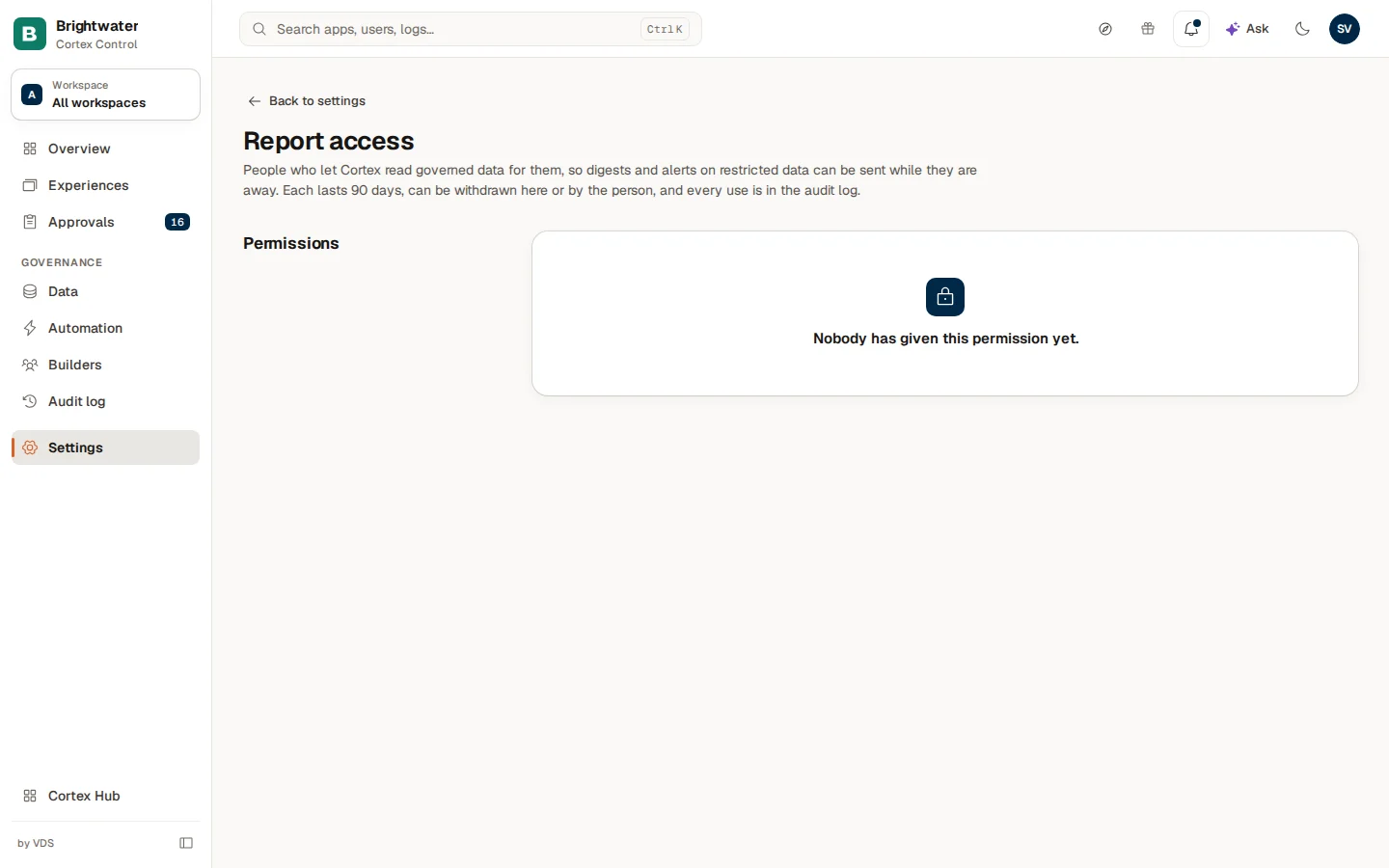
Open Settings and choose Report access under People & access. Each permission lasts 90 days, can be withdrawn here or by the person themselves in Hub (see Subscriptions), and every use is in the Audit log. The list never shows a token or a secret.
| Column | What it shows |
|---|---|
| Person | Who gave the permission. |
| Status | Active, Withdrawn, Expired or No longer works. |
| Given | When the permission was given. |
| Ends | When it expires (90 days after it was given). |
| Last used | The last time a digest or alert used it. |
| Uses | How many times it was used. |
On an active row choose Withdraw. The dialog "Withdraw the permission of ..." says that the stored sign-in is deleted at once and that their subscriptions on restricted data stop. The person can give permission again themselves. A withdrawal is recorded in the audit log.
Example: the planning team asks for the production schedule
Sam de Vries, IT admin at Brightwater Foods, has connected the ERP (see Data sources).
- Sam opens Data, tab Datasets, and chooses Dataset on the "Brightwater ERP" group.
- Implementation: the OData path of the production orders. Parameters: a required Name
line. Test: a sample comes back. Columns: Fill from last test, and the order number marked Key. Rules: Usage is Aggregatable, Sensitivity is General, Access is Live reads and sync. - A week later a builder in the planning team asks for the dataset for her app in dev. Sam sees the request on Approvals and approves it.
- In the dataset, tab Access, Sam chooses Set up sync: Mode Upsert, Run every 60 minutes.
- In production a month later Sam finds the Health tab says Source changed: the ERP added a column. Sam reads that only the planning app is bound to the dataset and chooses Accept new schema.