Start something and follow your requests
Find your way around the Studio part of Cortex Hub, start a dashboard, app or workflow from one sentence, and follow what you sent, what waits for you and what users said.
Studio is the builders' part of Cortex Hub. It is not a separate product: it is a group in the left menu, a few extra buttons in the top bar and a few extra tabs in your Inbox. Everything you build starts from one sentence or from Experiences, and everything that waits for you (requests you sent, proposals from colleagues, feedback from users) lands in your Inbox.
This page walks through those parts in the order you meet them: the screen, the start dialog, your work on Home, the Inbox tabs for builders, and the help and profile menus.
Who can do this
Builders (people with a Studio seat) and admins. Without a Studio seat you do not see the Studio group, the build buttons or the extra Inbox tabs at all, and nothing in this page applies to you. Which kinds you may start (app, dashboard, workflow) depends on the builder policy your IT administrator set in Cortex Control. A kind that is switched off for you is simply not offered.
The Studio parts of the screen
With a Studio seat the top bar and the left menu get a few extra pieces.

- Ask a question (the sparkle). Opens the Ask box. Ctrl+J (Cmd+J on a Mac) does the same from anywhere. As a builder you also get Build something in that box, which is how you start building (see the next section).
- Help (the question mark). Holds Take a tour, What's new and, where your install has a documentation site, Builder docs. A dot on it means there is something new to read. See The help menu and the tour.
- Notifications (the bell). Information only: the digests and alerts you subscribed to, failures and similar news. A build that "needs you" or "is done" shows as a short message on screen instead, and the answer to a request you sent shows as a dot under Sent in your Inbox. See Notifications.
- Account menu. Your profile, subscriptions, language and sign out. See Your account menu and profile.
Between the sparkle and your initials there is also a button to switch between light and dark mode. On the left side of the bar, while you have builds open, you see the build dock: one chip per open build with the name and, when it applies, Working or Needs you. Choose a chip to jump back into that build. On a narrow screen the chips collapse into one pill ("3 in progress") that opens a list. The dock is only a shortcut: it opens a build, it never stops one.

- Workspace. The switcher for the workspace you work in. See Workspaces.
- Experiences. Every app, dashboard and workflow you can open or build. The number is how many there are in this workspace. See Experiences for builders.
- Inbox. What waits for you and what you sent. The number counts tasks waiting for you plus open proposals from colleagues. Untriaged feedback is listed in the Inbox but does not add to the number.
- Company model. Your semantic models: the figures your organisation has agreed on. See Semantic models.
- Mirrored data. The systems your data comes from and the datasets built on them. See Data sources.
The items Company model and Mirrored data sit under the small heading Studio. Above them are the pages everyone has (Home, Experiences, Inbox and others your licence includes). Below them your pinned dashboards and apps are listed, and at the bottom admins see a link to Cortex Control.
Start something from one sentence
The quickest way to start is to describe what you want in one sentence. Cortex works out whether it is a dashboard, an app or a workflow, and sends you to the right place. Nothing is created until you click.
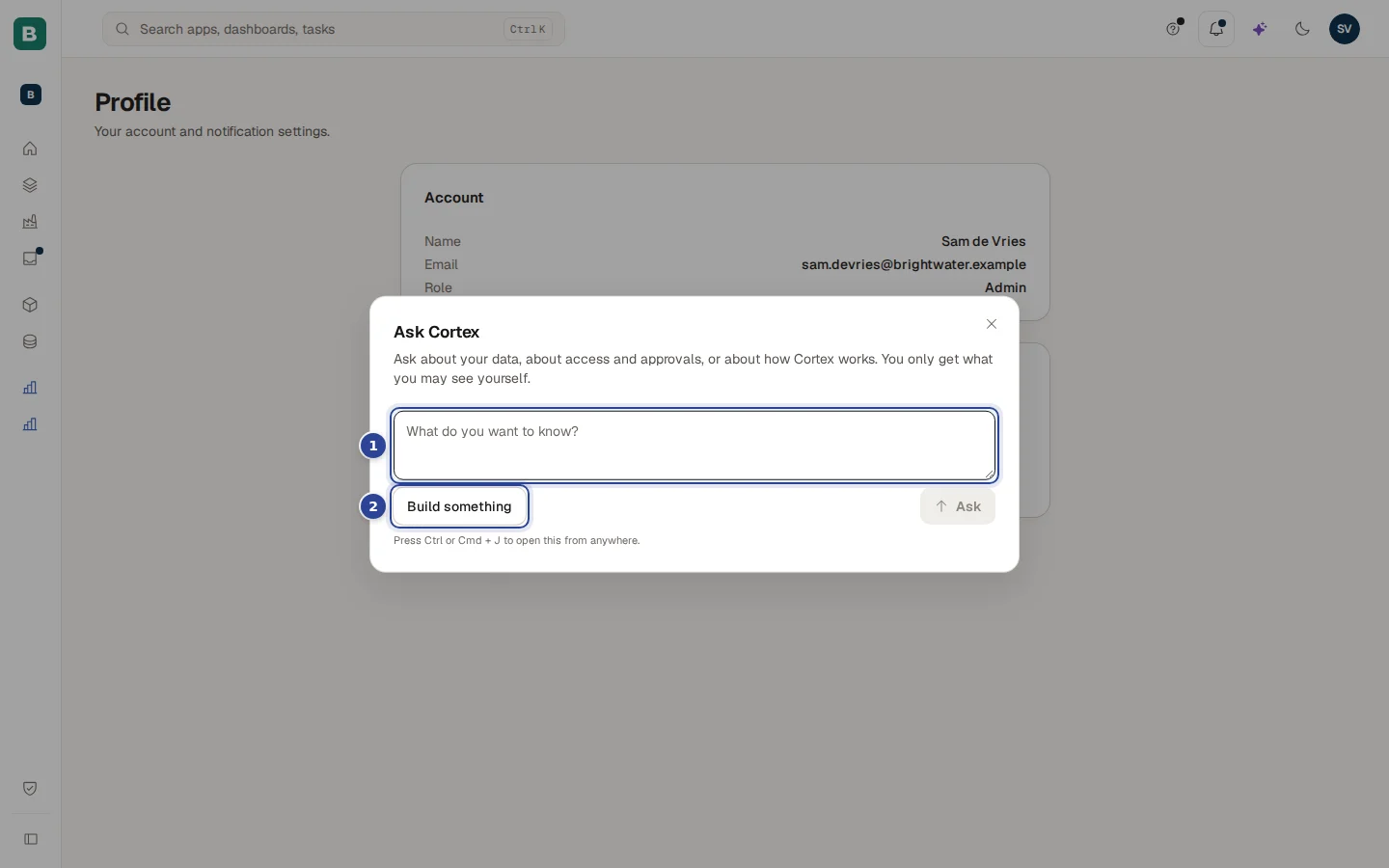
- The question field ("What do you want to know?"). Ask a question about your data here, as everyone can. This page is about the other button.
- Build something. Closes the Ask box and opens the build dialog below. It is only there for builders.
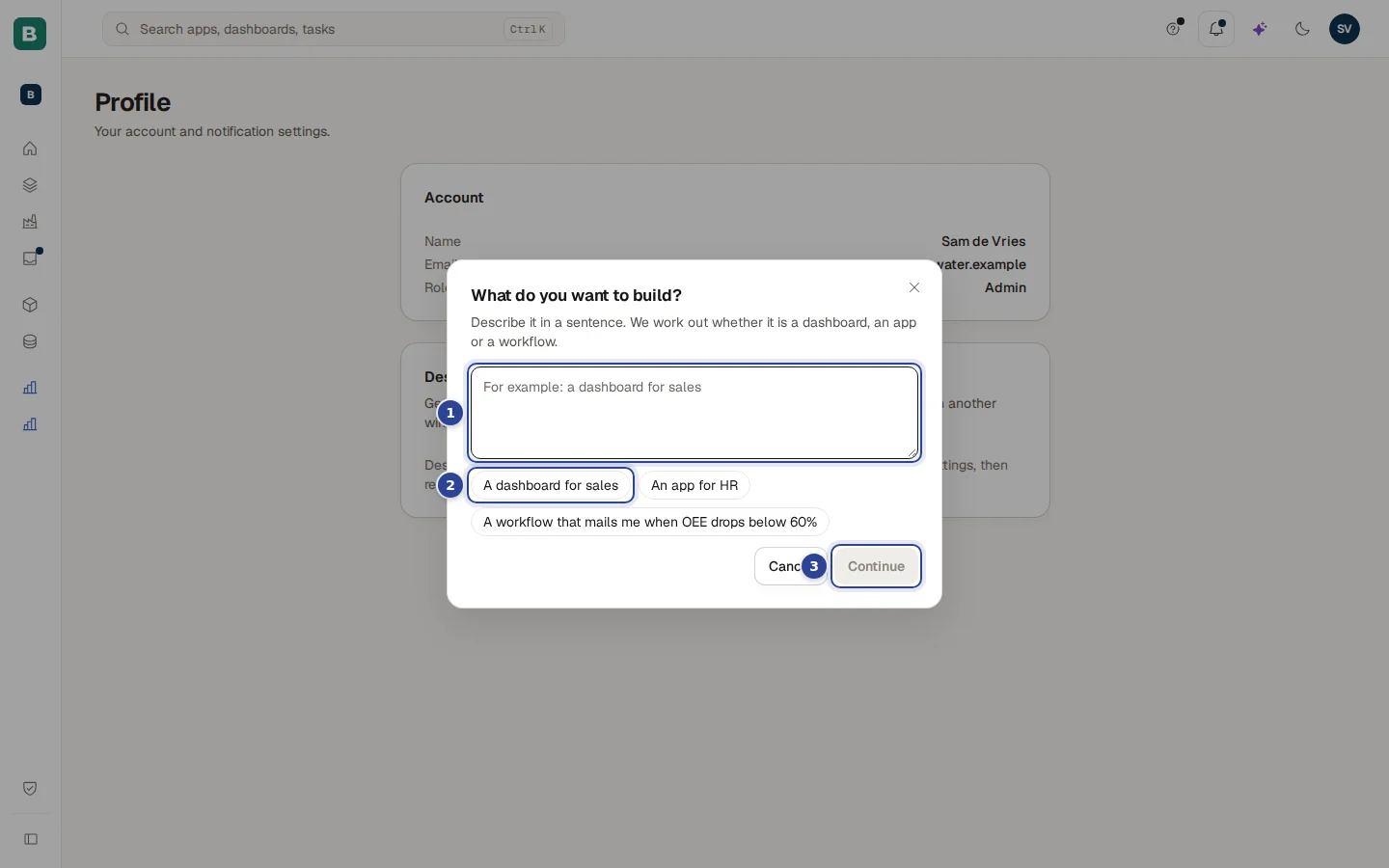
- The sentence. Describe it the way you would to a colleague: "A dashboard for sales". At most 500 characters.
- Examples. Click one to fill the field: "A dashboard for sales", "An app for HR" or "A workflow that mails me when OEE drops below 60%".
- Continue. Stays off until you have typed something ("Describe what you want to start first."). Cancel closes the dialog and nothing happens.
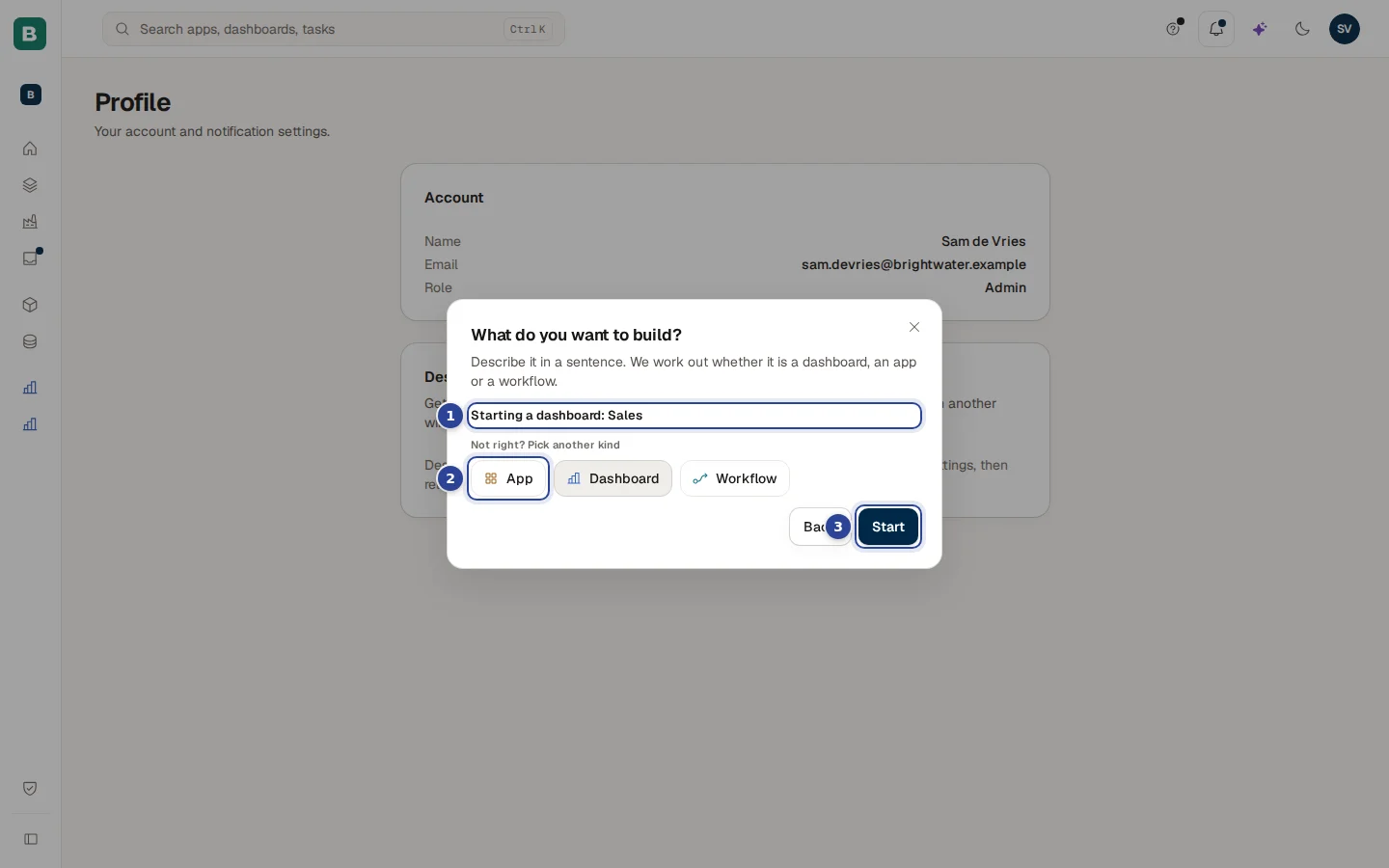
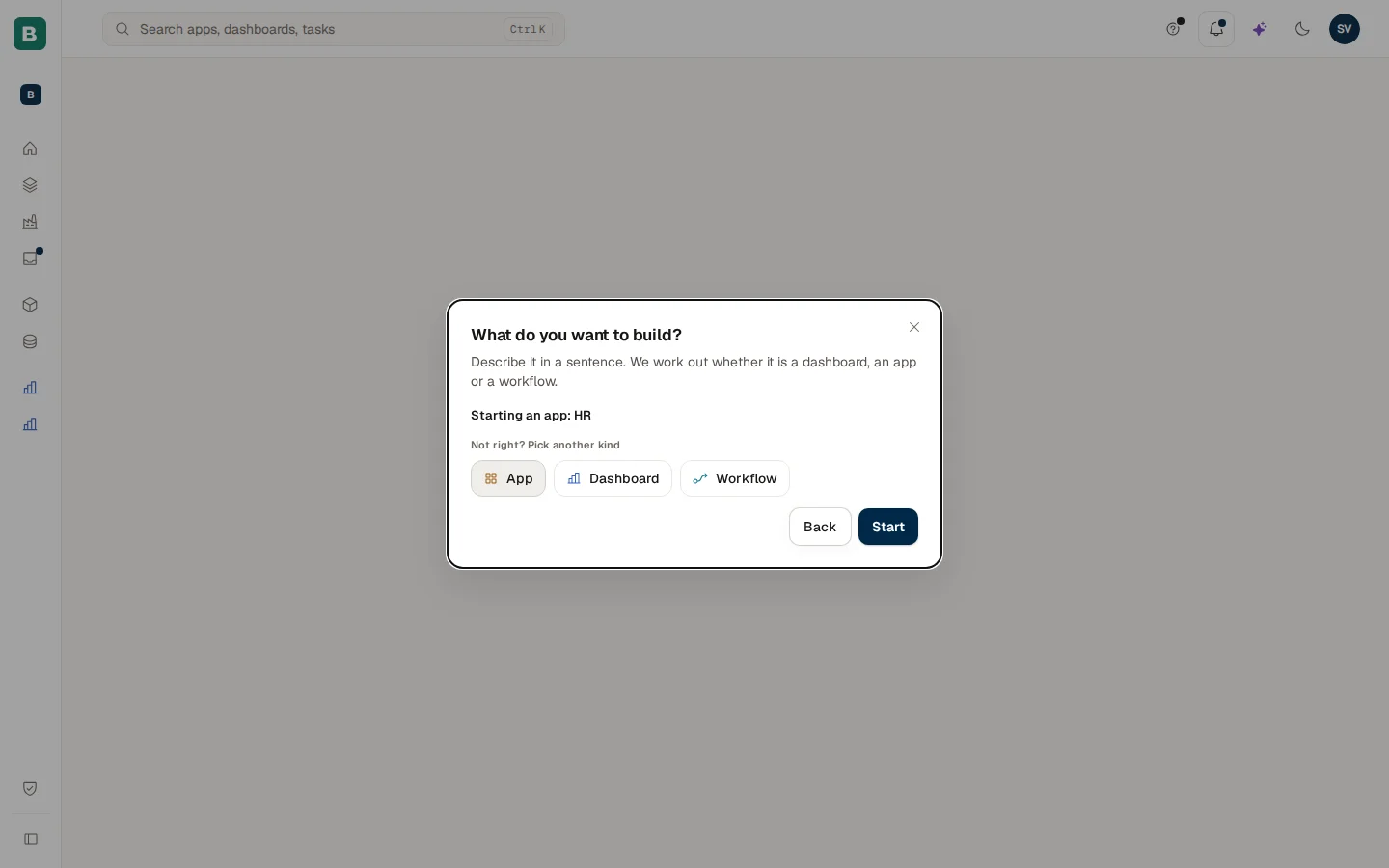
- What Cortex understood: the kind and a working title, for example "Starting a dashboard: Sales".
- The kind buttons (App, Dashboard, Workflow). The kind Cortex proposed is highlighted. Under "Not right? Pick another kind" you can choose another one.
- Start. Opens the create flow of that kind. Back returns to your sentence.
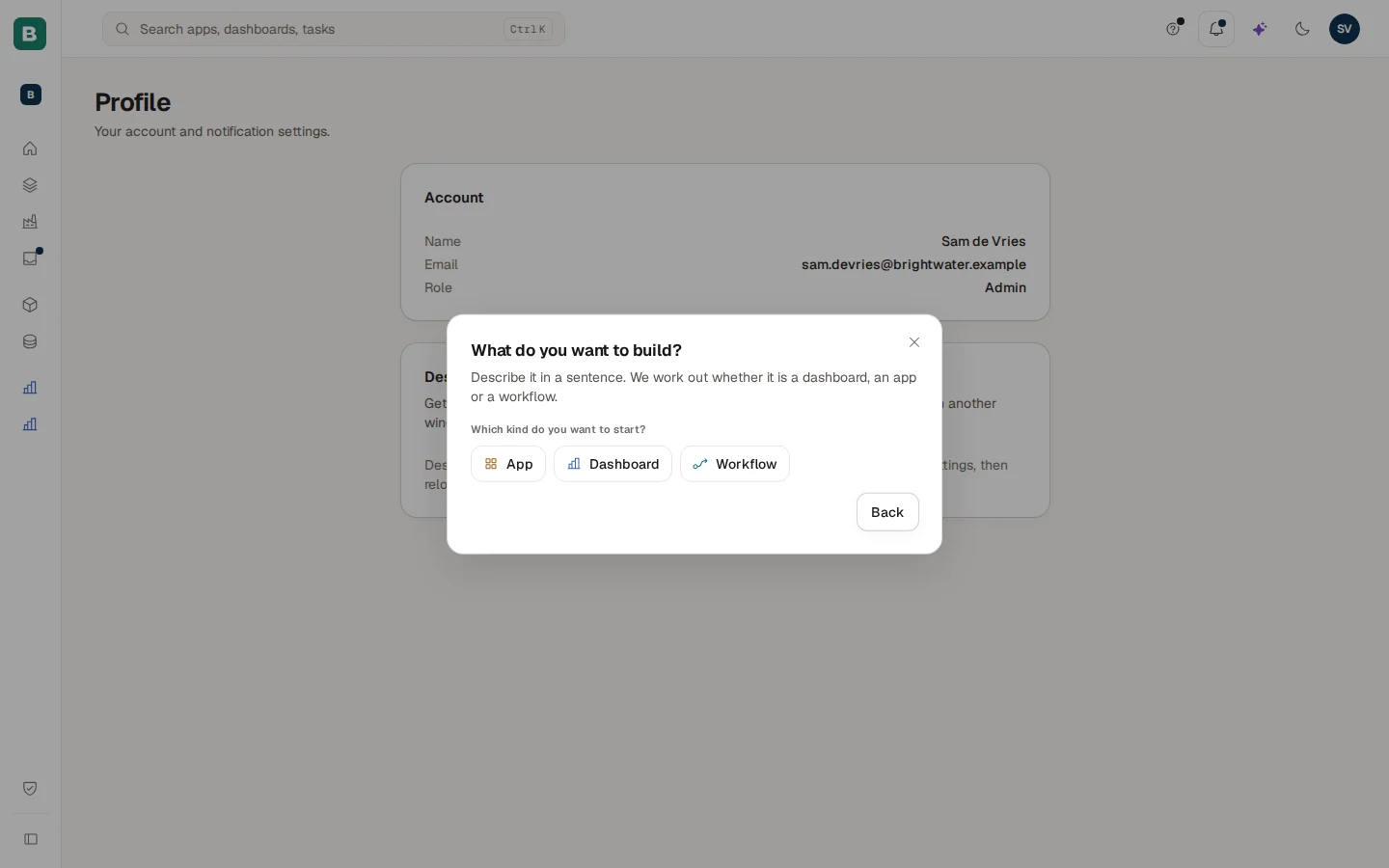
If Cortex cannot tell, it asks "Which kind do you want to start?" and shows only the three kind buttons.
What each kind opens
Typed once in the build dialog. It is only prefilled, never sent anywhere yet.
App, dashboard or workflow. You can change it.
The normal form or dialog of that kind, with your sentence filled in.
Only your own click on Send request or Create starts something.
| Kind | What opens | What your click does |
|---|---|---|
| App | The Request an app form with the name and description prefilled. See Experiences for builders. | Send request sends it to your IT administrator for approval. |
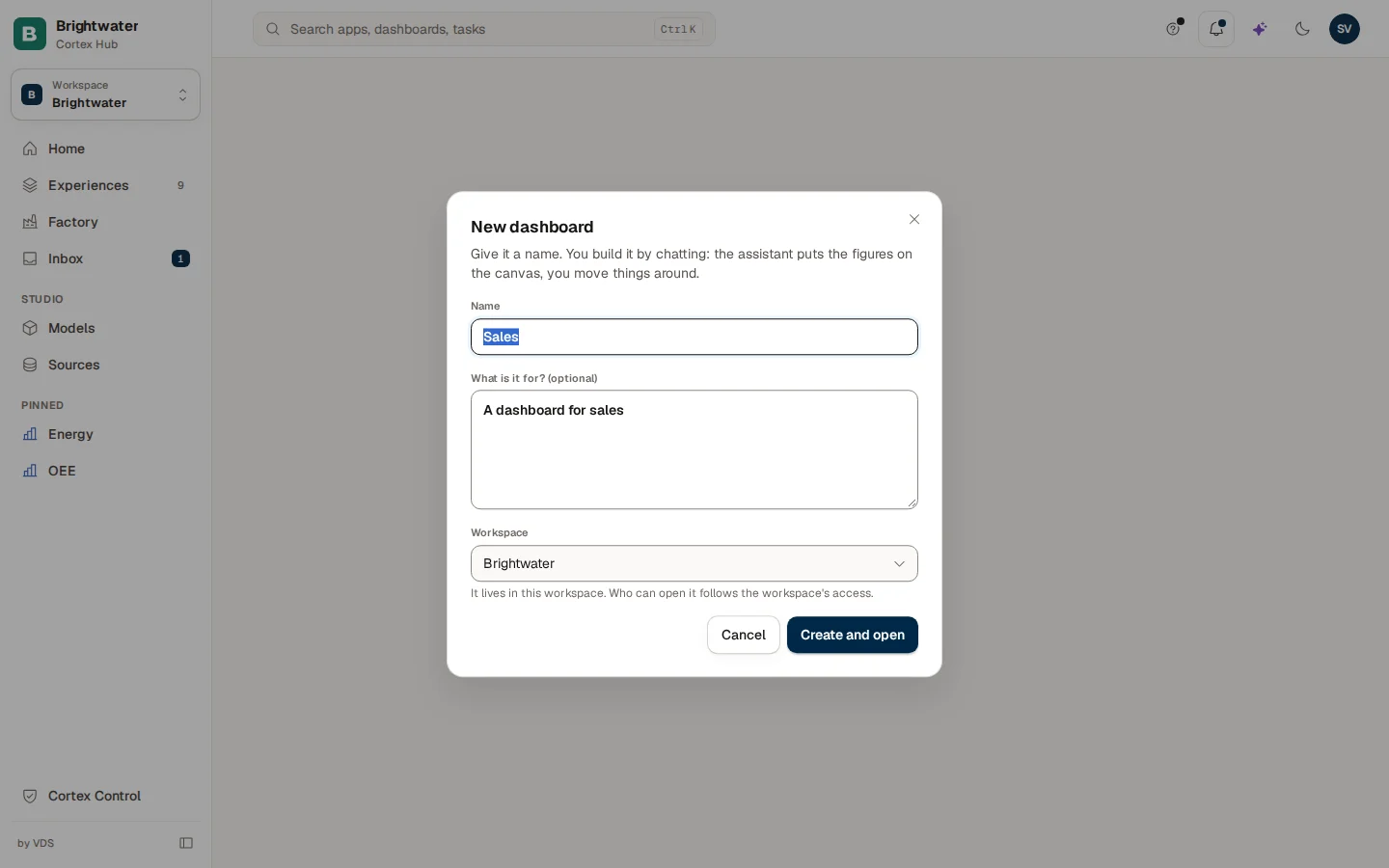
| Dashboard | The New dashboard dialog with the name, "What is it for? (optional)", the Data and the Workspace. | Create and open makes the draft and opens the dashboard editor. Your sentence waits in the chat box of the editor. See Dashboards. |
| Workflow | The New workflow dialog with the name, "What it does (optional)" holding your sentence, and the workspace. | Create and draft makes the workflow and the AI drafts its steps from your sentence (one AI turn). You review the steps before anything runs. See Workflows. |
When the tenant policy says IT approves a new workflow or app first, your click sends a request instead and you find it under Sent in your Inbox.
Links that open the dialog for you
Some places in Cortex link straight to the build dialog with a sentence already in it, for example a button to build a dashboard for one production line. Such a link opens the dialog (or, when the link also names the kind, the create flow of that kind) with the sentence filled in. You still click yourself: nothing starts by opening the link.
Your work on Home
On Home, builders get a block Your work under the question box. It is a short list of what needs you, at most five rows, and each row is one click into the right place. See all opens Experiences.

The rows come in two kinds. Drafts come first, newest first; reviews follow, and at most two of the five places go to reviews so a long Inbox cannot hide your drafts.
| Row | Meaning | Where it goes |
|---|---|---|
| Dashboard draft, Workflow draft | A dashboard or workflow you own that is not live yet. | Its editor. |
| An app of yours | An app that is being built, or is set up and not published yet. It shows the same status as in Experiences. | The build session, or the plan page. |
| "n new pieces of feedback on your experiences" | Users sent feedback that nobody has looked at. | Feedback tab of the Inbox. |
| "n requests for a builder to pick up" | Colleagues asked for something from the Ask box. | For you tab of the Inbox. |
| "name: your request was approved", "ready to build", "refused", "setup did not finish" | The answer to a request you sent. It stays until you have opened Sent in your Inbox (the dot) or it is two weeks old. | Sent tab of the Inbox. |
Your Inbox as a builder
Everyone has an Inbox with the tabs For you and Sent. Builders get two more, Feedback and Roadmap. The tab you open is kept in the address (the part after the question mark), so you can bookmark it.
For you
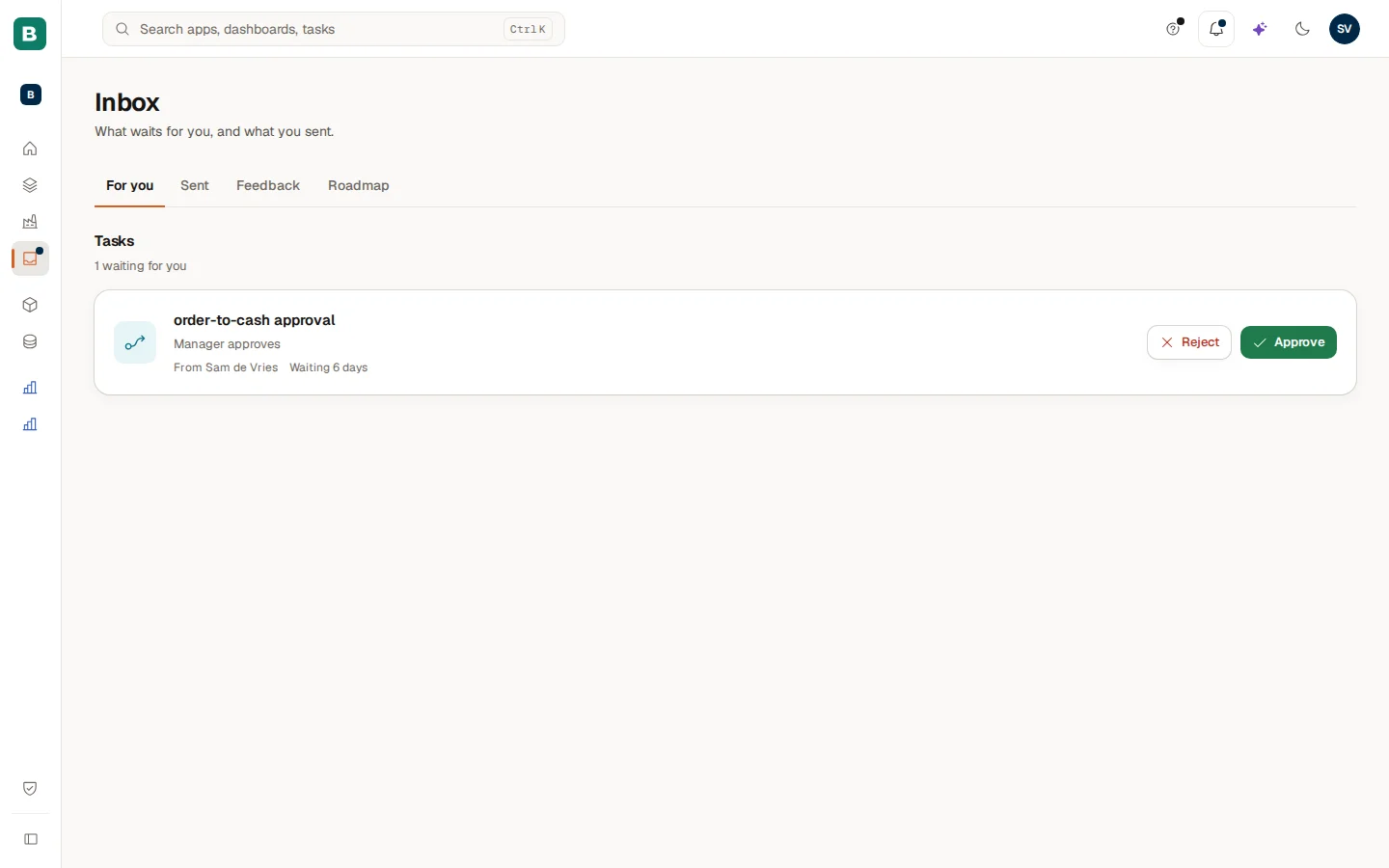
The top block, Tasks, holds workflow tasks that wait for your decision, each with Reject and Approve (see Workflow runs). Underneath, builders see two more blocks when there is something to show:
- Proposals: "Things people asked a builder for from the Ask box." Each card shows who asked, when, and what was asked. Choose Start building to open the build dialog with that question.
- Feedback to triage: "n new from the users of your experiences." Each card has Review, which takes you to the Feedback tab.
With nothing to do you see "You are all caught up".
Sent
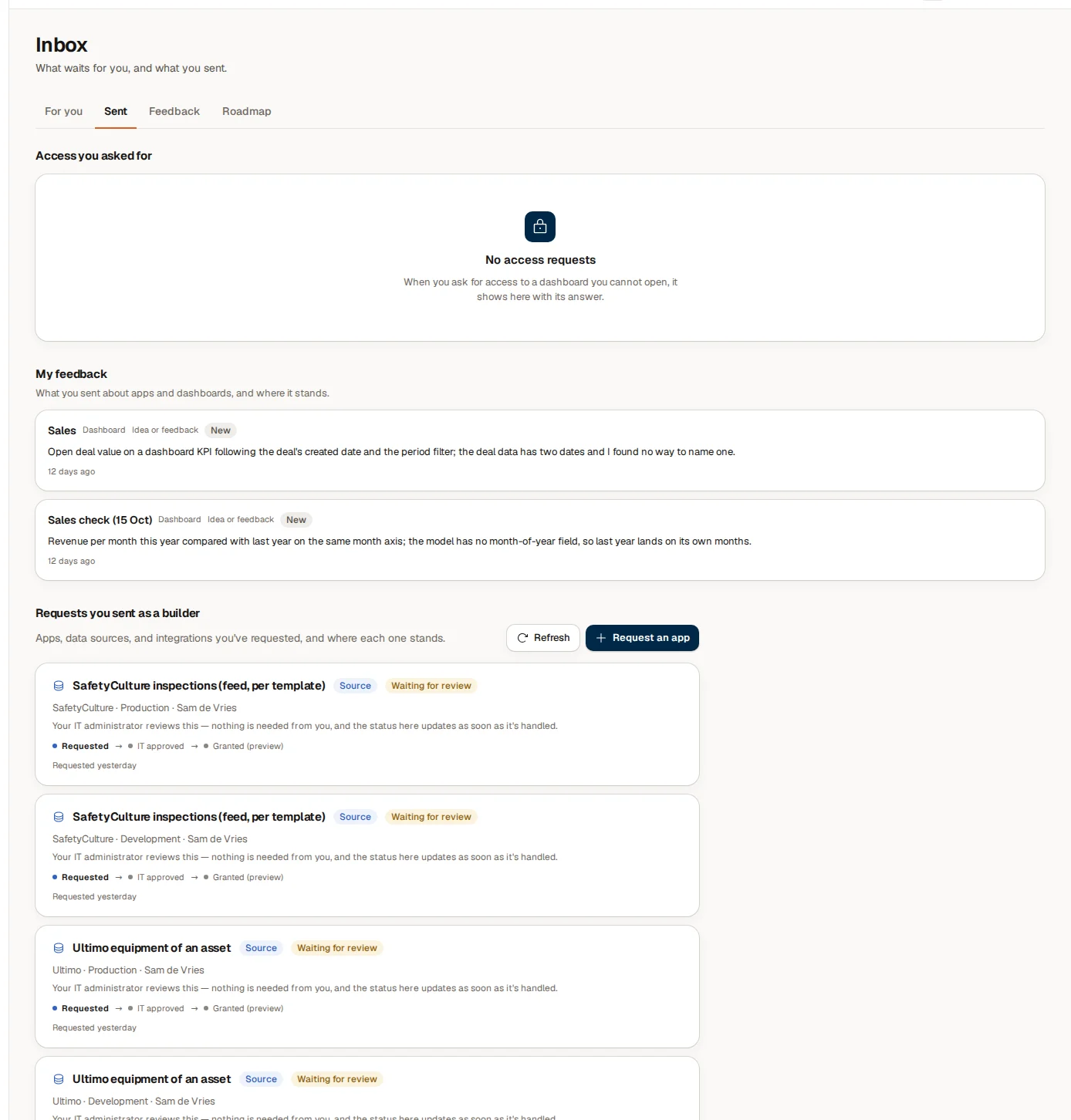
Sent has up to three sections, each with its own empty state:
- Access you asked for: access to dashboards you could not open, with the answer.
- My feedback: what you sent yourself about apps and dashboards.
- Requests you sent as a builder: apps, workflows, data access and new integrations you asked for. Every card shows a kind badge (App, Workflow, Source, New integration), a status, a small progress line and when you asked. A dot means the status changed since you last looked.
The statuses of an app or workflow request:
| Status | What it means | What you do |
|---|---|---|
| Waiting for review | Your IT administrator reviews it. Nothing is needed from you. | Wait. |
| Being set up | Approved; the environment is being made. | Wait. |
| Ready | The environment exists. | Choose Build it (or Open workflow). |
| Declined | Not approved. The card says why ("Why it wasn't approved"). | Change the request and send it again. |
| Setup failed. Contact your administrator. | Approved, but setting up did not finish. | Tell your administrator. |
| App removed / Workflow removed | What you asked for no longer exists. | Nothing. |
A data access request ends in Granted (preview): you may look at the rows while you build, but the published app does not read the source live yet. A request for a new integration moves through Pending triage, Forwarded to support, Built by your platform supplier and Connected, and may show an expected date.
At the top of the section, Refresh reloads the list and Request an app opens the request form. When you have sent nothing yet, you see Request an app and Request a source side by side.
Feedback
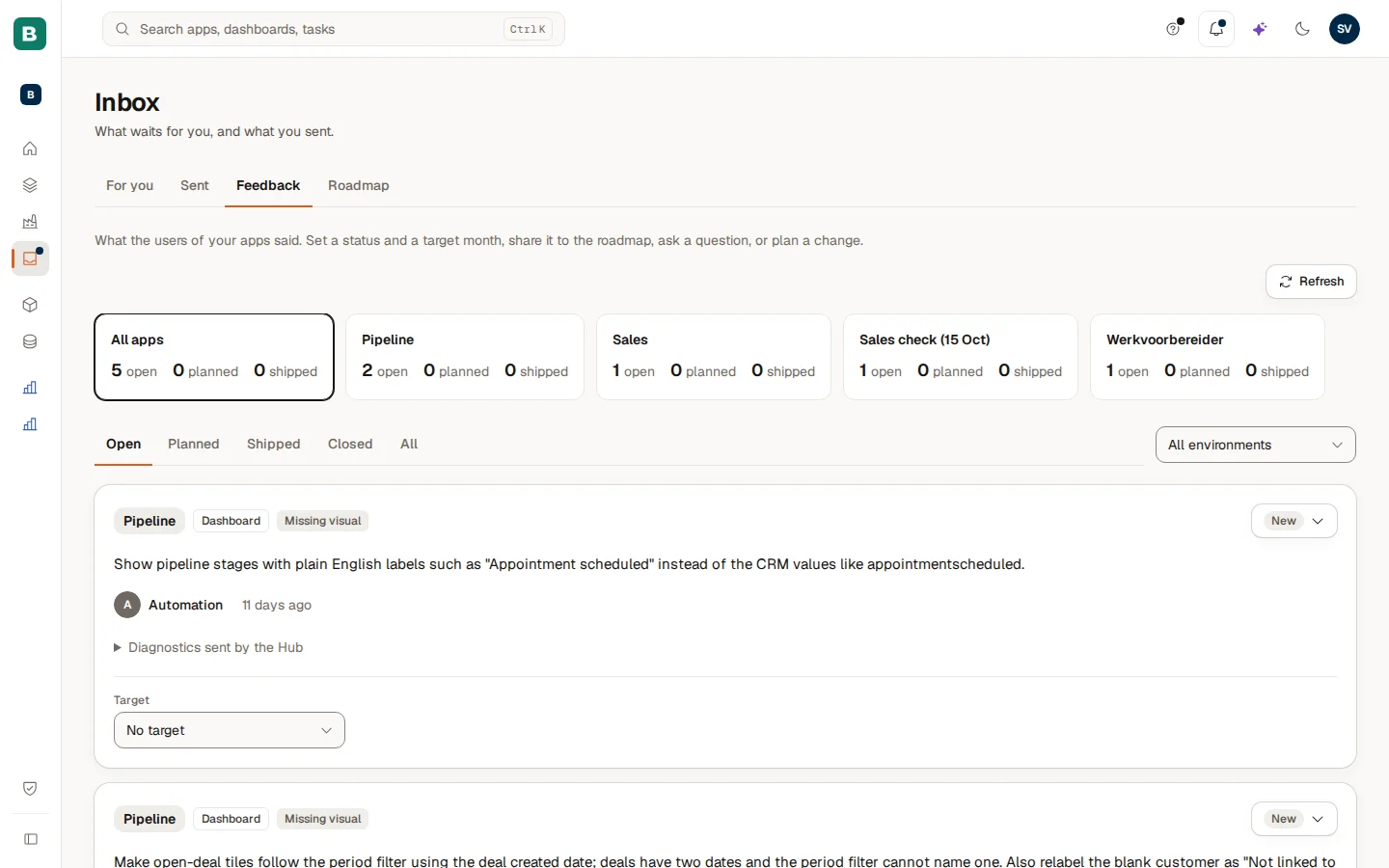
The Feedback tab collects what users sent from your apps and from dashboards in the Hub. At the top you see one tile per experience with how many items are open, planned and shipped; All apps shows everything. Choose a tile to look at one experience. Under the tiles, the tabs Open, Planned, Shipped, Closed and All filter by group, and the environment menu switches between All environments, Production and Development (feedback from the Hub counts as production). Refresh pulls the newest and "Updated …" tells you how fresh the list is.
Every card shows the experience, a kind badge (Bug, Idea or Other for apps; Problem, Idea or Missing visual for Hub feedback), the message, who sent it and when. Then you triage it:
| Action | What it does |
|---|---|
| Status menu | New, Triaged, Needs info, Planned, In progress, Shipped, Dismissed or Duplicate. |
| Target | A month or quarter, or No target. Picking a target on a new item also marks it planned and shows it on the roadmap. |
| Plan a change (app feedback) | Opens the plan page of that app, linked to the item. When the planned build ships, the item is closed. |
| Turn into feature (app feedback) | A short AI interview that turns the item into a specification, then a build linked to it. |
| ... > Ask a question (app feedback) | Sends the user one clarifying question. The card then reads "Waiting on the user". |
| ... > Show on roadmap / Hide from roadmap (app feedback) | Makes the item public on the roadmap or takes it off again. |
Feedback sent from the Hub (about a dashboard, an app or an Ask answer) has the same Status and Target but no question or plan action. It shows what the Hub attached: the page, tile or answer it was about, a Diagnostics sent by the Hub block you can open, and, when the user added one, Show screenshot.
Roadmap
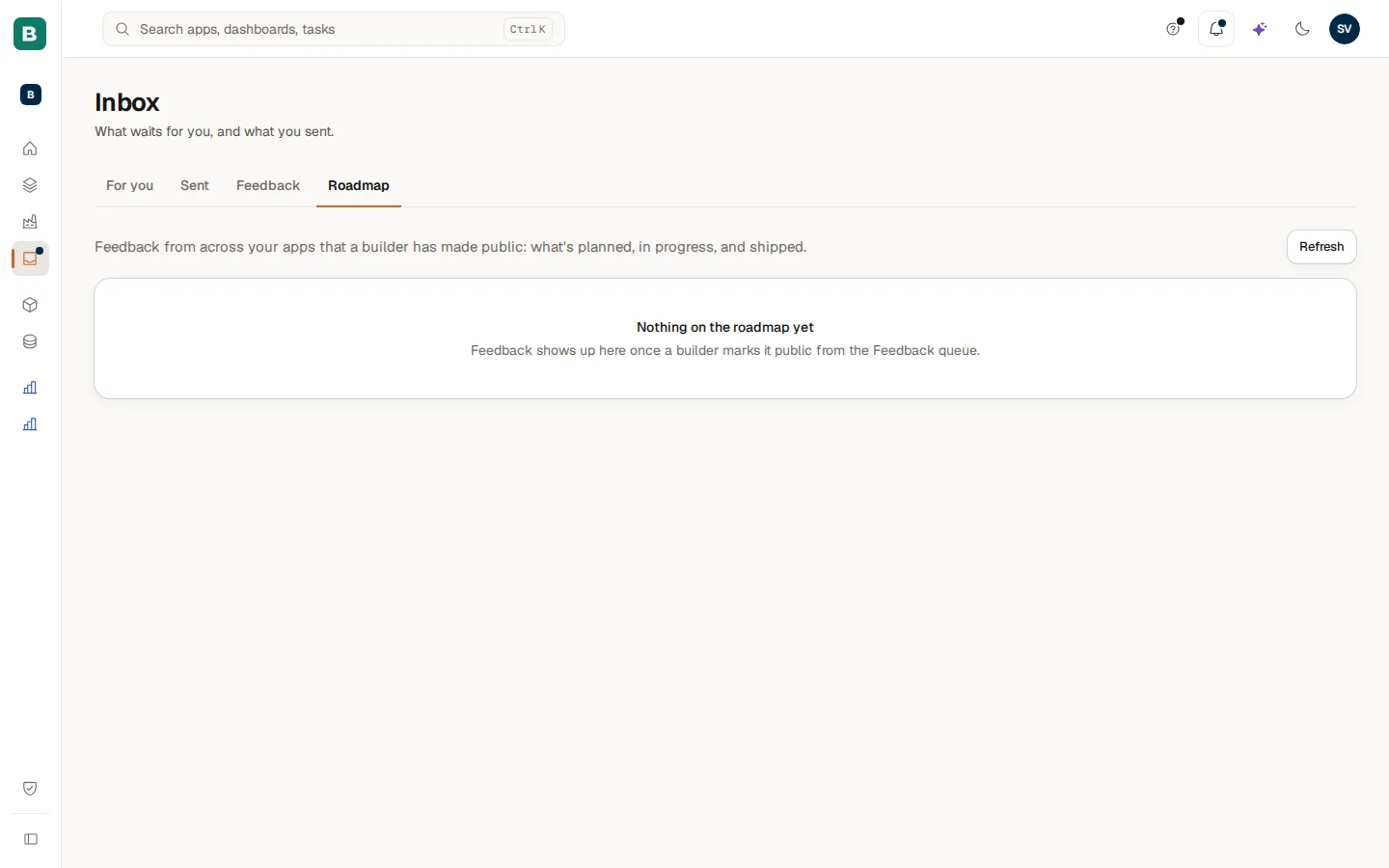
The Roadmap tab is your planning view of the public roadmap: feedback that a builder made public, laid out by target month or quarter, then Not scheduled yet, then Shipped. You can change a target here. With more than one experience you get an App filter, and Refresh reloads. Until someone chooses Show on roadmap you see "Nothing on the roadmap yet".
The help menu and the tour
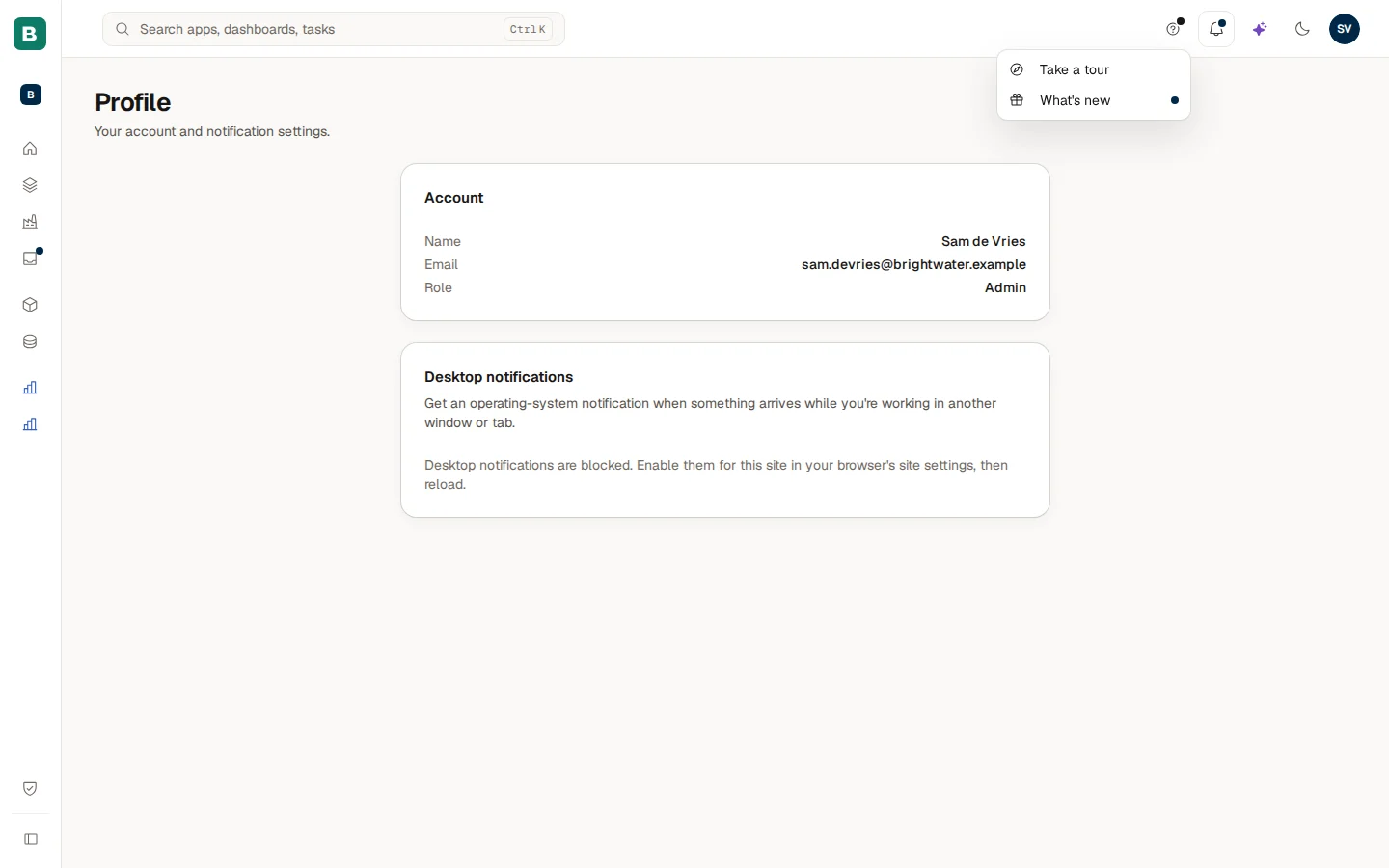
The question mark in the top bar is your one help button. Its menu holds:
- Take a tour: starts the tour of the page you are on.
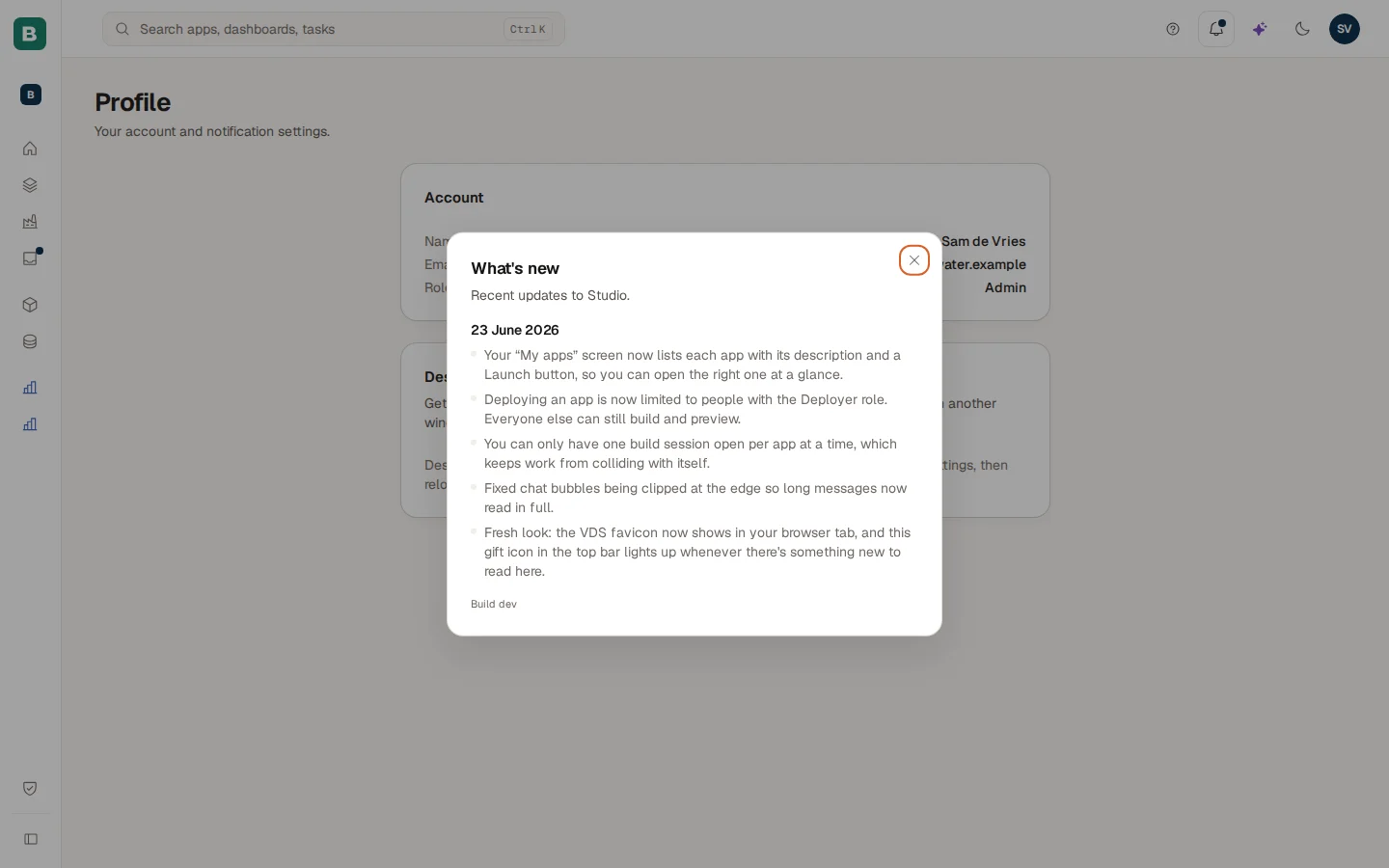
- What's new: a list of recent updates. A dot shows until you have opened it on this device.
- Builder docs: opens this documentation in a new tab. It only appears when your install has a documentation site.
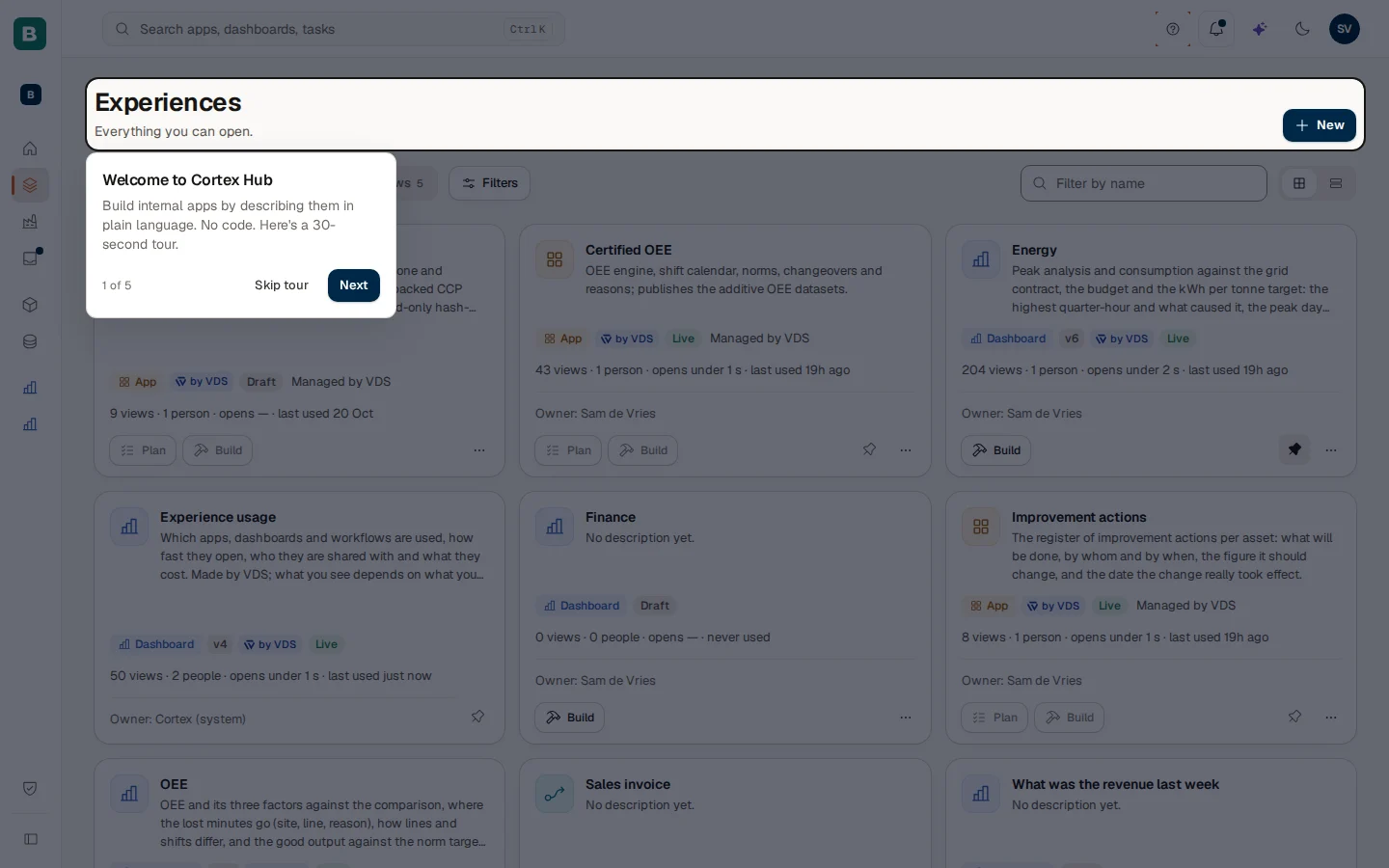
The tour starts by itself the first time you open Experiences. It is five steps: the page, the type filter, New, your Inbox and where to replay it. Choose Next to go on, Back to return or Skip tour to stop. There is a shorter tour for the build workspace (three steps), for the dashboard editor (three steps) and for a model. Take a tour in the Help menu always starts the tour of the page you are on.
Your account menu and profile
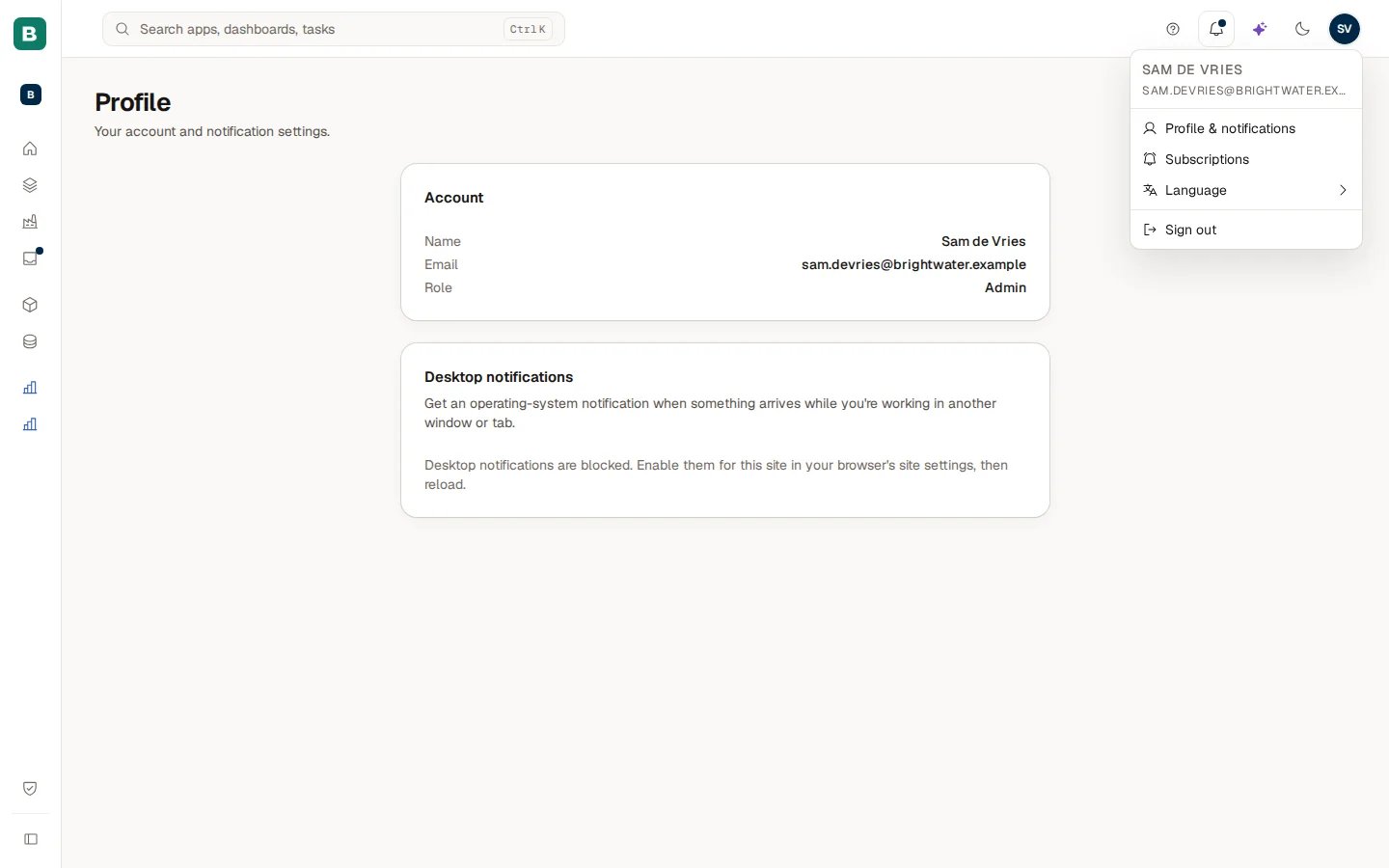
The round button with your initials opens the account menu. At the top you see your name. Below that:
- Profile & notifications: your profile page.
- Subscriptions: the digests and alerts you subscribed to. See Subscriptions.
- Language: switch the screen between English and Dutch.
- Sign out.
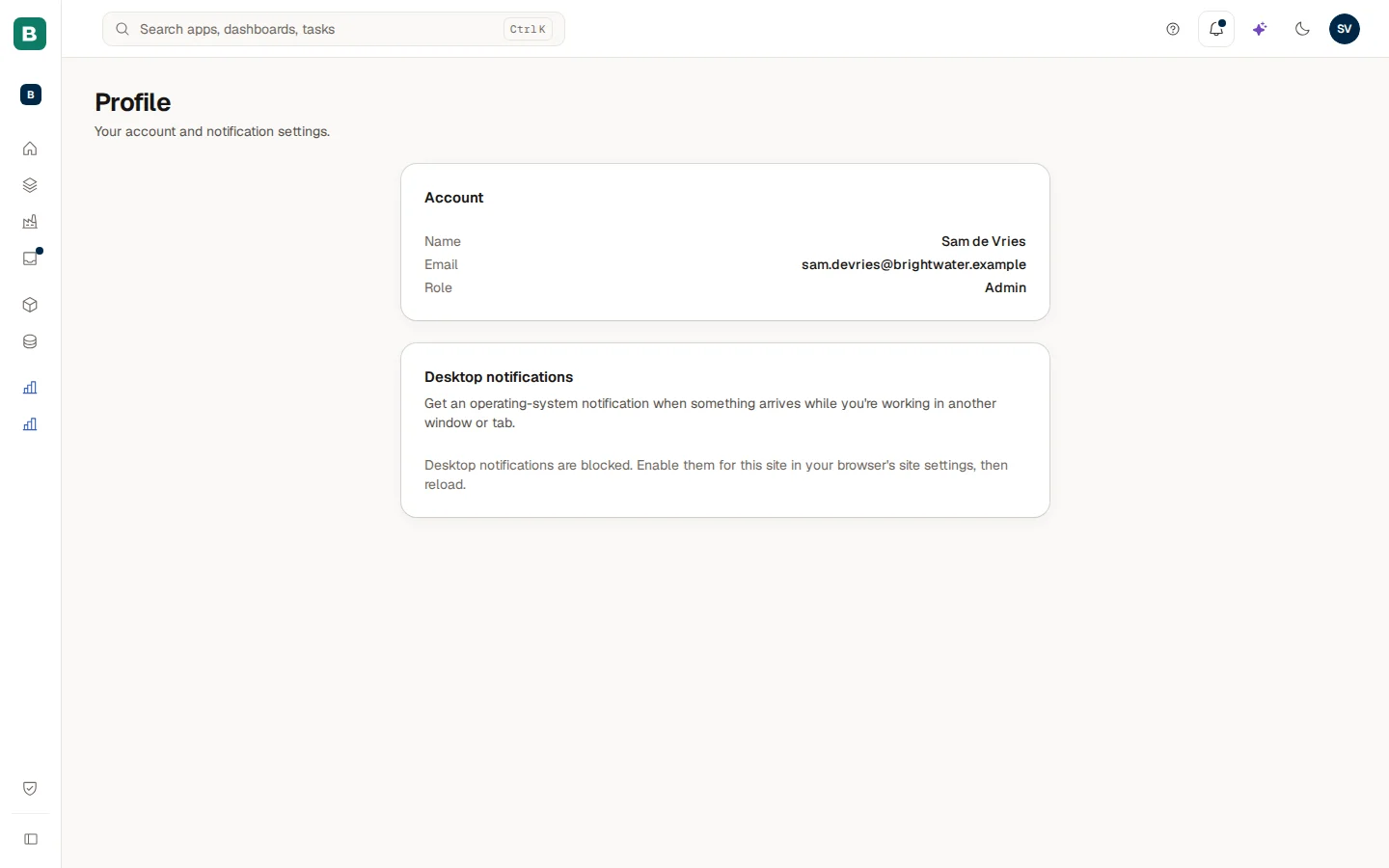
The Profile page has two cards. Account shows your Name, Email and Role. The role is the highest Studio role you hold (for example Admin); a builder whose role is not known yet is shown as Builder, which is only a label and grants nothing. Desktop notifications lets your browser show a notification when something arrives while you work in another window. When it says notifications are blocked, enable them for this site in your browser settings and reload.
How Cortex keeps Studio honest: Night shift and Evals
What you build in Studio is tested every night, not only when you try it yourself.
- Night shift. Every night, simulated people use Cortex the way your colleagues do: they ask questions and build semantic models, dashboards and apps, and each attempt is checked ("All 12 checks passed", or the checks that failed). A result that changes from one night to the next shows that something in a model, a source or Cortex itself moved, often before a colleague notices.
- Evals. Larger, paid test runs of Cortex. They never start on their own: someone proposes one, an approver says yes with a limit on what it may cost, and the run stops at that limit.
Both are kept in Cortex Control, under Builders (tabs Evals and Night shift), for your IT admins. Ask them when a night shows a failed scenario in an area you build in, or when you want a change tested before your colleagues rely on it. What each tab shows: Builders: spend, quality and test runs.
Example: Sam starts a dashboard and follows a request
Sam de Vries at Brightwater Foods wants a sales dashboard and an app for the quality team.
Describe the dashboard
Sam presses Ctrl+J, chooses Build something and types "A dashboard for sales". Cortex answers "Starting a dashboard: Sales".
Start it
Sam chooses Start, checks the name, the data and the workspace in New dashboard and chooses Create and open. The editor opens with the sentence waiting in the chat.
Ask for the app
For the quality team Sam uses Request an app under Sent in the Inbox and sends the request. It shows Waiting for review.
Follow it
A day later Home shows "Quality checks: ready to build" under Your work. In Sent the card says Ready, and Sam chooses Build it.
Questions and problems
Experiences for builders
The list of everything you can open or build, with filters, the card menu and clean-up.
Dashboards
Create a dashboard with the AI assistant, check it and publish it.
Build an app
Plan, build, preview and publish an app.
Workspaces
Switch workspace, create one and move an experience.