Build an app
Plan an app with the assistant, build and preview it, steer the assistant, review files, versions and checks, and publish it to production.
You build an app by talking to an assistant. First you agree on a plan. Then the assistant builds the app in a private preview that you can click through. When you are happy you publish it to production. You never have to write code, and nothing reaches your users until you publish.
This page follows that path: the plan, the build workspace, steering the assistant, versions and checks, publishing, and what to do when something goes wrong. Requesting the app in the first place is in Experiences for builders.
Who can do this
Builders (people with a Studio seat) who have access to the app. Publishing to production needs the Deployer or Admin role; without it the Publish button is off and says "Ask an admin for the Deployer role to publish." One person builds an app at a time, and you can have at most three builds open together.
IT approves the app and sets up its environment.
You and the assistant agree on roles, pages, data and behaviour.
The assistant writes the app in a private preview, task by task.
You click through the preview, run the checks and read the findings.
Your click puts the latest saved version in production.
Plan the app
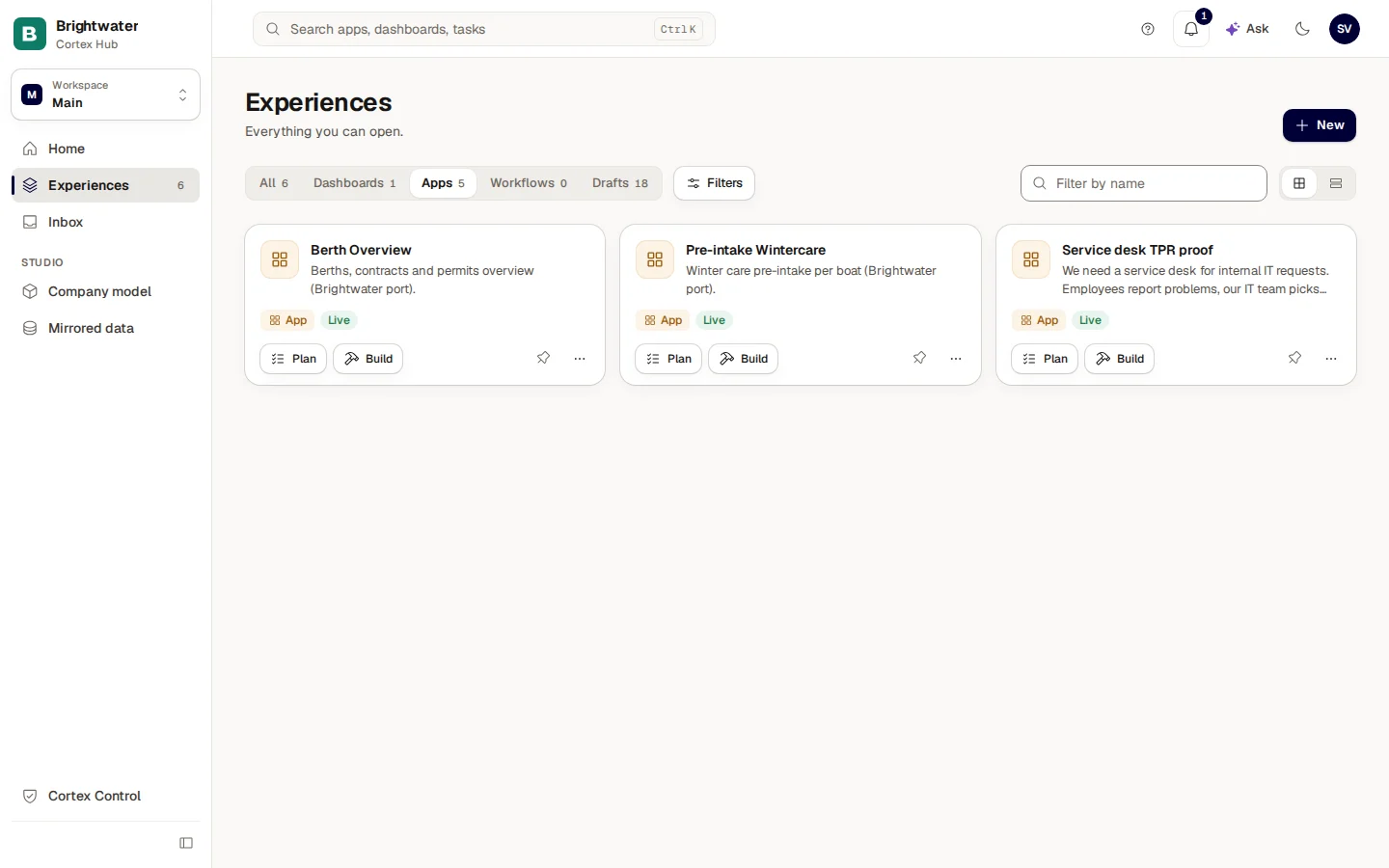
On Experiences, the card of an app has Plan and Build once its environment is Ready. Plan is the careful route; Build skips planning ("Start building now, without a plan first"). On a card of an app that has never been built, a line explains the difference: Plan is "researched and built in full", Build is "only what you describe", each with the amount it usually costs here.
- The conversation. Describe what you want ("What would you like this app to do?"). The assistant asks a few questions before it writes anything. You can attach files for it to read: a screenshot, or a csv, json or pdf.
- The plan so far. The document updates live as the conversation settles ("updating live").
- What goes in the first version. For each part you choose Now, Later or Not for you. Parts marked Later stay on the plan for a second round.
- Edit or ask for a change. Each section has Edit and Ask to change. In the chat, the plan card has Approve, Edit (the whole plan becomes editable in the card) and Ask AI to change. Approving needs no extra step per section.
- The estimate and Build this plan. "Build: about … to …" is an estimate from earlier builds here. Choose Build this plan to start.
- Discard. Throws the plan away, after a confirmation. This cannot be undone.
What a plan holds
| Section | What it describes |
|---|---|
| Roles & access | The roles in the app and Who may see and change what per role (an Admin always may). |
| Data and Data model | The tables the app keeps, designed and kept in sync by the assistant. |
| Pages | The screens of the app. |
| Key behaviours | What the app does: rules, calculations, actions. |
| Shared data it reads | Data from your systems that the app reads, through sources IT has approved. |
| Workflows and Dashboards | Parts that are made in their own builders. After the build they show under Still to set up, with a Create link that opens the right builder with the name filled in. |
| What the app cannot do yet | Honest limits, so nobody expects them. |
| What I will build | The tasks. Every task needs a "Done when" before the build can start; if one is missing the page says "Every task needs a "done when" before the build can start. Ask the assistant to add it." |
Change a section by choosing Edit, or Ask to change and say what should change. When the assistant revises a section itself, it shows "The assistant revised …" with Keep, Review and Undo this change, so nothing changes behind your back. Export as PDF prints the plan.
Research first
For a new app, the assistant can Research first ("Before planning, Cortex looks at what comparable tools offer and drafts the plan for your company"). It costs one extra model call, shown as a range, and the result is used only for the plan. It is on by default for a new app and off for a change to an existing app; you can switch it either way. A plan that was not researched says "Not researched: written from the model's own knowledge", and a researched one says from how many sources. Either way it is "a starting point, not a standard".
Start the build
Choose Build this plan. The plan becomes the assistant's brief and the build workspace opens ("Plan accepted. Starting the build."). To start without keeping the page open, choose More ways to build and then Build in the background: you get a message in the bell (and in Teams, if you follow a Teams channel) when it ends, and the result stays in the draft. If a plan was accepted but its build never ran, the page offers Start the build.
When the build budget of your organisation is used up, the page says "Build budget reached. Ask your administrator." When someone else is building the app right now, "Plan accepted, but … is building this app right now. Start the build from Your apps when they're done."
Change an existing app
Use Plan a change on the Manage app page, or choose Plan on the card again. To plan from user feedback, open Feedback in your Inbox and choose Plan a change on an item: the plan page opens with "A user of … asked", the message ready to edit and Start planning. When that plan is built and published, the feedback item closes by itself.
The build workspace
- Back to Experiences and the app name. Leaving the page does not stop the build: it keeps running and the build dock in the top bar opens it again.
- The state line and the cost. "Draft · goes live when you publish", and a quiet amount for this session (marked with ≈ while it is an estimate). Hover over it for the tokens used.
- Publish. Off until the assistant is idle and has saved a first change. Its tooltip says what is missing.
- More actions. Open preview (a live preview in a new browser tab), Release now (for deployers and admins) and, when it applies, Platform update available.
- The chat. Everything the assistant does and asks, newest at the bottom.
- The message box. "Describe what to build, or reply to the AI…". Send, attach a file, or queue a message (see Steer the assistant).
- The tabs. Preview and Data are always visible; Files, History, Checks and Security are under More.
- The preview. A live version of the app, with the tools described below.
The chat is always on the left. On a narrow screen, Chat and Preview are two views you switch between.
The tabs
| Tab | What it shows |
|---|---|
| Preview | A private live preview of your app with real data, as your users will see it. Toolbar: Open preview in a new tab, Refresh preview, View as Admin or User to see it with another role, Edit styles: click an element to restyle it, and the preview tools Comment (pin a note on an element), Pick elements (point your next message at up to five elements) and Draw (draw on the page and send it as a picture). Collected comments go to the assistant in one go with Send n to the builder. A problem on the preview offers Ask the builder to fix. |
| Data | A map of the data behind the app. Your own tables are on the left; the assistant designs and keeps them in sync. External sources that IT approved sit in a read-only band on the right, marked "External data · read-only". Add a source requests access to another. |
| Files | The files of the app (the platform's own files are view only) and the Changes of this session. The app notes are the map and the rules of the app; the assistant reads them every turn, so you can change a rule with Edit notes. |
| History | Every saved version. Each time the assistant saves your changes, a version appears here. |
| Checks | Saved checks that click through your app the way a person would. They are written from the approved plan: Write checks from the plan, then Run all after a change. Each shows Passed, Failed or Not run, and App changed since the last run when it is out of date. |
| Security ("Security & quality") | The same check that runs when you publish, in plain words. Check now refreshes it and Fix with AI has the assistant solve a finding. |
What was checked
After a build, the chat shows a block What was checked: whether Typecheck, Lint, the API check and the Review passed (or passed after a fix, or did not run), how many tasks were checked in the preview, and how many were built but not checked. It is a rule of thumb from the build log, not a test of the app: use Checks and your own clicking in the preview for that.
Steer the assistant
While the assistant works you can interrupt or add to it.
- Stop the AI interrupts the current step. The button reads "Stopping…" until it has stopped.
- Add a note to steer… sends a steering note into the running step.
- Queue (or Ctrl+Enter) puts your message after the current turn. Queued messages show as Waiting to send (n): you can reorder, Edit, Remove, Pause and Resume them; "Sent one by one when this turn ends."
- When the assistant needs you it says "wants you to approve a plan" or "has a question for you", and a short message appears on screen: "… needs you" and, when it finishes, "… is done" (your browser also shows it as a desktop notification if you allowed them). Answer in the box ("Type your reply…").
- On a message of yours in the chat, Undo puts the app's files back to how they were before that message, and Edit and resend does the same and puts the message back in the box so you can change it. Both are saved as a new version on top, so nothing is lost; the dialog says what the assistant's work since then cost, and that undoing does not refund it. They wait until the assistant is done.
- A long session asks "This session has used … (… tokens)" and pauses. Continue or Finish up. You are asked again each time the session has used as much again.
- A very long chat says "This chat is long; starting fresh keeps answers quick." Start fresh clears the conversation, but keeps your app and everything saved.
If the box detects what looks like a key or a password, it warns "Store it as a secret instead, so it does not sit in the chat." and offers Send anyway.
Go back to an earlier version
Open More, then History, find the version and choose Restore. The dialog Restore this version? lists the files that will change: which go back, which are removed because they did not exist then, which come back. The files go back as a new version on top, so nothing is lost and you can undo it the same way.
Two things are not restored. Database data: records people entered since stay, and database changes made since stay in place. And the spend: the assistant's work since that version cost what it cost, and restoring does not refund it; the dialog says about how much.
Publish the app
Wait until it can
Publish is available once the assistant is idle and has saved a first change. Hovering over a disabled button tells you which: "Publish is available once the assistant is idle. Let the current step finish, or press Stop." or "You can publish once the assistant commits its first change to your app."
Read the checks
Choose Publish. A Data check for production appears when the app uses data that is not ready in production yet: "You can still publish, but these parts will show no data until IT approves them." Choose Request prod access to ask IT. The Quality check lists critical findings and warnings against the platform rules.
Confirm
Confirm Publish to production?. This publishes your latest saved changes to the live app. New database changes are applied first; they only add tables or columns, never delete data, and have already run on your preview.
If the quality check has critical findings, the version cannot go to production yet: "Ask the assistant to fix them, or ask an Admin to publish this version with a recorded reason." An Admin can Publish over critical findings with a reason of at least ten characters; the reason is recorded with the name. Findings from the package checks (packages, advisories, outside calls) cannot be overridden by anyone.
Publish at a chosen time
Choose Publish at… instead to release later. Pick a Date and a Time, at least 5 minutes from now and within the next 30 days. All checks run now and the version is stored now; it goes live at the chosen time if nothing has changed by then, and the database changes are applied at that moment. Until then the app keeps running as it is.
A Scheduled release shows the version, the time and who scheduled it, with Move and Cancel release, until it starts. Another schedule replaces it; if you publish now instead, the scheduled one will not go live (you get a message). If a scheduled release does not go live, the page says why: it was cancelled, replaced, another version went live first, the app is gone, or Cortex could not release in time.
Let go of the app
Only one build session per app can be open. The session lets go of the app by itself when you leave the build page, or after a long time with the tab hidden; a short hop to another tab keeps it. Deployers and admins can also choose Release now in the ... menu: "Ends this build session and frees the app for others. What is saved stays saved." If someone left a session open, starting a build takes it over.
You can have at most three builds open: opening a fourth lets go of the oldest one that is neither working nor waiting for you. When none can be released, the page says "You can build up to 3 apps at once. Close one first."
Example: the quality checks app
Sam de Vries at Brightwater Foods has the app "Quality checks" in Ready.
Plan
Sam chooses Plan and tells the assistant: "The quality team checks the packing line three times a shift and writes it on paper." The assistant asks which values they record and who signs. The plan appears with roles (Operator, Quality lead), pages and a data model.
Shape the first version
Under What goes in the first version Sam sets the signature step to Later and chooses Build this plan.
Build and try it
The assistant builds task by task. When a message on screen says "Quality checks needs you", Sam answers a question about the shift names. In Preview Sam uses View as User to see the operator's view, then runs Checks > Run all.
Publish
Sam has the Deployer role, so Publish works. The data check is clean and the quality check has no critical findings. Sam confirms Publish to production?, then opens Manage to decide who may open the app.
Questions and problems
Experiences for builders
The builder's list of every app, dashboard and workflow: filters, cards, the card menu, expected use, moving, clean-up, requesting an app and managing it.
Workflows: build the steps
Create a workflow from a sentence or a starter, add steps, set up approvals and decisions, choose what starts it and give it the data it needs.