Test, run and publish a workflow
Test a workflow with a debug run, follow its runs, handle a waiting run and the Inbox task, publish it and go back to an earlier version.
A workflow only does something once it is live. Before that you try it safely, after that you watch its runs, and when something is wrong you can go back to an earlier version. This page follows the life of one workflow from the first test to the Inbox task of the person who approves.
Build the steps first, see Workflows: build the steps. What people see of a run in Hub is in Workflow runs and Apps and workflows; this page shows the builder's side.
Who can do this
Builders (people with a Studio seat) and admins. Some permissions of a workflow, such as write access to a system, are approved by an Admin before it goes live.
The example in this page
Sam de Vries builds Brightwater's order approval: a sales order waits for the manager, then is written to the ERP. Here is its whole life.
Sam tries the draft: reads are real, writes and approvals are simulated.
He reviews the differences and publishes. An admin approves the write.
An order arrives; the run waits at Manager approves.
The manager approves or rejects in the Inbox.
The finished run stays in the Runs tab for review.
Test a workflow before it goes live
Use a Debug run, the button above the canvas. It runs what you see on the canvas, including changes that are not published: reads run for real, writes and approvals are simulated. When the run reaches an approval it pauses and the bar above the canvas asks you to choose the outcome ("Choose the outcome at ..."), so the run never approves itself.
Give the run its starting data
Open More and then Sample data to give the run its starting data as JSON. For a workflow that starts on a new record, pick a record from the dataset ("Pick a record ... to test with") or fill in its columns. See Workflows: build the steps.
Start the debug run
Choose Debug run. The button shows "Debugging..." while it runs. Choose Reject or Approve in the bar when the run pauses at an approval.
Read the result on the canvas
The canvas shows status and duration per step. Select a step to see its data: Input and Output, as a table or as JSON. A failed step is selected with its error. Personal or financial data is masked and never stored. A note says when a step kept no data: step data is kept for a limited number of days, and only for steps that ran.
Test one step at a time
Select a step and, in the Test this step dock under the canvas, choose Run to here. The test runs up to and including that step and stops right after it ("Stopped after ...").
Pin the output of a read step (Pin output; the step then shows Pinned) so later test runs use those rows instead of reading again. In the dock the button reads Save as test. Pins are kept in your browser, only used by test runs, and never by live runs. Pinned (n) above the canvas lists them; Unpin and Unpin all remove them. Only the output of a read step can be pinned, and not when it is masked.
The problem list above the canvas (the chip with the error count) tells you what would stop a real run, for example a step that has no approved access. A debug run that finishes but would not do the same in real life says so: "Finished, but a real run would not do what this workflow says: n to fix (see Check)". Use Ask AI to fix it or Request it.
Once a workflow is live, Test run in the ... menu starts one real run of the live version in the test environment. Nothing is simulated, so use a debug run first. Both kinds of run appear on the Runs tab.
Follow the runs
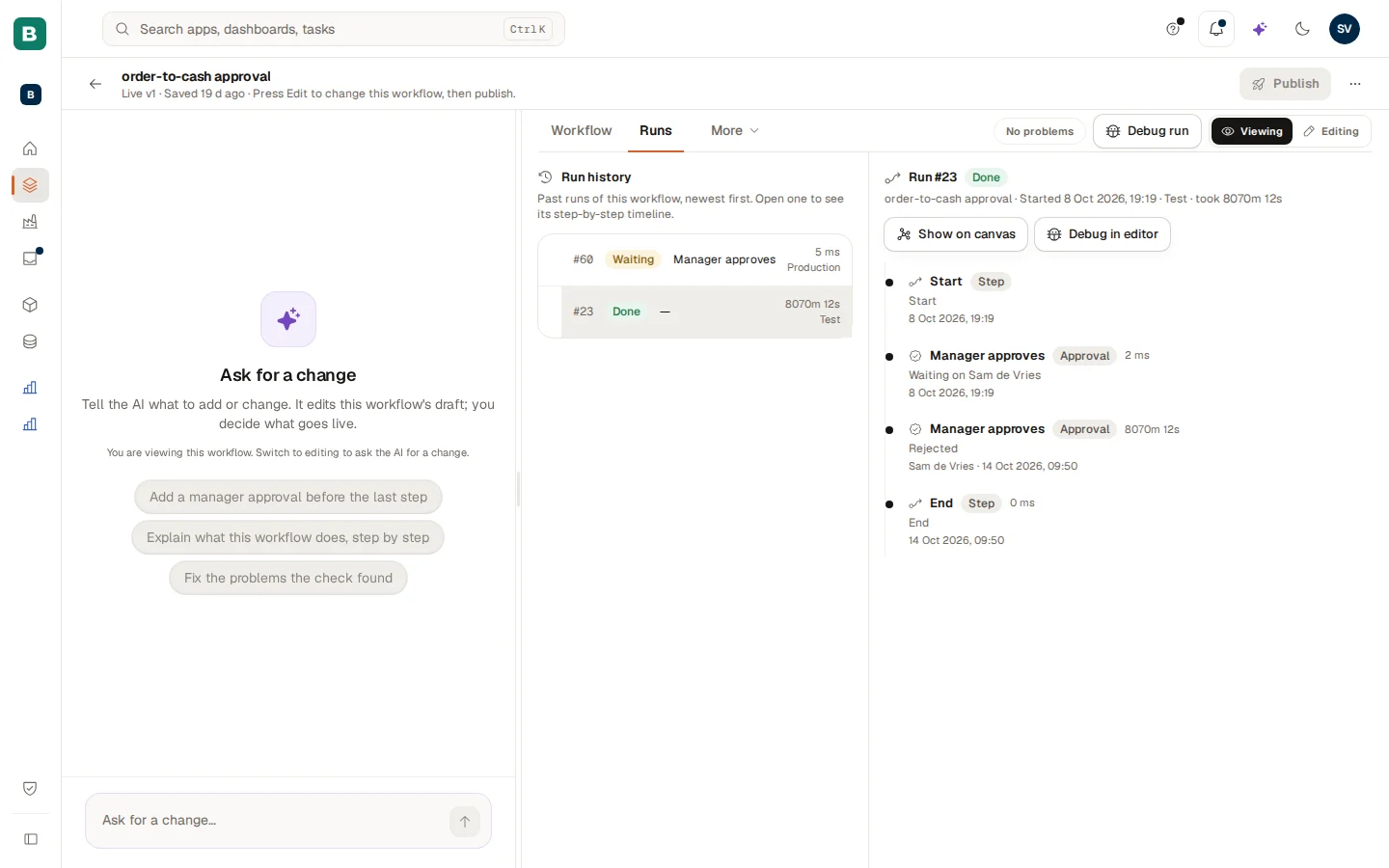
Open the Runs tab. The left side, Run history, lists the runs of this workflow, newest first. Each row shows the run number, the status, the step it is at, the duration and the environment (Test or Production). The right side shows the run you select: its status, when it started and in which environment, and its timeline step by step.
Here, run 60 is Waiting at Manager approves in production. Run 23, a test run, is Done: its timeline shows that the manager rejected the order, and that the run ended at End.
What a run row and a step show
| Status | What it means |
|---|---|
| Running | The run is busy with its steps. |
| Waiting | A step waits for a person or a timer. |
| Done | The run finished, including a run where an approval was rejected and the flow went on to the end. |
| Failed | A step could not do its work. The run stopped there. |
| Cancelled | The run was stopped before it finished. |
Every step in the timeline shows its kind ("Approval", "Step"), how long it took, and a line such as "Waiting on Sam de Vries" or "Rejected" with who decided and when.
Two buttons on a run
- Show on canvas draws the run on the workflow canvas, see below.
- Debug in editor loads the run's input as sample data and pins what its reads returned, so you can reproduce it on the canvas. Masked outputs are not pinned; the editor tells you how many.
A failed real run offers Retry from the failed step. Writes that were already done are not repeated. To resubmit several failed runs at once, tick Select all failed (or the runs one by one) and choose Resubmit n failed; each resumes at the step that failed.
A run on the canvas
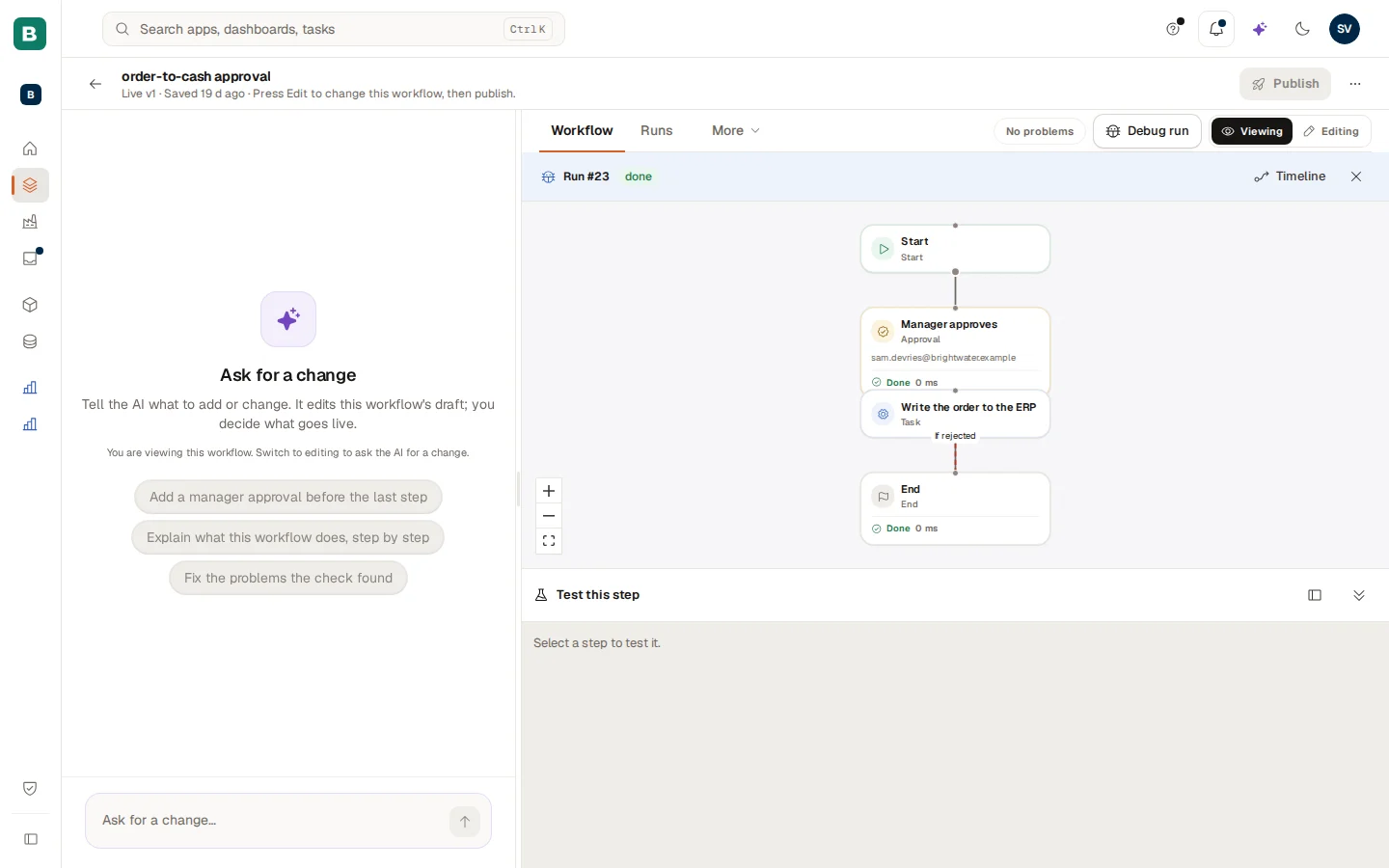
Choosing Show on canvas switches to the Workflow tab with a blue bar above the canvas: the run number and its status, Timeline to go back to the list, and a cross to hide the run (Hide this run). Each step that ran carries a badge with its result and duration. The path the run did not take stays plain. Select a step to see its Input and Output, or open the Test this step dock.
A waiting run
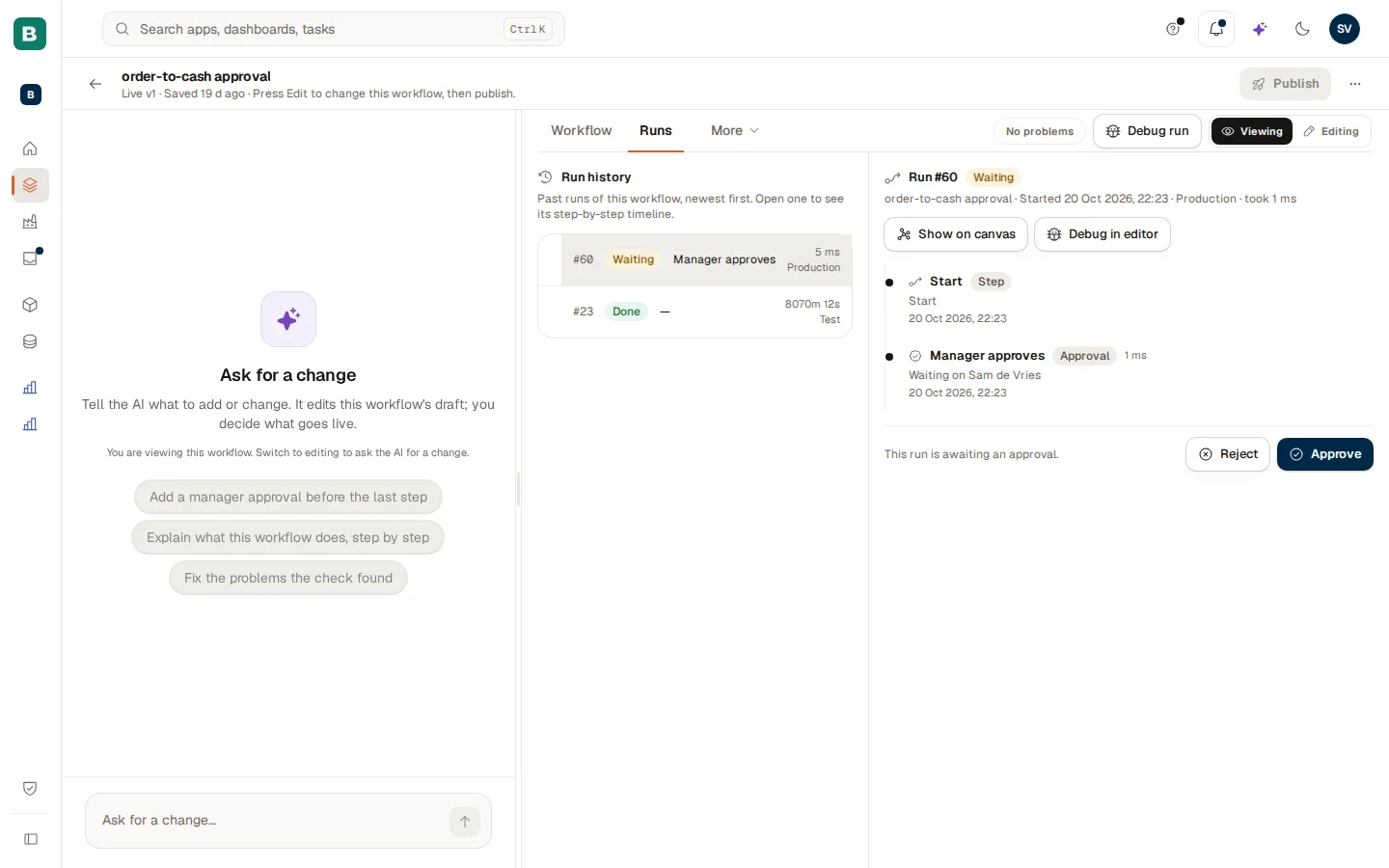
A run that waits for an approval stops at that step: "Waiting on Sam de Vries". When the run waits for you, the foot of the detail says "This run is awaiting an approval." with Reject and Approve. Everyone else sees the status and the name, and the approver gets the task in the Inbox.
The Inbox task of the approver
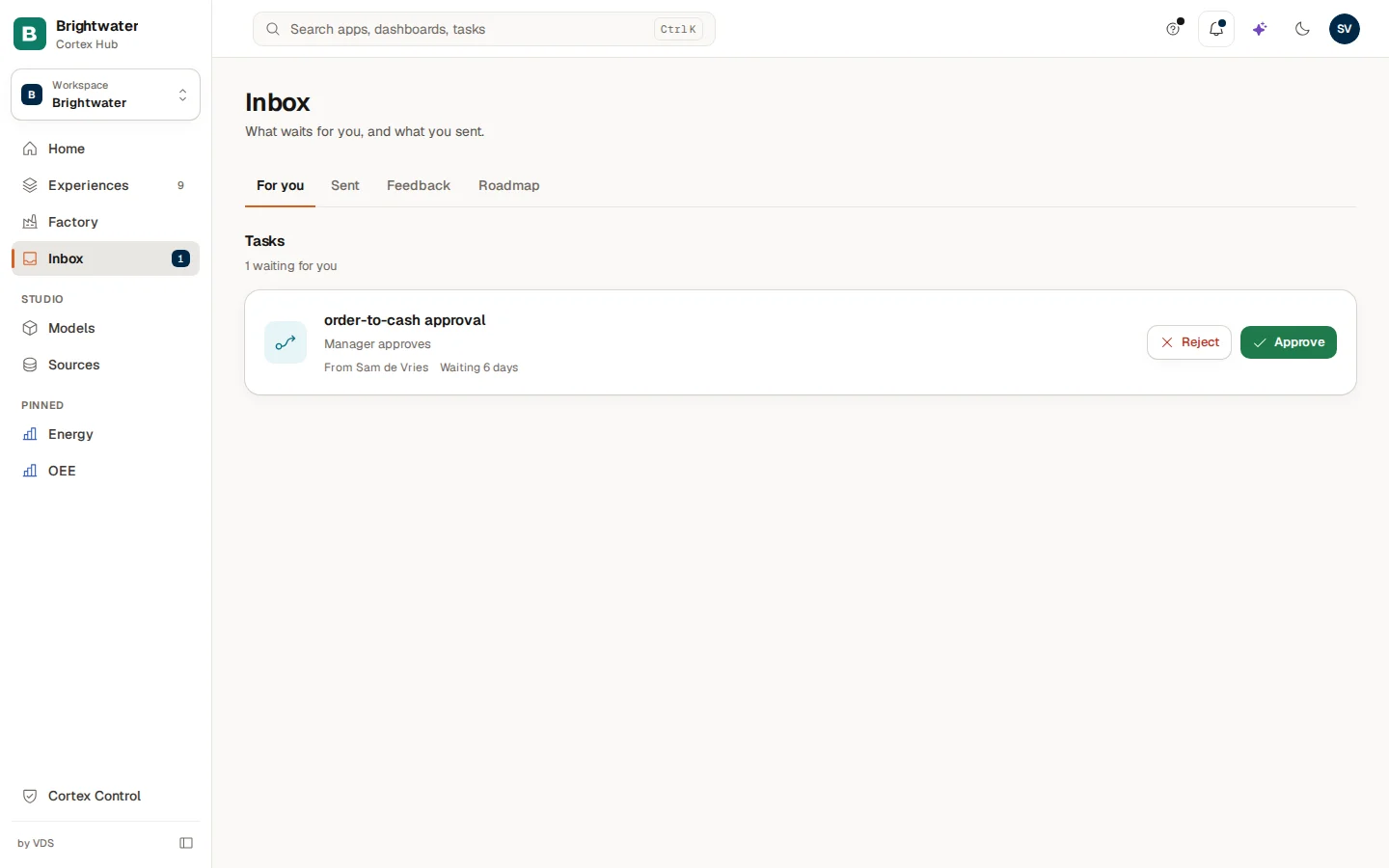
As soon as a run reaches an Approval step, a task appears in the Inbox of the person it is assigned to, under For you in the group Tasks ("1 waiting for you"). The card shows the workflow, the step, who the task is from and how long it has waited. Choosing Approve or Reject decides the step and the run continues. What the approver sees of the task, with the question you wrote, is the preview "What the approver sees" in the step's settings. How a person works with tasks is described in Inbox.
Publish a workflow
Check the problems
Publish stays unavailable while the check has blocking errors. Fix them, or choose Ask AI to fix it in the problem list.
Review the differences
Choose Publish. A window "Review before you publish" (or "Review the new version" once the workflow is live) lists the differences with the live version. "Publish only if this is what you intend."
Confirm
Confirm. The message says "Workflow is live." or "New version is live."
If the workflow needs permissions that an Admin must approve (for example write access, or an event), the message says "Sent for approval. The workflow goes live when an Admin approves all its permissions in one go." The button then reads Waiting for approval, and a banner shows since when. It cannot be published again until then. A write to an external system needs a second person to approve.
If a live workflow says its triggers could not be brought in step, choose Resync triggers.
Starting a live workflow, with the triggers and the schedule, is in Workflows: build the steps.
Go back to an earlier version
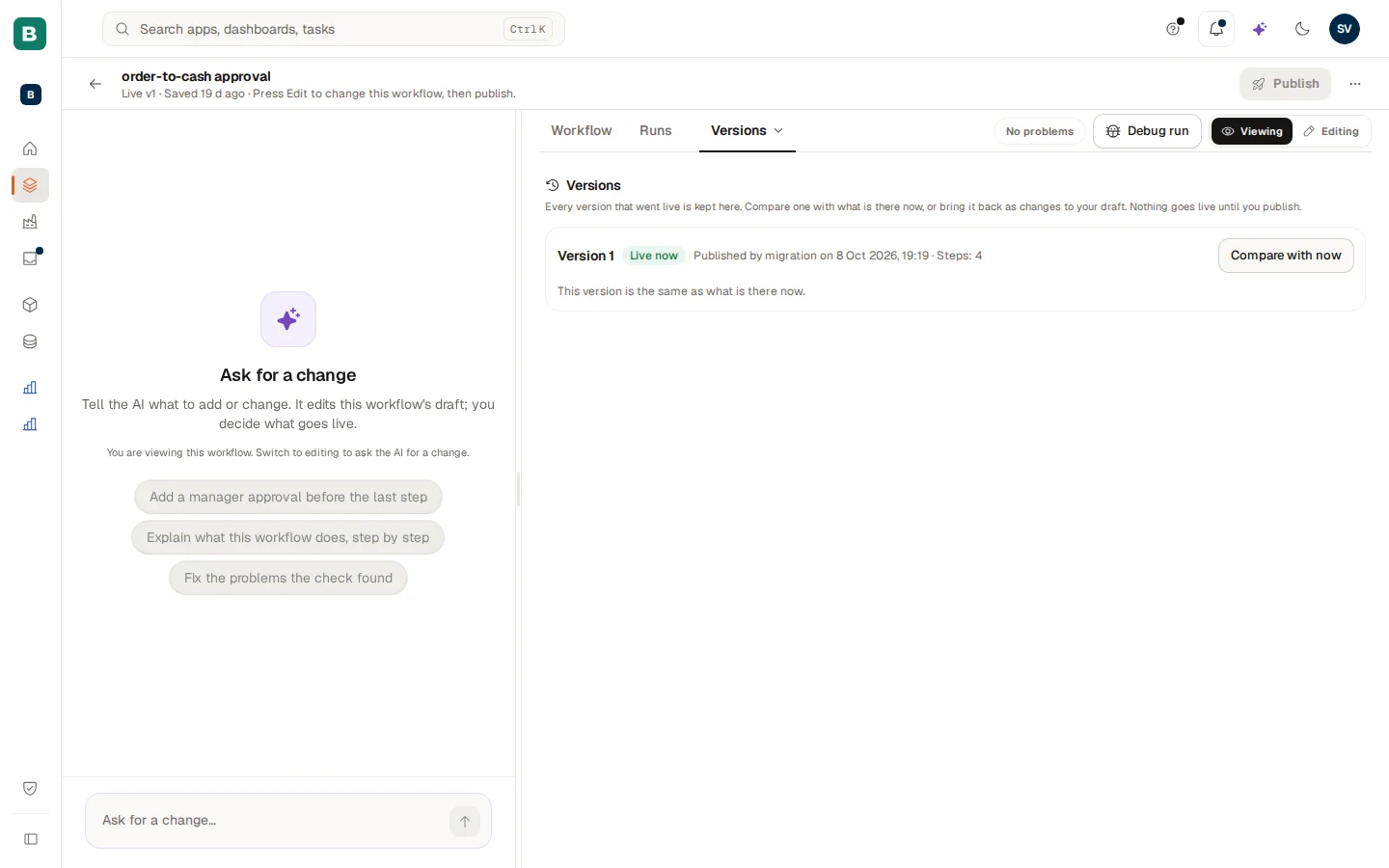
Open More and then Versions. Every version that went live is kept, with who published it, when, and how many steps it has. The newest carries Live now.
Compare
Choose Compare with now. For the live version the page says "This version is the same as what is there now."; for an older one it lists what restoring would change.
Restore as draft changes
Choose Restore as draft changes and confirm "Restore version n as draft changes?". The version replaces your current draft changes and does not go live until you publish it.
Publish when you are happy
Open the Changes tab (under More) to see what differs from live, then choose Publish.
If a change could not be saved, a red banner above the editor offers Discard my changes, which throws those unsaved edits away.
Frequently asked questions
Workflows: build the steps
Create a workflow from a sentence or a starter, add steps, set up approvals and decisions, choose what starts it and give it the data it needs.
Import from Power BI and Power Apps
Bring a Power BI model or report, or a Power Apps canvas app, over to Cortex as drafts you review: how to prepare the files, what you get back and what is never carried over.