Import from Power BI and Power Apps
Bring a Power BI model or report, or a Power Apps canvas app, over to Cortex as drafts you review: how to prepare the files, what you get back and what is never carried over.
If your organisation already has Power BI reports or a Power Apps canvas app, you do not have to start from a blank page. Cortex can read the files, rebuild what it can as drafts and give you an honest migration report: what became what, what needs a rewrite and what is not carried over, each with the reason.
There are three imports, and they build on each other:
- A Power BI model becomes a draft semantic model: the tables, relationships and figures your reports use.
- A Power BI report becomes draft dashboards, one per report page, bound to a Cortex model.
- A Power Apps canvas app becomes a plan for a native app that you review before anything is built.
Who can do this
Builders and admins: importing needs build access (a Builder or Admin role), and the Import from Power BI and Import from Power Apps buttons only show for the kinds you may start. Every import creates drafts only. Nothing is published, no data is read and nothing is connected to the original system.
In Power BI Desktop: a Power BI project (.pbip).
A draft semantic model and a migration report. A second person approves it.
A report can only be rebuilt on a model that has an approved version.
One draft dashboard per report page, bound to that model.
Open each draft, run the check, publish through the normal review.
Where the buttons are
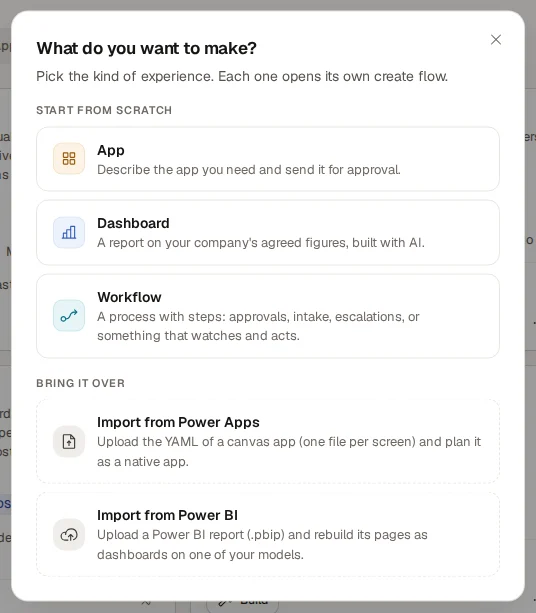
- Report or app: open Experiences, choose New and, under Bring it over, choose Import from Power BI (a report becomes dashboards) or Import from Power Apps (a canvas app becomes a plan). Each option has a short description, such as "Upload a Power BI report (.pbip) and rebuild its pages as dashboards on one of your models."
- Model: open Models, open the menu next to New ("More ways to start: starter pack or import") and choose Import from Power BI. The entry only appears where your installation has the import switched on.
Prepare the files
| What you import | Save it in Power BI Desktop as | What to pick in Cortex |
|---|---|---|
| A model | File > Save as > Power BI Project with TMDL enabled. A .pbix file cannot be read for a model. | The .SemanticModel folder, or TMDL files, or a model.bim, or a .zip of them. |
| A report | File > Save as > Power BI Project (.pbip) with PBIR enabled. A .pbix is read only when it is report-only (it connects to a published model and holds no model of its own). | The whole project folder or its .zip, or just the .Report folder, or report.json. The .pbip file itself is only a pointer. |
| A canvas app | The YAML source of the canvas app. | The YAML files: Power Fx .pa.yaml or .fx.yaml. Several files are several screens of one app. |
Size limits: a model import takes at most 16 MB of model files (or a zip of 12 MB). A report import takes at most 10 MB of report JSON and 10 MB of model text; a report with many pages is sent in parts. Each Power Apps file may be up to 2 MB. A data cache inside the project never leaves your browser.
Import a Power BI model
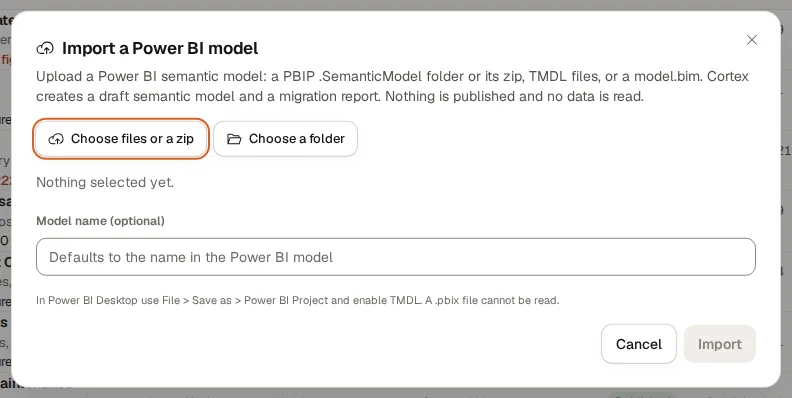
Open the dialog
On Models, open "More ways to start: starter pack or import" next to New and choose Import from Power BI.
Choose the files
Choose Choose a folder (the .SemanticModel folder) or Choose files or a zip (TMDL files, a model.bim or a zip). The dialog says how many files you picked. Optionally fill in Model name (optional); it defaults to the name in the Power BI model.
Import
Choose Import. While it works the button reads "Importing and translating...". When it is done the dialog says "Imported as the draft model" and the name, and offers Open the draft.
The draft is saved as a new semantic model and waits for review: "Nothing is published: a second person approves it first." The migration report on screen shows how much made it across:
| Part of the report | What it tells you |
|---|---|
| "n% of the Power BI model is in the draft" | The coverage, with the counts of Tables, Fields, Relationships, Hierarchies and Figures that made it ("n of total in the draft"). |
| Migrated | What was carried over as it was. |
| In the draft, with a caveat | Carried over, but not exactly the same. Read the note. |
| Needs a rewrite | Figures whose DAX formula has no direct equivalent. The report shows the DAX formula, why, and the Cortex approach. |
| Not carried over yet | Parts with no place in the Cortex definition yet. |
| Not needed in Cortex | Things that only serve Power BI's own screens. In Cortex: says what Cortex does instead. They do not count as failures. |
| Skipped | Parts that were left out, with the reason. |
| Row-level security proposals | Power BI roles that limit rows. The draft carries no row-level security. Each proposal is a Scope value, a Per-user scope or Design by hand, and you set it up in Cortex Control before anyone publishes the model. |
| Source to-dos | What the data source still needs. |
| "Fields renamed to valid identifiers" | Names that were changed so Cortex accepts them. |
The Q&A synonyms of the Power BI model are left out (Cortex does not use them); translations are kept. If the draft has validation errors, the dialog lists them.
Import a Power BI report as dashboards
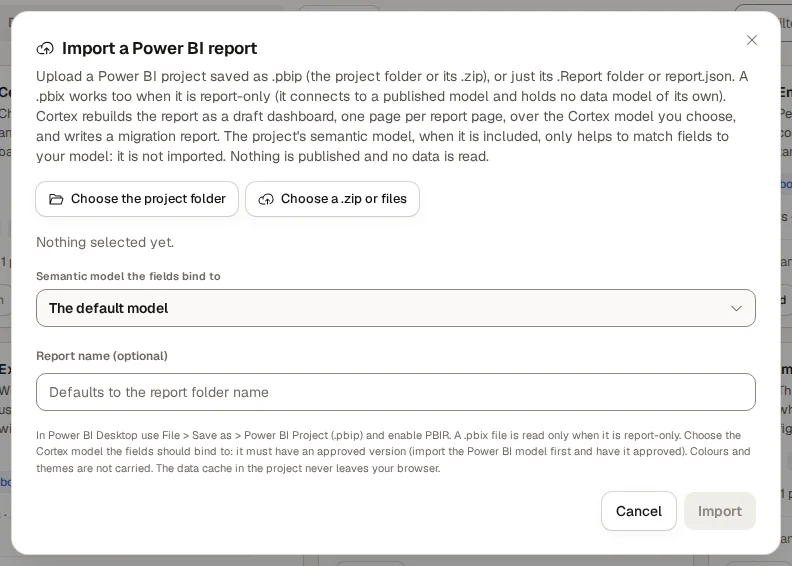
Make sure the model is ready
The report's fields bind to a Cortex model, and that model must have an approved version. Import the Power BI model first (see above), have it approved and published.
Open the dialog
Choose New on Experiences and, under Bring it over, Import from Power BI.
Choose the project
Choose Choose the project folder or Choose a .zip or files. Under Semantic model the fields bind to pick the Cortex model ("The default model" if you do not choose). Optionally fill in Report name (optional); it defaults to the report folder name.
Import
Choose Import. A report with many pages is imported in parts ("Importing part 2 of 3..."), and the report you get back is combined.
Read the report and open the drafts
The dialog says "n draft dashboard(s) created" and lists them. Each draft shows Passes validation, "n validation error(s)" or Not saved. Choose Open the draft to continue in the dashboard editor.
The numbers at the top count the visuals of the report: Mapped, With a caveat, Not mapped, Not needed (only when there are some) and Skipped, each as "n of total visuals". Underneath, the sections are:
| Section | What it tells you |
|---|---|
| Measures the report defines itself | Figures that exist only in the report. They are added to the model's draft (review them, then publish the model) or proposed to the model's owner, who merges them. A tile that waits for such a figure says "Waiting for the model", and Publish the model to finish n tiles tells you what to do. Open the model and Open the proposals take you there. |
| Fields not in the model | Power BI fields that were not found in the model by name or label. Add them to the model, or rename them, and import again. |
| Not mapped | Visuals that did not become a tile, with Why:. |
| Mapped, with a caveat | Visuals that became a tile, but not exactly the same. A colour or icon rule that had to be folded onto fewer states is listed here with the note to check the direction. The tiles and rules an import carries beyond the basics are described in Tiles, filters and pages. |
| Filters not carried | Filters that Cortex cannot express, with the reason. |
| Not needed in Cortex | Visuals that only serve Power BI's own screens, such as a measure picker. In Cortex: says what to use instead. |
| Skipped | Items that were left out. |
| Mapped | Everything that went across cleanly. |
| What is never carried over | The standing list of what an import never brings along, for example colours and themes. |
Finish with AI
Next to a draft that has items which were not carried over, Finish with AI (n) opens the draft in the editor with a brief already typed into the chat box. The brief asks the dashboard assistant to rebuild those items against your model. You send it yourself; opening the draft does not start the assistant. See Dashboards.
Every draft waits for you. Open it, run Check, and publish through the normal review. See Dashboards and Tiles, filters and pages.
Import a Power Apps canvas app
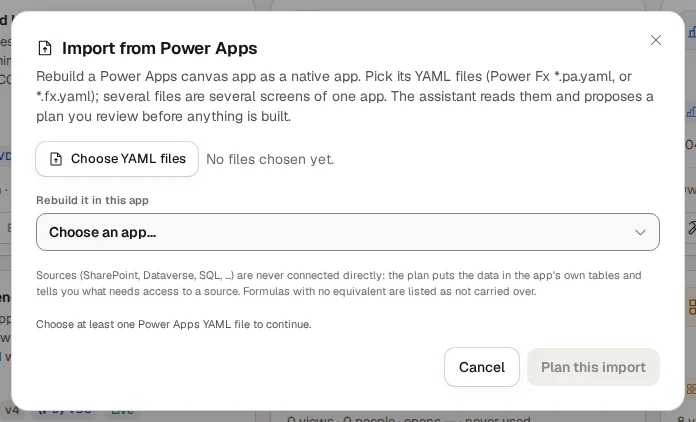
Have an app ready
The plan is made inside one of your apps. If none is ready, the dialog says "You have no app that is ready to plan in yet." and offers Request a new app. See Experiences for builders.
Choose the files
Choose Choose YAML files. The dialog counts the screens it recognised ("n file(s), n screen(s) recognised"), shows each file with its controls and lets you remove one. Only .yaml or .yml files up to 2 MB, each name once. A file that does not look like Power Apps source is still sent; check that it is the right one.
Pick the app and plan
Under Rebuild it in this app choose the app and choose Plan this import. The assistant reads the files, tells you what it found and proposes a plan that you review before anything is built. See Build an app.
Data sources such as SharePoint, Dataverse or SQL are never connected directly: the plan puts the data in the app's own tables and says what needs access to a source. Formulas with no equivalent are listed as not carried over.
Example: a sales report from Power BI
Sam de Vries at Brightwater Foods has a Power BI report "Sales overview" with three pages.
Model first
Sam saves the project as .pbip with TMDL, opens Models, chooses Import from Power BI and picks the .SemanticModel folder. The report says 92% is in the draft; two figures Need a rewrite and there are two row-level security proposals.
Review and publish the model
Sam fixes the two figures with the model assistant, sets up the security proposals in Cortex Control and asks a colleague to approve the model. Then the model is published.
Import the report
On Experiences Sam chooses New > Import from Power BI, picks the project folder, the new model and the name "Sales overview". Three drafts are created.
Finish
One visual was Not mapped. Sam chooses Finish with AI (1) on that draft, sends the brief, checks the result and publishes the three dashboards.
Questions and problems
Test, run and publish a workflow
Test a workflow with a debug run, follow its runs, handle a waiting run and the Inbox task, publish it and go back to an earlier version.
Workspaces for builders
Switch workspace, create or request one, choose where a new dashboard, app or workflow lives, and move an experience to another workspace.