Workspaces for builders
Switch workspace, create or request one, choose where a new dashboard, app or workflow lives, and move an experience to another workspace.
A workspace is a part of your organisation with its own dashboards, apps, workflows and data, for example a department or a site. Your organisation decides which workspaces exist and who belongs to them. As a builder, a workspace answers one more question: where does what I make live, and who can open it?
This page is about the builder's side: switching, creating, choosing where something new goes, and moving. What a workspace changes for everyone (search, Experiences, Home and Ask) is explained in Search and workspaces, and the idea behind them in Workspaces.
Who can do this
Builders (people with a Studio seat). You can create things in a workspace where you are a key user or an owner, or in one that lets any builder create. Creating a workspace depends on the builder policy of your organisation: either you create it yourself, or IT approves it first. Moving something needs you to be its owner (or an admin) and a key user or owner of the target workspace.
Switch workspace
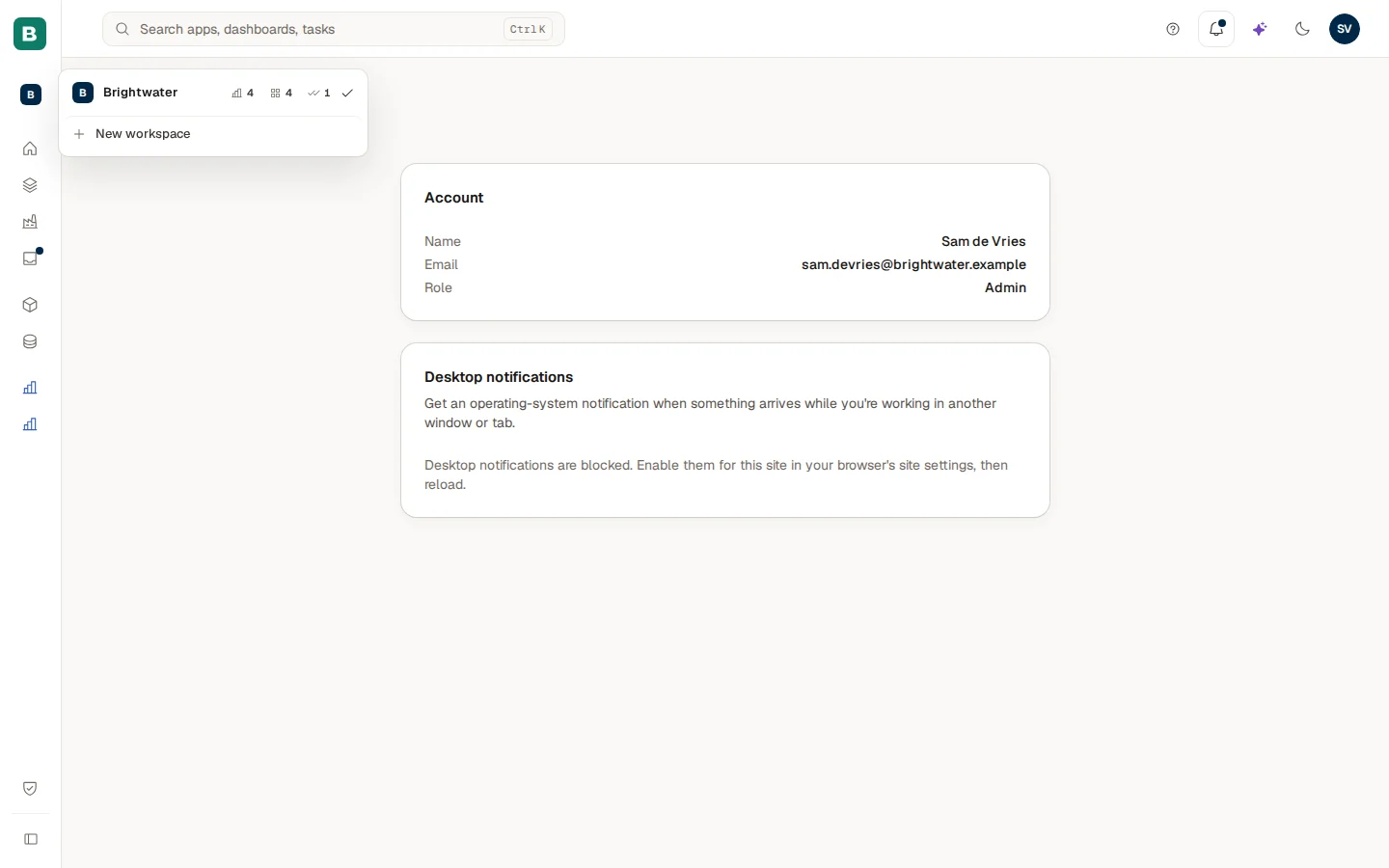
The card at the top of the left menu, labelled Workspace, shows where you are. Choose it to open the list Workspaces.
- Each row has the workspace name and three small counters: how many dashboards, apps and workflows you can open there. A zero is shown dimmed.
- A tick marks the workspace you are in. Choose another row to switch; the Hub updates at once, without reloading.
- Manage workspace appears when you own the workspace you are in. It opens the settings of that workspace in Cortex Control in a new tab (see Workspaces in Control).
- New workspace appears when the policy lets you create or request one.
With the menu collapsed to icons the card shrinks to the coloured letter of the workspace; choose it for the same list. On Experiences, the Filters panel has a Workspace filter with All workspaces when you have more than one workspace.
Decides which workspaces exist and who belongs to them.
In the switcher. It scopes Experiences, Home, Ask and search.
A new dashboard, app or workflow is created in a workspace: by default the one you are in.
Follows the access of that workspace.
Create a workspace
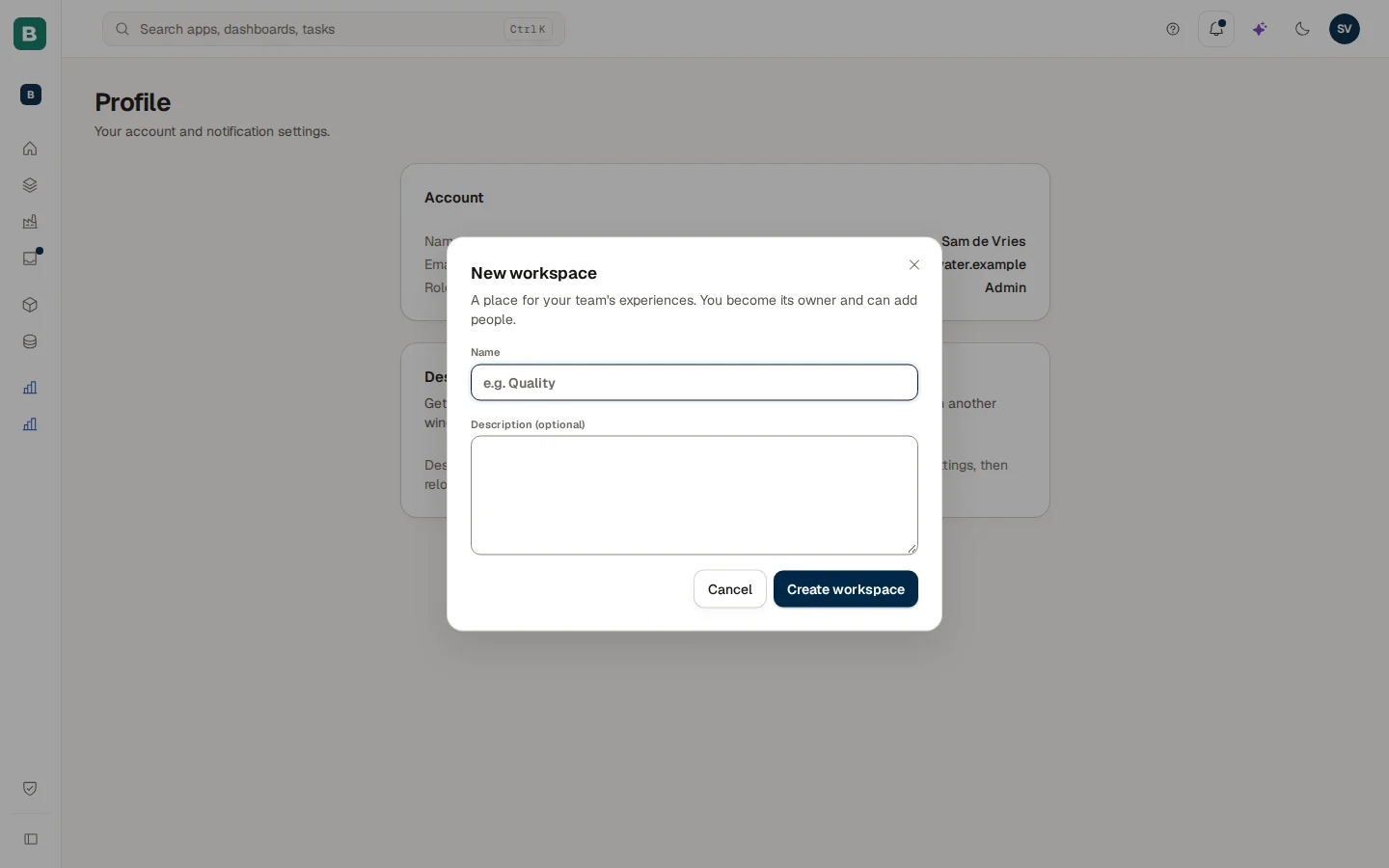
Open the dialog
Choose New workspace at the bottom of the switcher. It is only there when the policy lets you create a workspace or ask IT for one.
Name it
Under Name type at least two characters, for example "Quality". Add a Description (optional) if the name needs explaining.
Create or send
If you may create workspaces yourself, the dialog says "A place for your team's experiences. You become its owner and can add people." and the button reads Create workspace. The new workspace is made at once and the switcher moves to it.
If IT approves new workspaces first, the dialog says "Your IT admin approves new workspaces. Once approved, you become its owner and can add people." and the button reads Send request. A message confirms that it was sent to IT for approval. When IT approves, you become the owner and the workspace appears in your switcher.
If the name already exists you see "A workspace with this name already exists. Choose another name." A name of one character is refused. If the policy reserves workspaces for IT admins, you see "Only an IT admin can create workspaces here."
Adding people, groups, an accent colour and archiving are done by the owner in Cortex Control, not here.
Choose where something new lives
Every start flow shows a Workspace field when you may choose: the request form of an app, New dashboard and New workflow.
- It is preselected to the workspace you are in, when you may create there. Otherwise it is the default workspace, or the first one you may create in.
- Workspaces where you are not a key user or owner are listed but disabled, with "key user required" behind the name.
- The line under the field reads "It lives in this workspace. Who can open it follows the workspace's access."
- When you have only the default workspace, the field is not shown at all.
- When you may create in none of your workspaces the field says "You can't create in any workspace you can enter. Ask a workspace owner to make you a key user." and the create button stays off.
An app request still goes to IT for approval; the workspace you chose is part of the request.
Move an experience to another workspace
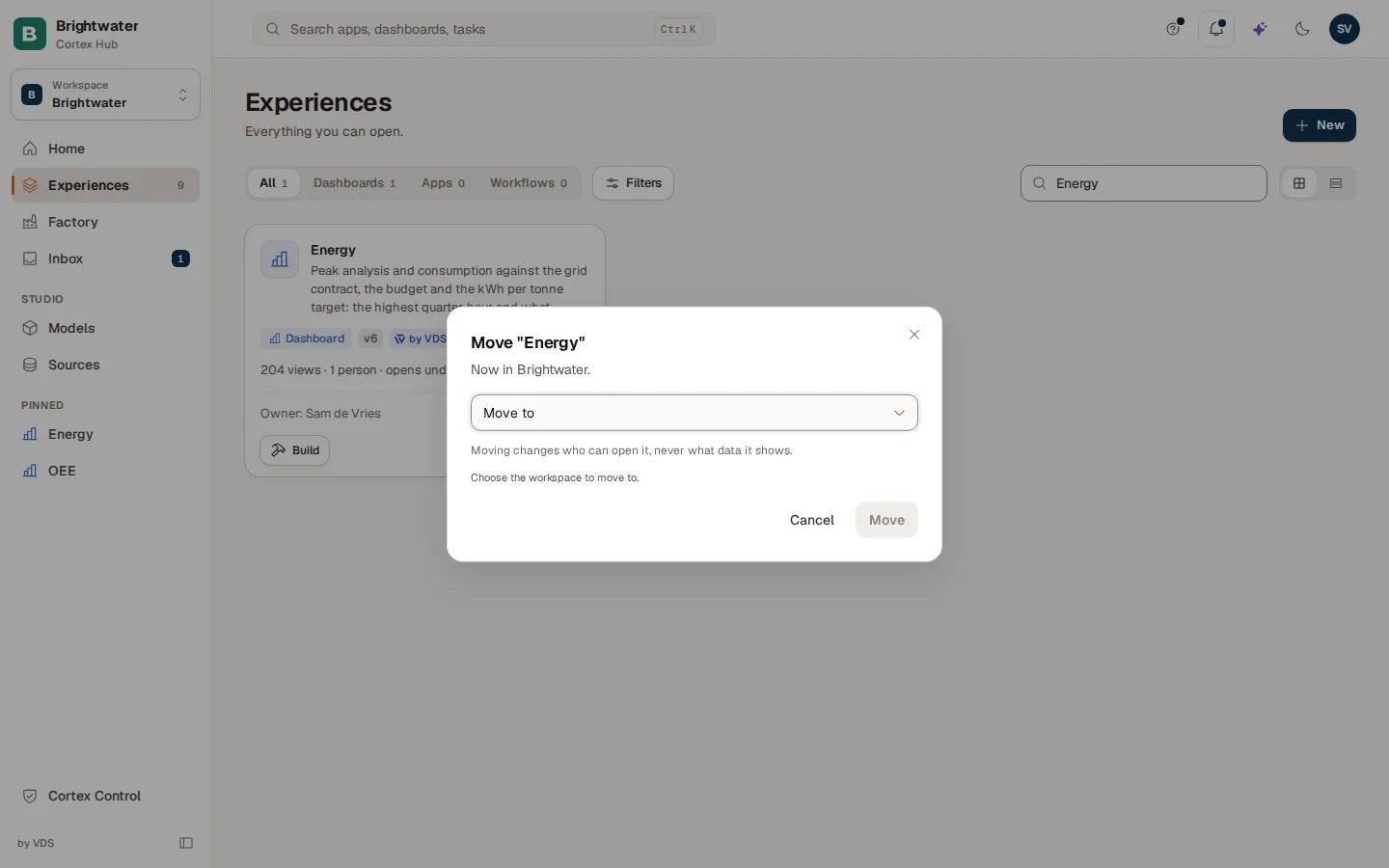
Open the menu
On Experiences open the "..." menu of an app or dashboard card and choose Move. Workflows cannot be moved. The entry only shows for the owner of the experience or an admin, and only when you have more than one workspace.
Pick the target
Under Move to choose the workspace. Only workspaces where you may create are listed, and the one it is in now is left out. If there is none, the dialog says "There is no other workspace you can move it to. You need to be a key user or owner there."
Confirm
Choose Move. When people who are outside a restricted target workspace have access today, the dialog shows "n people will lose access in the Hub. Move it anyway?" and the button becomes Move anyway. A message confirms the move.
Moving changes who can open the experience, never what data it shows.
What you may do, by role
| You are | Create in it | Move into it | Manage it in Control |
|---|---|---|---|
| Owner of the workspace | Yes | Yes | Yes (Manage workspace) |
| Key user of the workspace | Yes | Yes | No |
| Member | Only if the workspace lets any builder create | No | No |
| Not a member | No | No | No |
An admin of your organisation may move any experience. The owner of an experience may move it to a workspace where they are a key user or owner.
Example: a workspace for the quality team
Sam de Vries at Brightwater Foods wants the quality dashboards and the quality app in one place, separate from sales.
Create the workspace
Sam opens the switcher, chooses New workspace, types "Quality" and chooses Create workspace. The switcher moves to Quality.
Build in it
Sam creates a new dashboard. The field Workspace in New dashboard is already set to Quality.
Move an old one
The existing dashboard "Scrap per line" was made in the main workspace. Sam opens its "..." menu, chooses Move, picks Quality under Move to and confirms.
Add the team
Sam is the owner of Quality, so the switcher offers Manage workspace. In Cortex Control Sam adds the quality team as members.
Questions and problems
Experiences for builders
The list where you move an experience and filter by workspace.
Search and workspaces
What a workspace changes for everyone.
Workspaces (concept)
The idea behind workspaces and who belongs to them.
Workspaces in Control
Members, groups, accent colour and archiving, for admins and owners.