Approvals
Decide the requests that wait for a person: new apps, data access, integrations, action runs, publishing, workflow tasks and dashboard reviews.
Approvals is the one place where everything that waits for a person comes together. Builders ask for things in Studio, workflows stop at a step that needs a person, and dashboards that hold sensitive data wait for a second pair of eyes. Instead of searching, you open this page and decide.
Every decision is written to the audit log with who decided and when. A decline always carries a reason that the person who asked can read, so write a clear one.
Who can do this
Admins of Cortex Control see all three tabs. The tab Assigned to me also shows tasks that someone handed to you. The tab Dashboards is only there when your plan includes dashboards.
The page at a glance
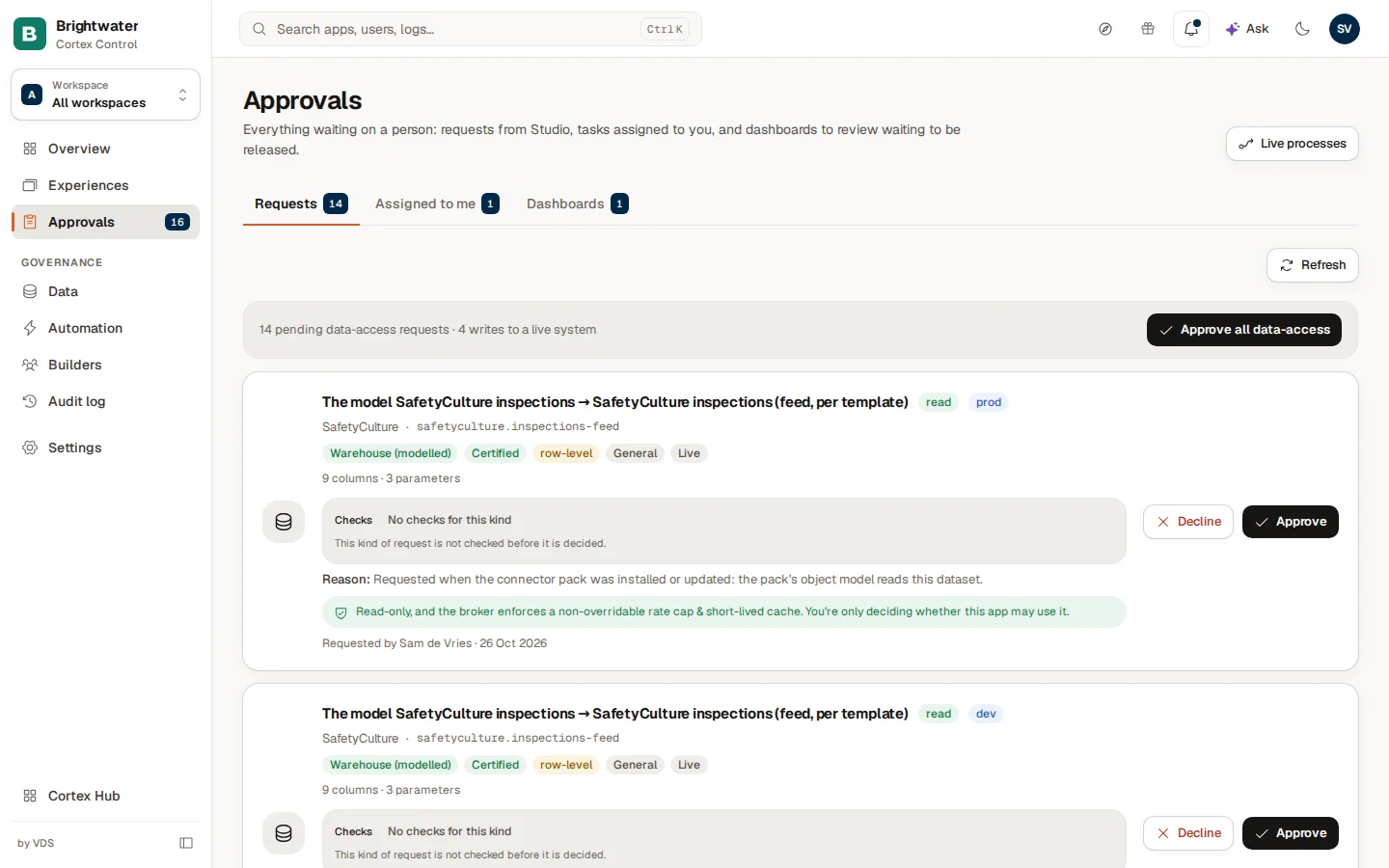
The page title Approvals has the button Live processes on the right. It opens the workflow runs in your organisation: who approved what and when (see Live processes). Under the title are three tabs, each with a count of what waits:
| Tab | What waits here |
|---|---|
| Requests | What builders and apps ask an admin for: new apps, workspaces, dashboards, data access, integrations, held actions and publish requests. |
| Assigned to me | Workflow approvals and app-access requests that are assigned to you. |
| Dashboards | Dashboard versions that wait for a review by a second person. |
The count next to Approvals in the left menu adds them up, so the menu and the tabs always agree. Refresh reloads the tab. When nothing waits, the tab says "No pending requests", and on the tab Assigned to me "You're all caught up".
The Requests tab
Pending requests are shown as one line each, in one list. At the top a summary bar counts the data-access requests ("14 pending data-access requests · 4 writes to a live system", or "all read-only") and offers Approve all data-access.
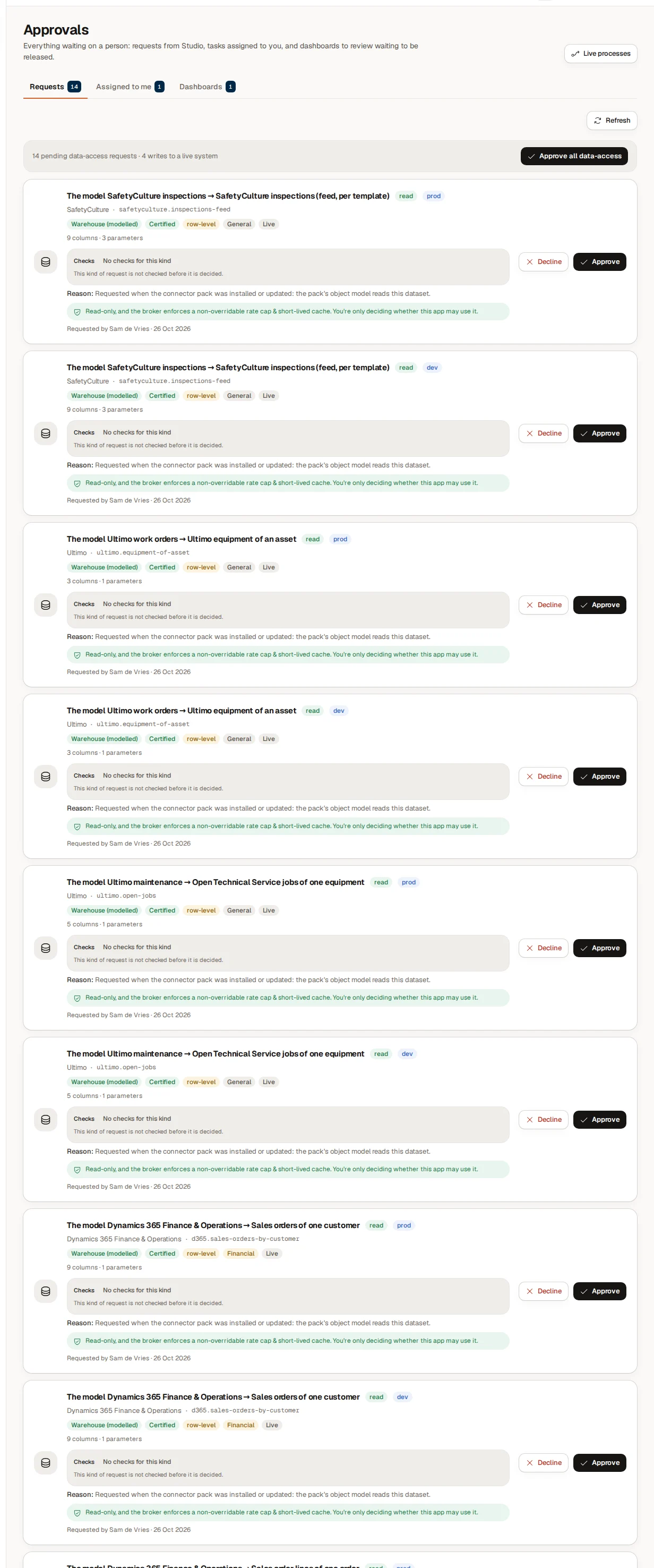
Every line names what is asked and for whom, shows badges, how long ago it was asked and the buttons Decline and Approve. Choose a line to open a side sheet with everything about the request: who asked and when ("Requested by Sam de Vries · 26 Oct 2026"), and for a data-access request:
- Badges for what is asked: read or write, and the environment, prod or dev.
- The source and the dataset, plus chips such as Warehouse (modelled), Certified, row-level, the sensitivity (General) or Live, and how many columns and parameters it has.
- The Checks panel with the result of the automatic checks for this kind of request: Pass, Warnings or Fail, with the date they ran. For a kind that has no checks it says "No checks for this kind".
- The Reason the builder gave.
- A green note when the access is read-only: the broker enforces a rate cap and a short-lived cache, so you only decide whether this app may use it.
A data-access request for the same dataset, the same app (or workflow or model) and the same person often comes twice, for prod and for dev. Those two are shown as one line with both environment badges. Approve and Decline then open a dialog with a checkbox for each environment, both ticked: untick one to decide only the other (at least one stays ticked). Each environment is still its own decision in the audit log. If one of the two fails, Cortex says which one; the other stays decided and the failed one remains in the list as its own line.
Warnings are on the line itself: a write is highlighted, and badges mark uncertified financial data and a data sync that comes with the request. The approval dialog lists the same warnings again before you confirm.
What each kind of request means
| Request | What approving does | What declining does |
|---|---|---|
| New app ("Provision …") | Creates the app and starts provisioning (see Apps). The sheet says which environment is made: a small or a medium app environment. | The builder sees your reason. Nothing is created. |
| Workspace, Dashboard, Ask model default, Ad-hoc data | Creates it for the builder, who becomes the owner. Nothing is provisioned. A dashboard still follows its own review before it is published. Ad-hoc data is confirmed as a dataset that expires and is never certified. | The builder sees your reason. |
| Workflow | Creates the workflow definition. No app or infrastructure is provisioned. | The builder sees your reason. |
| Access to data | Lets the app read (or write, or emit an event) on the dataset in that environment. If the app has no data key yet, one is issued. A read-only request needs little thought. A write has real side effects in the connected system; the sheet and the dialog say so, and say when it targets production. | The app does not get the access. |
| New integration | Forward to support sends it to your platform supplier to scope and build as an integration project, with an expected timeframe that the requester can see. | Decline asks "Why isn't this being built?" and shows your reason to the requester. |
| Proposal | Start building opens Studio to take the idea up. | Close closes the proposal for everyone, with a note about what came of it. |
| Action awaiting approval | Approve on the line opens the side sheet, which shows exactly what will be sent and a warning when it targets production. Approve and run at the bottom of the sheet runs the action against the connected system right away. You cannot undo it from Cortex. | Reject does not run it. |
| Put … live (a workflow) | Approve all gives the workflow every permission listed in the sheet (what it reads, writes, which events start it, which models it reads) and puts it live. Every run then uses exactly those permissions. | Deny grants nothing; the workflow stays as it is and the publisher is told. |
| Publish … (an app to production) | Lets the new version go live. The sheet lists new packages in the app's server and browser code and the database changes that will run on production. | Decline blocks the publish. |
A few details worth knowing:
- A publish request for a workflow that Writes outside Cortex needs a second person: the publisher cannot approve it. A request marked Changed since was made before the workflow was edited again: approving only closes it, and the publisher publishes again.
- A data-access request for uncertified financial data carries a warning: it is raw ledger-level data, not a reviewed number. Prefer a certified dataset, or approve only if the app never totals it.
- Some decisions need a second person. When you are asked to decide your own request, Cortex refuses and offers a break-glass note instead: you write why you decide it yourself, and the note is kept in the audit log. Whether production publishes need a second approver is set in Policy.
Open a request
Choose the tab Requests, then choose a line to open its sheet and read it: who asked, what for, the badges, the Checks and the Reason. For a publish request open the list of database changes and check the new packages.
Decide
Choose Approve or Decline. A dialog explains in one sentence what will happen ("This creates the app and runs the provisioning pipeline." or "This rejects the request.") and has a field for a note. Write a note when you decline: it is shown back to the person who asked.
Confirm
Choose Approve or Decline again in the dialog. A message confirms what happened ("Approved … Provisioning started." or "Declined …"). The line leaves the list.
Check what you decided
The strip Recently decided at the bottom of the page lists the latest decisions. Open audit log → shows them all, with who decided and when (see Audit log).
Approve many data-access requests at once
When several data-access requests wait, choose Approve all data-access in the summary bar. A dialog asks "Approve all 14 pending data-access requests?" and adds how many of them write to a live system. After you confirm, a message says how many were approved. Requests that you made yourself stay pending ("n requests stay pending: they were your own requests").
Look at the number of writes in the summary bar before you use Approve all data-access. A write changes data in a connected system. Approve those one by one when you are not sure.
The tab Assigned to me
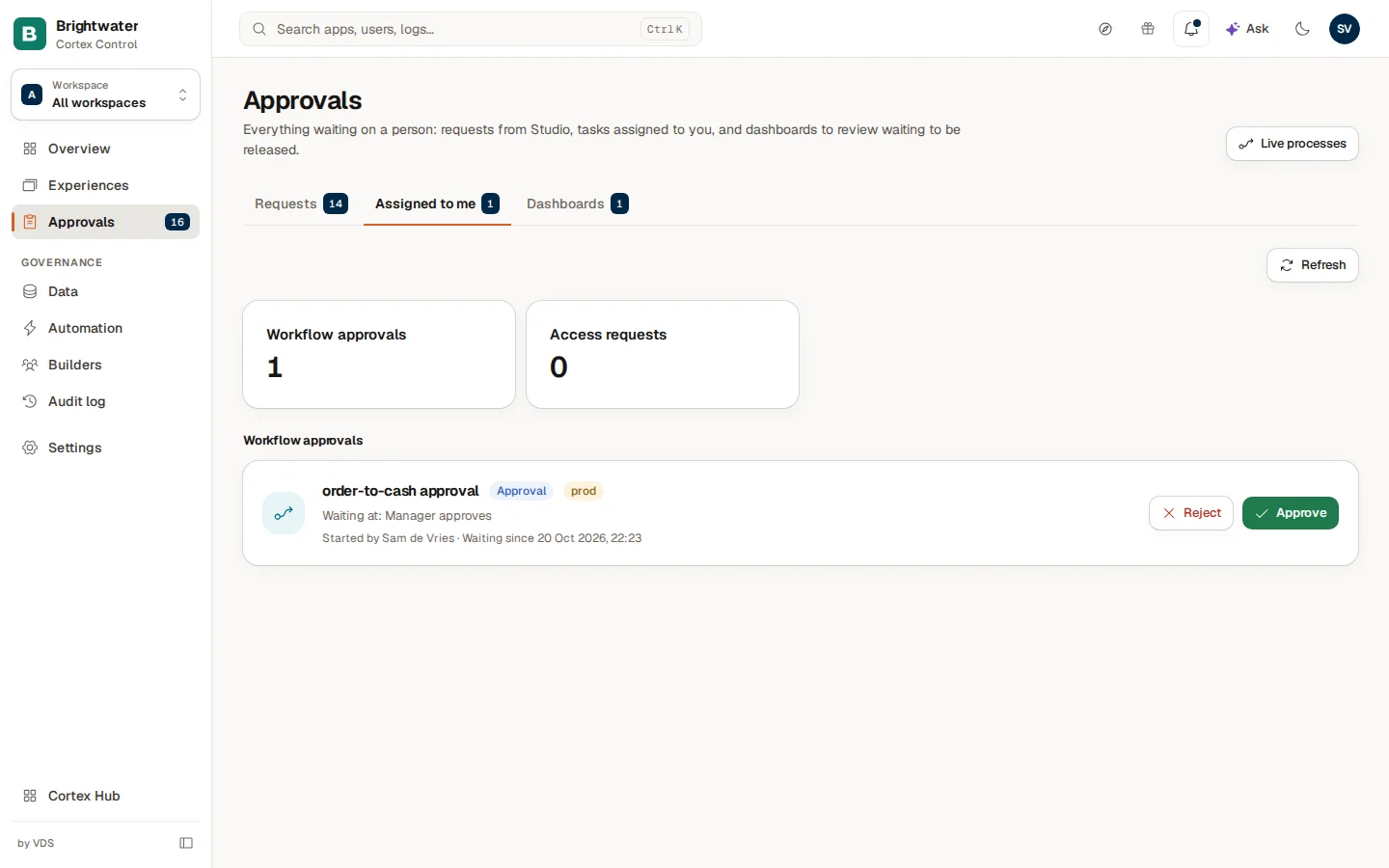
Two counters at the top, Workflow approvals and App access requests, say how many tasks wait for you. Below them the tasks are grouped under Workflow approvals and App access requests.
- A workflow approval shows the workflow name with the badge Approval and the environment, "Waiting at: Manager approves", who started it and "Waiting since …". Open the card for what the run started with. When an AI step produced an answer for you to review, it is shown too ("Answer from … (AI), for you to review"); values from sensitive data are hidden. Choose Approve (the run continues with the next step) or Reject (the run is cancelled, or continues on its rejected path when the workflow has one). When more people must approve, the card says "1 of 2 approvals" and shows who decides next. Hand over gives the task to someone else; it is recorded in the run history.
- An access request reads "… wants access" with the badge Access request. Grant access makes the person a collaborator on the app (To work on) or lets them open it in Cortex Hub, view only (To view), and tells them. Decline tells them too, with your note ("Why not? The requester sees this.").
The tab Dashboards
The title of this tab's content is "Dashboards waiting for approval": versions that a maker proposed. Someone other than the proposer approves them before they go live.
| Column | What it shows |
|---|---|
| Dashboard | The dashboard and its version ("version 2"). |
| Sensitivity | The class of the data it uses, for example Financial data. |
| Proposed by | Who proposed it and when. |
| Change summary | What changed in this version. |
| Checks | The result of the dashboard checks, Warnings or Fail, with each finding. |
Choose Open to look at the dashboard first. Then Approve ("This version goes live and replaces the current one.") or, for a dashboard that is already live and only needs its first review, the review action ("This records you as the reviewer of the live version"). When you proposed the version yourself, the row says "You proposed this; someone else approves it." and you cannot approve it.
Example: a Monday queue at Brightwater Foods
Sam de Vries opens Approvals. The tab Requests has 14 items.
- All 14 are data-access requests from the same connector pack. The summary bar says 4 of them write to a live system. Sam reads the Checks and the Reason in the sheet of the first line and approves the read-only ones one by one, then looks at the four writes separately instead of using Approve all data-access.
- Later a builder, Eva Jansen, asks for a new app. Sam approves it with a short note. The line leaves and provisioning starts.
- On Assigned to me an order-to-cash workflow waits at "Manager approves". Sam chooses Approve and the run continues.
- On Dashboards a report with financial data waits, but Sam proposed it, so Sam asks a colleague to approve it.