Curated packs and the Factory settings
Install and upgrade the ready-made packs of apps and dashboards that come with Cortex, and set up the plant for the Factory pack.
A curated pack is a bundle of finished work that ships with your Cortex release: apps, dashboards and assistants that are already built, tested and wired together. Instead of building an OEE board or an improvement app from scratch, you install the pack and your people can use it the same day. When a new version ships you upgrade the pack and every item in it moves with it.
Curated packs are not the same as connector packs. A connector pack connects one system and gives builders datasets. A curated pack gives people ready-made apps and dashboards, and may rely on a connector pack for its data.
The Factory pack is the best-known one: production dashboards, an OEE app and an improvement app for a plant. Because a plant has to be described to Cortex (which sites, lines and machines exist, and which data tag means what), the Factory pack has a settings area of its own: Settings, Factory.
Who can do this
Admins of Cortex Control. Packs: Settings, then Packs under Organisation. Factory: Settings, then Factory under Organisation; this card only exists when your licence includes the factory add-on (see Licence and seats).
The Packs page at a glance
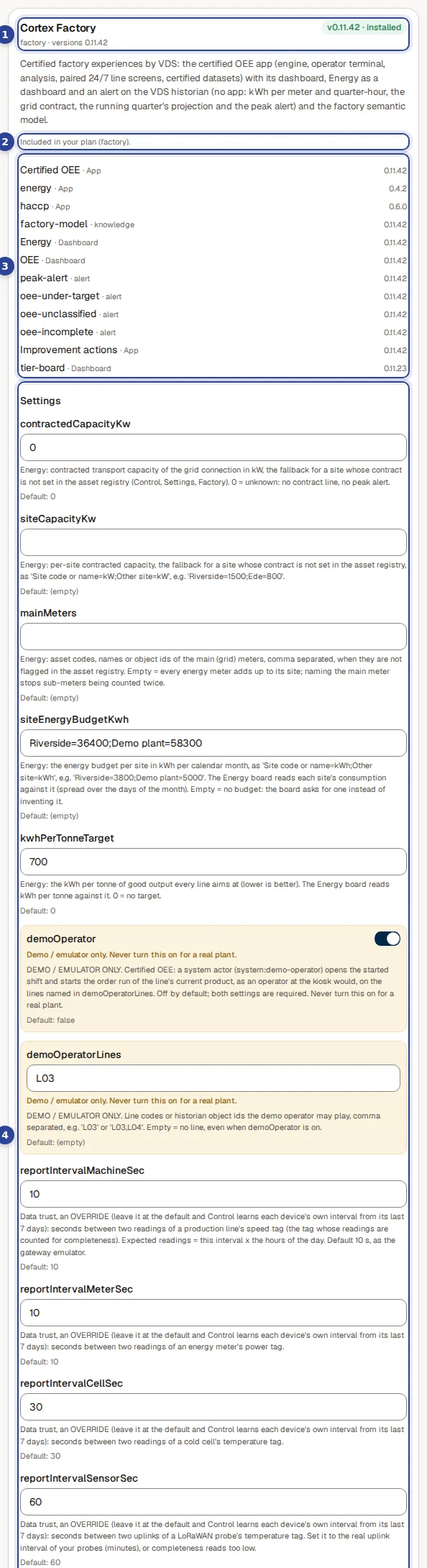
- The pack. Its name, its identifier and the versions this release offers, and on the right the state: Not installed, or the installed version with installed, installing or failed.
- The licence line. "Included in your plan (...)", "No licence needed." or, when the feature is not in your plan, a note to contact VDS. The button is off in that case.
- What is inside. Every app, dashboard, alert and knowledge item of the pack, with the version installed.
- Settings. The pack's own settings, only on an installed pack.
Below the settings, outside the part shown here, sit the version and the button. The picker Version appears when more than one version is offered. The button reads Install, Upgrade, Repair or Run again.
Refresh at the top right reads the list again, for example after an upgrade of Cortex itself. If a shipped pack is damaged, a warning above the cards says "Some shipped packs are damaged and are not listed:" and names them.
Install or upgrade a pack
Open Settings, Packs
Open Settings and choose Packs under Organisation.
Check the licence line
On the card of the pack, read the line about your licence. When the feature is not in your plan, the button is off; contact VDS to enable it.
Pick the version
If more than one version is offered, pick the Version. An installed pack is only offered its own version and newer ones: a rollback is not offered here.
Choose the button
| Button | When |
|---|---|
| Install | The pack is not installed. |
| Upgrade | The pack is installed and you picked a newer version. |
| Repair | The pack is installed and you picked the same version: installs again whatever is missing. |
| Run again | The last run did not finish. |
While it works the button says Working….
Read the result
The card lists each app, dashboard and assistant with its state. When all is done it says that the version is installed ("Version ... is installed."). When an app is still being set up it says "Not finished yet. An app is still being set up: run it again in a few minutes."; choose Run again after a few minutes.
What an item state means
| State | Meaning |
|---|---|
| ready | Installed and ready to use. |
| published | Installed and published, so people can open it in Hub. |
| setting up | Cortex is still creating it. Run the pack again in a few minutes. |
| waiting for approval | A step needs a person to approve it in Approvals. |
| blocked | Cortex cannot install it as things are. The line under it says why. |
| failed | The installation of this item failed. The line under it says why; run the pack again after the cause is fixed. |
| not supported yet | This release cannot install this kind of item. |
| retired (stopped, data kept) | The item was removed in a newer version. It is stopped and its data is kept. |
Pack settings
An installed pack can have Settings of its own on its card: switches, numbers and texts, each with its description and its Default:. Change them and choose Save settings, or Discard changes to go back. A number field refuses text ("Enter a number."). A setting that is for demos and emulators only carries the warning "Demo / emulator only. Never turn this on for a real plant."
The dashboards of a pack are read-only
A dashboard that comes from a pack cannot be edited. Its page in Experiences says "Ready-made", the pack and its version, and "read-only". To change one, choose Duplicate there: you get your own copy ("Your copy is ready.") that you can change.
Factory settings
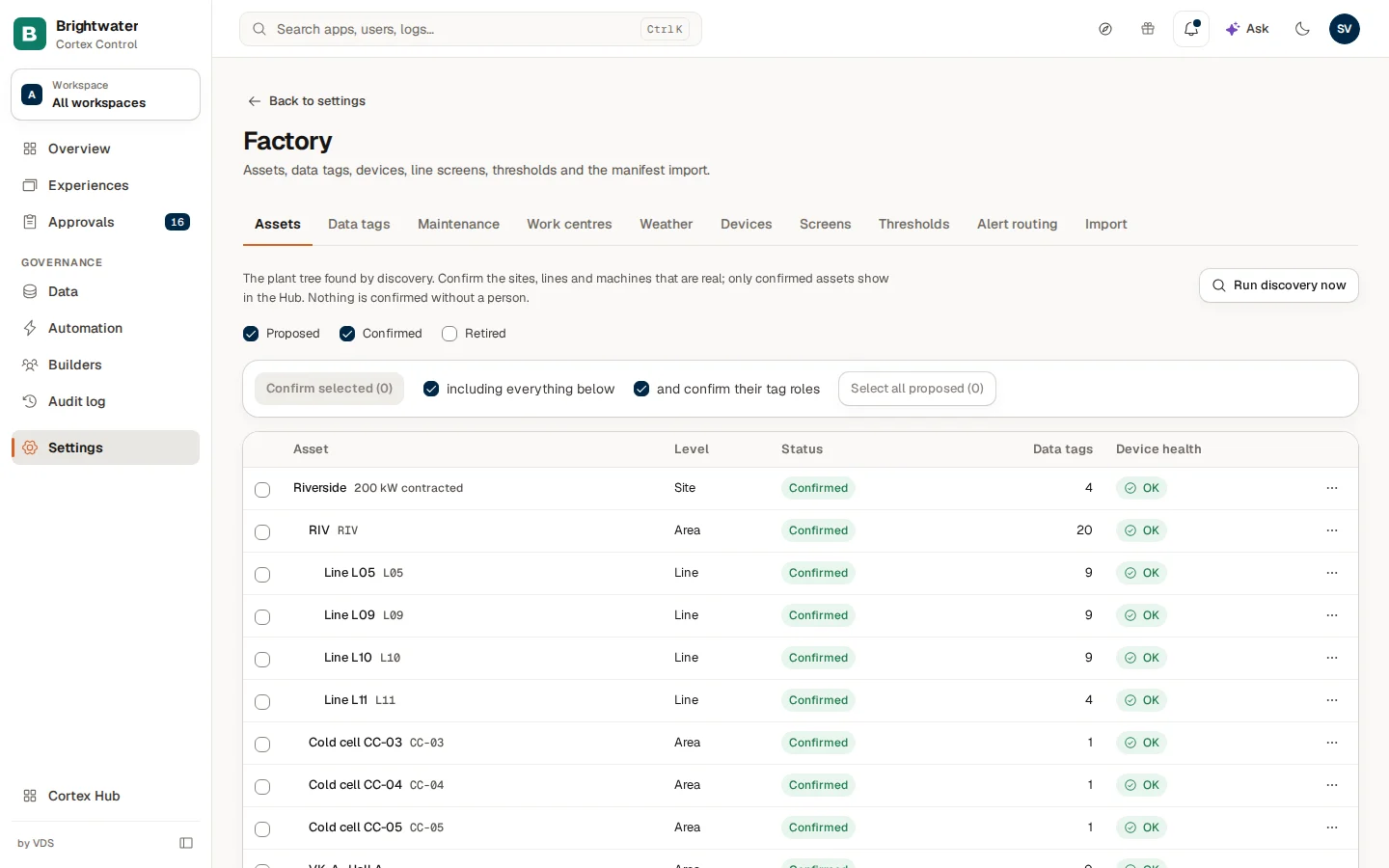
The Factory page describes your plant to Cortex. Cortex proposes, a person confirms: nothing is confirmed without a person, and only confirmed assets show in Hub.
| Tab | What it is for |
|---|---|
| Assets | The plant tree found by discovery: sites, areas, lines, work centres and machines. Confirm the ones that are real. |
| Data tags | What each historian tag means. Discovery only suggests a role; confirm it so the numbers use the right tag. |
| Maintenance | Which asset each piece of equipment in the maintenance system belongs to. A confirmed match puts that equipment's work orders on the asset's home. |
| Work centres | Which asset of the plant each work centre of your ERP is. A confirmed match puts the orders of that work centre on its line. |
| Weather | The nearest weather station for each site, for outdoor temperature and humidity, read once a day. |
| Devices | Health of every gateway and sensor, worst first. Updates every 15 seconds. Health only. |
| Screens | Paired wall screens (24/7): a line screen or a dashboard. |
| Thresholds | When a device counts as silent or in warning. Applies to the whole plant. |
| Alert routing | Who hears a factory alert. |
| Import | Load a device manifest so devices show as waiting before they send data. |
Assets: confirm the plant
Run discovery
Choose Run discovery now. Cortex reads your historian and proposes the plant. It says how many new assets and tags it found "in n objects. They are proposed, not confirmed." If the result was cut off, run it again for the rest. With no historian connected it says "No historian is connected, so there is nothing to discover." Install a factory connector pack first (see Connector packs).
Filter by status
The checkboxes Proposed, Confirmed and Retired under "Show assets with status" decide which rows show.
Select and confirm
Tick the rows that are real, or choose Select all proposed (n). Tick including everything below to confirm the lines together with their machines and cells, and and confirm their tag roles to confirm the suggested roles of their tags in the same go. Then choose Confirm selected (n). Cortex says "Confirmed n assets and n tag roles."
Tidy the tree
The ... menu of a row has Confirm, Confirm with everything below, Rename, Leads (who leads a confirmed line, work centre or machine), Set contracted capacity, Set time zone (for a site), Mark as main meter (not for a site), Move, Merge into another and Retire. Retire takes the asset and everything below it out of Hub. Merge into another moves its tags and children to the asset you pick and retires this one; that cannot be undone here. A site without a time zone shows No time zone next to its name. The zone of a site also applies to the lines below it. Factory times are printed in it, except on the OEE analysis pages, which show times in the zone of the reader's own browser. Calendar days in the Factory figures and in energy are counted in it. Days that follow the shift calendar (production days) do not change for shifts already run; planned shifts are rebuilt in the new zone. Without a zone, times are printed in the install's zone (HACCP uses its own default zone) and calendar days in the Factory figures and in energy are counted in UTC. Clearing a zone does not reach the OEE app: it keeps the last zone it was given, and a site that never had a zone counts its OEE days in Europe/Amsterdam. HACCP checks take a new zone only once each check is saved again; HACCP alerts follow at once. When you set or change a zone, past calendar days are recounted in the new zone wherever they are computed; messages and summaries already written keep their text, and HACCP days keep the day they were stored under.
The columns are Asset, Level (Site, Area, Line, Work centre, Machine), Status (Proposed, Confirmed, Retired), Data tags (how many) and Device health.
The other tabs in short
- Data tags: filter by Asset and Role, or choose Only roles not yet confirmed. A role is Suggested until you choose Confirm role. Move to another asset moves a tag from now on; its earlier readings stay with the old asset, so history is kept. On a tag whose role is a running-total counter (Total count or Good count), Limits sets two optional values: the highest value the counter shows before it goes back to 0, and the most units it may rise per minute. A rise faster than that, or, when no limit is set and the machine has a production norm in the counter's unit, faster than twice that norm, is not counted, and the shift shows as incomplete. Saving recalculates nothing by itself: once the OEE app has picked the change up, new calculations of the latest minutes use it; hours that were already calculated stay as they are, and a recalculation of old history uses the limits as they are then.
- Maintenance and Work centres: Cortex proposes a match by name or code and never confirms one itself. Confirm, change or ignore each proposal. Changing a work-centre match moves orders that have not started to the new line at the next sync, never a started one.
- Weather: enter a site's position and Cortex proposes the nearest KNMI station; confirm it or choose another.
- Screens: choose New screen, pick what it shows (a line from the OEE app, or a page of a Hub dashboard) and the audience whose rows it reads as, open the screen's page on the TV, and type the code the TV shows. States: Waiting for a TV, Online, Not seen lately, Revoked. Revoke cuts a line screen off within 10 minutes and a dashboard within a minute, and cannot be undone: pair a new screen to use it again.
- Thresholds: the seconds after which a gateway, a machine, meter or cold cell, or a wireless sensor counts as silent; the battery and signal levels that warn; the delay that counts as late data. Notify administrators turns notifications on; Fill in defaults resets the numbers.
- Alert routing: choose one registered Teams channel per site, and who hears an escalation (Maintenance, Materials, Quality, Safety, Technical, Other). Nobody chosen: the line's leads hear it, and the admins when nobody leads the line.
- Import: paste a Manifest (CSV or JSON) with the columns serial (required), type, site and intendedAsset. Anything else, an IP address most of all, is refused.
Example: bring Hall 2 online
Sam de Vries, IT admin at Brightwater Foods, installs the Factory pack for the new packaging hall.
- Sam opens Settings, Packs, checks that the card says "Included in your plan", and chooses Install. The apps and dashboards go to ready and published.
- Sam opens Settings, Factory, chooses Run discovery now, and reads that Cortex proposes four lines and their cold cells.
- Sam ticks the two lines that are in use, ticks including everything below and and confirm their tag roles, and chooses Confirm selected.
- On Alert routing Sam picks the Teams channel for the hall.
- The shift lead opens the OEE dashboard in Hub and sees the two lines. A line that Sam did not confirm does not show.