Live processes
Follow every workflow run in your organisation, see which ones wait for a person or failed, read the step-by-step history and stop a run that should not continue.
A workflow is a series of steps that Cortex carries out for you: read data, ask a person to approve something, write to another system, wait for a timer. Each time a workflow starts, that is one run (the page calls it an instance). Live processes lists every run in your organisation, so IT can see what is running now, what waits for someone, what failed and why.
Use it when a colleague says "I approved that yesterday, why did nothing happen?", when an alert says a workflow failed, or when a run must be stopped before it does more damage.
Who can do this
Admins of Cortex Control. Open Approvals in the menu and choose Live processes at the top right of that page (its address is /live-processes). The menu keeps Approvals highlighted while you are here.
The page at a glance
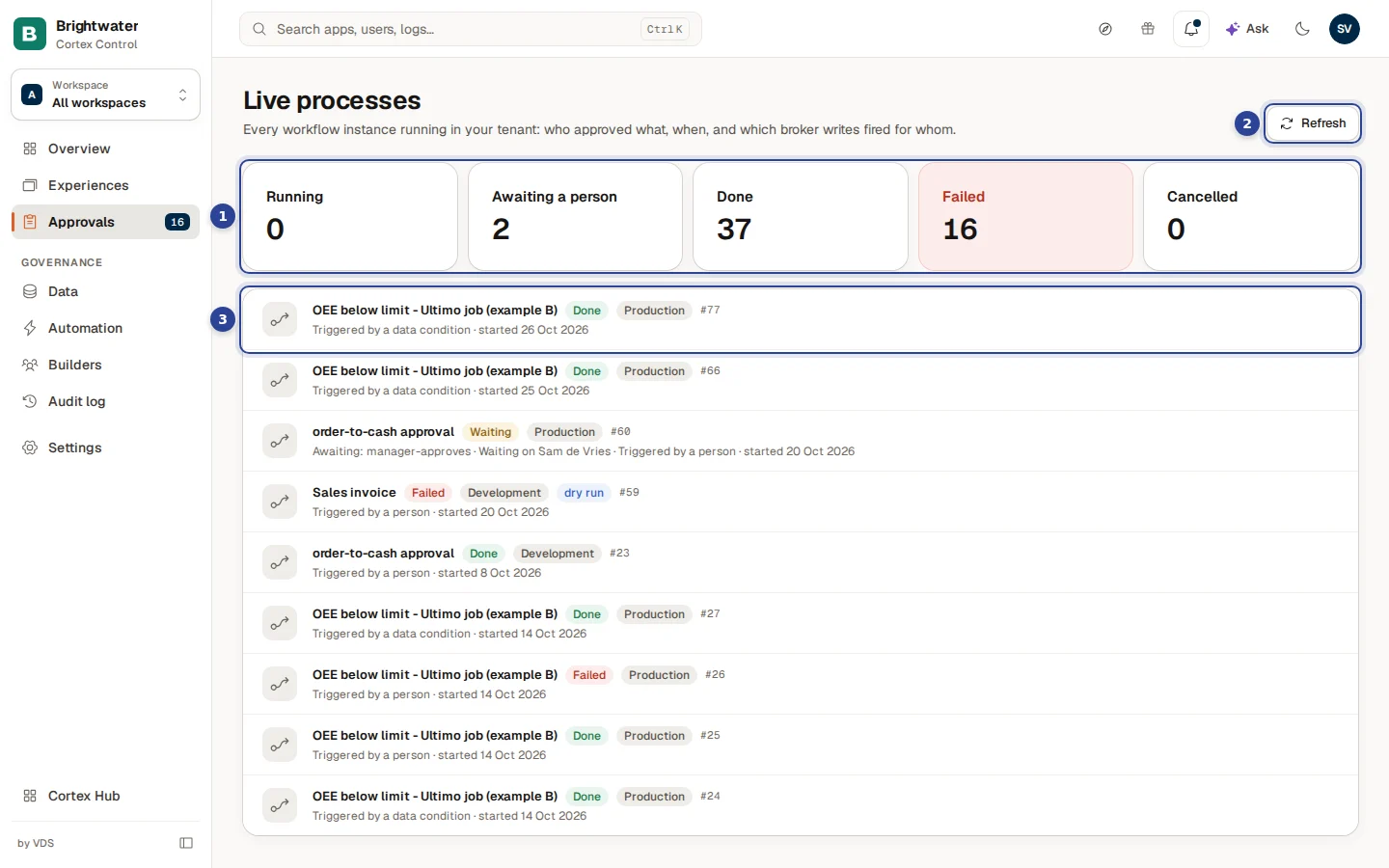
- The counters. How many runs are Running, Awaiting a person (runs in the status Waiting), Done, Failed and Cancelled. Failed turns red when it is above zero.
- Refresh. Reads the list again. The page does not update by itself.
- A run. Choose a row to open its history.
What a row says
Every row shows the workflow's name, then small labels, then a line of facts:
- Status: Running, Waiting, Done, Failed or Cancelled.
- Environment: Development or Production. A workflow runs in Development while it is being built and tested, and in Production once it is live.
- dry run: a test run started from Studio. It follows the same steps and is meant for testing.
- The run number, for example
#77. - Awaiting: … and Waiting on … (only for a waiting run): the step the run has reached and the person it waits for.
- Triggered by …: a person, a schedule, a data condition, an event or a webhook, and when it started ("started 26 Oct 2026").
The list is sorted by the time of the last change, newest first.
Run statuses
| Status | What it means | What an admin does |
|---|---|---|
| Running | Cortex is carrying out the steps now. | Nothing, unless it takes too long: then open it and look at the last step. |
| Waiting | The run stopped at a step that needs someone or something: an approval, a task, or a timer. The row names the step and, for a person, who. | Remind that person. The task is in their Inbox in Hub (see Inbox); requests that wait for IT are under Approvals. |
| Done | The run finished all its steps. | Nothing. |
| Failed | A step could not be carried out. | Open it, read the failing step, and use Explain this failure (below). |
| Cancelled | The run was stopped: by an admin, or because someone rejected a step that has no rejected path. | Start a new run if it is still needed. |
Open a run
Choose a row
Choose a run in the list. A window opens with the workflow's name and the run number, the status, the environment and who or what triggered it.
Read the history
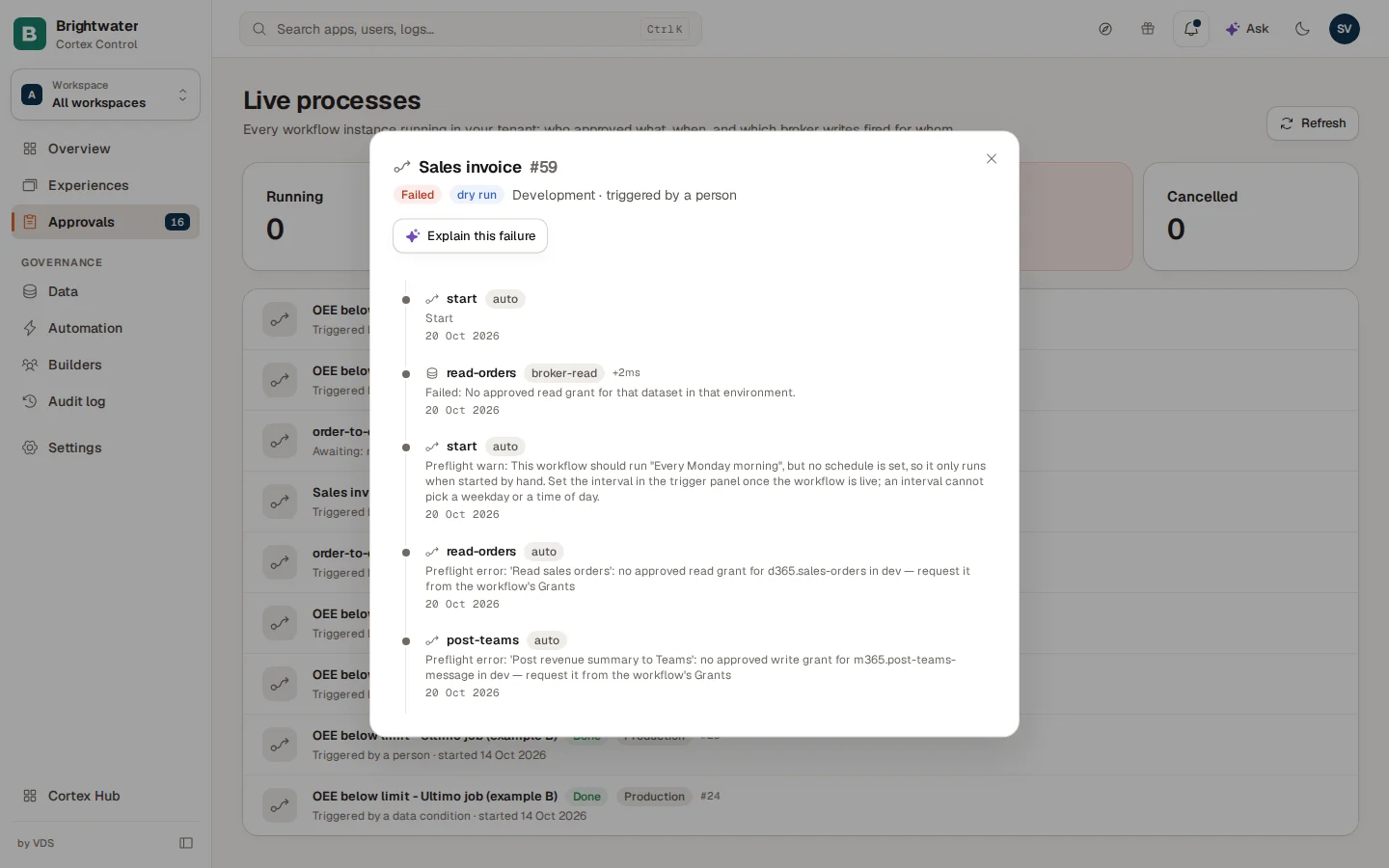
Below the header every step is listed in the order it happened. Each step shows:
- the step name,
- a small label with the kind of step (for example
approval,timer,auto,app-call, or the kind of data step), - the time since the previous step, for example "+5ms" or "+2m",
- a line of detail: what happened, or the error text when it failed,
- who did it (a person, when the step was an approval) and the date.
If nothing was recorded yet, the window says No transitions recorded yet.
Explain a failure
For a Failed run the window shows Explain this failure. Choose it and Cortex asks an AI model to explain, from the steps of the run, the Failing step, the Likely cause and What to check. Personal and secret values are hidden before the AI sees them. The answer is marked as AI-written, saved with the run ("Saved explanation: one per run."), and must be checked before you act on it. If it cannot be made, the window says "The explanation could not be made right now."
Stop a run
An admin can stop a run that is Running or Waiting.
Open the run and choose Cancel this instance
The button is at the bottom of the window. It does not appear for a run that is already Done, Failed or Cancelled.
Confirm
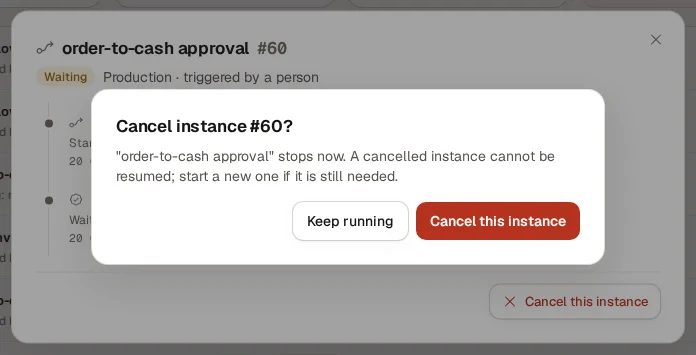
The confirmation says that the workflow stops now and that a cancelled run cannot be resumed. Choose Cancel this instance to stop it, or Keep running to leave it as it is. A confirmation appears ("Instance cancelled"), the status becomes Cancelled, and the history gets a last step "Cancelled by governance". If the run had already ended in the meantime, Cortex refuses and nothing changes.
The cancellation is recorded in the Audit log with your name, as the action workflow.instance.cancel.
Example: "The purchase approval is stuck"
Sam de Vries, the IT admin at Brightwater Foods, is asked why a purchase approval has been open for three days.
- Sam opens Approvals, chooses Live processes and looks at the counter Awaiting a person: two runs are waiting.
- One row says "Awaiting: manager approval · Waiting on …". Sam opens it. The history shows the run reached the approval step three days ago and nothing happened since.
- Sam asks the manager to open the task in their Inbox in Hub (see Inbox). The manager approves; the run moves on and ends as Done.
When the run had instead been started by mistake, Sam would have chosen Cancel this instance and confirmed. Nothing else is touched: only that run stops.