Web services
Keep the list of outside services that apps may contact from the browser, such as a public map service, and decide which app may use which one.
A generated app runs in the browser of the person using it. By default that browser may only talk to the app's own address. When an app needs something from outside, for example a public map, aerial imagery or a font, the app's browser has to contact that service directly, and that is only possible for services that IT has put on a list.
That list is Web services. IT decides which services are on it. A builder, or the build agent working for them, can only ask to use one for their app, and IT approves that per app. Nothing outside the list is ever reachable.
Who can do this
Admins of Cortex Control: Data in the Governance group of the menu, tab Web services. The old address /web-services still opens it.
Only keyless, read-only services belong here
The user's browser talks to these services directly, so they must need no key or password, only be read, and hold no personal data. Anything that needs a key or a password goes through a data source instead.
The list at a glance
- Add web service. Opens the form for a new service. It sits at the top right, next to the ... menu with Refresh.
- A service. The name and description, and under them the notes for IT you wrote.
- Allowed for. What an app may load from the service: Data calls, Images and/or Fonts.
- Addresses (origins). The exact addresses the browser may contact.
- Edit and the row menu. Edit opens the form; the ... menu holds Deactivate.
Under the table, Inactive (n) folds out the services that have been deactivated. An empty list says "No web services yet" and offers Add web service.
Add a web service
Choose Add web service
The dialog New web service opens and repeats the rule: only keyless, read-only services that hold no personal data belong here.
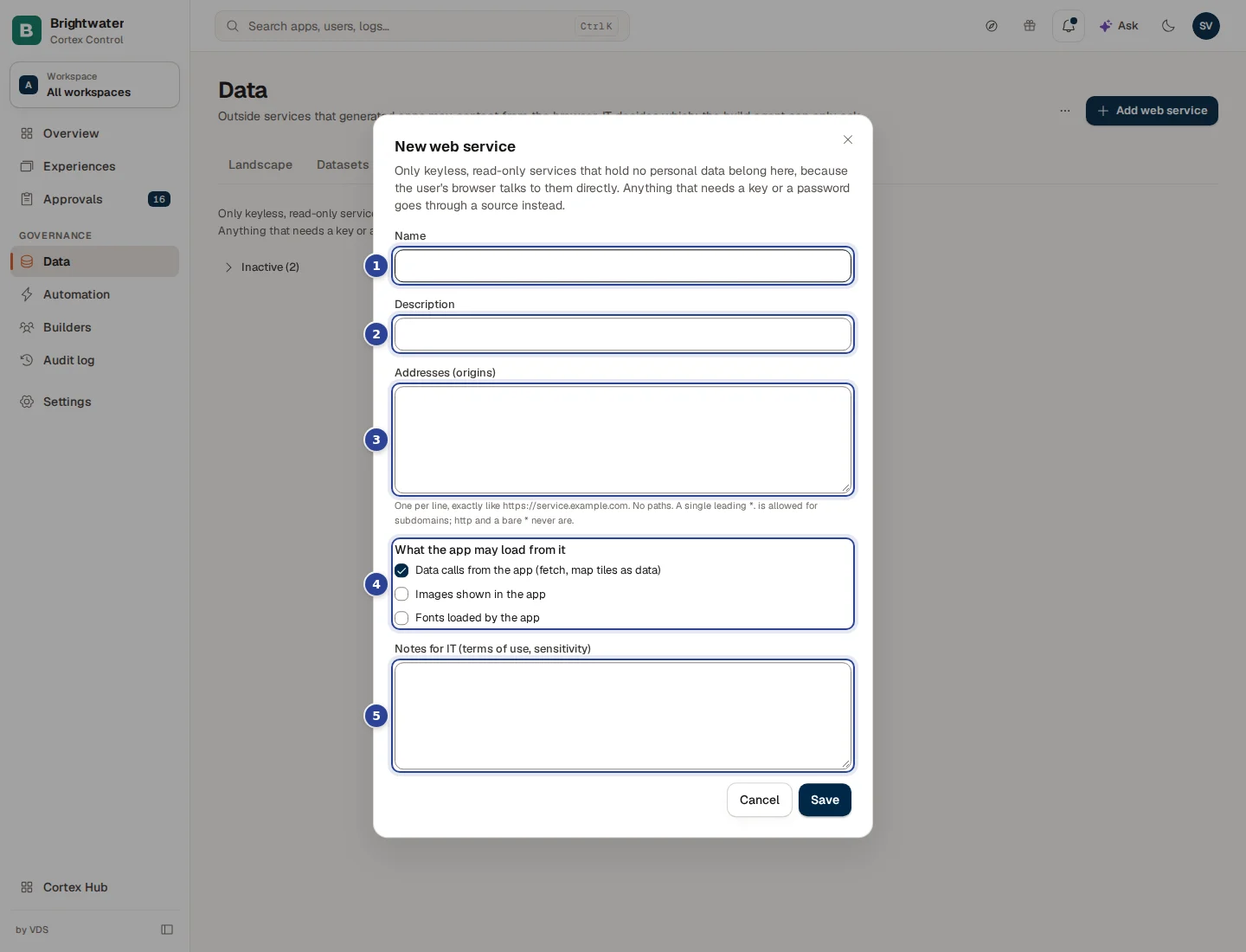
- Name. What builders and you will call the service, for example "Aerial imagery".
- Description. One line about what it is.
- Addresses (origins). One address per line.
- What the app may load from it. Tick what the service is for.
- Notes for IT (terms of use, sensitivity). For the next admin: licence terms, usage limits, why it is allowed.
Enter the addresses
One per line, written exactly like https://service.example.com. Only https is accepted, with no path and no IP address. A single leading *. is allowed for subdomains, as in https://*.example.com. Plain http and a bare * are never allowed. A wrong address is named in the message, so you can correct it.
Choose what apps may load
Tick one or more:
- Data calls from the app (fetch, map tiles as data), shown in the list as Data calls.
- Images shown in the app, shown as Images.
- Fonts loaded by the app, shown as Fonts.
Tick as little as the service needs.
Save
Choose Save. Cortex confirms with "Web service saved." If a field is missing the form tells you which: give the service a name, add at least one address and choose at least one thing the app may load.
Change or switch off a service
- Edit opens the same form. In the edit form there is also a switch Active: apps can request and use this service.
- Deactivate (in the ... menu of the row) asks for confirmation: apps that use the service lose it on their next publish. A deactivated service is moved under Inactive (n) and can be switched on again with Edit.
How an app gets to use a service
The build agent can only ask. The decision for one app is made on that app's page.
The build agent asks for a service from the list.
On the app's tab Network & capabilities: Approve or Reject.
The decision takes effect when the app is published again.
Open the app (see Apps and experiences) and choose the tab Network & capabilities. Under Outside services ("Requested by the build agent, decided by IT") each request shows who asked and when, a Reason and its status: Waiting for a decision, Approved, Rejected or Revoked. Choose Approve or Reject, or Revoke for one that was approved. A revoke asks you to confirm and says the app loses access on its next publish. Open the catalogue brings you back to this list.
The same tab has two more blocks. Capabilities has three switches that are off unless the app really needs them: Allow WebAssembly (needed for e.g. 3D/CAD file loaders), Allow background workers from generated code and Microphone (for dictation and voice input). Only an Admin can change them, each change is audited and applies to the running app at once. The microphone never works in the build preview. Package overrides let one exact version of a package through before the usual 7-day wait, for example for an urgent security fix.
Reference
| Item | What it means |
|---|---|
| Name, Description | How the service appears in the list and to builders. |
| Addresses (origins) | Exact https addresses, no path, no IP address. One *. prefix is allowed. |
| Data calls | The app may fetch from the service (including map tiles loaded as data). |
| Images | The app may show images from the service. |
| Fonts | The app may load fonts from the service. |
| Notes for IT | Free text for admins. Shown under the description in the list. |
| Active | Off means apps can neither request nor use the service. |
| Last changed | When the entry was last saved. |
Example: a map for the logistics app
Sam de Vries, IT admin at Brightwater Foods, hears from the logistics team that their delivery-route app needs a public map.
- Sam opens Data, tab Web services, and chooses Add web service.
- Name "Public map tiles". Addresses: the https address of the tile server, one line. What the app may load: Data calls and Images. Notes for IT: "Free for internal use, no key, attribution shown in the app."
- The build agent asks for it for the delivery-route app. Sam opens that app, tab Network & capabilities, reads the request and chooses Approve.
- The next time the builder publishes the app, the map works. Another app that never asked still cannot reach the service.
Troubleshooting
Datasets and grants
Add datasets to a source, read a dataset's contract, decide who may read it, set up and watch syncs, and withdraw the report access people gave Cortex.
Connector packs
Install, check, upgrade and switch off the ready-made connectors for your ERP, CRM and other systems, or connect a system that has no pack.