Apps and workflows
Open an app inside Cortex Hub, use its bar, menu and feedback, and start a workflow from its own page.
Two kinds of experience in Cortex Hub do something instead of only showing figures. An app is a tool built for your organisation, such as an OEE board or a planning screen. A workflow is a process that follows the same steps every time, such as an approval round. This page shows how to open an app, what the bar above it offers, and how to start a workflow. To follow what a workflow did afterwards, read Workflow runs.
Who can do this
Everyone who has been given access to the app or the workflow. What you see is limited to what your organisation shared with you. You do not need a builder seat.
Open an app
Open Experiences, choose Apps under Type and select the app. You can also open an app from Pinned in the menu on the left or from Jump back in on Home. See Experiences.
An app that is set up for it opens inside Cortex Hub, below the Hub's own top bar, so you keep the search box, the bell and your account menu. While it connects you see "Opening ...". When the app is ready it fills the rest of the screen.
Some apps open in their own browser tab instead. The Hub then says "... opens in its own tab" and offers Open in a new tab.
The app bar

- The app's name. Next to it can be the version of the app and a "Ready-made" mark when the app is one of the curated apps that come with Cortex.
- Pin. Pins the app to Pinned in the menu on the left. The button then reads Unpin: choose it again to remove the app. See Pin a value, pin a dashboard, subscribe.
- Feedback. Opens a small menu to send feedback, report a problem or look at the app's roadmap. See the next section.
- More actions (the three dots). Holds the rarer actions, described under The app menu.
Next to the name, an app can also show a status pill: Live, Degraded or Offline, sometimes with a short detail after a dot. The app reports this itself. Hover over it to read the explanation: it shows whether the app's own connection is up, not whether the data is correct. An app that reports nothing, or has not reported for a while, shows no pill, as in the picture above.
On a narrow screen the version, the "Ready-made" mark and the status pill are hidden to save room.
The app menu
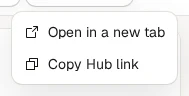
The menu can hold three things, depending on the app:
| Entry | What it does |
|---|---|
| Pin a value | Only when the app offers values to pin. One value pins at once; several values show a list, and a value you already pinned is marked "(pinned)". A pinned value appears on your Home, with the message "Pinned to Home". |
| Open in a new tab | Opens the app in its own browser tab, outside the Hub. It is shown only when your IT team allowed that for this app. |
| Copy Hub link | Copies the address of this app inside the Hub. You see "Link copied". Whoever opens it needs access to the app. |
Give feedback on an app
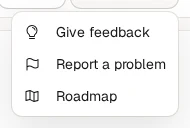
The Feedback button holds three entries:
- Give feedback is for an idea or a compliment.
- Report a problem is for something that went wrong.
- Roadmap shows what is planned, in progress and shipped for this app, based on the feedback of the people who use it.
Both of the first two open the same box. Write your message, add a screenshot if it helps (a PNG, JPEG or WebP image of about 1 MB at most) and choose Send. The box lists what is sent along automatically, so nothing is hidden. Your message goes to the people who maintain the app. Do not put passwords or personal data in it. Following your requests and the roadmap is described in Feedback and the roadmap.
Start a workflow
Open the workflow
Open Experiences, choose Workflows under Type and select the workflow.
Read what it does
The page opens with the workflow's name and what it is for. Under What it does you see its steps as a diagram. Look at the line below the name: it says when the workflow starts.
Choose Start
If you may start it, there is a Start button at the top right. Choose it and Cortex says "The workflow was started." If it did not work you see "The workflow could not be started."
Follow the run
The new run shows under Latest runs. Open it to see which step it is on, and read Workflow runs.
The workflow page
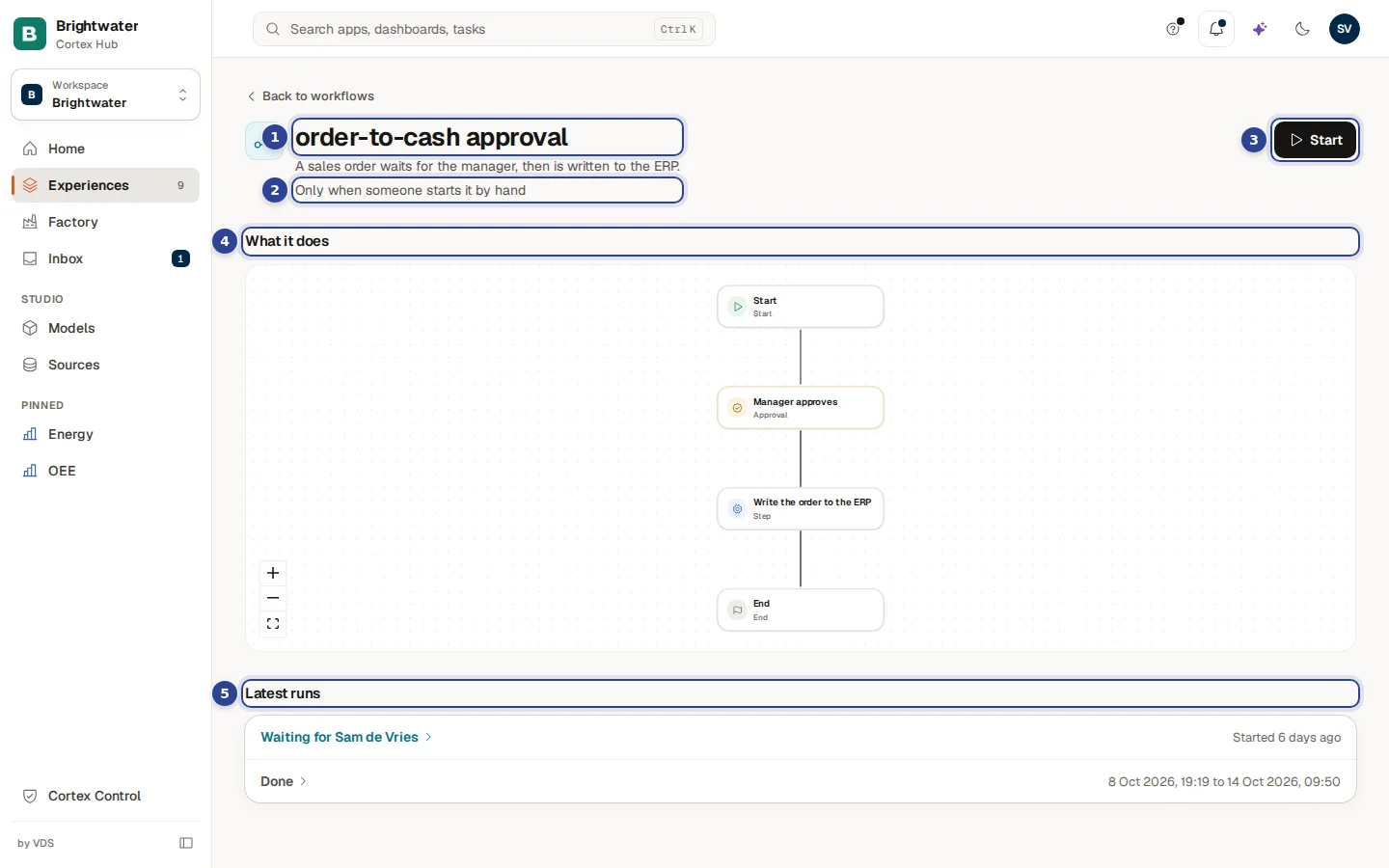
- The name and what the workflow is for. The small icon in front of it marks it as a workflow.
- How it starts, in words. Here "Only when someone starts it by hand".
- Start. Only people who may start the workflow see it.
- What it does. The steps as a diagram, drawn the same way the builders see it, but you can only look. Use the buttons at the bottom left to zoom in, zoom out or fit the diagram to the window. When your installation cannot draw the diagram, the steps appear as a list of sentences instead.
- Latest runs. The newest runs, each with its state and when it ran.
When does a workflow start?
The line under the name tells you. For example:
| The line says | What it means for you |
|---|---|
| "Only when someone starts it by hand" | You start it with Start, if you may. |
| "Every Monday and Saturday at 08:00" | It starts by itself on a schedule. There is no Start button. |
| "When OEE drops below 60 %" | It starts by itself when something happens in your data. There is no Start button. |
No Start button therefore does not always mean you lack access: many workflows start by themselves.
What the runs list shows
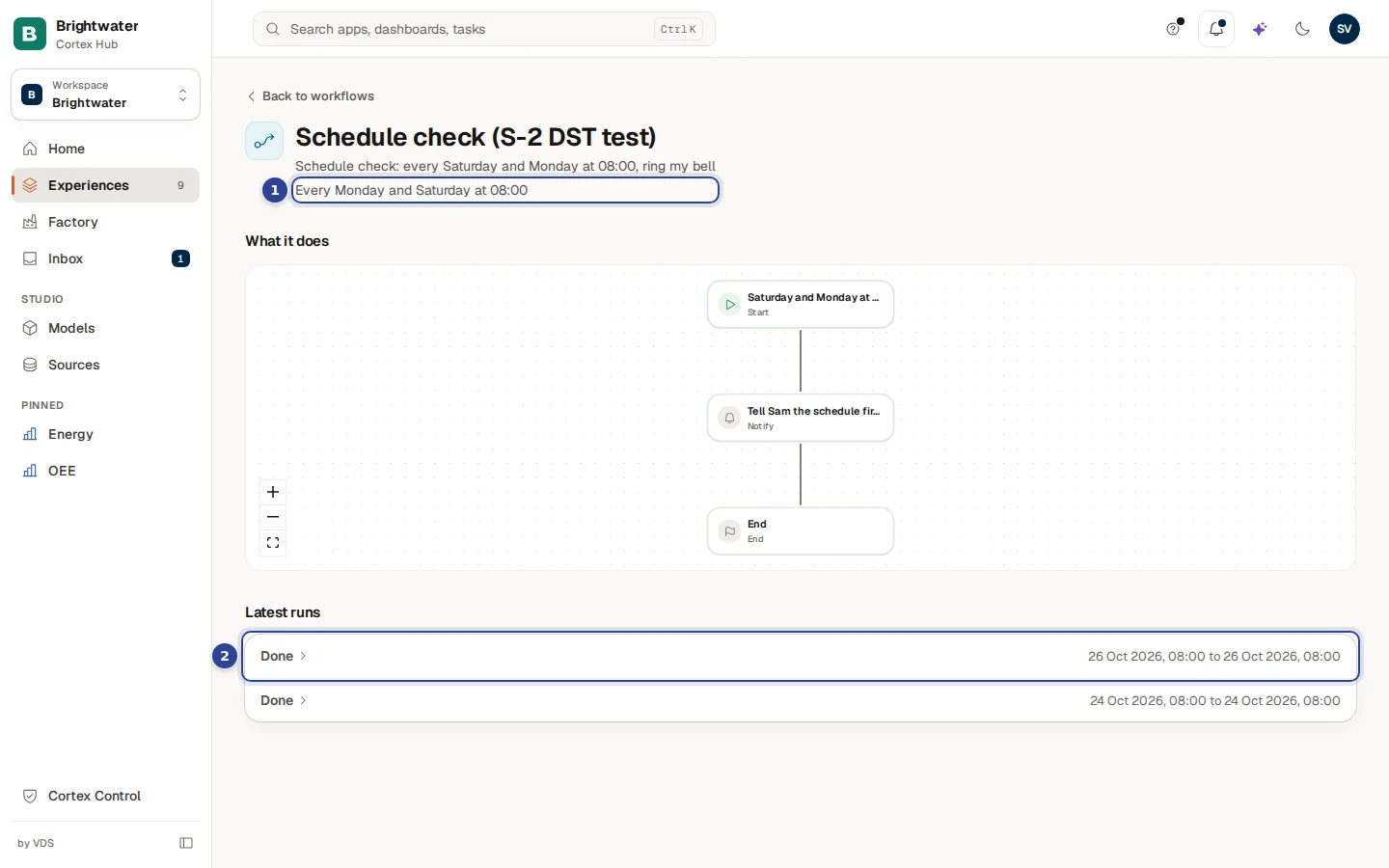
- How it starts. Here a schedule: "Every Monday and Saturday at 08:00". A workflow like this has no Start button.
- One run. The state is a link: choose it to open the run. A finished run shows when it started and ended. A run that is still going shows "Started" with how long ago. A run that waits for a person says "Waiting for" and that person's name. A failed run adds one sentence about where it stopped and why.
Under a run you can also see the records it created, shown as a short label. When the other system gives an address, the label is a link that opens in a new tab.
What the steps in words mean
When the diagram is not available, each step is a sentence. The first words tell you what the step does:
| The sentence starts with | The step ... |
|---|---|
| Does a step | does one piece of work |
| Waits for a person to decide | waits for an approval or a decision |
| Chooses a path | picks one of several ways to continue |
| Reads data / Reads a figure / Reads records | looks something up |
| Writes to another system | sends a change to another system |
| Runs an action on a record | does an approved action on one record |
| Calls an app | asks another app to do something |
| Waits | pauses for a set time |
| Sends a message | notifies someone |
| Repeats for each row | does the same thing for every row of a list |
| Asks AI | lets an AI model read or write something |
| Does several things at the same time | runs steps in parallel |
| Waits for them all to finish | joins parallel steps again |
| Runs another workflow | starts a second workflow |
| Finishes | ends the workflow |
Example: Sam starts the order-to-cash approval
Sam de Vries at Brightwater Foods has agreed a large order with a new customer. The order must be approved by a manager before it is written to the ERP system. Sam opens Experiences, chooses Workflows and selects "order-to-cash approval". The line under the name says it starts by hand, and Sam sees Start. Sam chooses it. Under Latest runs a new run appears: "Waiting for" the manager. Sam opens the run to follow it, and the manager finds the same task in the Inbox.
Troubleshooting
The notification bell
What arrives in the bell at the top of Cortex Hub, how read and unread work, where each line leads and what does not appear there.
Workflow runs
Follow one run of a workflow step by step, read its state, see where it waits or stopped, and approve or reject a step that waits for you.