Records
Look at one customer, order or machine in full: its details, the records linked to it, its documents and the figures about it.
A record is one thing your organisation keeps data about: a customer, an invoice, an order, a machine. The record page gathers everything Cortex knows about that one thing on one screen: its fields, the other records it is linked to, the manuals that belong to it, and the figures you can break down by it.
You do not search for a record page: you arrive at it from something else, such as a dashboard or an answer from Ask. Everything on the page is read with your own access. You never see a record, a link or a document you could not open yourself.
Who can do this
Everyone who can open the kind of record and whose access includes this record. Your organisation can limit records per person, for example to the customers of your own region.
How you get to a record
- From a dashboard. On tiles that allow it, choose a name in a table. A panel opens with the details. Choose Open full page to get the record page. See Use a dashboard.
- From an answer in Ask. When Ask lists records ("Which open deals does Brouwer Yachting have?"), each record can be a link. See Ask Cortex.
- From another record. On a record page, Linked records has an Open link for every record it is linked to.
- From a shared link. A colleague can send you the address of a record page. You land on it if your access allows.
The Back link at the top of the page takes you to the page you came from.
The record page
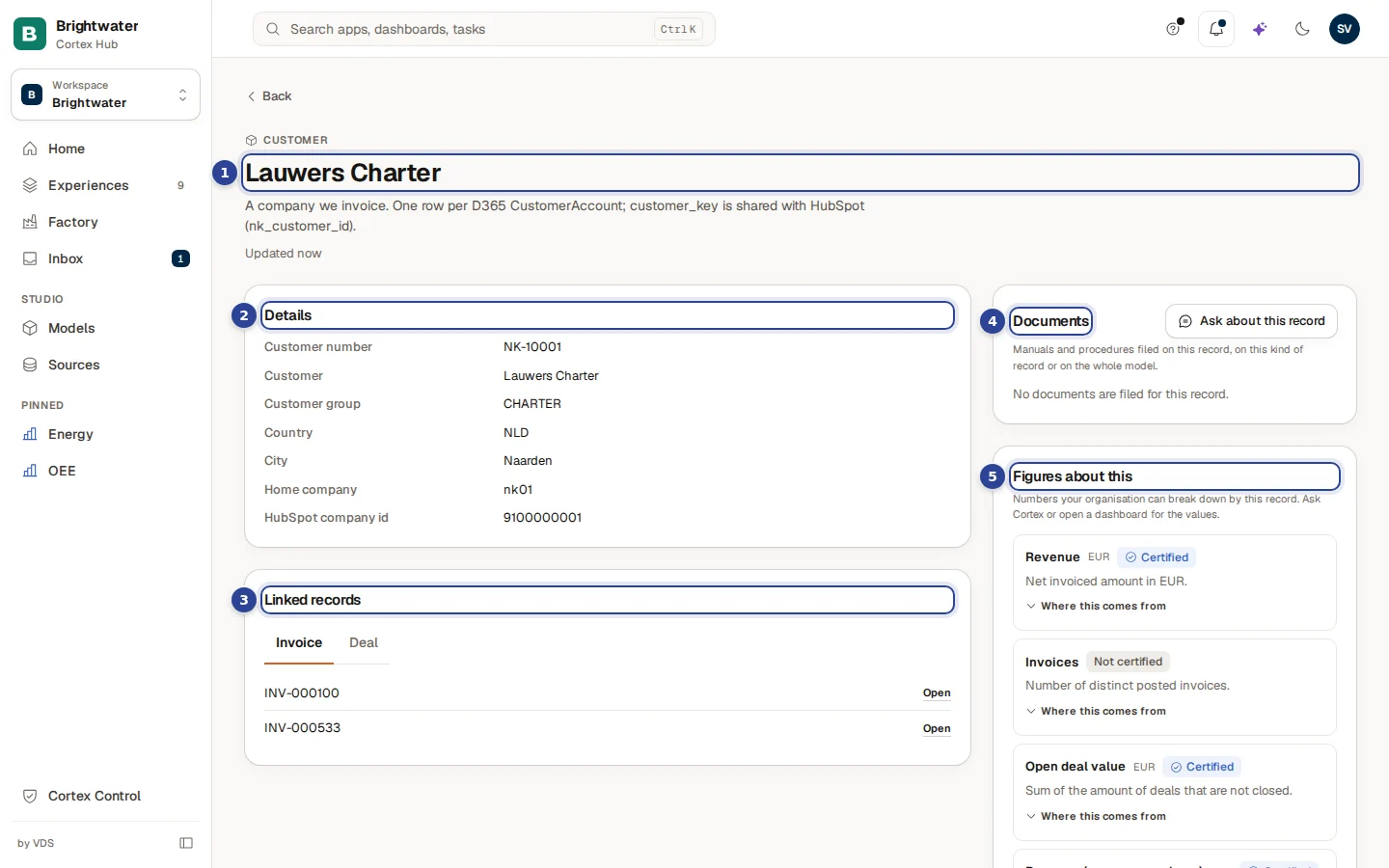
- The title. Above it is the kind of record ("CUSTOMER") with a small cube icon. Under it you see a description of this kind of record, who owns this kind of record (when known) and "Updated ..." with when the data was last refreshed.
- Details. The fields of the record: label on the left, value on the right. Yes/no fields show Yes or No. Hover over a label to see who owns that field when the model names an owner.
- Linked records. The other records this one is connected to. See the next section.
- Documents. Manuals and procedures that belong to this record. See Documents on a record.
- Figures about this. Numbers your organisation can break down by this kind of record. See Figures about a record.
Below these, the right-hand column can also show Used in: the dashboards you can open that use this kind of record, each a link. When none of your dashboards use it you read "Nothing you can open uses this yet." On a narrow screen everything sits in one column.
Rule badges
When the model has a check on this kind of record, a small badge under the title reports the result. A warning badge says "A rule is not met:" followed by the rule in words. A plain badge ("Applies: ...") says a rule applies to this record. Both are information from your organisation's model, not a decision you have to take.
Linked records
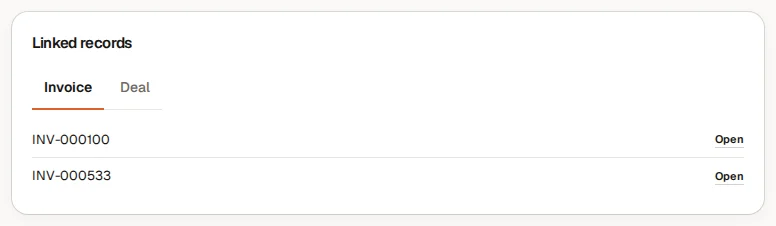
Linked records has one tab for each kind of link: for a customer, for example Invoice and Deal. A tab loads only when you open it, so the page stays quick.
- Open next to a row goes to that record's own page.
- Shown here only instead of Open means the linked record has no page of its own. You see its name and nothing more.
- A long list shows the first rows and says "Showing the first 25; there are more." Narrow it down in the system or in a dashboard.
| You read | What it means |
|---|---|
| "Nothing is linked here." | This record has no links of that kind. |
| "You do not have access to the source of this link yet. Ask your administrator." | The system behind this link is not open to you yet. This is not the same as "nothing linked". |
| "This link could not be read right now. Try again later." | A temporary problem in the system behind the link. |
Documents on a record
Documents lists manuals and procedures that your organisation filed on this record, on this kind of record or on the whole model. Under each name you see how many pages it has and where it was filed: This record, Every record of this kind or The whole model. A document read from a scan shows "OCR · 90% sure", which tells you how reliable the text is.
- Choose a document to read it page by page in a viewer. See Ask Cortex for how documents appear in answers.
- Open in SharePoint appears when the document also lives there.
- Ask about this record takes you to Ask with a question already filled in ("What do the documents say about ..."). The record travels with the question, so Cortex looks at the documents of this record first.
Without documents you read "No documents are filed for this record." You only see documents you are allowed to see. Cortex does not say whether there are others.
Figures about a record
Figures about this lists the figures your organisation can break down by this kind of record, such as Revenue or Open deal value for a customer. It does not show the numbers on this page: Ask Cortex ("What was the revenue of Lauwers Charter this year?") or open a dashboard for the values.
Each figure shows its unit, a badge and a short description. Certified means your organisation checked and approved the definition; Not certified means it has not been checked yet. See Certified figures. Choose Where this comes from to open the details: how the figure is calculated and where its definition comes from.
Actions on a record
Some records have an Actions card above Linked records. It is there only when your organisation set up an action for this kind of record and you may see it. An action is a change in the source system that goes through your organisation's approved path, such as "Block customer". Changes are logged under your name.
Choose Run
Every action has its own Run button. If it is grey, the line under the action tells you why, for example "Not available for this record right now." or "This action is not approved for this model yet. Ask your administrator to approve it."
Fill in what the box asks
The box asks only for what Cortex cannot take from the record itself. Optional fields say "optional". A field that is wrong is marked. An action that needs nothing says "This action needs nothing more from you."
Choose Run action
Cortex checks again whether you may and whether the record still meets the conditions, and then runs the action once. A second click does not run it twice.
Read the result
| Result | What it means |
|---|---|
| "Done. The action ran." | The change was made. |
| "Sent for approval. Someone else has to approve it before it runs." | The action needs a second person. It has not run yet. |
| "The action is still running. Check back in a moment." | It takes a while. |
| "The outcome is not known yet. Check the source system before you try again." | Cortex could not confirm. Look in the source system before you run it again. |
| "The action did not complete: ..." | The source system refused it. The reason follows. |
| "Your role may not run this action." | You do not have the role for it. |
| "This record no longer meets the conditions for this action." | The record changed since you opened the page. |
You cannot change a field directly on this page. All changes go through actions.
When the page does not show a record
| You read | What it means |
|---|---|
| "No such record" with "This record does not exist, or you may not see it." | The key is wrong, the record was removed, or your access does not include it. Cortex does not say which. |
| "This record cannot be shown" | You may not open this kind of record, or its source system is not open to you yet. |
| "Records are not available yet" | Your installation cannot show individual records yet. Ask your IT team to update it. |
Example: Sam looks up Lauwers Charter
Sam de Vries at Brightwater Foods sees a customer called Lauwers Charter in an Ask answer about overdue invoices and chooses the name. The record page shows customer number NK-10001 and the country and city in Details. In Linked records Sam opens the Invoice tab and sees two invoices. Choosing Open next to one goes to that invoice, and Back returns to the customer. Sam then chooses Ask about this record to ask what the documents say about payment terms.