Pin a value, pin a dashboard, subscribe
Keep a figure on Home, pin dashboards and apps in the menu, and get a digest or an alert by email, in the Hub or in a Teams channel.
Three small habits save you from opening the same dashboards every morning.
- Pin a value keeps one figure from a dashboard on your Home. You see the number the moment you sign in.
- Pin a dashboard or an app puts it under Pinned in the menu, one click away.
- Subscribe makes Cortex come to you: a short digest on a schedule, or an alert when a figure crosses a value you set.
Pinned values and subscriptions never copy a number. A pin is a reference: every time you open Home, Cortex asks for the figure again, with your own access. A digest or alert only uses what you are allowed to see.
Who can do this
Everyone who can open the dashboard or app in question. Email needs your organisation to have connected Microsoft 365. A Teams channel needs your organisation to have linked channels. Both are offered only when available.
Pin a value to Home
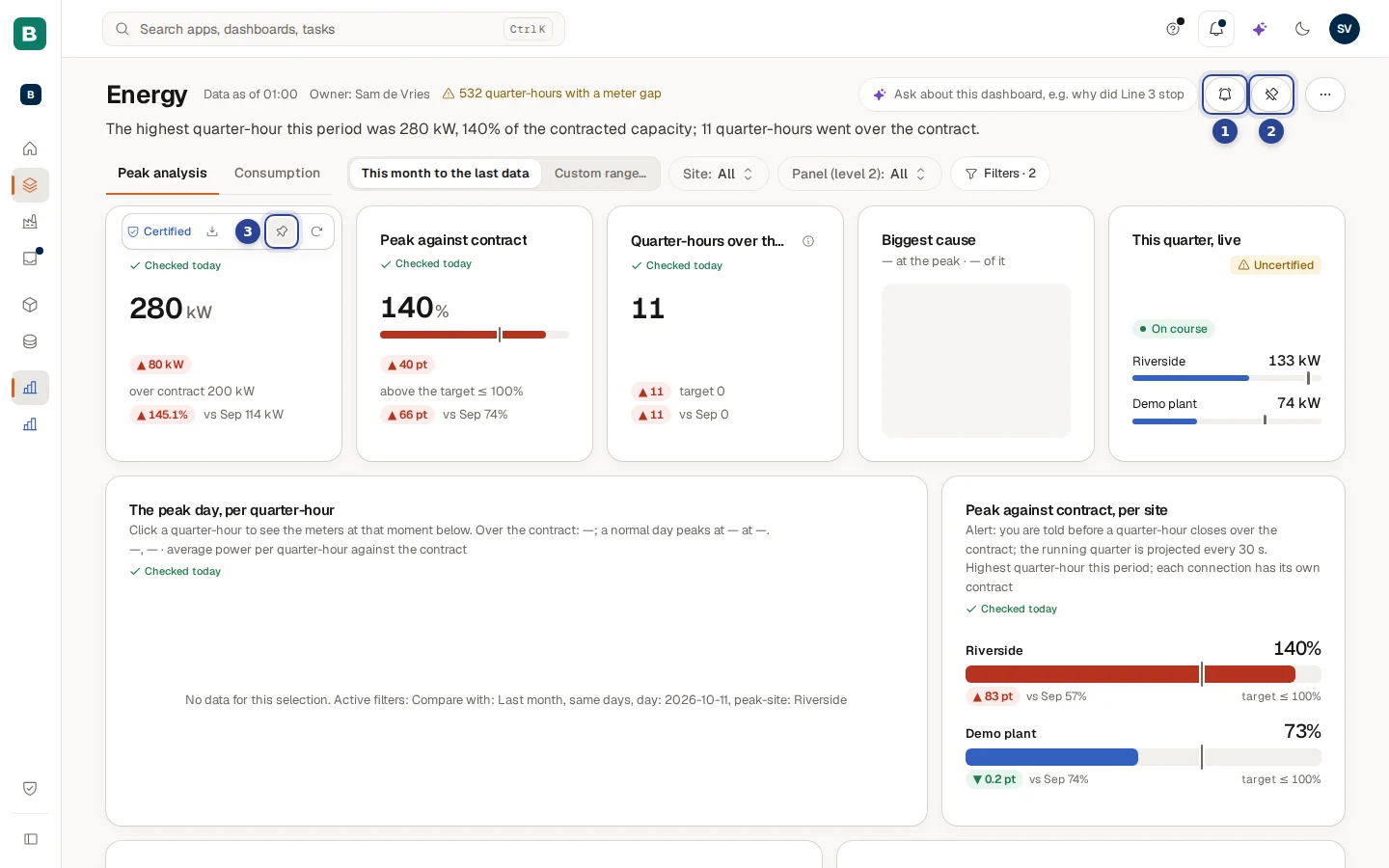
- Subscribe (the bell in the header). Covered below.
- Pin or Unpin (the pin in the header). Pins the whole dashboard to the menu. Sam already pinned Energy, so the pin is crossed out: choosing it now would unpin it. More in Pin a dashboard or an app.
- Pin to Home (the pin on a tile). Pins this one value. The button shows when you hover over the tile, and on a phone or tablet under Tile actions.
Find a tile worth keeping
Open the dashboard and look for a tile with one number, a bar chart, a table or a ranking. Those are the tile types that can be pinned.
Choose Pin to Home
Select the pin icon on the tile. A small box opens with the tile and the dashboard name, such as "Highest quarter-hour · Energy".
Decide about the filters
Tick Keep the current filters if the value should stay filtered the way it is now. The tick box is greyed out when no filter is active.
Pin it
Choose Pin. Choose Cancel to leave without pinning.
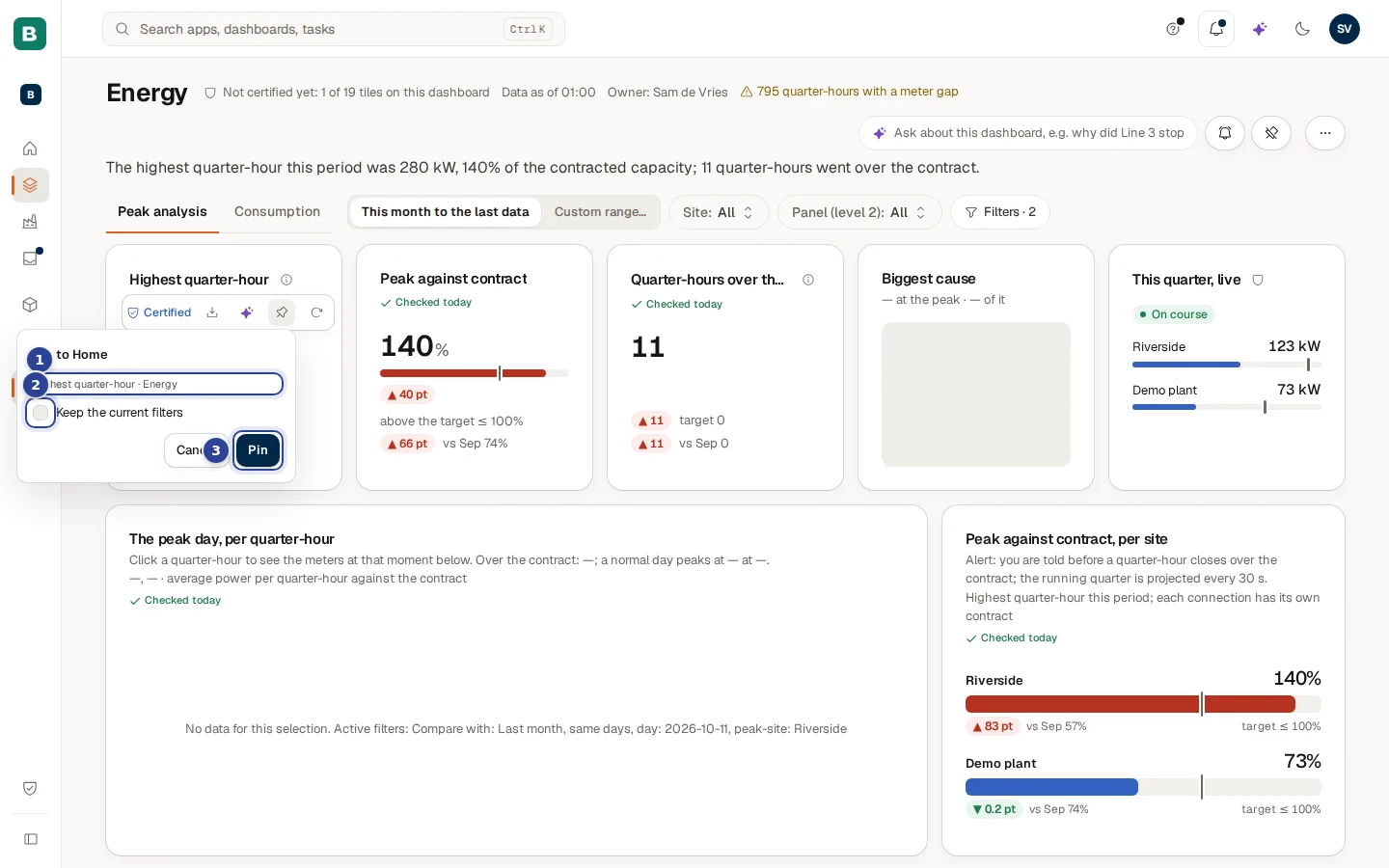
- The tile and dashboard name. Read-only. It tells you what you are about to pin.
- Keep the current filters. On: the card on Home shows the figure with today's filters. Off: it shows the dashboard's own starting view.
- Pin. Saves the pin.
You can also pin from an answer in Ask. When the answer matches a dashboard tile it has a Pin to Home button, and afterwards it says "Pinned to Home." See Ask Cortex.
To unpin from the dashboard, select the same icon on the tile (Unpin from Home). You can also remove it on Home.
Limits
| What | Limit |
|---|---|
| Pinned values | Up to 12 per workspace. At the limit the box says "You can pin up to 12 values. Remove one on Home first." and Pin is off. |
| Pinned dashboards and apps | Up to 30. At the limit Cortex says "You can pin at most 30 items." |
See and arrange your pinned values
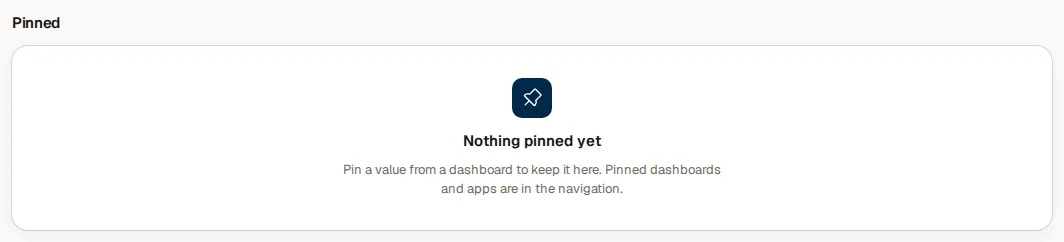
On Home the Pinned section shows your values as cards, two per row. A card names the dashboard, shows the figure with its change against the comparison period, and opens the dashboard when you select it. A dashboard that you pinned with filters opens with those filters.
Choose Manage
Next to Pinned, choose Manage. The button only shows when you have at least one pinned value.
Move or remove
Under each card you now see the arrows Move up and Move down, and Remove. Remove asks "Remove this pinned value?" and says that it leaves your Home and that you can pin it again from its dashboard.
Finish
Choose Done.
Sometimes a card shows a note instead of, or under, the figure.
| Note | What it means and what to do |
|---|---|
| "Updated by its maker since you pinned it" (with the version numbers) | The dashboard changed. Choose Got it to dismiss the note. |
| "Filters reset" | The filters saved with your pin no longer fit the changed dashboard and were reset. Choose Got it. |
| "This tile was removed from ..." | The tile is gone. Choose Ask again to ask Cortex for the same figure, Open dashboard, or Remove. |
| "This tile can no longer be pinned" | The maker changed the tile into a kind that cannot be pinned. Open dashboard or Remove. |
| "This pinned value is no longer available." | The dashboard may be unpublished or removed, or you may no longer have access. Cortex gives no further reason, so the card is named by its place, for example "Pinned value 3". Choose Remove. |
Pin a dashboard or an app
Open the dashboard or app and select the pin icon at the top (Pin). Cortex says "Pinned. You will find it under Pinned in the sidebar." From now on it sits under Pinned in the menu. Select the icon again (Unpin) to remove it. On a card in Experiences you find the same pin.
Subscribe to a digest or an alert
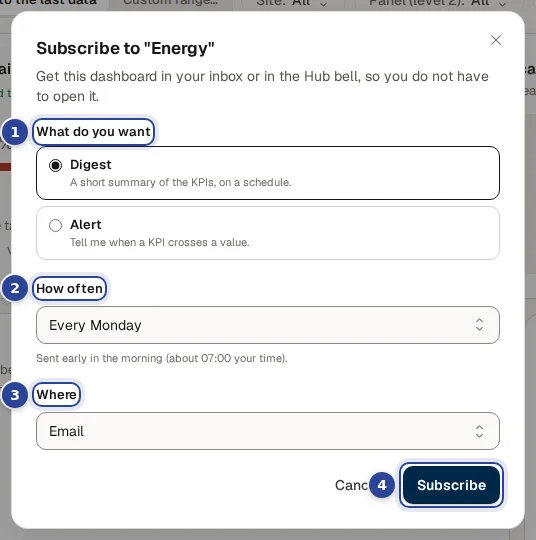
- What do you want. Digest ("A short summary of the KPIs, on a schedule.") or Alert ("Tell me when a KPI crosses a value.").
- How often. Every day or Every Monday. A line under it gives the time in your own clock: "Sent early in the morning (about ... your time)."
- Where. Email, In the Hub (bell) or, when your organisation linked Teams channels, In a Teams channel.
- Subscribe. Saves it. Cortex says "Subscribed. You can change it under Subscriptions."
A digest
Open the box
On the dashboard select the bell (Subscribe). The box is titled with the dashboard name.
Choose Digest and a schedule
Keep Digest and choose Every day or Every Monday under How often.
Choose where it arrives
Under Where choose Email or In the Hub (bell). With In a Teams channel you also pick the Teams channel.
Subscribe
Choose Subscribe.
An alert
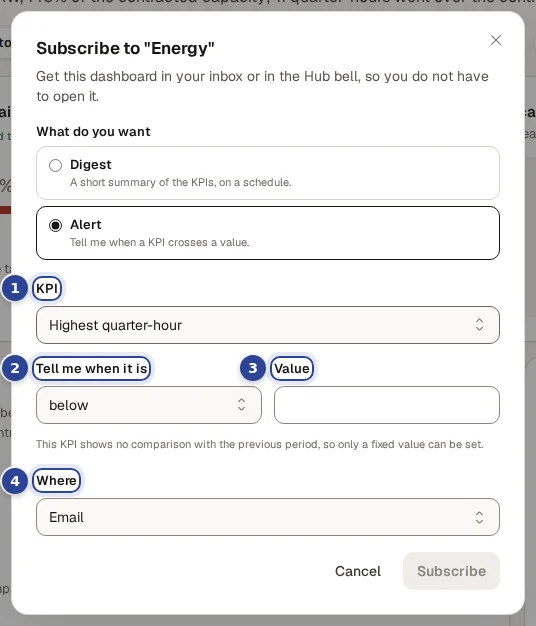
- KPI. The KPI tile to watch. The list holds the KPI tiles of this dashboard.
- Tell me when it is. The rule: below, at or below, above or at or above. If the KPI shows a comparison with the previous period you can also choose fell by at least, rose by at least or moved (up or down) by at least.
- Value. The value to compare with. For a comparison rule the label is Percent, between 0 and 1000. For a KPI that is a percentage (such as OEE) you type the percentage as you read it, for example 60.
- Where. As for a digest.
Choose Alert
In the box choose Alert. A KPI tile is needed: if the dashboard has none, the box says "This dashboard has no KPI tiles to subscribe to."
Set the rule
Choose the KPI, then Tell me when it is and fill in the Value. A help line under the fields tells you when only a fixed value can be set, because the KPI shows no comparison with the previous period.
Choose where and subscribe
Choose Where and choose Subscribe.
Where it arrives
| Choice | What you get |
|---|---|
| A message in your mailbox, with the figures. Greyed out with "Email is not available for you yet. Ask IT to connect Microsoft 365." when your organisation has not set it up. Choose the Hub bell meanwhile. | |
| In the Hub (bell) | A line in the notification bell, with a link to the dashboard. See The notification bell. The line holds no governed figure. |
| In a Teams channel | A post in the channel you pick. A channel is shared, so the post holds no figures, only that something needs a look, with a link. |
When the data is limited to certain people
Some dashboards only show you the rows you are allowed to see. The box then says "This data is limited to certain people". To send you a digest or alert while you are away, Cortex needs your permission to read that data as you. Choose Give permission. The permission only covers governed data, every use is logged, it ends after 90 days, and you or IT can withdraw it at any time. Before it ends you see a reminder to Renew it. Subscribe stays off until the permission exists.
Inside Microsoft Teams, open the Hub in your browser to give permission. More about the permission on Subscriptions.
Example: Sam watches the energy peak
Sam de Vries at Brightwater Foods wants to know when the quarter-hour peak goes over the contract, without opening the Energy dashboard every day.
- Sam opens the Energy dashboard and hovers over the first tile, Highest quarter-hour. The pin on the tile opens the box. Sam ticks Keep the current filters and chooses Pin. The value is now on Home.
- Sam selects the pin in the header, so the dashboard sits under Pinned in the menu.
- Sam selects the bell, chooses Alert, picks the KPI Peak against contract, Tell me when it is above, Value 100 and Where In the Hub (bell), and chooses Subscribe.
- Sam also adds a Digest, Every Monday, Email, so the week starts with a summary.
- A week later a line appears in the bell. Sam selects it and lands on the dashboard. The two subscriptions are listed on Subscriptions, where Sam can pause or remove them.
Questions and problems
Use a dashboard
Open a dashboard, change the period, filter, look closer at a figure, ask about a tile, export, print and read how fresh the data is.
Subscriptions
See every digest and alert you get from Cortex Hub, pause, resume or remove them, and manage the permission that lets Cortex read limited data for you.