Home
The page you start from. Ask a question, pick up your work, see the values you pinned and jump back to what you opened last, and learn the menu on the left.
Home is the first page you see after you sign in and the one you come back to most. It is built around one idea: ask first. At the top is a box where you type a question in your own words. Below it Cortex keeps what you need next to hand: your recent questions, the values you pinned, drafts that are waiting for you, and the dashboards and apps you opened last.
This page walks through Home from top to bottom, then explains the menu on the left that stays with you on every page. The question box itself is covered in depth on Ask Cortex.
Who can do this
Everyone who can sign in to Cortex Hub. Your work is only for people with a Studio seat (builders). Everything on Home is limited to what you may see yourself.
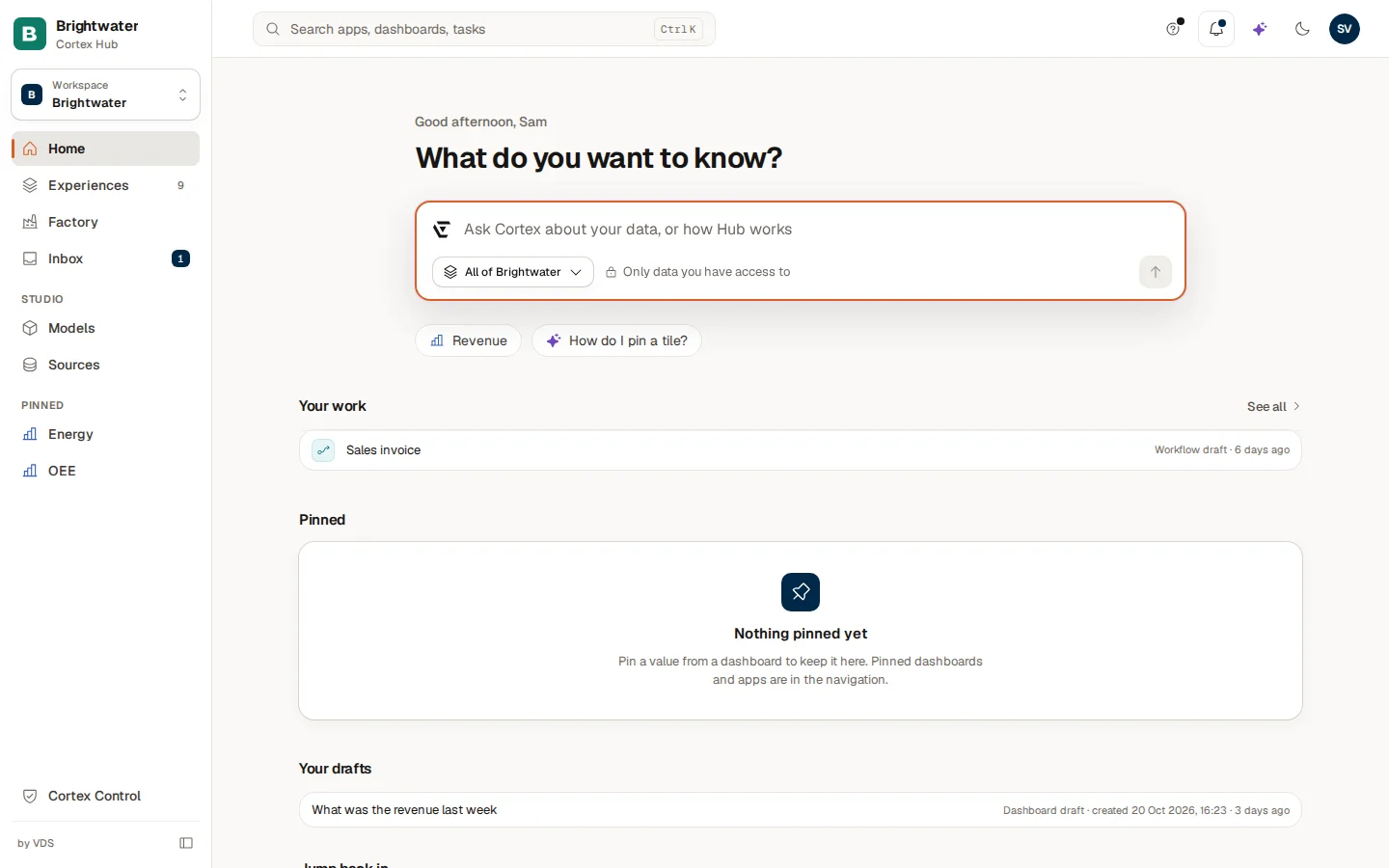
The question box
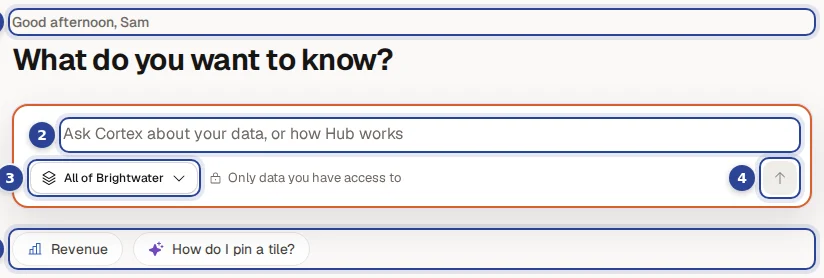
- The greeting. "Good morning", "Good afternoon" or "Good evening", with your first name, depending on the time of day. Under it is the title "What do you want to know?".
- The question field ("Ask Cortex about your data, or how Hub works"). Type your question. Press Enter to send it, or Shift+Enter to start a new line.
- The scope button ("Choose where Cortex looks"). It shows where Cortex looks for the answer, here "All of Brightwater". See Where Cortex looks.
- The send button ("Ask Cortex"). It stays grey until you have typed something. Hover over it while the field is empty and it says "Type a question first."
- Questions to try. Suggested questions. Choose one to ask it at once. Hover over a chip to see where it comes from: "From your pinned values", "Verified question" or "Asked in your team". The last chip, "How do I pin a tile?", is always offered and answers questions about Cortex itself.
Next to the field sits the note "Only data you have access to", a reminder that an answer never goes beyond what you may open yourself.
When you ask, the answer opens as a conversation in place of Home. Use New question at the top of the conversation to start over, and see Ask Cortex for reading the answer.
Ask from a dashboard tile
When you choose Ask about this tile on a dashboard tile, Home opens with the question already typed in the box. It is not sent yet: read it, change it and press Enter. A question about one asset can also show a small chip "About: ..." above the field. Choose the cross on the chip to remove it before you send.
Where Cortex looks
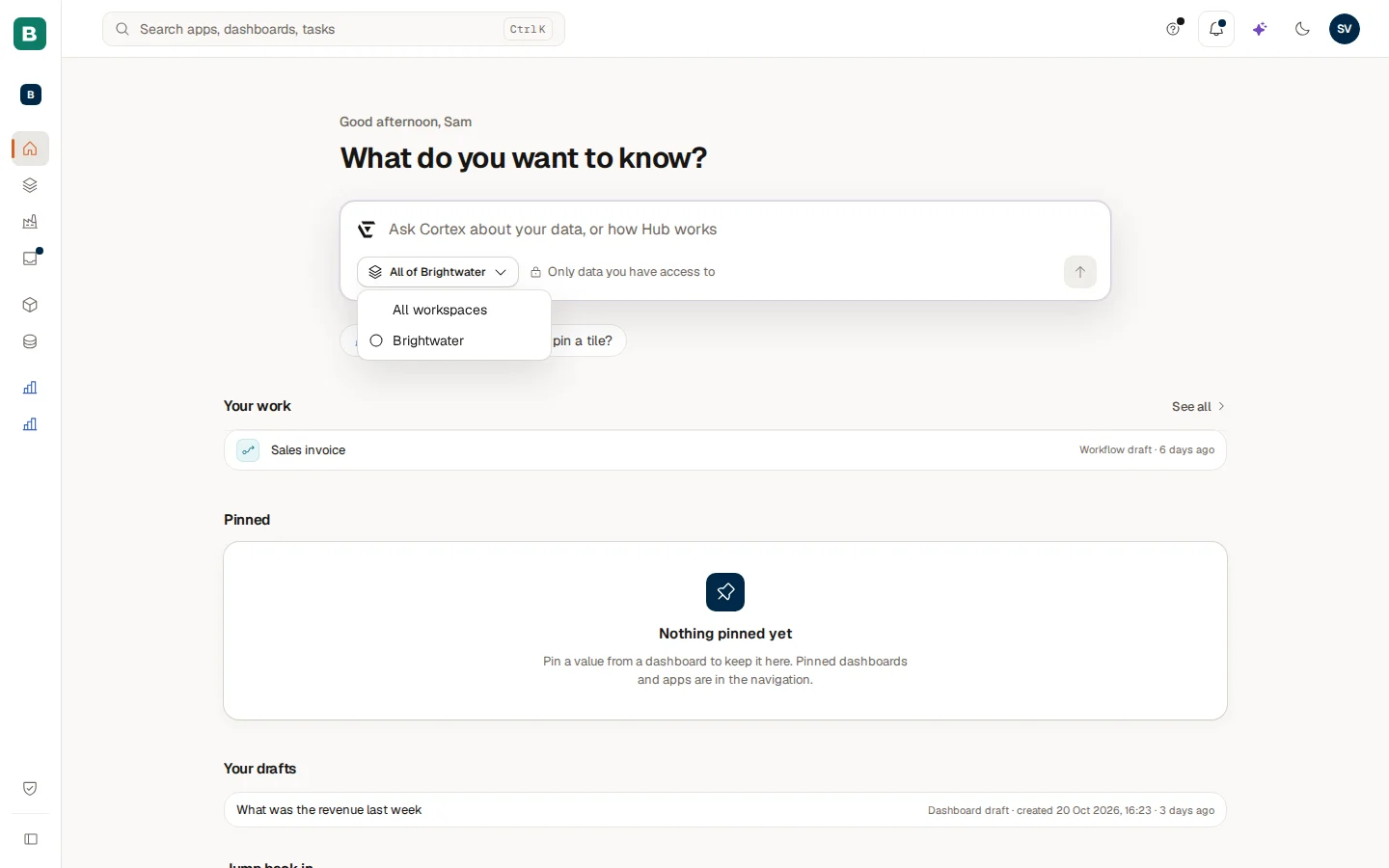
The scope button follows the workspace you chose in the menu: with the workspace Brightwater selected it says "All of Brightwater". Choose it to ask across All workspaces you may open, or to pick one workspace. Your choice applies to the question you ask next. If you belong to only one workspace, the button just shows its name. See Search and workspaces.
Your work (builders)

If you have a Studio seat, Your work sits directly under the question box. It lists at most five rows, newest first, and each row is one click into the right editor or page. The block is not shown when there is nothing to list.
There are two kinds of rows. The small text at the right says which kind and how long ago:
| Row | What it means | Where it goes |
|---|---|---|
| Dashboard draft | A dashboard you own that is not live yet. | The dashboard in the editor. |
| Workflow draft | A workflow you own that is not live yet, with the time it was last changed. | The workflow editor. |
| An app with its status | An app you build, for example in progress or not published yet. | The app's page. |
| To review: "1 new piece of feedback on your experiences" | Feedback from users on something you built. | The Inbox. |
| To review: "1 request for a builder to pick up" | A colleague asked for something that a builder can take on. | The Inbox. |
| To review: "Name: your request was approved" / "ready to build" / "your request was refused" / "setup did not finish" | The answer to a request you made yourself. | The Inbox, Sent tab. |
Never more than two of the five slots are reviews, so a long inbox cannot hide your drafts. See all at the top right opens Experiences with Only mine switched on. Builders find the full story under Studio.
Recent questions and pinned values
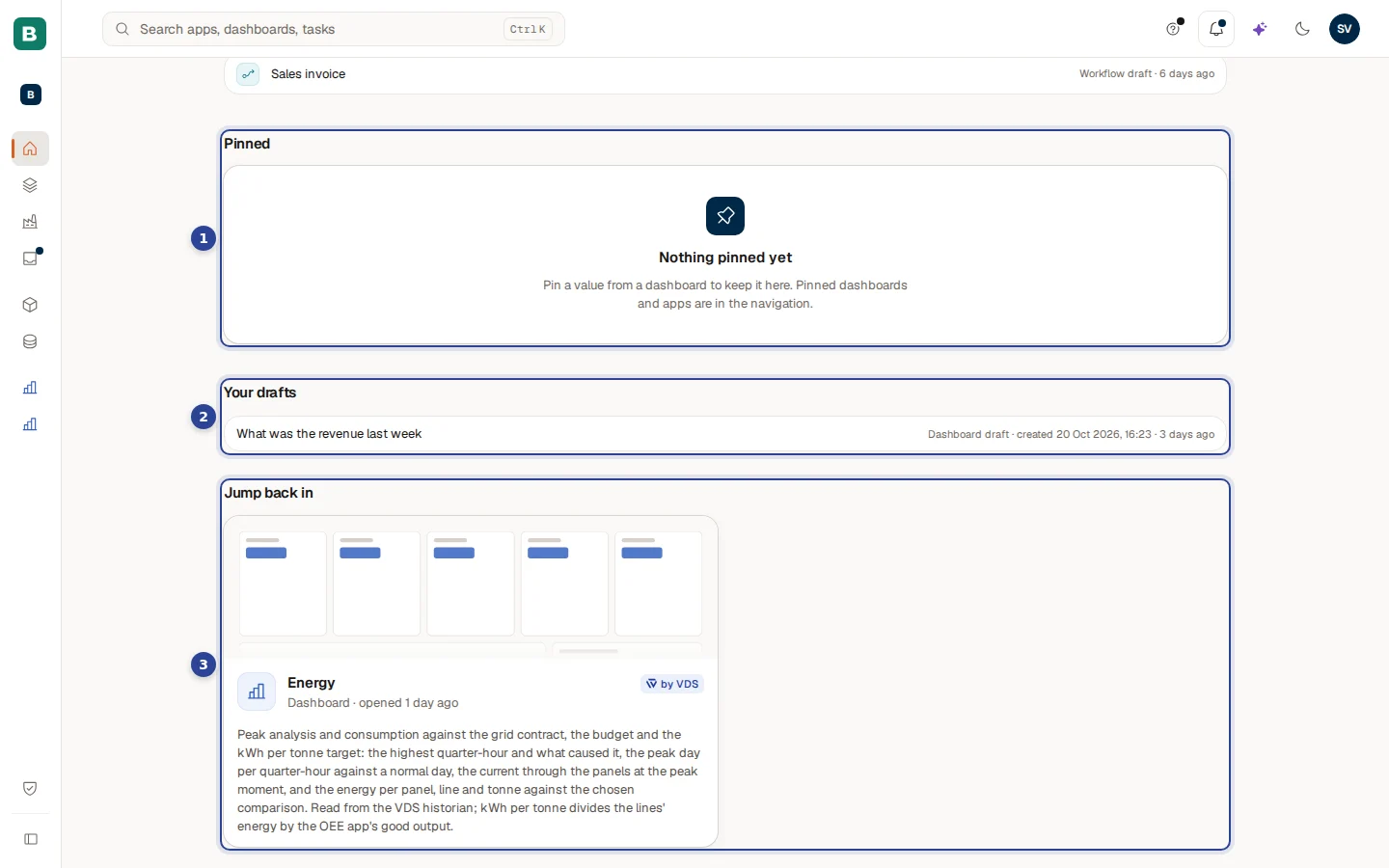
- Pinned. The values you pinned from dashboards. Sam has not pinned one yet, so it says "Nothing pinned yet".
- Your drafts. Dashboards Ask made for you that only you can see.
- Jump back in. What you opened last, here the Energy dashboard.
Below the question box Home has two columns. In the picture Sam has no recent questions yet, so Pinned uses the full width.
Recent questions (left) lists the questions you asked lately with how long ago. Choosing one asks it again and gives you a fresh answer on today's data. When a question started from a dashboard, a second line names that dashboard, with "pinned" or "subscribed" when you also pinned or subscribed to it. All conversations at the top right opens the full list of your conversations.
Pinned (right) holds the values you pinned from dashboards. Without pins it says "Nothing pinned yet" and tells you how to pin one. With pins you see them as cards, two per row, and a Manage button appears:
- Choose Manage to show Move up, Move down and Remove on each card. Choose Done when you are finished.
- Remove asks you to confirm ("Remove this pinned value?"). The value leaves Home and you can pin it again from its dashboard.
- You can pin up to 12 values. At the limit Cortex says "You can pin up to 12 values. Remove one on Home first."
- A pinned value can become unavailable, for example when the dashboard was unpublished or you lost access. The card then says so and offers Remove.
Pinned values are not the same as the Pinned list in the menu. The menu lists dashboards, apps and workflows you pinned. Home shows single values from a dashboard. Both are explained on Pin a value, pin a dashboard, subscribe.
Drafts, Jump back in and the way on
Under the two columns Home can show two more sections.
- Your drafts shows the dashboards you let Ask create for you and that only you can see. Each row has the name, "Dashboard draft", when it was created and when you last used it. Choose a row to open it. The draft says on its own page that only you can see it, and that a builder has to publish it before you can share it. The section is not shown when you have no drafts.
- Jump back in shows up to three cards for what you opened last: a dashboard, an app or a workflow, with a preview, a description and "opened 9 hrs ago". Items from the curated set show a "Ready-made" mark. Cortex leaves out anything you can no longer open, so there are no dead links.
The last line, Browse all dashboards and apps, opens Experiences.
If one of these sections cannot be loaded, it stays in place and says so, for example "Your recent questions could not be loaded.", with a Try again button. A section without data never looks like an empty one.
The menu on the left
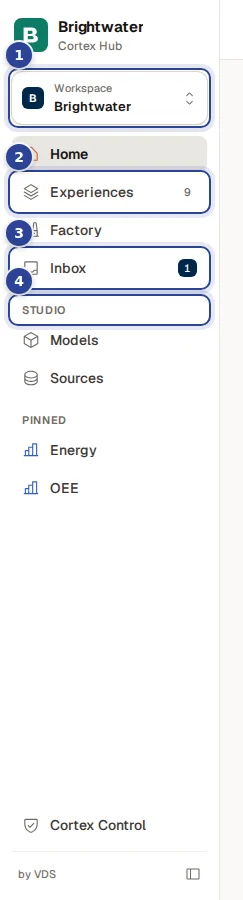
- The workspace card. Choose it to switch workspace. See Search and workspaces.
- Experiences. The number is how many dashboards, apps and workflows you can open in the current workspace. See Experiences.
- Inbox. The number is what waits for your action. For a builder it also counts open requests for a builder to pick up. Feedback that has not been handled is not counted. See The Inbox.
- Studio. A heading with Models and Sources, only for people with a Studio seat.
The rest of the menu:
| Item | Shown when |
|---|---|
| Home | Always. The conversation pages also keep Home lit. |
| Experiences | Always, unless your organisation's plan has none of the three types. |
| Factory | Your organisation uses the Factory pack. |
| Inbox | Always. |
| Pinned | You pinned at least one dashboard, app or workflow in the current workspace. |
| Cortex Control | You are an administrator. Opens the administration side of Cortex. |
At the very bottom is the small button that collapses the menu.
Collapse and expand
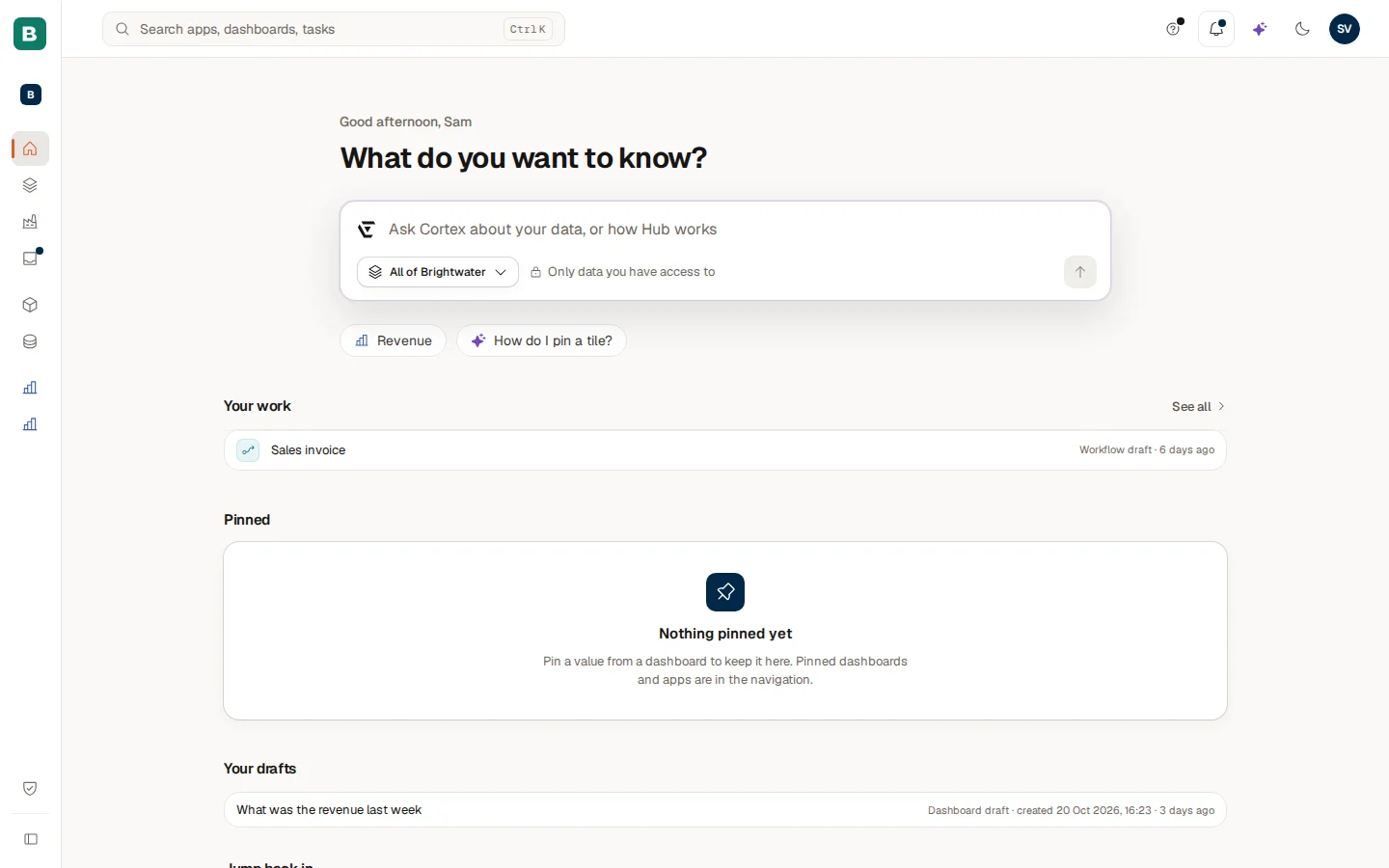
Choose the button at the bottom of the menu (Collapse menu, and Expand menu when it is collapsed) or press Ctrl+B (Cmd+B on a Mac). The collapsed menu keeps the same order, with icons instead of words, and the workspace card shrinks to its coloured letter. Cortex remembers your choice on this device.
Without a choice of your own, Cortex decides for you: below about 1600 pixels of screen width the menu starts collapsed, on wider screens it starts expanded, and it follows the window when you resize it. While you view an app or a dashboard the menu may also show as icons to give the page room, without changing the choice you made. On a phone the menu hides behind the Open menu button.
Example: Sam checks the day
Sam de Vries, a builder at Brightwater Foods, opens Home. Your work shows three workflow drafts and two requests that are ready to build, so Sam opens the first draft and carries on. Back on Home Sam asks "What was the revenue last week?" from the box, then chooses All conversations to find a question from last Friday. In the lower part Sam uses a Jump back in card to reopen the Energy dashboard.
Find your way around
Your first day in Cortex Hub. Sign in, learn the parts of the screen, and do the first five things that make Cortex useful.
Search and workspaces
Find an app, dashboard or task in seconds with the search box, hand a question to Ask from the same box, and switch between workspaces to change what the Hub shows.