Feedback and the roadmap
Send an idea or a problem about a dashboard or an app, follow what happens to it, read the roadmap and, if you have a Studio seat, request a new app.
The people who build and look after your dashboards and apps want to hear what works and what does not. Cortex gives you a short way to tell them, without an email and without hunting for who to ask: a Give feedback or Report a problem action on every dashboard and app, a Roadmap that shows what is planned, and a place in the Inbox where you see what became of your message.
Who can do this
Everyone who can open the dashboard or app. Your message goes to the people who maintain it. Requesting a new app (the request page) needs a Studio seat; see Request an app.
Where to find it
| Where | What you do |
|---|---|
| A dashboard | Open the three dots at the top right (More actions) and choose Give feedback, Report a problem or Roadmap. See Use a dashboard. |
| An app | Use the Feedback button in the bar above the app. It holds the same three choices. See Apps, workflows and records. |
| Inbox > Sent | Under My feedback you follow what you sent. |
Give feedback or report a problem
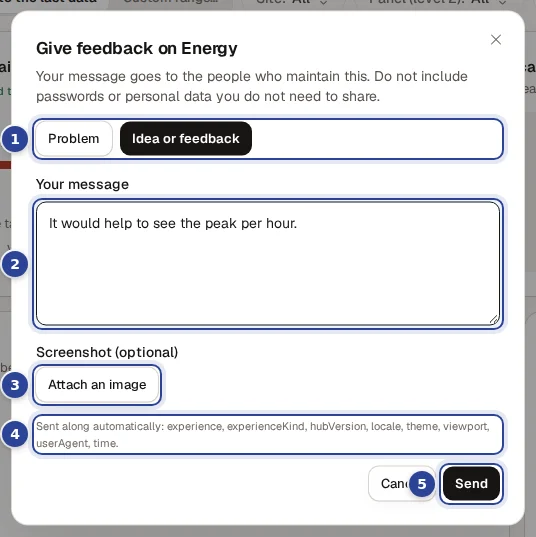
- Kind of message. Problem or Idea or feedback. Choosing Give feedback in the menu starts on the idea, Report a problem on the problem; you can switch in the box.
- Your message. What went wrong and what you expected, or what would make the dashboard better. It is limited to 2,000 characters.
- Screenshot (optional). Attach an image adds a PNG, JPEG or WebP image of about 1 MB at most. Remove takes it away again.
- Sent along automatically. The line lists the details that go with your message, such as the page you were on. They describe where you were. Cortex never reads a password, token or cookie.
- Send. It stays off until you wrote something.
Open the menu
On a dashboard open More actions. On an app use Feedback.
Choose what you want to say
Choose Give feedback for an idea or a compliment, or Report a problem for something that does not work.
Write your message
Describe it the way you would to a colleague. Do not include passwords or personal data you do not need to share.
Attach a screenshot if it helps
Choose Attach an image. A wrong type gets "Attach a PNG, JPEG or WebP image." and a too large file "That image is too large (about 1 MB at most)."
Send
Choose Send. Cortex says "Thank you. Your message about ... was sent."
| Message | What it means |
|---|---|
| "Thank you. Your message about ... was sent." | It arrived at the people who maintain the dashboard or app. |
| "Thank you. Ask does not keep free text, so only the report itself was recorded." | The report is about an Ask answer. Only the report is kept, not your text. |
| "Too many messages. Wait a minute and try again." | You sent several in a short time. |
| "You can no longer open ..., so your message was not sent." | Your access to the dashboard or app ended. |
| "Your message could not be sent. Try again." | A temporary problem. Your text is still in the box. |
In Ask, Helpful and Not helpful under an answer are a quick rating, see Ask Cortex.
Read the roadmap
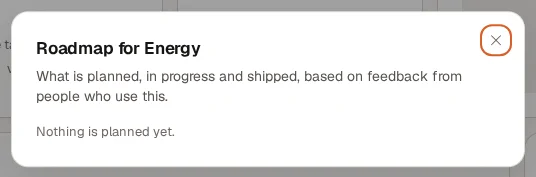
Roadmap opens a box titled "Roadmap for ..." ("What is planned, in progress and shipped, based on feedback from people who use this."). Once items are planned, they are grouped:
- By target period (a month).
- Not scheduled yet: accepted, with no month yet.
- Shipped: done.
Each item shows a status (Planned, In progress or Shipped), whether it was a Problem or an Idea or feedback, and a short excerpt. You never see who wrote it or any data. When nothing is planned the box says "Nothing is planned yet." If it cannot load: "The roadmap could not be loaded. Try again later."
Follow what happened to your feedback
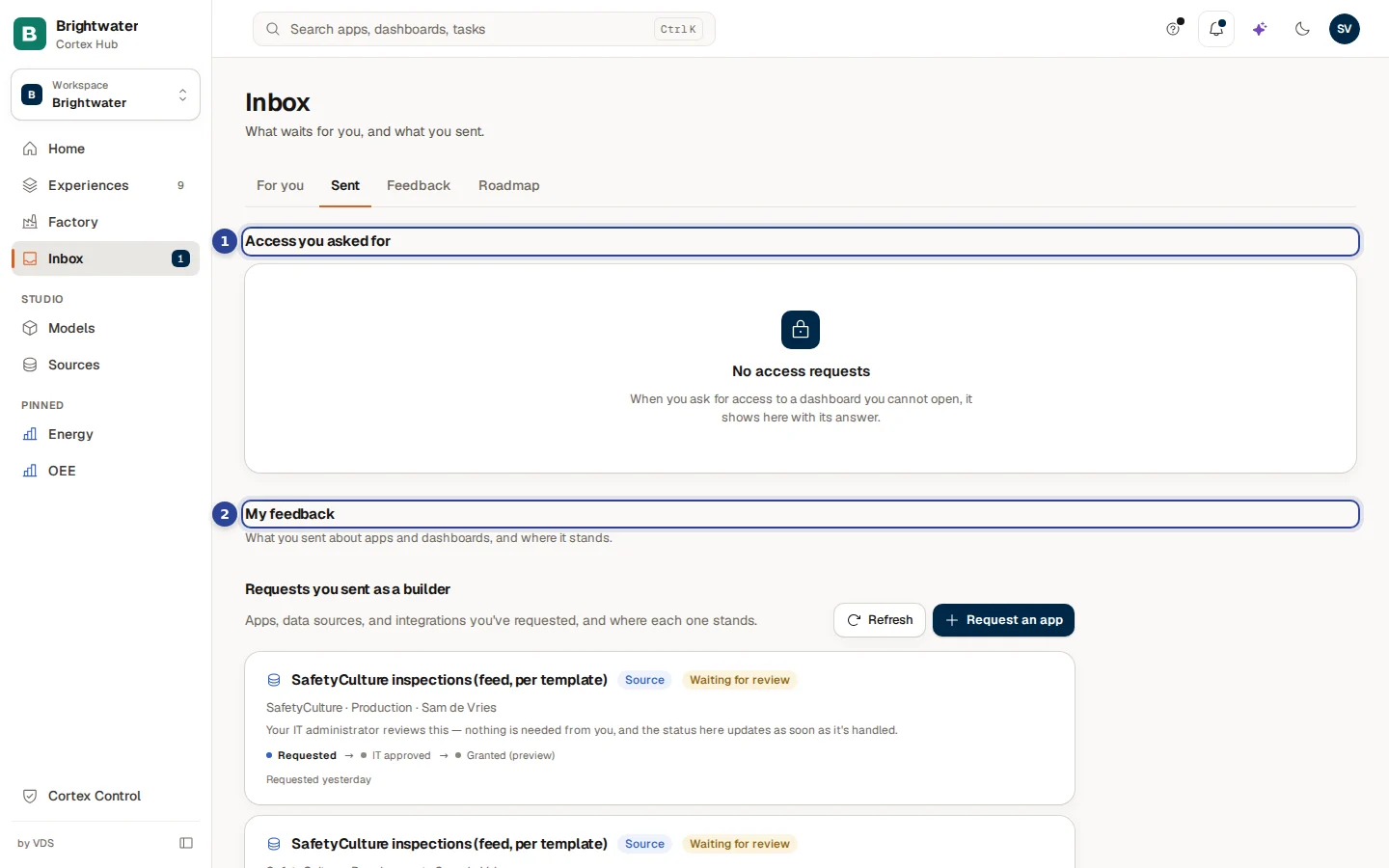
Open Inbox and the Sent tab. Under My feedback ("What you sent about apps and dashboards, and where it stands.") every message is a card with the name of the dashboard or app, whether it is an App, Dashboard or Ask item, whether it was a Problem or an Idea or feedback, a status, an excerpt and when you sent it. When a month was set you also see "Target: ...". A message with no kept text says "No text was kept for this report."
| Status | What it means |
|---|---|
| New | Sent, not looked at yet. |
| Reviewed | Someone read it. |
| Needs more information | The maker needs more from you and may ask you. |
| Planned | It is on the roadmap, often with a target month. |
| In progress | The maker is working on it. |
| Shipped | It is done. |
| Not planned | The maker decided not to do it. |
| Duplicate | Someone sent the same earlier. |
Request an app
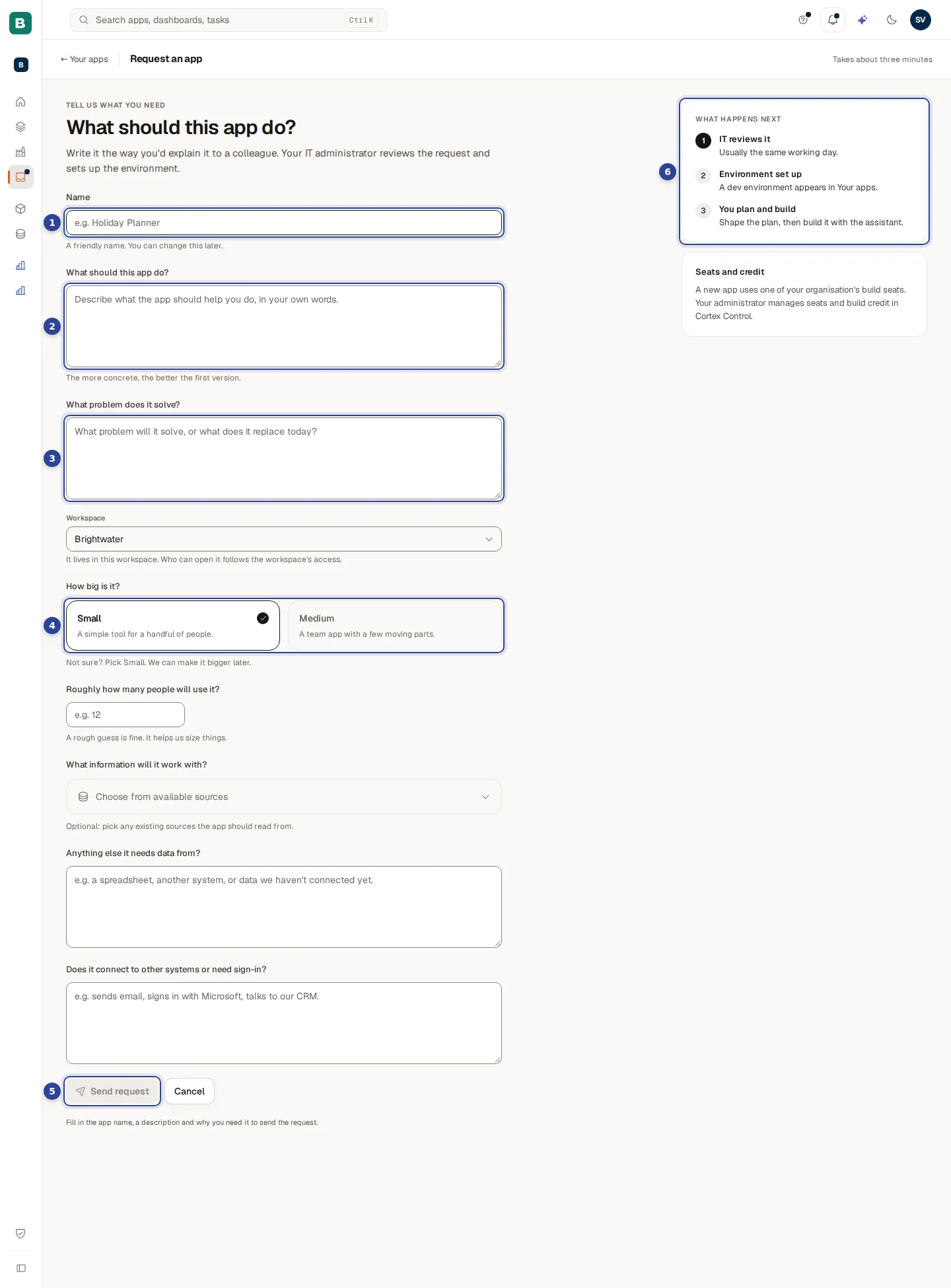
- Name. A friendly name. You can change it later.
- What should this app do? In your own words. The more concrete, the better the first version.
- What problem does it solve? Or what does it replace today?
- Send request. Stays off until name, description and problem are filled in.
- What happens next. Three steps: IT reviews it (usually the same working day), Environment set up and You plan and build.
Requesting an app is for people with a Studio seat. Open it from Inbox, tab Sent, with Request an app (a button above the list of the requests you sent as a builder). The page takes about three minutes.
If the builder policy lets you create apps yourself, the button and the page say Create an app instead: a short form with Name, What should this app do? and the number of people, no problem field and no What happens next column. Create app says "App created", sets the app up for a moment and opens its Plan page.
Your requests, of every kind, are in Inbox, tab Sent: each shows its status, who decided it and when, and a dataset access request links to the dataset. The Sources page no longer has an Access requests tab.
Open the page
In the Sent tab choose Request an app. A short line at the top of the page says it takes about three minutes.
Fill in the three required fields
Name, What should this app do? and What problem does it solve?. If you started from a prompt in the Studio start dialog, they may already be filled in. You can change everything.
Add what helps (optional)
Say roughly how many people will use it, choose existing sources under Choose from available sources, and describe other data or connections in the boxes below.
Send the request
Choose Send request. Cortex says "Your request has been sent for approval." and takes you to Sent.
| Field | Required | Notes |
|---|---|---|
| Name | Yes | A friendly name. Up to 120 characters. |
| What should this app do? | Yes | Up to 2,000 characters. |
| What problem does it solve? | Yes | Up to 2,000 characters. |
| Roughly how many people will use it? | No | A whole number from 1 to 100000, or empty. |
| What information will it work with? | No | Existing sources the app may read from. Only a wish list: it grants no access. |
| Anything else it needs data from? | No | For example a spreadsheet or another system. |
| Does it connect to other systems or need sign-in? | No | For example sends email or signs in with Microsoft. |
You follow the request under Requests you sent as a builder in the same tab. A new app uses one of your organisation's build seats. Your administrator manages seats and build credit in Cortex Control.
For builders: the Feedback and Roadmap tabs
With a Studio seat the Inbox has two more tabs. Feedback lists what the users of your apps and dashboards said: you set a status and a target month, put an item on the roadmap, ask the sender a question or plan a change. Roadmap is the view you keep for the people who use your work. They are described in Studio start.
Example: Sam reports a problem and follows it
Sam de Vries at Brightwater Foods notices that the OEE dashboard shows a line that has been switched off for a month.
- Sam opens the three dots, chooses Report a problem and writes: "Line 4 is still in the Lines page, but it was decommissioned in September." Sam attaches a screenshot and chooses Send.
- Cortex says "Thank you. Your message about OEE was sent."
- A day later Sam opens Inbox and Sent. The card under My feedback says Reviewed. Two days later it says Planned with "Target: next month".
- Sam opens Roadmap on the dashboard and finds the item in the next month, with the status Planned.
- After the update the status says Shipped.
Questions and problems
The Inbox
Decide the tasks that wait for you, hand a task over, and follow your access requests and your feedback.
Your account, language and appearance
Everything behind your initials at the top right. Change the language, switch between light and dark, collapse the menu, manage your subscriptions, open the documentation and sign out.