Signing in and your first minutes
How to sign in with your work account, what you see first, how to change language and appearance, and what to do when something is missing.
Signing in to Cortex takes one click, because Cortex uses the account you already use at work. This page walks you through the sign-in, the first screen, the menu and the few settings you can change yourself. It ends with a list of what to try in your first five minutes.
Who can do this
Everyone. If your organisation has given your account access to Cortex, you can sign in. What you see after that depends on what has been shared with you and on your role: see Who can do what.
What happens when you sign in
Cortex has no passwords of its own. Your organisation's Microsoft sign-in (Microsoft Entra) decides who you are, so the rules your organisation already has, such as a second step with your phone, apply here too.
The sign-in screen shows your organisation's name and logo.
Your work account, with the steps your organisation requires.
Has your account been given access to Cortex?
With the dashboards, apps and workflows shared with you.
Open the address
Open the address your organisation gave you. The sign-in screen says "Use your work account." (with your organisation's name when Cortex knows it) and shows the logo of your organisation.
Choose Sign in with Microsoft
Microsoft asks for your work account if it does not know you yet, then sends you back to Cortex. You land on Home.
Inside Microsoft Teams you do not see the sign-in page: Teams signs you in with a small pop-up. See Cortex in Microsoft Teams.
When sign-in fails
The sign-in screen explains what went wrong in a box under the button.
| Message | What it means | What to do |
|---|---|---|
| Sign-in did not complete | Microsoft could not finish signing you in. | Choose Try again. If it keeps happening, contact your administrator. |
| This account belongs to another organisation | You used an account from outside your organisation, for example a private one. | Sign in with the work account of your own organisation. |
| You do not have access | Your account is valid but has not been given access to Cortex. | Ask your IT team to add you. |
Under the button the screen also says "Nothing to see after you sign in? Ask IT to give you access." That is the same situation seen from the other side. Access and sign-in covers every one of these messages and the "cannot open" screens in detail.
Hub or Control?
Cortex has two places to be. Everyone has the first one.
| Cortex Hub | Cortex Control | |
|---|---|---|
| For | Everyone | IT administrators |
| What you do there | Ask questions, open dashboards, apps and workflows, handle tasks, follow your numbers. Builders also build in Studio here. | Manage people, approvals, policy, data sources, the AI engine, the licence and the audit log |
| Who can open it | Everyone with access to Cortex | People with the Admin role |
You start in the Hub. If you are an administrator, the product switcher at the bottom of the left menu offers Cortex Control, and Control offers Cortex Hub to go back. If you are not an administrator, you simply do not see it. Who can do what explains the roles.
What you see first
The Hub opens on Home: a greeting, a question box, your work, your recent questions and what you pinned.
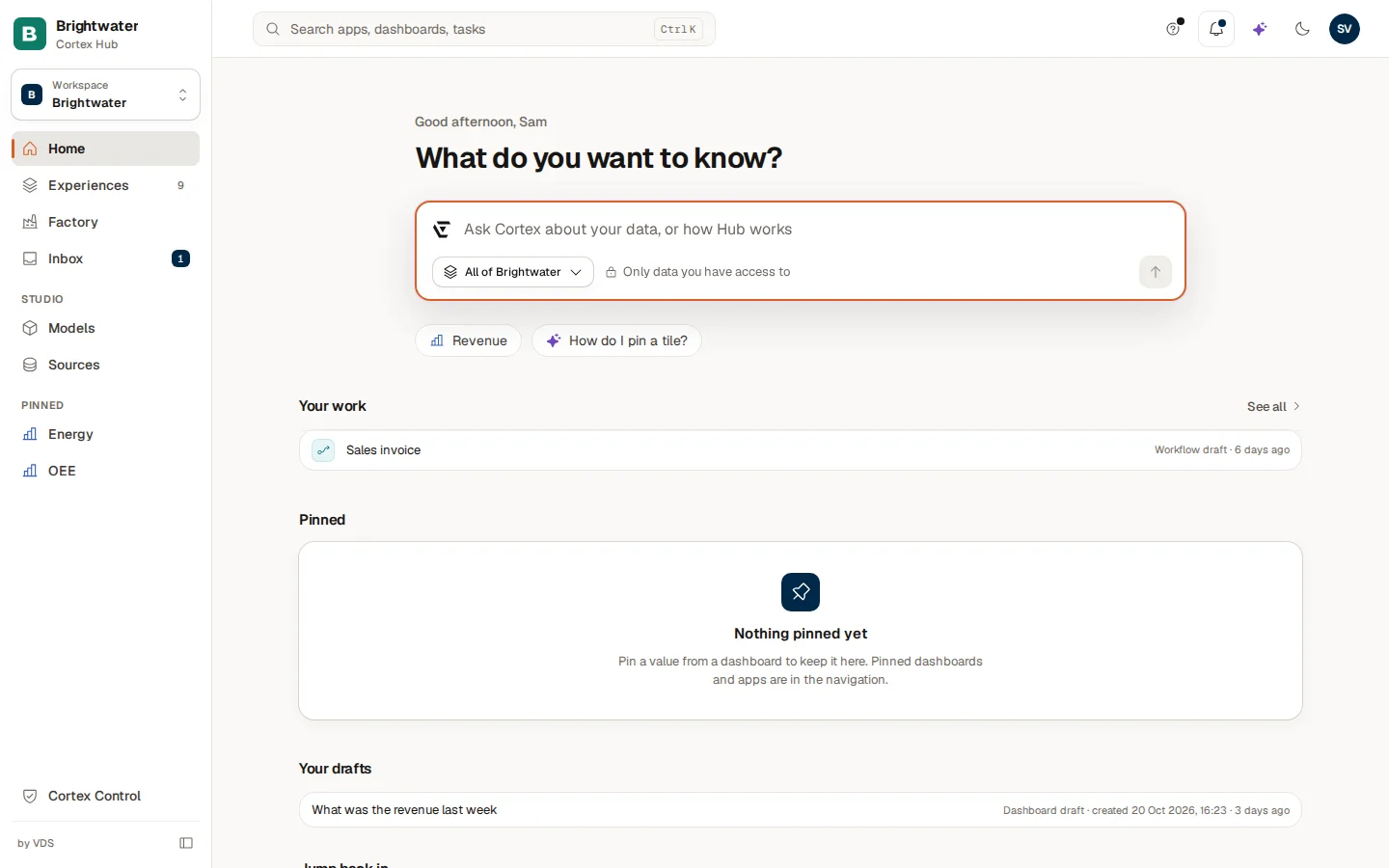
In the menu on the left you find Home, Experiences (all your dashboards, apps and workflows), the Inbox (what waits for you and what you sent) and, depending on your organisation, other areas such as Factory. With a Studio seat the group Studio is there too, with Models and Sources. Under those, Pinned lists your favourites.
At the top, next to the search box, the bell shows your notifications: digests, alerts, reminders to renew a permission, and failures. Tasks that wait for your decision are in the Inbox, not in the bell. See Find your way around for the screen part by part.
The account menu
Next to your initials (top right) sits a button to switch between light and dark mode. Choose your initials to open the account menu.
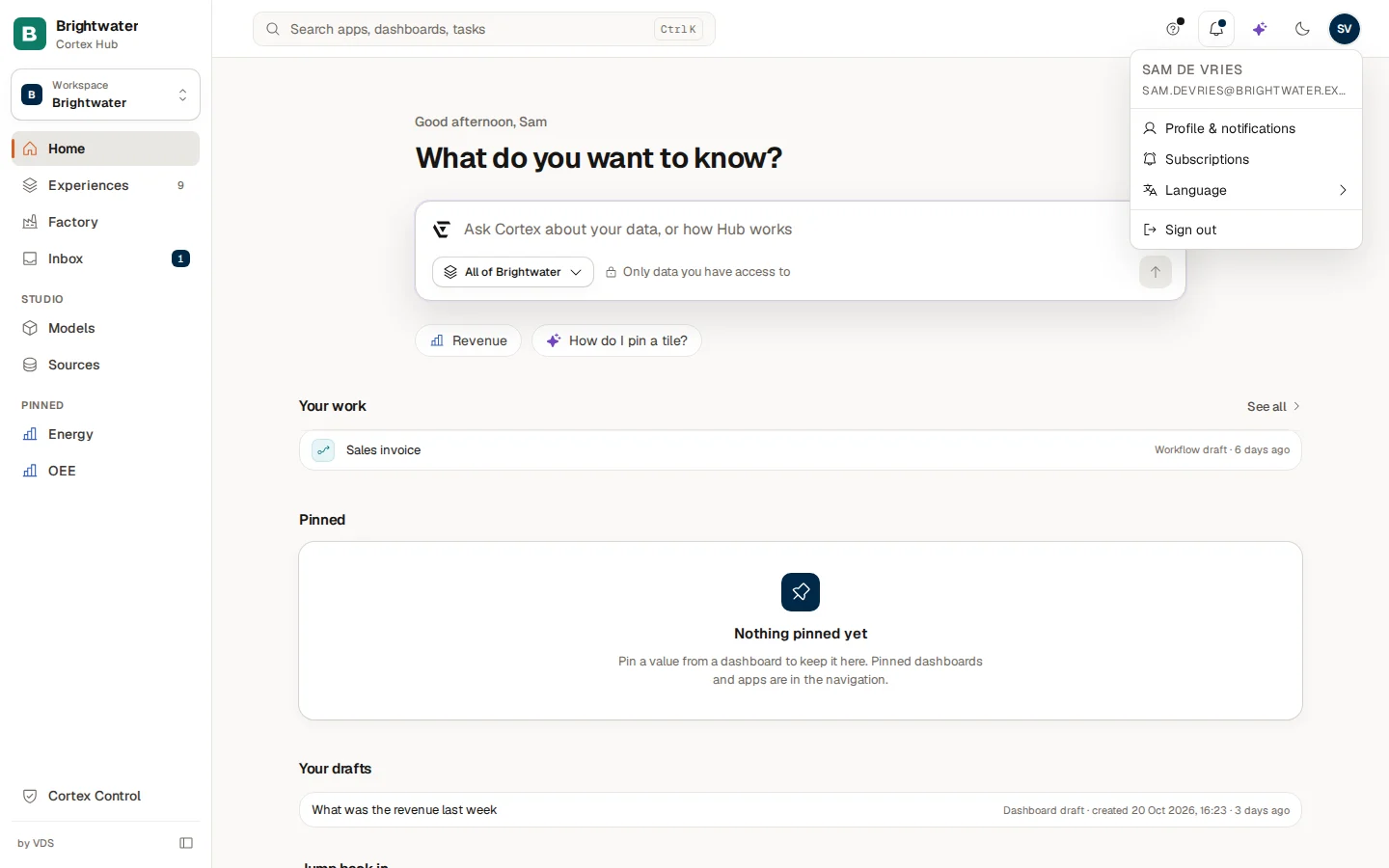
| Entry | What it does |
|---|---|
| Profile & notifications | Your profile page. Only people with a Studio seat see this entry. |
| Subscriptions | The digests and alerts you subscribed to. |
| Language | Switch between English and Nederlands. Cortex remembers your choice. |
| Sign out | Signs you out of Cortex. |
This documentation is in the ? Help menu in the top bar: choose Docs (Builder docs if you have a Studio seat; that opens the Studio section) to open it in a new tab, in your language, when your organisation has the documentation site.
The button next to your initials is called Switch to dark mode or Switch to light mode, whichever applies. See Your account, language and appearance.
Your first five minutes
Ask something you know the answer to
On Home, try a question about a figure you know well, for example "What was the revenue this year?". Check the answer against what you expect, and open the line How I got this under it to see the figures, filters and period. See Ask Cortex.
Open Experiences
Choose Experiences and look at the dashboards, apps and workflows that are shared with you. See Experiences.
Pin or subscribe
Pin a value you care about to Home, or subscribe to a dashboard to get a digest or an alert. See Pin a value, pin a dashboard, subscribe.
Ask for access when you need it
If you cannot open something, the page lets you request access. The owner or IT decides, and the answer shows up in your Inbox on the Sent tab. See The Inbox.
Set your language
Open the account menu, choose Language and pick English or Nederlands.
Example: Sam's first sign-in
Sam de Vries has just joined Brightwater Foods. IT has added Sam to Cortex. Sam opens the address, chooses Sign in with Microsoft and lands on Home. The list under Experiences holds the Energy and OEE dashboards that were shared with Sam. Sam asks "What was the revenue this year?", reads the figure, opens How I got this and then pins the OEE dashboard. The next morning Sam finds OEE under Pinned in the menu.