Request an app
From a request in the Hub to a published app: IT approves, a builder plans and builds, and the requester opens it and gives feedback.
Brightwater Foods has quality checks on paper: operators fill in a sheet on the packing line and someone types it over at the end of the shift. Sam de Vries asks for an app, Quality checks, that replaces the sheet. This guide follows that request through three roles: the person who asks, IT who approves, and the builder who makes it.
You end up with a live app that people open from Experiences, and a feedback loop that keeps it improving.
Requester: fills in the request page.
IT admin: approves in Approvals; the environment is set up.
Builder: plans with the assistant, builds, checks the preview.
Builder with the Deployer role: publishes to production.
Requester: opens it and sends feedback.
Before you start
Who can do this
The request page is for people with a Studio seat: it is the builder's way to ask for a new app, and without a seat Cortex shows its not-found page. IT approves in Cortex Control as an admin. Publishing to production needs the Deployer or Admin role in Studio. Whether builders may start an app without IT approval depends on the builder policy IT set, see Builder permissions and policy. A person without a seat asks a colleague with a seat, or IT, to request on their behalf. See Who can do what.
The steps
Request the app (requester, in the Hub)
Open Inbox, then the tab Sent, and choose Request an app. You can also choose New and then App on Experiences. The page takes about three minutes.
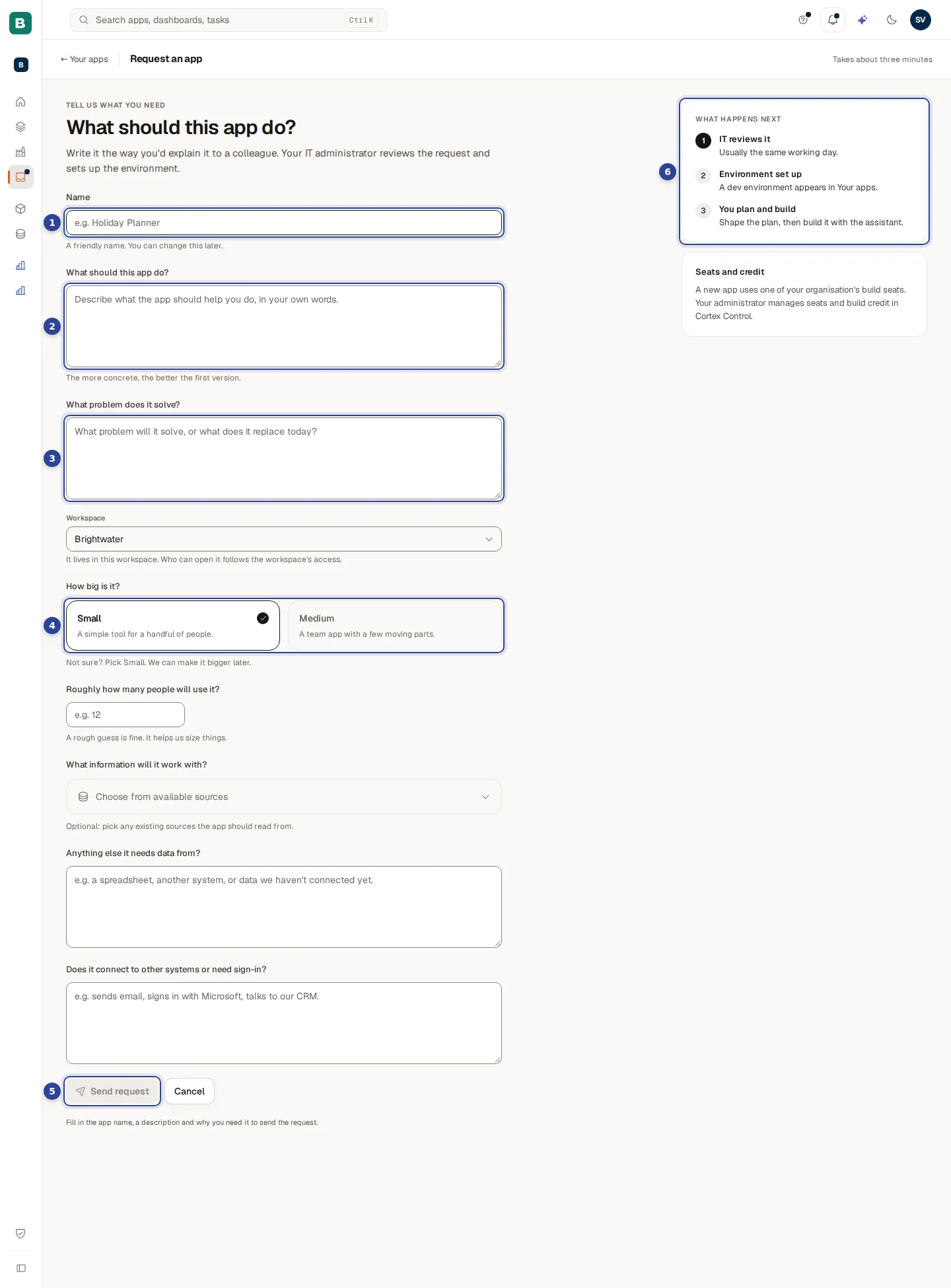
- Name. For example "Quality checks".
- What should this app do? Describe it as you would to a colleague. Each text box shows a counter such as "120 / 1024" that turns to a warning from 90% of the limit. Under it, Tell us more opens a longer box (up to 8,000 characters) for detail: IT sees that text with your request, and it opens your plan as the first message, which you can still edit.
- What problem does it solve? Or what it replaces today.
- The optional fields further down: how many people will use it, which existing sources it may read from, and other connections. There is no size question: every app gets a development and a production environment.
- What happens next: IT reviews it, Environment set up, You plan and build.
Choose Send request. Cortex says "Your request has been sent for approval." and takes you to Sent, where the request shows as Waiting for review.
If the builder policy lets you create apps yourself
Then the page is the short form: Name, What should this app do? and how many people will use it. There is no problem field and no What happens next column. Choose Create app: Cortex says "App created", sets the app up for a moment and opens its Plan page. IT is not involved.
Details: Feedback and the roadmap and Experiences for builders.
Approve it (IT admin, in Control)
Open Approvals in Cortex Control. On the tab Requests the new app is a card ("Provision …"), with who asked and when, and the buttons Decline and Approve. Read the card, then choose Approve. A dialog says "This creates the app and runs the provisioning pipeline." Confirm with Approve again. Cortex says provisioning started.
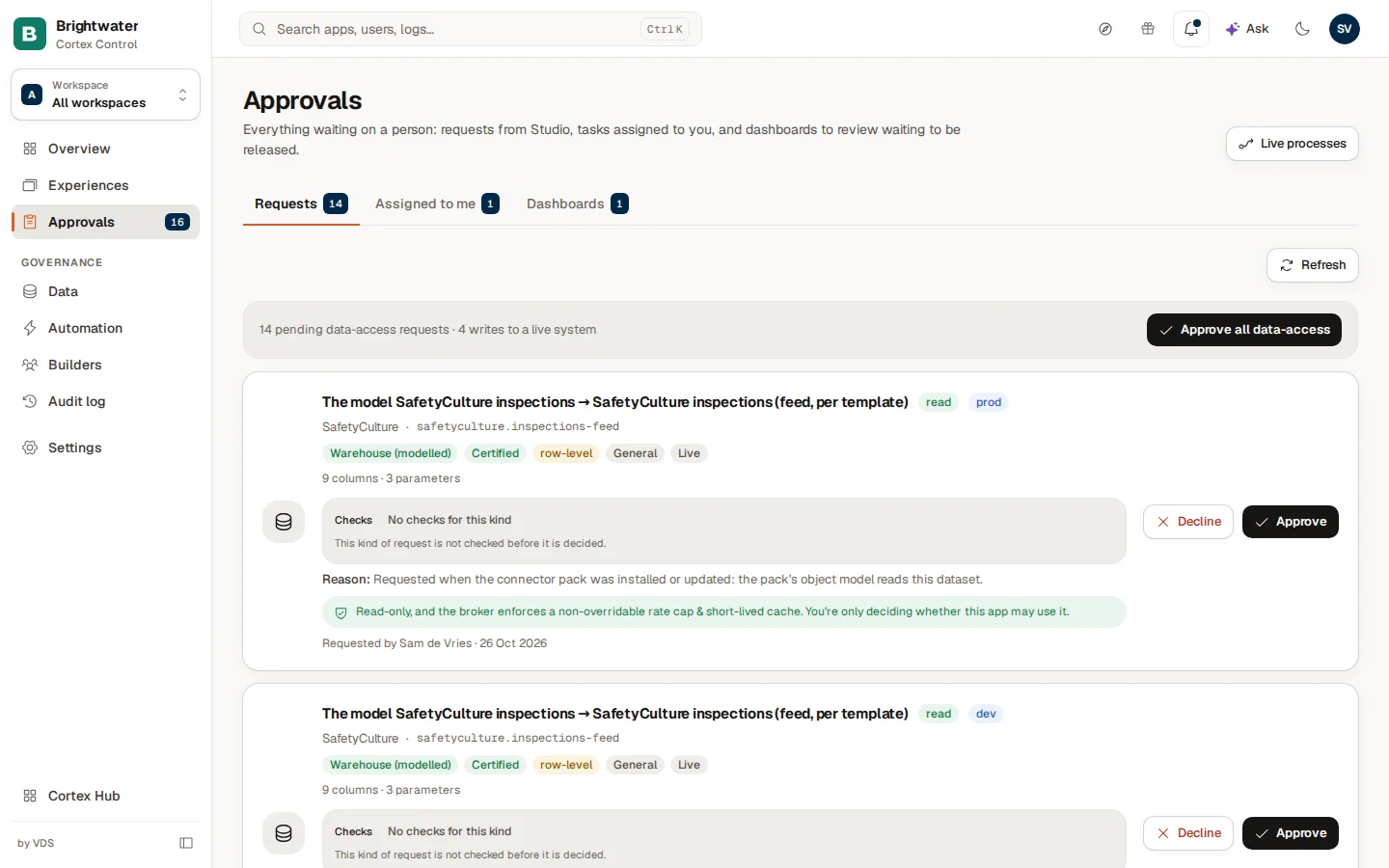
To refuse, choose Decline and write a clear reason: the requester reads it in the Hub. The decision is written to the audit log.
Wait for the environment (requester)
Under Sent the request moves from Waiting for review to Being set up. A dot shows when something changed. When it says Ready, the app is in your Experiences list and the card offers Build it.
Plan the app (builder, in Studio)
On Experiences find the card of the app. Choose Plan for the careful route: you describe what you want and the assistant asks questions before it writes anything. The plan has sections such as Roles & access, Data, Pages, Key behaviours and What I will build. Mark every section Looks good, then choose Build this plan. Choose Build instead of Plan to skip planning and build only what you describe.
Details: Build an app.
Build and check the preview (builder)
The build workspace opens with the chat on the left and a private preview on the right. Click through the preview, use View as to see the app as another role, and ask the assistant for changes. The tab Checks can click through the app the way a person would. Nothing reaches your users yet.
If the app needs data from a system, the Data tab shows what it reads. Add a source or Request prod access sends a data-access request to IT: it arrives in Approvals like step 2.
Publish (builder with the Deployer role)
Choose Publish. The dialog Publish to production? shows a Data check for production and a Quality check. Confirm. When your organisation requires a second approver for production, the publish waits in Approvals until a different admin approves it. The card then lists the new packages and database changes.
Open it and give feedback (requester, in the Hub)
The app is in Experiences under Apps. Select its card: the app opens inside the Hub, below the top bar. Use the Feedback button above the app and choose Give feedback for an idea or Report a problem for something that does not work. Write your message and choose Send.
Follow it under Inbox, tab Sent, in My feedback: each message has a status such as New, Reviewed, Planned, In progress or Shipped. The builder sees it on the Feedback tab of their Inbox and can plan a change from it.
Details: Apps, workflows and records and Feedback and the roadmap.
If something does not work
What next
Answer and follow a figure
Ask a question, open the dashboard behind the answer, change the period, keep the value on Home and get a line in the bell when it crosses your limit.
Build a dashboard
Check the figures in the model, build a dashboard with the dashboard chat, arrange the tiles and the phone layout, publish it and choose who can open it.