Automate an approval
Build an order-approval workflow, test it, publish it, let a manager approve in the Inbox and follow the run, with IT keeping an eye on it.
At Brightwater Foods a large sales order must be checked by the sales manager before it reaches the ERP. Today that is an email that gets lost. Sam de Vries, a builder, turns it into a workflow: an order waits for the manager, then is written to the ERP. The manager decides in the Inbox, and IT can see every run.
You end up with a live workflow that starts by itself, stops at a person, continues when that person decides, and leaves a trace of everything that happened.
Builder: steps, trigger, who decides.
Builder: a debug run on sample data.
Builder publishes; IT approves the permissions.
An order arrives; the run stops at Manager approves.
Manager: approves or rejects in the Inbox.
Everyone with access: the run page. IT: Live processes.
Before you start
Who can do this
The builder needs a Studio seat. If your builder policy sends new workflows to IT, choosing Request workflow asks IT to approve first. A workflow that writes to another system needs an admin to approve its permissions, and a write to an external system needs a second person to approve. The manager only needs to be able to sign in to Cortex Hub. The data the workflow reads and writes must be connected and granted first: see Connect a new system.
The steps
Create the workflow (builder, in Studio)
Open Experiences, choose New and pick Workflow under "Start from scratch". Give it a Name ("Order-to-cash approval") and under "What it does (optional)" write one or two sentences. Under "Or start from a starter" you find Approval before an ERP write: a ready flow with its steps in place. Choose Request workflow (or Create from starter). When your policy allows it, the workflow opens in the editor at once.
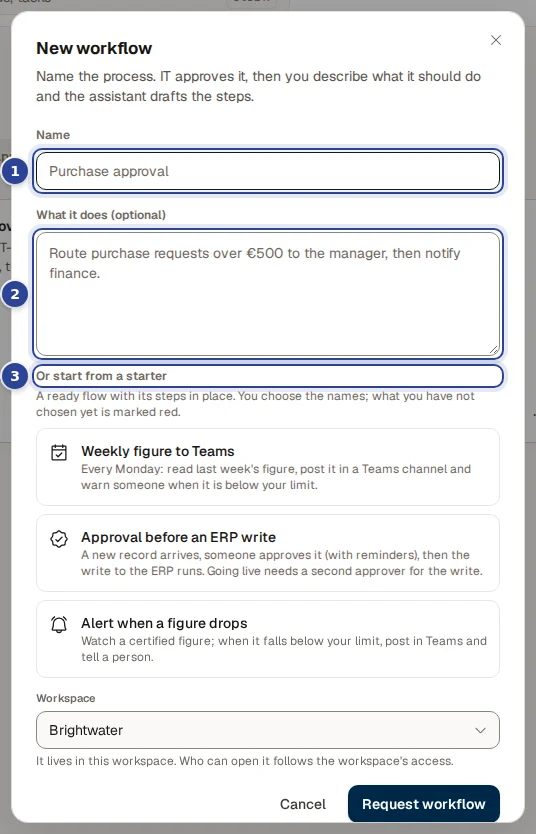
- Name. What people see in Experiences and in the Inbox.
- What it does (optional). The assistant reads this when it drafts the steps.
- Or start from a starter. Ready flows with their steps in place.
Details: Workflows: build the steps.
Build the steps (builder)
Describe the process in the chat ("Add a manager approval before the last step") or work on the canvas. Choose Editing first, then Add step. The order-approval flow has four steps:
| Step | Kind | What it does |
|---|---|---|
| Read the order | Read source or Read records | Reads the sales order from the connected system. |
| Order over the limit? | Decision | Branches on a Condition. Otherwise is taken when nothing else matches, here: small orders skip the approval. |
| Manager approves | Approval | Waits for a person. Set Who decides under Assignee and write the Question for the approver. Optional: a Task form, Reminders, Escalate after (hours). |
| Write the order to the ERP | Write | Writes the approved order to the ERP. |
A field that takes a value has a small curly-bracket button: use it to put the order number or amount from an earlier step in the question, so the manager sees what they approve. Choose Save step after each step.
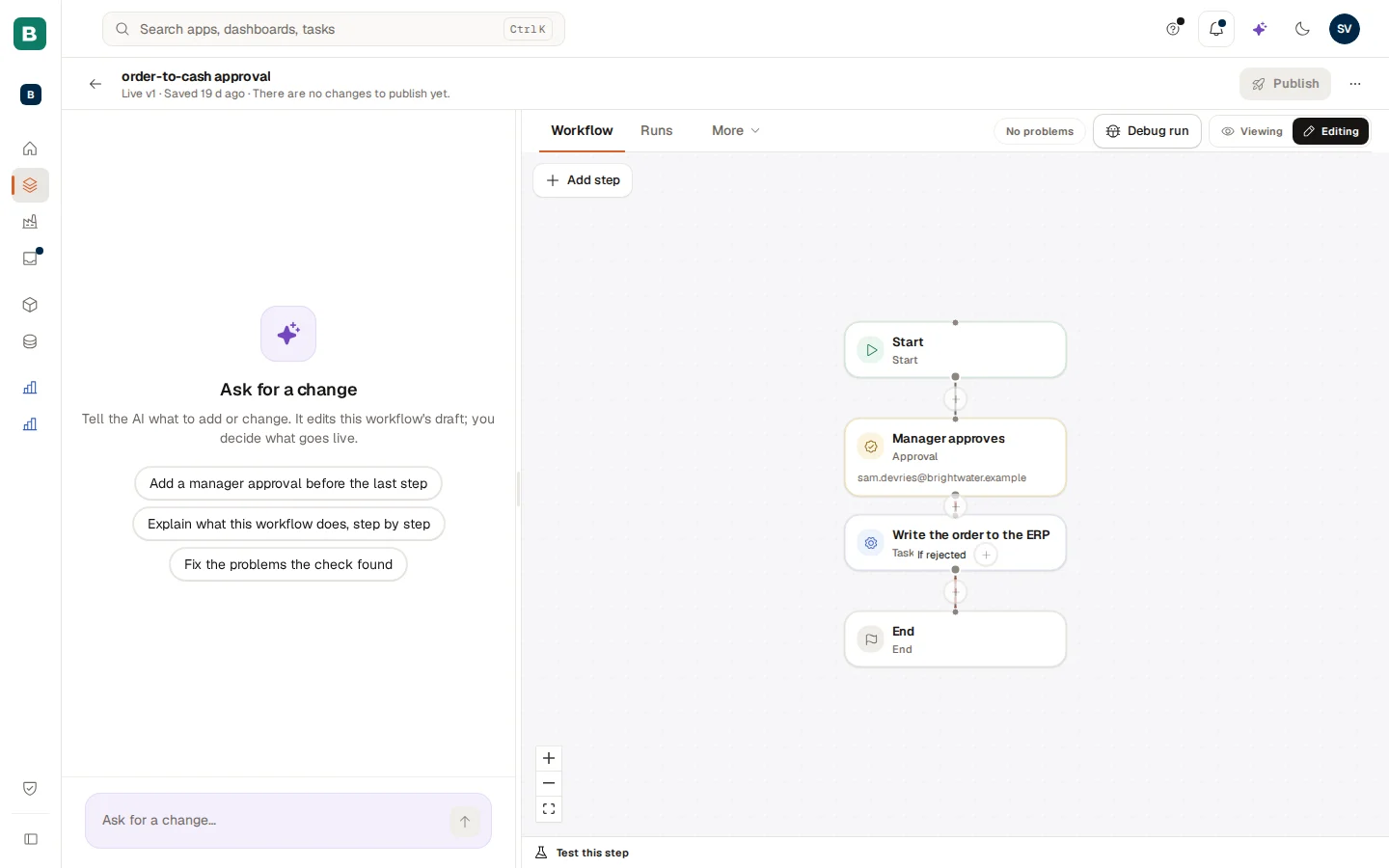
A red message in a step's settings tells you what stops it from running, for example that the workflow has no approved access to a source yet. That is step 5.
Choose the trigger (builder)
Select the Start step. Under Starts when choose A new record appears in a dataset to start one run for every new order, or When someone starts it (or on a schedule) to start it by hand. Under If a run fails tick Tell the workflow owner and Tell IT (the admins).
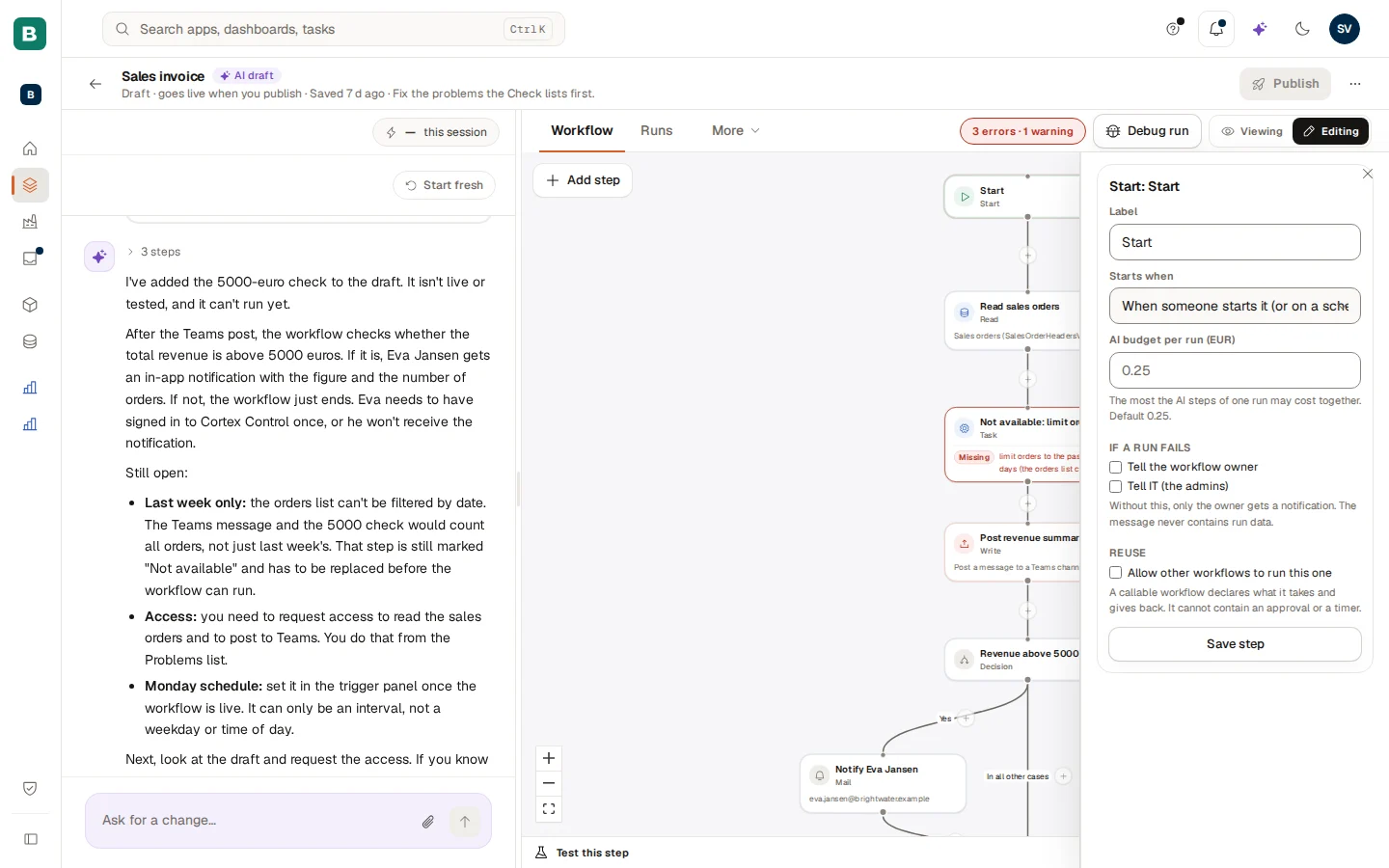
Details: Workflows: build the steps.
Give it access to the data (builder, then IT)
A step that reads or writes a system says "no access yet" until it is approved. Use Request it in the problem list. The request arrives in IT's Approvals (step 5). While you wait, you can test with sample data.
Test it with a debug run (builder)
Open More, then Sample data, and fill in an order as JSON. Choose Debug run. Reads run for real, writes and approvals are simulated. At the approval the run pauses and the bar above the canvas asks you to choose the outcome: Approve or Reject. Select a step to see its Input and Output. To test one step at a time, use Run to here in the Test this step dock. A debug run never creates an Inbox task.
Details: Test, run and publish a workflow.
Publish (builder), approve the permissions (IT admin)
Resolve the problems in the list, then choose Publish. The window "Review before you publish" lists the differences. Confirm. When the workflow needs permissions that an admin must approve (a write, an event), the message says "Sent for approval" and the button reads Waiting for approval.
The IT admin opens Approvals in Cortex Control. On the tab Requests the card "Put … live" lists every permission: what the workflow reads, writes and which events start it. Approve all gives them and puts the workflow live; Deny grants nothing and tells the publisher. A write to an outside system needs a different person than the publisher. Then the builder sees "Workflow is live."
Details: Approvals.
A run waits (automatic)
An order arrives and a run starts. At Manager approves it stops. The builder sees it on the Runs tab of the workflow as Waiting, with the step and the person it waits for.
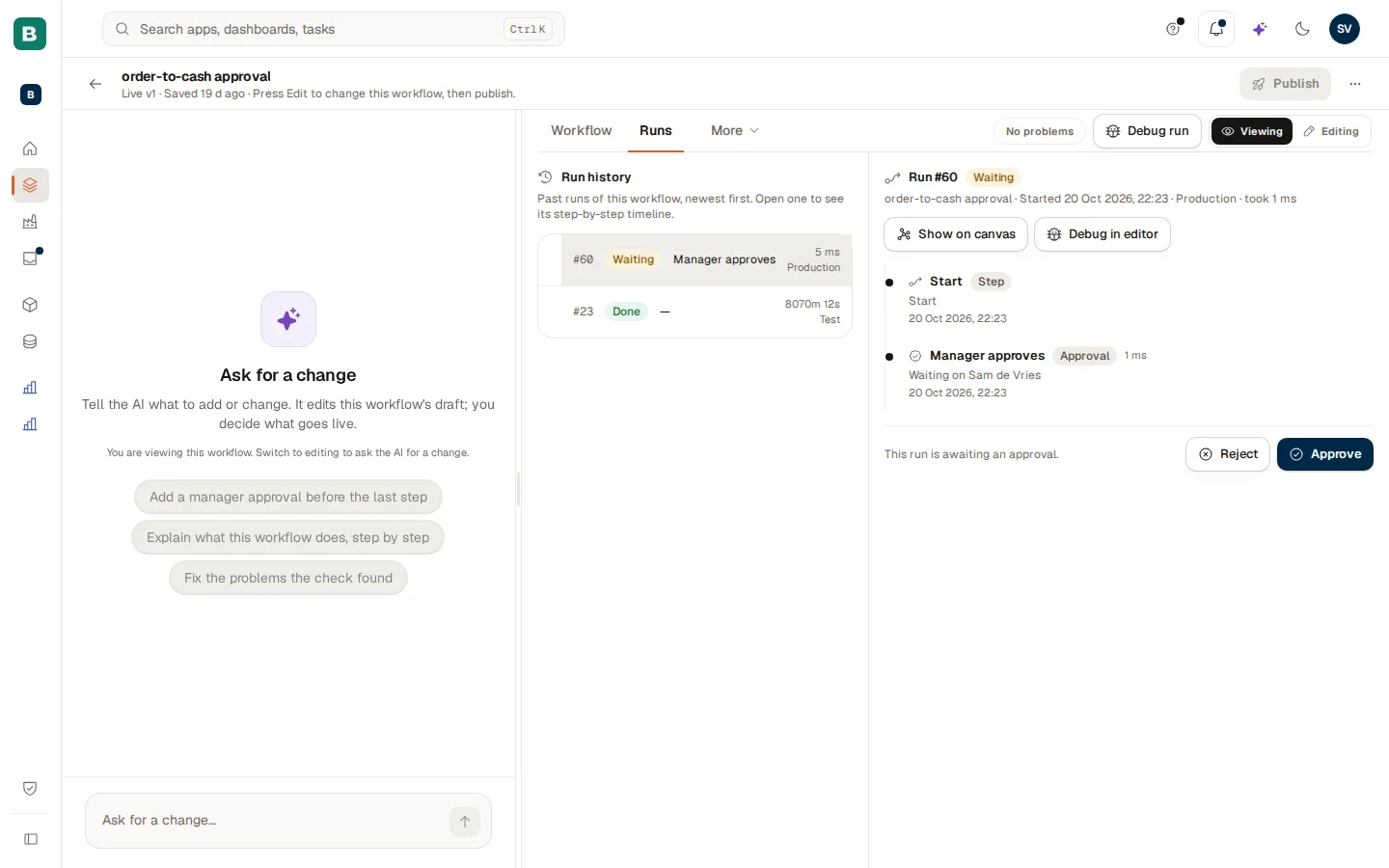
The manager approves (manager, in the Hub)
The manager sees a number next to Inbox in the menu. In Inbox, tab For you, a task card shows the workflow, the step, who started it and how long it has waited. Read the summary and Details, then choose Approve or Reject. A box opens with "Add a note (optional)"; confirm. Cortex says "Approved" and the run continues with the next step.
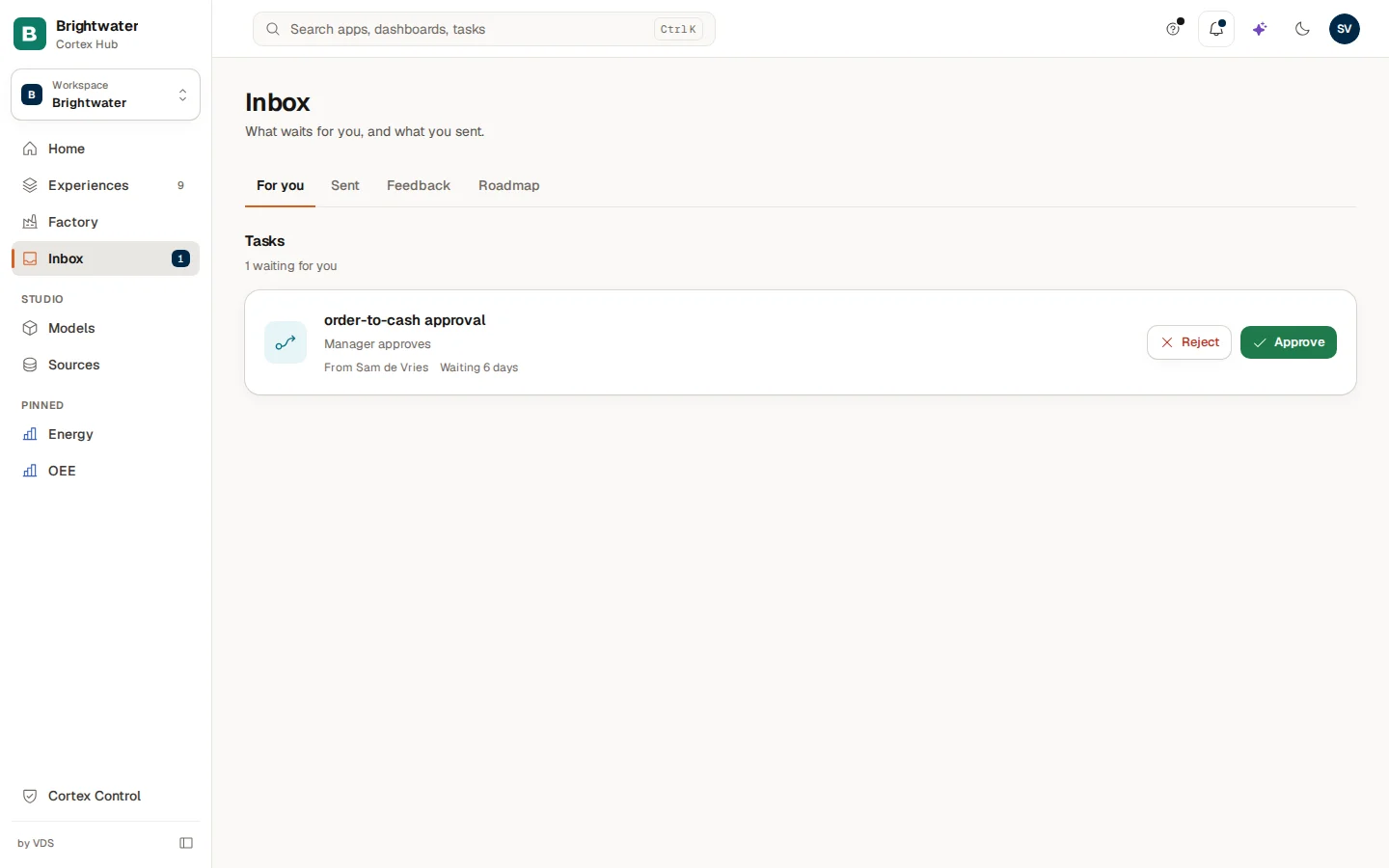
Tasks do not appear in the notification bell, only in the Inbox. Details: The Inbox.
Follow the run (everyone with access)
Open the workflow from Experiences and choose a run under Latest runs. The run page shows the state, Steps done, who the run waits for and one card per step. Diagram draws the whole flow with a result under each step. The person a run waits for also sees Your approval here, with the same decision.
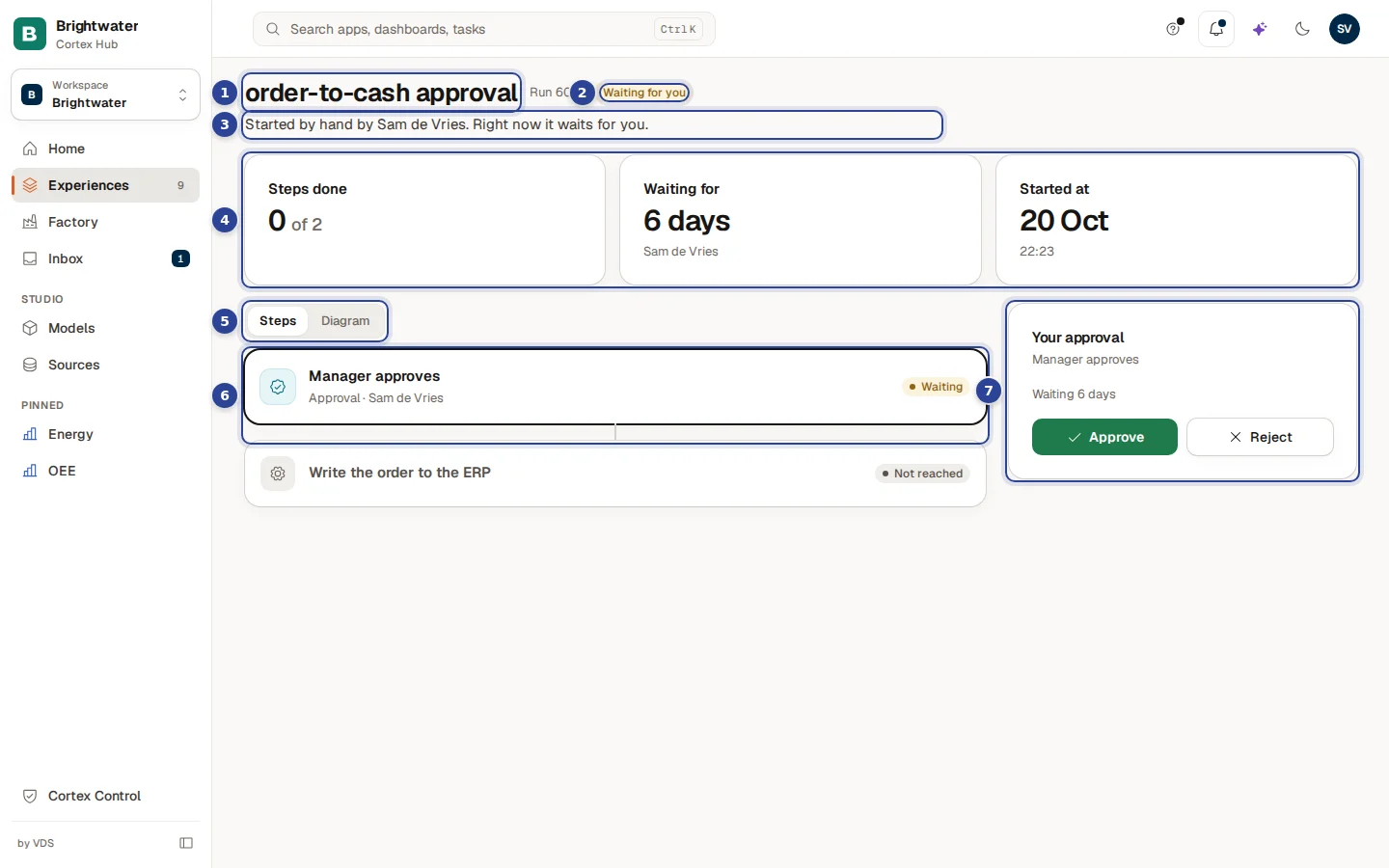
- The workflow name and run number.
- The state, here Waiting for you.
- One sentence about how the run started and where it stands.
- Steps done, Waiting for and Started at.
- The switch Steps or Diagram.
- A step card with its result.
- Your approval, with Approve and Reject.
Details: Workflow runs.
IT sees it (IT admin, in Control)
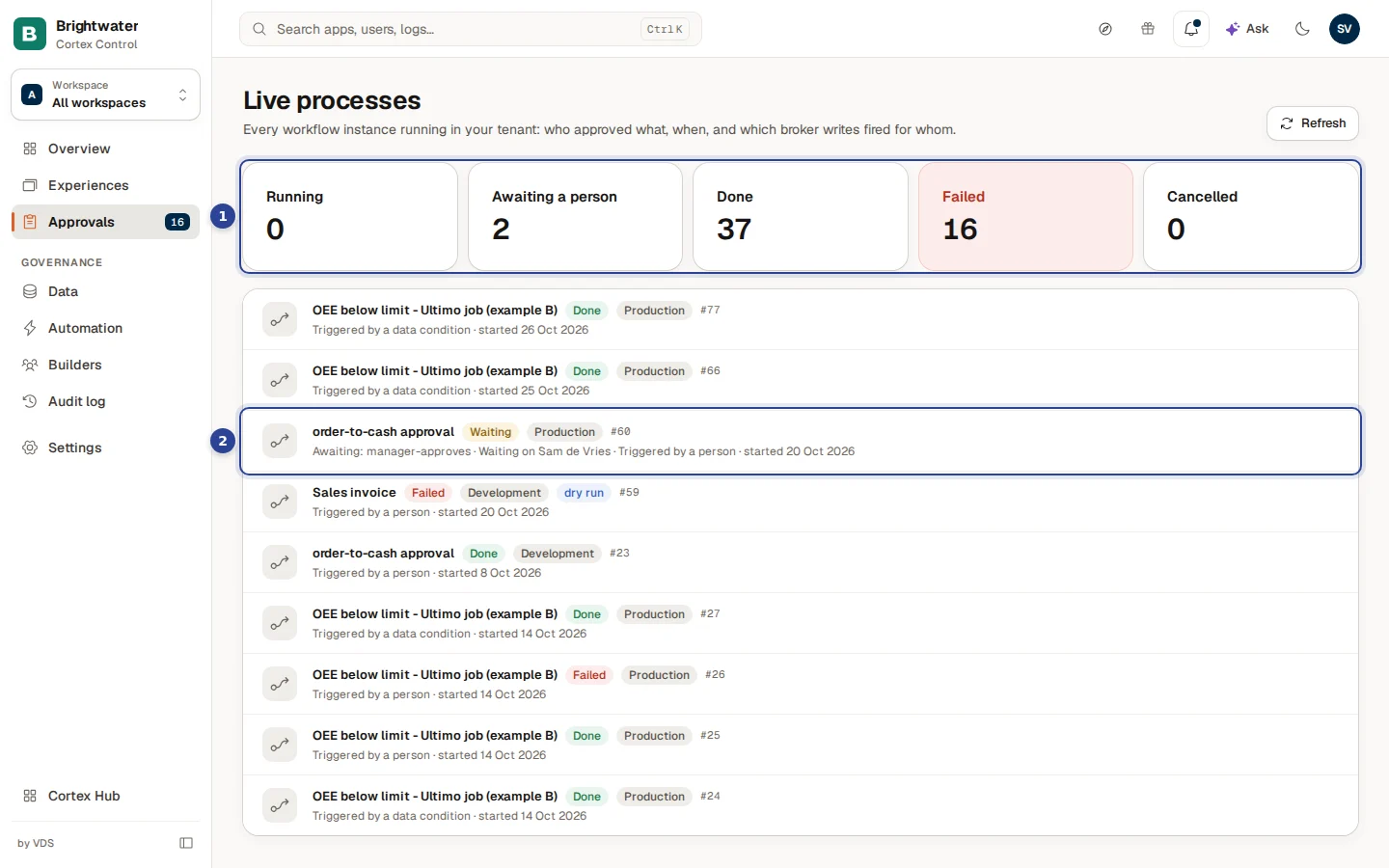
- The counters. How many runs are running, awaiting a person, done, failed or cancelled.
- The approval run. Waiting, in Production, with the step it waits at and who must act: "Waiting on Sam de Vries".
Open Approvals and choose Live processes at the top right. Counters show how many runs are Running, Awaiting a person, Done, Failed and Cancelled; each row names the workflow, the status, the environment and what started it. Open a run for the history step by step. On a failed run Explain this failure says in plain words what went wrong. The Audit log holds what admins did: every decision in Approvals, with who decided and when, and for example cancelling a run (workflow.instance.cancel). Type part of an action name in Action to find it.
Details: Live processes and Audit log.
If something does not work
What next
Build a dashboard
Check the figures in the model, build a dashboard with the dashboard chat, arrange the tiles and the phone layout, publish it and choose who can open it.
Connect a new system
IT connects a system and grants a dataset, a builder brings it into a model, adds checks and publishes, and Ask can answer about it.